Troubleshooting journeys
Find out why a person did not enter a journey, did not get a message, or is not moving to the next block.
Written By Bruno
Last updated 13 minutes ago
Overview
Use this guide when a journey does not reach the people you expect, a message is not sent or shown, or people stay on one block.
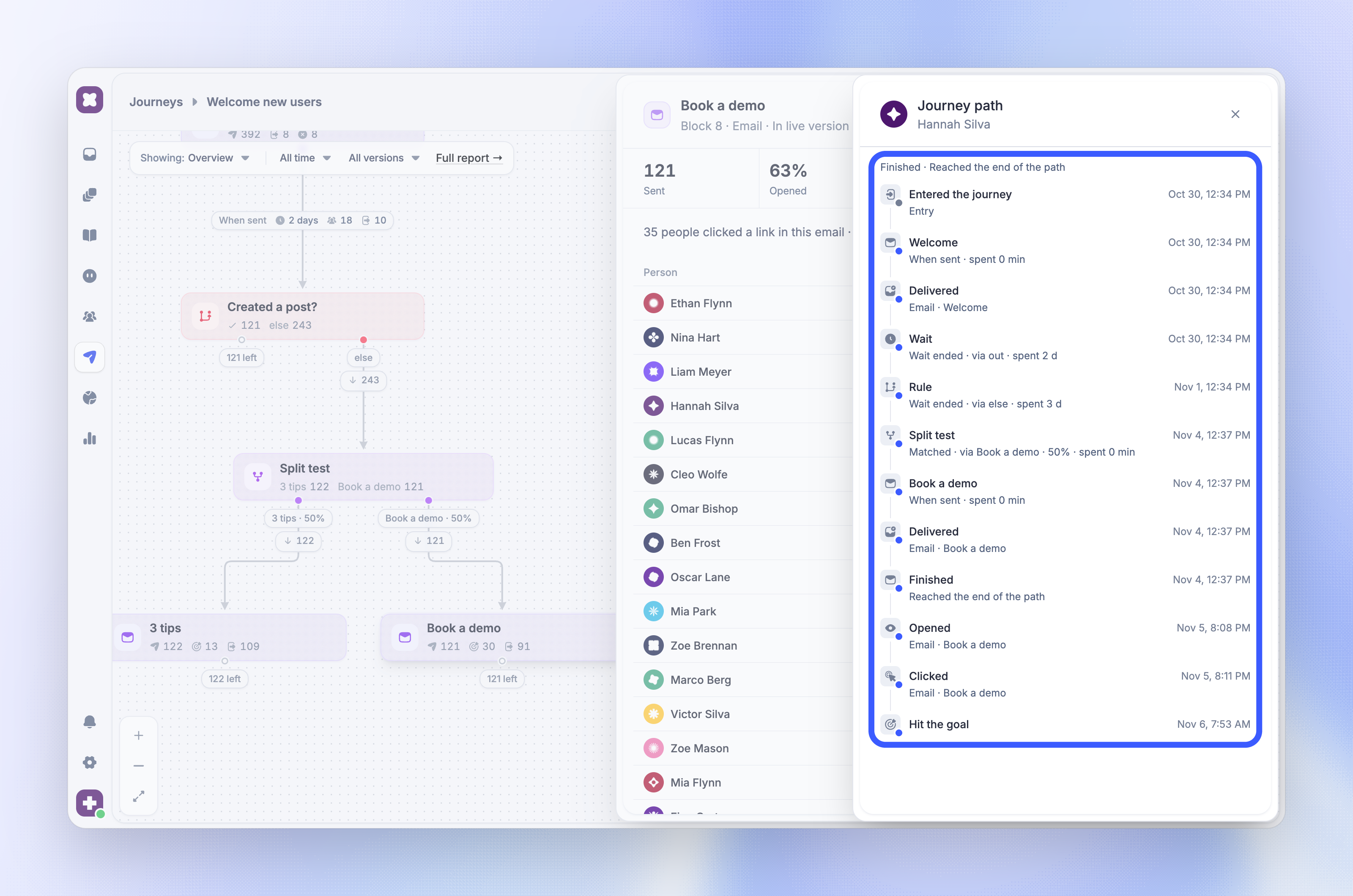
Start with the person. Open the journey in Report mode, click the block where you expected the person, then click the person to open their journey path. You can also find them on the People tab of the full report.
The path shows each block they reached, each delivery, and why they left. If the person is not in the report, they did not enter: go to A person did not enter.
To check the path before you publish, open the editor's More actions menu (⋯) and choose 'Preview as…'. It walks one person through the journey without sending or saving anything.
You cannot open or publish a journey
A webhook block that sends person or custom fields also needs the View Users permission to publish.
Fix errors in the editor
These errors stop you from publishing until you fix them:
A person did not enter
Check these in order:
State - The journey is Live. A paused journey lets nobody new enter, and events tracked while it is paused never start it
Audience - The person matches Who can enter at the moment they enter, including the person type (Users or Visitors & Leads)
Publish choice - If you published with Only people who qualify from now on, people who already matched at that moment do not enter. Only people who start to match later enter
Exit rules - A person who matches an exit rule cannot enter
Already in the journey - A person can be in a journey only once at a time
Re-entry - With Once, a person who went through the journey before does not enter again. With Every match, they must stop matching and match again, and the At most once every (days) spacing must have passed
Event trigger
For When something happens, also check that:
The event happened after you published. Earlier events never count
The event is one of your own custom events, sent from the SDK or the API. Built-in Featurebase events cannot start a journey
The event is not archived. New events are dropped while an event is archived
The event belongs to a person who already exists. Events never create a person
See Track custom events to check that events arrive.
Page trigger
For When they visit a page, check that the Messenger runs on that page for the same workspace, and that the page URL matches your URL rules. Page triggers check the URL only.
Date trigger
For On a date, check that the person has a value in the date attribute, and that the time has passed in the selected time zone.
Company journeys
When Send once per company is on, a person who belongs to no company does not enter.
See Entry triggers & audience for how each trigger works.
An email was not sent
When an email cannot go out, the person leaves the journey at that block, and the report counts them under Not sent. Check these causes:
Email access - Your workspace must have outbound email access. If the email editor shows Request outbound email access before sending, request access. A new default sender can also take a few minutes to set up
No email address - Visitors have no email address. Leave them out of the entry audience or give them an in-app block
Unsubscribed - The person unsubscribed from the email's Subscription, or from all emails
Send window - The email waits for the next opening of the send window. If the window does not open within 30 days, the email is not sent. A custom window where From and To are the same time stops you from publishing
Daily limit - A person who is not verified receives at most 3 journey emails per email address per day. Further emails wait until the next day (UTC)
Note: Opens and clicks are not tracked for emails sent from the default Featurebase address, or from free and new workspaces until they are on a paid plan and 30 days old. Until tracking works, a rule on opens or clicks never matches, and a rule on "did NOT" open or click matches everyone. Add your own sending domain to track them.
An in-app message was not shown
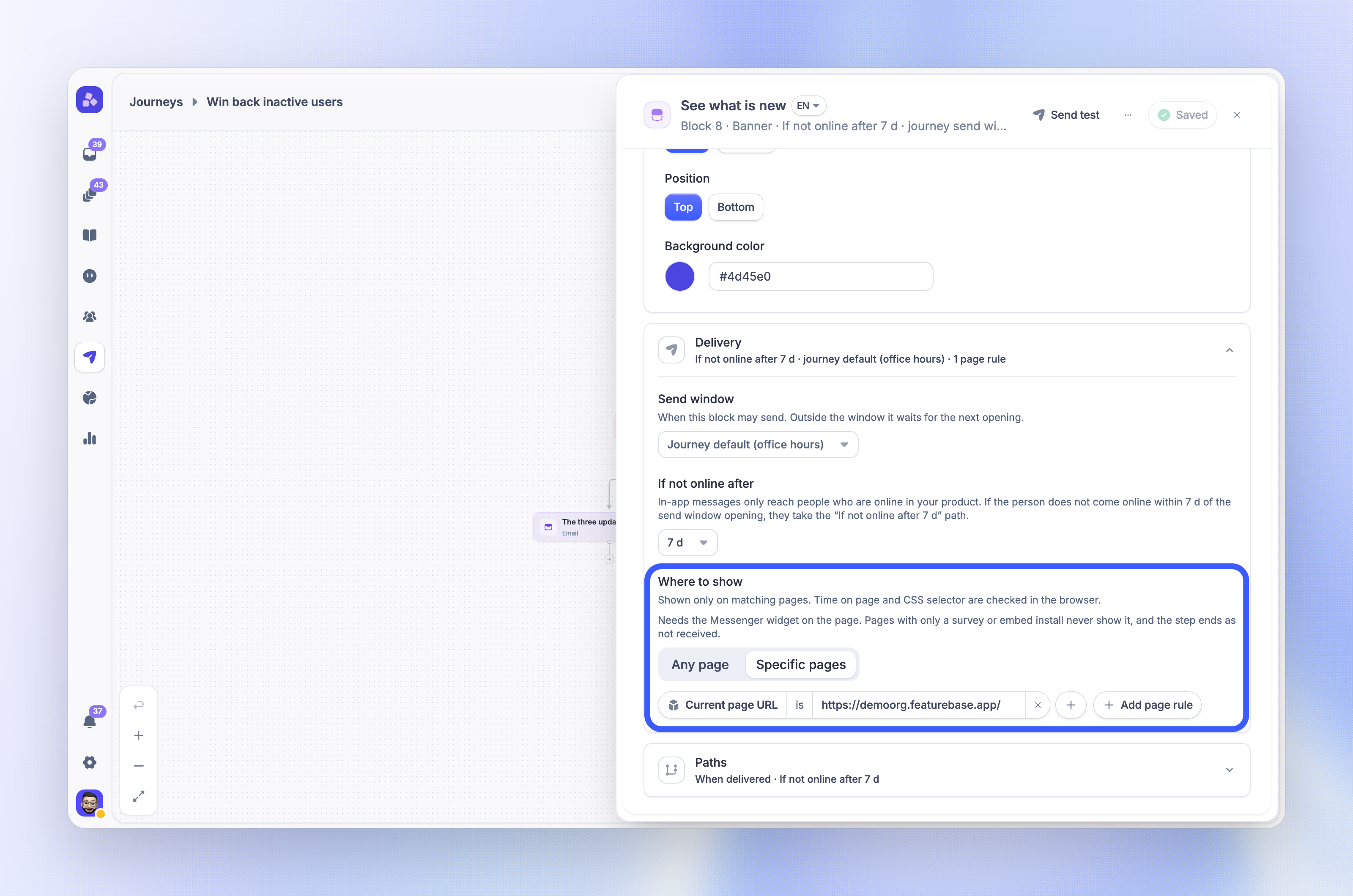
Chats, banners, surveys, product tours, and posts show only to a person who is online in your product. If the message is not shown within the block's timeout, the person takes the If not online after… path (If not delivered after… for product tours and posts). Check that:
The Messenger is installed on the page. Pages with only a survey or embed install never show journey messages
The person is identified in the Messenger, or is a lead that already exists. The Messenger does not create a person to show a journey message
The page matches the block's Where to show rules. Post blocks accept page URL rules only
The send window is open
No other message of the same type is on screen. A person sees one journey message per type at a time, and a journey banner or survey waits while another banner or survey is shown
The block's timeout is long enough for how often this person visits
Product tours
Product tours show on desktop web browsers only, one at a time. A tour starts only when the person opens its start page. People who use only your mobile apps never receive a tour.
People are not moving to the next block
Wait - The person is waiting. Open the block in the report to see who is Waiting
Rule with Keep checking - The rule checks again until the person matches or the time runs out
Paused journey - Nobody moves while a journey is paused. People continue when you resume it
Plan - If your workspace no longer has the required plan, the journey holds all sends until the plan is back
A test send did not arrive
Email tests - Send the saved version of the email to you only. Save the content first. Your workspace also needs outbound email access
In-app tests - Use the published version, so the journey must be Live. Publish or resume it first, then sign in to your product as yourself
Your person record - For in-app tests, your account email must belong to exactly one person record in your workspace, and that record must be verified
Product tour tests - The tour waits until you open its start page
Still need help?
Send support enough context to reproduce the problem:
The journey name and a link to it
The person's email or ID, and the block where they stopped
The end reason or last event in the person's timeline
The exact error or warning text from the editor or publish dialog
Contact us through the Messenger or email support@featurebase.app.
Was this helpful?
Still need help? Ask the team