Users overview
Get an overview of all your leads and users, filter customers by their actions, set up custom data, and more.
Written By Markus Palm
Last updated 5 days ago
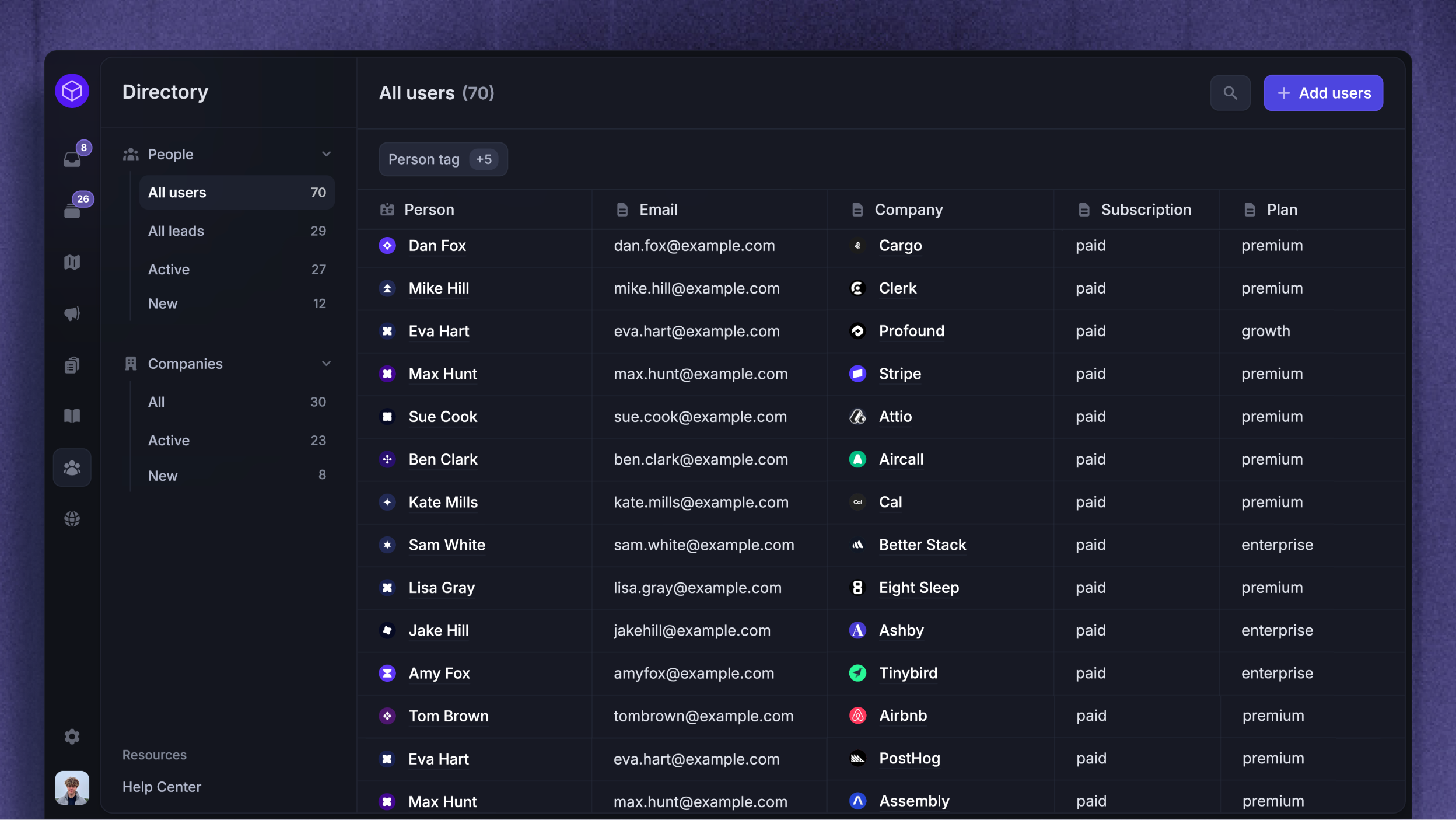
Overview
The User's directory provides an overview of who your users are and what they do in your app. You have access to it as soon as you sign up to Featurebase.
You’ll find every detail for each Lead, User, and Company profile within your Workspace in a list format for easy reviewing, filtering, or to create customized lists to meet your needs.
Among other things, you can:
View live user and company profiles to see who they are, their location, activity, and more
Segment customers & filter them by the actions they take within your product
Sync custom data specific to your users (like when a user upgrades their plan), and we’ll track it in your user list
Configure their notification preferences to reach the right people with the right content
Export users, leads, and companies as CSV or Excel for analysis or use in another tool
You can sync customer data from your product, import users and companies from CSV, or sync mapped customer data in both directions with HubSpot or Salesforce.
The User list
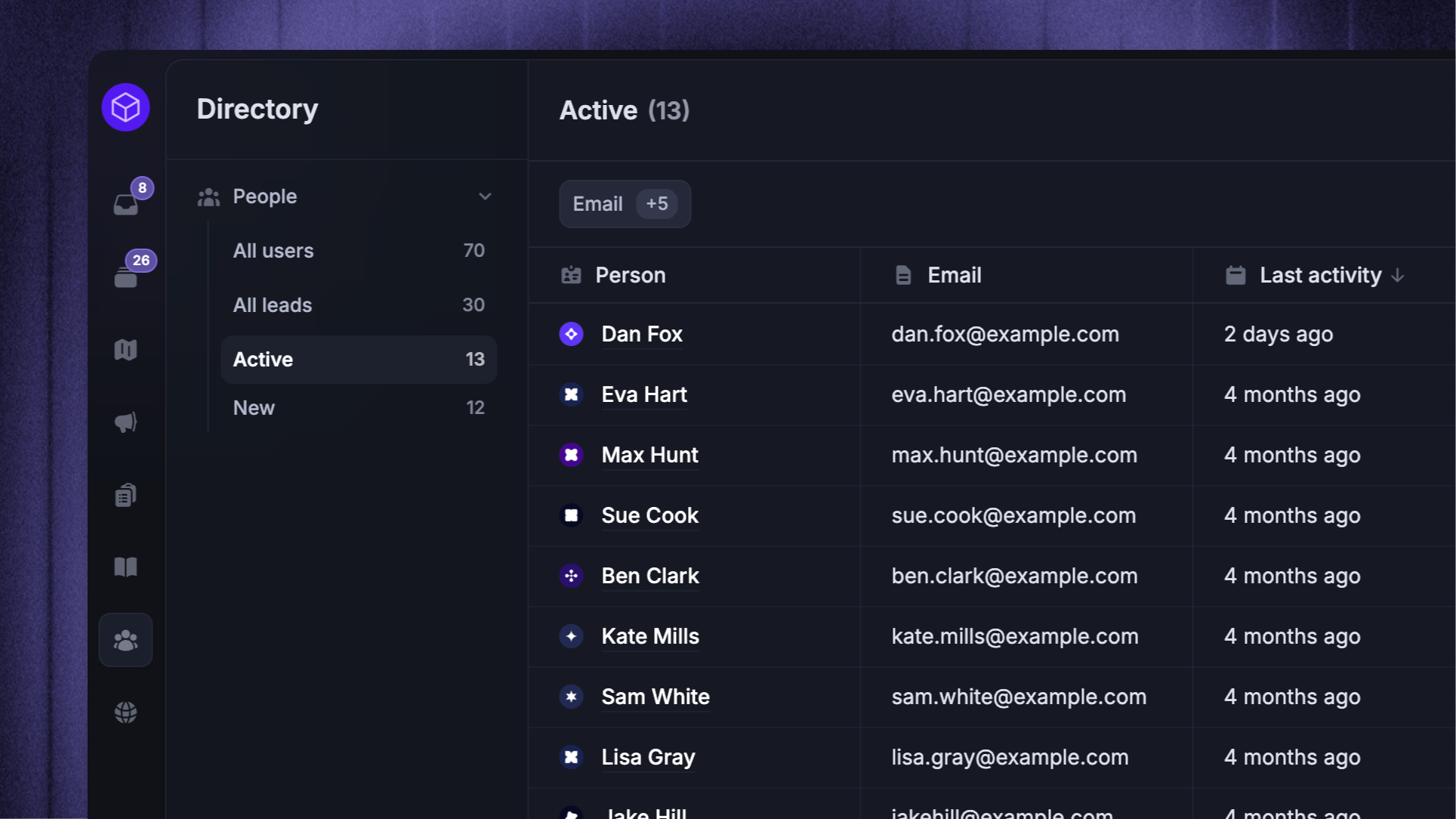
When you click into the Users directory, by default, you'll land directly into the All users segment. From here you can click into any of the other default segments - All Leads, Active, and New - as well as any custom segments you might have created for your workspace.
User profiles
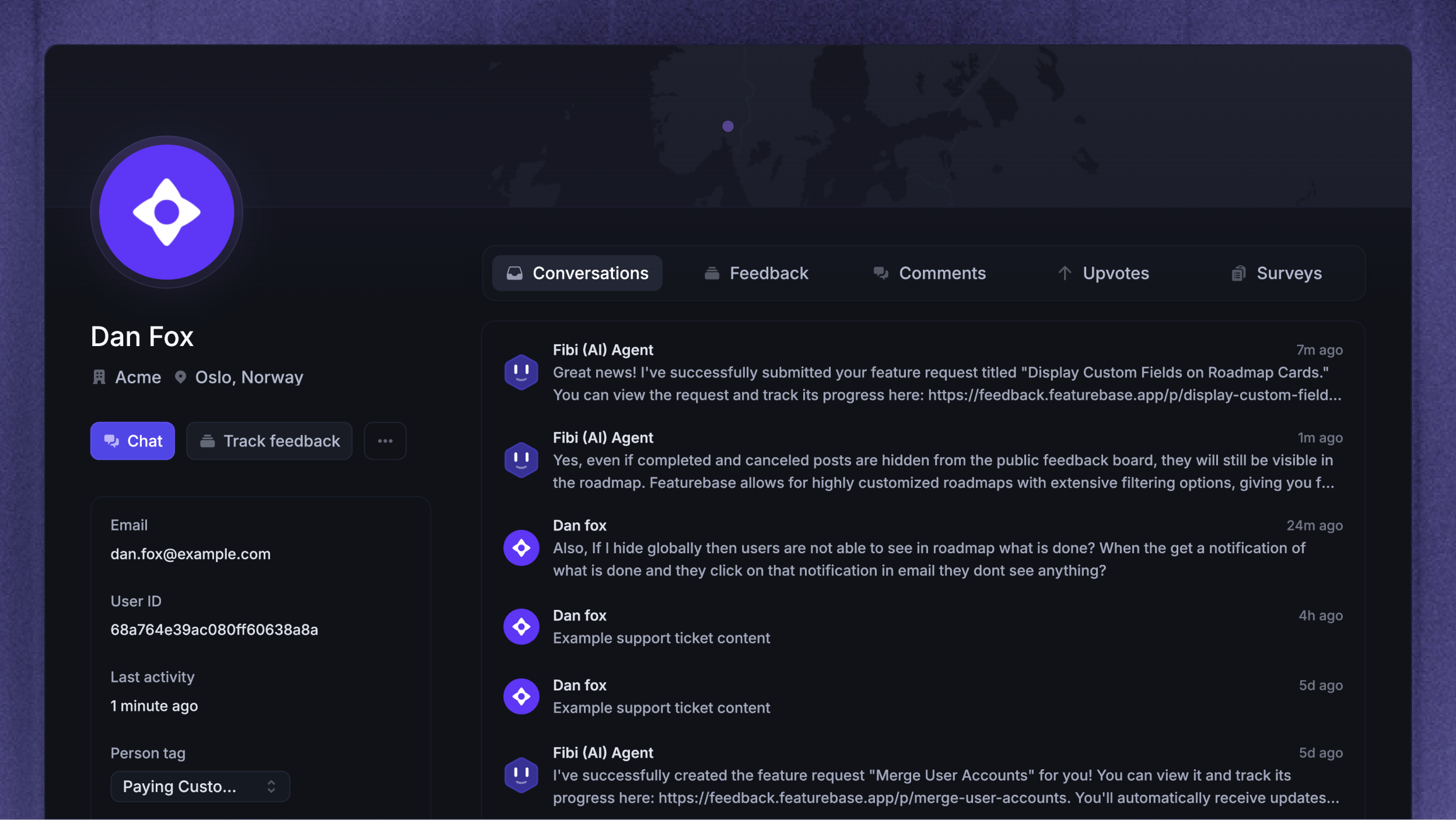
Individual user profiles provide a comprehensive view of their interactions with your team in one place. You can see all of their data and activity, including conversations, tickets, and feedback, in a single unified view.
You can also start a conversation with them directly from their profile, reply to conversations, and submit feedback on their behalf to track it in Featurebase.
Public user profiles
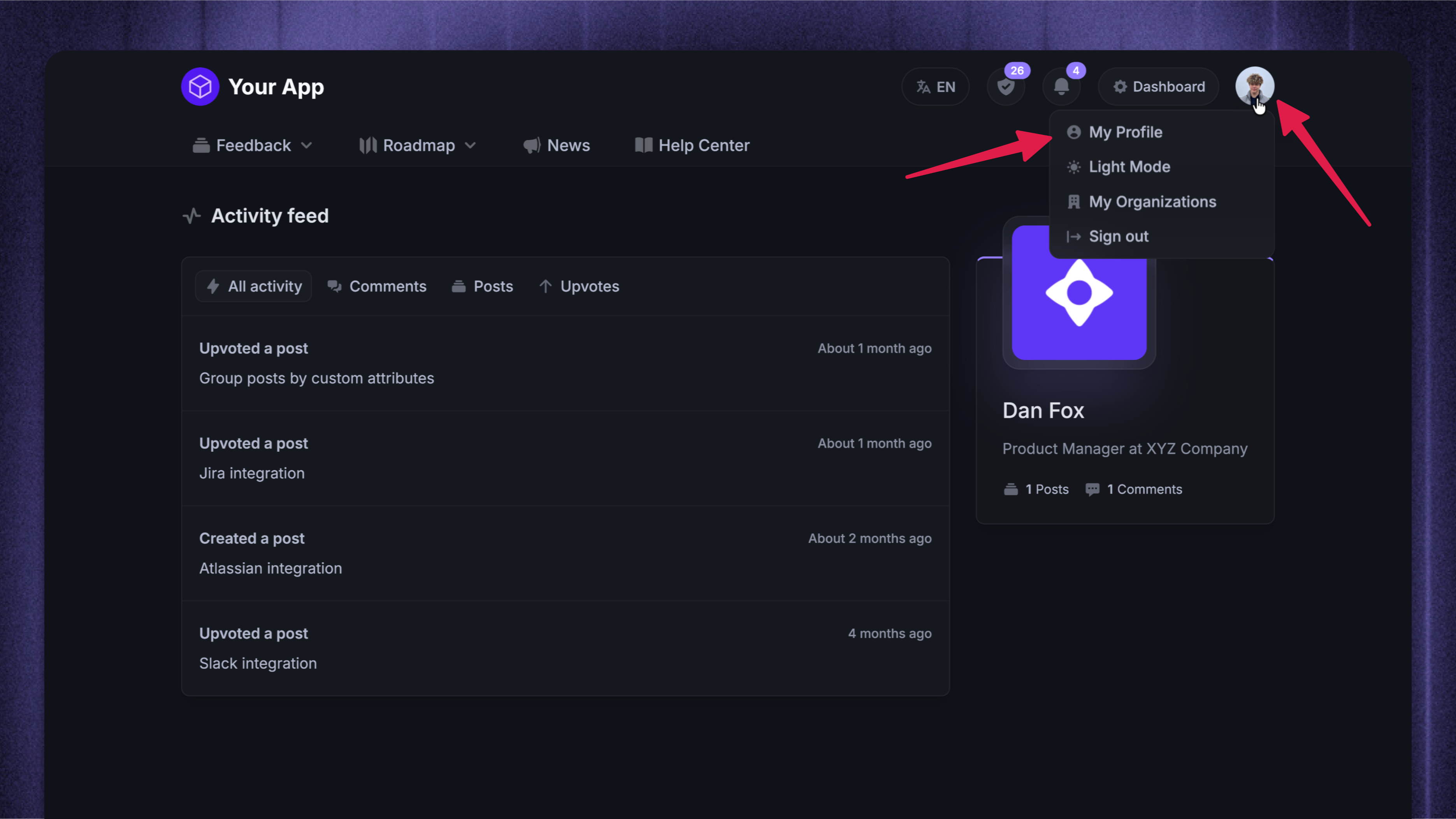
If you’re using a public feedback portal, users can see their activity (posts, comments, upvotes) under their profile by clicking on their profile picture at the top right and choosing ‘My profile’.
The Company list
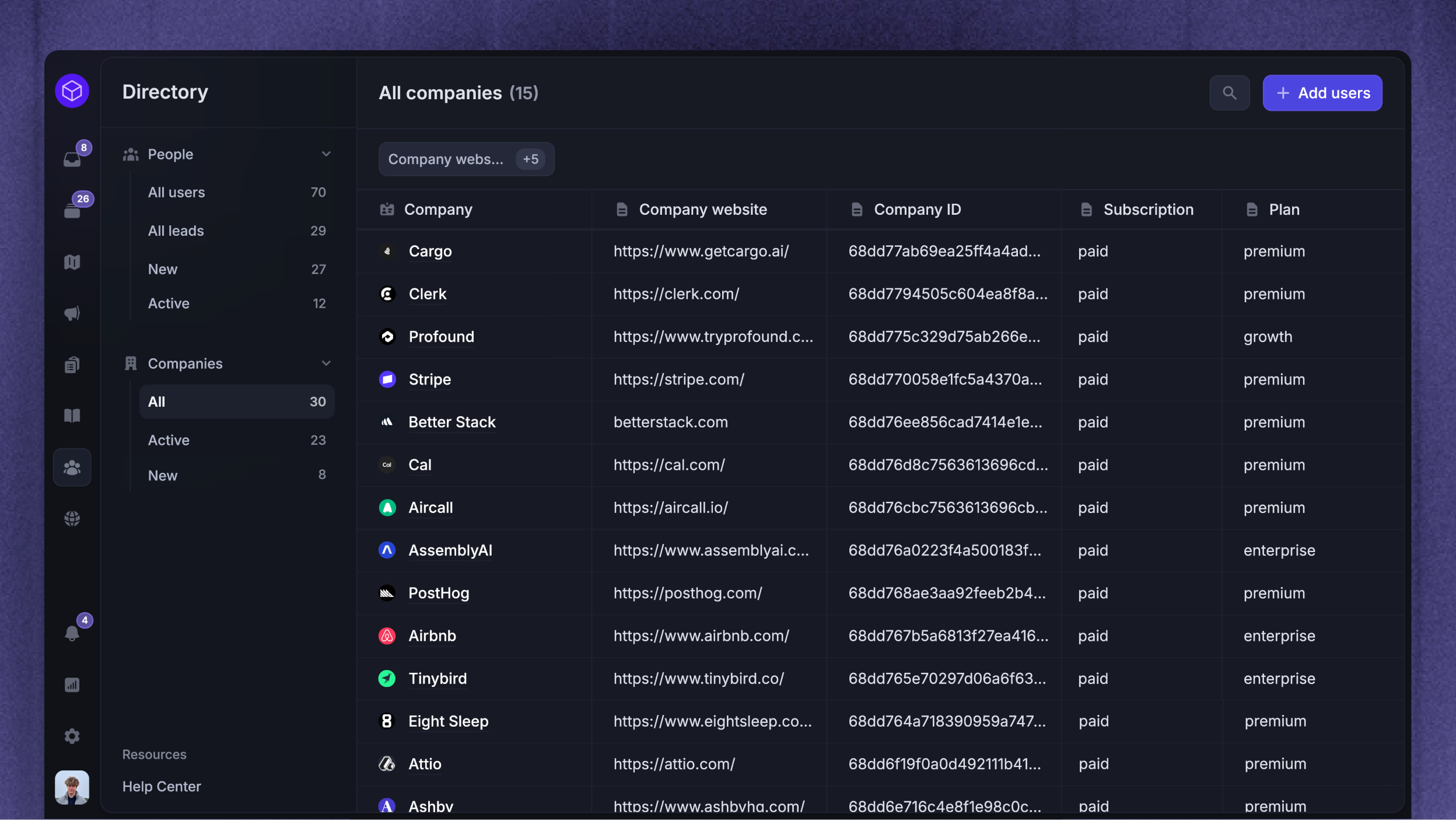
Open Companies in the Users directory to view company records. Link users to their company to bring each company's people and activity together.
Company profiles
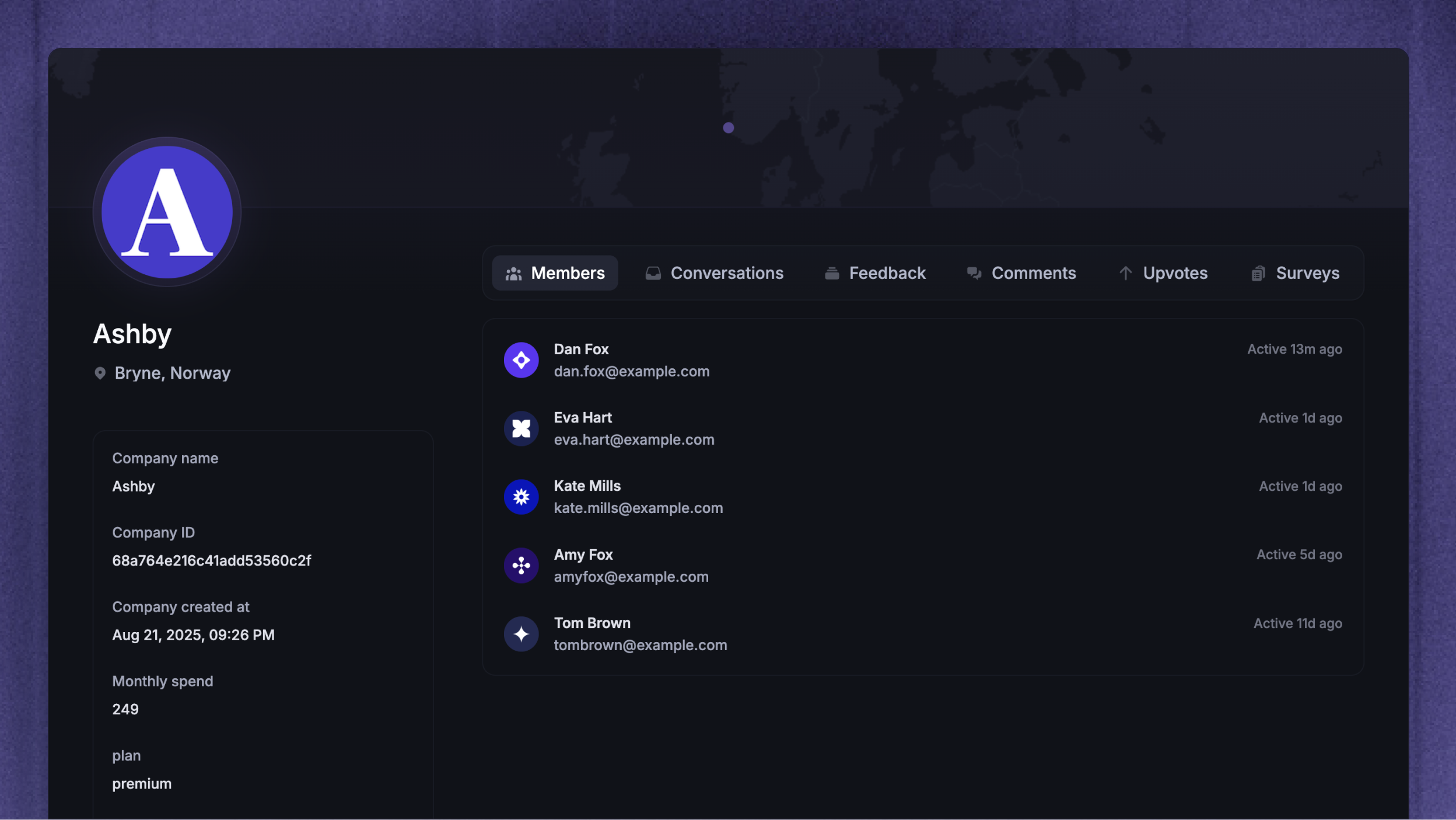
Company profiles enable B2B teams to understand customers at the organizational level. Similar to user profiles, you can see all of the company’s data and activity, including feedback, conversations, tickets, and associated members in one view.
When support is enabled in your Workspace, open Conversations in a user or company profile, then select Tickets from the filter menu. Open a ticket from the list to view and manage it.
Other features
AI summaries and account health
The Overview tab in user and company profiles brings together recent conversations, open Requests, and shipped Requests. AI summaries help you understand the customer's recent needs. Open a linked conversation or Request to check the source.
If the profile shows 'Generate summary', click it to create the summary. To update the overview, open the three-dot menu and choose 'Refresh overview'.
Health shows the account's status. Hover over it to see the reasons. At risk and Critical highlight accounts that may need attention. If there is not enough data to show a status, the profile explains why.
Note: AI summaries and account health require a Full seat.
Segments
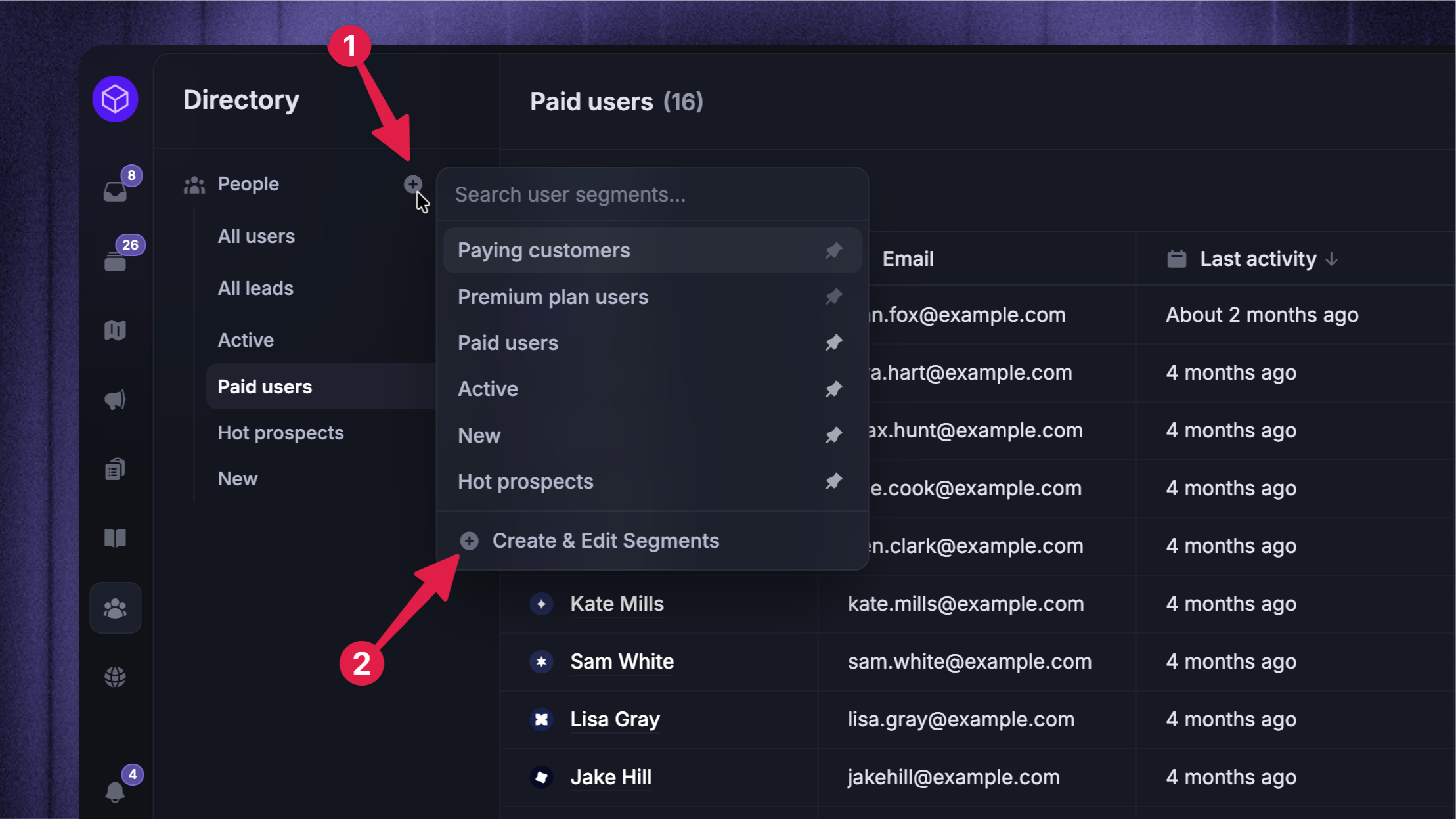
Use user and company segments to save groups that match your rules. Open them from People or Companies in the Users directory.
Data columns
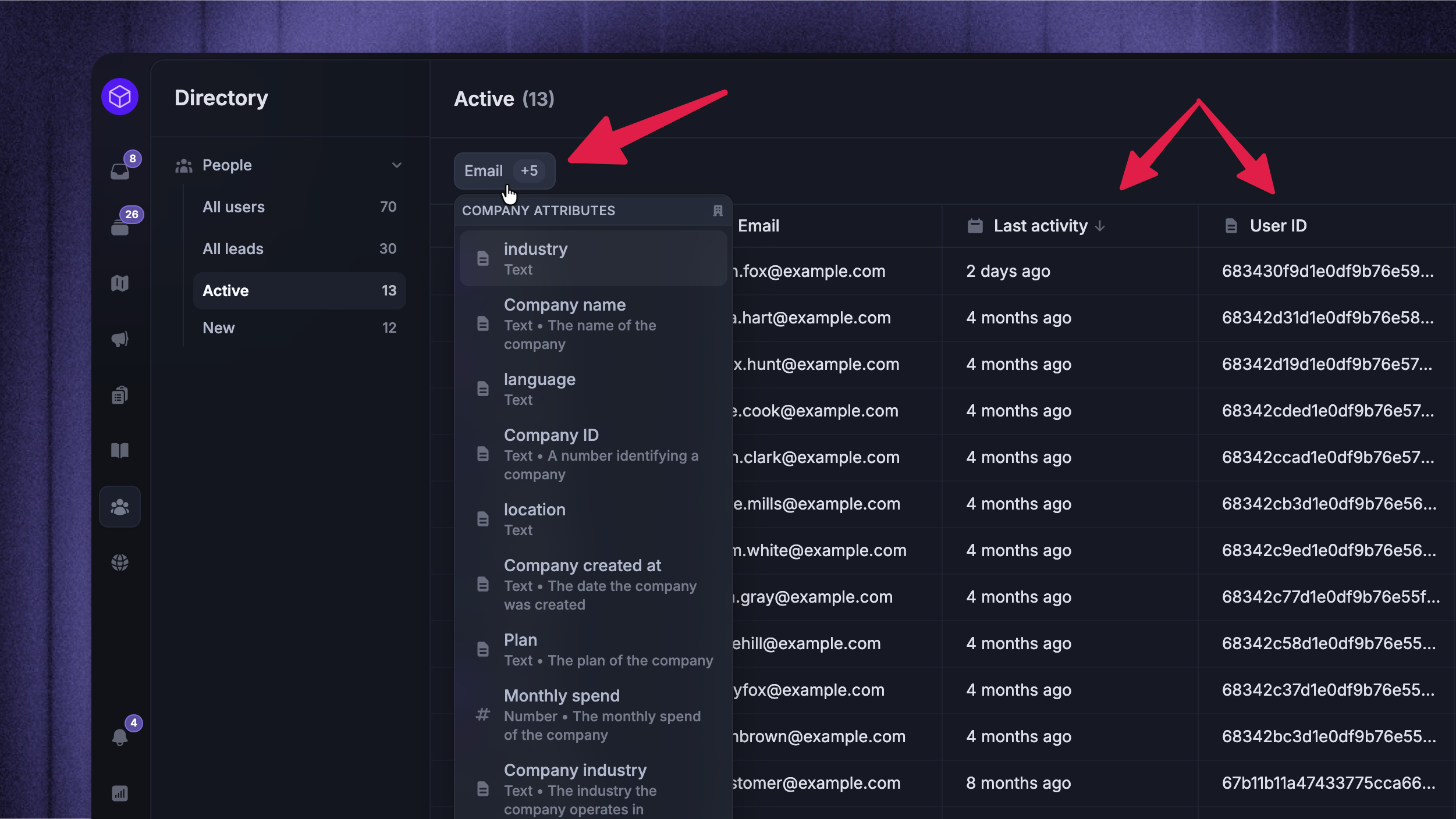
To the right of your list you'll see the data columns that have been selected to be displayed. These show the value for each attribute within a Lead, User, or Company profile. You can customize what columns you want to show by selecting them within the displayed user attributes dropdown menu accessed via the button at the top right above the data lists columns.
Search
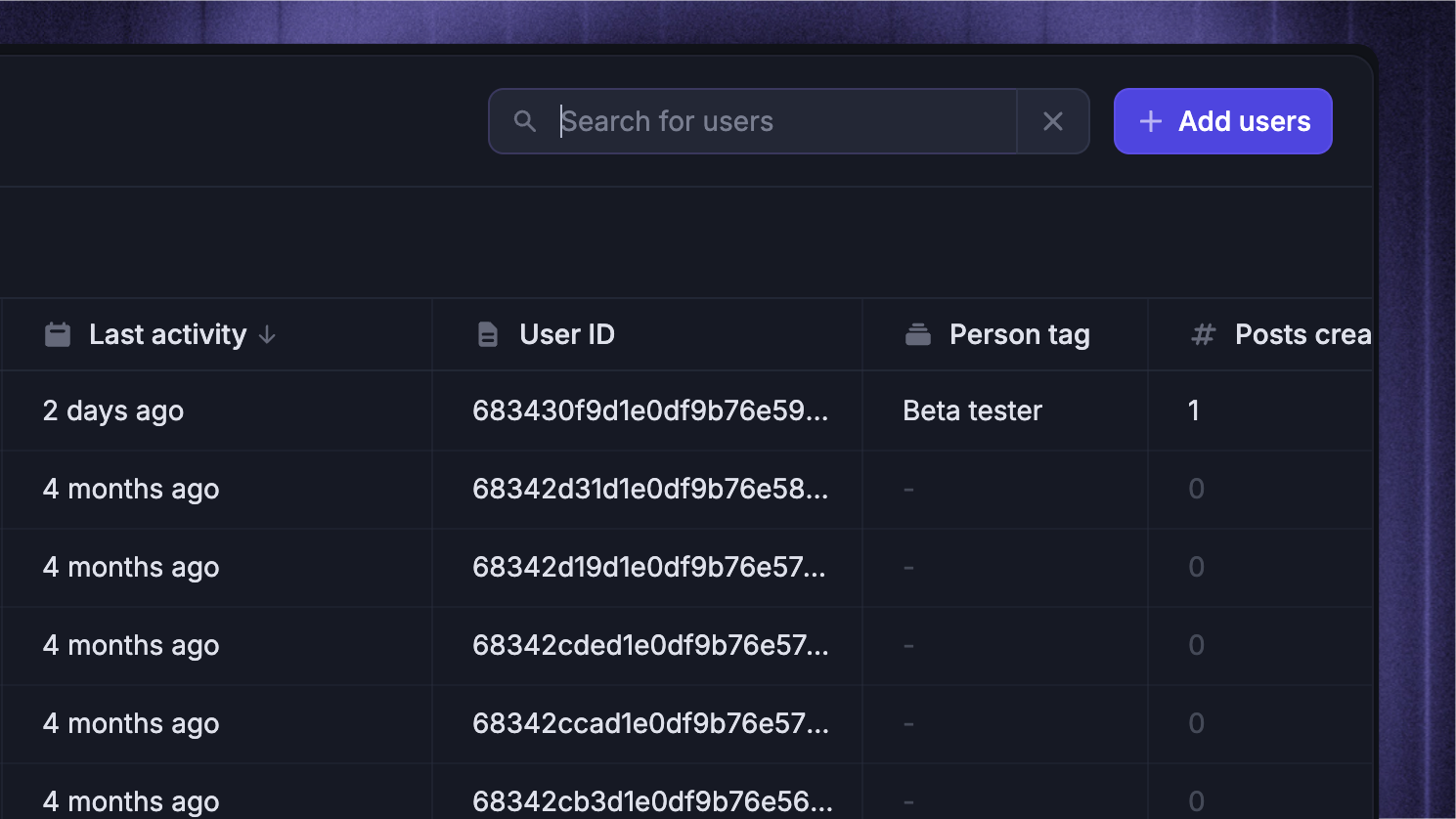
At the top of the left column is the '🔍' search button to search your People records by user name, email address, or by tag.
Was this helpful?
Still need help? Ask the team