Workflows block library
Understand all of the building blocks that power your workflows.
Written By Markus Palm
Last updated About 16 hours ago
Overview
This is your comprehensive guide to understanding and leveraging the building blocks that power Featurebase’s workflows. Workflows gives your team complete control and flexibility to build out virtually any support process you need, right inside Featurebase.
At the heart of workflows are two primary components:
Trigger blocks that initiate the workflow
Action blocks that execute specific tasks
Here’s a breakdown of all blocks that you can use to automate your processes.
Trigger blocks
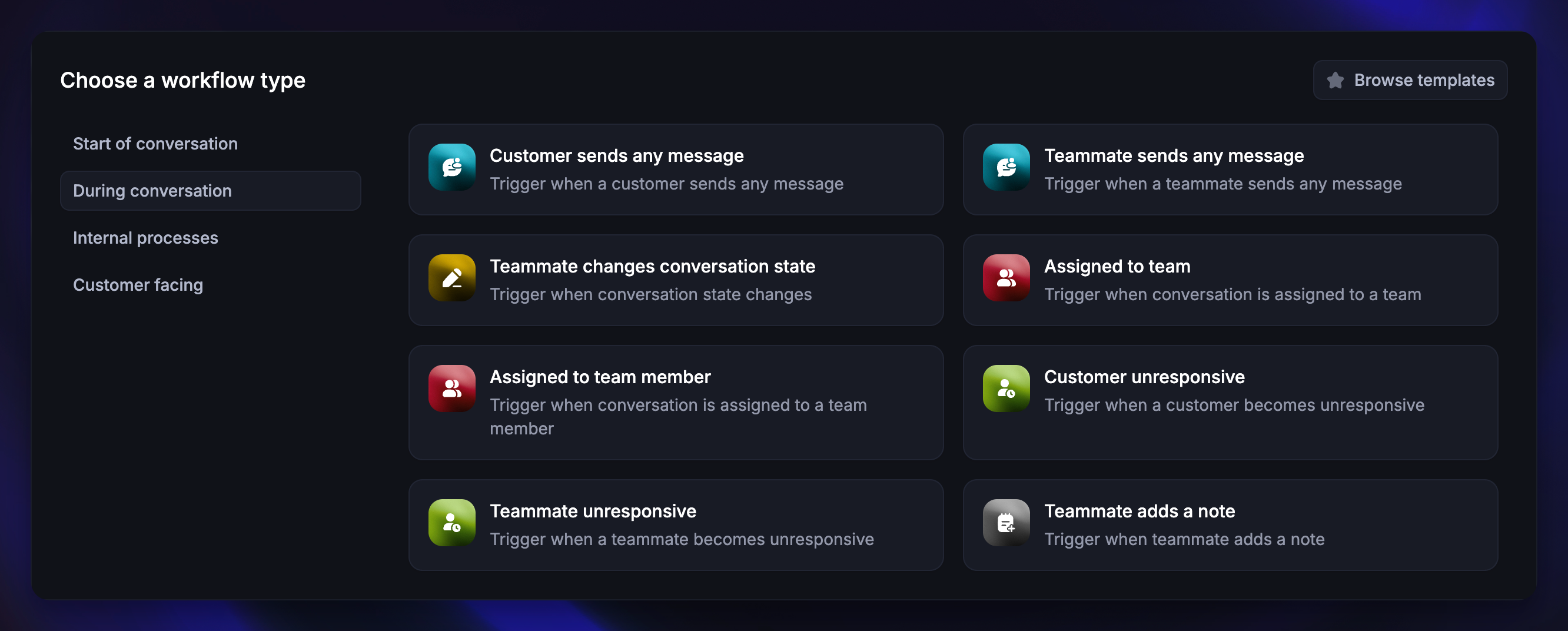
Trigger blocks are the starting point of any Workflow. They determine when a Workflow should run and what data is passed to later blocks.
Customer visits a page
The Customer visits a page trigger starts a Workflow when a customer visits a page that meets certain conditions, such as time on page or visited URL.
Common use case: Prompt users with a message when they visit your feedback board, Updates, or roadmap page to encourage engagement or collect input.
New Messenger conversation
The New Messenger conversation trigger opens a Workflow when a customer opens the Messenger, before they start typing.
Common use case: Show a welcome message, route conversations to the right teammate, or ask qualifying questions before assigning the conversation.
Customer sends their first message
The Customer sends their first message trigger starts a Workflow after a customer sends their first message for every new conversation.
Common use case: Auto-respond to new inbound messages, including email.
Customer sends any message
The Customer sends any message trigger runs every time a customer sends a message, including ongoing conversations.
Common use case: Analyze messages for keywords, tag conversations related to bugs or feature requests, or route them to relevant teammates.
Teammate sends any message
Triggers every time a teammate replies during any inbound or outbound conversation.
Common use case: Track internal response time, update conversation state, or send a summary to another tool when a teammate responds.
Conversation state change
The Conversation state change trigger starts a Workflow when a Conversation changes to the selected state. For human-support surveys, use the CSAT template.
Common use case: Configure and send CSAT when a conversation is closed, or send automated messages when conversations become snoozed or closed.
Assigned to team
Triggers when a conversation is assigned to a team.
Common use case: Notify a Slack channel or create a task in another system when a conversation is routed to a specific team (e.g. Support or Product).
Assigned to team member
Triggers when a teammate assigns the conversation to an individual teammate.
Common use case: Add a note or tag, apply a specific SLA, or use AI summarization when a conversation is reassigned.
Customer unresponsive
The Customer unresponsive trigger runs when a customer has not replied after a defined period of inactivity.
Common use case: Send an automated reminder, close the conversation, or follow up with a satisfaction survey after inactivity.
Teammate unresponsive
The Teammate unresponsive trigger runs when a teammate hasn’t responded to a conversation within a defined period of time.
Common use case: Escalate conversations to another teammate or team when response SLAs are breached.
Teammate adds a note
Triggers when a teammate adds an internal note to a conversation.
Common use case: When a note is added to an escalation ticket send a Slack notification to the relevant thread.
A ticket is created
The A ticket is created trigger runs when a new ticket is created, regardless of how it was created (manually, via Workflow, or via the API).
Common use case: When a support conversation is converted to a specific ticket type, auto-assign it to the responsible team and send a notification to their Slack channel.
Note: This trigger supports Customer, Back-office, and Tracker tickets, including tickets created by a Workflow or API. The selected ticket categories determine which actions are available.
Teammate changes the state of a ticket
The Teammate changes the state of a ticket trigger runs when a teammate manually changes a ticket's status.
Common use case: Assign a ticket to the next team or add an internal note when a teammate changes its status.
Note: This trigger runs for human teammate changes. Automated state changes from other Workflows do not start it. Available actions depend on the ticket categories you select.
Action blocks
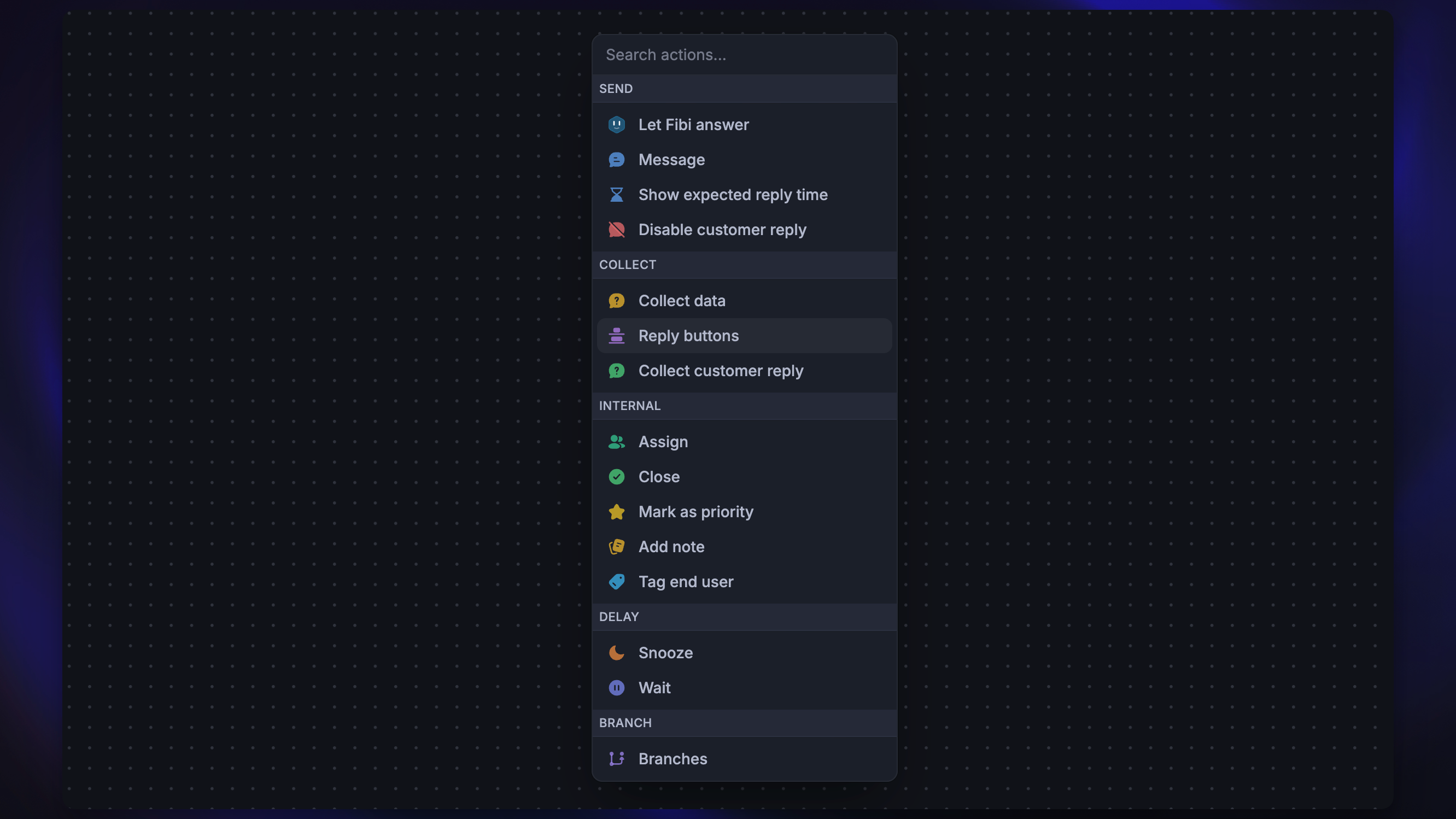
Once a workflow is triggered, the action blocks dictate what operations or processes should take place. Here is an overview of the available action blocks.
Let Fibi answer
Integrates Featurebase’s AI agent, Fibi, into your Workflow. It allows Fibi to attempt to resolve the conversation automatically. In addition to start of the workflows, it’s useful at Workflow endpoints to provide AI-powered follow-up support. The step also lets you configure Fibi CSAT to request a rating after Fibi resolves the conversation, before it hands the conversation to a teammate, or in both situations.
Common use case: Provide automated answers and resolutions using AI, reducing manual teammate involvement for repetitive questions.
Message
Sends a predefined message to customers at any point in your Workflow. Ideal for sharing confirmations, status updates, or follow-up information.
Common use case: Send a friendly confirmation when feedback is submitted or ask predefined questions before connecting to a human agent.
Send a product tour
Sends a card that lets the customer start a Product Tour in the web Messenger. Choose a live tour with Start your tour from anywhere enabled.
Common use case: Offer a relevant setup tour while helping a customer use a feature.
Show expected reply time
Sends an automated message displaying your office hours or average response time to set customer expectations.
Common use case: Used in unresponsive or after-hours workflows to communicate when the team will reply.
Mark as priority
Labels the conversation as Priority in the Inbox.
Common use case: For VIP customers, use conditional branching to ensure all conversations from that company are marked as priority.
Assign
Assigns the conversation to a specific teammate or team inbox.
Common use case: Use a conditional branch to assign VIP customers to the VIP support team or technical questions to your technical support engineers.
Tag end user
Tag the person interacting with the conversation. User tags are created and managed in your workspace settings.
Common use case: Automatically tag people based on the options they select. For example, if a customer needs to be followed up with, tag with follow-up required.
Tag conversation
Applies a conversation tag to the conversation. Conversation tags are created and managed in your workspace settings.
Common use case: Automatically categorize conversations by content or path. For example, tag conversations that mention billing so they’re easy to filter later.
Remove conversation tag
Removes a conversation tag from the conversation.
Common use case: Clear a temporary tag once it no longer applies. For example, remove a needs-review tag after a teammate has handled the conversation.
Add a note
Adds an internal note to a conversation in the Inbox.
Common use case: Provide context to teammates. For example, when a customer has been inactive, leave a note prompting the team to close the conversation.
Apply rules
Evaluates all matching paths and executes every action whose conditions are met. Unlike Branches, which proceed down only the first matching path, Apply rules can trigger multiple actions in parallel. This makes it ideal for background logic where you want to apply several actions at once based on message content or attributes.
Common use case: Automatically update conversation attributes and apply other actions. For example, if a customer message contains words like “urgent” or “ASAP”, set the Urgency custom attribute to 'High' and mark the conversation as priority.
Set conversation attribute
Sets or updates a conversation attribute when the Workflow reaches this step.
Common use case: Keep attributes like issue type, product area, or urgency up to date as the conversation progresses.
Apply SLA
Applies a Service Level Agreement (SLA) to the conversation. SLAs define response or resolution targets to help your team reply, close, and resolve conversations on time.
Common use case: Use conditional branching to identify VIP or high-value customers and apply a stricter SLA to ensure faster response and resolution times.
Ask for conversation rating (CSAT)
Asks the customer to rate the Conversation. Configure the request's expiry, rating-change deadline, and whether the Workflow waits for a response.
Common use case: Send a CSAT request after a conversation closes to measure satisfaction with your support. Add a Wait block beforehand so the request lands at the right moment.
Collect data
Prompts the customer for specific details and saves the responses to the conversation or person record. You choose the customer attributes or fields to collect (e.g. email, account ID, order number, issue type) and use the captured values later in the Workflow.
Common use case: Collect required triage details up front to reduce back-and-forth, enrich the person record, and auto-route or prioritize based on the provided data.
Collect customer reply
Creates a short pause in the Workflow to let customers provide more details or information. The system waits two seconds after the customer’s message before processing the next step.
Common use case: Gather input such as account details or issue descriptions during triage or qualification.
Disable customer reply
Prevents customers from typing messages in the Messenger, forcing them to complete the bot flow.
Notes: To prevent typing when selecting reply buttons, turn off the Let the customer reply option in Pathway A. This will force customers to choose from the Reply buttons in the Workflow, rather than typing.
Common use case: Manage inbound volume by guiding customers through a structured bot flow instead of open messaging.
Reply buttons
Presents customers with predefined options that determine how they move through the Workflow. Customers click buttons to choose their path, giving you control over the conversation flow.
Common use case: Offer quick-reply options such as “Report a bug”, “Request a feature”, or “Talk to support” to guide the conversation.
Branches
Routes conversations through different Workflow paths by automatically checking conditions. When a condition is met, the Workflow moves to the connected path without checking others. Unlike reply buttons, branches don’t require customer interaction - they evaluate criteria and route accordingly.
Common use case: Route conversations based on criteria like customer segment, priority, or message content.
Close
Changes the status of the conversation to Closed.
Common use case: Maintain a healthy Inbox by closing inactive conversations. For example, automatically close conversations that haven’t received a customer reply after 24 hours.
Snooze
Temporarily Snoozes the conversation from the teammate’s active Inbox. If a teammate or customer sends a reply during the snooze duration, the Workflow will end. The customer will not see anything about the conversation being snoozed, and it will remain open.
Common use case: Automatically check in on conversations when a customer has not replied or has been idle for some time. For example, send a message to the customer 24 hours later to see if they still need help.
Snooze block notes
Snooze block notes
Customer replies will interrupt the Snooze action.
Teammate replies will also interrupt the Snooze action. But teammates adding actions such as conversation tags (or Internal Notes) will not interrupt it.
Snooze workflow steps will be interrupted if a trigger moves the conversation away from the snoozed state before it finishes.
An interrupted Snooze action will automatically end the workflow.
A workflow can continue after a Snooze action has come to an end. For example:
Customer is not responsive for 10 minutes
Auto send a follow up reply + snooze for 24 hrs.
Auto send another follow up reply + snooze for 48 hrs.
Auto send a closing message + close + tag this conversation was auto-closed because the customer did not respond.
Wait
Delays the next step of the Workflow. Once the wait duration ends, the next action applies. The wait can be interrupted by closing actions or teammate and customer replies, depending on setup. Teammate actions such as tagging will not interrupt the Workflow.
Choose whether Teammate messages or Teammate and customer messages interrupt the wait. An interrupted wait ends the Workflow. For an inactivity follow-up, select both so a customer reply stops the remaining follow-up actions.
Common use case: Control when a customer sees an action. For example, add a Wait action before sending a CSAT message to ensure it’s delivered at the right time.
Wait block notes
Wait block notes
Assigned teammates adding actions such as conversation tags will not interrupt the Wait action.
A conversation closed by an automation of any kind will also interrupt the wait action.
Set ticket state
Changes the state of a ticket within a Workflow. You select the ticket type and the target state.
Common use case: Automatically set a ticket's state to resolved when a teammate closes the linked conversation, or move a ticket to "In Progress" when it's assigned to a team.
Send ticket
Sends a ticket form to the customer within a conversation. When the customer submits the form, a ticket is created with their inputs.
Common use case: Collect structured details up front at the start of a Messenger conversation to reduce back-and-forth (e.g. gathering bug details, account information, or order numbers before routing to a teammate.)
Convert to ticket
Converts an existing conversation into a Customer ticket. The ticket keeps all context and stays linked to the original conversation.
Common use case: Automatically convert conversations to tickets when they match certain criteria – for example, when a customer selects "Bug report" from reply buttons, convert the conversation to a Bug Report ticket type.
Convert to ticket block notes
Convert to ticket block notes
If the conversation already has a Customer ticket linked, the action is skipped
You can use Branches before this action to convert to different ticket types based on conditions
Was this helpful?
Still need help? Ask the team