Share your expected response time
Manage your customers' expectations by sharing your reply time during office hours.
Written By Markus Palm
Last updated 17 days ago
Overview
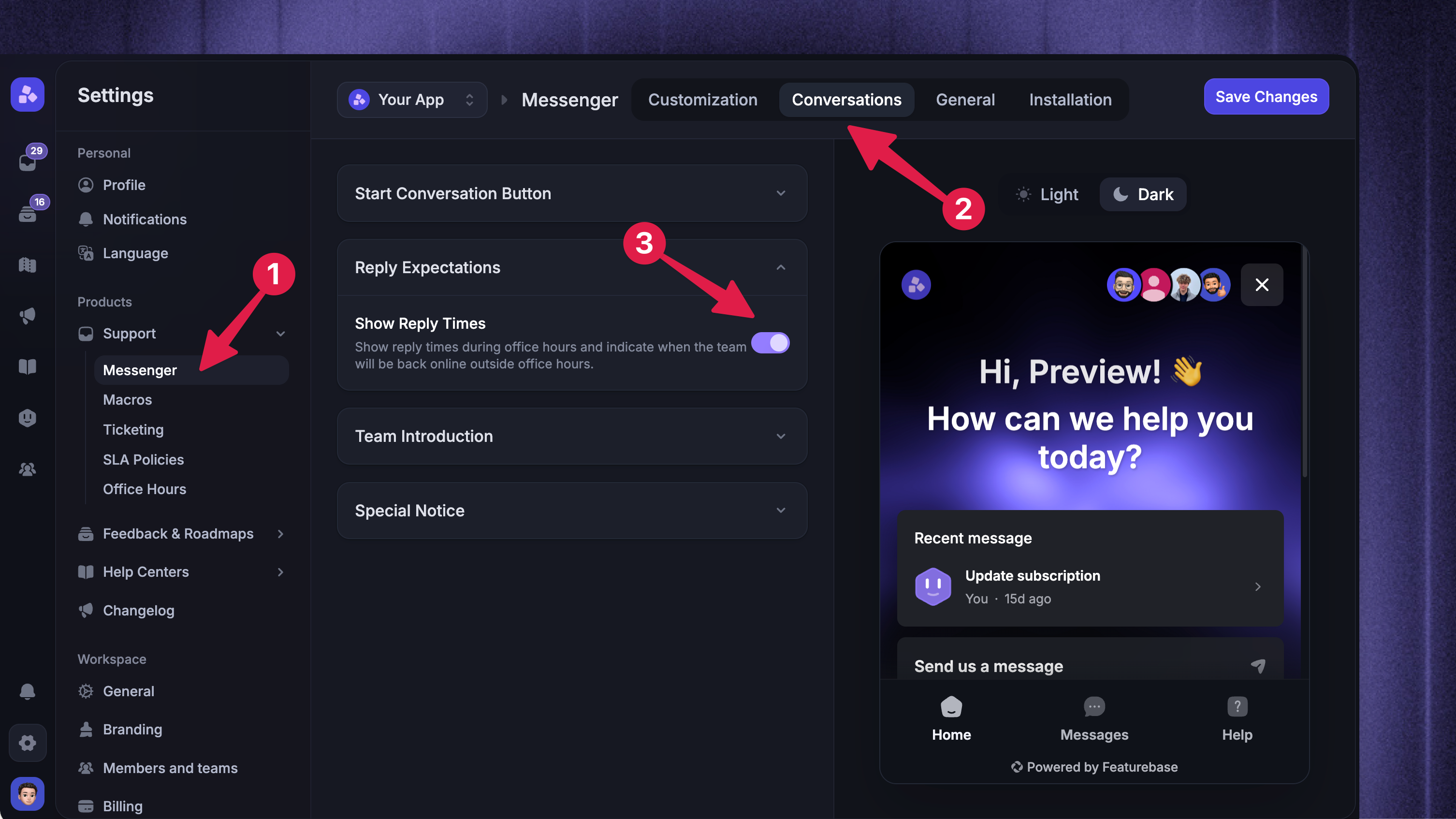
Let customers know when to expect a reply by displaying expected response times in the Messenger:
From the top menu, select ‘Conversations’
Under 'Reply Expectations, toggle on the ‘Show Reply Times’
Click ‘Save Changes’ from the top right
This option is enabled by default. If disabled, no reply time will be shown to users.
Currently, it’s not possible to set a custom reply time. It’s always calculated automatically based on your median first reply time over the past 7 days.
Manage unexpected delays
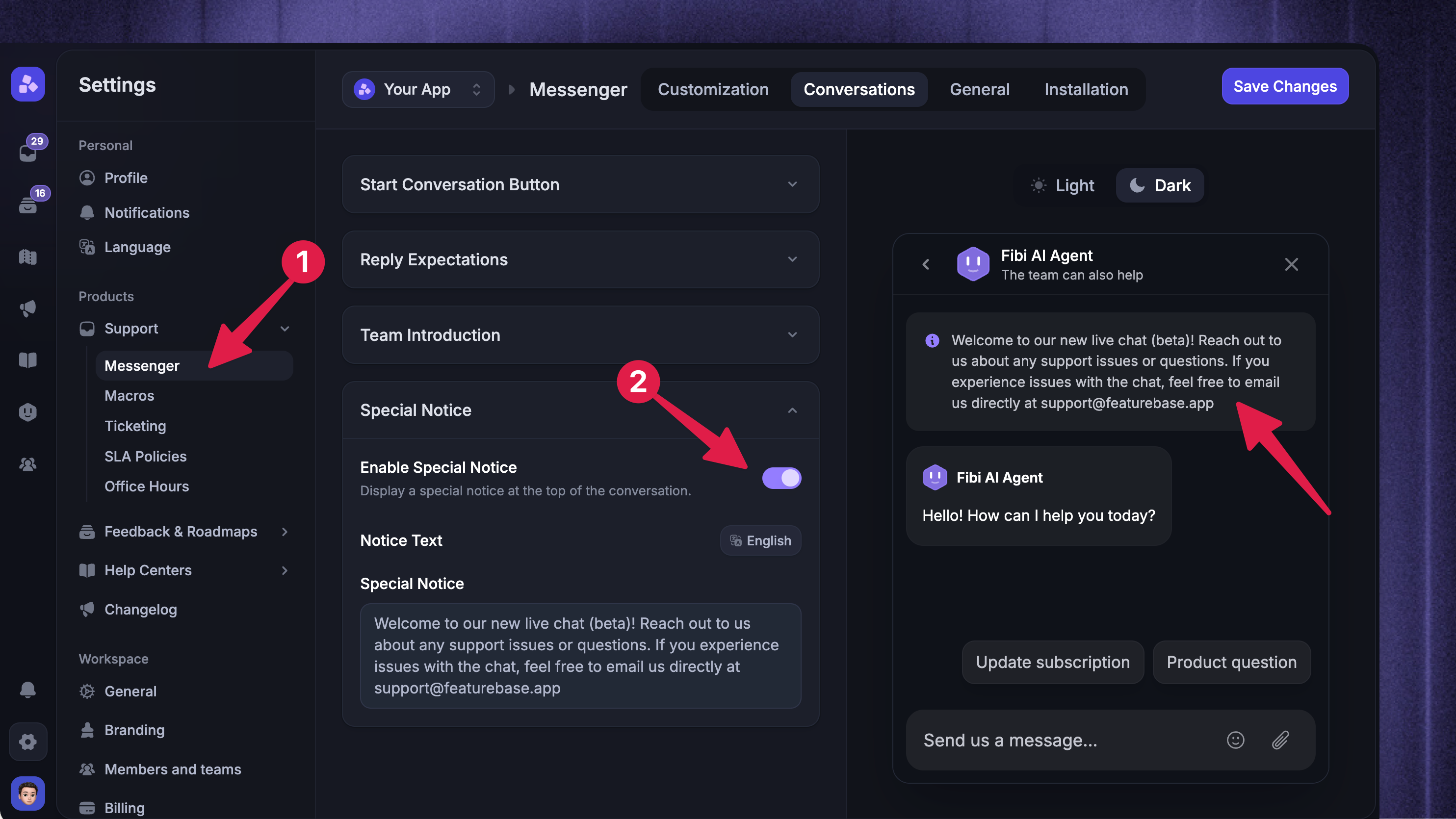
If you experience a spike in conversations due to an outage, a big promotion, or an external event, this can lead to longer wait times for your customers. Let them know with a special notice in your Messenger.
In Settings → Support → Messenger → Conversations → Special Notice, you can switch this on and enter a message for your customers.
Special notices can be customized in multiple languages supported by your workspace, and you can enhance them with links and text styling for improved clarity and engagement.
After things have returned to normal for your team, simply switch the notice off, and it will no longer be shown in conversations.
FAQs
How your reply time is sent in Workflows?
How your reply time is sent in Workflows?
Outside of your office hours, the bot will send your reply time immediately, so customers can quickly see when you'll be available.
You can also send an expected reply time when building a Workflow. Simply click on the + icon and then choose Show expected reply time.
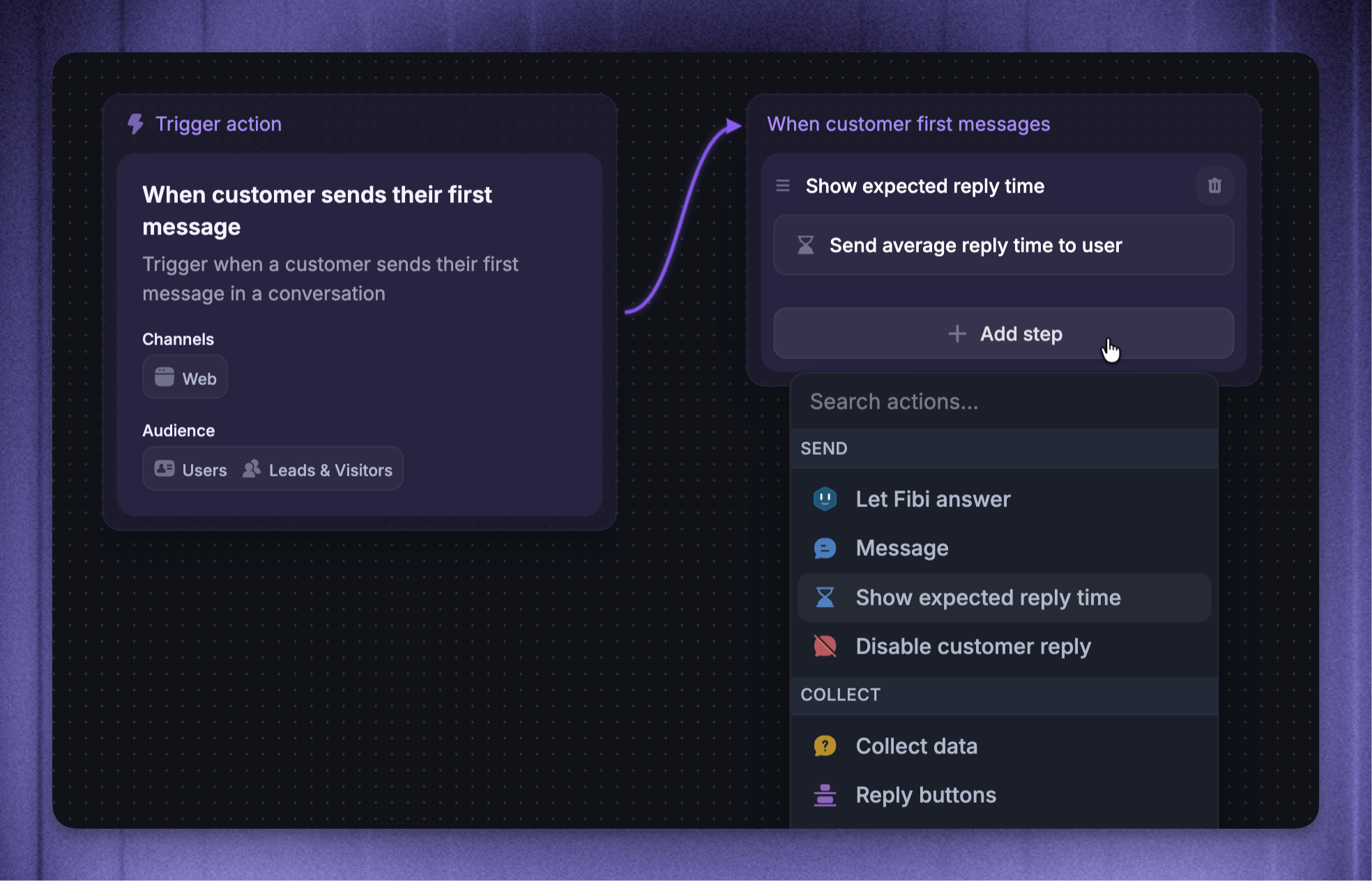
Note: These reply times cannot be customized.
How is the automatic reply time calculated?
How is the automatic reply time calculated?
The automatic reply times are calculated from your 50 most recent conversations and updated regularly to reflect your latest response patterns:
Messages are filtered to count only user messages and admin replies – bot or automated messages are excluded.
If you've set office hours, reply time is calculated only during those hours. This gives a more accurate estimate (we recommend setting default office hours).
Only new inbound conversations are counted. Replies to conversations you’ve started are excluded.
If you've had fewer than 5 conversations in 7 days, we'll display "replies as soon as they can".
Was this helpful?
Still need help? Ask the team