Importing your Help Center
Migrate your knowledge base from any other tool with the same exact structure and zero data loss.
Written By Robi Rohumaa
Last updated 5 days ago
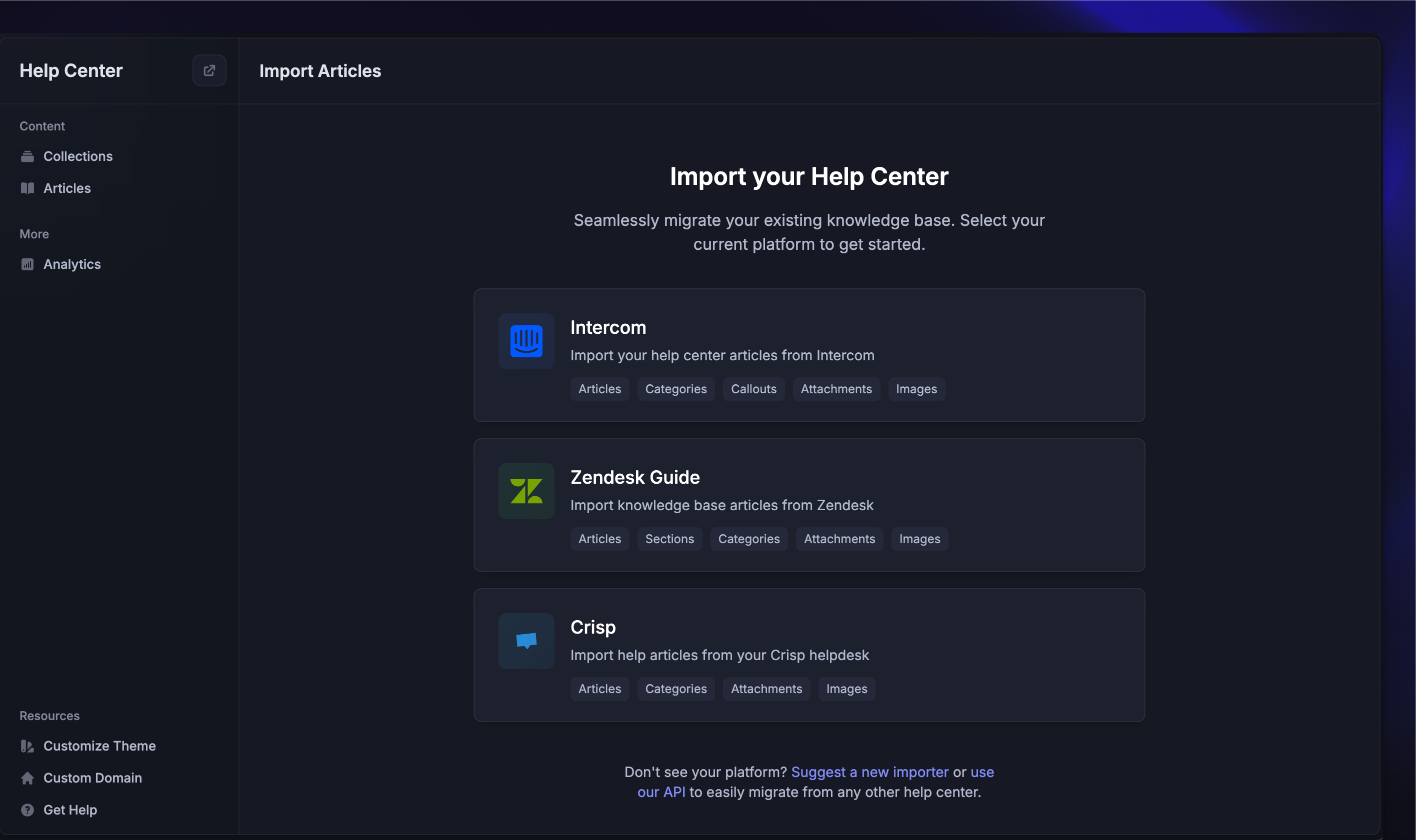
Supported one-click migrations
By default, we have full one-click migration scripts for:
Your article URLs will stay the same after migration, so you won’t need to update any existing links on your site, product, or elsewhere.
You can access the importers from Settings → Help Center → Import from other apps. Simply paste your old help center’s link into the importer, and our system will handle the rest.
Note: It’s best if your Featurebase Help Center is empty during the migration, as matching article IDs will be overwritten.
Migrating from other tools
If you are migrating from another tool not listed above, you’ll have to use our API.
To start importing articles, head over to Settings → Developers → API and follow the instructions to send the data.
👨💻 This process requires technical knowledge. If you're uncomfortable with this, share these guides with a technical team member who can assist.
Let us know what tool you're coming from - we might just build a one-click importer for it!
How does our API migration work?
Every platform has its own way of formatting articles, so simply sending HTML from another tool may not look perfect in Featurebase. Our article rendering system likely differs from other platforms, which can make a direct HTML import tricky.
To solve this problem, we use Large Language Models (LLMs) like GPT-4 to modify the HTML to the right format automatically.
You can pass along formatter: "ai" in the Create Article body to have it automatically convert the article to Featurebase format:
Our system will then convert the article body to the correct Featurebase format.
Due to the nature of LLMs, this operation will take up to 10 minutes. For longer articles, it could take up to 30 seconds to a minute per article to convert to the right format.
If you have any questions, reach out to us via live chat! 👋
Was this helpful?
Still need help? Ask the team