Goals, exit rules & send windows
Set a journey goal, decide when people leave, and control when journey messages send.
Written By Bruno
Last updated 12 minutes ago
Overview
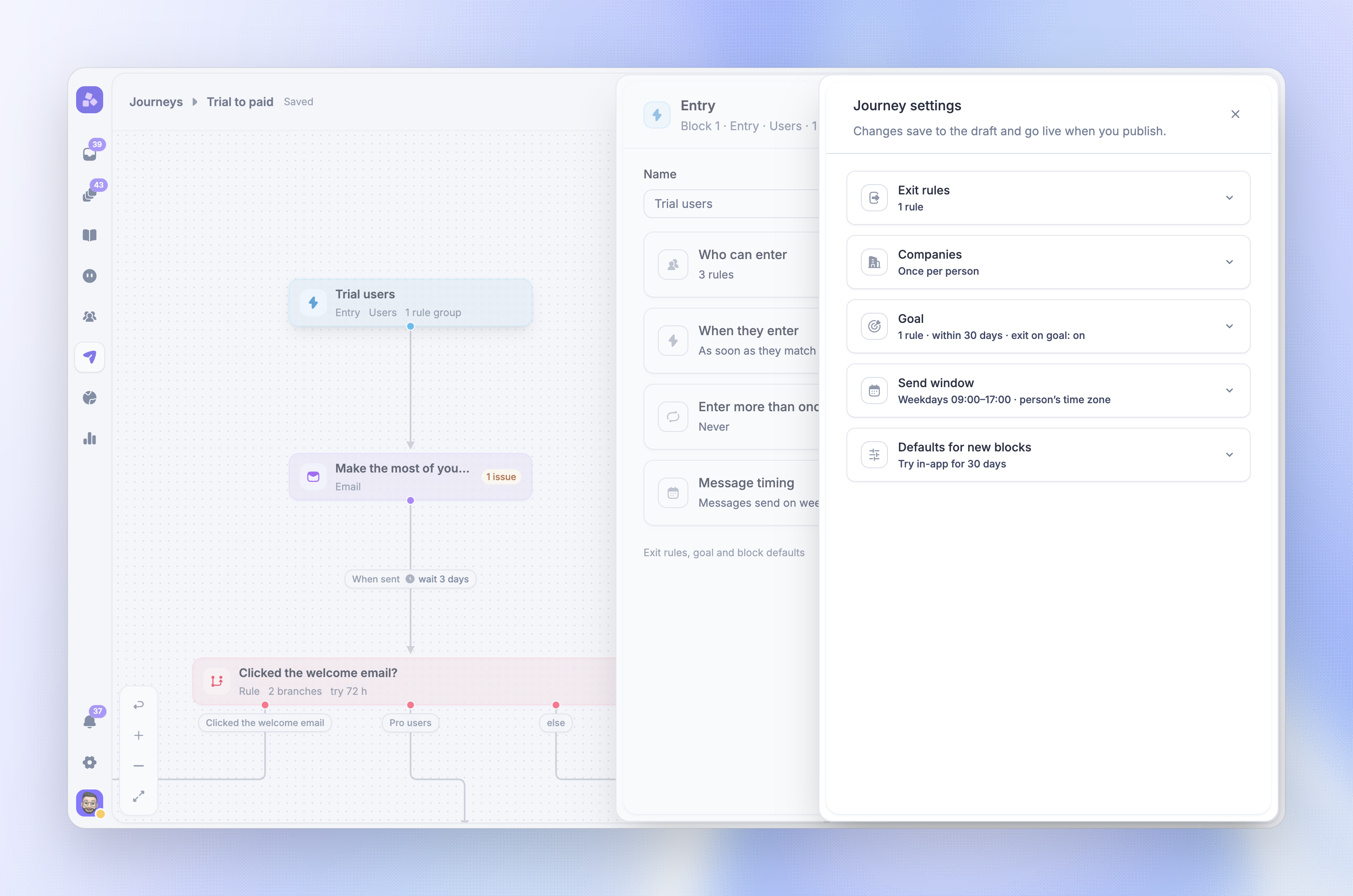
Journey settings control what success looks like and when people leave. Use them to:
Track a goal - Count the people who reach the outcome the journey is for, such as upgrading to a paid plan
Add exit rules - Take people out of the journey as soon as the messages no longer make sense for them
Set a send window - Send journey messages only on the days and hours you choose
These settings apply to the whole journey. Like every other change, they save to the draft and go live when you publish.
Open the journey settings
Go to Dashboard → Outbound → Journeys and open a journey
Click the ⋯ menu in the top right and choose Settings
You can also click 'Open journey settings' at the bottom of the Entry block panel.
Track a goal
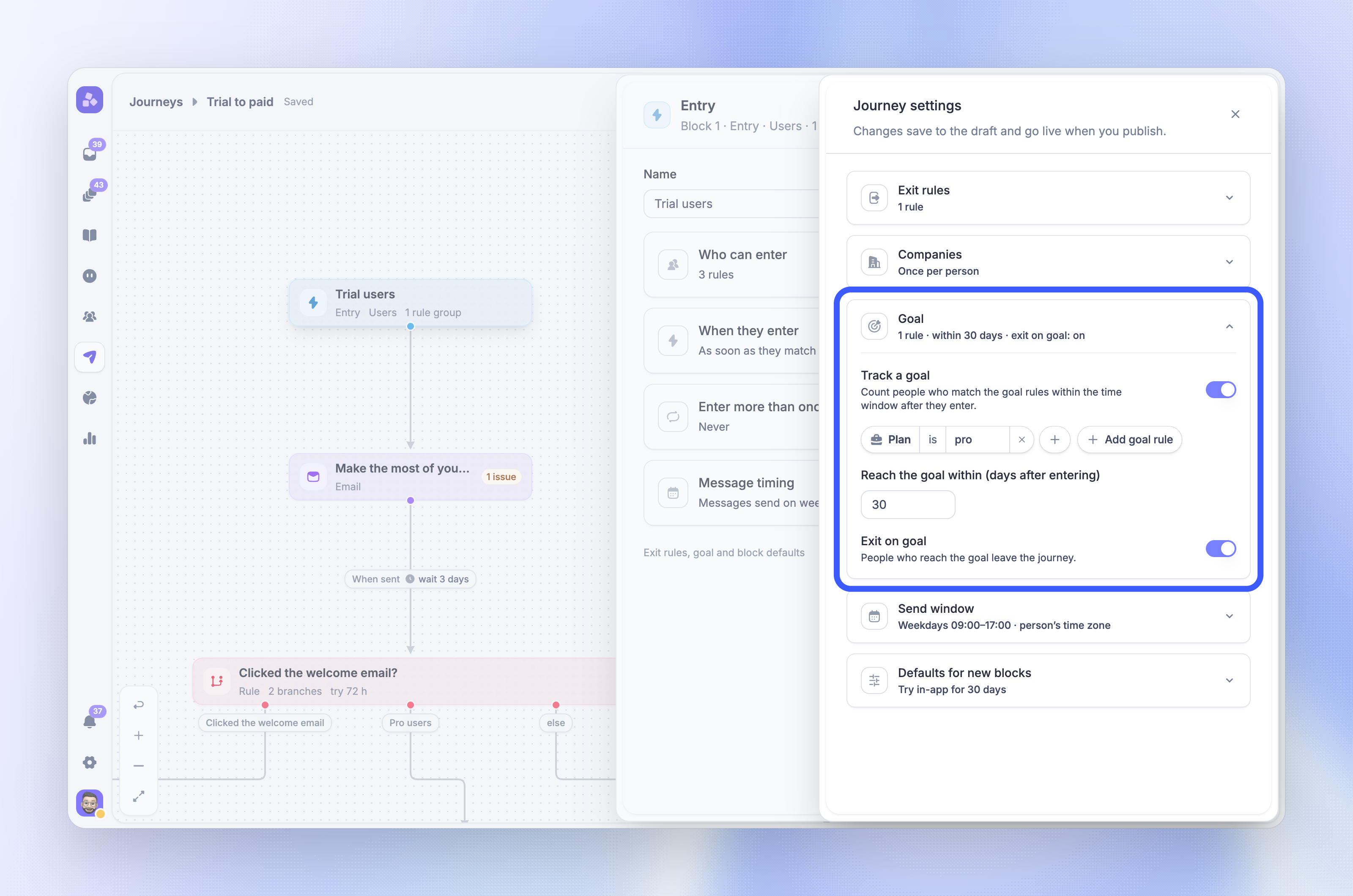
A goal is a set of rules that describes success, for example "Plan is Pro". Featurebase counts people who match the goal rules within a time window after they enter.
To set a goal:
Open Goal in the journey settings
Turn on Track a goal
Click 'Add goal rule' and build the rules
Set Reach the goal within (days after entering) to 1 to 365 days
Optionally, turn on Exit on goal so people who reach the goal leave the journey
A journey with Track a goal on needs at least one goal rule before you can publish.
How goals are counted
Already matched - A person who matches the goal when they enter is not counted as a goal hit
After they leave - A goal reached after the person left the journey still counts, as long as it is inside the time window
One goal per entry - Each entry is judged by the goal as it was when the person entered. A goal change applies to people who enter after you publish it
While paused - Paused time does not count toward the goal window of people who are still in the journey, so a pause does not shorten their time to reach the goal
Goal hits show as Hit goal and Goal rate in Journey reports. Split tests also use the journey goal to compare paths.
Tip: Turn on Exit on goal for journeys that push one action, such as a trial-to-paid journey. People who upgrade then stop getting upgrade messages.
Add exit rules
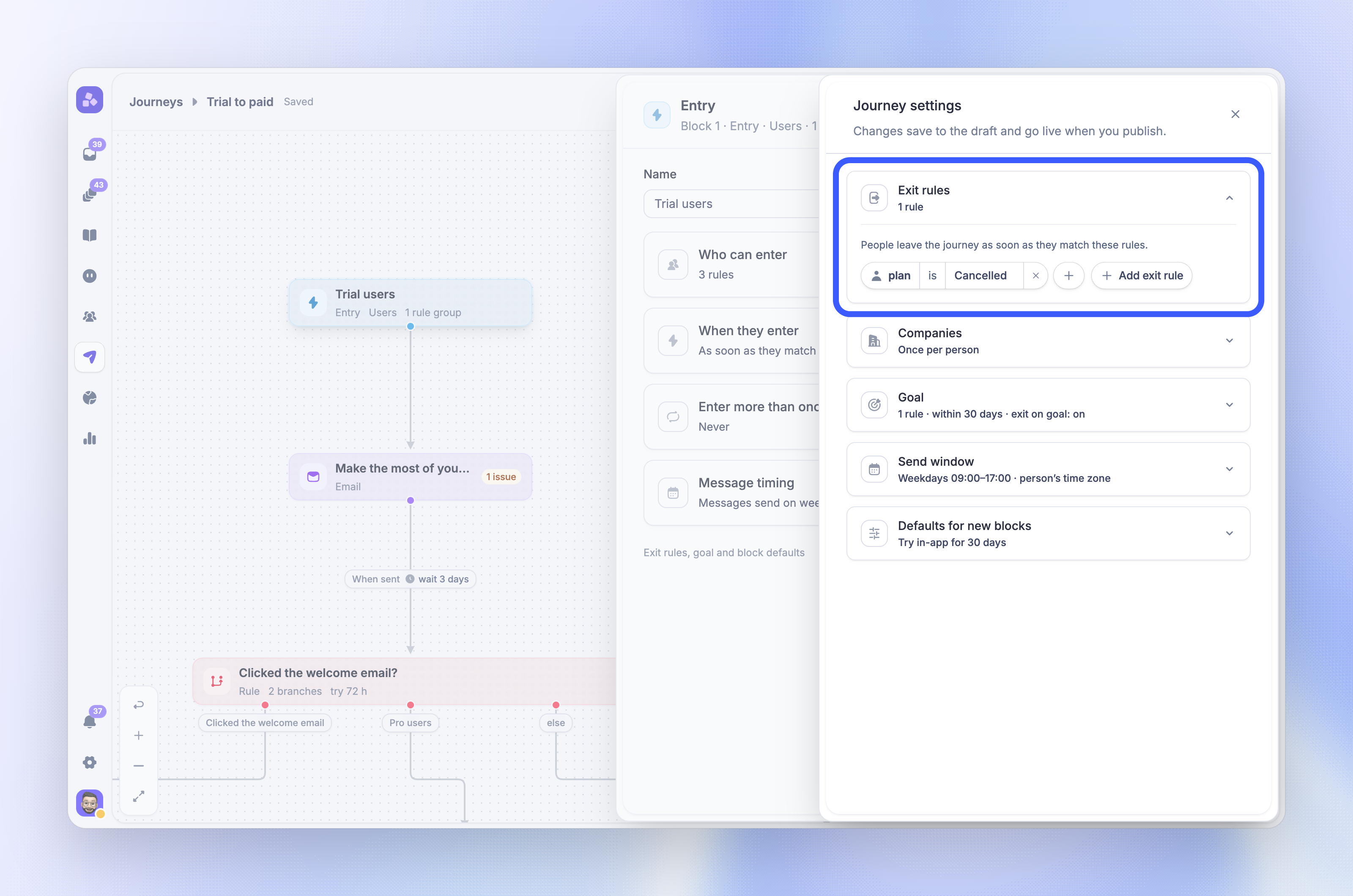
Exit rules take people out of the journey as soon as they match the rules. Use them when a message would be wrong for someone, for example when they cancel, become a customer, or are tagged as churned.
Open Exit rules in the journey settings
Click 'Add exit rule' and build the rules
Exit rules use the same rule builder as the entry audience. They also work as an entry filter: a person who matches an exit rule does not enter the journey.
When you publish new exit rules, they apply to everyone in the journey, including people still on an earlier version.
Other ways people leave
People also leave the journey when:
They reach the goal and Exit on goal is on
They reach the end of a path with no next block
The journey is stopped
The report shows the reason each person left, such as Matched an exit rule or Hit the goal.
Note: Exit rules come before the goal. When a person matches an exit rule and reaches the goal at the same time, they leave through the exit rule.
Remove people from a journey
A journey has no button to remove one person. Use a tag and an exit rule instead:
Add an exit rule on User Tags with a tag such as "Remove from onboarding"
Add the tag to the people you want to remove
They leave the journey soon after they get the tag, and the report shows Matched an exit rule. Publish the exit rule before you tag anyone, because exit rules in the draft do not apply yet. While people keep the tag, they also cannot enter the journey again.
Set a send window
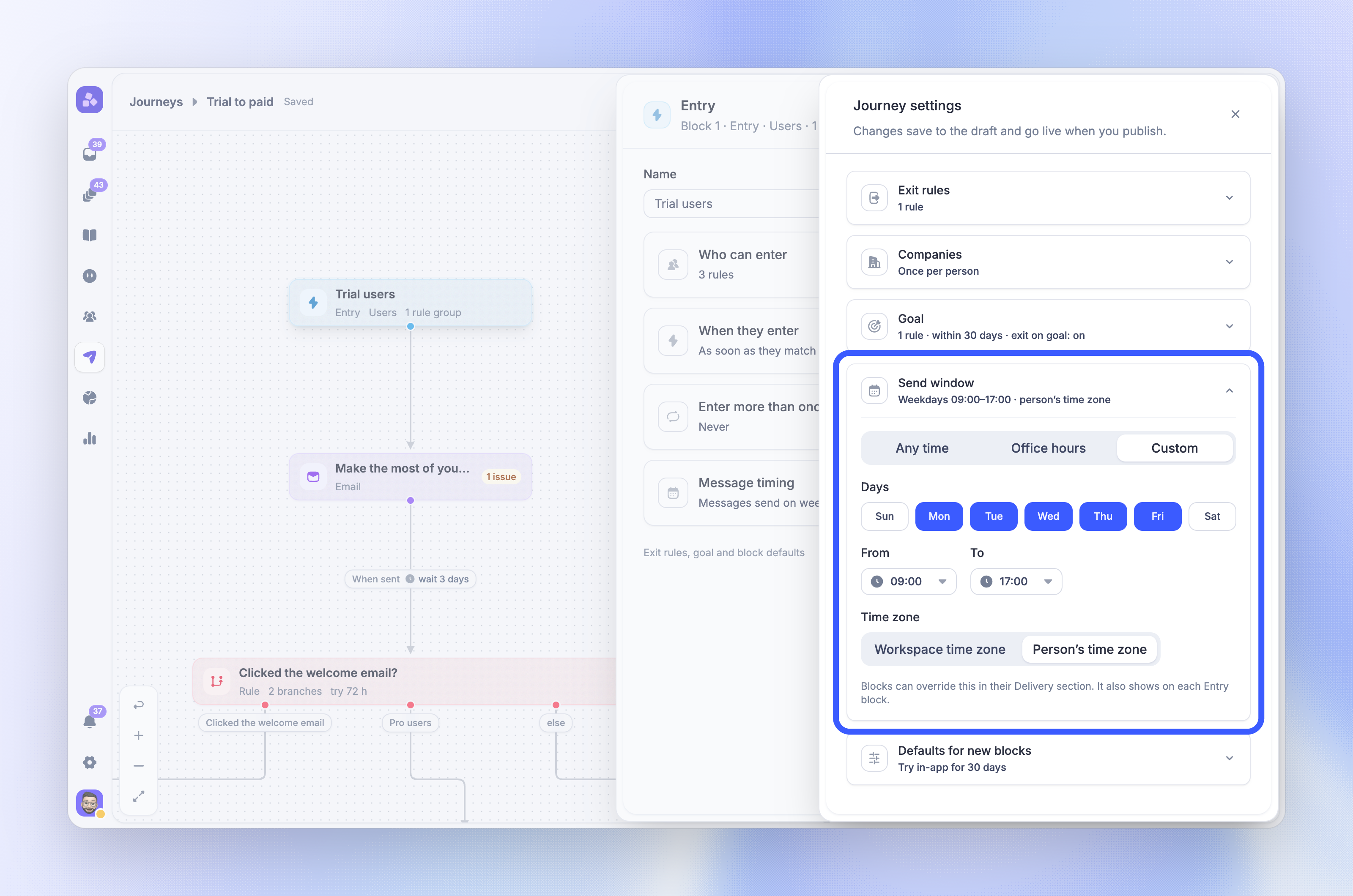
The send window sets when journey messages may send. It applies to every email and in-app block in the journey. Outside the window, messages wait for the next opening.
Open Send window in the journey settings and choose:
Any time - Messages send as soon as people reach the block
Office hours - Messages send during your workspace office hours, in the workspace time zone. A workspace without office hours is always open
Custom - Pick the Days, From, and To times. A window can run overnight, for example 22:00 to 06:00
For Any time and Custom, choose the Time zone: Workspace time zone or Person's time zone.
People still enter at any time. Only their messages wait for the window. The same setting also shows as Message timing on the Entry block.
Important: A custom window where From and To are the same time never opens, so no message would ever send. The editor shows an error and you cannot publish until you fix it.
Override the window for one block
Each email and in-app block has a Send window setting in its Delivery section. Choose:
Journey default - Uses the journey send window
Any time, Office hours, or Custom window - Uses this timing for the block only
Custom window uses the custom window from the journey settings, so set one there first. For example, send a welcome email right away, but show later in-app tips only during office hours.
How long blocks wait
A message that waits for its window does not wait forever:
Email - Waits up to 30 days for the window. If the window does not open in time, the email is not sent and the person leaves the journey
In-app blocks - Wait for the person to come online, up to the limit in the block's Delivery section. After it, they take the If not online after path (If not delivered after for product tours and posts)
To set the starting limit for new in-app blocks, open Defaults for new blocks and set Try to show in-app messages for (hours). Existing blocks keep their own value, which you change in each block's Delivery section.
FAQs
Do I need a goal?
Do I need a goal?
No. A journey runs without a goal. You need one to measure a split test and to see a goal rate in the reports.
Do wait blocks follow the send window?
Do wait blocks follow the send window?
No. A Wait block has its own time zone setting. The send window only applies to email and in-app blocks.
Do new exit rules apply to people already in the journey?
Do new exit rules apply to people already in the journey?
Yes. After you publish the change, the new exit rules apply to everyone in the journey, including people on an earlier version. Anyone who matches them leaves.
Was this helpful?
Still need help? Ask the team