Entry triggers & audience
Choose who can enter a journey, what starts it, and whether people can enter more than once.
Written By Bruno
Last updated 11 minutes ago
Overview
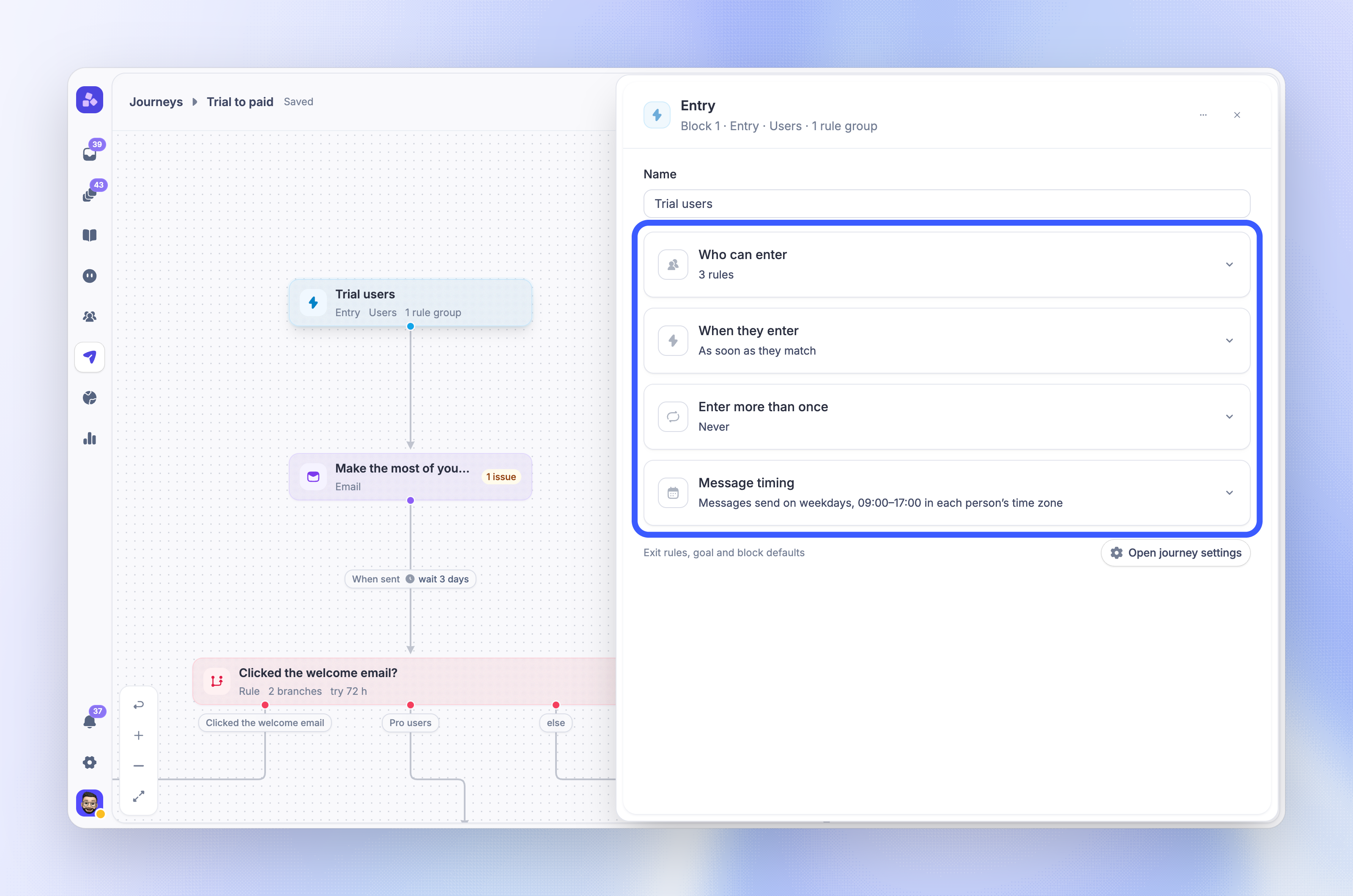
Every journey starts at an Entry block. The Entry block decides who can enter the journey, the moment they enter, and whether they can enter again later. You set all of this in the Entry block panel, and the journey checks it for each person before they move to the first block.
A new journey has one Entry block for users with no audience rules. To open it, go to Dashboard → Outbound → Journeys, open a journey, and click the Entry block on the canvas.
Note: Changes to the Entry block save to the draft. They apply to people only after you publish the journey.
Choose who can enter
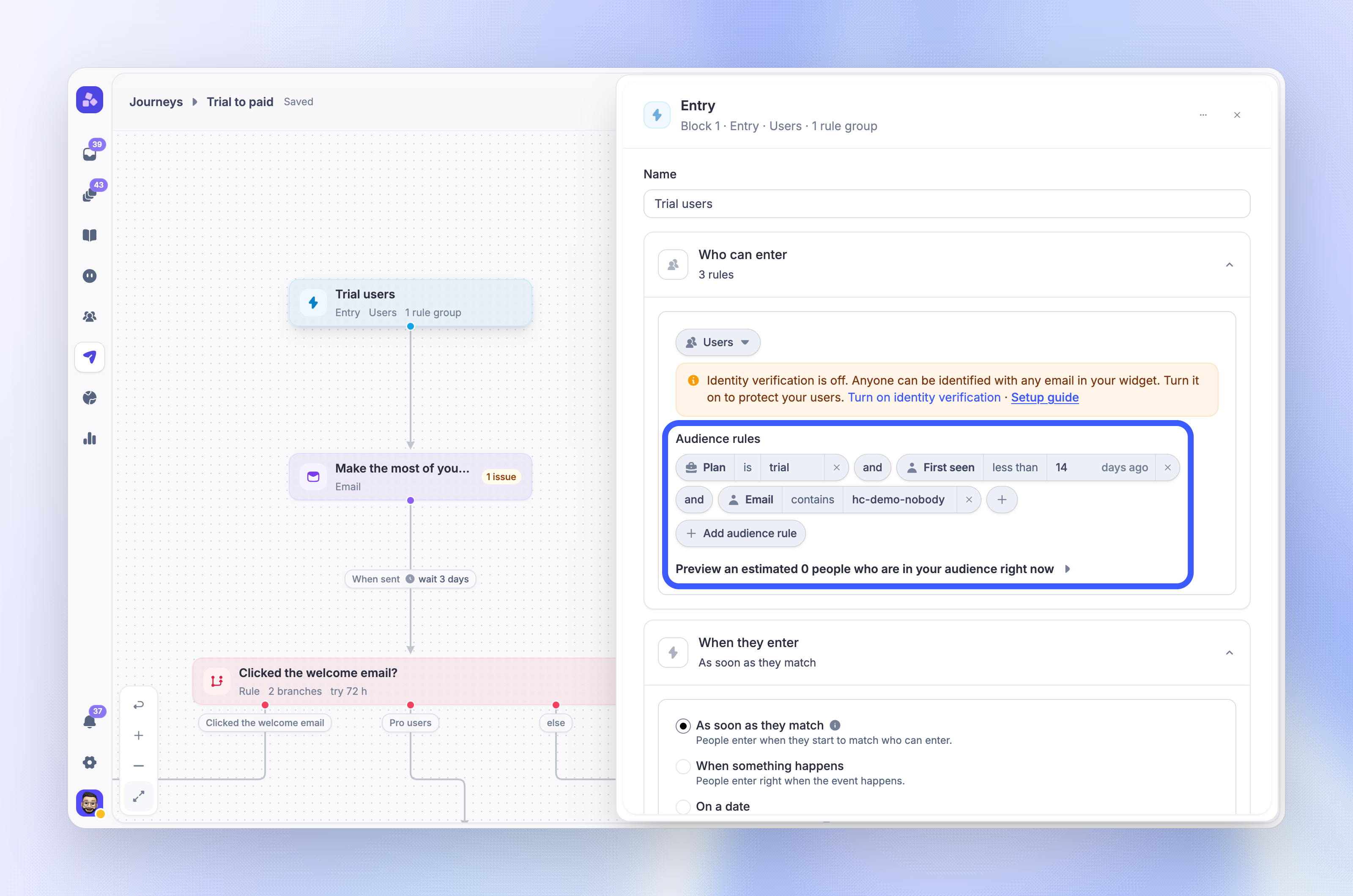
Use the Who can enter card to pick the audience type and add audience rules.
Users - People who signed up to your product or logged in to an existing account
Visitors & Leads - People who visit your site or start a conversation with you
Visitors and leads are always picked together.
Add Audience rules to narrow the audience by person or company attributes. Rules use the same builder as Outbound message rules, with grouped and/or logic. Without rules, everyone of the chosen types can enter.
Journey rules cannot use fields that only exist on conversations or tickets, such as conversation, ticket, availability, or CSAT fields. The editor shows A rule uses a field that journey rules cannot use when a rule has one.
Note: Visitors have no email address. When a visitor reaches an Email block, the email is not sent and the visitor leaves the journey there. Leave visitors out of email journeys, or reach them with an in-app block.
Choose when people enter
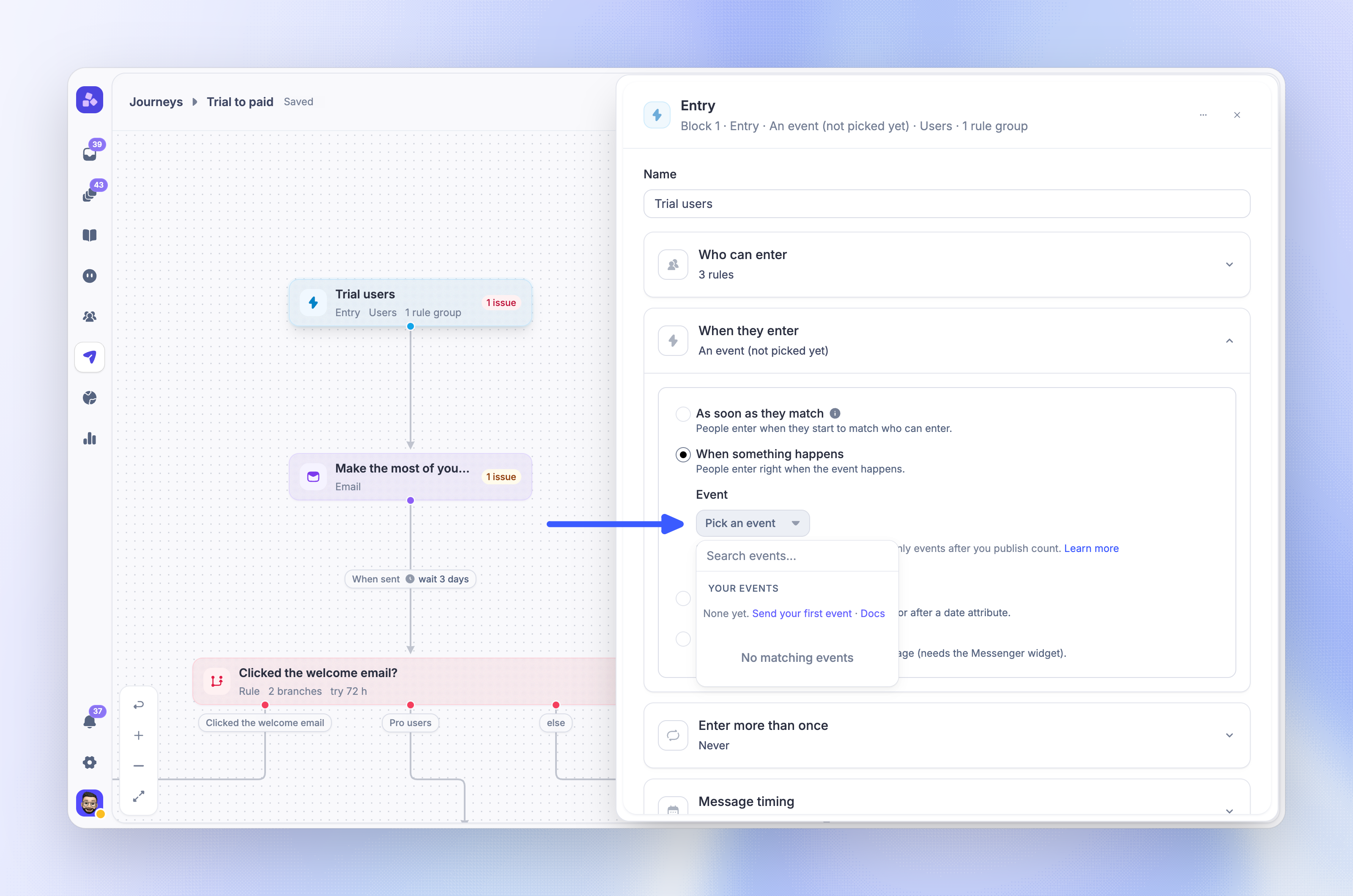
Use the When they enter card to choose one trigger.
With a trigger, the audience rules are checked at the moment the person enters.
As soon as they match
People enter when they start to match the audience. Use a date rule for date-based entry without a trigger, for example "Signed up more than 3 days ago". People enter when that time passes.
When something happens
Pick an event from Your events. The list shows your workspace's own custom events. Featurebase system events cannot start a journey. Use Where (optional) to filter on event data, for example a plan name sent with the event.
Only events tracked after you publish count. If an event is archived or no longer exists, the editor shows an error until you pick another event.
On a date
Pick a Date attribute, then set:
Days - 0 to 365, Before or After the date
Time of day - Same time as the date, or Set time
Time zone - Person's time zone (the default) or Workspace time zone
Only person attributes of the date type are offered.
When they visit a page
Add URL rules with Add URL rule. Page triggers check the page URL only, not time on page or page elements.
Note: Page triggers and in-app blocks need the Featurebase Messenger on your site.
Let people enter more than once
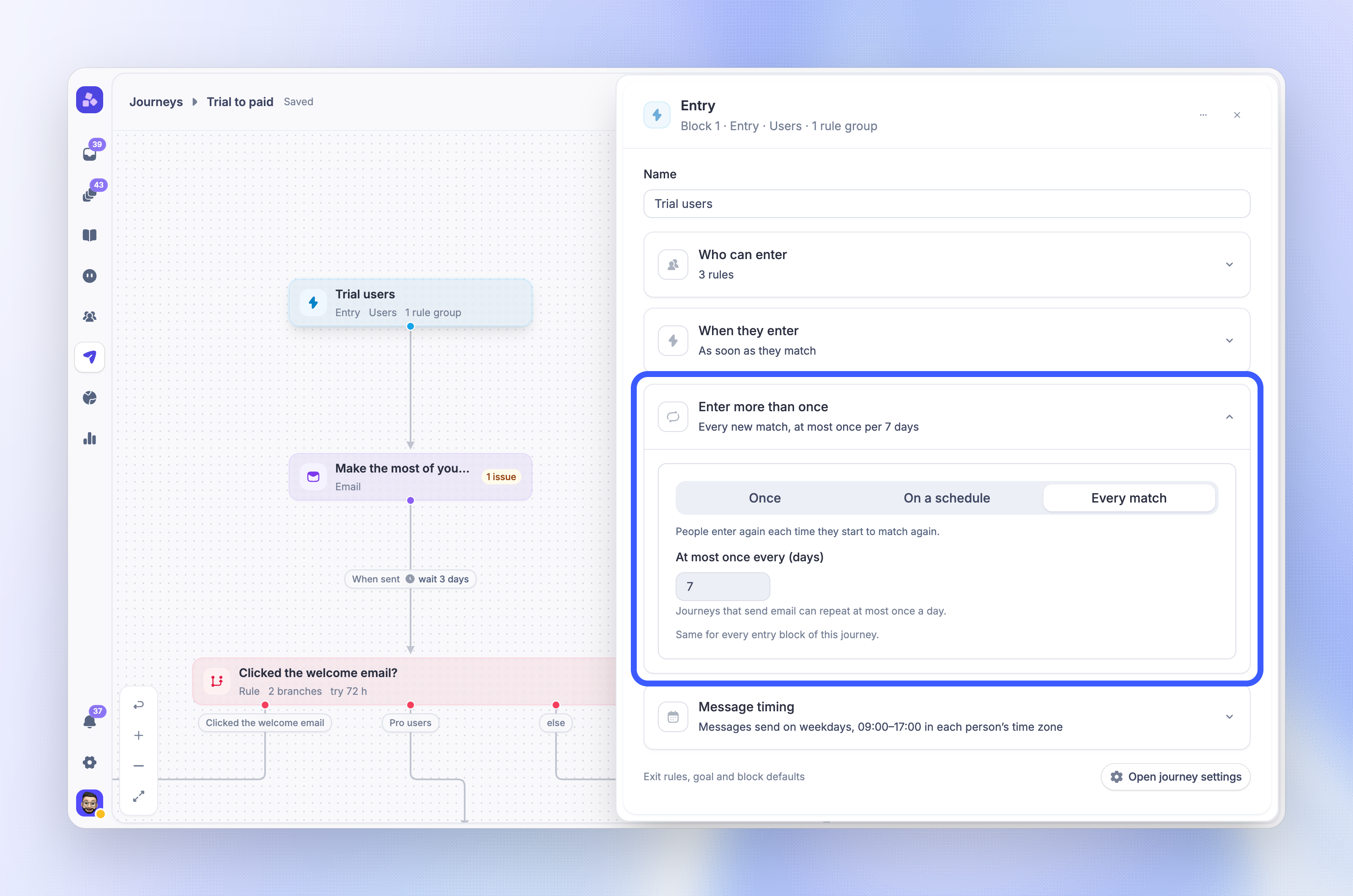
Use the Enter more than once card to set re-entry.
Once - People go through the journey one time only
On a schedule - People who still match enter again after each interval. Set Timing to After last entry, then set Repeat every in days, weeks, or months
Every match - People enter again each time they start to match again. Set At most once every (days) to space out entries
A person is in a journey only once at a time. Someone who is still in the journey does not enter again until they leave it.
Notes:
Journeys that send email can repeat at most once a day
On a schedule is not available with an event or page trigger
Choose who enters when you publish
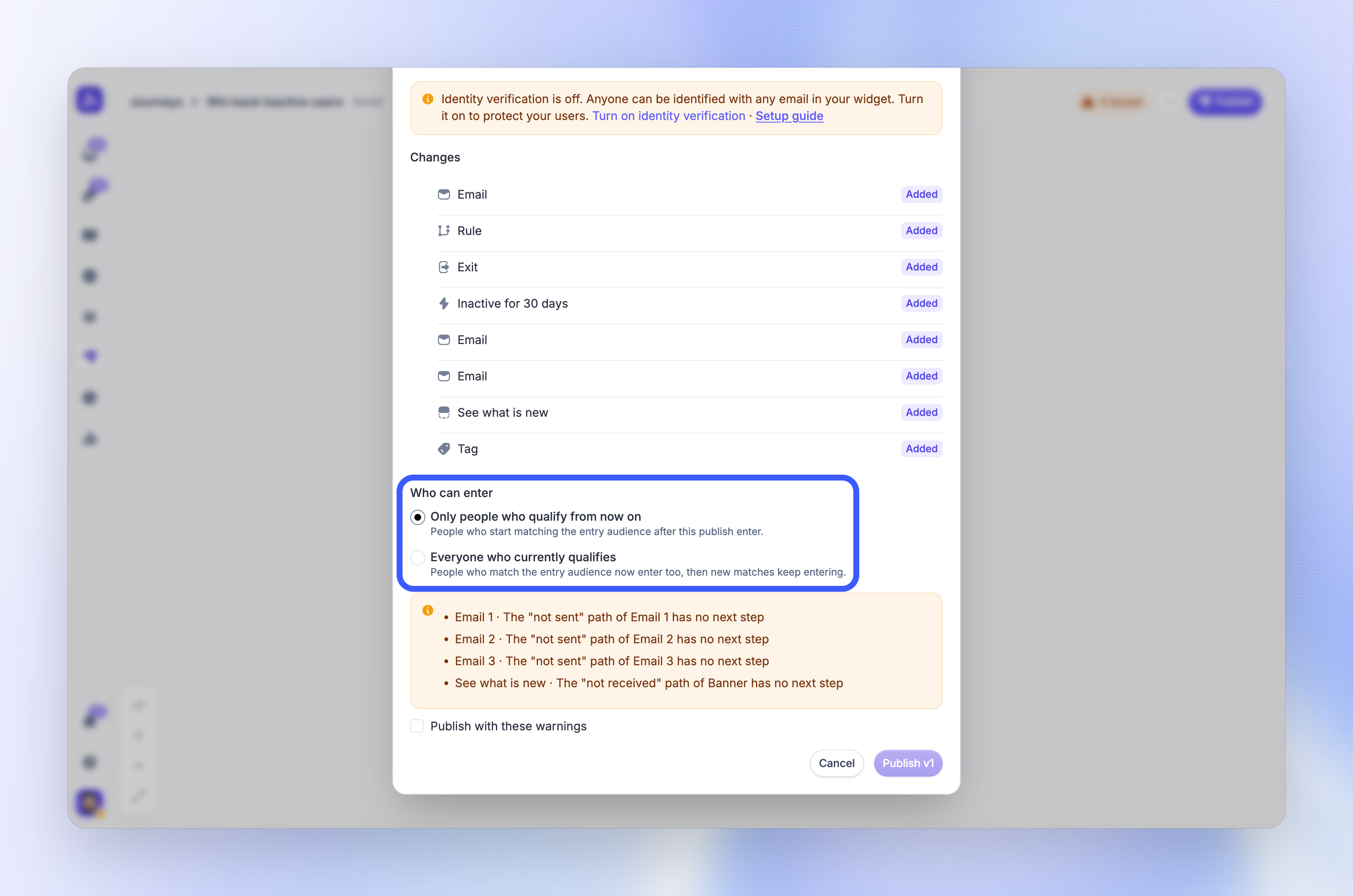
When you publish a journey that uses As soon as they match or On a date, choose who can enter in the publish dialog:
Only people who qualify from now on - People who start matching the entry audience after this publish enter (the default)
Everyone who currently qualifies - People who match the entry audience now enter too, then new matches keep entering
Event and page triggers always start from now: only events and visits after publishing count.
Send once per company
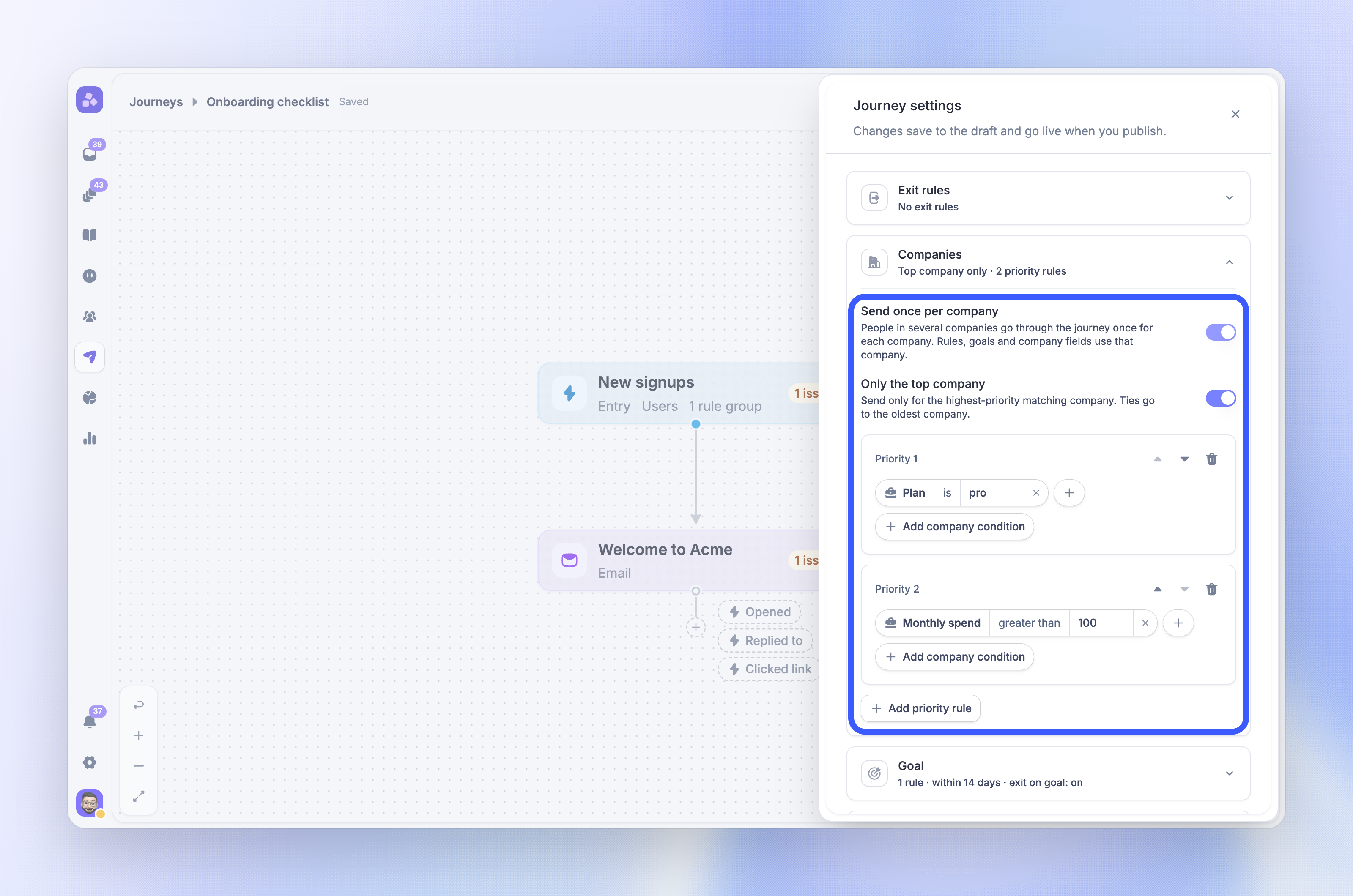
Company journeys run a person through the journey once for each company they belong to. Rules, goals, and company fields then use that company. Turn this on in the journey settings under Companies → Send once per company.
Turn on Only the top company to send for one company per person. Add priority rules with company conditions. The highest-priority matching company wins, and ties go to the oldest company.
For example, set priority 1 to "Monthly Recurring Revenue greater than 1000". A person in one company with 2,000 MRR and one with 100 MRR goes through the journey once, for the first company. When both companies match the same priority, or neither matches a priority rule, the journey uses the older company.
A person with no company does not enter. Company journeys can use email blocks, but not in-app blocks.
Important: You cannot turn company journeys on or off after the first publish. To change it, duplicate the journey.
FAQs
Why did someone who matches the audience not enter?
Why did someone who matches the audience not enter?
Common reasons are an exit rule that matches them, re-entry set to Once after they already went through, or the person still being in the journey. People who matched before you published also stay out when you chose Only people who qualify from now on.
Do exit rules affect who can enter?
Do exit rules affect who can enter?
Yes. A person who matches an exit rule does not enter.
Does the send window delay entry?
Does the send window delay entry?
No. People enter at any time. Their messages wait for the send window.
Why did one person get the same email twice?
Why did one person get the same email twice?
With Send once per company, a person goes through the journey once for each company they belong to, so they get each email once per company. Turn on Only the top company to send once per person. People who enter the journey again also get every message again.
Was this helpful?
Still need help? Ask the team