Managing live journeys
Change, pause, stop, restore and clean up journeys without losing track of the people in them.
Written By Bruno
Last updated 41 minutes ago
Overview
A live journey keeps running while you work on it. Your edits go to a separate draft, and nothing changes for your customers until you publish the draft as a new version. When you publish, you decide whether people already in the journey move to the new version or finish on the one they started.
You manage journeys from Dashboard → Outbound → Journeys. Open a journey to edit it, or use the ⋯ menu on its row for quick actions.
Note: Editing a journey needs the Manage Outbound permission. Publishing, pausing, resuming, stopping, archiving and deleting need Manage Outbound State.
Journey states
The state of a journey decides who can enter, whether people move forward, and whether you can still edit it.
Publishing and resuming a journey need a paid plan. On a plan without Journeys, a live journey keeps its people in place but sends nothing until you upgrade.
Change a live journey
Edit the draft
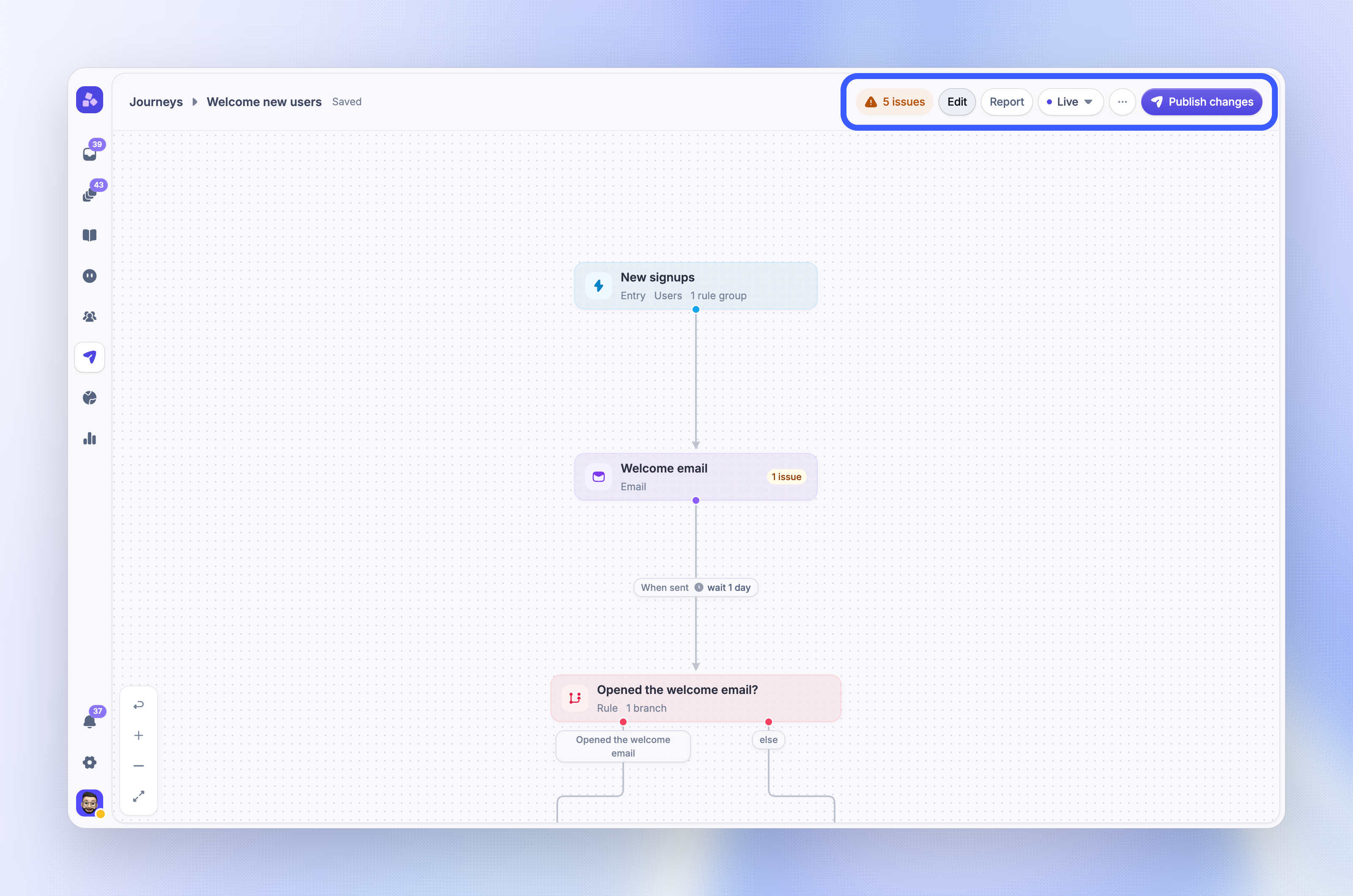
Open the journey - Go to Dashboard → Outbound → Journeys and click the journey
Make your changes - Add, remove or edit blocks on the canvas, or change the journey settings. Each change saves to the draft automatically
Check the save label - The header shows Saved when the draft is up to date
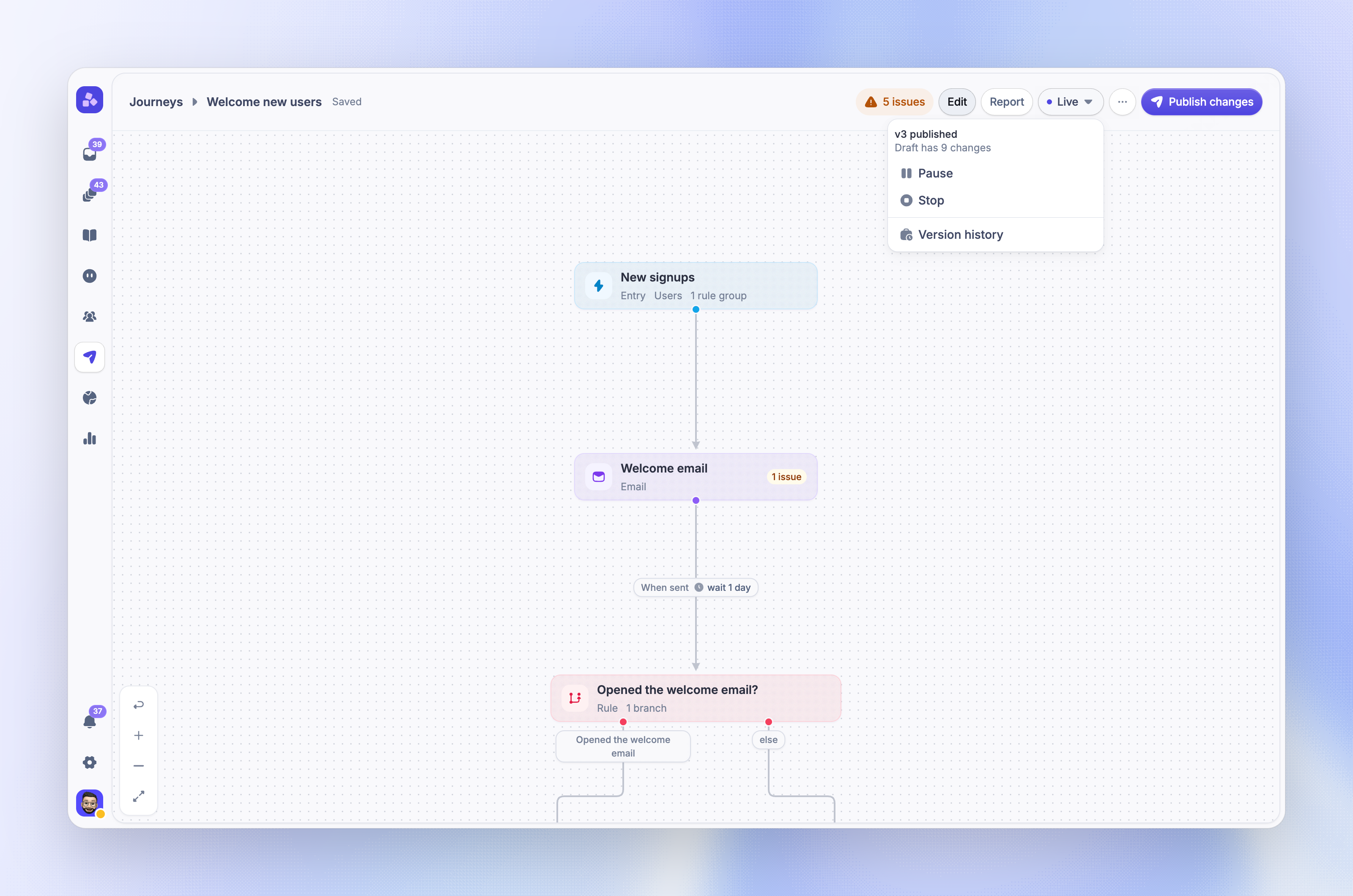
The live version keeps running while you edit. The status menu shows how far the draft is from it, for example v3 published and Draft has 9 changes.
Note: You cannot change the type of an existing block. To swap an email for a chat, remove the Email block and add a Chat block.
Review your changes
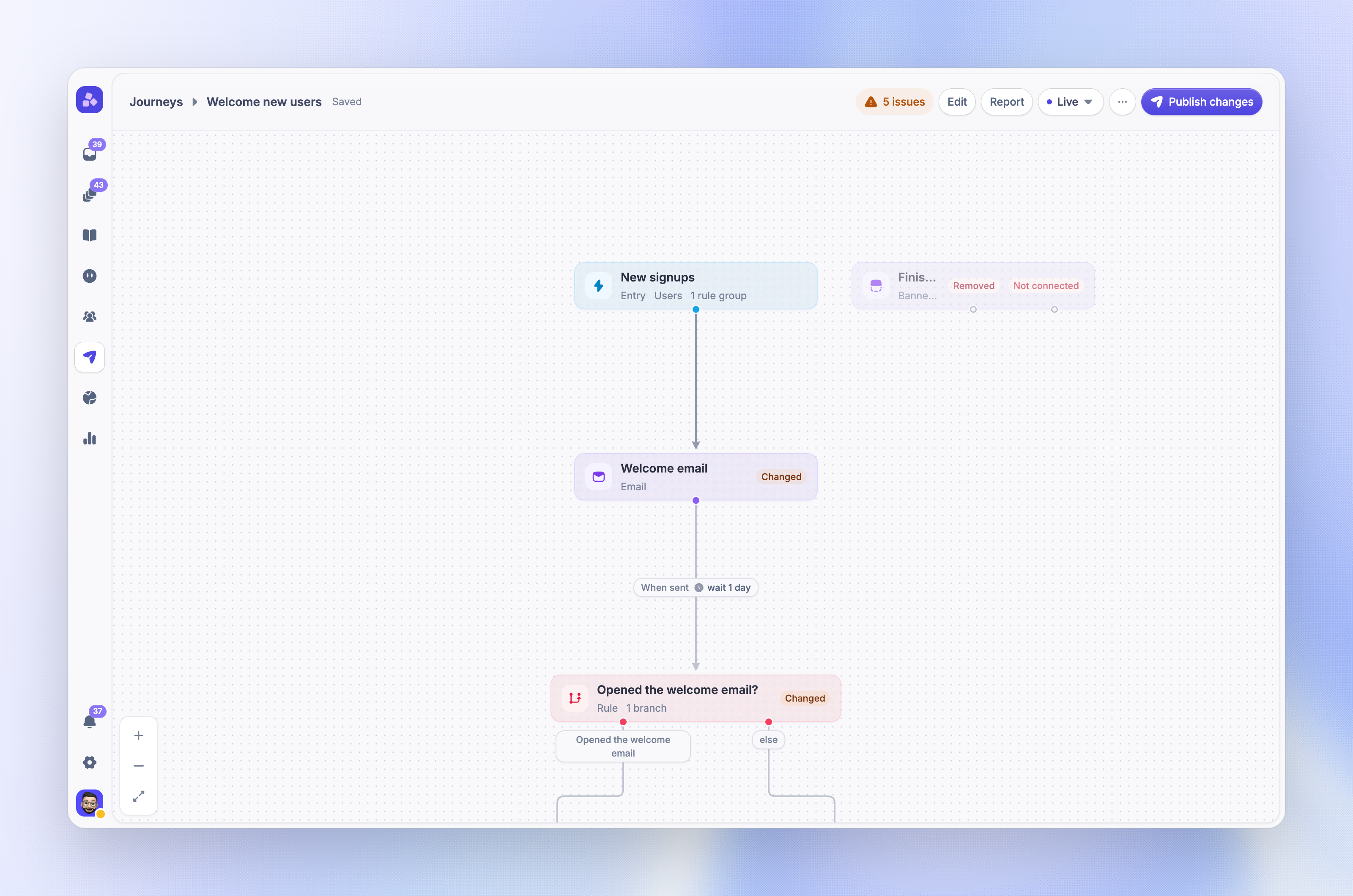
Show the changes - Open the More actions menu (⋯) in the header and choose Show changes. Blocks that you added, changed or removed are marked on the canvas. Choose Hide changes to go back
Walk a person through - Choose Preview as… in the same menu to walk one person through the journey. Nothing is sent or saved
Publish the new version
Start the publish - Click 'Publish changes'. The button is available only when the draft differs from the live version
Fix any errors - The dialog lists anything under Fix these before you publish:. Fix it in the draft, then publish again
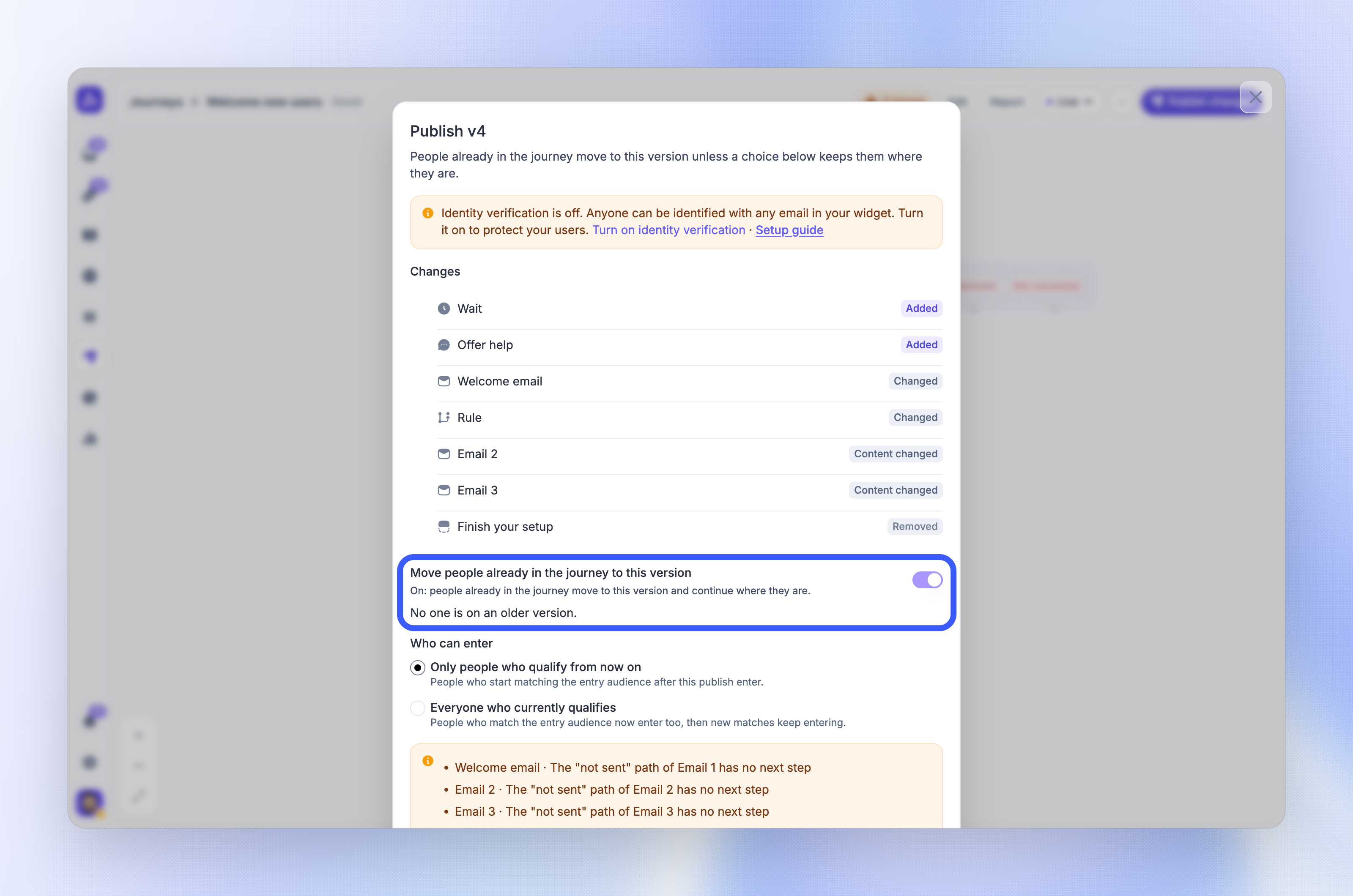
Review the Changes list - Check the blocks that this version adds, changes or removes
Choose who can enter - Under Who can enter, choose Only people who qualify from now on or Everyone who currently qualifies. This choice shows only when the journey starts with As soon as they match or On a date
Decide about people already in the journey - See Move people to the new version below
Publish - Click 'Publish v{N}', where N is the new version number
The toast confirms Published v{N}. If the journey is paused, it stays paused after publishing. Re-entry settings still apply, so people who already went through a journey set to enter Once do not enter again.
Move people to the new version
By default, the Move people already in the journey to this version switch is off. People already in the journey finish on the version they are on, and only new entries use the new version.
Turn the switch on to move them to the new version. They continue from the block where they are now. For each removed block that still has people waiting, choose what happens to them:
Stay on their current version - They finish on the version they are on now
Leave the journey - They leave when the new version goes live
Move to the next block - They continue at the block after the removed one
When a removed block had more than one path, you can only choose Stay on their current version or Leave the journey.
Tip: Leave the switch off for copy or content fixes that only matter to new entries. Turn it on when a fix must reach everyone, such as a wrong link in a later email.
Pause, resume or stop a journey
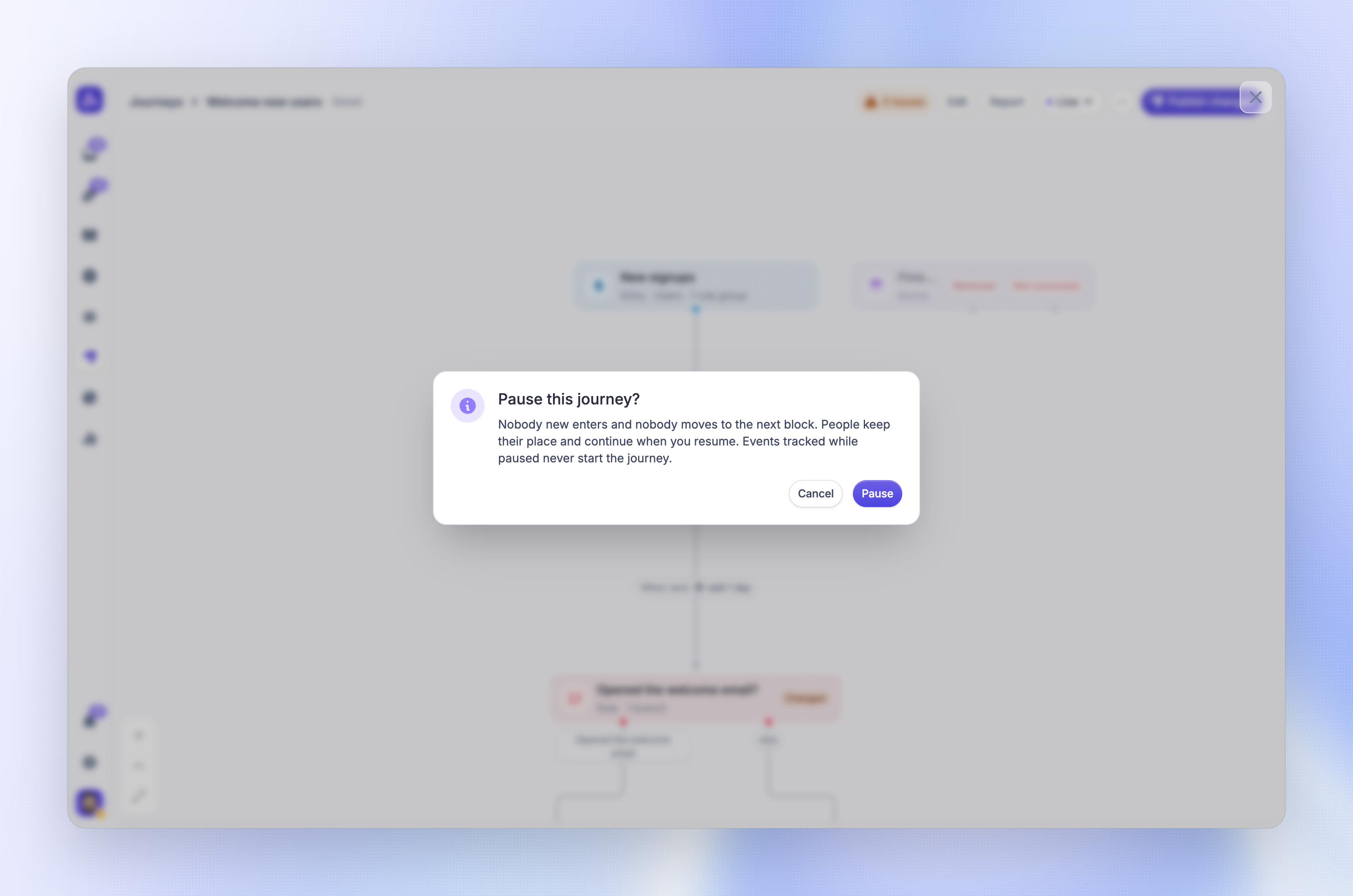
Use the status menu in the editor header (the pill that shows the state), or the ⋯ menu on the journey's row in the list.
Pause - Nobody new enters and nobody moves to the next block. Waits do not count the paused time. Custom events that happen while the journey is paused never start it
Resume - People continue from where they are, and new people who match the entry rules enter again
Stop - Everyone in the journey leaves it, unsent messages are cancelled, and nobody new enters. Stop is available in the editor status menu only
To fix a problem without losing anyone, pause the journey, publish the fix, then resume it.
Important: A stopped journey cannot be started again. To run it again, duplicate it from the journey list.
Restore an earlier version
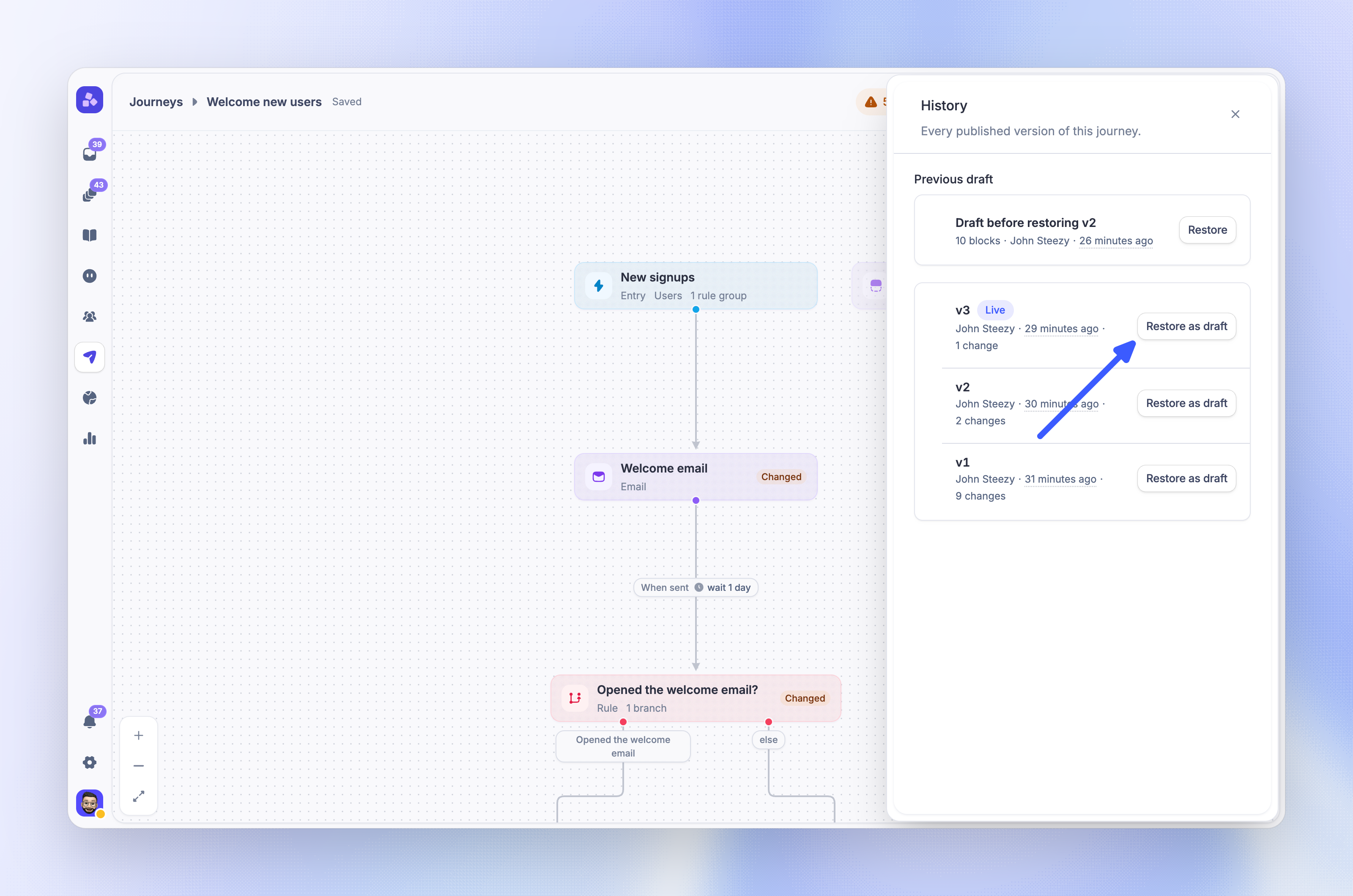
Every published version is kept, so you can go back to an earlier one.
Open the history - Click the status menu and choose Version history, or choose History in the More actions menu (⋯)
Pick a version - Find the version and click 'Restore as draft'
Confirm - Click 'Restore' in the Restore v{N} as the draft? dialog
Publish it - Review the draft, then publish it as a new version
A restore replaces the draft's blocks, connections and settings with those of the chosen version. Message content keeps your latest edits. Restoring changes only the draft: the live version stays the same until you publish.
Your replaced draft is saved as a backup, and up to 3 backups are kept. To bring a backup back, find it under Previous draft in the history and confirm Restore the previous draft?. You can also click 'Undo' on the toast right after a restore.
Duplicate, archive or delete a journey
Open the ⋯ menu on the journey's row in Dashboard → Outbound → Journeys.
Duplicate - Creates a new draft named "{name} (copy)" from the current draft, with a copy of each message. The copy has no live version and no people. Available for every state except archived
Archive - Available for drafts and stopped journeys. The journey keeps its history and stats in the report, but you cannot reopen or duplicate it
Delete - Available for drafts only. Deleting cannot be undone
To end a journey that has run, stop it and then archive it. This keeps its stats in the journey report. If you may want to run it again, duplicate it before you archive it.
FAQs
Do people get messages again after I publish a new version?
Do people get messages again after I publish a new version?
No. People who move to the new version continue from the block where they are. They do not repeat blocks they already passed.
Why is the Publish changes button missing or disabled?
Why is the Publish changes button missing or disabled?
The button shows only when the draft differs from the live version. It is disabled when the draft has errors or when you do not have the Manage Outbound State permission. Hover over the button to see the reason. For other problems, see Troubleshooting journeys.
Was this helpful?
Still need help? Ask the team