Outbound message rules
Set up the perfect audience and delivery method for your messages.
Written By Markus Palm
Last updated 19 days ago
Overview
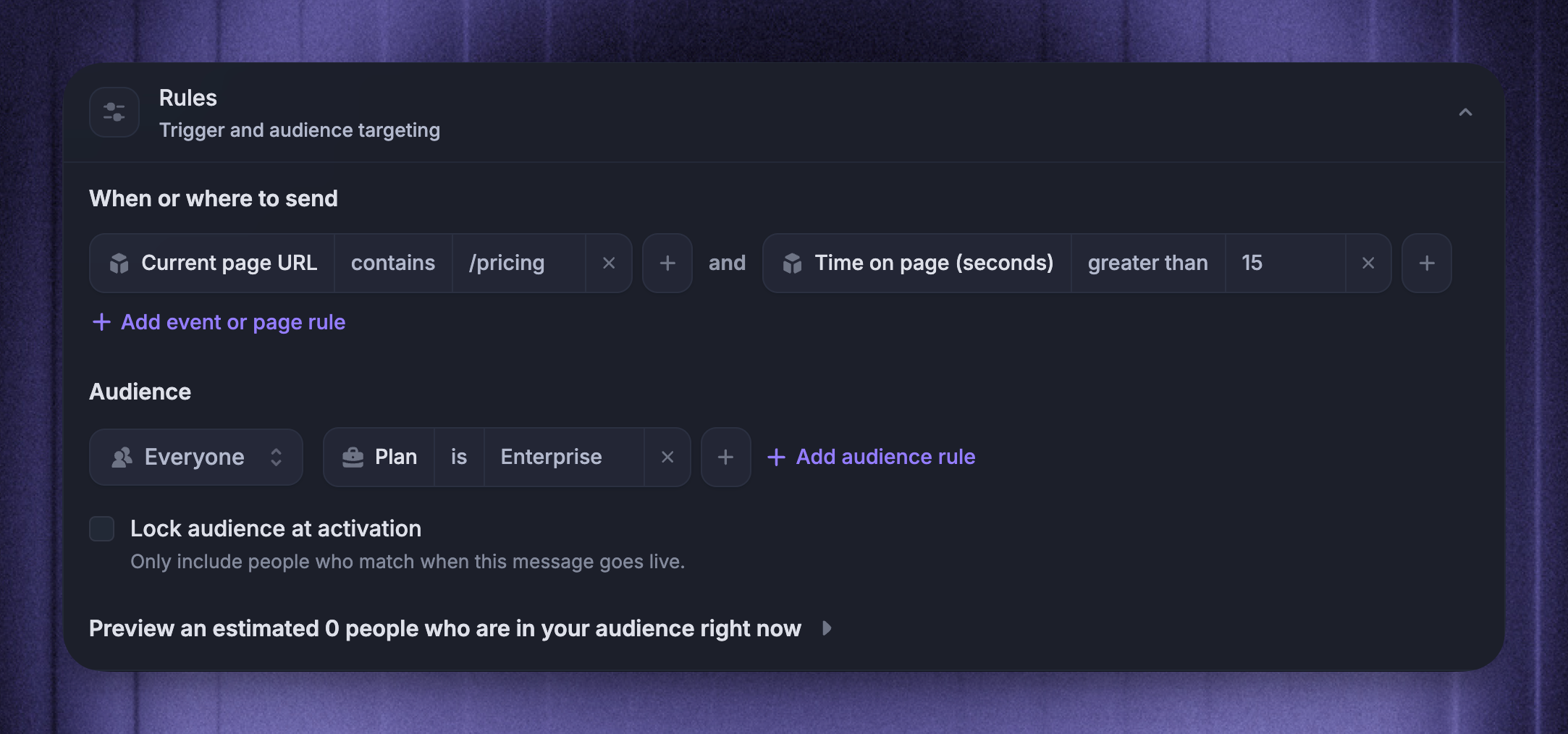
When crafting an Outbound message, it’s simple to define your audience and choose how it should be sent.
Depending on the message type (Chats, Surveys, Banners, Emails, Product Tours) there are some minor differences, but most of the process is the same. You can configure all of this under the ‘Rules’ tab. Choose:
When the message should be sent - E.g. Time on page (seconds) to wait until someone has spent enough time on the current page. If your message is strictly audience targeted, ignore this section.
Where to send it - For audience-based messages, you can set up URL or “time on page” rules.
If it should be received by all your customers, or just a certain group of visitors, leads or users.
Dynamic messages are sent to everyone who matches the filters when it is set live, and anyone who matches them in future.
Locked messages will only be sent to people who match the filters when the message is set live.
Rules work together with Frequency and scheduling. Rules decide who is eligible, while scheduling decides when and how often an eligible person can receive the message.
Product Tour rules control automatic display. Shared tours bypass automatic audience and page-trigger rules, so share them only where they are relevant.
Configure rules
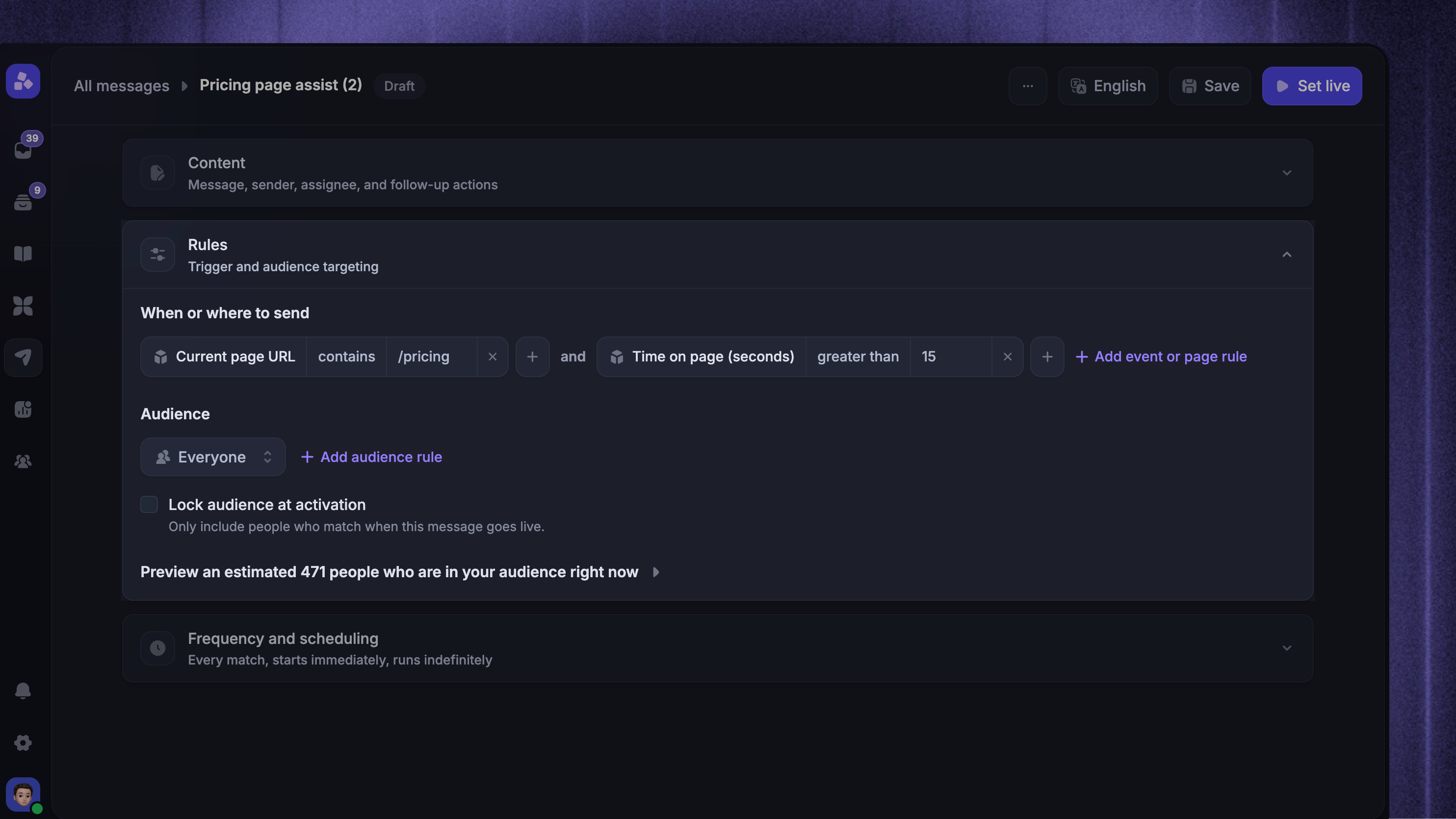
To configure rules for an Outbound message:
Go to Dashboard → Outbound
Open a message, or create one from New Message
Open Rules
When
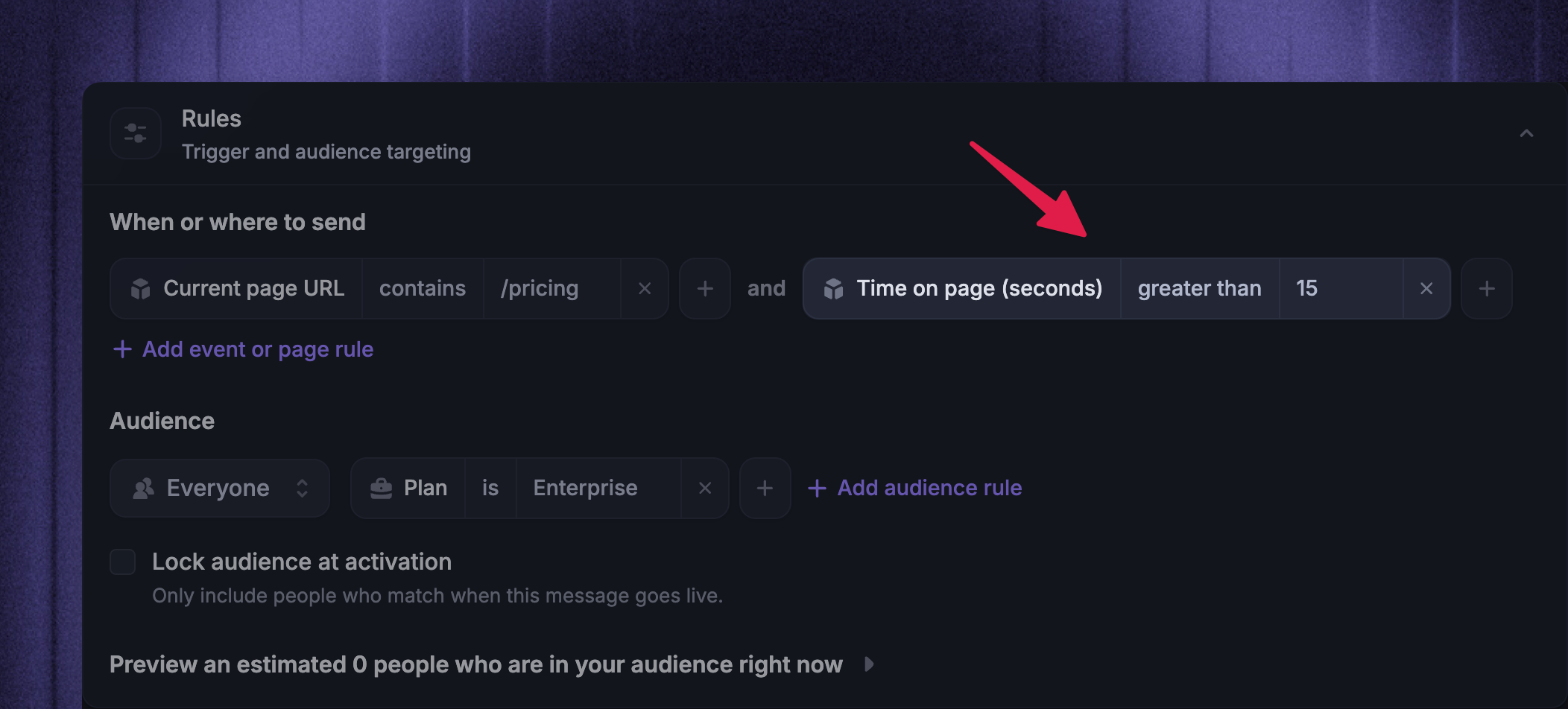
Use When or where to send to decide when an in-app message becomes eligible during a visit. This section is available for Chat, Banner, Survey, and automatically displayed Product Tours.
Use Time on page (seconds) when the message should wait until the person has spent enough time on the current page.
If you leave When or where to send empty, the message can be eligible on every visit for people who match the audience and scheduling rules.
Note: Email messages do not show When or where to send because they send from audience and scheduling rules only.
Where
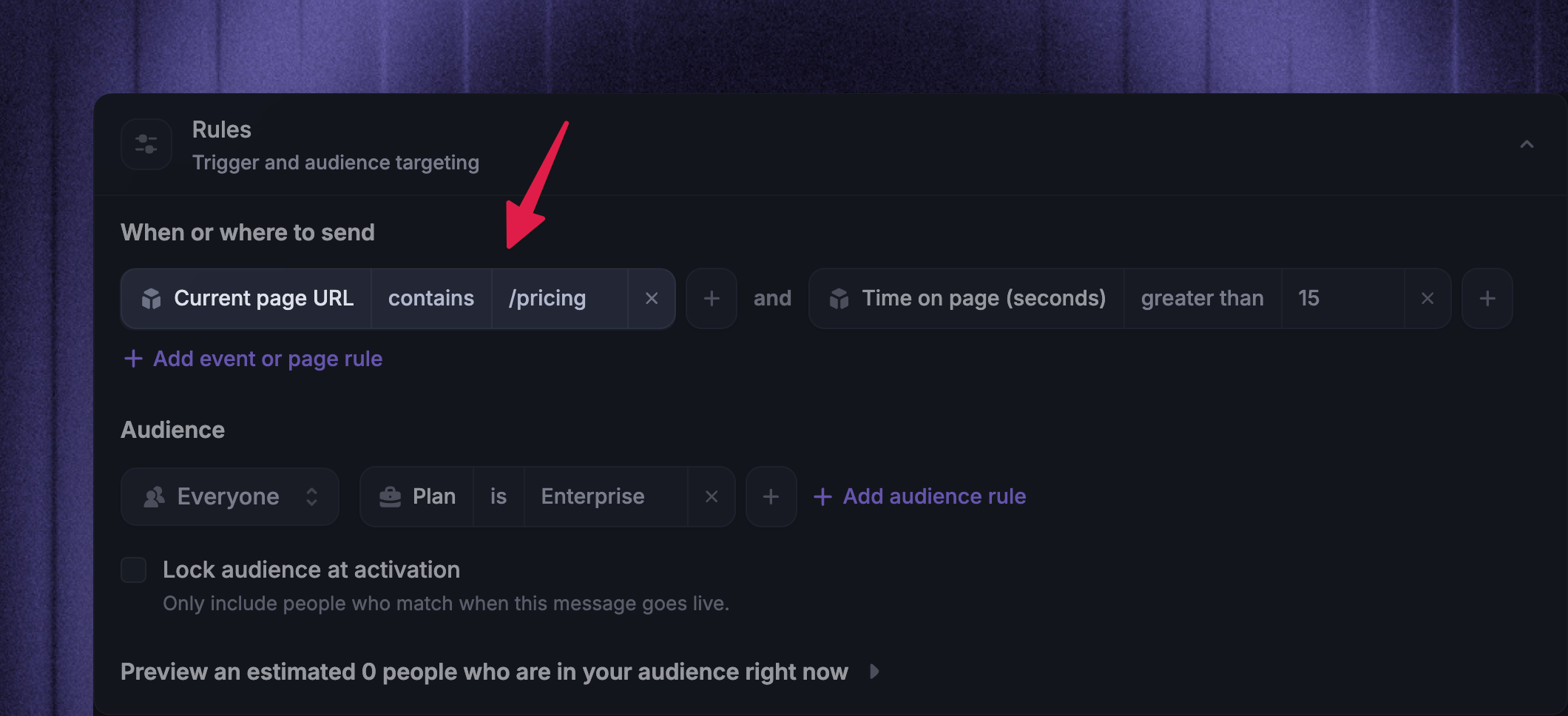
Use page rules to control where an in-app message can appear.
Supported location rules include:
Current page URL
CSS selector
Use Current page URL when a message only makes sense on a specific page or path. Use CSS selector when the message should depend on whether a specific page element is present or absent.
Tip: Copy URLs directly from your app or website when building page URL rules. This helps avoid mismatches caused by hidden characters, paths, or trailing slashes.
Audience
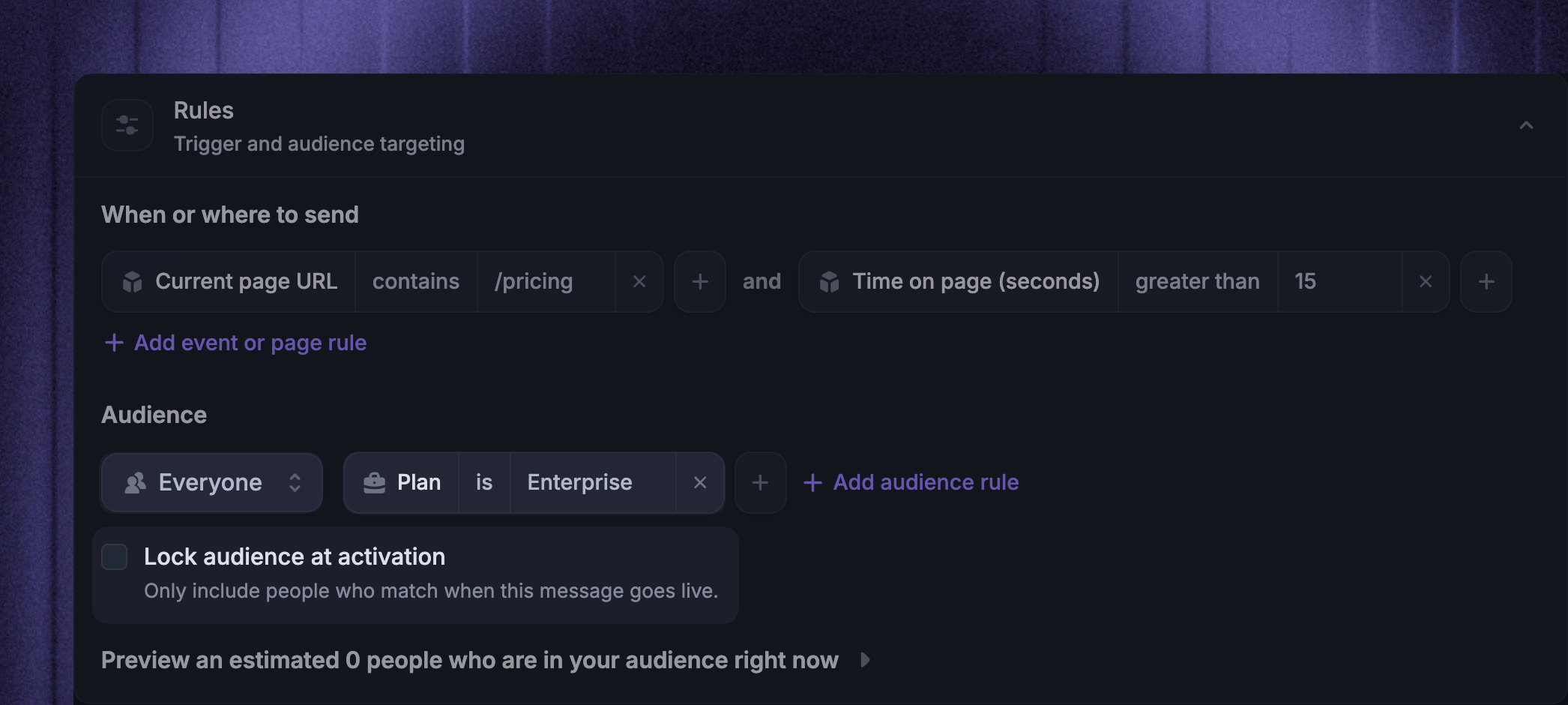
Use Audience to decide who can receive the message. Depending on the message type, choose:
Everyone - users, visitors, and leads
Users - people who have signed up to your product or logged in to an existing account
Visitors & Leads - people who visit your site or start a conversation with you
After choosing the audience type, add audience rules to narrow the message by user or company attributes. Audience rules support grouped and/or logic. Use and when someone must match every rule. Use or when someone can match any rule in the group.
By default, Outbound messages use a Dynamic audience. For Chat and Email, turn on Lock audience at activation when you want a Locked audience that only includes people who match when the message is activated.
Product Tours always use a Dynamic audience for automatic display.
Tip: Use the Preview audience to estimate who currently matches the selected audience type and rules. Preview audience does not check page rules, scheduling, delivery history, message state, email eligibility, or other delivery checks.
FAQs
Why don't I see ‘When or where to send’ for an Email?
Why don't I see ‘When or where to send’ for an Email?
Email messages do not use page URL, time-on-page, or CSS selector rules. They send to matching Users based on the audience and schedule you configure.
Can I target visitors or leads with an Email?
Can I target visitors or leads with an Email?
No. Email messages can only target Users. To reach visitors or leads while they are on your website or in your product, use a Chat, Banner, Survey, or a Product Tour on desktop instead.
What happens if I leave ‘When or where to send’ empty?
What happens if I leave ‘When or where to send’ empty?
For Chat, Banner, Survey, and automatically displayed Product Tours, the message can be eligible on every visit for people who match the audience and scheduling rules.
Was this helpful?
Still need help? Ask the team