Workload management overview
Choose how conversations reach your teammates and control how much work they receive.
Written By Markus Palm
Last updated 5 days ago
Overview
Workload management distributes conversations from team inboxes to teammates. You can choose an assignment method, set capacity limits, and use teammate availability to decide who receives the next conversation.
Workflows route conversations to the right team. The team's assignment method then determines how that work reaches an individual teammate.
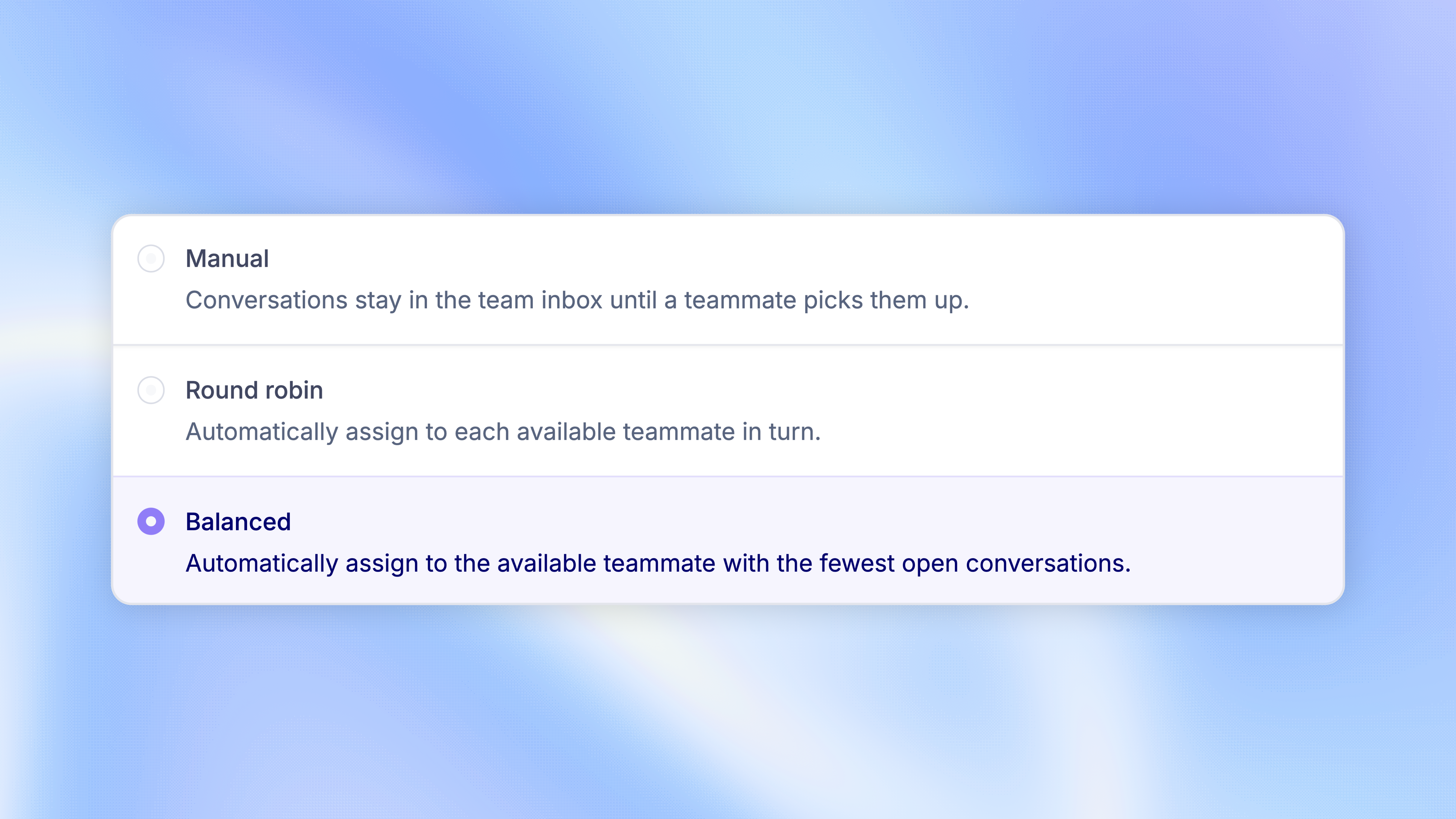
Choose an assignment method
Each team inbox has its own assignment method:
Round robin does not enforce assignment limits. Balanced assignment checks both teammate limits and any limit set for the inbox.
To change the method, go to Settings → Members & Teams → Teams, expand the team, choose a method, and click 'Save changes'.
Configure workload management
Start with team inboxes and a routing Workflow. Then configure the controls your team needs:
Teammate limits - Set a default number of open conversations and adjust it for individual teammates
Inbox limits - Limit how many conversations each teammate can hold from a specific team inbox
Availability - Let teammates set themselves Away, or use automatic away mode after a period of inactivity
Queue priority - Choose which waiting conversations Balanced assignment handles first
Workspace controls are in Settings → Inbox → Assignments. Assignment methods and inbox limits are in each team's settings.
Monitor your team
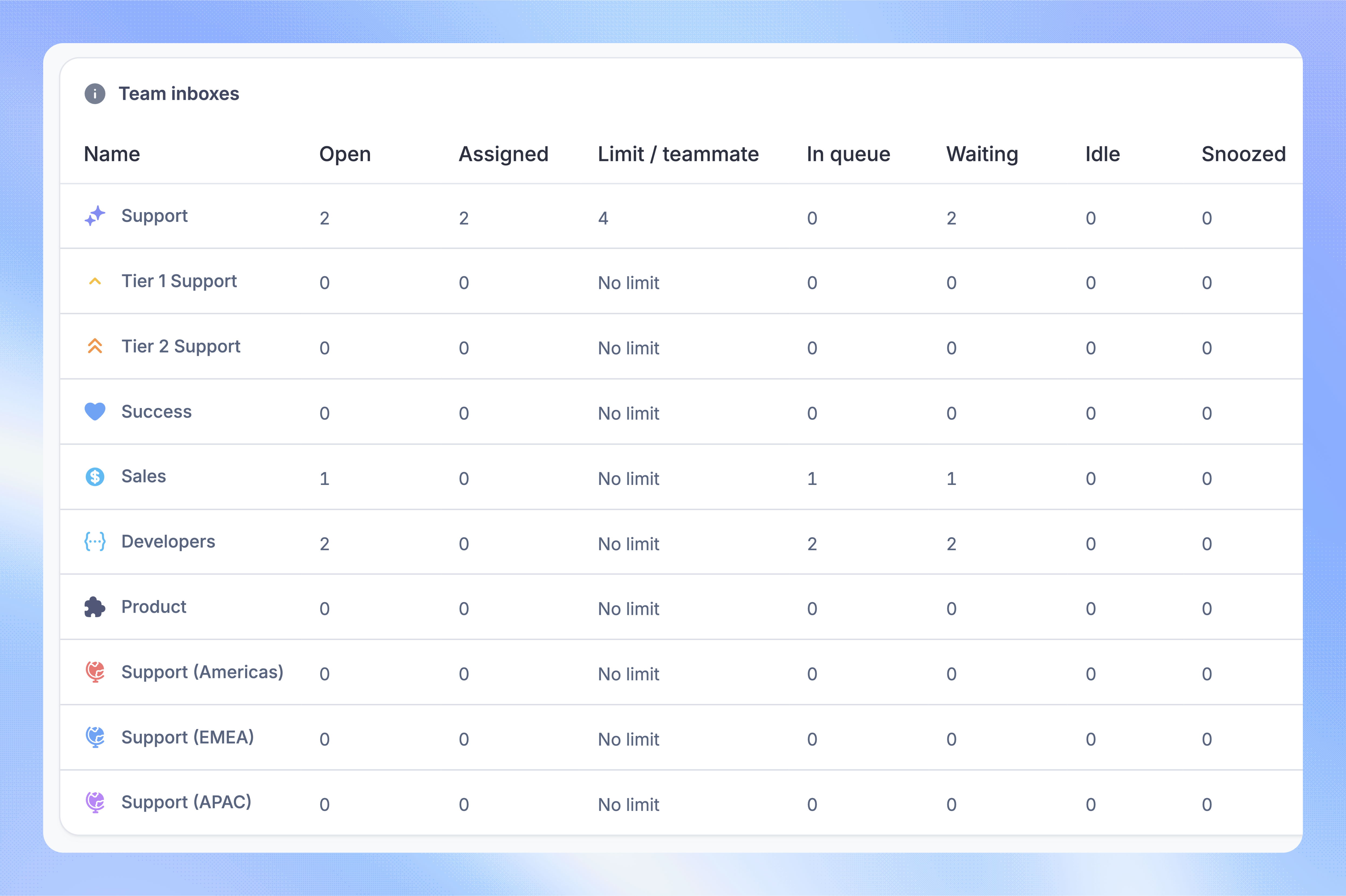
Use the Workload dashboard to check waiting conversations, teammate availability, and capacity. This helps you see where work is building up and where your team needs help.
To send new conversations to a different team when the usual team is full, use a capacity-based Workflow.
Was this helpful?
Still need help? Ask the team