Manage teammate availability
Set yourself Away, reassign customer replies, and choose the reasons your team can use.
Written By Markus Palm
Last updated 5 days ago
Overview
Your availability tells Featurebase whether you can receive new conversations through automatic team assignment. Set yourself Away when you take a break or finish your shift. Turn on Reassign replies if someone else should handle new customer replies while you are away.
Availability is specific to each Workspace.
Set your availability
If your Workspace requires a reason, select Choose a reason in your profile menu before turning on Away mode.
Open your profile menu in the dashboard
Turn on Away mode
Use Status to select an away reason, if needed
Turn on Reassign replies if you want new customer replies to be reassigned
To become available again, turn off Away mode. If an away banner is visible, you can also click it to return to Active.
While you are Away, Balanced assignment skips you. Round robin also skips you unless the team has Ignore activity status enabled.
Reassign replies while away
Turning on Reassign replies does not immediately move your existing conversations. Reassignment happens when a customer sends another reply.
Featurebase uses the Workspace's Default assignee, configured in Settings → Inbox → Assignments → General. If the default is a team, its assignment method determines who receives the conversation.
When no default assignee is set, Featurebase returns the conversation to its current team. If it has no team, it becomes unassigned.
Conversations in Round robin teams with Ignore activity status enabled stay with their Away assignee when the customer replies.
Manage away reasons
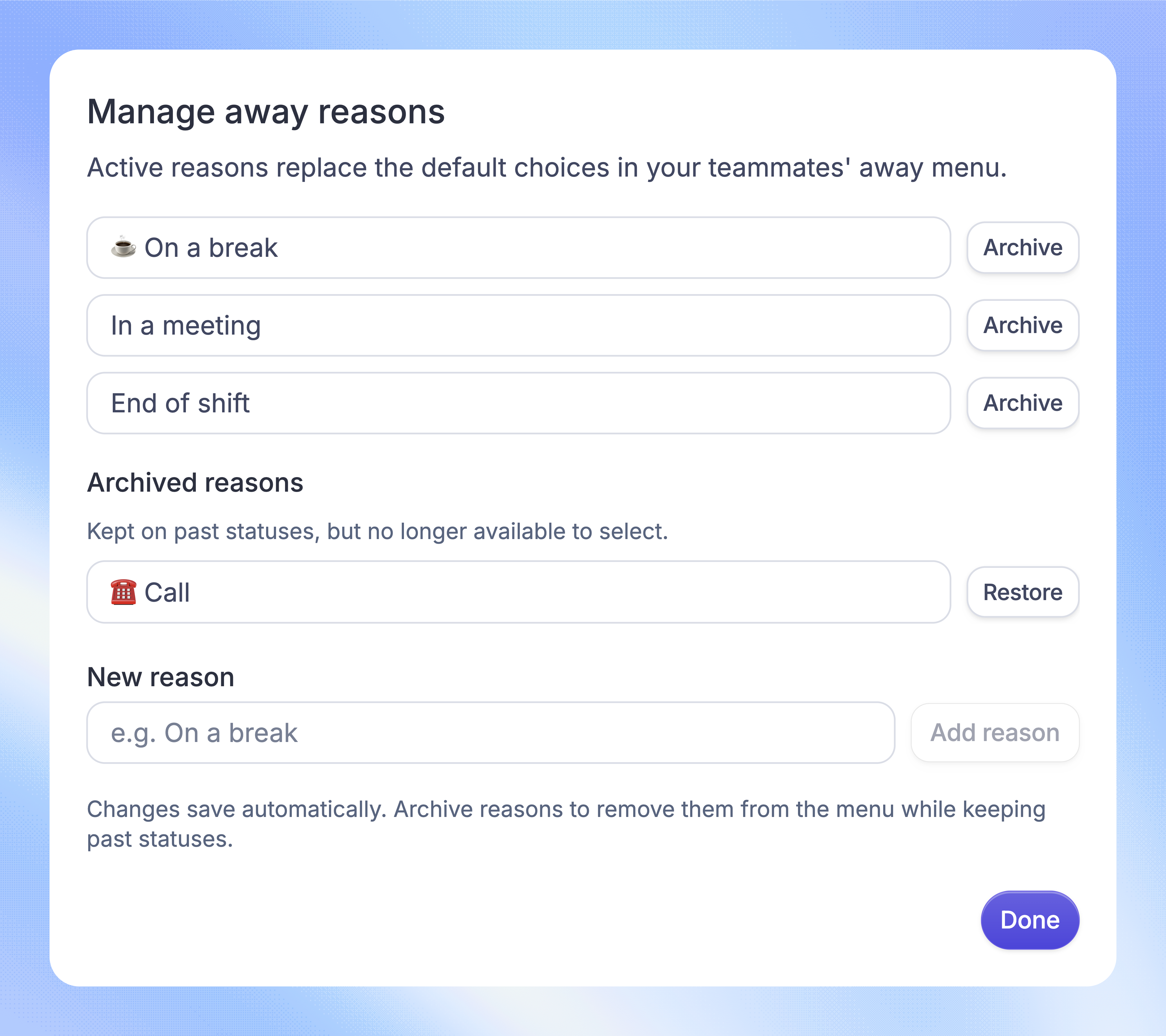
You need permission to Manage Auto Away Mode to change the Workspace's reason list.
Under Away reasons, click 'Manage reasons'
Enter a reason and click 'Add reason', or edit an existing reason
Click 'Done' when you finish
Changes save automatically. Active custom reasons replace the default choices in teammates' profile menus.
You can turn on Require an away reason and choose whether to Allow custom reasons. Add at least one active reason before configuring these options.
FAQs
Where can I see a teammate's status?
Where can I see a teammate's status?
Status dots appear beside teammates in assignment pickers, conversation messages, and other Inbox views. Green means Active, amber means Away, and red means Away & reassigning. Hover over the indicator to see the status or away reason.
Can someone assign a conversation to me while I am Away?
Can someone assign a conversation to me while I am Away?
Yes. A direct assignment to a named teammate can still assign work to you. Away mode controls your eligibility for automatic team distribution.
Can a manager change another teammate's status?
Can a manager change another teammate's status?
Yes. In the Workload dashboard's Teammates tab, authorized managers can change individual or selected teammates' status. This requires both Manage Teammate Presence and Status and Manage Team Members permissions.
Can Featurebase set me Away automatically?
Can Featurebase set me Away automatically?
Yes. Your Workspace can configure automatic away mode after a period of inactivity. You must set yourself Active again when you return.
What happens when an away reason is archived?
What happens when an away reason is archived?
It is removed from the choices for new status changes. Earlier statuses keep their recorded reason.
Was this helpful?
Still need help? Ask the team