Monitor workload and capacity
Check waiting conversations, teammate availability, and capacity from the Workload dashboard.
Written By Markus Palm
Last updated 6 days ago
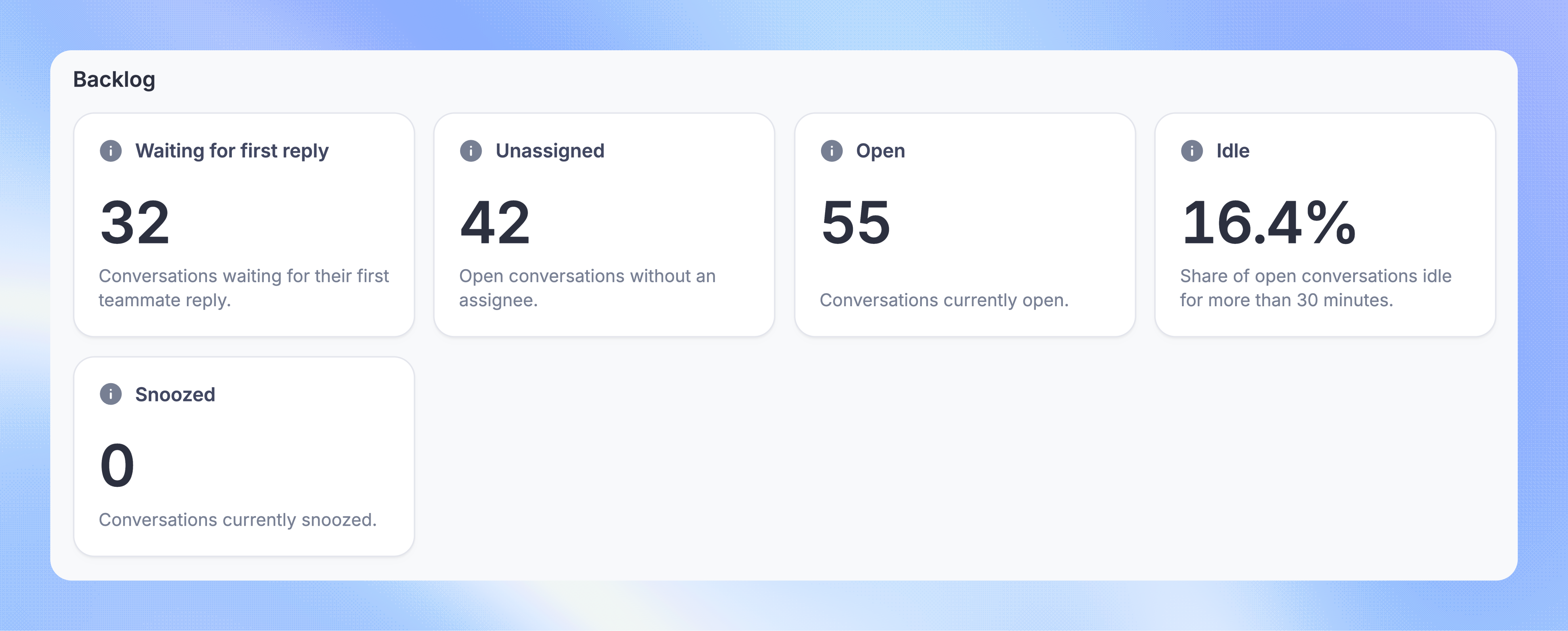
Overview
The Workload dashboard shows your team's current backlog, availability, and capacity. Use it to find conversations waiting for help and see which teammates can take more work.
It also shows recent performance, such as response times and closed conversations, so you can review the current shift alongside the live queue.
Open the Workload dashboard
Go to Inbox → Workload. You need permission to Access Real-Time Workload Dashboard.
Use the Inboxes tab to compare teams, or Teammates to review individual workloads. The team filter narrows the view to one inbox.
Review team inboxes
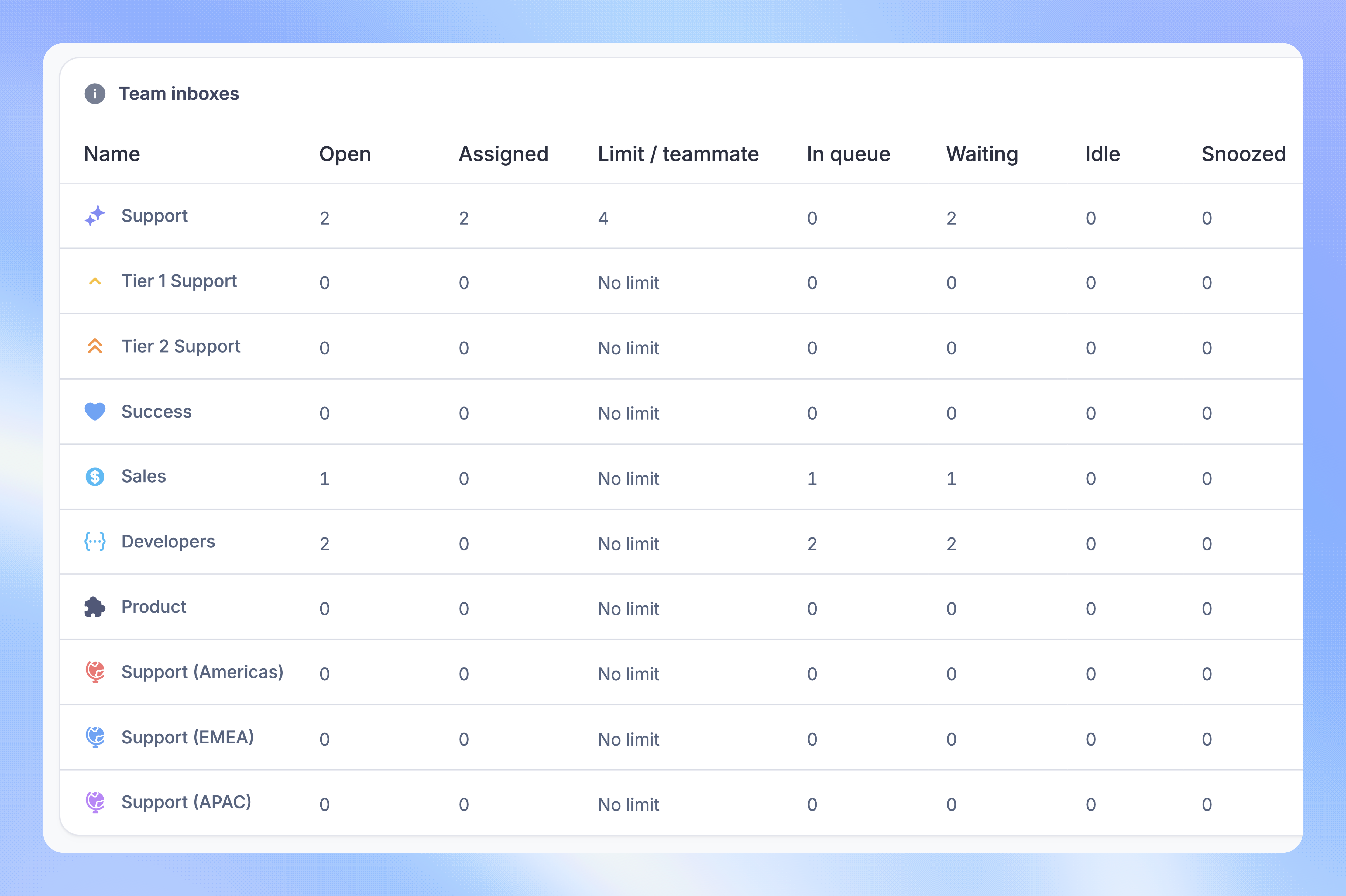
The Inboxes tab shows open, assigned, queued, waiting, idle, and snoozed conversations for each team.
In queue - Open conversations in the team inbox without an individual assignee
Waiting - Conversations where a customer is waiting for a teammate reply
Limit / teammate - The inbox limit for each teammate, not a total limit for the team
If the queue grows, check how many teammates are Active and whether they have reached their limits. Use Idle after to choose the inactivity threshold for the dashboard's idle-conversation measure.
Check recent performance
The Performance section shows metrics for the selected period. Choose a timeframe from the last 1 - 24 hours and a response-time aggregation such as Median or Average.
The live backlog remains a view of current work. Changing the performance period does not turn it into a historical queue snapshot.
Review teammates
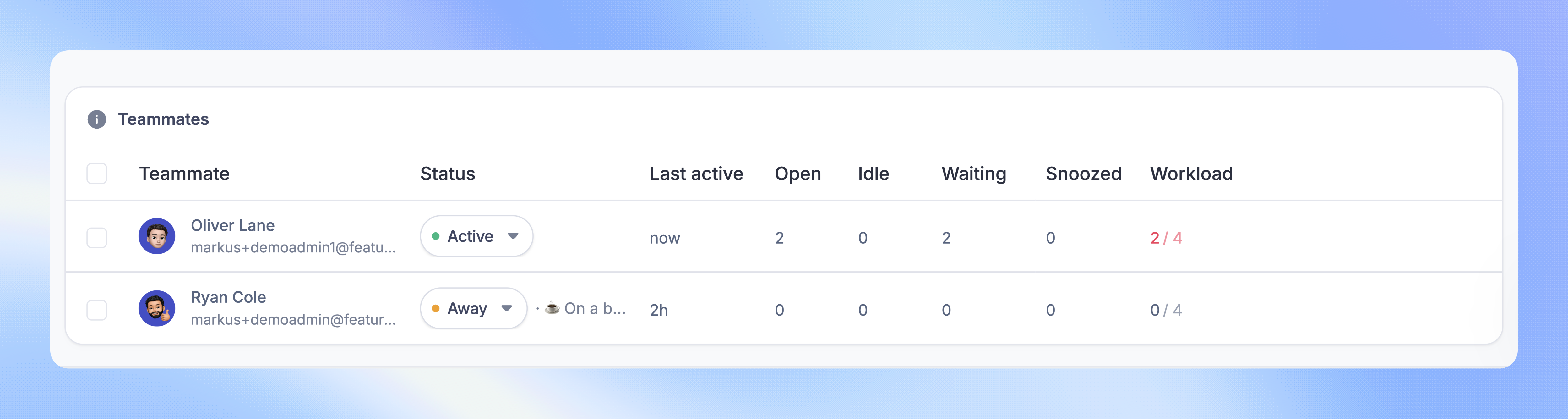
The Teammates tab shows each person's status, away reason, last activity, and conversation counts. Filter by status to find Active, Away, or Away & reassigning teammates.
Workload shows the open count against the applicable assignment limit. With all team inboxes selected, it shows the teammate's total workload. Selecting one inbox narrows the conversation counts to that inbox. Paused means automatic assignment has been paused separately from Away status.
Change teammate status
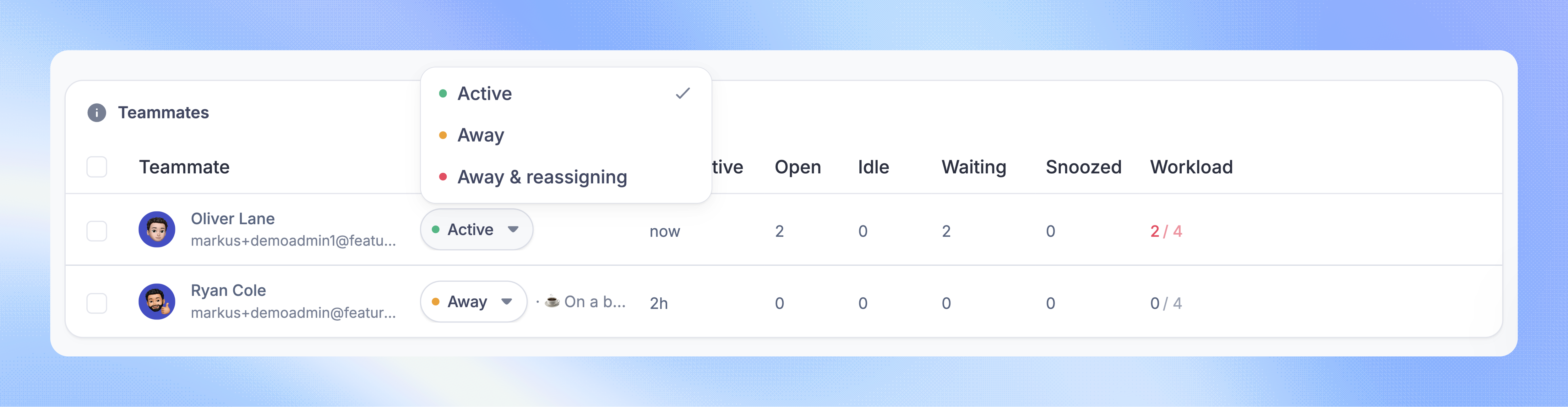
Managers with both Manage Teammate Presence and Status and Manage Team Members permissions can use the status control beside a teammate. You can also select several teammates and change their status together.
Use this to correct availability when someone has finished a shift or returned to work. Away and Reassign replies affect assignment differently.
FAQs
Why can someone be Active but receive no new conversations?
Why can someone be Active but receive no new conversations?
Active status does not guarantee capacity. Automatic assignment may be paused, or the teammate may have reached their overall or inbox limit. They must also belong to the team that owns the waiting conversation.
Why can workload exceed an assignment limit?
Why can workload exceed an assignment limit?
Limits control automatic Balanced assignment. Manual assignment, Take next, or a returning conversation can take someone over their limit. Lowering a limit does not remove work already assigned.
Where can I review performance over a longer period?
Where can I review performance over a longer period?
Use Team Inbox Performance and Teammate Performance in Reports for historical analysis.
Was this helpful?
Still need help? Ask the team