Balanced assignment
Distribute conversations by workload, set teammate limits, and control which conversations are assigned first.
Written By Markus Palm
Last updated 6 days ago
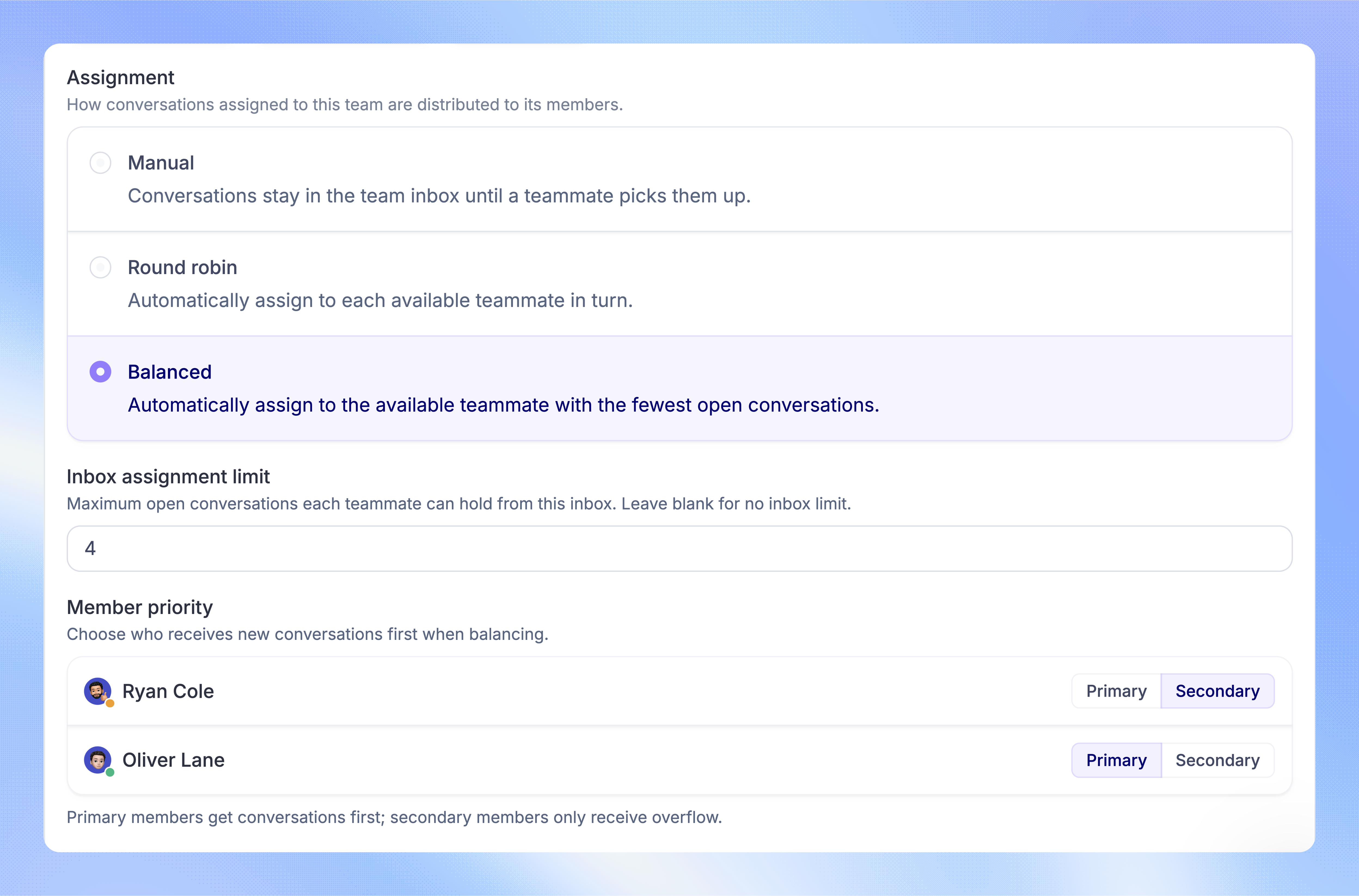
Overview
Balanced assignment gives waiting conversations to eligible teammates with the fewest open conversations. It uses teammate availability and assignment limits to avoid automatically adding work when someone is at capacity.
Use it for team inboxes where the amount of work already assigned matters more than an equal rotation of new conversations.
Turn on Balanced assignment
You need permission to Manage Balanced Assignment and Workload. Teammates who receive conversations must have Full seats.
Expand the team inbox you want to configure
Choose 'Balanced' as the assignment method
Click 'Save changes'
Use a routing Workflow to send conversations to this team.
How conversations are assigned
A teammate can receive a conversation when they belong to the team, are Active, have automatic assignment enabled, and have room under both their teammate limit and the inbox assignment limit.
Among eligible teammates, Featurebase chooses the person with the fewest open conversations across the Workspace. If their counts are equal, it uses the oldest recorded automatic assignment first.
When nobody is eligible, the conversation waits in the team inbox. Balanced assignment picks up waiting work as teammates become available or capacity is freed.
Primary and secondary teammates
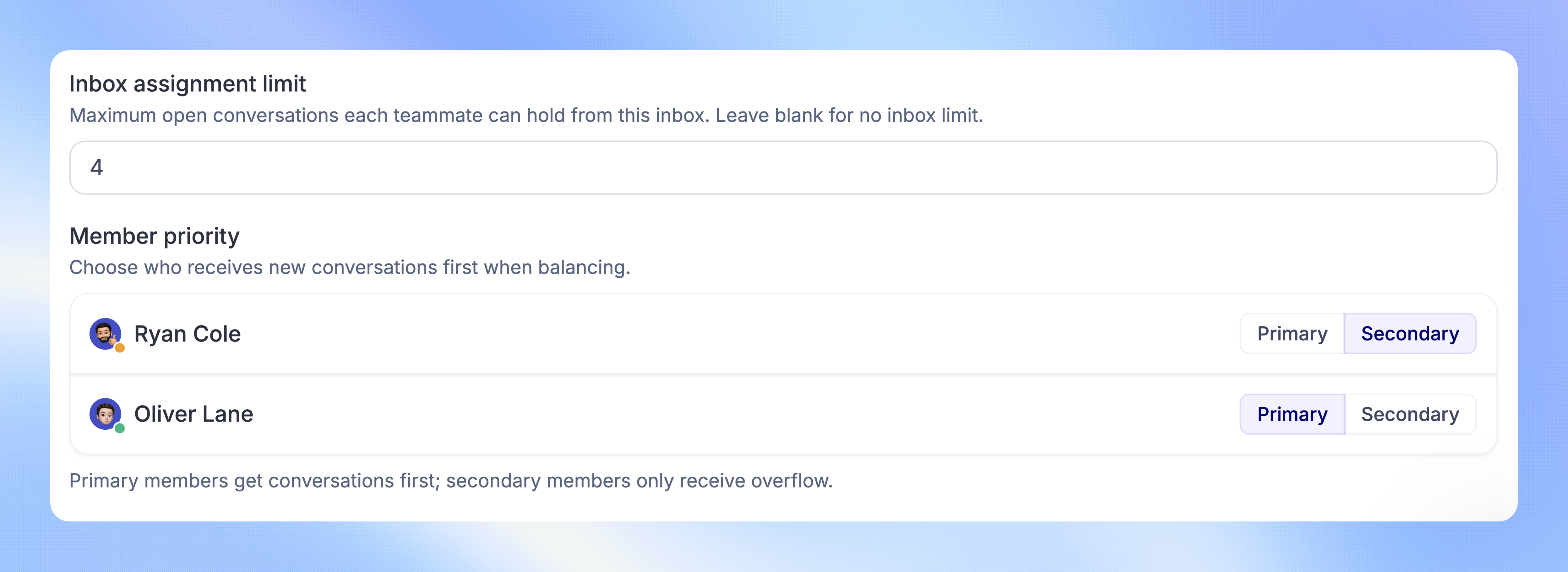
In the team's settings, use Member priority to choose 'Primary' or 'Secondary' for each teammate, then click 'Save changes'.
Primary teammates receive the team's work first. Secondary teammates provide overflow cover when no primary teammate is eligible. A secondary teammate's own primary inbox work takes precedence when they can receive it.
For example, a teammate can be Primary in Technical Support and Secondary in General Support. They help General Support when it needs cover and they have no eligible waiting work in Technical Support.
Set teammate limits
Set the Workspace default
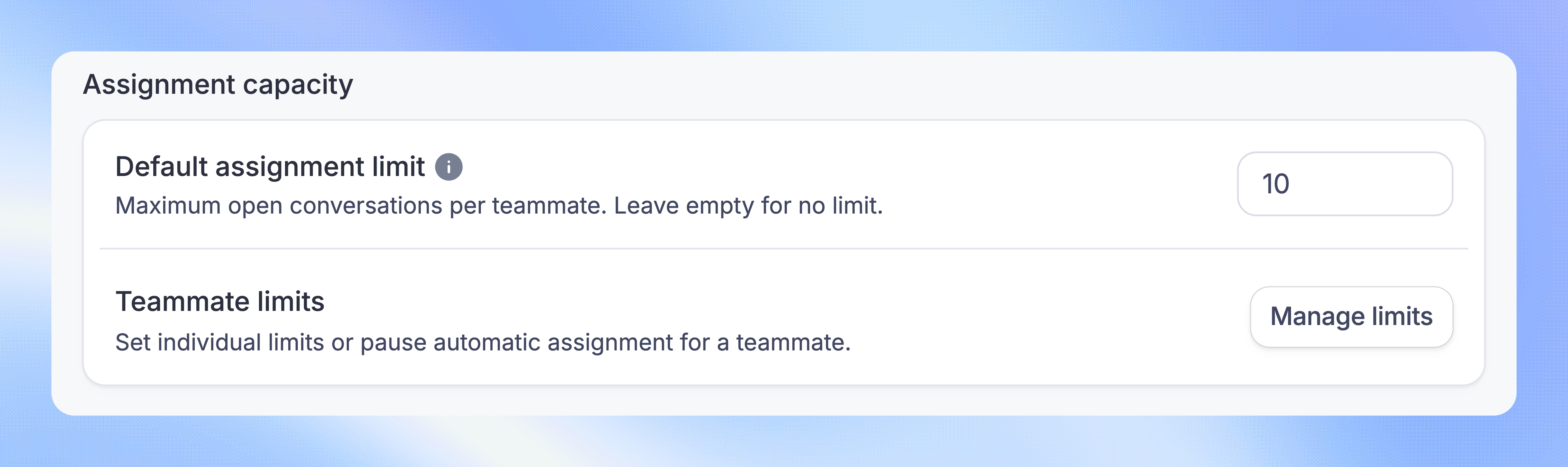
Under Assignment capacity, enter the Default assignment limit
Press Enter or click outside the field to save
The limit counts open conversations across the teammate's inboxes. Leave the field empty for no Workspace limit. Snoozed and closed conversations do not use capacity.
Adjust individual limits
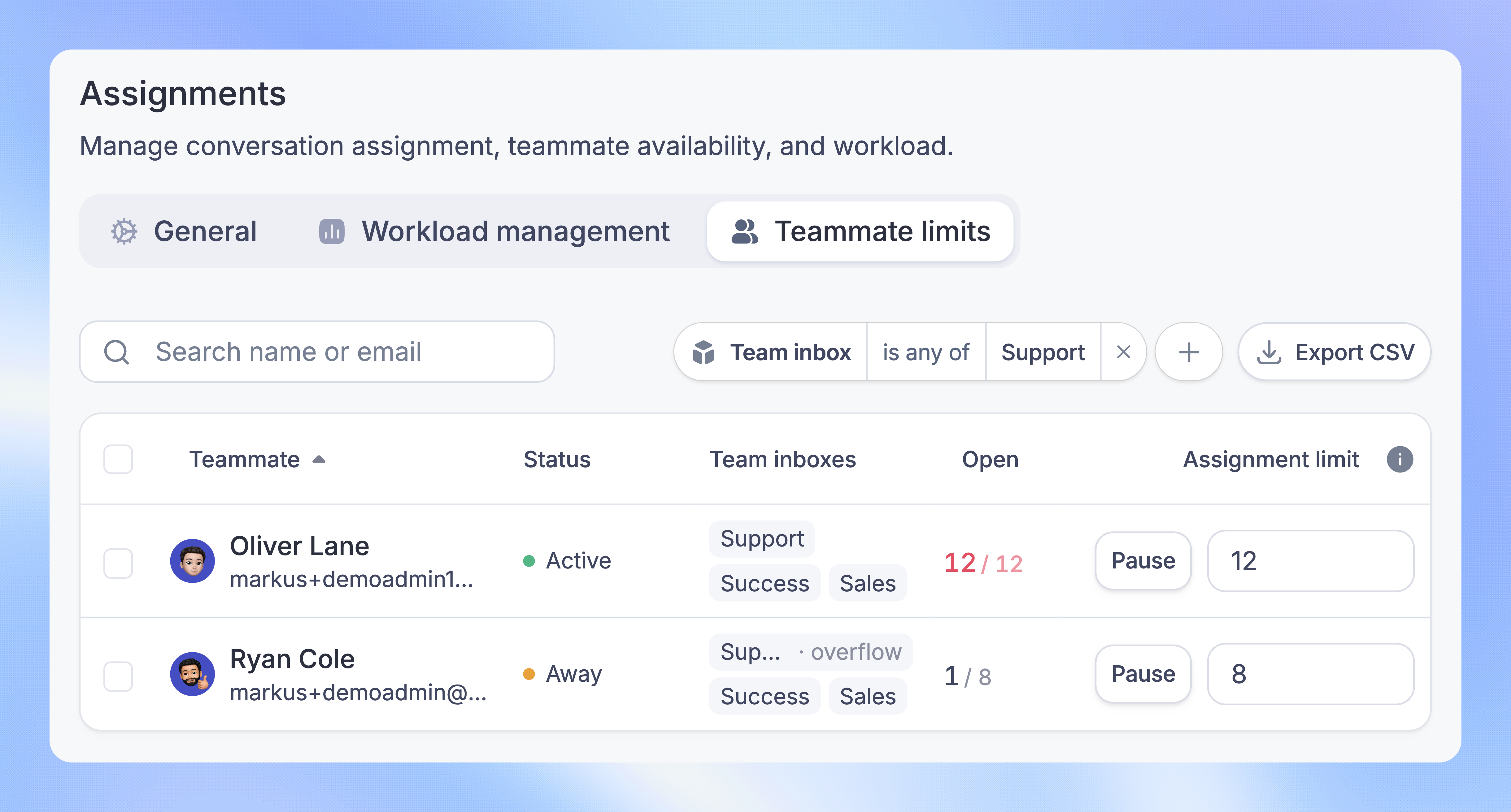
Open the Teammate limits tab. Enter a limit beside a teammate and press Enter to save.
A positive number - Sets that teammate's limit
An empty field - Uses the Workspace default
0 - Removes the teammate's overall limit
You can also select teammates and click 'Set limit…', enter a value, and click 'Apply'. Use 'Pause assignment' to stop automatic assignment temporarily, or 'Resume assignment' to restore it.
Note: Changing a teammate's limit resumes automatic assignment. Entering 0 does not pause assignment.
Prioritize waiting conversations
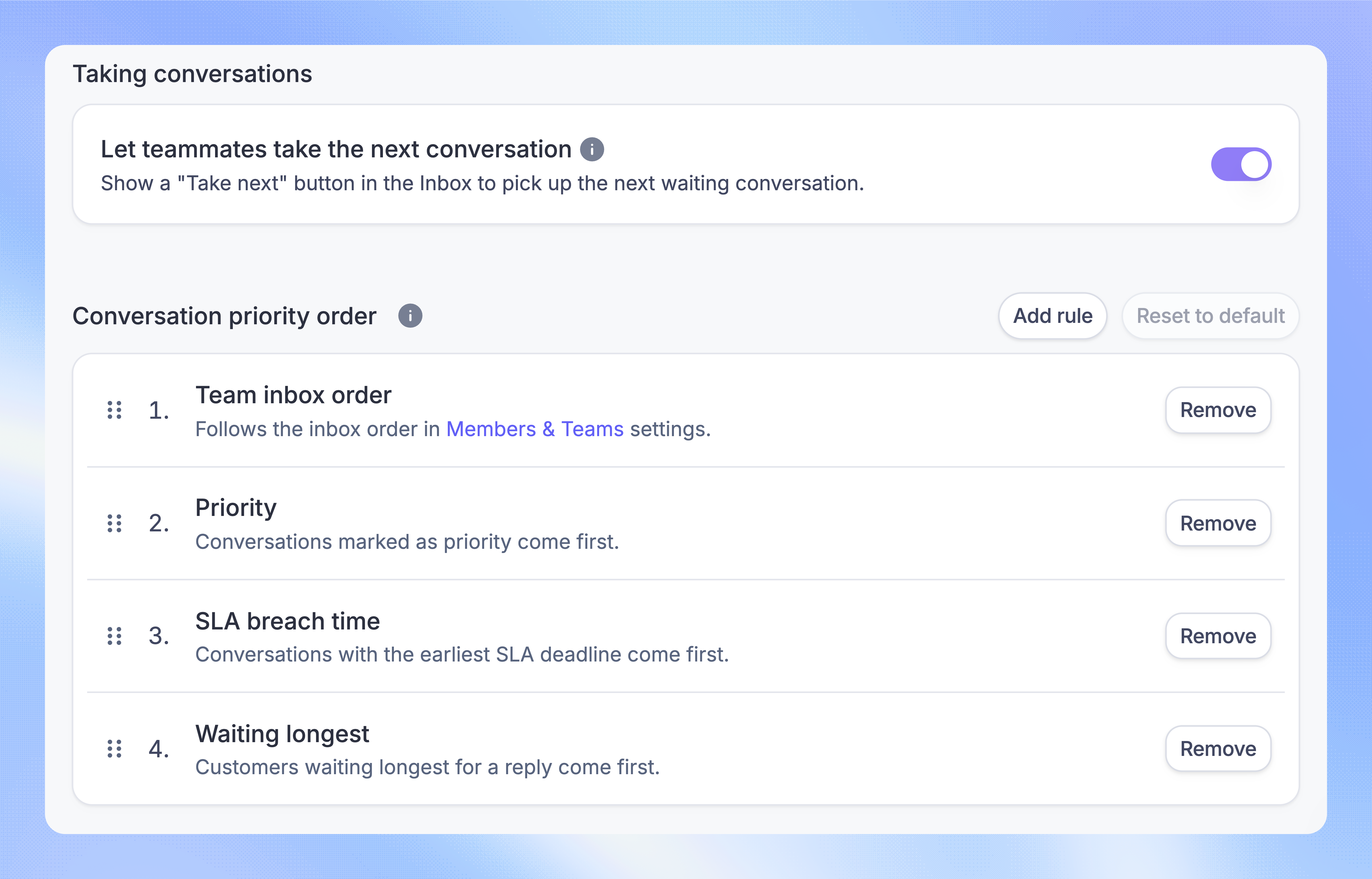
In Assignments → Workload management, drag the rules under Conversation priority order. The first rule takes precedence; lower rules break ties.
Team inbox order - Uses the inbox order in Settings → Members & Teams → Teams
Priority - Puts conversations marked as priority first
SLA breach time - Puts the earliest SLA deadline first
Waiting longest - Puts customers who have waited longest for a reply first
Oldest conversation - Puts conversations started earliest first
Primary inbox work takes precedence over secondary inbox work. The selected rules then determine the order within each group.
Let teammates take the next conversation
Turn on Let teammates take the next conversation on the same page. Teammates can then click 'Take next' in the Inbox to receive the next waiting conversation from their Balanced team inboxes, using the same priority order.
Note: Take next is a deliberate choice to accept more work. It works while you are Away or at your assignment limit.
Reassign after snoozing
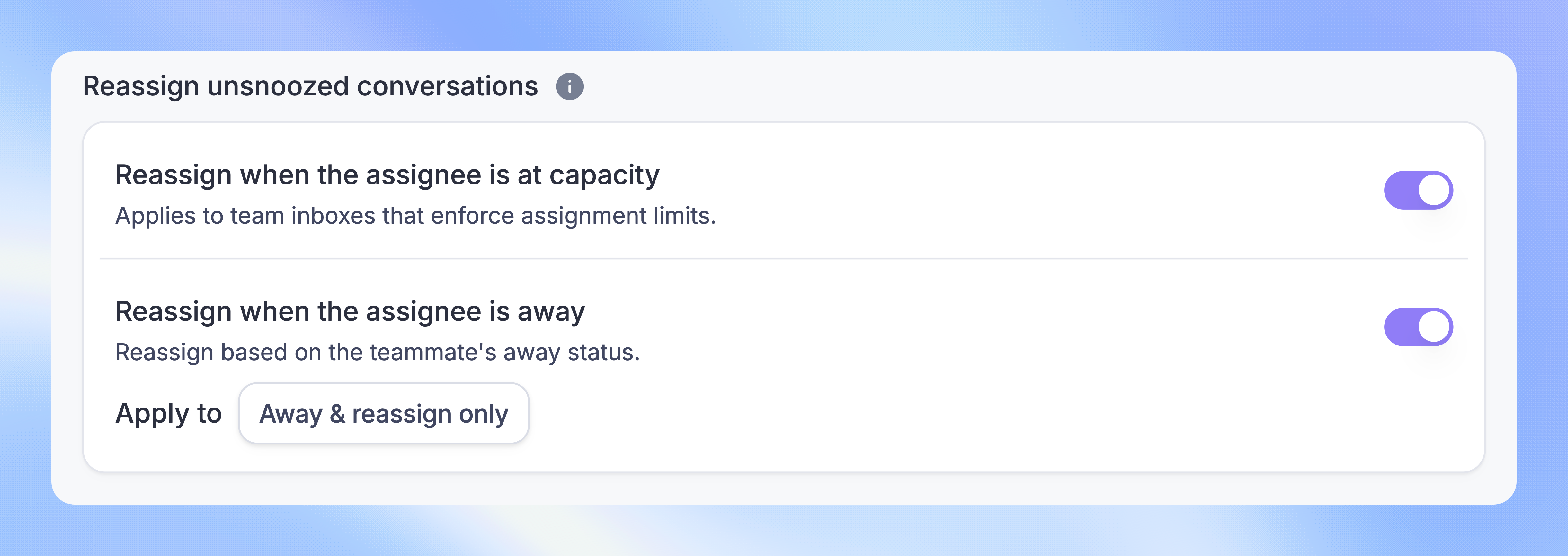
In Assignments → General, use Reassign unsnoozed conversations to control what happens when a snoozed conversation reopens:
Reassign when the assignee is at capacity - Returns the conversation for reassignment if the teammate has no room for it in a team that enforces limits
Reassign when the assignee is away - Uses either Any away status or Away & reassign only, depending on your selection
The conversation returns through its team inbox for assignment. If nobody can receive it, it stays with the team without an individual assignee.
FAQs
Can manual assignment exceed a limit?
Can manual assignment exceed a limit?
Yes. Directly assigning a conversation to a teammate bypasses their availability and assignment limits. The limit controls automatic Balanced assignment.
Do Workflows and Macros use Balanced assignment?
Do Workflows and Macros use Balanced assignment?
Yes, when their assignment action routes a conversation to a Balanced team inbox. Assigning directly to a named teammate does not use team balancing. A Macro with Distribute with round robin enabled uses Round robin instead.
Does reopening my own snoozed conversation reassign it?
Does reopening my own snoozed conversation reassign it?
No. When you reopen a conversation assigned to you, Featurebase keeps it with you. The reassignment settings apply when it reopens through another teammate, a customer reply, or the snooze timer.
Why is a conversation still waiting?
Why is a conversation still waiting?
Check that the team has Full-seat members who are Active, have assignment enabled, and are below both limits. You can review their status and capacity in the Workload dashboard.
Was this helpful?
Still need help? Ask the team