Segment users and companies
Create user and company segments, review matching records, and use them for targeting and access rules.
Written By Markus Palm
Last updated 20 days ago
Overview
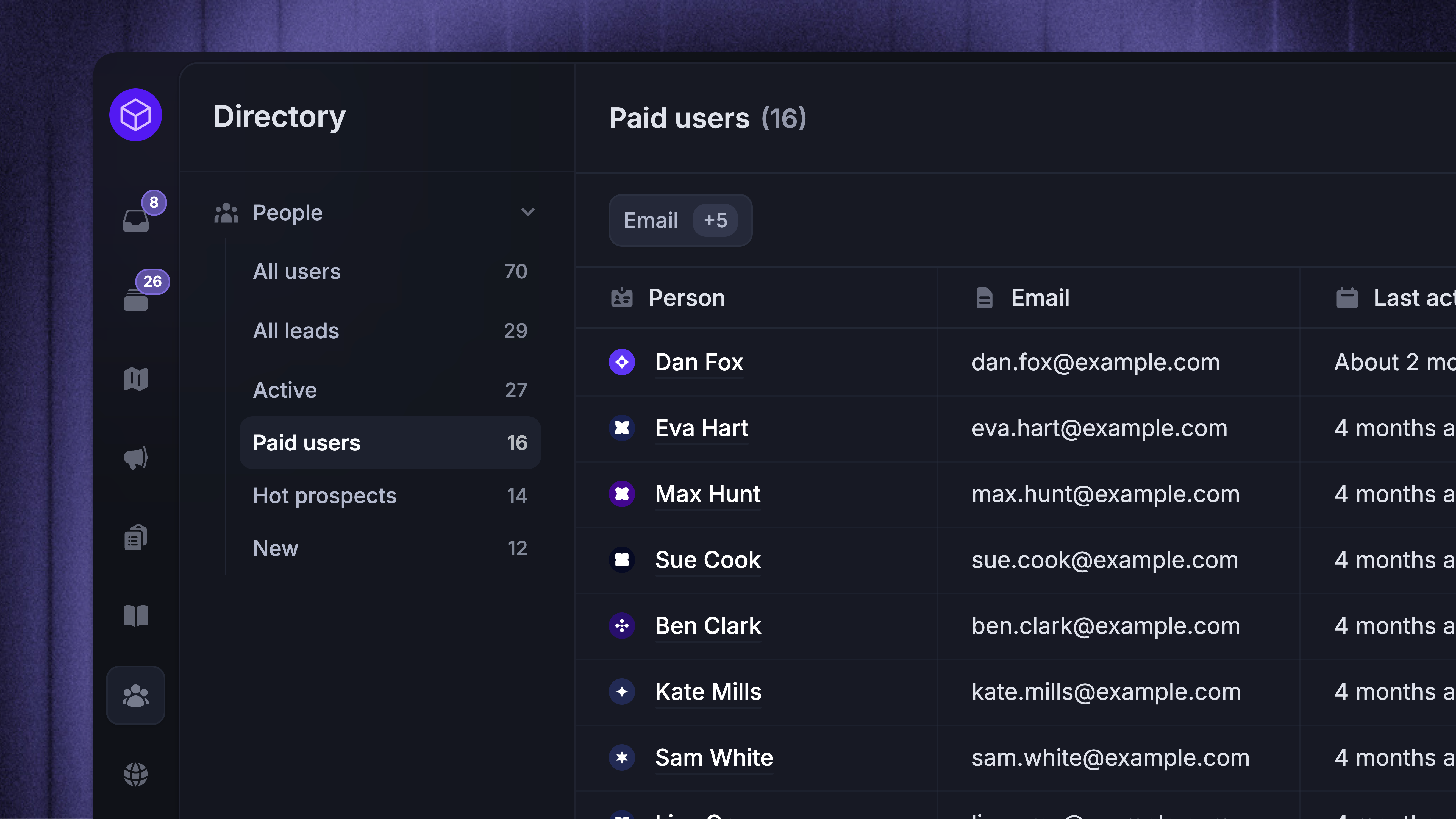
Segments are saved groups of users or companies that match rules you choose. Use them to filter customer data, target updates, and control access. Segment membership updates as records match or stop matching the rules.
For example, you could create a segment of trial users and send them onboarding messages, or you could create a segment of hot prospects, loyal customers, etc.
We recommend creating a segment for every key group of users you'd like to send a message to (e.g., trial users or users who have yet to take action) and who you’d like to give special access to (e.g., beta testers who can see a specific feedback board).
Create user or company segments
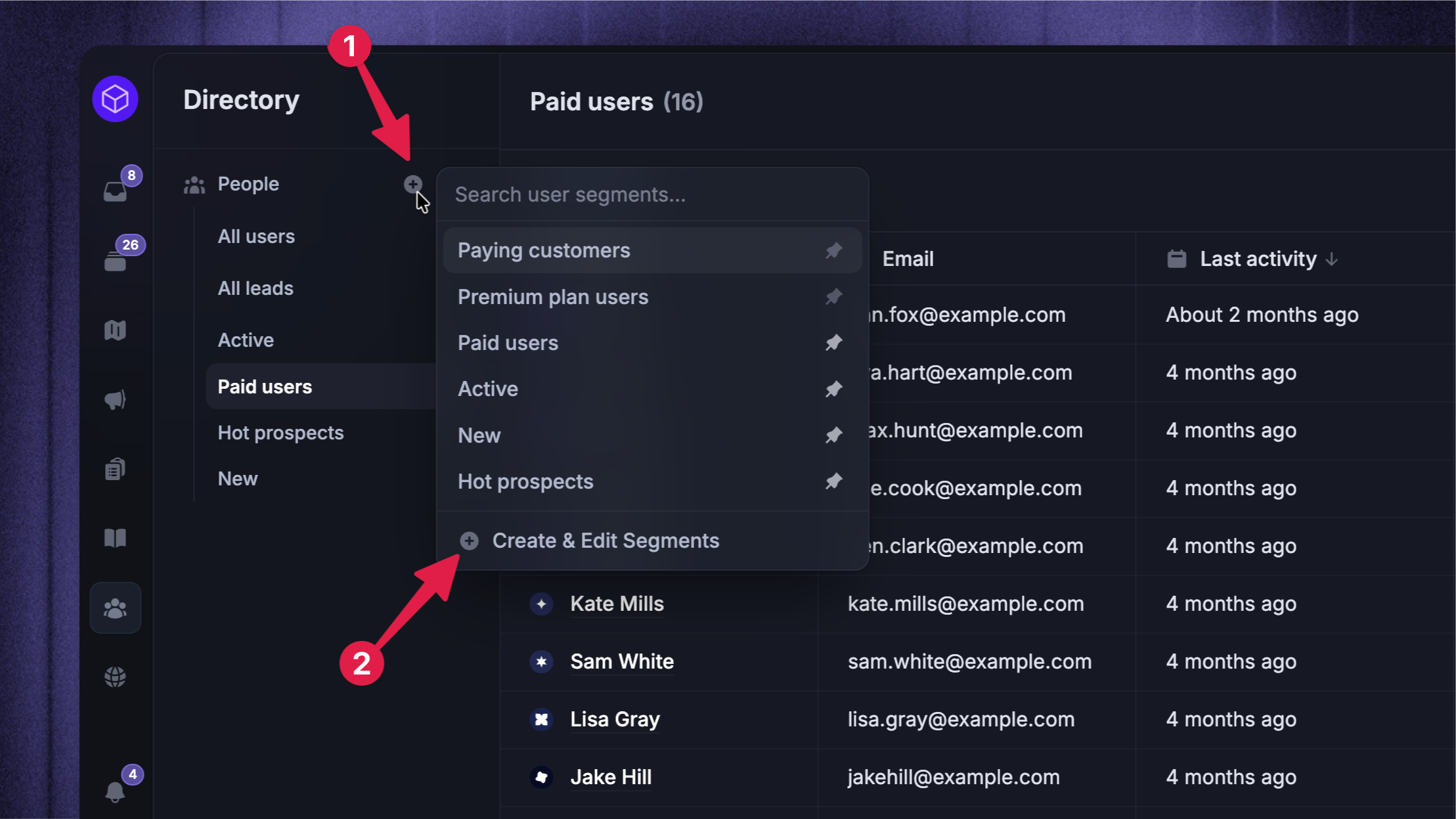
Go to Users
Click the '+' next to People for a user segment, or Companies for a company segment
Select 'Create & Edit Segments', then 'New'
Enter a name and add your rules
Click 'Save'
User segments can use user and company attributes. Company segments use company attributes.
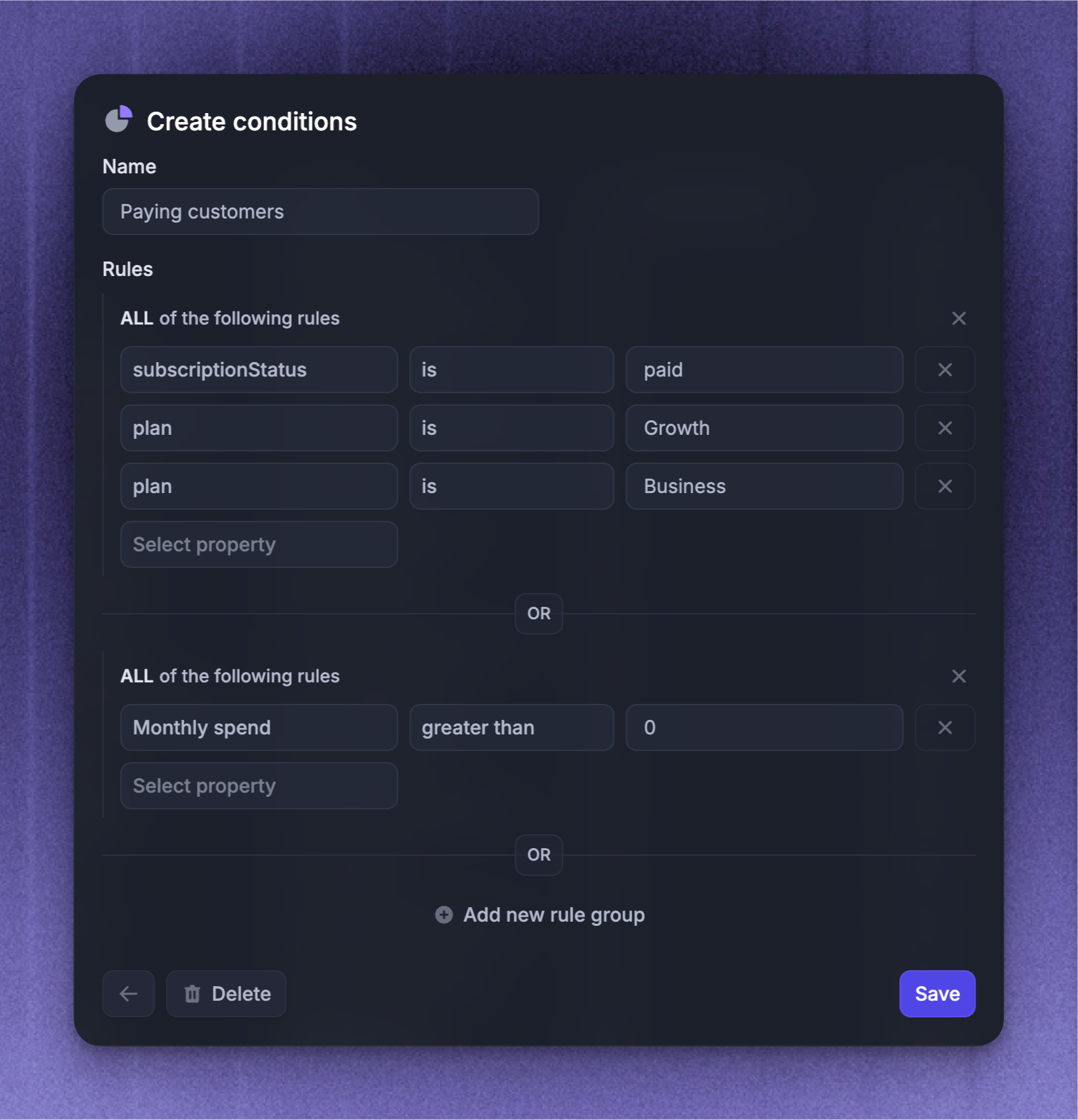
You can use custom attributes and operators for endless possibilities for segmenting users, feedback, updates, and surveys:
Custom attributes: sync and segment users using attributes like location, plan, etc
ANY + ALL matching: decide if all or any rules in a group must be matched
OR + AND rules: create multiple segment groups and choose whether all or just one needs to be met
Target users through company segments
A company segment groups company records. When it is available in an audience picker, select it to target users linked to matching companies. For example, a company segment for your Business plan can target users at those companies.
To review those users, pin the company segment and open it under People in company segment in the sidebar.
Company segments can target users only when user and company identity verification is enabled. Company attributes used in the rules must require secure updates.
Note: Segments that use Linked users or Company created at work in the Companies list but cannot target people. The audience picker shows why a segment is unavailable.
Useful segments to create
The segments you create should be specific to your product. Here are some ideas to get you started:
Business plan customers - These are your highest-paying users or those on your most expensive plan. You should prioritize this group and ensure they receive your best possible service.
Trial users - These are the people you need to make sure convert. You’ll want to give them a warm welcome and show them how to make the most of your features. Your filters for this segment might be something like: ‘Signed up less than 14 days ago’ and ‘Plan is free trial.'
Hot prospects - These are prospects who are active and are approaching a barrier. For example, if you’re a photo sharing app you can create a segment for everyone who has more than 80 photos uploaded of a possible 100 allowed. Your filters for this segment might be something like: ‘Plan is starter’ and ‘Uploaded photos more than 80.'
Beta testers - These are users who have special access to one of your features and provide feedback on it. You can tag the users with a specific ‘Beta tester’ tag and use this to create the segment rule.
Loyal customers - You might want to create a list of loyal users for beta testing your new features. Or maybe you want to reward these users with a thank you gift. Your filters here might be: ‘Signed up more than 365 days ago AND last seen less than 30 days ago.'
No action taken - You could create a segment of users who have yet to download your mobile app. Then you can give them a little nudge and remind them how to download it and why they should. Your filters here might be: ‘Downloaded mobile app is false.'
What you can do with segments
Target messaging
You can use segments to target your messaging to specific user groups in Featurebase:
Updates – segment your product update releases to specific user groups to ensure only relevant customers are notified and see the update. The updates are hidden from the rest.
Surveys – target your surveys on specific groups, such as paying customers or new users, to gather feedback from the most relevant users.
For Outbound messages, Dynamic and Locked audiences control when recipients are selected. A Dynamic audience continues to include people as they match. A Locked audience includes only people who match when the message is activated.
Prioritize feedback
One of the most common use cases for user segments is filtering feedback. Just start adding filters and choose one of your user segments.
Restrict users’ access
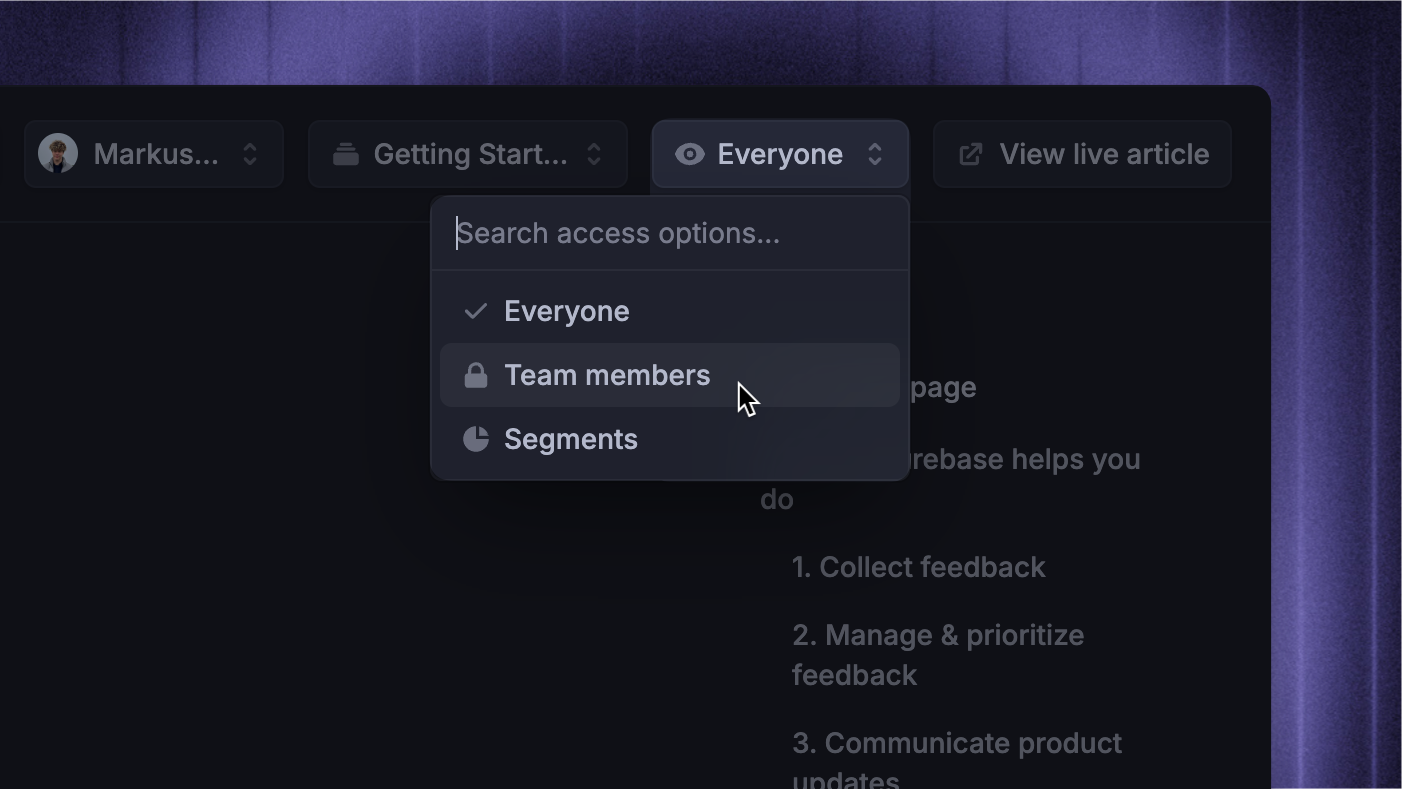
Lastly, you can use segments to restrict certain user groups’ access across Featurebase:
Feedback boards - limit specific feedback boards to only specific user segments. For example, you can have a separate feedback board that’s only visible to Beta testers.
Roadmaps - restrict certain roadmaps to only specific user groups for which these are relevant. For example, if your company has different products, you can create separate roadmaps for them that only the users of that product see.
Help Center - let only certain user groups view specific articles in your Help Center. For example, if you want only paid users to see your setup guides.
Search for segments
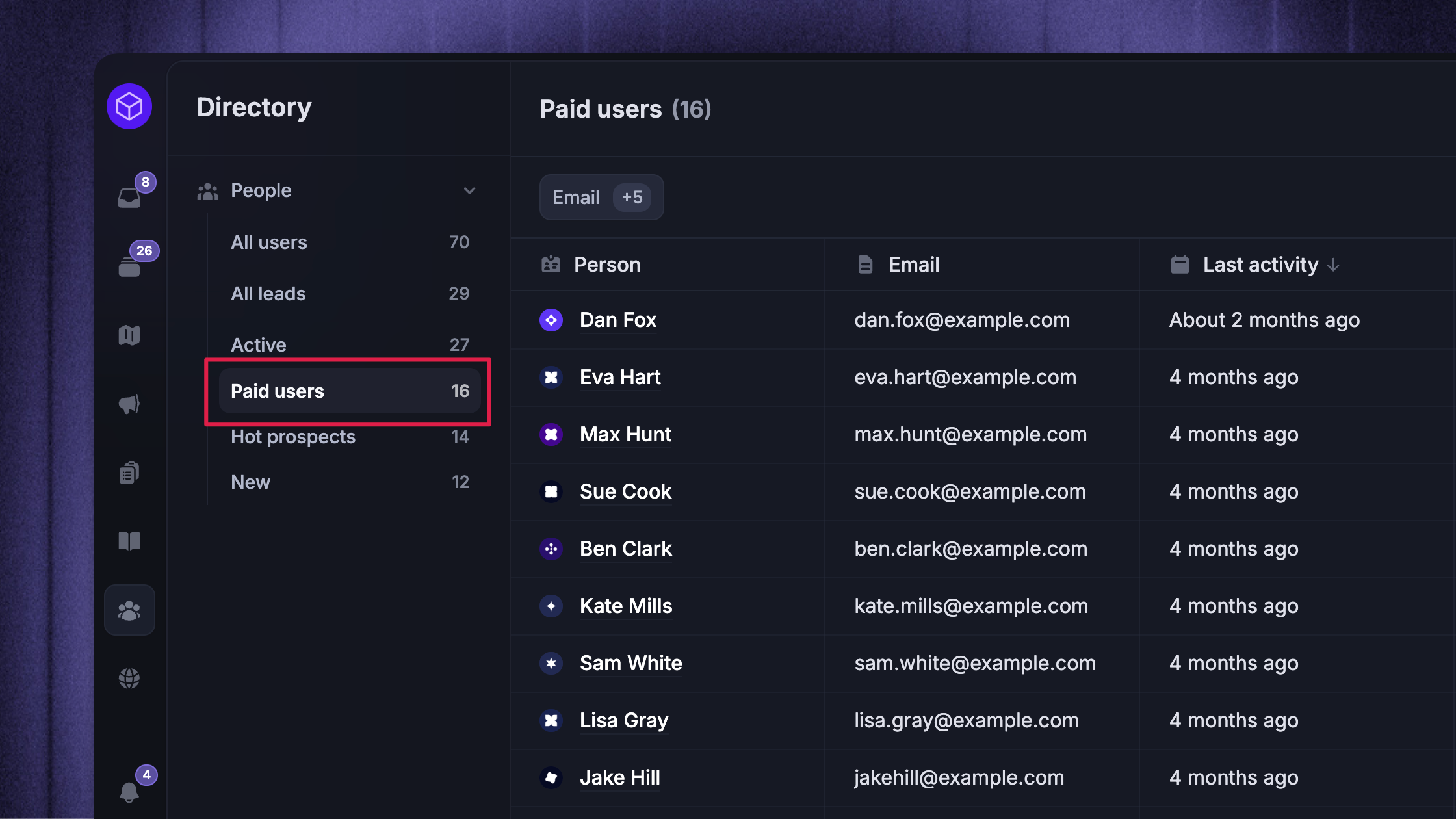
Choose a segment under People or Companies to see its matching records. To see the users linked to a company segment, select it under People in company segment.
How to edit or delete segments
To edit a segment or delete a segment:
Go to Dashboard → Users
Click the '+' next to People or Companies, depending on the segment type
Click the ‘Create & Edit Segments’ button
Select the segment you want to edit or delete
Create your edits and Save or click ‘Delete’ to delete
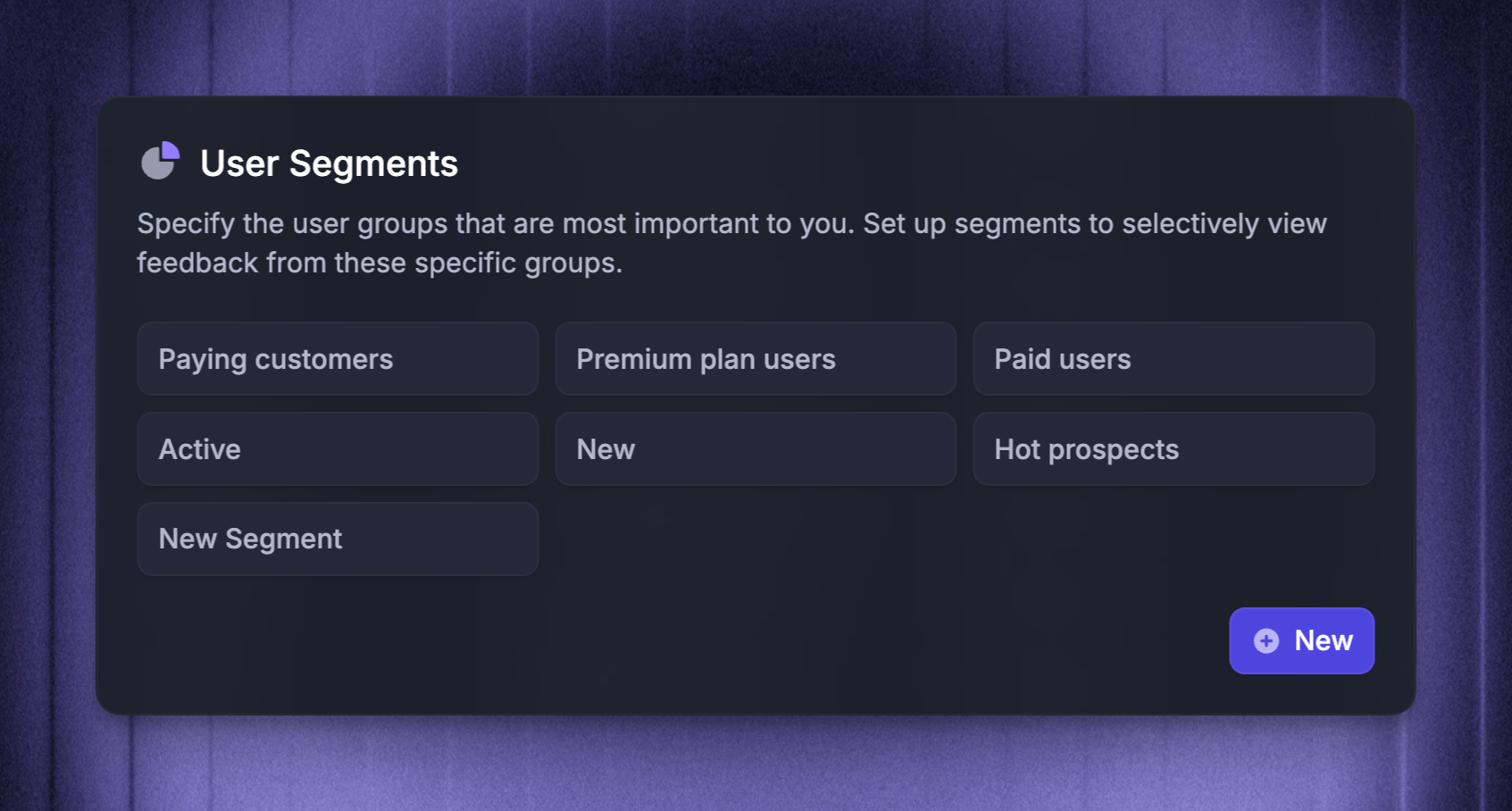
How to show & hide segments
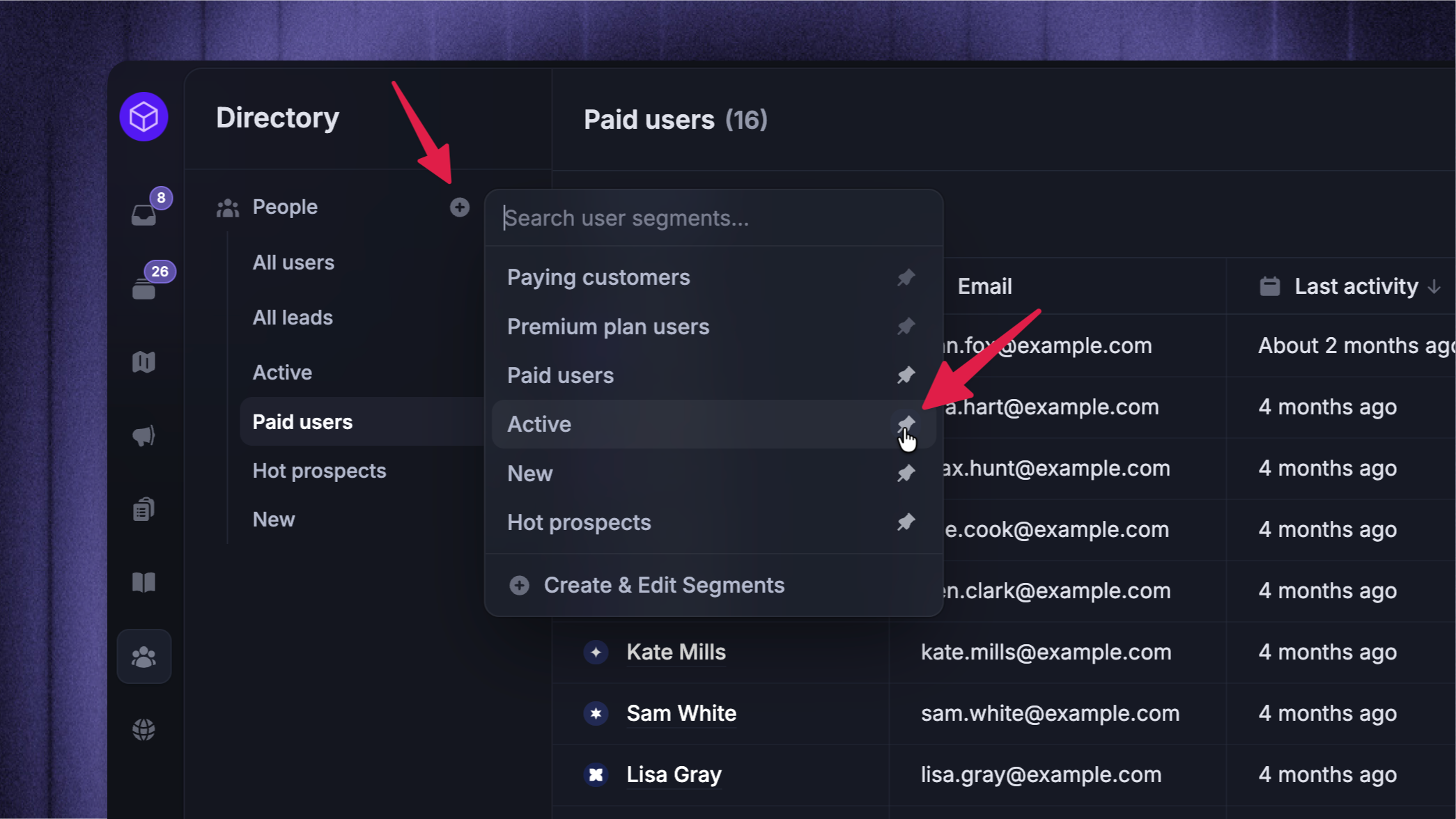
Segments are available to everybody, but the visibility of these on the Users menu is based on personal teammate settings.
To make a new segment visible, each teammate will need to:
Go to Dashboard → Users
Click the '+' next to People or Companies, depending on the segment type
Toggle the visibility of each segment by clicking the pin icons
FAQs
How do company segments work for users who belong to multiple companies?
How do company segments work for users who belong to multiple companies?
A user matches when at least one of their linked companies matches the segment's rules. Featurebase does not combine attributes from different companies to make one match. Leads and users without a linked company are not included.
Was this helpful?
Still need help? Ask the team