Dynamic variables in Featurebase
Personalize messages with dynamic name variables and set fallback values when customer data is missing.
Written By Kateryna Babenko
Last updated 5 days ago
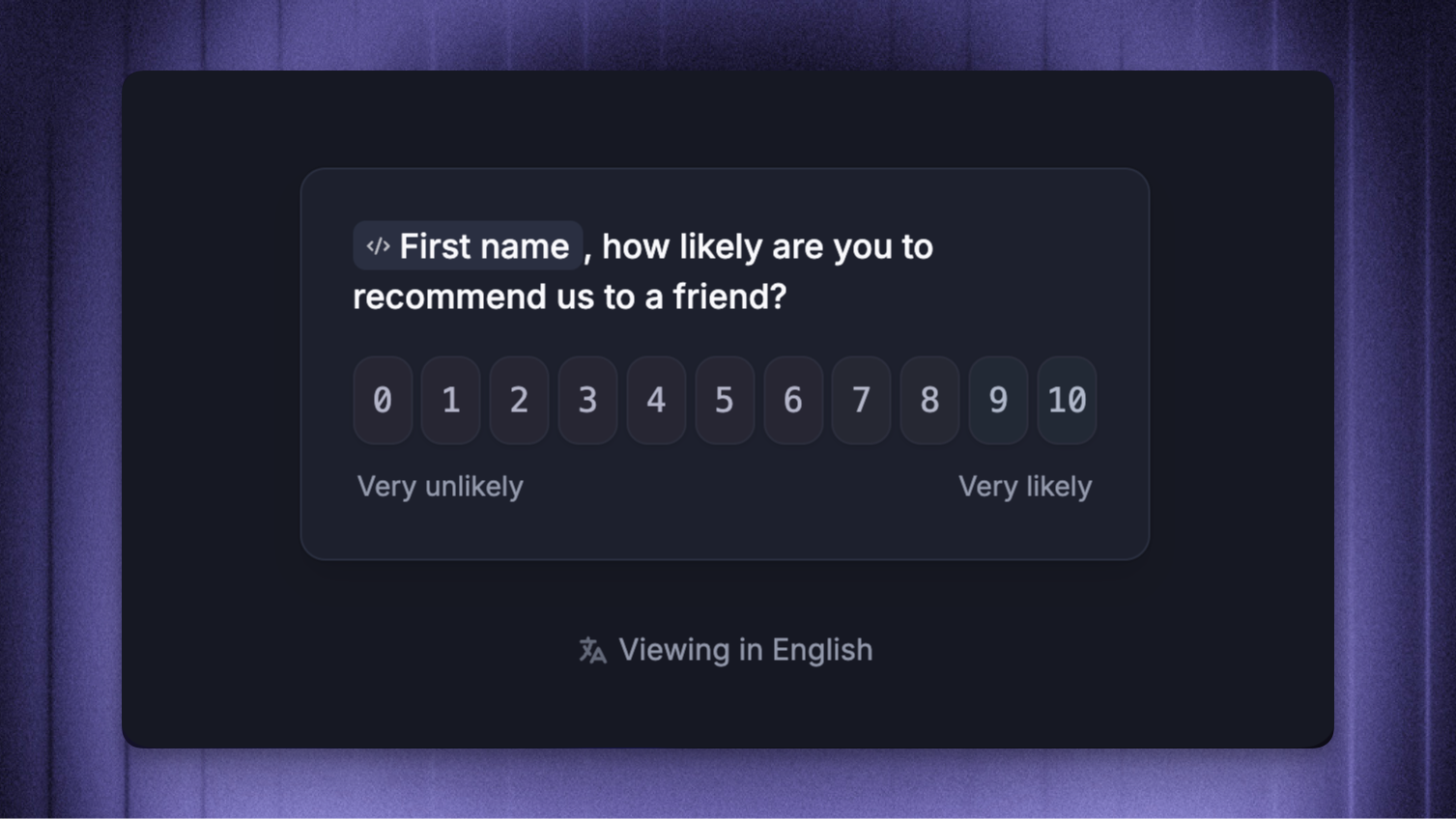
Overview
Dynamic name variables let you personalize messages and templates by dynamically inserting customer data, such as their {first_name}. Instead of sending a generic greeting, you can address each customer by name for a more personal experience.
You can use dynamic variables in:
Tip: To avoid awkward greetings when a customer's name is missing, you can set fallback values that display alternative text instead.
How to use name variables
Personalize messages in Macros
To personalize messages and macros for each customer:
Open or create a Macro in Settings → Inbox → Macros
Customize your macro text and type in
{to insert a variable and choose the desired one from the list (e.g.{first_name})Save the macro and use it next time with
CMD/CTRL+Kwhen replying to customers
Tip: Always add a strong fallback value to ensure consistency when the dynamic variable is missing. You can do it by clicking on the variable.
Use name variables in Workflows
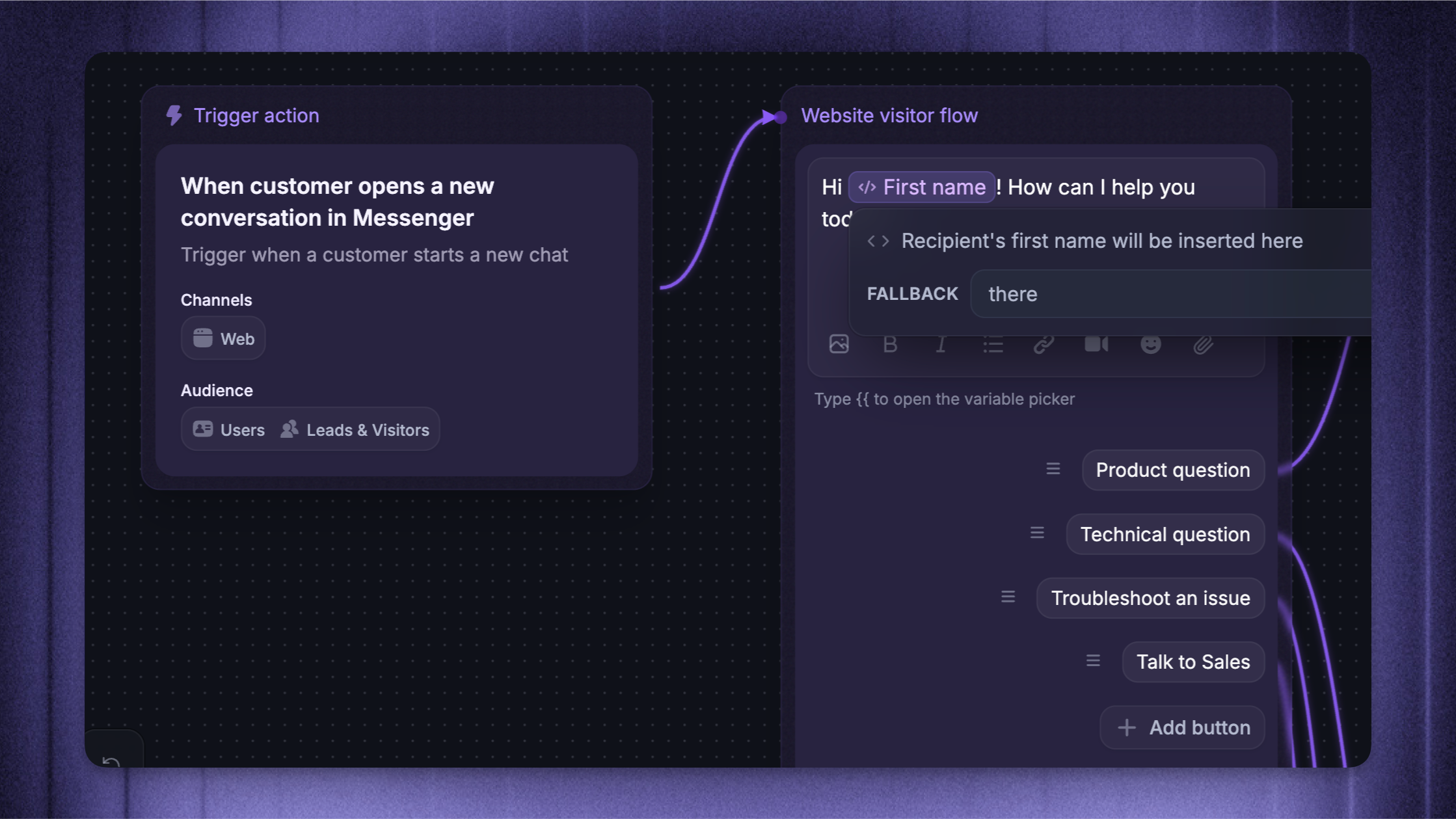
To personalize your Workflows with dynamic variables:
Start creating a Workflow from Automations → Workflows
In a message block, type in
{to insert a variable and choose the desired one from the list (e.g.first_name)Complete your Workflow and save it
Personalize Updates & Surveys
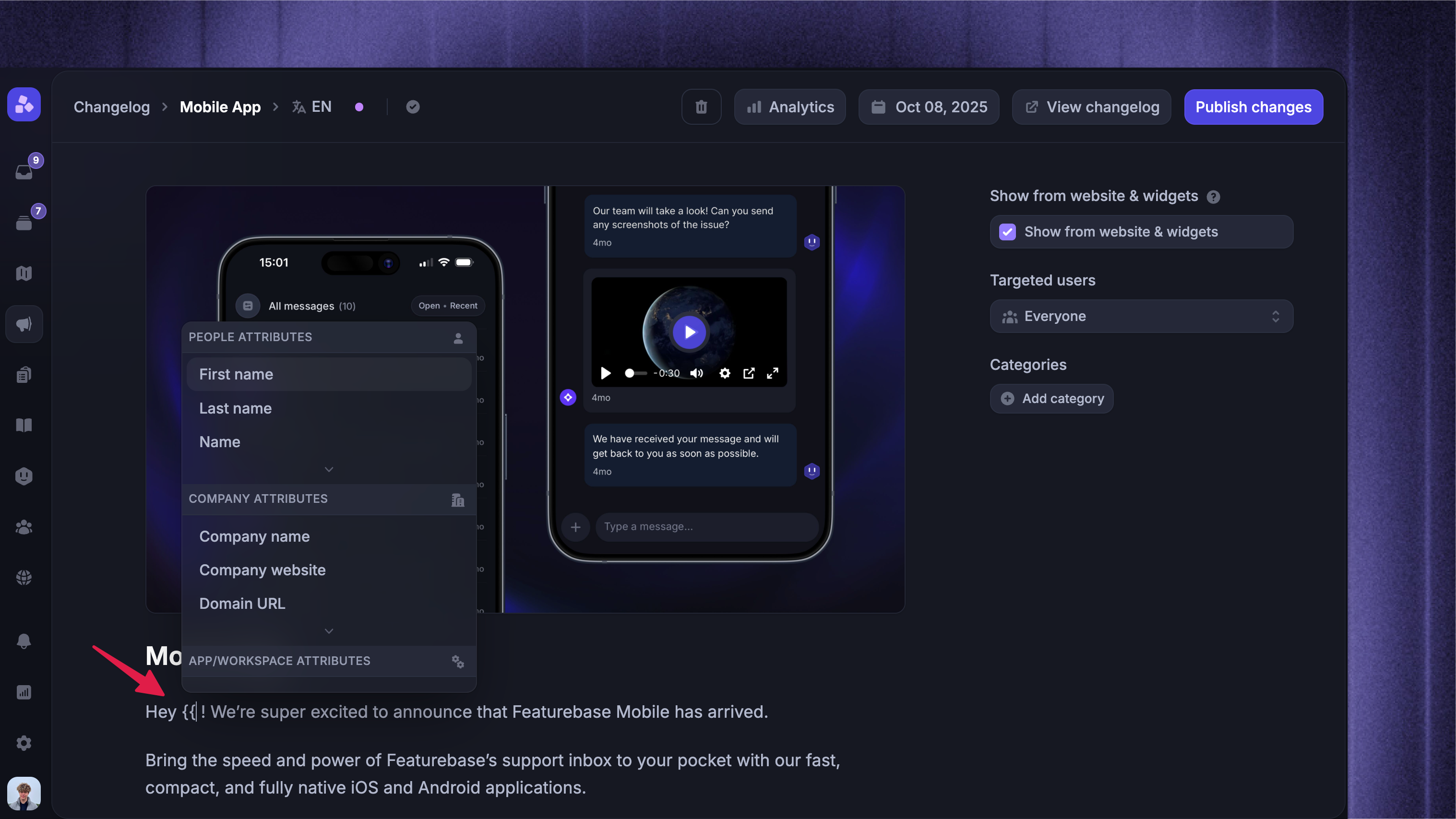
To personalize your Updates and Surveys with dynamic variables:
Start creating a Survey or Update
Type in
{to insert a variable and choose the desired one from the list (e.g.first_name)Complete your Survey or Update
Troubleshooting and best practices
Common issues and solutions
Customer's first name appears differently – This usually happens when the name is pulled from a custom attribute instead of the default name attribute. Make sure your workflow uses the default name attribute
Name attribute is blank – The name attribute is not required when creating or updating users. If not set, it remains empty. Always provide a name value when storing user records
Name present in API response but not visible in Featurebase – If a request from your website or integration sends an empty name field, it can overwrite the existing name with a blank value. Ensure requests always include the correct name
Best practices
Always use the default
{first_name}attribute unless custom configurations are essentialSet fallback values in all communications to ensure consistency when name data is missing
For SDKs, identify users as early as possible using a stable identifier such as an email address
Regularly review API configurations to avoid overwrites from empty fields
FAQ
Why does the customer's first name appear differently?
Why does the customer's first name appear differently?
This usually happens when the name is pulled from a custom attribute instead of the default name attribute. Use the default first name attribute to ensure accuracy.
Why is the name attribute sometimes blank?
Why is the name attribute sometimes blank?
The name attribute is not mandatory. If not set, it remains empty. Always provide a name value when storing contacts.
Why is a name present in the API response but not visible in the dashboard?
Why is a name present in the API response but not visible in the dashboard?
A request with an empty name field can overwrite the existing name. Make sure requests always include the correct name.
Was this helpful?
Still need help? Ask the team