Handle Slack conversations in the Inbox
Synchronize Slack messages, see customer context, and handle Slack conversations from the Featurebase Inbox.
Written By Markus Palm
Last updated 15 days ago
Overview
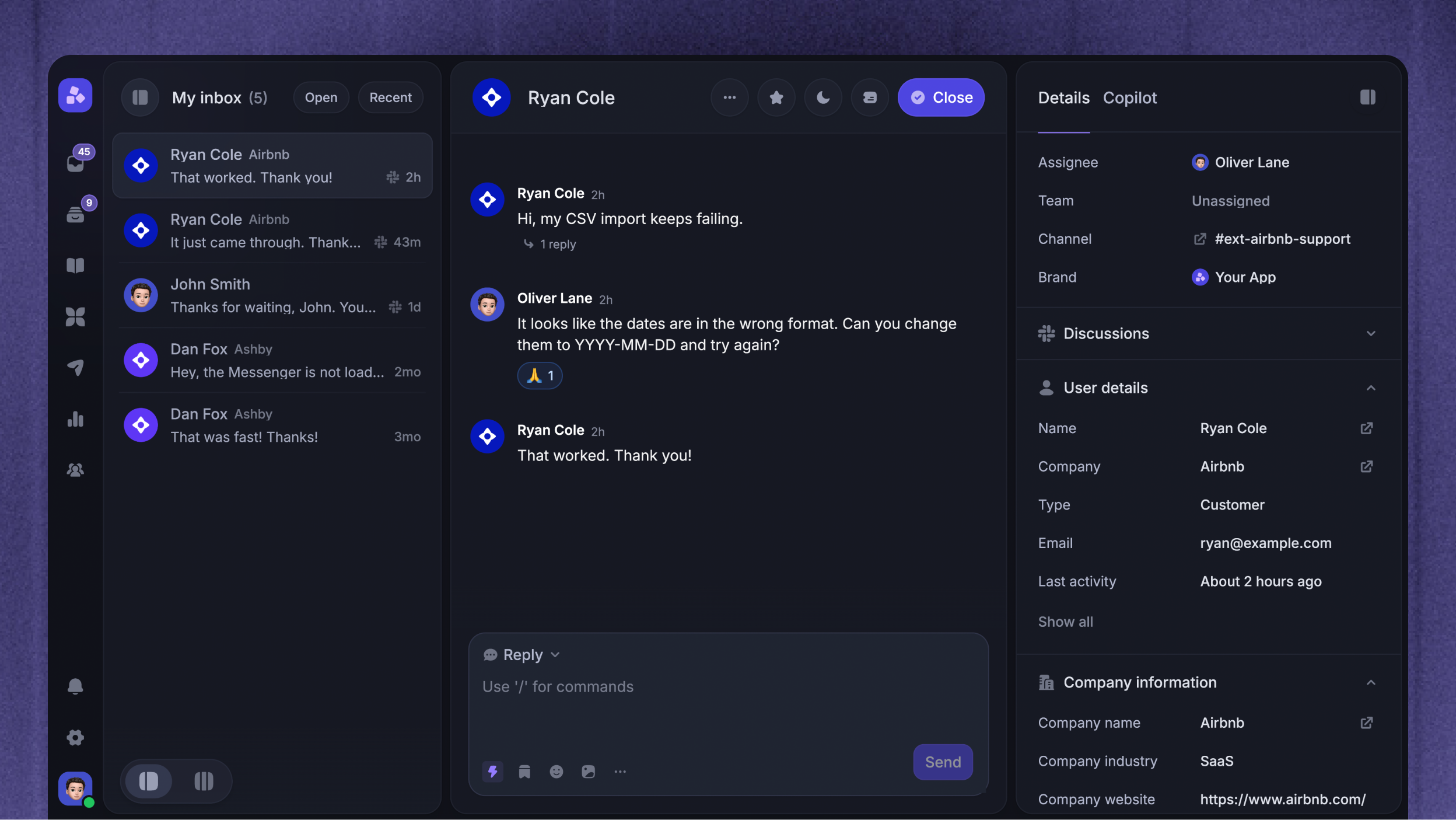
After a Slack message becomes a conversation, it appears in the Featurebase Inbox with all your other customer conversations. Your team can manage support from one place, while public replies return to the connected Slack thread.
When the Slack sender matches an existing customer, their User and Company details, synced attributes, recent conversations, and other available context appear beside the thread. Your team can understand the customer's history, assign ownership, apply SLAs, use internal notes, and reply without chasing information across tools.
Featurebase keeps supported message content and actions connected across both products. It does not mirror every Slack or Inbox action. Internal notes, assignment, tags, priority, and SLA state remain private to your team.
How Slack users are identified
Featurebase resolves each Slack sender in this order:
A Featurebase teammate with a connected personal Slack account
A Featurebase teammate with the same email address
A Slack participant whose email address or domain matches a Conversation starters restriction
An existing or new customer with the same Slack email address
A Slack lead when Slack does not share an email address
This lets messages from the same identified customer stay attached to their customer record. Slack Connect members and other people whose email is unavailable appear as Slack leads instead of being matched by name.
A top-level message from a recognized Featurebase teammate or a participant who matches a ‘Conversation starters restriction’ does not create a customer conversation. Replies from restricted participants inside existing conversations are still saved. Featurebase labels the participant Internal and does not trigger Fibi or Workflows.
Connect your personal Slack account
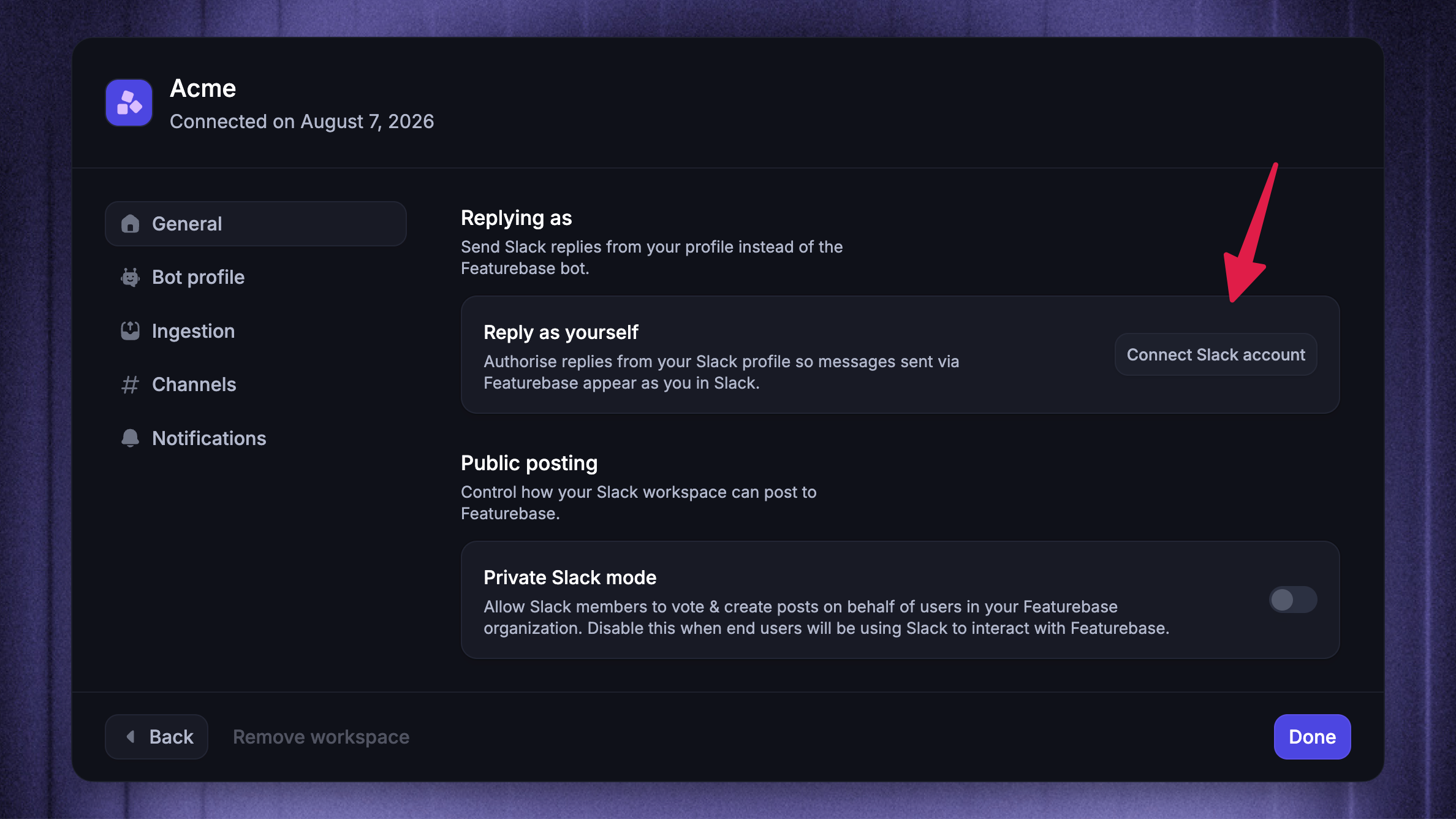
Connect your own Slack account if you want Inbox replies to appear from your Slack profile.
To connect your personal Slack account:
Choose the relevant Slack workspace to manage
Open General
Under Replying as, click Connect Slack account
Complete the Slack authorization
Connecting your personal account is optional for normal public replies:
When your account is connected and Slack lets you post in the channel, the reply appears from your own Slack profile.
Otherwise, Featurebase posts through the Featurebase app using your teammate name and profile picture.
Automated replies use the workspace's configured bot profile.
Good to know:
You must be a Workspace Admin with the Manage Integrations permission to connect a personal Slack account.
Inbox reactions require your personal Slack account to be connected. Featurebase does not fall back to the app identity for reactions.
See customer context while you reply
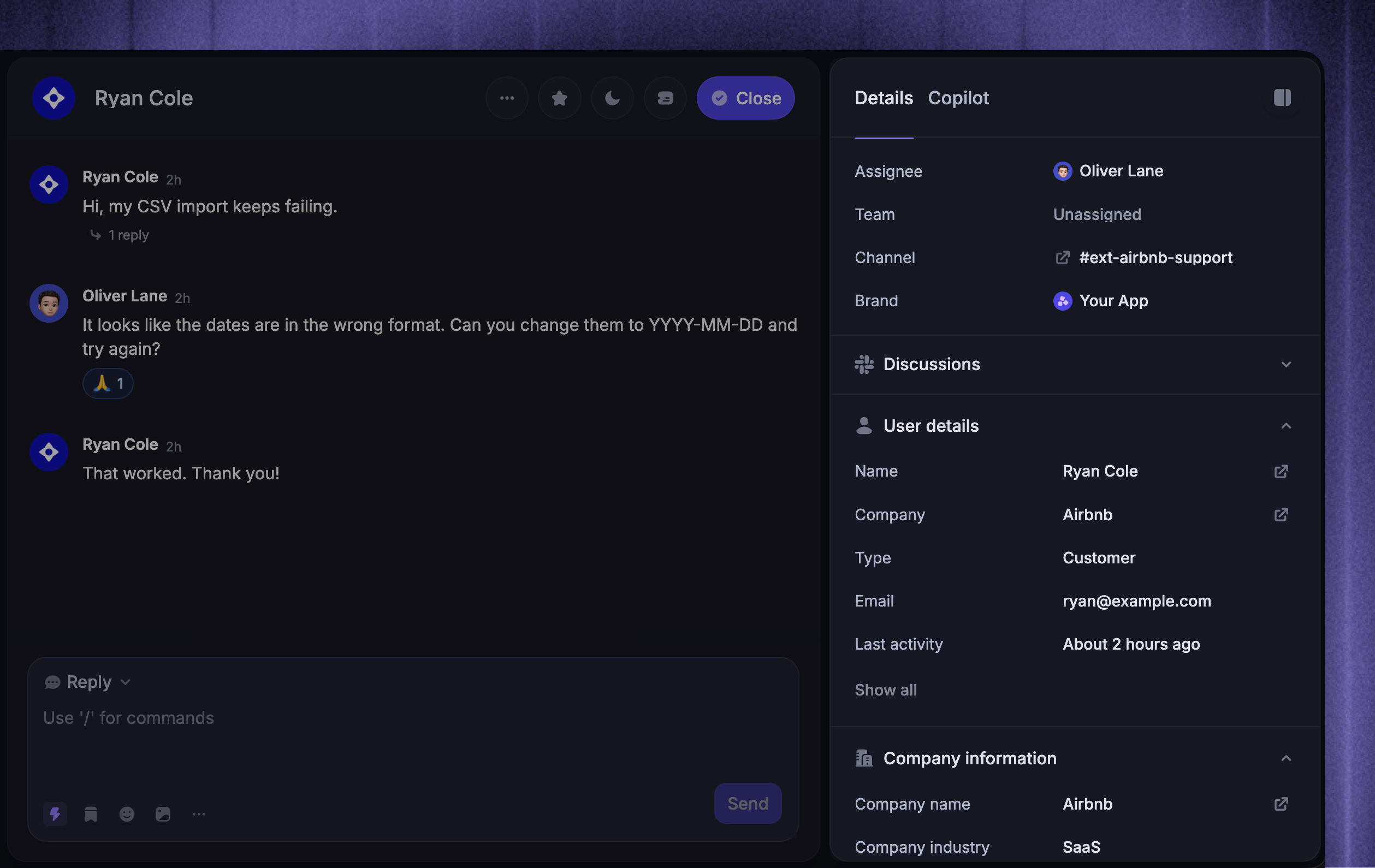
When Featurebase matches the Slack sender to an existing customer, the normal Inbox context appears beside the conversation. Depending on the customer data you have synced, this can include:
User details and custom data attributes
Company details and custom data attributes
Recent conversations across your support Channels
Linked feedback requests and recent page visits
Qualification data and links to connected systems
This context stays in Featurebase and is not posted to the customer Slack thread. It helps your team understand the customer's history and account before replying, even when the current question started in Slack.
If Slack does not share the sender's email address, Featurebase creates a Slack lead instead. The Inbox shows the information available from Slack, but it cannot automatically attach existing customer history or synced attributes until the person is identified.
Reply from the Inbox
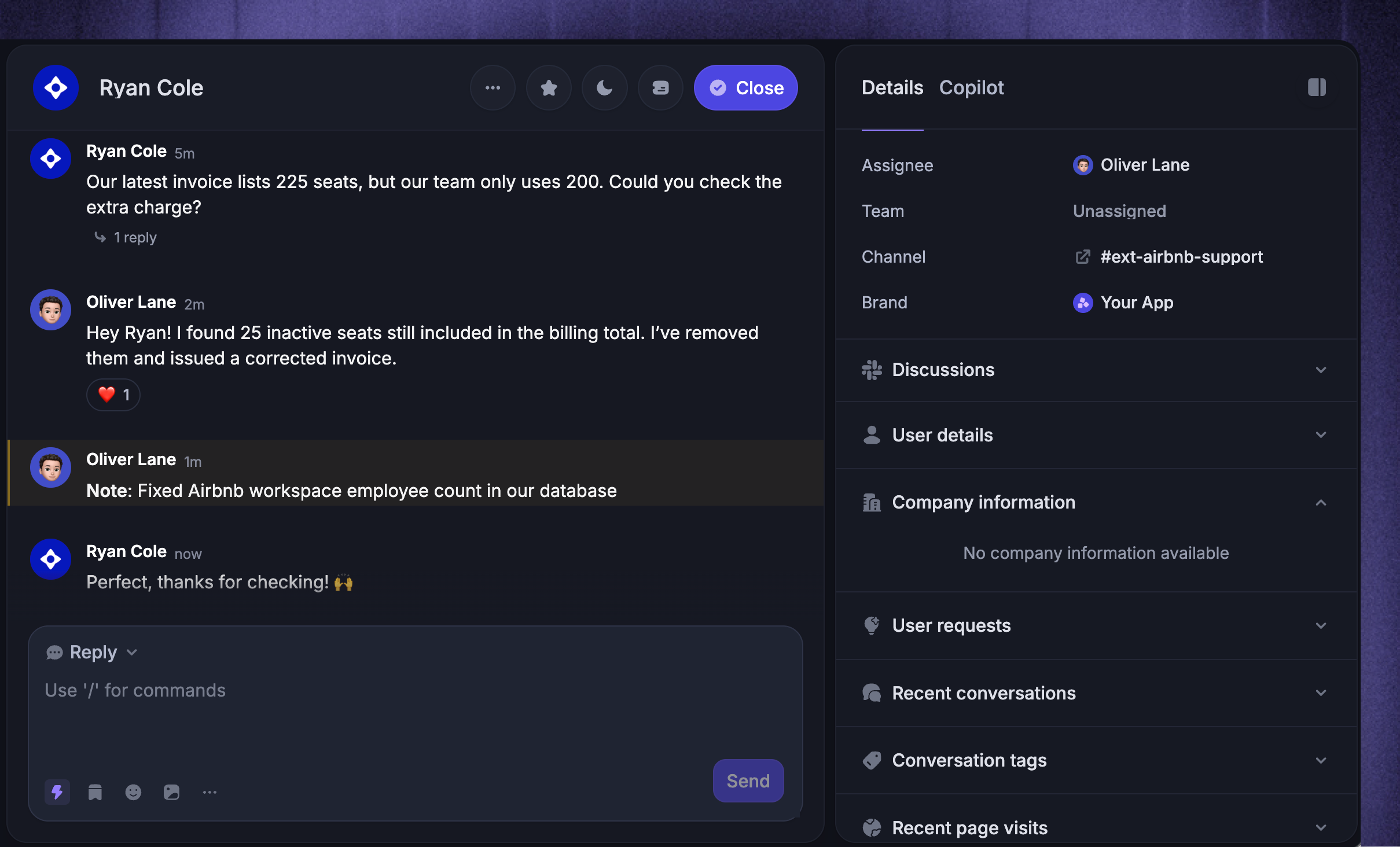
Open the Slack conversation in the Inbox, write a public reply, and send it as usual. Featurebase delivers the reply to the active Slack thread and records its delivery state on the Inbox message.
Use an internal note when the message is only for your team. Internal notes never post to the customer Slack thread.
If Slack rejects a public reply, Featurebase marks the message as failed and shows the delivery error. Common causes include a missing or locked thread, an archived channel, a disconnected workspace, or missing channel access.
Note: A disconnected Slack workspace blocks public replies, but you can still add internal notes while the connection is being restored.
Remove a message from Slack
Removing a message from the Inbox does not confirm that its Slack copy was removed. Check the removal status on the message. Removed from Slack confirms success.
If removal is pending, use 'Refresh status'. If it fails or needs manual action, follow the Slack removal troubleshooting steps.
Work with grouped Slack messages
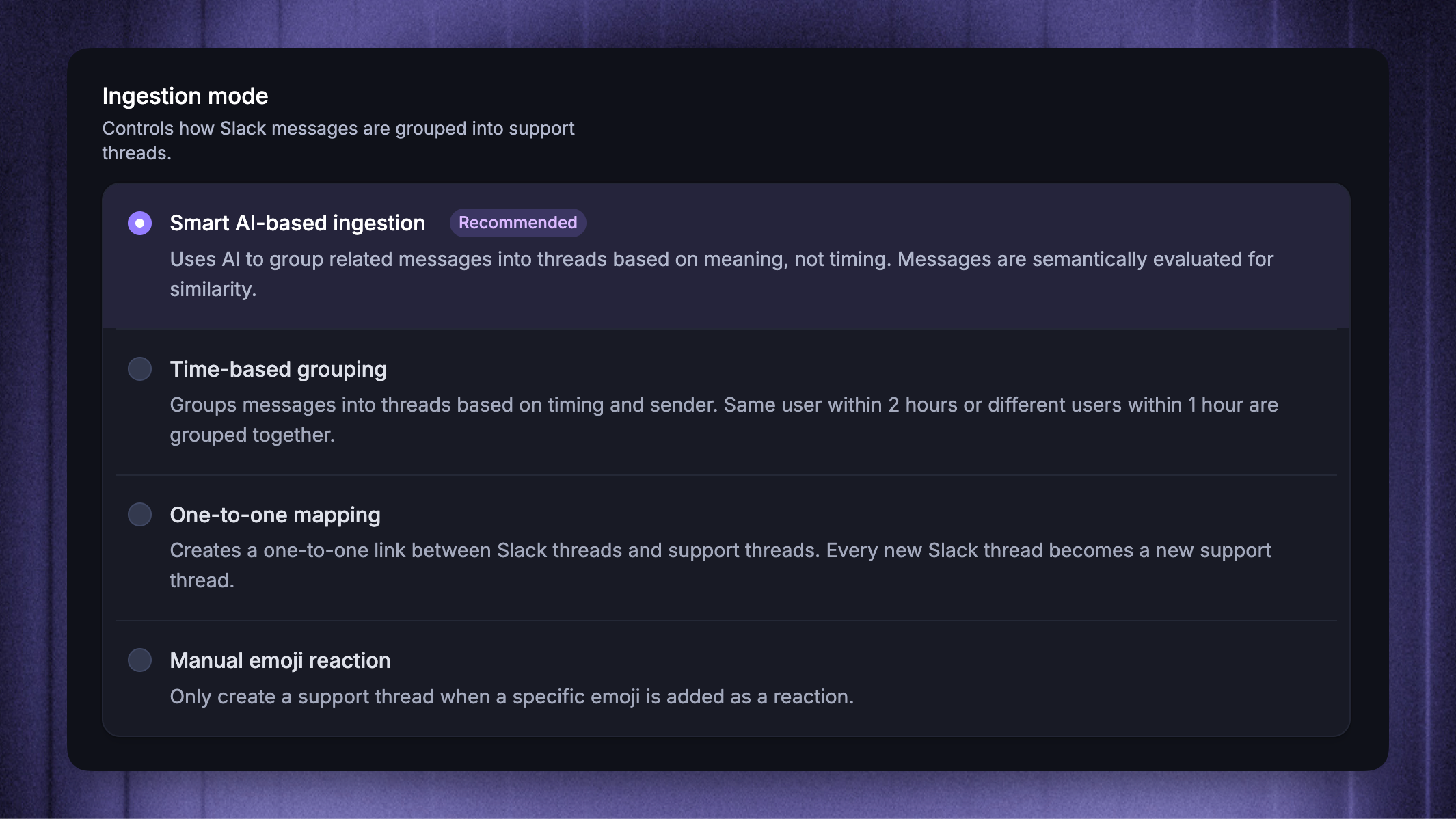
With ‘One-to-one mapping’, one Slack root message and its thread replies map to one conversation.
With ‘Smart AI-based ingestion’ or ‘Time-based grouping’, one conversation can contain several top-level Slack messages. Featurebase keeps a separate Slack thread mapping for each root message so replies from each Slack thread return to the correct conversation.
The active root is the most recently grouped top-level message or the grouped Slack thread with the latest incoming reply. A new public reply from the Inbox is posted to that active Slack thread.
If you need to confirm the exact Slack context before replying, open the relevant message in Slack.
Use Inbox features
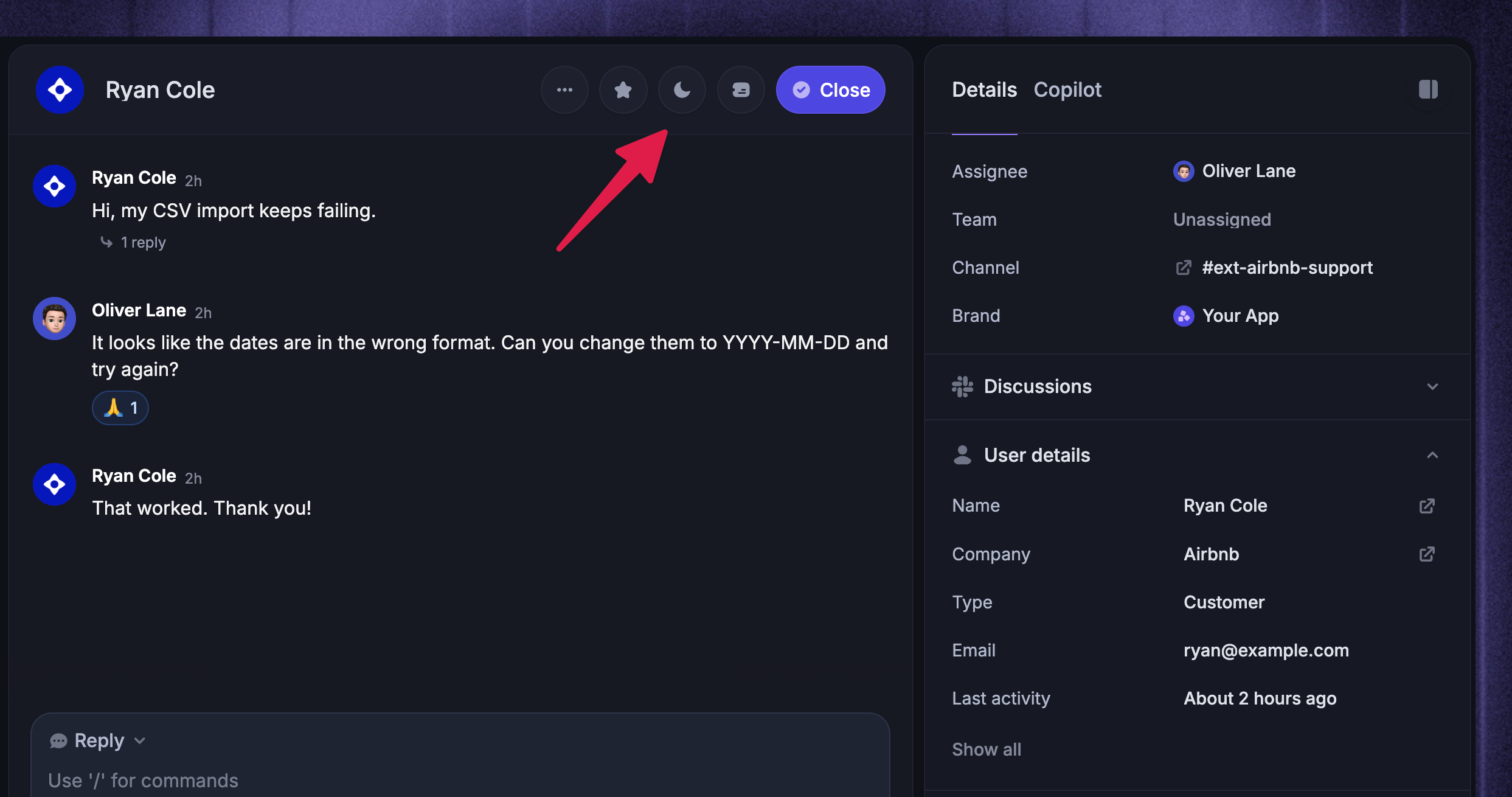
You can manage a Slack conversation with the core Inbox tools, including:
Assignment, priority, tags, SLAs, and notes remain internal to Featurebase. When you create a linked Ticket or change its status, Featurebase can post the Ticket update to the Slack thread. Public replies sent from the linked Ticket also return to Slack.
Slack conversations can also use Workflows for automation and Fibi AI Agent for AI-powered answers. Fibi does not reply to every Slack message. When Fibi stays silent, the conversation shows the reason in the Inbox, and Featurebase keeps the conversation open and available for your team when the message was meant for a person.
You can discuss conversations with your team in Slack for private operational collaboration.
Close and reopen a conversation
Closing a Slack conversation marks the Inbox work as complete. It does not close, lock, or otherwise change the Slack thread.
The conversation reopens when:
A customer or teammate sends a new human reply in a mapped Slack thread
A teammate sends a new public reply from Featurebase
Messages posted by a Slack bot do not reopen a closed conversation.
Open the original message in Slack
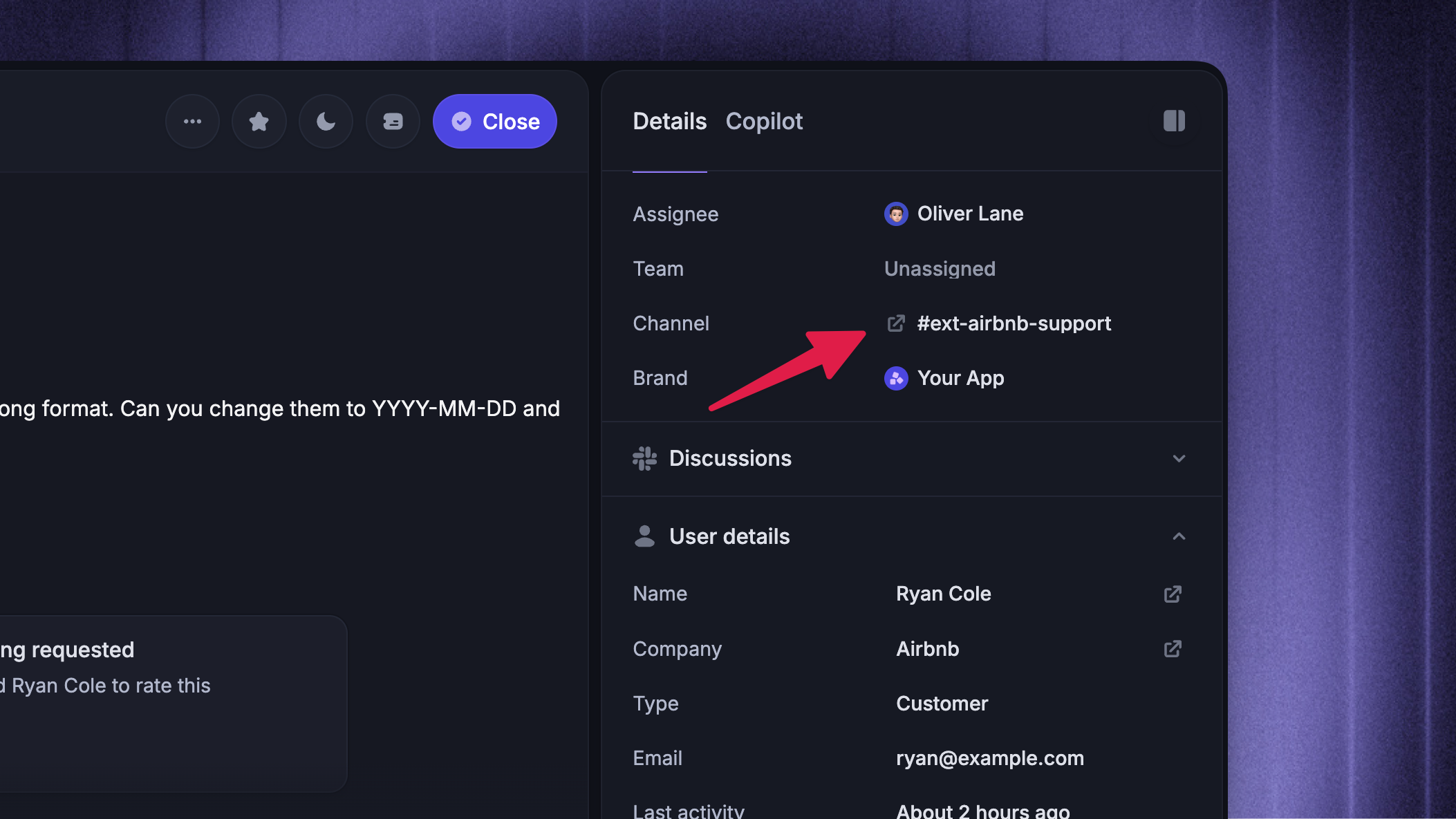
Use ‘Open in Slack’ button when you need to inspect the original thread, see surrounding channel context, or continue working directly in Slack.
To open the original message in Slack:
Open the message menu for a synchronized Slack message in the conversation
Select Open in Slack
You can also click the Slack channel shown in the conversation details to open the channel.
FAQs
What synchronizes between Slack and Featurebase?
What synchronizes between Slack and Featurebase?
From Slack to the Inbox:
Featurebase uses the original Slack message timestamps to keep Inbox messages in Slack order, even if Slack delivers an event later.
From the Inbox to Slack:
Featurebase converts supported Inbox formatting for Slack. Files, images, videos, and embeds in an Inbox reply can be delivered as links instead of native Slack uploads or previews.
Are there any limits to the Slack integration to be aware of?
Are there any limits to the Slack integration to be aware of?
The current Slack support integration has the following limits:
Slack DMs and group DMs are not supported as native support channels.
Featurebase starts processing new channel activity after the channel is connected. It does not import earlier Slack history as conversations.
Only supported Slack content types can be rendered in the Inbox. Some files, app attachments, or rich Slack surfaces may appear as links or reduced content.
Featurebase does not mirror internal notes, assignments, priority, tags, or SLA state into Slack.
Inbox reactions require the acting teammate to connect a personal Slack account.
Slack does not provide a customer seen status for support replies.
Closing a conversation does not stop people from replying in Slack. A new human reply reopens it in Featurebase.
If content or delivery does not synchronize as expected, troubleshoot Slack support.
Was this helpful?
Still need help? Ask the team