Deploy Fibi AI Agent in Slack
Deploy Fibi AI Agent in Slack and control its Company-specific content and Custom Action access.
Written By Markus Palm
Last updated 15 days ago
Overview
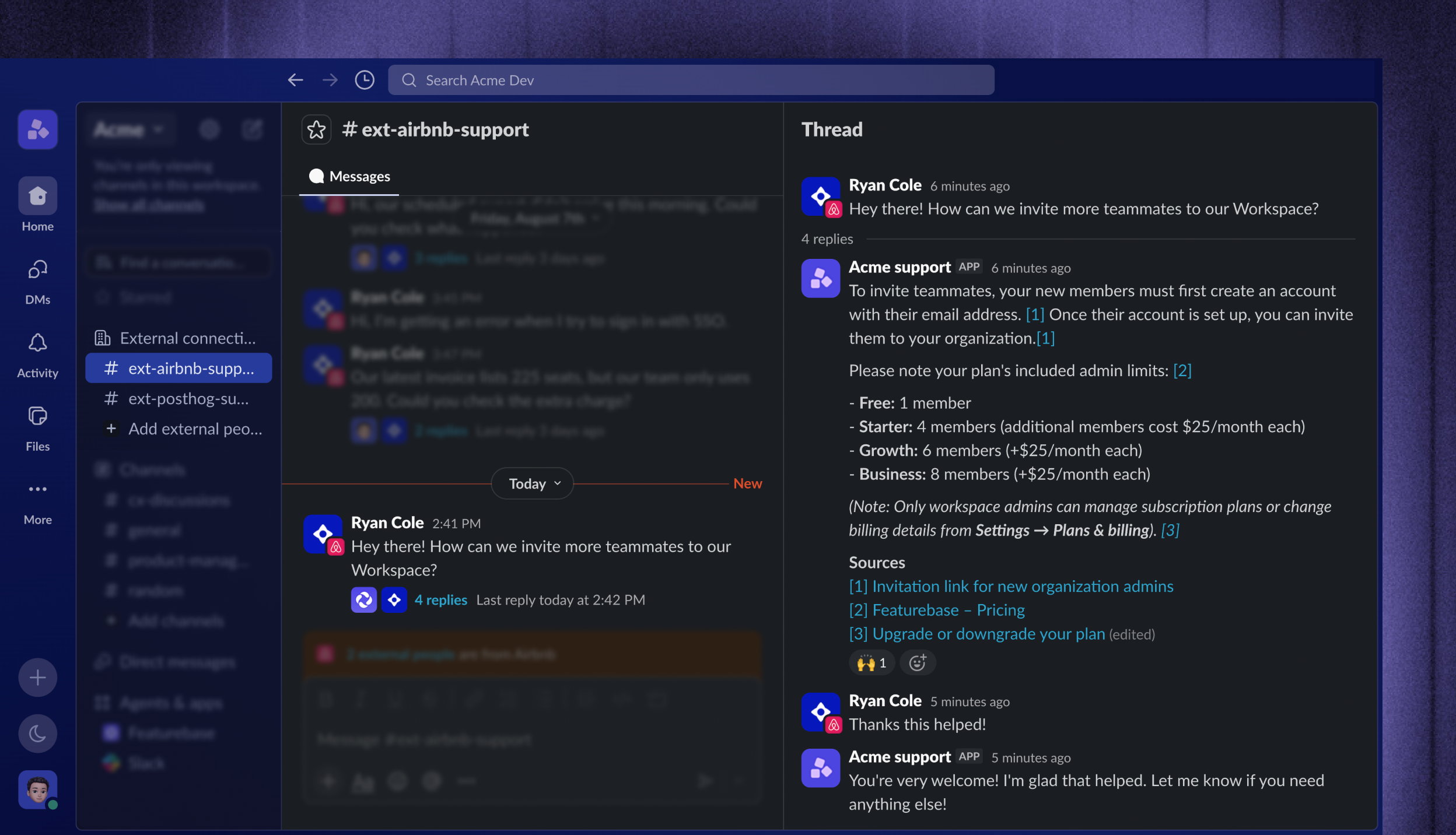
Deploy Fibi AI Agent in eligible Slack channels to answer customers/teammates in the original Slack thread. Customers get immediate support without leaving Slack, while your team can monitor and continue the conversation from the Featurebase Inbox.
You can enable Fibi for every new conversation in a channel or deploy it through a Workflow for more precise targeting. In both cases, the content and Custom Fibi Actions available to Fibi depend on the channel type, whether a Customer channel is linked to a Company, and who can access the Slack channel.
Important: Every member of a Slack channel can see Fibi's replies, not only the person who started the conversation. Slack channel access determines the audience.
Before you begin
Before deploying Fibi in Slack:
Set up and customize Fibi AI Agent, including its training content and behavior.
Connect your Slack workspace to Featurebase.
Add the Slack channel as a Customer or Community channel.
Note: Fibi is not available in Discussion or Disabled channels.
Choose how to deploy Fibi
Featurebase provides 2 deployment options:
Enable Fibi for a channel
Use it when: Fibi should answer every new eligible conversation in that channel
What it does: Uses the channel-level Fibi switch. This is the simplest setup.
Deploy Fibi through Workflows
Use it when: Fibi should answer only when specific trigger, audience, or routing rules match
What it does: Uses a Slack-targeted Workflow with a ‘Let Fibi answer’ action.
Both methods use the same Slack audience and content-access rules described below.
1. Enable Fibi for a channel
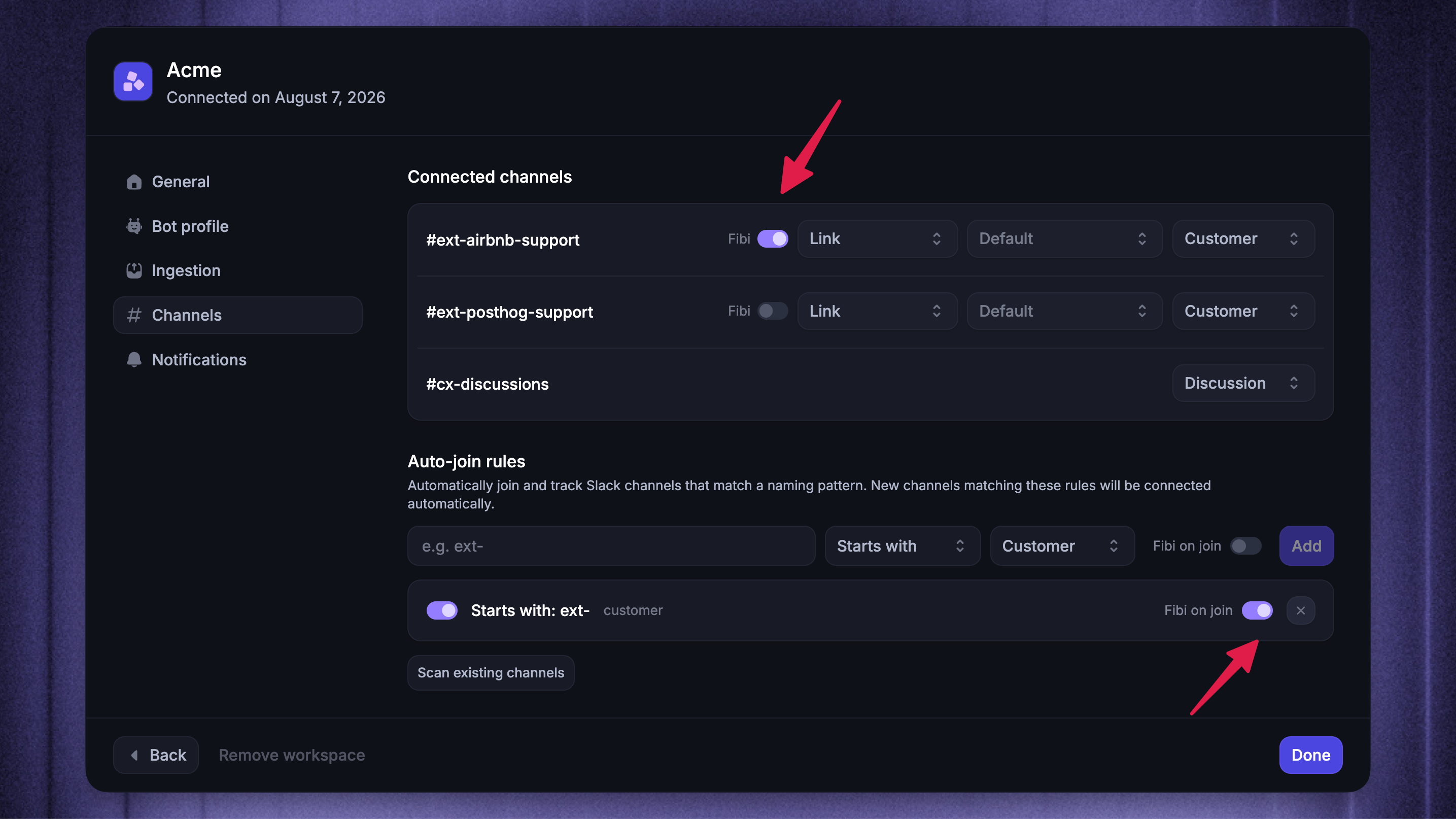
Use this option when you’re using Fibi with Simple Deploy and Fibi should answer every new eligible conversation in a Customer or Community channel.
To enable Fibi in an eligible Slack channel:
Choose the relevant Slack workspace to manage
Open Channels
Find the Customer or Community channel under Connected channels
Turn on Fibi
An auto-join rule can turn on Fibi when Featurebase activates matching Customer or Community channels. Before using Fibi on join, make sure every channel matched by the rule has the intended audience and content access.
Good to know:
Fibi must be in the ‘Simple deploy’ mode to use this method.
The channel setting applies to new conversations. You can change how messages are grouped into conversations before Fibi receives them.
Automated answers use the Slack workspace's bot profile. You can change its display name and icon in the Slack integration's Bot profile settings.
2. Deploy Fibi through a Workflow
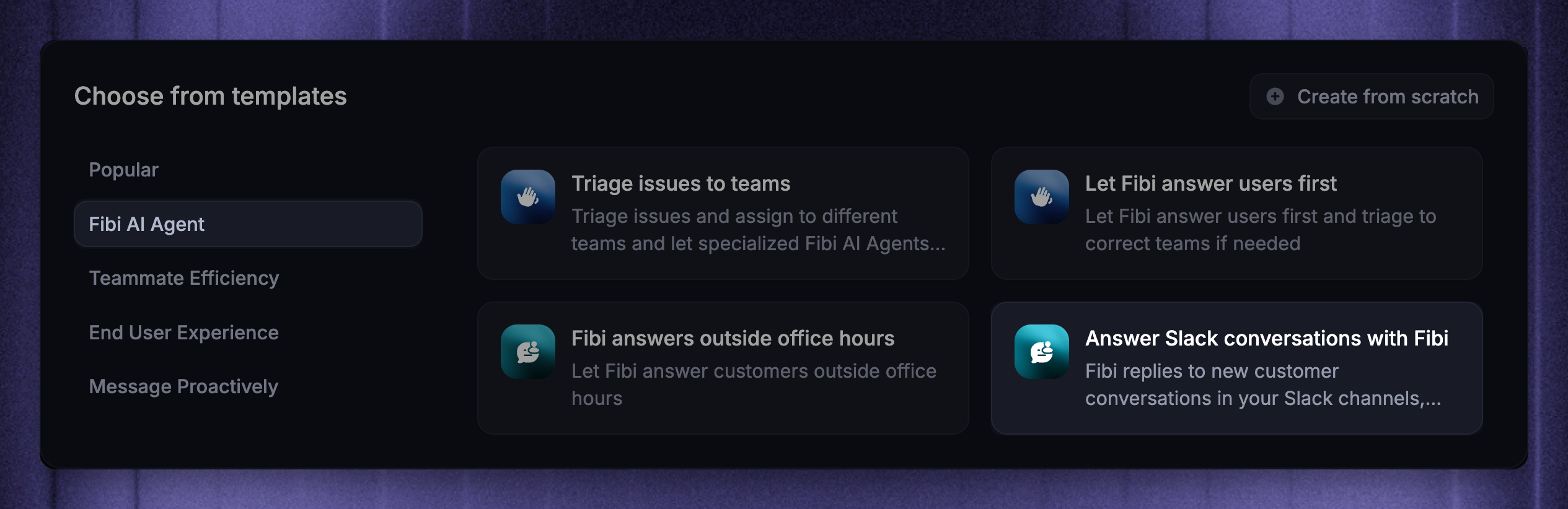
Use Workflows when Fibi should answer only the Slack conversations that match specific trigger, audience, or routing rules.
To deploy Fibi through a Slack Workflow:
Go to Automations → Workflows
Create a Workflow from the ‘Answer Slack conversations with Fibi template, or open a conversation Workflow that supports Slack
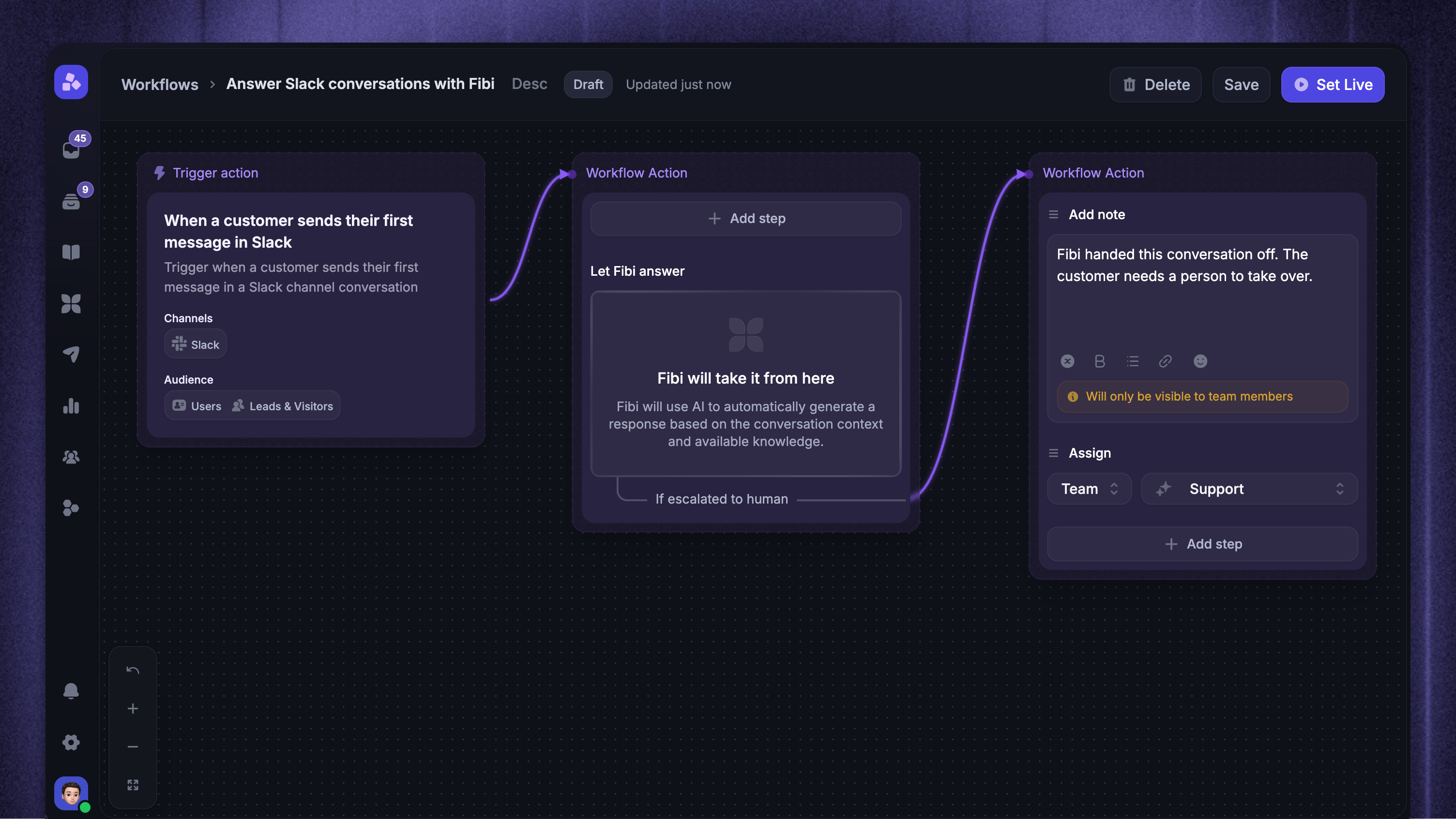
Open the trigger and select Slack under Channels
Configure the trigger and audience rules that decide which Slack conversations enter the Workflow
Add Let Fibi answer if the template or Workflow does not already contain it
Configure Fibi's instructions, handoff, CSAT, and auto-close behavior in the action
Set the Workflow live
Good to know:
The channel must still be an eligible Customer or Community channel.
If ‘Let Fibi answer’ is the first customer-facing action in a Workflow step, Fibi answers the message that triggered the Workflow.
If another customer-facing action runs before it in the same step, Fibi may wait for the customer's next message instead. If the customer does not reply, Fibi stays silent.
Understand when Fibi replies in Slack
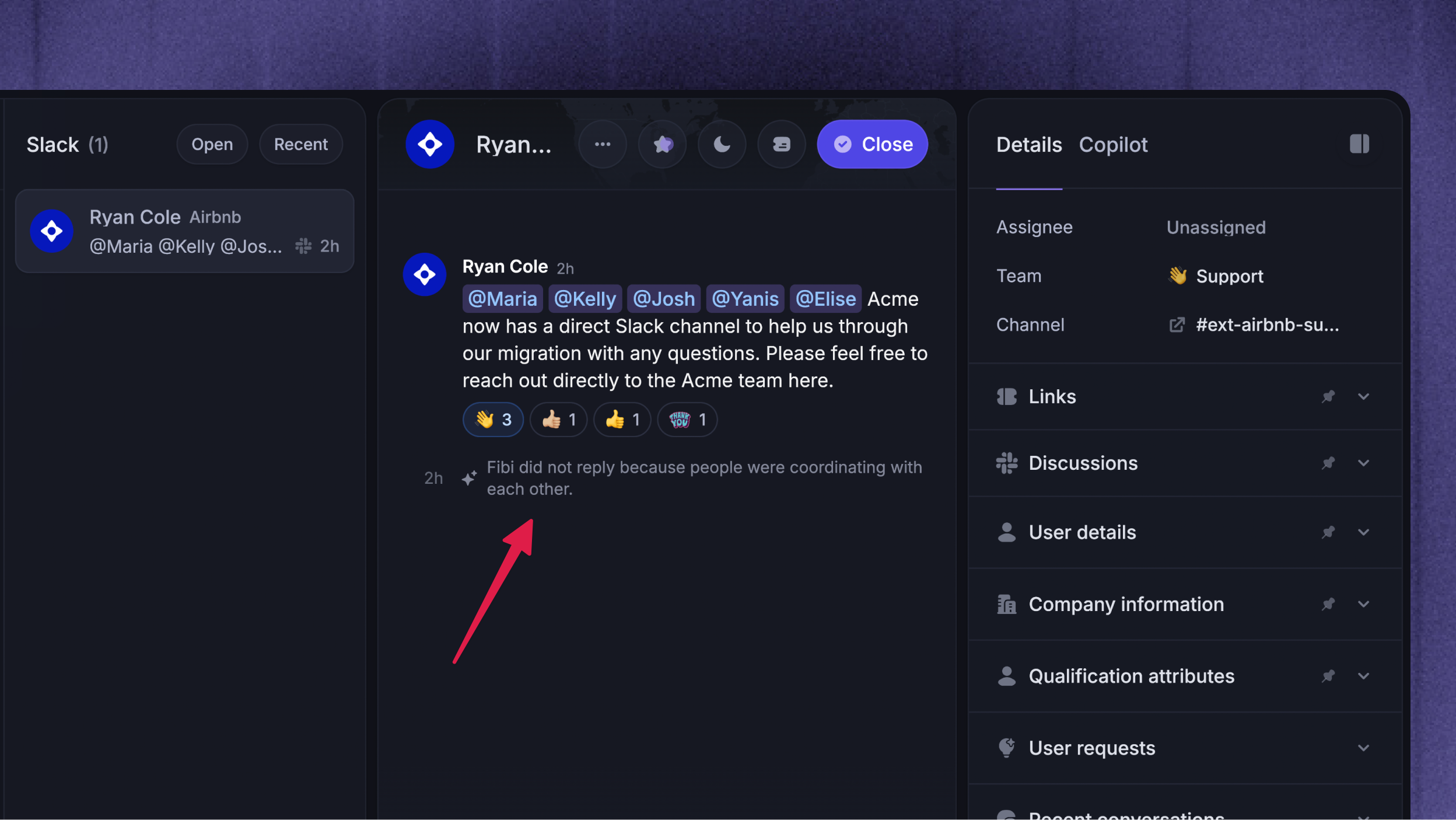
Fibi does not reply to every message in a Slack channel. Before answering, Fibi checks whether the latest message needs its help. Fibi replies to support questions, problem reports, and direct requests for help. It stays silent for the ordinary conversation around them.
Fibi stays silent when:
The message is directed to a teammate
People are coordinating with each other
The participant is still checking or trying a suggestion
The message is a closing acknowledgment
The message is a greeting or general chat without a support request
The message does not show a clear need for support
Nothing is posted to the Slack thread when Fibi stays silent, and Slack shows no typing indicator. Your team still sees the message in your Featurebase Inbox and the reason Fibi didn’t reply.
Silence does not end the conversation. When the message is directed to a teammate or people are coordinating with each other, Featurebase keeps the conversation open and available for your team, even when Fibi already answered earlier in the thread.
Note: This behavior applies to Slack conversations only and is always on.
Understand which content Fibi can use
Fibi chooses its available content from the channel type, Company link, and Slack audience.
Linking a Company does not make Company-specific content available in a normal public channel. This prevents private Company information from being shown to everyone in that channel.
Important: Confirm the channel type, Company link, and Slack audience before enabling Fibi in a customer channel.
Control Custom Fibi Actions in Slack
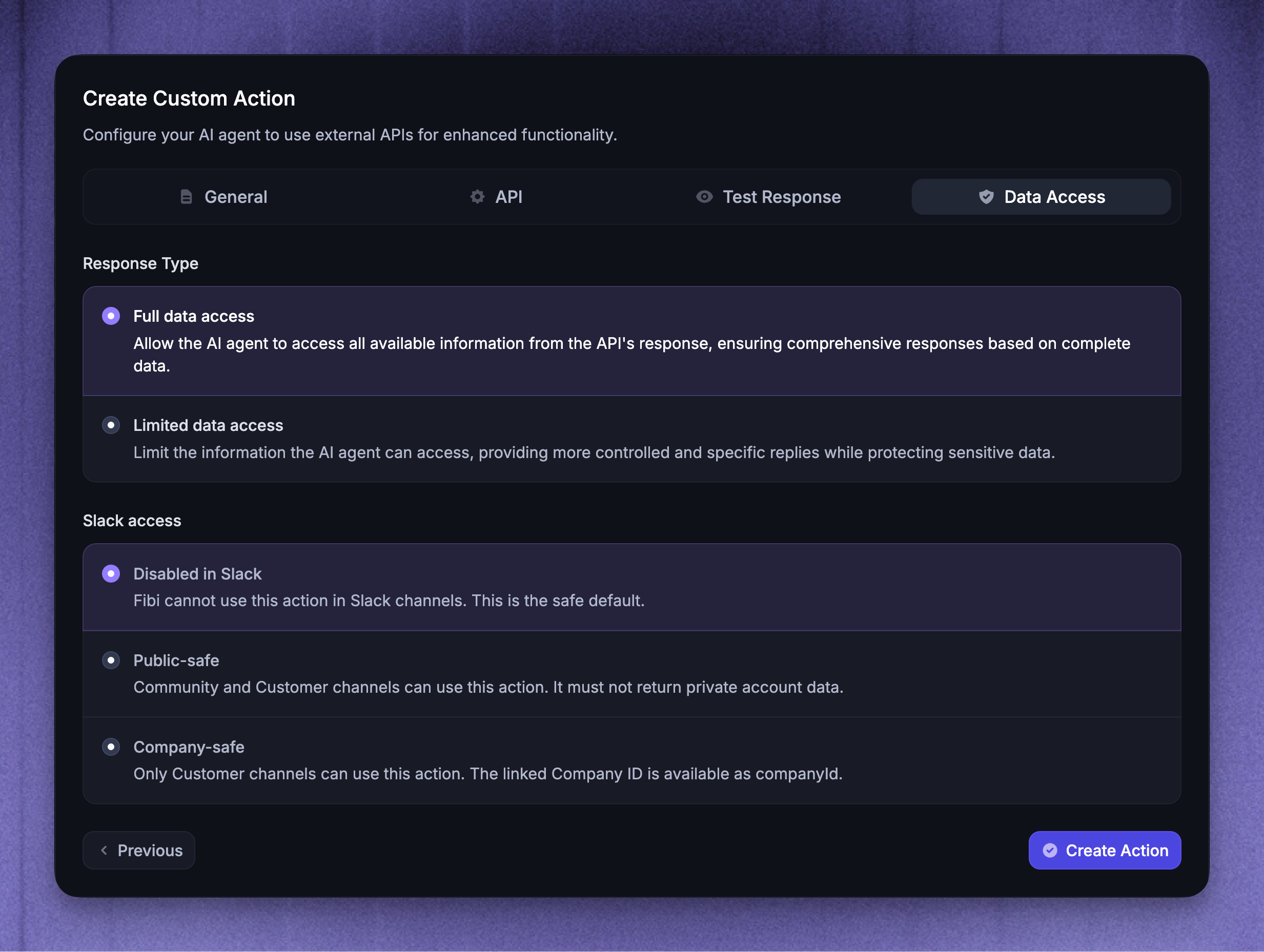
Custom Fibi Actions are disabled in Slack by default. If Fibi needs to use an action in Slack, configure its Slack access:
Go to Automations → Actions
Create or open the Custom Fibi Action
Open Data access and choose the appropriate access level under Slack access:
Disabled in Slack - Fibi cannot use the action in Slack. This is the safe default.
Public-safe - Fibi can use the action in Customer and Community channels. Use this only when the action cannot return private account data.
Company-safe - Fibi can use the action only when an eligible Customer channel provides a trusted linked Company. Featurebase supplies the linked Company ID to the action.
For Company-safe, enter the exact Company ID variable used by the action's API request
Important: A Company-safe action is not available in Community channels, unlinked Customer channels, or normal public Customer channels. It can be used in an eligible private or Slack Connect Customer channel linked to the correct Company.
Test Fibi in Slack
Before enabling Fibi in a customer-facing Slack channel:
Use a dedicated private Slack channel with only the intended testers
Confirm its channel type and Company link and ingestion mode
For channel-level deployment, confirm that Fibi is on for the test channel. For Workflow deployment, confirm that the Workflow is live and its trigger and audience rules match the test conversation
Start a new conversation from a Slack user who is not a Featurebase teammate
Ask a question that Fibi can answer from public content
If the linked Company has Company-specific content and the Customer channel is eligible to use it, test a Company-specific question separately
Confirm that Fibi answers only from content permitted by the policy shown in Slack settings
If Fibi uses Custom Actions, test each action with the channel's configured Slack access level and confirm that private account data is not returned in a public-safe context
Check the Slack thread and Featurebase Inbox after each test
If Fibi uses a different content scope than expected or is unavailable, troubleshoot Slack support.
FAQs
What happens when a Slack Connect audience changeS?
What happens when a Slack Connect audience changeS?
If the membership of a linked Slack Connect channel changes, Featurebase falls back to public content. The channel shows this warning in Slack settings:
The Slack Connect audience changed. Fibi now uses public content only. Confirm the current audience to allow linked Company data again.
Review the channel members, then click ‘Confirm audience’ if the linked Company content is still safe for the current audience. Featurebase also blocks queued Fibi replies when an access change could expose content to a new audience.
Was this helpful?
Still need help? Ask the team