Set up & customize the Fibi AI agent
Your one-stop guide to customizing and managing the Fibi AI agent to automate your support.
Written By Markus Palm
Last updated 17 days ago
Overview
This guide will help you navigate the Fibi AI agent from setup to deployment in a clear way – from adding your knowledge to customizing responses and setting up custom actions to automate your support.
General settings
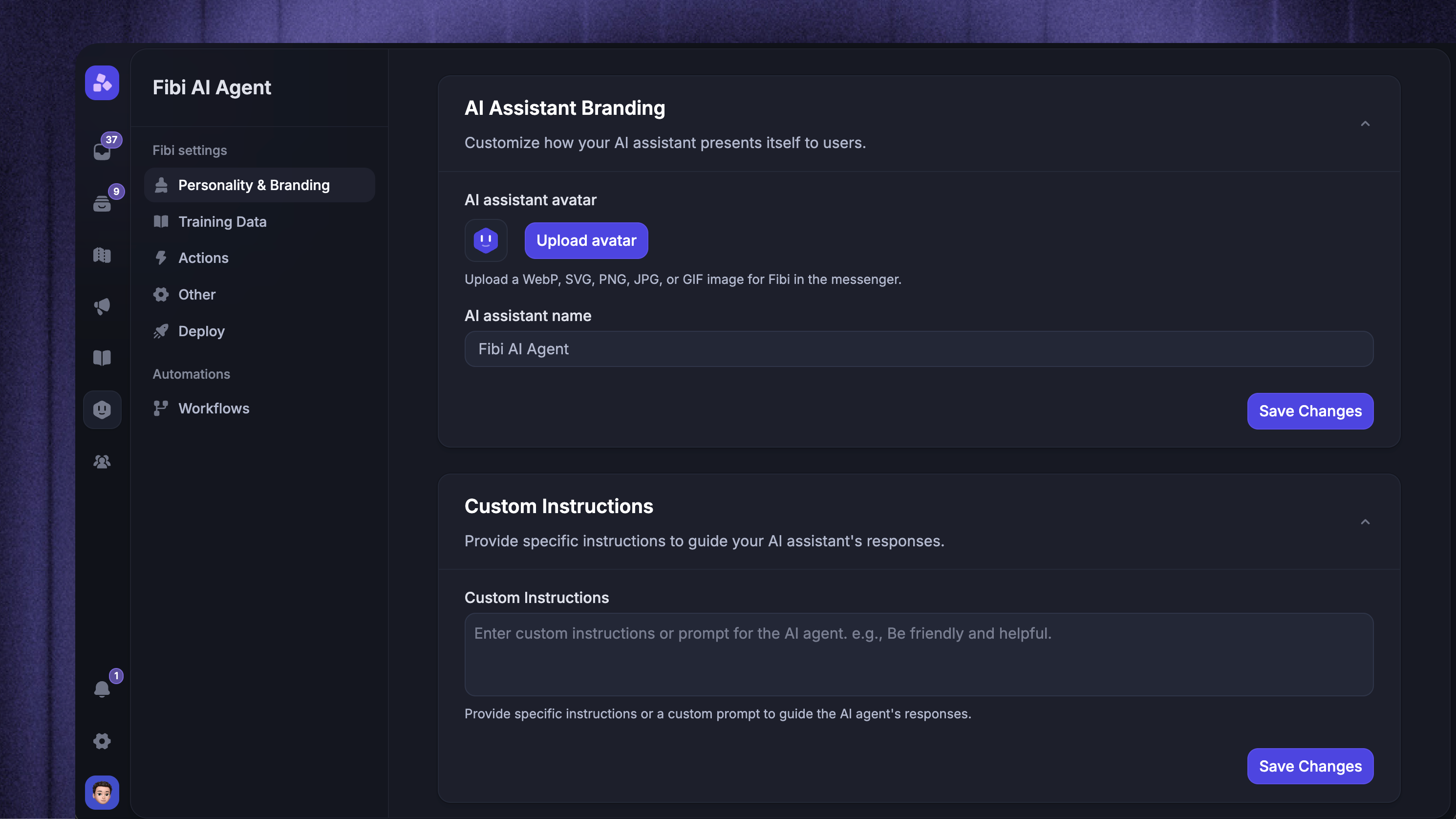
From Dashboard → Automations → Personality & Branding, you can customize how Fibi presents itself to your customers:
Avatar – Upload a custom image (WebP, SVG, PNG, JPG, or GIF) to replace the default Fibi icon
Name – Rename Fibi to match your brand
Custom instructions – Add a short prompt to guide Fibi’s tone and responses
Tip: While it’s usually not necessary, if you choose to add a custom instruction, keep it simple and clear for the best results (e.g. “Be helpful and friendly”).
Training data
To help Fibi better answer your customers, it’s important to set up your Help Center and add any custom external knowledge if needed.
Set up your Help Center
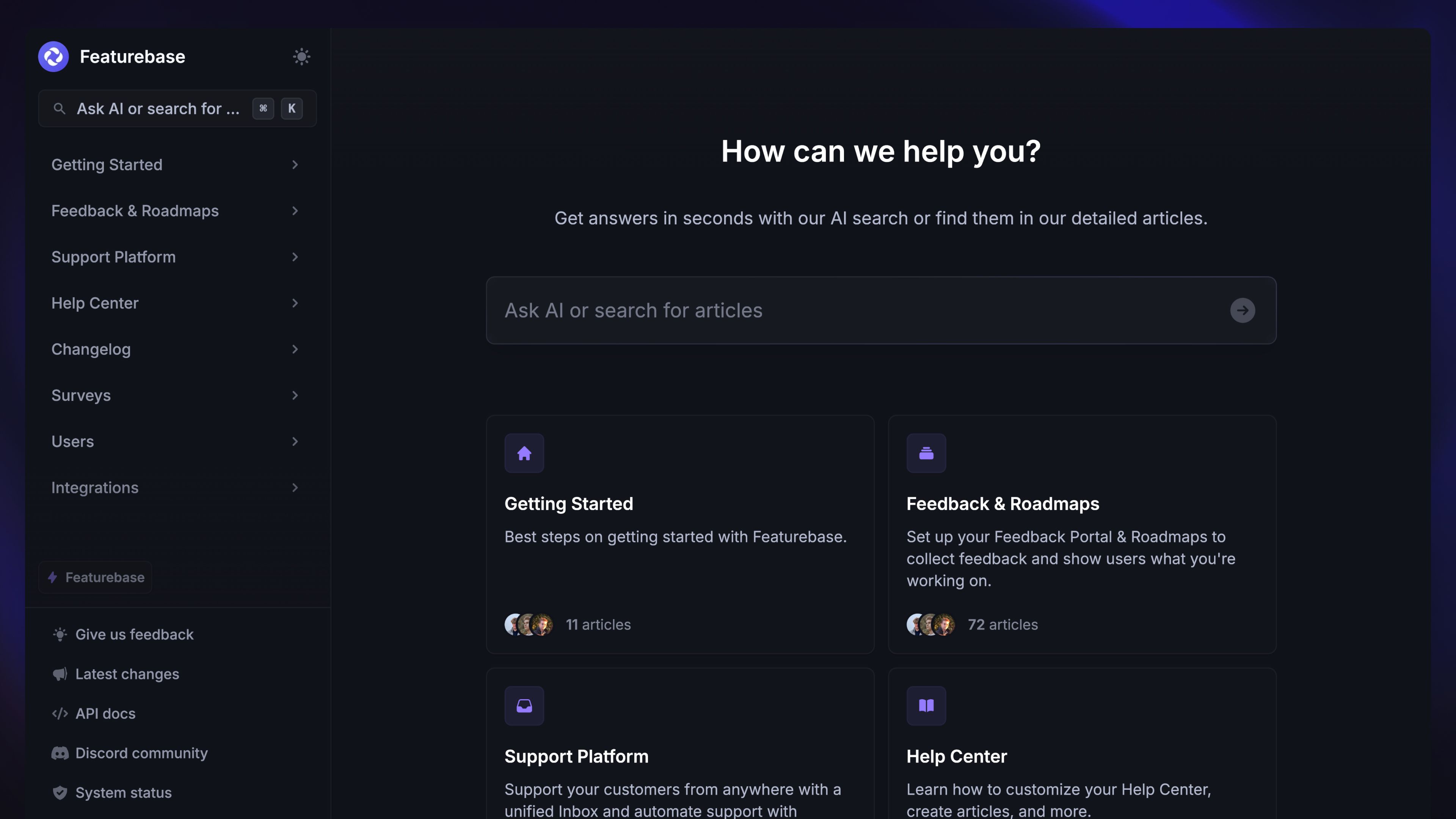
The Help Center is a powerful tool for providing self-serve help to your customers. Setting it up is crucial for the best Fibi performance as it strongly relies on your Help Center for helping customers.
Learn more & set up here:
Add custom training content
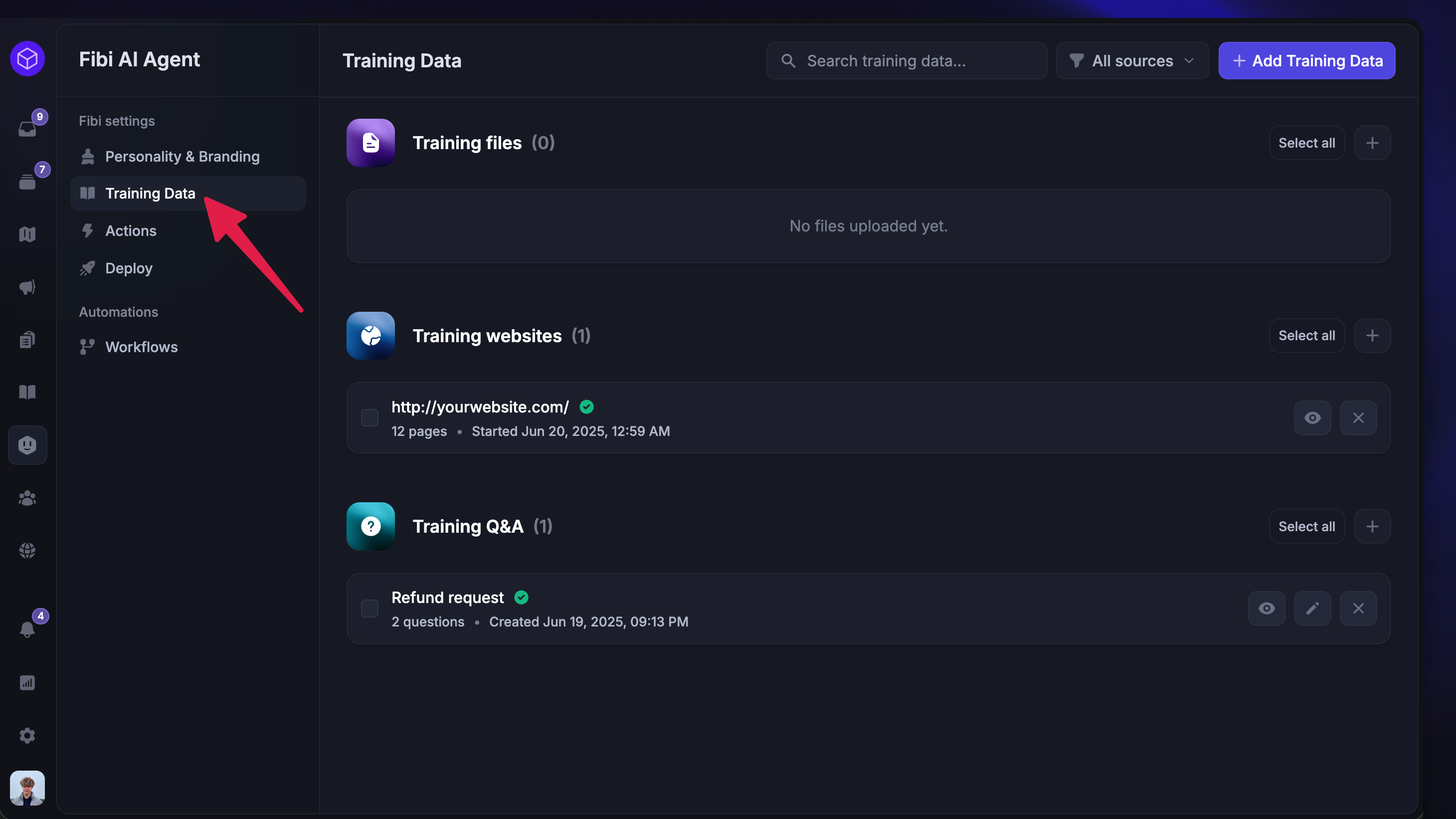
Custom sources let you enhance your Fibi AI Agent by adding extra training content beyond what's already included in your Featurebase workspace:
Files (PDF, Word, Text, and more)
Websites (entire sites or specific URLs)
Custom snippets (Q&A)
You can even upload or link your Notion or Confluence documents. This reduces manual support workload and ensures customers always receive relevant, timely answers.
Learn to set it up: Custom training content for Fibi AI Agent
Custom actions
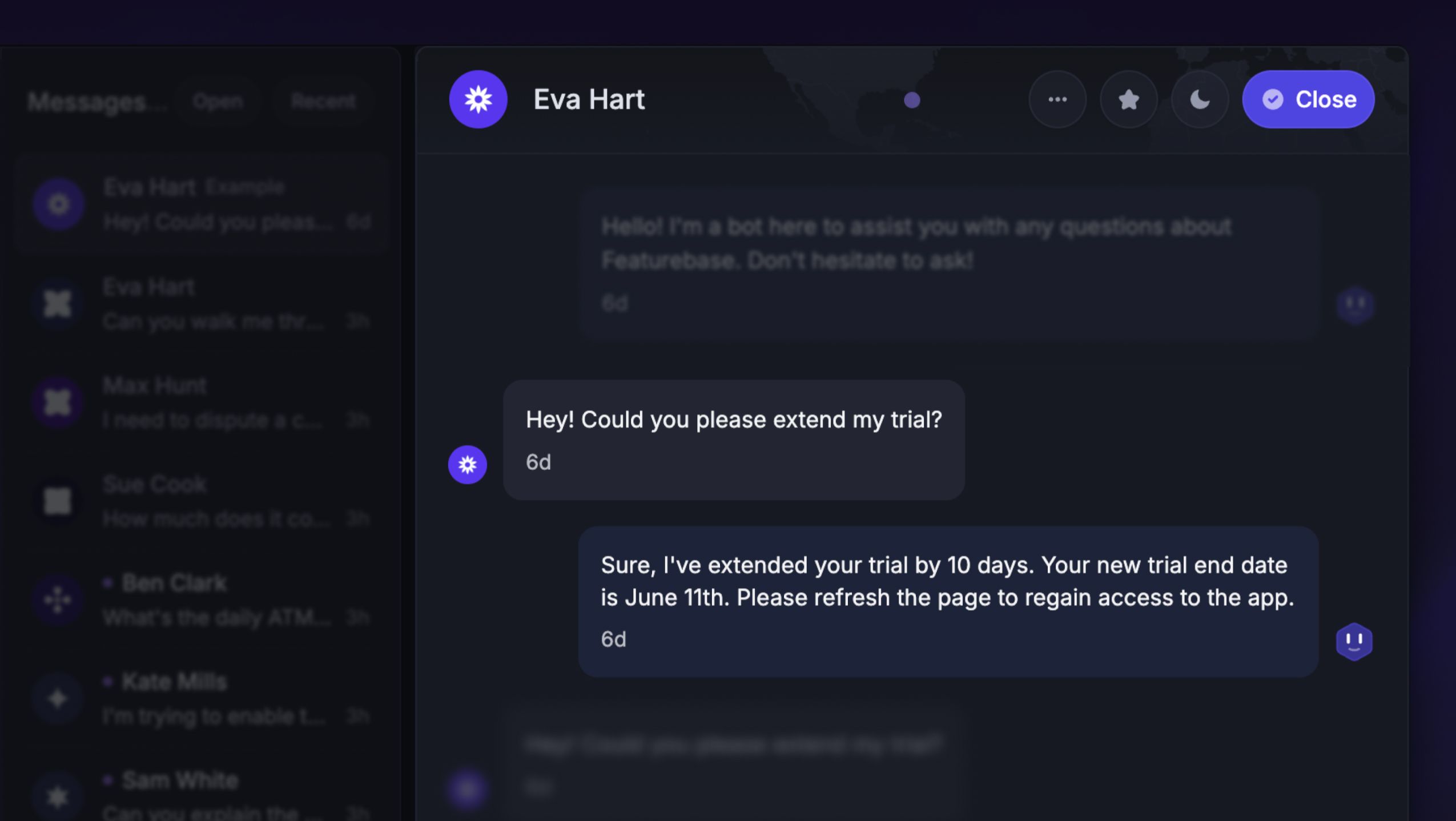
Custom actions are one of the most powerful ways to make Fibi more useful for your customers. You can use APIs to create completely custom workflows like:
Auto-extend trials – Effortlessly manage customer trials without manual intervention.
Offer discounts – Automatically offer certain discounts to bypass budget issues.
Account insights – Quickly provide detailed customer account summaries.
Order tracking – Instantly retrieve order statuses and shipping details.
Billing & payments – Automate the retrieval of invoices or outstanding balances.
Learn to set it up: Custom Fibi actions (Beta)
Hand off to teammates
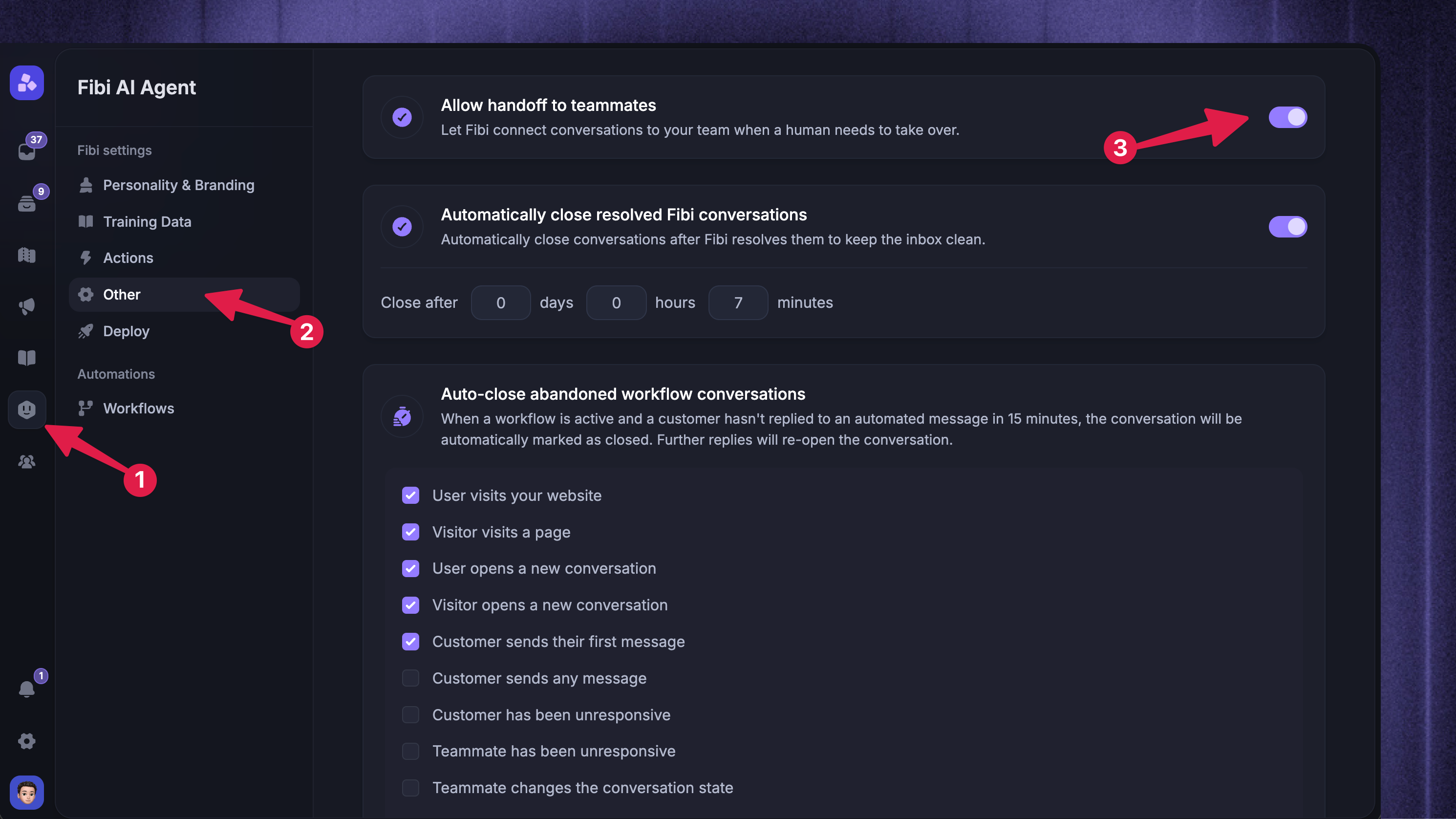
By default, Fibi hands a conversation off to your team when a customer asks for a human or when it can’t resolve the request on its own. You can control this from Automations → Other:
On – Fibi connects the conversation to a teammate when a human needs to take over.
Off – Fibi runs in bot-only mode and resolves conversations on its own, without routing them to your team.
NB! When handoff is turned off, Fibi won’t escalate to your team even if a customer asks for a human. Make sure Fibi has enough training content to handle requests before turning handoff off.
Auto-close settings
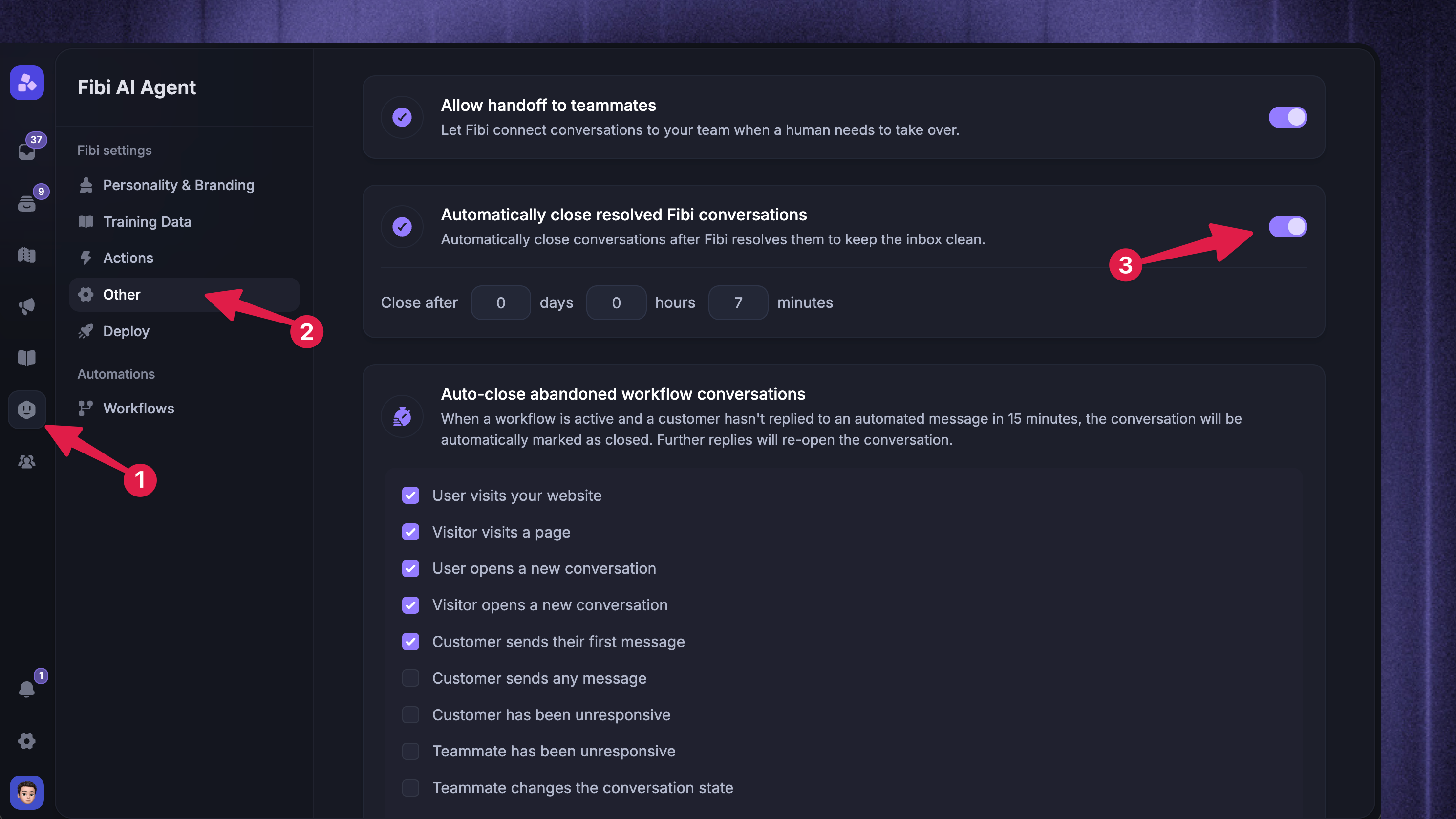
You can also choose when to auto-close resolved Fibi conversations across your workspace. This helps keep your inbox clean.
If you’ve deployed Fibi through Workflows, you can also override this time for specific workflow steps.
Auto-close abandoned workflow conversations
When a workflow is active and a customer doesn’t reply to an automated message within the set time, Fibi marks the conversation as closed. If the customer replies later, the conversation re-opens automatically.
You can choose which workflow triggers this applies to – such as a user opening a new conversation or sending their first message – and how long to wait before closing.
Deploy
The Deploy section allows you to set Fibi live across any channel, including live chat and email. Choose simple deploy for a quick setup, or advanced deploy for sophisticated conversation routing and custom logic.
Simple deploy
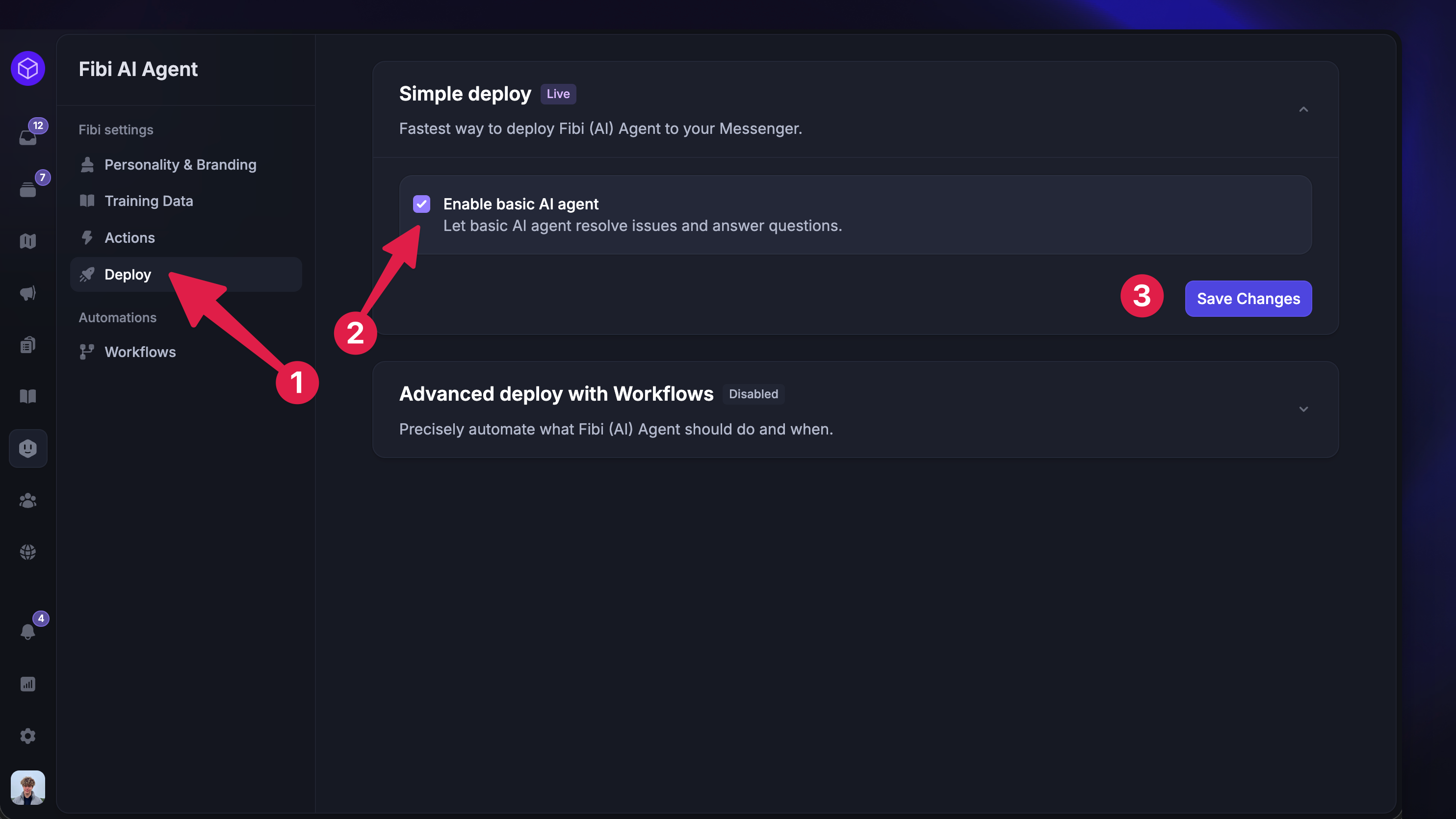
Simple Deploy is a straightforward setup where you enable Fibi quickly without using Workflows to automate your support over Messenger.
You can configure the deploy settings from Automations → Deploy
NB! Simple deploy takes priority over Workflows, so if you have both enabled, the simple deploy settings will override any live Workflows.
Advanced deploy with Workflows
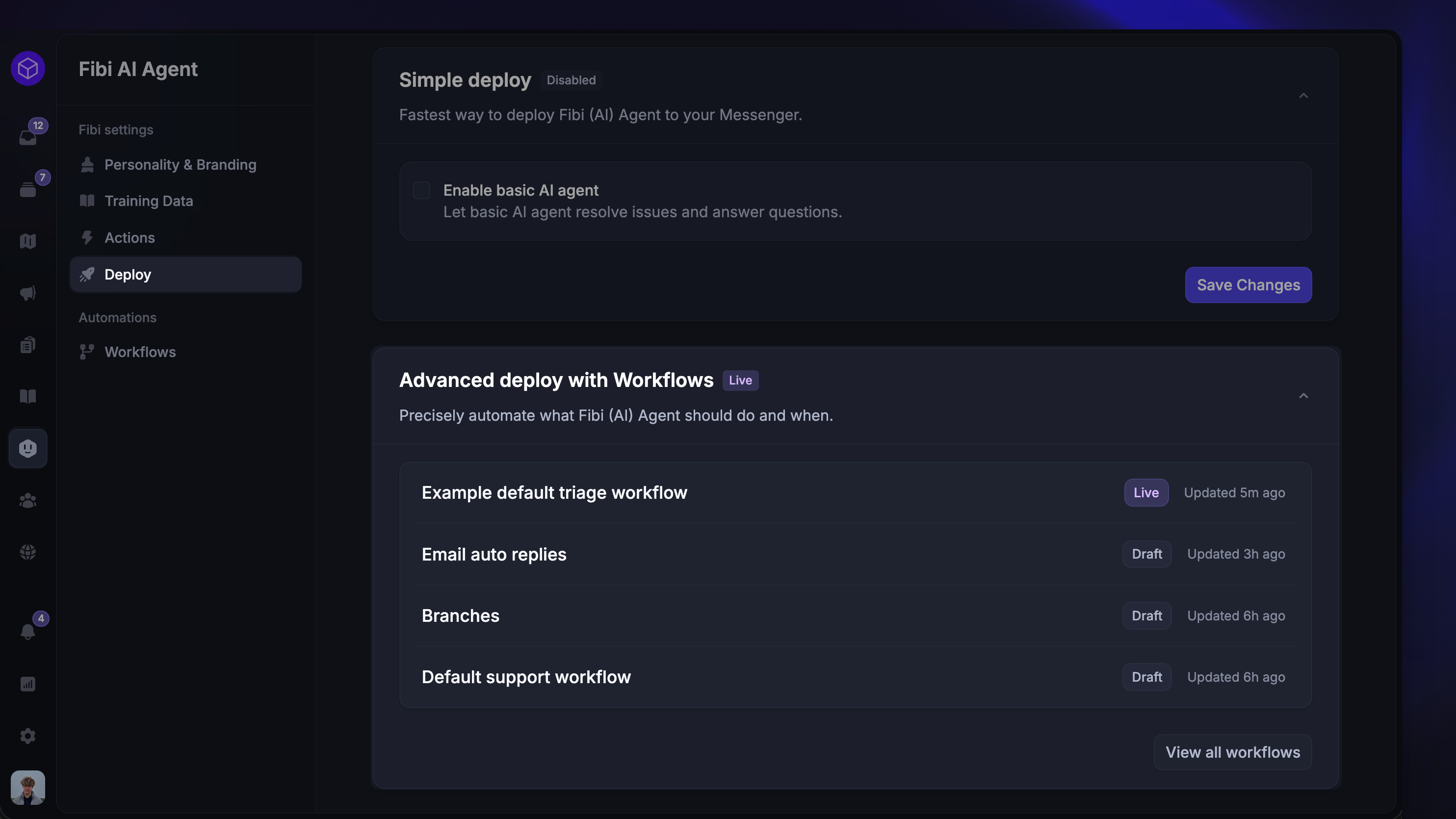
Advanced Deploy uses Workflows to customize Fibi's behavior. This gives you more control over complex routing, branching logic, and integration with existing automation flows. Advanced deploy also allows Fibi to be used over Email.
In each Let Fibi answer step, you can configure Fibi CSAT to request a rating after Fibi resolves a conversation, before it hands the conversation to a teammate, or in both situations.
Get started: Use Fibi AI Agent in Workflows
Was this helpful?
Still need help? Ask the team