Use Fibi AI Attributes in Workflows & Inbox
Use detected Fibi AI Attribute values to branch Workflows, route conversations, and organize your Inbox.
Written By Markus Palm
Last updated 3 months ago
Overview
Fibi AI Attributes let you use AI-detected conversation attributes, such as issue type, urgency, sentiment, or product area, to automate support Workflows and organize conversations in the Inbox.
When Fibi takes part in a conversation and detects an attribute value, the value is saved as a conversation attribute. You can use that value in later Workflow steps, Inbox filters, saved views, and conversation attribute columns.
Note: Fibi AI Attributes only detect values in conversations where Fibi takes part. In Workflows, place your branch after Let Fibi answer so Fibi has a chance to detect the attribute before the branch runs.
Use Fibi AI Attributes in Workflows
Fibi AI Attributes let you use AI-detected conversation attributes to automate routing and follow-up actions in Workflows. When configured correctly, Fibi detects the relevant attributes during the conversation and makes them available for later Workflow steps, including branches.
Set up Fibi AI Attributes
Configure the Fibi AI Attributes you want Fibi to detect, such as Urgency, Issue type, Topic, or Product area. These determine what Fibi analyzes during customer conversations.Add Fibi to your Workflow
Go to Automations → Workflows to create/edit a workflow
Add a “Let Fibi handle step” in your workflow. Fibi automatically detects the configured attributes during this block, no separate “Detect attribute” step is required.
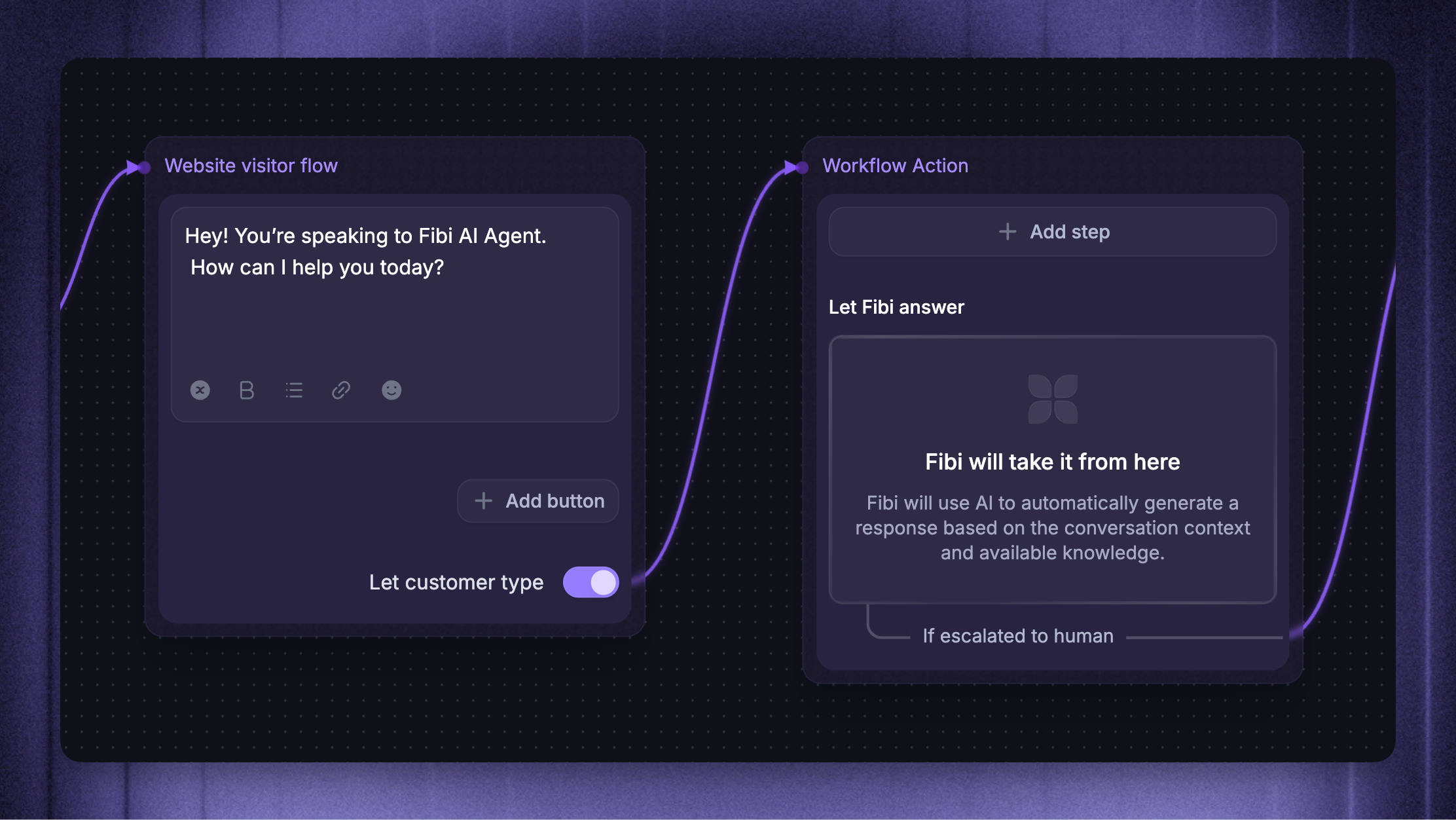
Important: Fibi AI Attributes can only be detected after Fibi takes part in the conversation, not before or without Fibi. This is what gives Fibi the conversation context it needs to classify the attribute.
Triage based on Fibi AI Attributes
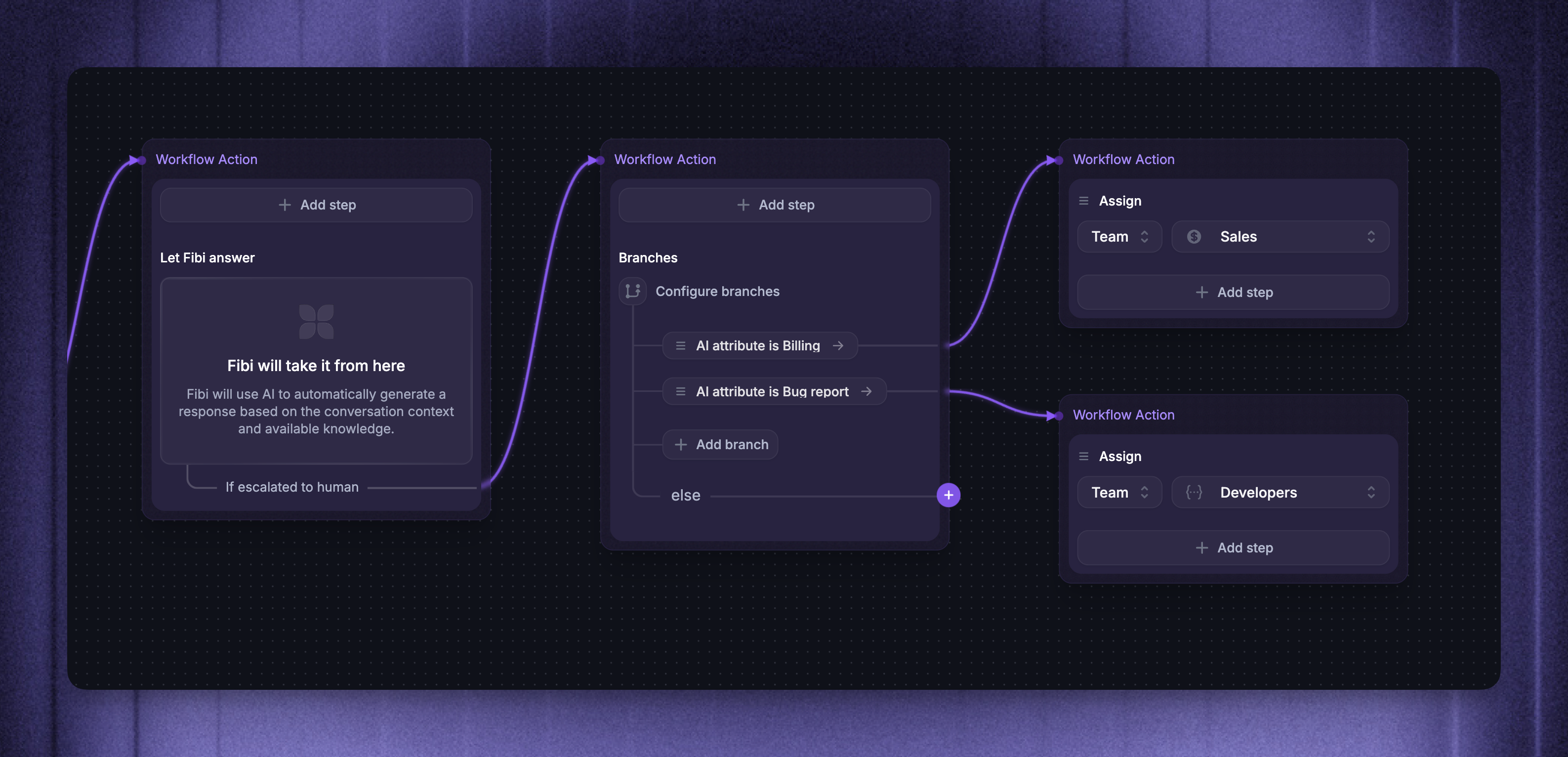
After Let Fibi answer, add a Branch step.
Set the branch condition to one of your Fibi AI Attributes by searching for the attribute name
Define what should happen next. For example:
If Issue type is Billing, assign the conversation to your billing team
If Urgency is High, mark the conversation as priority
If Product area is Integrations, set another conversation attribute or route the conversation to the right team
Use detected values in later Workflow actions
After branching on a detected value, you can use normal Workflow actions to continue routing or categorizing the conversation.
Common follow-up actions include:
Assigning the conversation to the right teammate or team
Marking the conversation as priority
Adding or removing conversation tags
Setting another conversation attribute
Adding an internal note for teammates
For example, you could create a Type of query attribute with values like Billing, Bug report, and Feature request. After Let Fibi answer, add a branch where Type of query is Billing, then assign those conversations to your billing team.
Use Fibi AI Attributes in the Inbox
Detected Fibi AI Attribute values are saved as conversation attributes, so your team can use them in the Inbox like other conversation data.
Review and update detected values
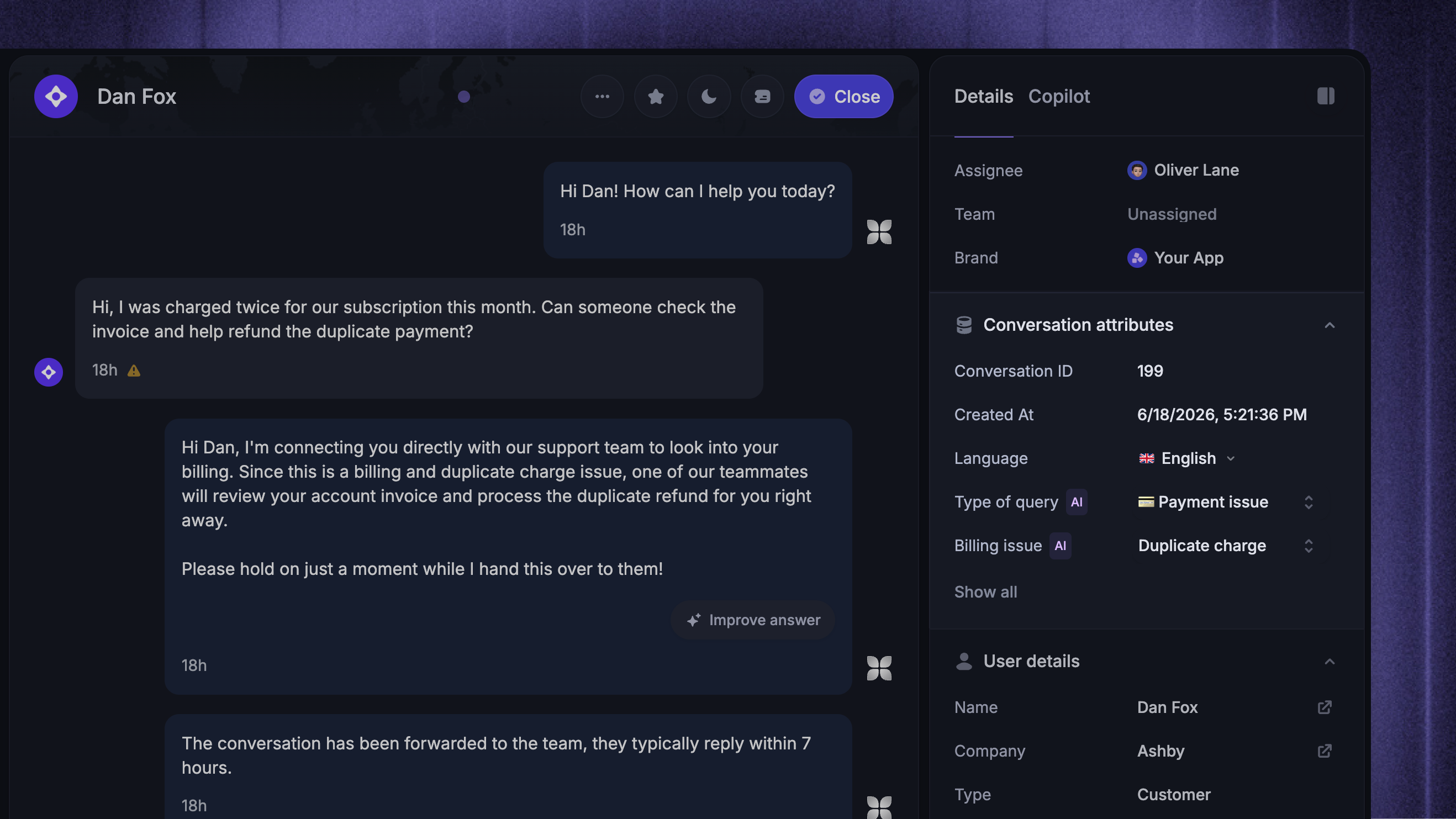
Open a conversation in the Inbox, then check “Conversation attributes” in the right sidebar.
If Fibi selected the wrong value or a teammate has more context, the teammate can update the value manually, like any other conversation attribute.
Fibi does not overwrite values set by a teammate or a Workflow. If Fibi previously detected a value, it can update that AI-detected value later as the conversation changes.
Create custom Inbox views based on detected attributes
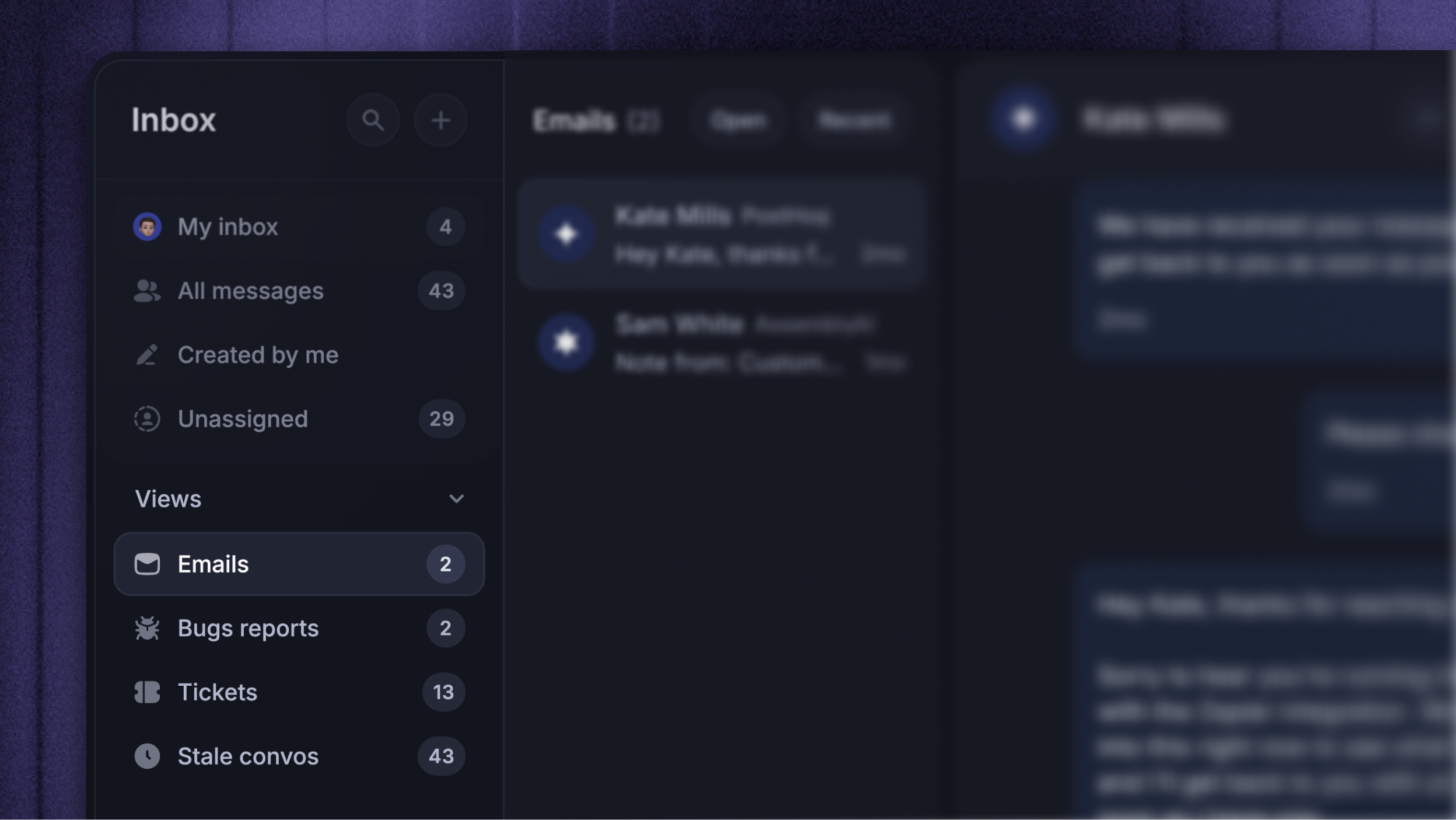
Use detected Fibi AI Attributes in the Inbox to create custom inbox views to organize conversations around what Fibi detected.
For example, you could create views for:
Urgency is High
Issue type is Billing
Sentiment is Negative
Product area is Integrations
This helps your team find conversations that need a specific queue, teammate, or follow-up process.
Tip: In the table format Inbox view, you can also show detected values as Inbox columns. This is useful when your team wants to quickly compare conversations by category, urgency, product area, sentiment, or another Fibi AI Attribute.
Was this helpful?
Still need help? Ask the team