Choose how Slack messages become conversations
Choose how top-level Slack messages are grouped into Featurebase conversations and control who can start them.
Written By Markus Palm
Last updated 15 days ago
Overview
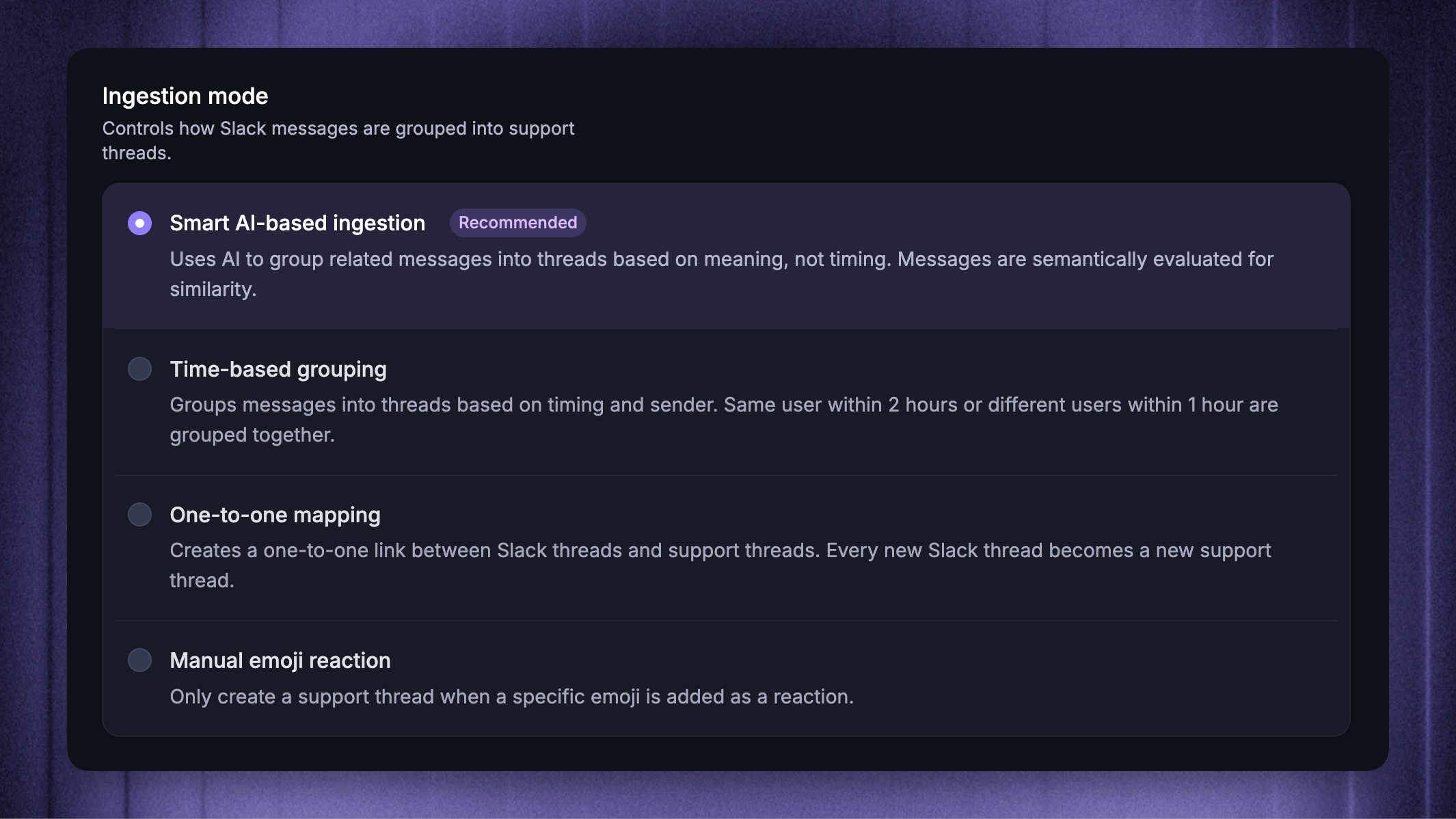
An ingestion mode controls how new top-level Slack messages are grouped into conversations. It keeps related Slack messages together without turning every message into a separate Inbox item.
Choose from four modes:
Smart AI-based ingestion (recommended) - Groups related messages by meaning
Time-based grouping - Groups nearby messages based on their sender and timing
One-to-one mapping - Creates a separate conversation for every qualifying top-level message
Manual emoji reaction - Creates a conversation only after someone adds the configured reaction
You can set a default mode for each Slack workspace and override it for individual Customer channels. You can also prevent specific Slack participants from starting conversations based on their email address or domain.
Set the workspace default
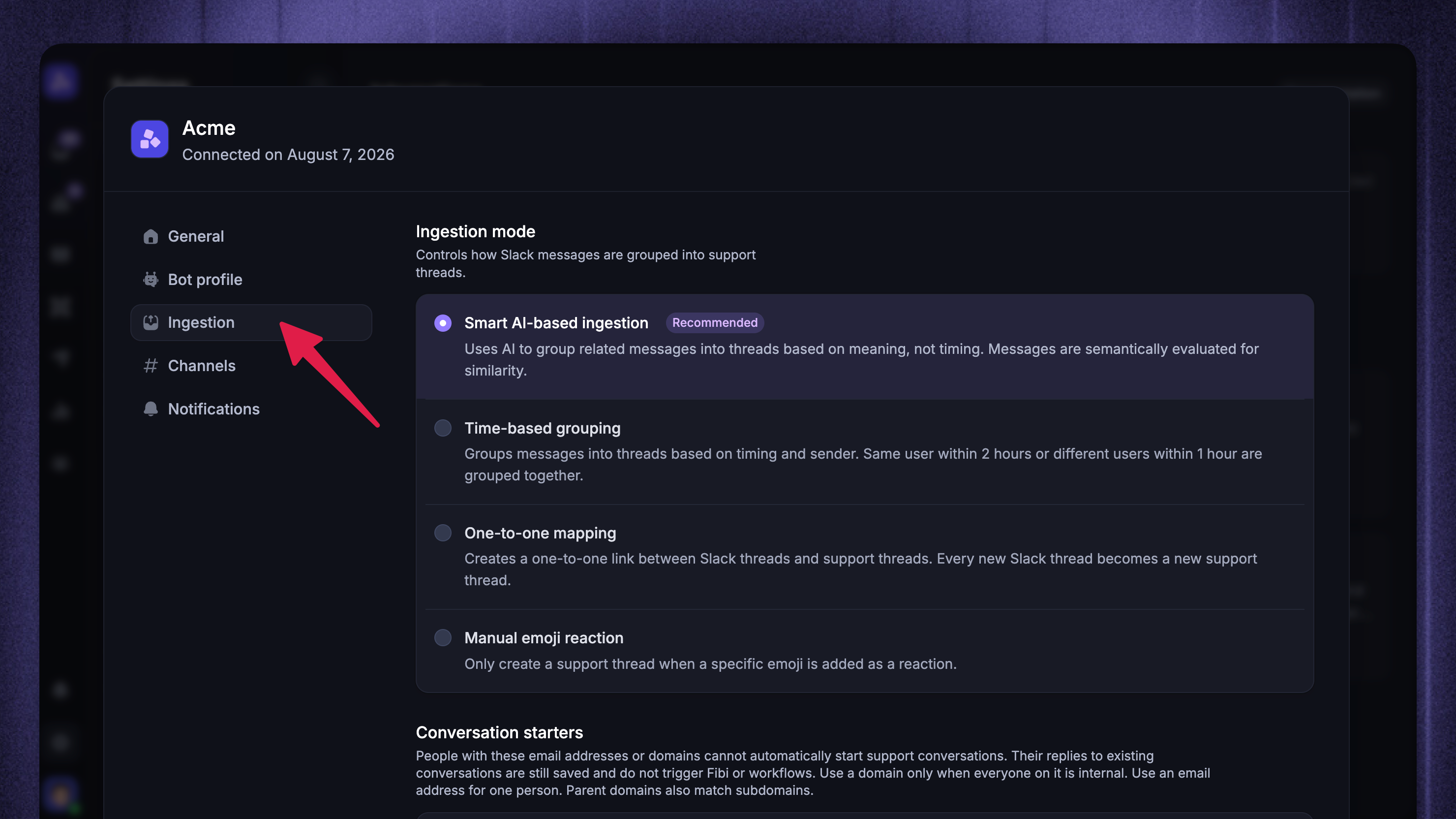
To set the workspace's default ingestion mode:
Choose the relevant Slack workspace to manage
Open Ingestion
Under Ingestion mode, select the desired mode
The workspace default applies to every Customer channel that uses Workspace default.
Good to know:
Featurebase does not create a customer conversation from:
A new top-level message authored by a Featurebase teammate
A new top-level message from someone who matches a Conversation starters restriction
A message posted by Featurebase itself
A message without usable text, a supported file, or a renderable attachment
This prevents internal messages and Featurebase replies from entering the Inbox as new customer requests.
Control who can start conversations
You can also prevent specific people from automatically starting support conversations (e.g. your teammates without a Featurebase seat). You can restrict one person by email address or everyone using an email domain.
Restricted participants cannot start new conversations in any ingestion mode. They can still reply to existing conversations. Featurebase saves those replies in the Inbox, labels the participant Internal, and does not trigger Fibi or Workflows.
Set workspace-wide restrictions
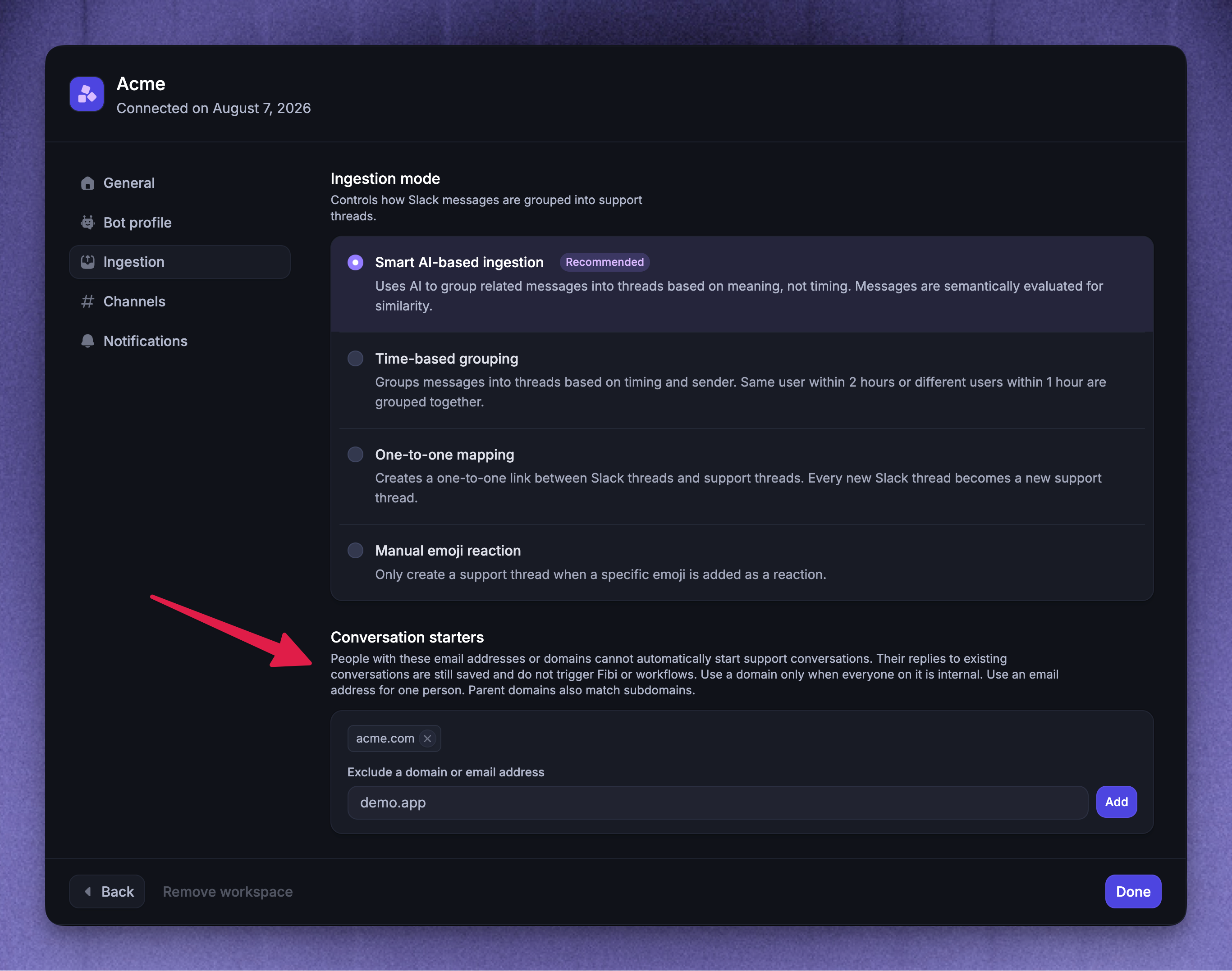
To restrict conversation starters across the Slack workspace:
Choose the relevant Slack workspace to manage
Open Ingestion
Under Conversation starters, enter an email address such as
person@example.comor a domain such asexample.comClick 'Add'
Workspace restrictions apply to every connected Customer and Community channel.
Use a domain only when everyone using it should be treated as internal. A parent domain also matches its subdomains, so example.com includes addresses using eu.example.com.
Set channel-specific restrictions
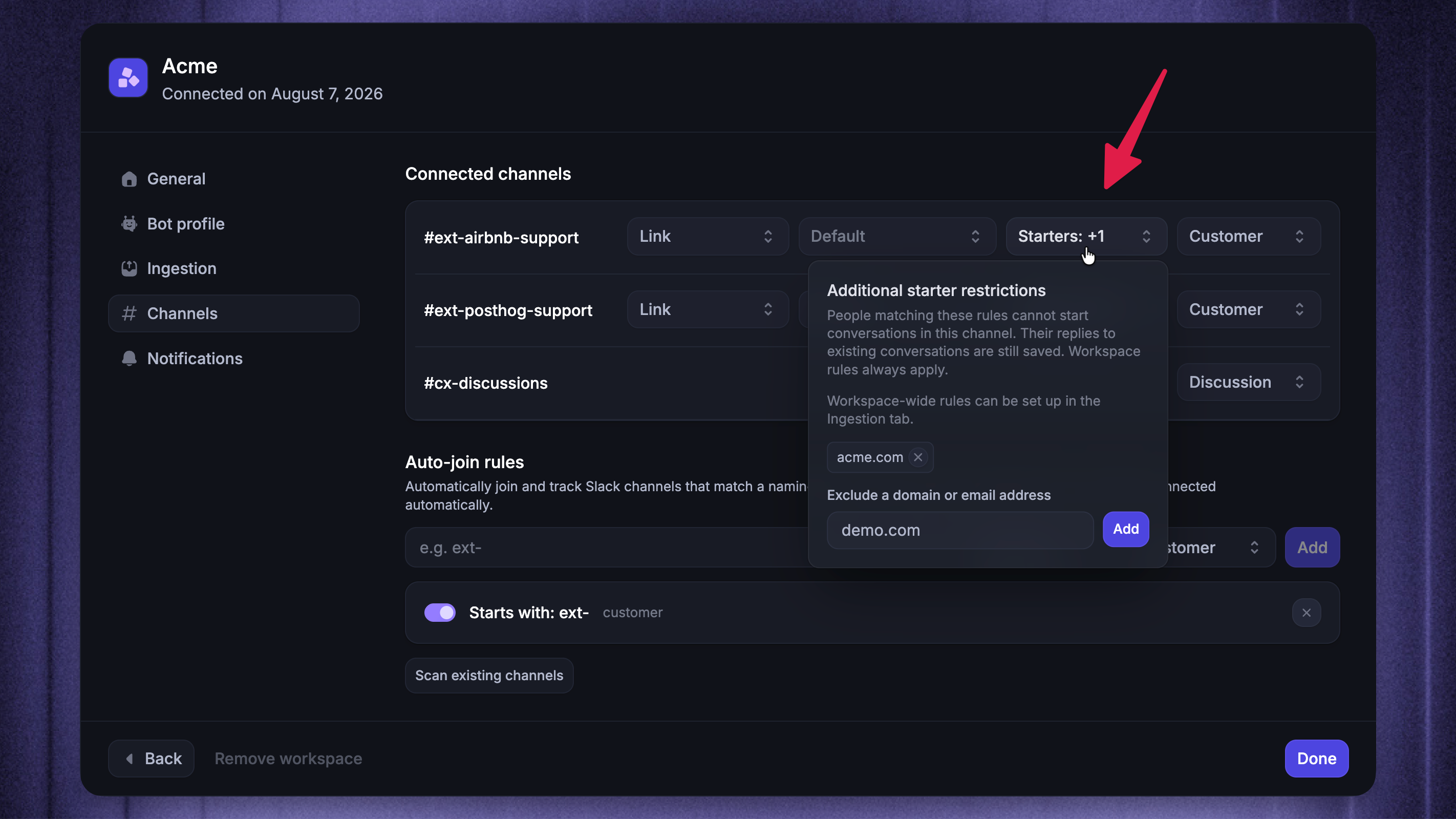
Use channel restrictions when additional people should be prevented from starting conversations in one Customer or Community channel.
To add channel restrictions:
Open ‘Channels’ in the Slack workspace settings
Under Connected channels, find the relevant channel
Click the starter control, labeled 'Starters: Default'
Enter an additional email address or domain
Click 'Add'
The channel control changes to show the number of additional restrictions. Channel restrictions apply in addition to workspace restrictions - they cannot remove or override them.
To remove a restriction, click 'Remove' beside its email address or domain. Removing a workspace restriction does not remove restrictions added separately to individual channels.
Note: Restrictions only work when Slack shares the participant's email address. You can add up to 100 domains and 100 email addresses at the workspace level and to each channel.
Override the mode for one Customer channel
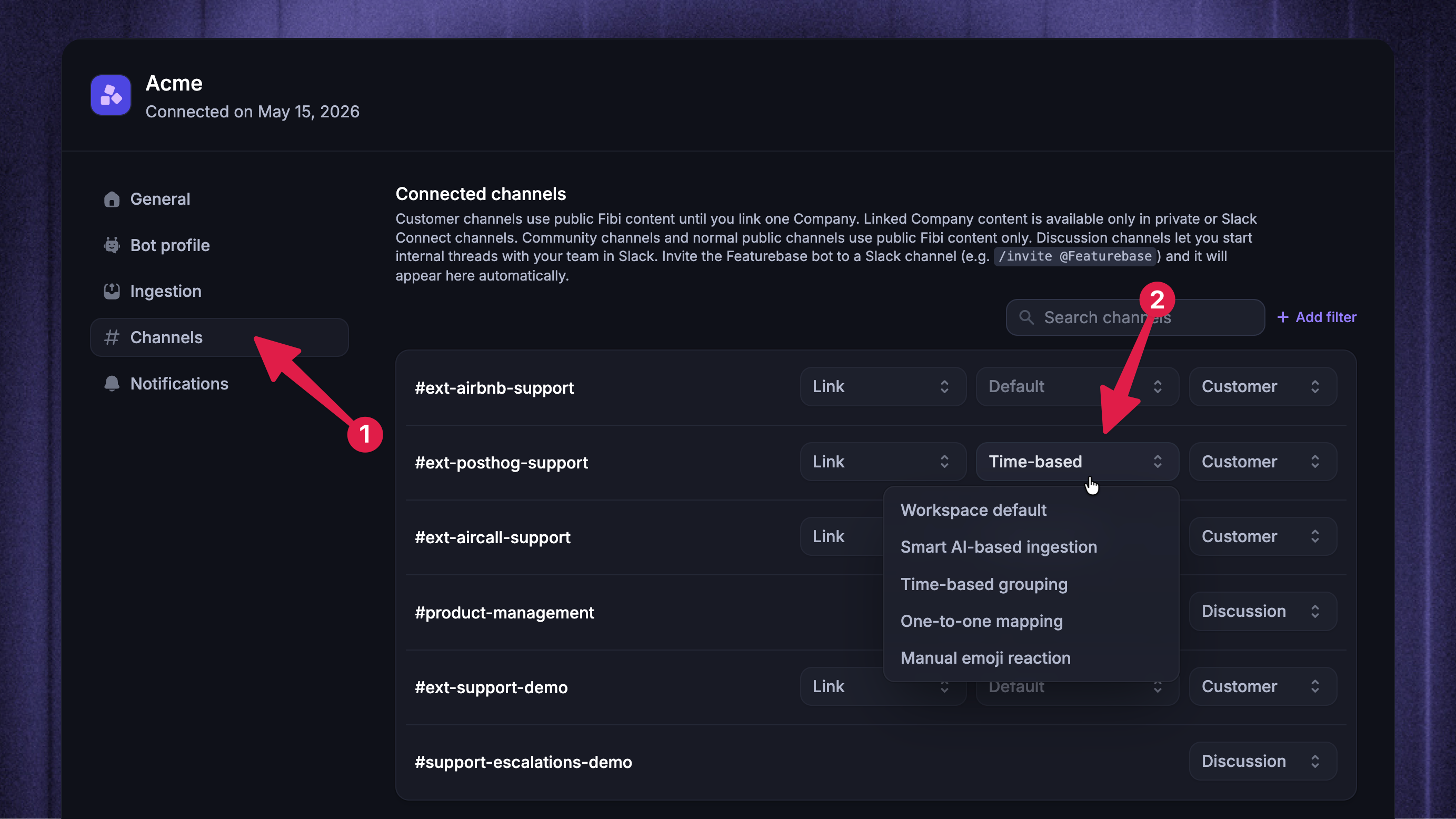
Use a channel override when one Customer channel needs different conversation boundaries from the rest of the workspace.
To override the ingestion mode for one Customer channel:
Choose the relevant Slack workspace to manage
Open Channels
Under Connected channels, find the Customer channel
Select a specific ingestion mode, or select Workspace default to inherit the workspace setting
Only Customer channels have an ingestion override.
Note: Changing the workspace default or a channel override affects new Slack activity. It does not reorganize existing conversations or import earlier channel history.
Choose an ingestion mode
The following sections explain when each mode creates a new conversation or adds a message to an existing one.
Smart AI-based ingestion
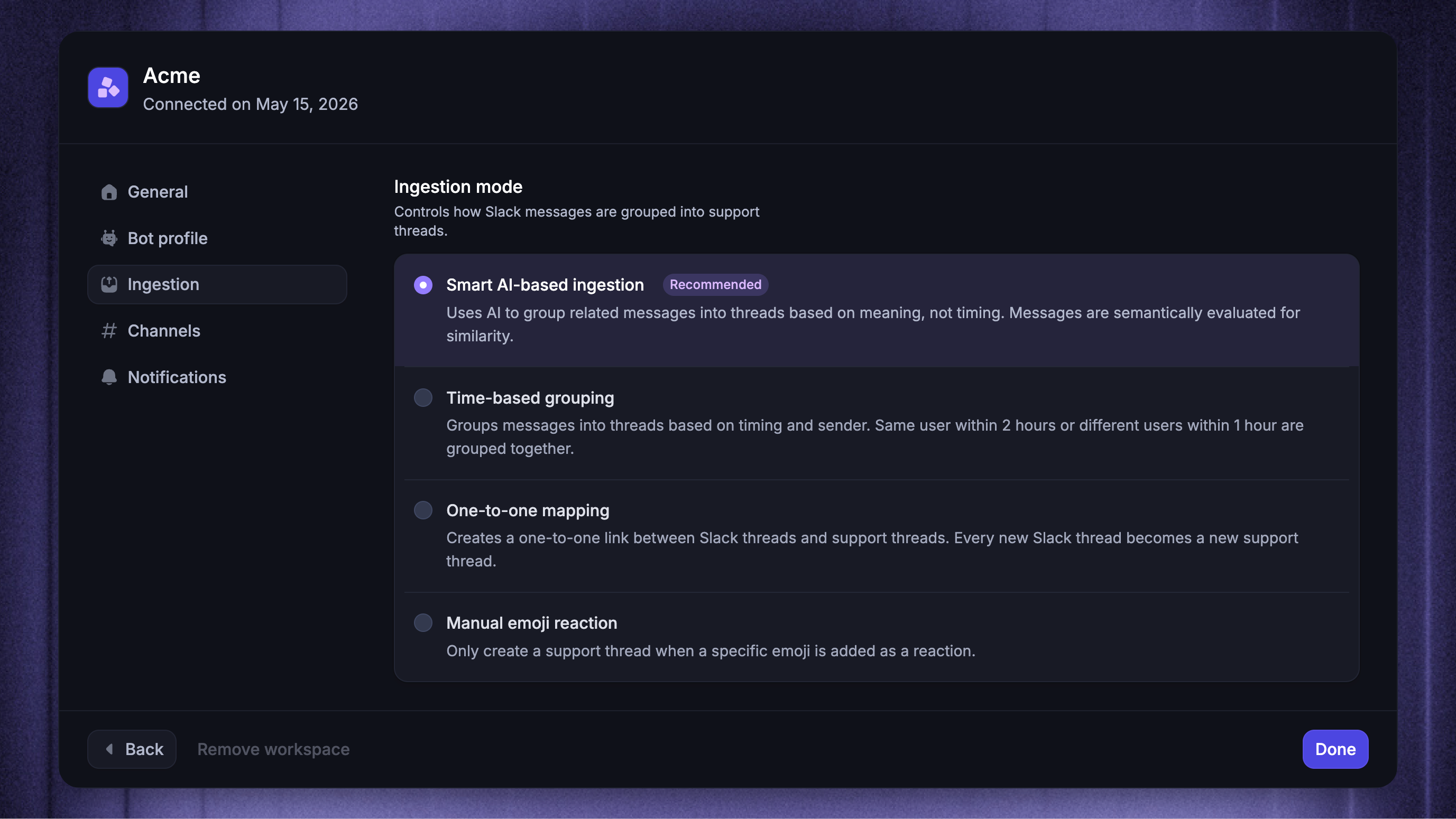
Smart AI-based ingestion groups top-level messages by meaning instead of timing. Featurebase compares the topic of a new message with recent conversations in the same channel:
If the message clearly continues an existing topic, Featurebase adds it to that conversation.
If it starts a different topic or the match is uncertain, Featurebase creates a new conversation.
If the message has no text to classify, Featurebase uses time-based grouping instead.
This is the recommended mode when customers often send several top-level messages about the same issue, but strict time windows would group unrelated topics together.
Time-based grouping
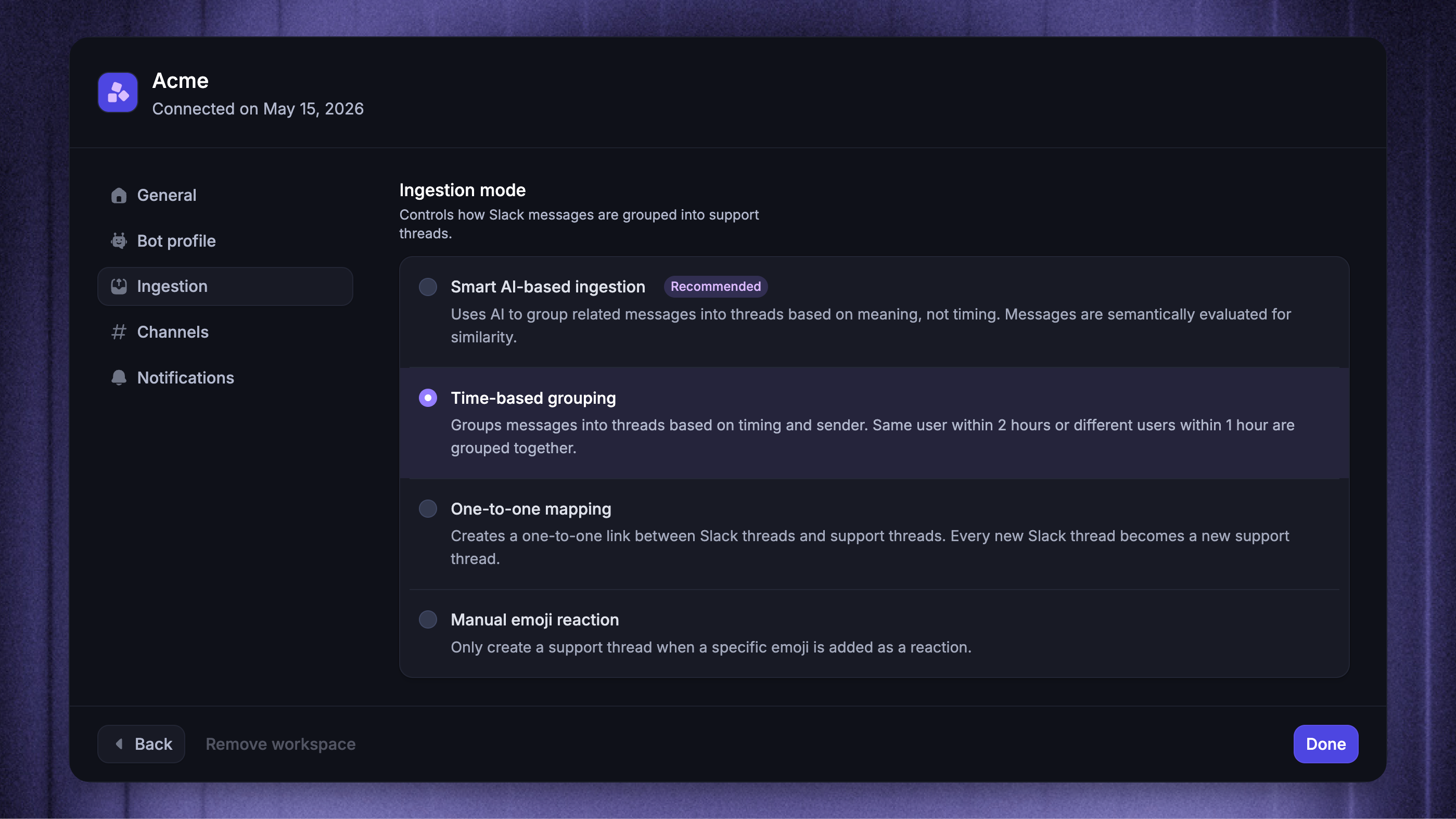
Time-based grouping compares a new top-level message with the most recently updated conversation in the same channel:
A message from the same sender joins it when it arrives within 2 hours.
A message from a different sender joins it when it arrives within 1 hour.
A message outside the applicable window starts a new conversation.
Use this mode when message timing is a reliable signal that people are discussing the same issue.
One-to-one mapping
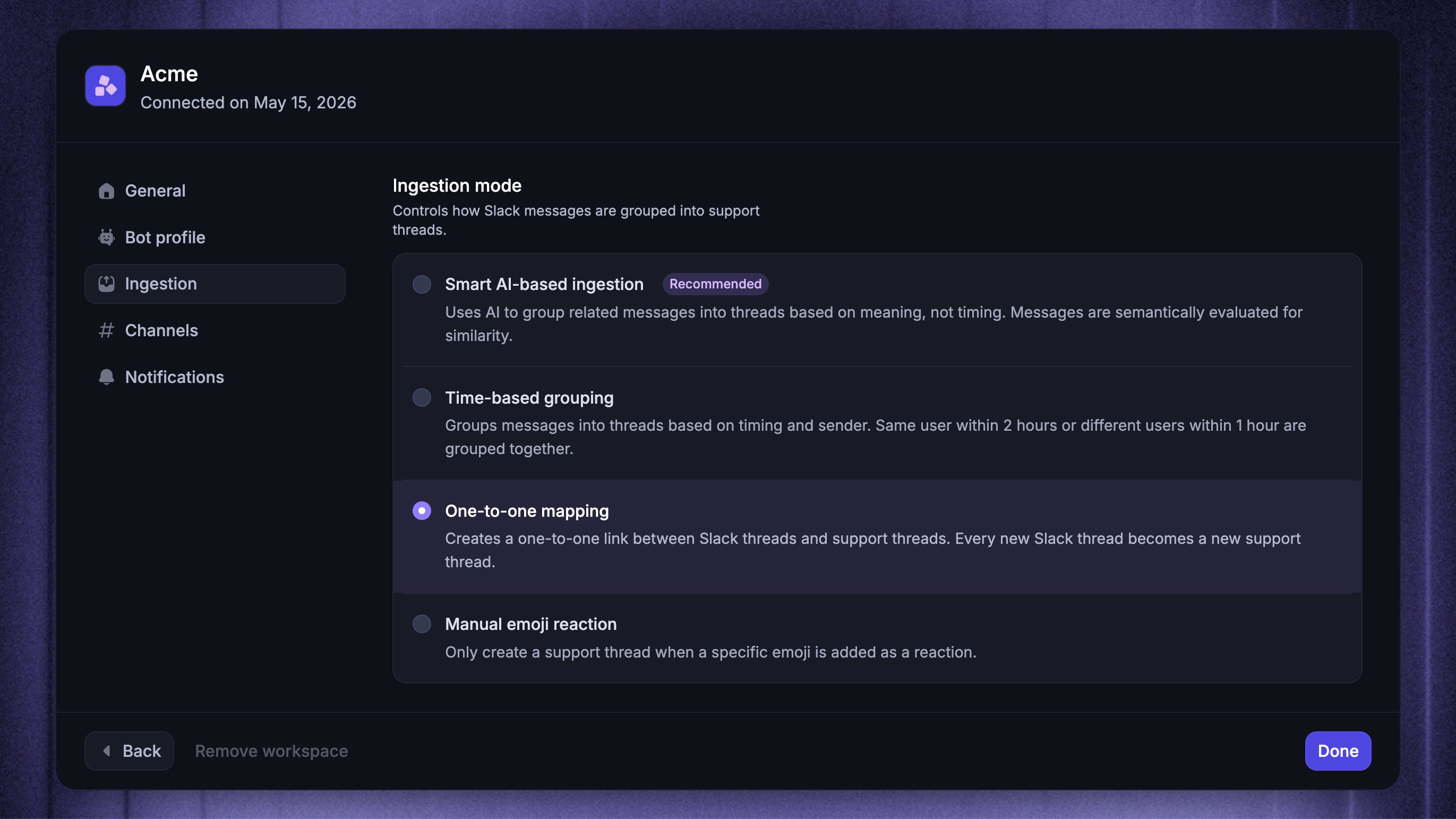
One-to-one mapping creates a separate conversation for every qualifying top-level Slack message. Replies in the Slack thread stay with that conversation.
Use this mode when each new top-level message should be treated as a separate request, regardless of its topic or timing.
Manual emoji reaction
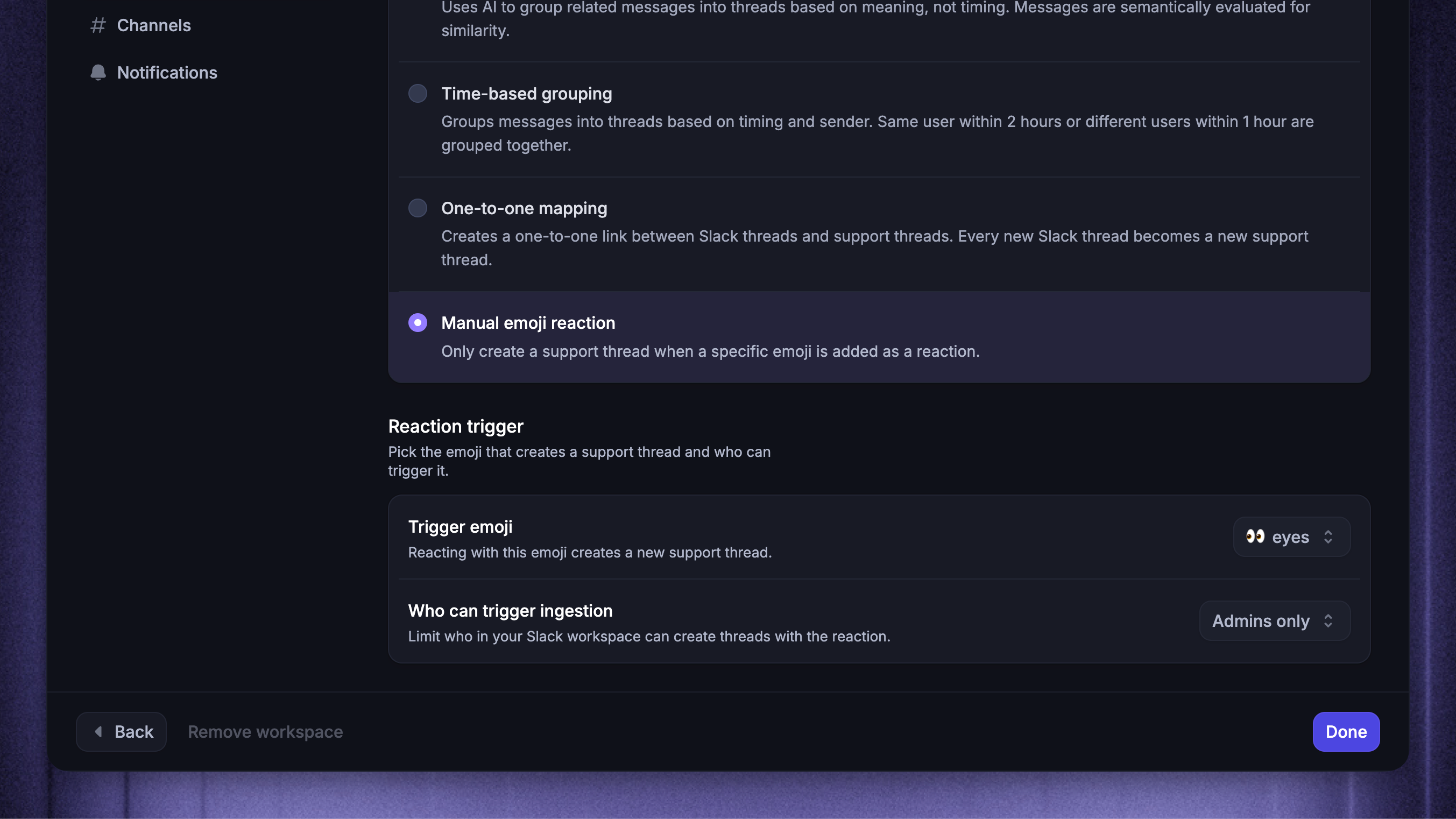
Manual emoji reaction creates a conversation only after someone adds the configured reaction to a top-level Slack message.
Use it when your team wants to decide which channel messages need support follow-up.
The trigger emoji and who can use it are workspace-level settings shared by every Customer channel that uses this mode.
To configure the trigger:
Under the workspace's Ingestion settings, select ‘Manual emoji reaction’
Under Reaction trigger, choose the Trigger emoji (e.g. 👀 or ⏳, et.c)
Under Who can trigger ingestion, select:
Admins only to accept the reaction only from Slack users Featurebase recognizes as Workspace Admins.
Anyone to accept the reaction from any Slack member.
If only specific Customer channels should use this mode, return the workspace default to your preferred mode and override those channels to Manual emoji reaction under Channels
Add the selected reaction to a customer's top-level Slack message
Featurebase creates the conversation once, even if more people add the same reaction.
Note: Removing the reaction later does not delete the conversation. The new conversation keeps the original Slack message timestamp, so reacting to an older message can make it appear earlier in the Inbox than conversations created more recently.
This is a targeted exception for the reacted message. Featurebase does not otherwise import earlier channel history as conversations.
Community-channel behavior
Community channels always use one-to-one mapping. Every qualifying top-level customer message starts a separate conversation, and its Slack thread replies stay with that conversation.
You cannot set a workspace or per-channel ingestion override for a Community channel. Conversation starter restrictions still apply.
Test your ingestion mode
Test with a Slack user who is not linked to a Featurebase teammate and does not match a Conversation starters restriction. A teammate-authored message cannot create a customer conversation, and a restricted participant cannot start a new one, so neither is a valid ingestion-mode test.
Use this checklist:
Post a new top-level message in a connected Customer channel from the test user
Post another top-level message about the same topic, then one about a clearly different topic
For Time-based grouping, repeat the test inside and outside the 1-hour and 2-hour windows
For One-to-one mapping, confirm that each top-level message creates a separate conversation and that Slack thread replies stay with the correct one
For Manual emoji reaction, confirm that no conversation appears before the configured reaction is added. If Admins only is selected, add the reaction from a Slack identity that Featurebase recognizes as a Workspace Admin
Open the Inbox and confirm that the resulting conversation boundaries match the selected mode
To test a Conversation starters restriction, post a new top-level message from a matching Slack participant and confirm that it does not create a conversation. Then reply from the same participant inside an existing conversation and confirm that the reply is saved with the Internal label without triggering Fibi or a Workflow.
If a qualifying message still does not appear, troubleshoot Slack support.
Next, learn how to handle Slack conversations in the Inbox.
Was this helpful?
Still need help? Ask the team