Add and manage Slack channels
Add Slack channels to Featurebase, choose what each channel does, and automate channel setup.
Written By Markus Palm
Last updated 15 days ago
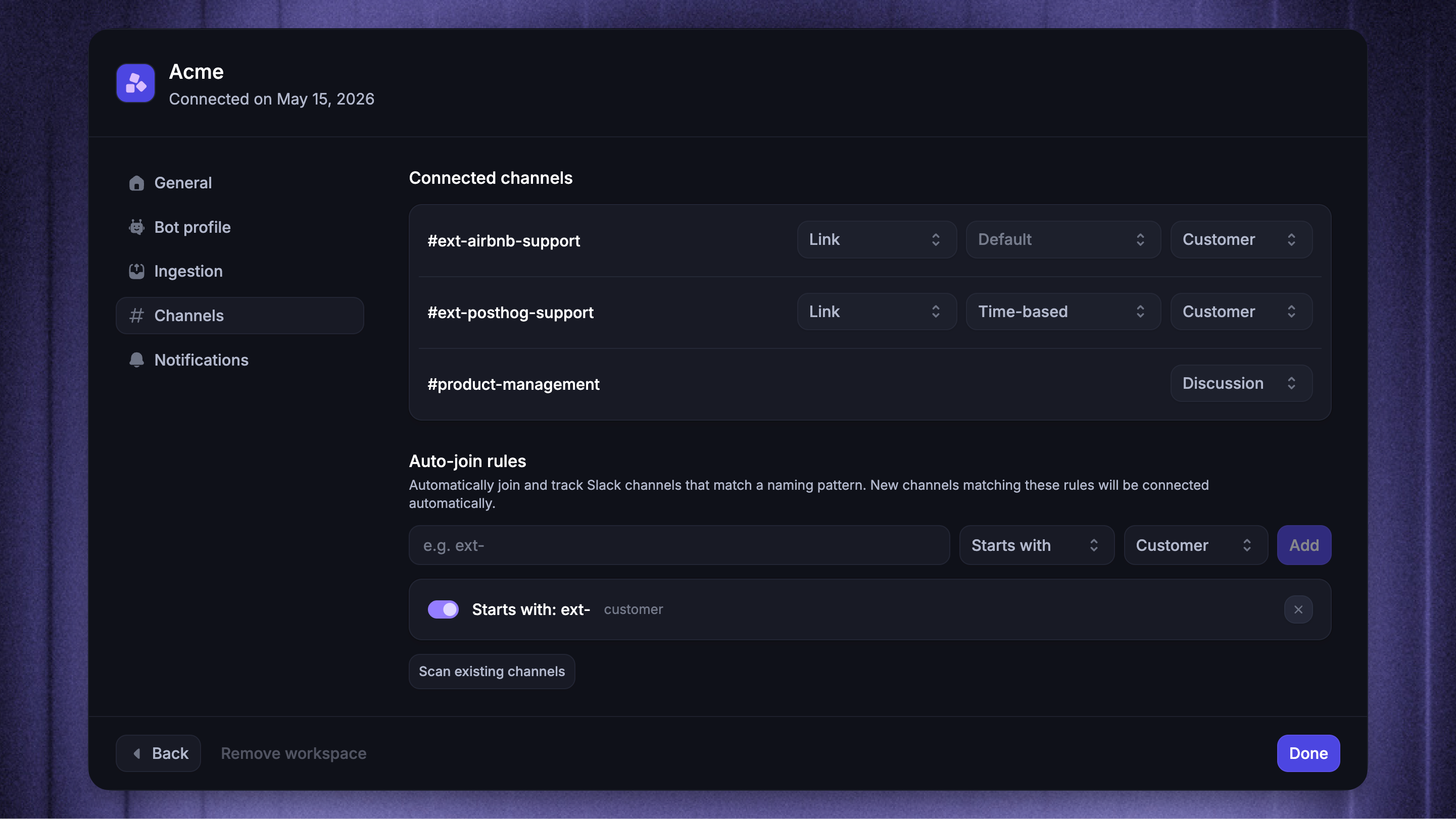
Overview
After you connect a Slack workspace, invite the Featurebase app to the channels where you want to provide support or discuss customer conversations. The channel type determines how Featurebase uses each channel:
Customer channels keep dedicated customer support connected to the right Company context
Community channels turn questions from a shared audience into separate conversations
Discussion channels give your team a private Slack space for collaborating on existing conversations
For workspaces with many customer channels, auto-join rules can activate matching public channels automatically and apply the right channel type and Fibi setting.
You can connect public channels, private channels, and Slack Connect channels. Slack direct messages and group direct messages are not supported as native support channels.
Add a Slack channel
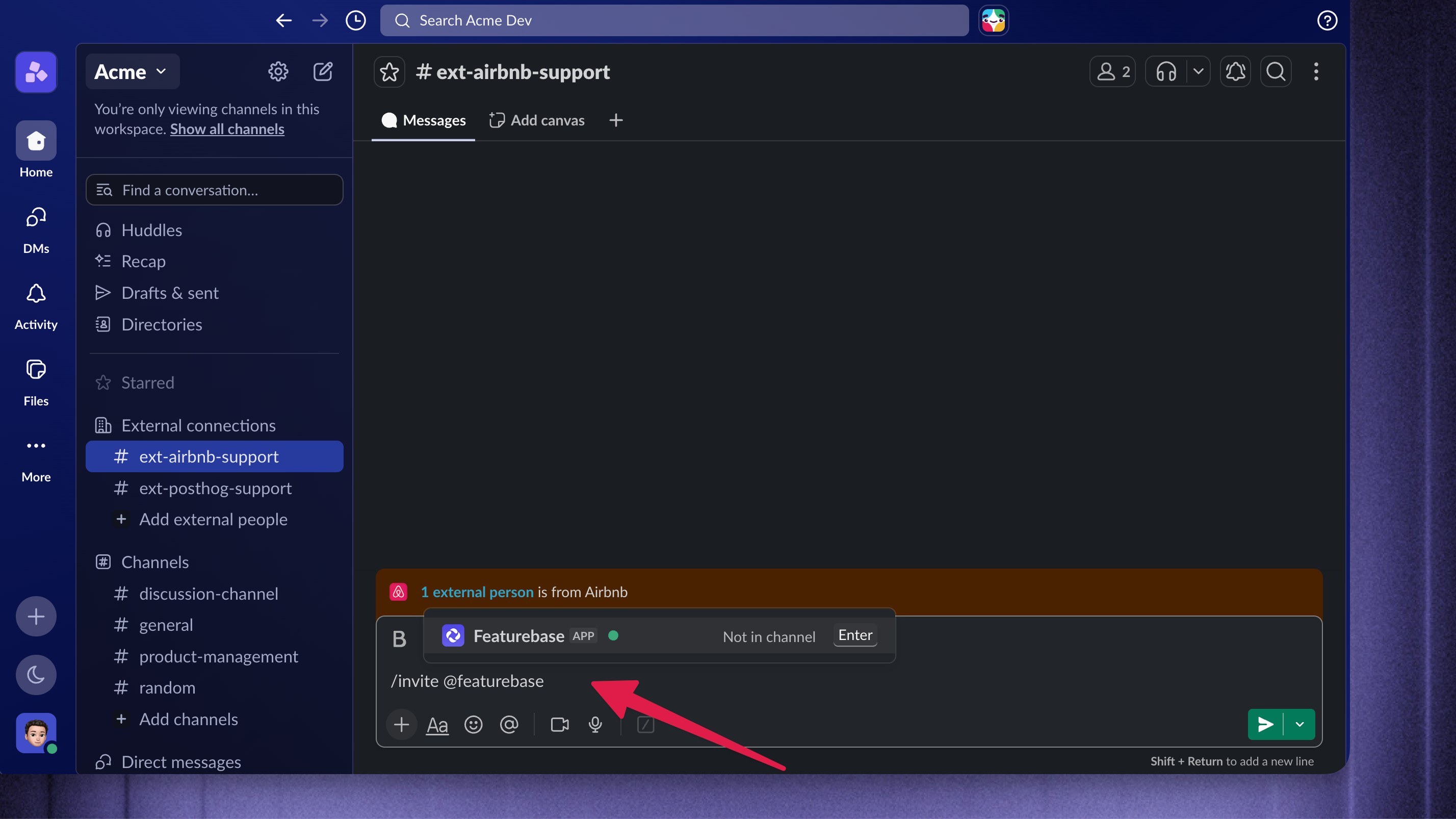
To add a Slack channel to Featurebase:
Open the channel in Slack
Enter
/invite @Featurebaseand send the message
Featurebase sends the inviter a private setup prompt in the same Slack channel. You can choose Customer, Community, Discussion, or Don't connect this channel from that prompt. You can also configure this later from Featurebase’s settings.
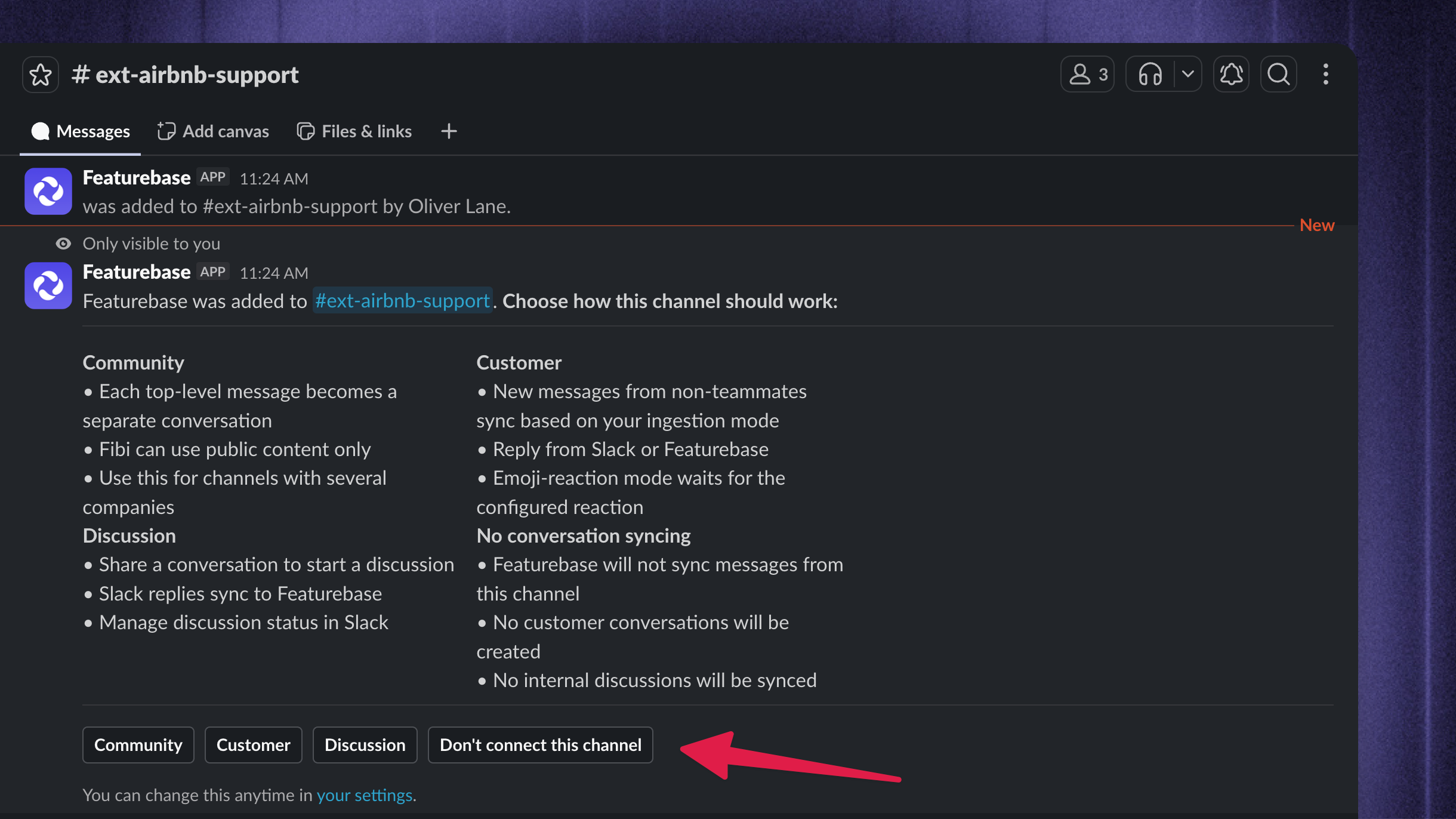
When you activate a channel, Featurebase posts a message in Slack explaining what will synchronize. Changing the channel type updates this behavior.
Good to know:
Inviting Featurebase registers the channel but does not start synchronization. The channel remains Disabled until you choose Customer, Community, or Discussion. Don't connect this channel keeps it Disabled.
For a private channel, invite Featurebase from inside that channel. For a Slack Connect channel, invite Featurebase after the channel has been shared with the intended Slack workspaces.
Set a channel welcome message
Send a welcome message when a Customer channel is enabled for the first time.
Go to Settings → Integrations, open Slack, and select the workspace
Open General and find Channel welcome message
Write the message and choose the sender under Send as
Click 'Preview in DM' to check the content in your own Slack DMs
Click 'Save'
Changes apply to future Customer channels. They do not send another message to existing channels or welcome each new channel member.
To disable welcome messages, clear the message and click 'Save'.
Automatically join matching channels
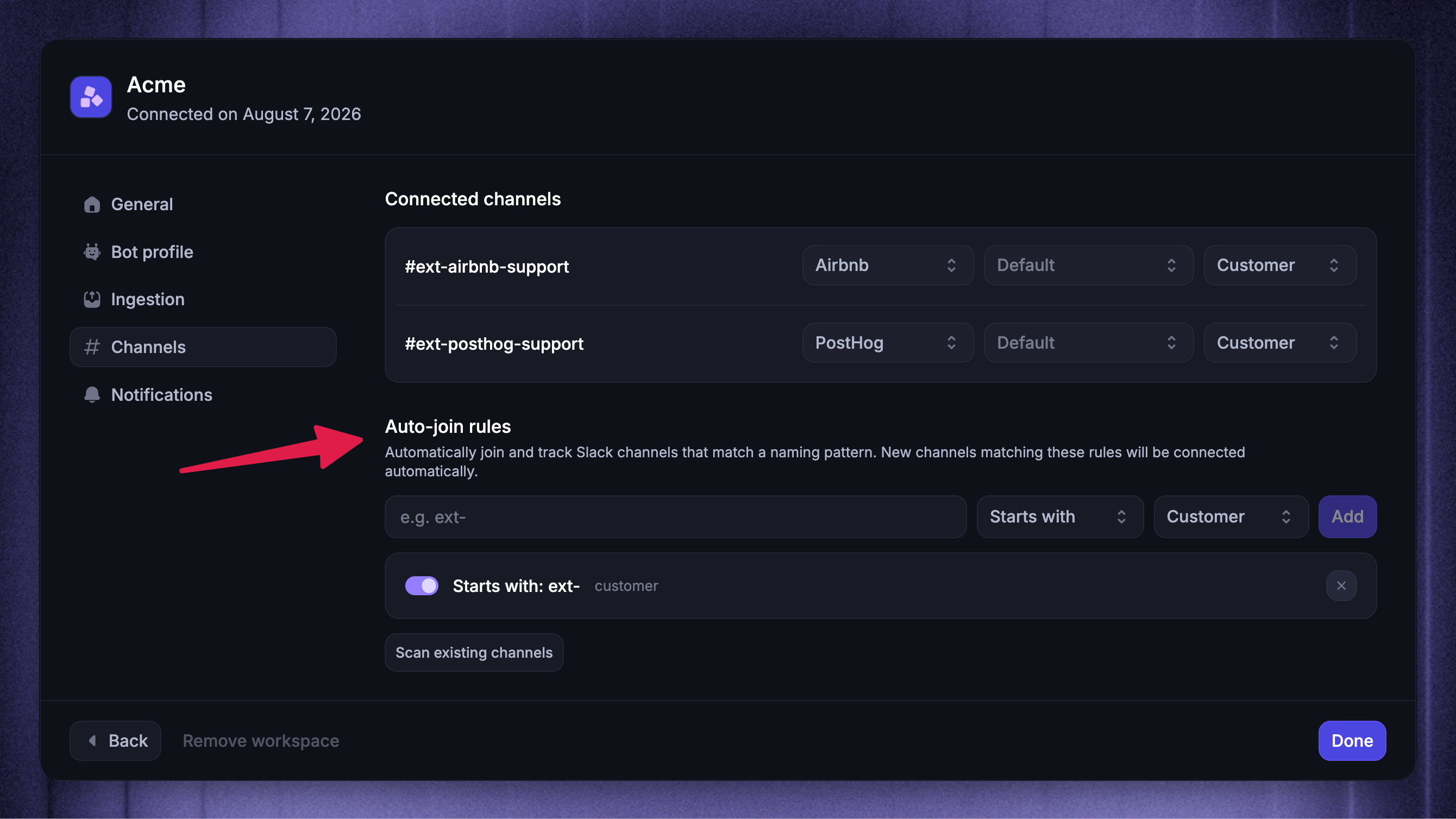
Auto-join rules connect new channels when their names match a pattern. Each rule also chooses the channel type that Featurebase applies.
To create an auto-join rule:
Open the workspace's Channels settings
Under Auto-join rules, enter a channel name pattern (e.g.
ext-)Choose Starts with, Ends with, or Contains
Choose Customer, Community, or Discussion as the channel type
If available for the selected type, choose whether to turn on Fibi on join
Click Add
Matching is not case-sensitive. You can turn a rule off without deleting it, or remove it when you no longer need it.
Note: Auto-join rules activate matching channels immediately. Slack must make the channel available to Featurebase, so invite the app manually to private channels.
Apply rules to existing channels
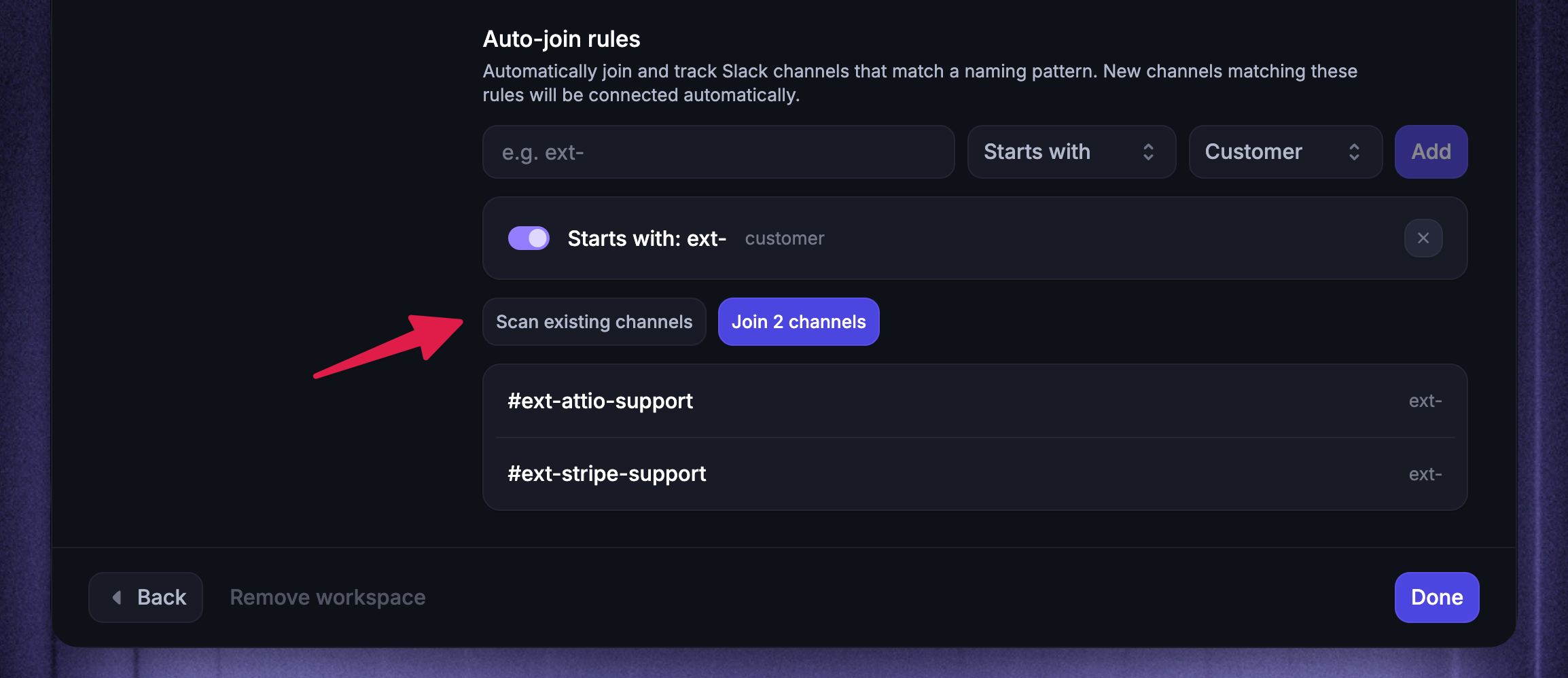
An auto-join rule applies to new matching channels by default. To apply your rules to existing channels:
Click Scan existing channels
Review the channels that match your enabled rules
Click Join channels, where the button shows the number of matches
Archived channels and channels that Slack does not make available to Featurebase are not joined.
Choose a channel type
Customer
Use a Customer channel for a dedicated channel with one customer or prospect.
Qualifying top-level messages create or join Featurebase conversations according to the channel's ingestion mode. Replies in Slack threads stay connected to the relevant conversation. You can also link one Featurebase Company to the channel.
Configure how Slack messages become conversations →
Community
Use a Community channel when people from several companies share the same channel.
Each qualifying top-level message creates a separate conversation. Community channels cannot be linked to a Company and do not use Customer channel ingestion modes.
Discussion
Use a Discussion channel for internal collaboration about existing customer conversations.
Regular messages in the channel do not create customer conversations. Featurebase synchronizes discussions that you start from the Inbox or by sharing a conversation link in Slack. Fibi AI Agent is not available in Discussion channels.
Disabled
Choose Disabled when you want Featurebase to remain in a channel without synchronizing new customer conversations or internal discussions. Fibi is also turned off for the channel.
Link a Customer channel to a Company
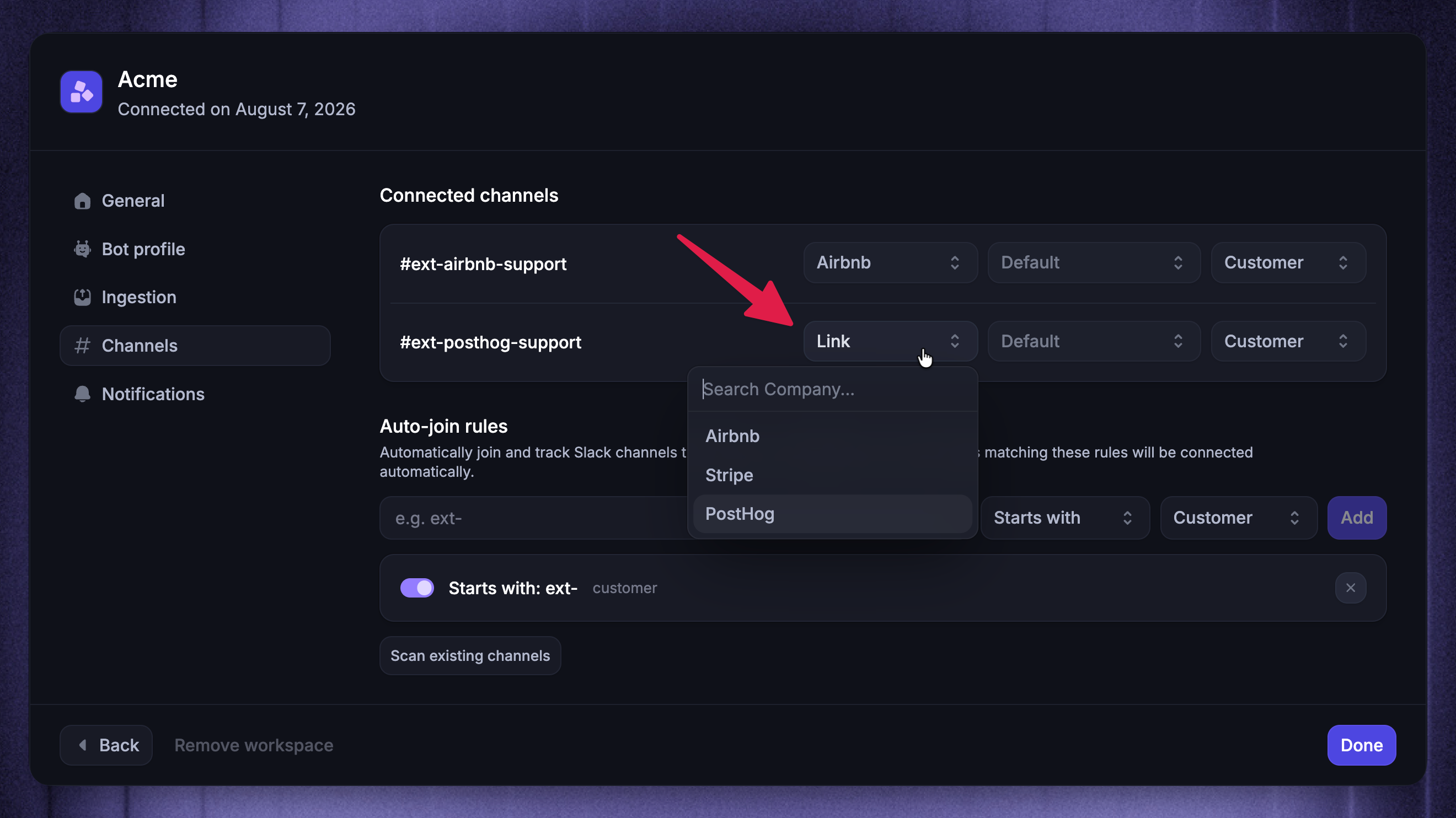
Linking a Customer channel to a Company gives new conversations from that channel the correct Company context. It also controls whether Fibi can use Company-specific content.
To link a Customer channel to a Company:
Choose the relevant Slack workspace to manage
Open Channels
Find the Customer channel under Connected channels
Click Link
Search for and select the Company
To remove the link, open the same Company menu and select Remove Company link.
Note: In a normal public channel, Fibi uses public content only, even when you link a Company. Company-specific content is available only in an eligible private or Slack Connect Customer channel.
Group channels with segments
Slack channel segments let you reuse a channel audience across broadcasts and Updates.
Static: Keeps the channels you select until you edit the selection
Dynamic: Includes channels that match your rules, such as Customer channels whose names start with
ext-
To change a segment's type later, create a new segment.
Create a segment
You need Manage Integrations permission to create or edit segments. Rules based on Company attributes also require View Users permission.
Go to Settings → Integrations → Slack and select a connected Slack workspace
Open Segments and click 'New'
Enter a name and choose Static or Dynamic
For a static segment, click 'Pick channels', select channels, and click 'Save selection'. For a dynamic segment, add rules
Click 'Create'
Dynamic rules can use channel details and linked Company attributes. Use AND when all conditions must match, or OR when any can match.
You can also choose 'Create segment' from a broadcast or Update's channel selector.
Use and edit a segment
Select the segment under Channels in a Slack broadcast, or in an Update's Slack audience selector. Review the current channels before sending or scheduling. Each send supports at most 500 channels.
The audience is fixed when delivery begins. Later segment changes do not send that announcement to newly matching channels.
To edit a segment, return to Segments, open it, make your changes, and click 'Save'. Review scheduled announcements after editing a shared segment because their audience can change.
To delete it, click 'Delete segment'. If Featurebase lists unsent broadcasts or Updates that use it, replace their segment selection first. Deleting the segment does not remove messages already sent.
Change a channel type
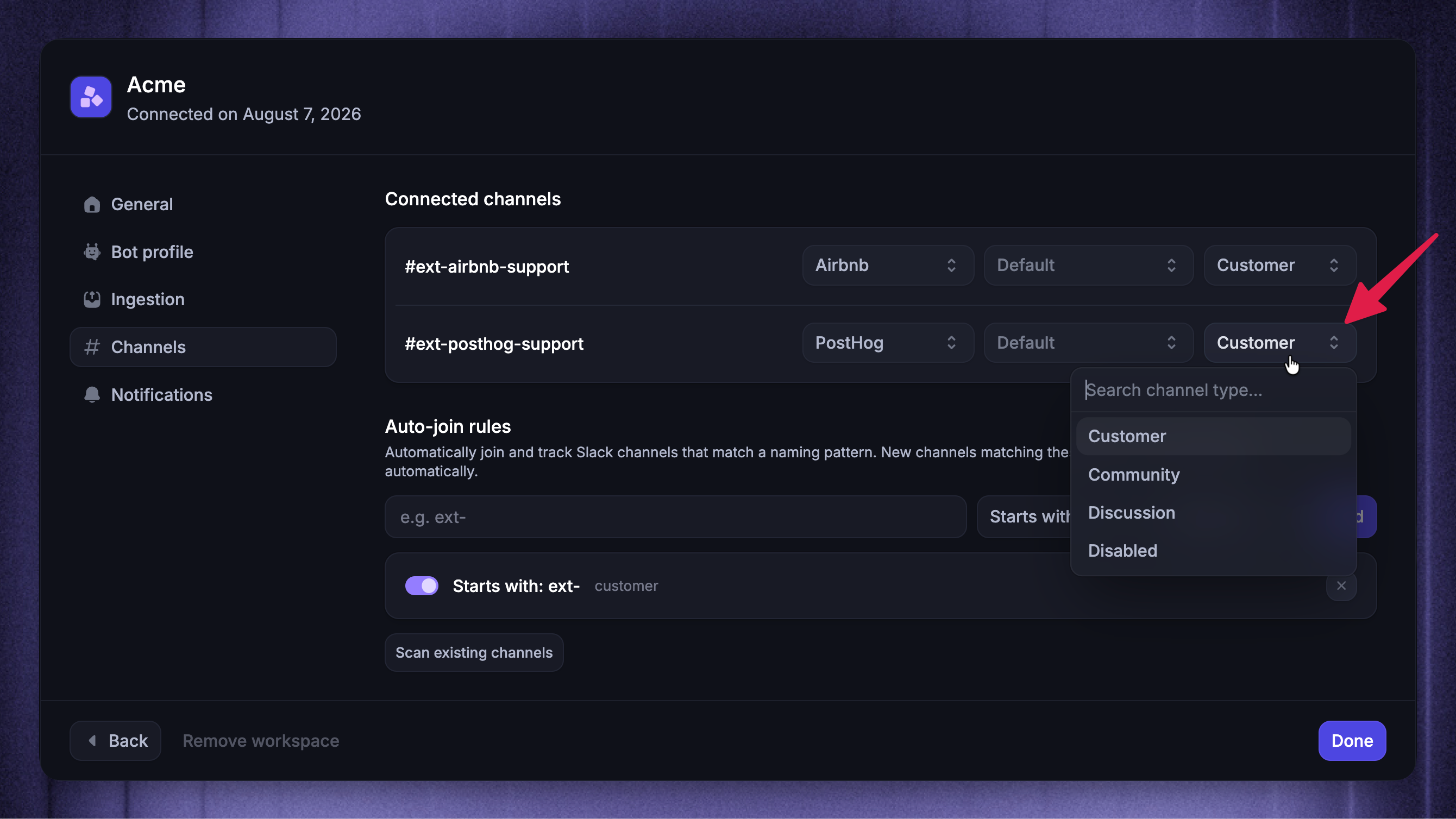
To change a channel type:
Choose the relevant Slack workspace to manage
Open Channels
Find the channel under Connected channels
Open its channel type menu and select the new type
Important: Switching a Customer channel to Community or Discussion removes its Company link and per-channel ingestion override, and turns off Fibi. Selecting Disabled also turns off Fibi.
Stop synchronizing a channel
You have two options:
Choose Disabled to stop support synchronization while keeping Featurebase in the channel. A Customer or Community channel can still receive selected Slack broadcasts and Updates. Replies to those announcements do not synchronize to the Inbox while support synchronization is disabled.
Remove the Featurebase app from the channel in Slack to disconnect it completely. After the app leaves, the channel is removed from Connected channels in Featurebase.
Was this helpful?
Still need help? Ask the team