View and export survey results
View Survey responses, filter results, and export answers as a CSV.
Written By Markus Palm
Last updated 5 days ago
Overview
Survey results help you review who answered, what they submitted, and how each question is performing. Open the Responses view from a Survey message to see individual responses, question-level metrics, and a CSV export for deeper analysis.
For delivery and engagement rates, use Outbound analytics.
View survey results
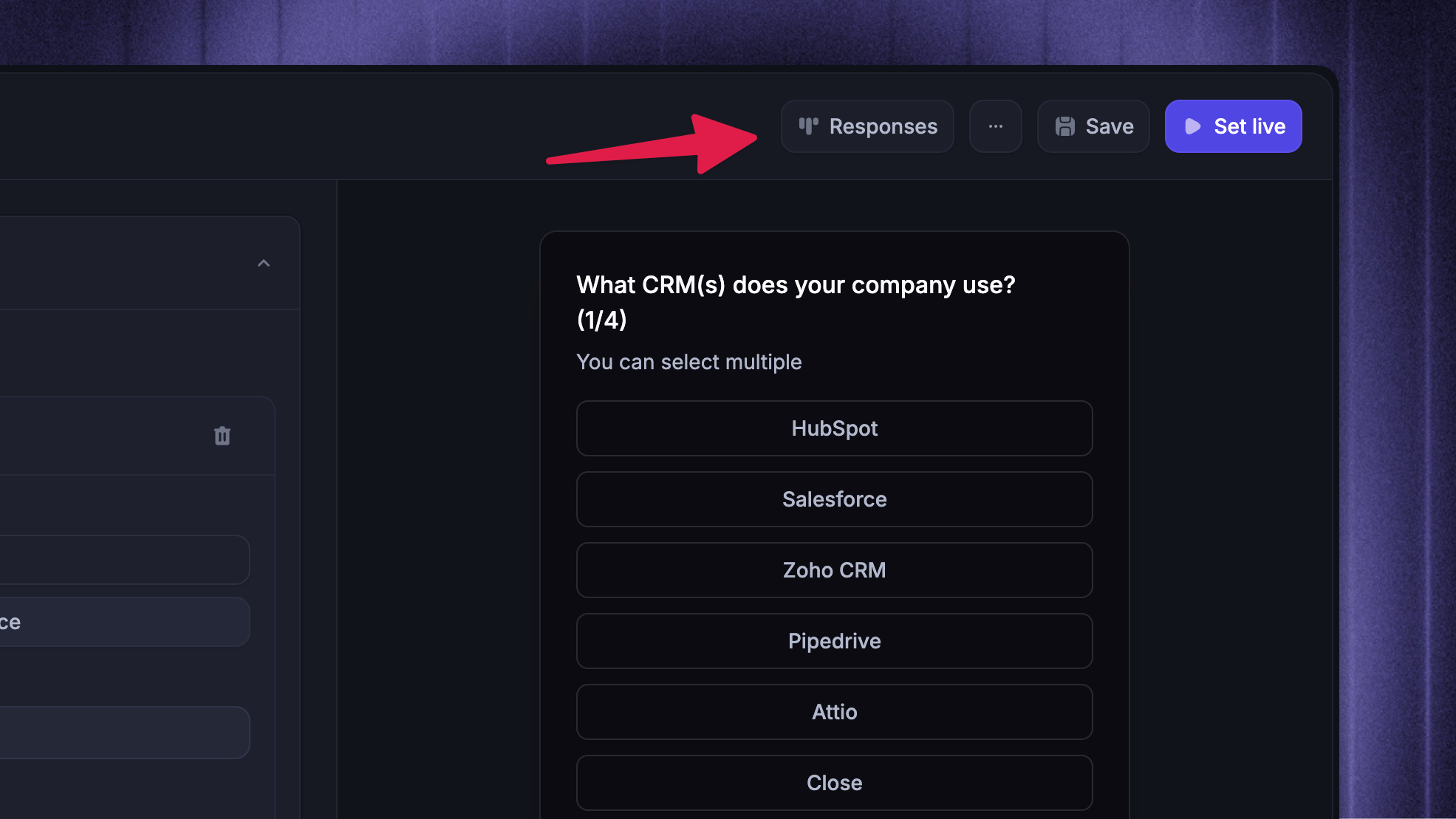
To open Survey results:
Go to Dashboard → Outbound
Open the Survey you want to review
Click Responses in the header
Review metrics & individual responses
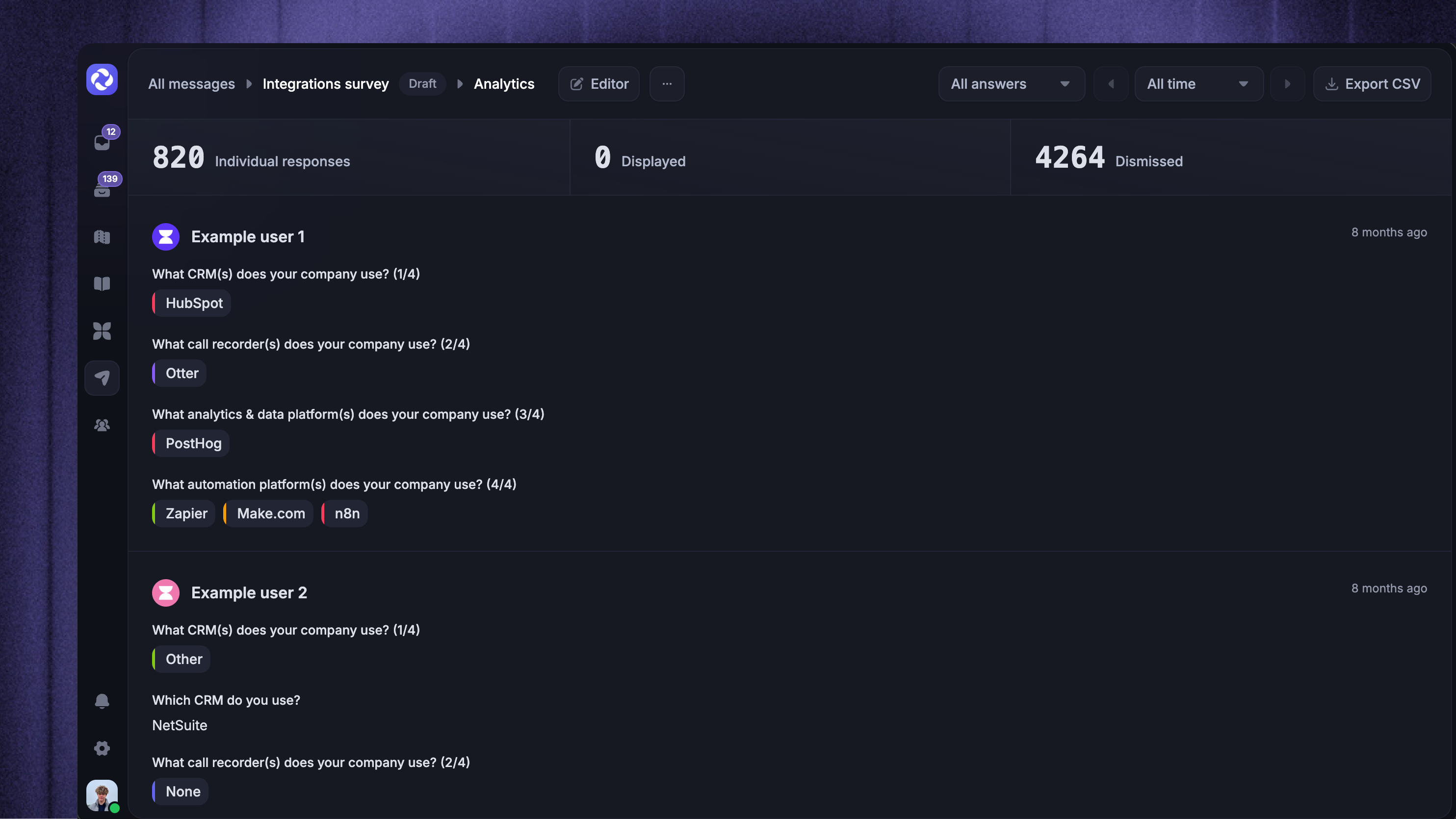
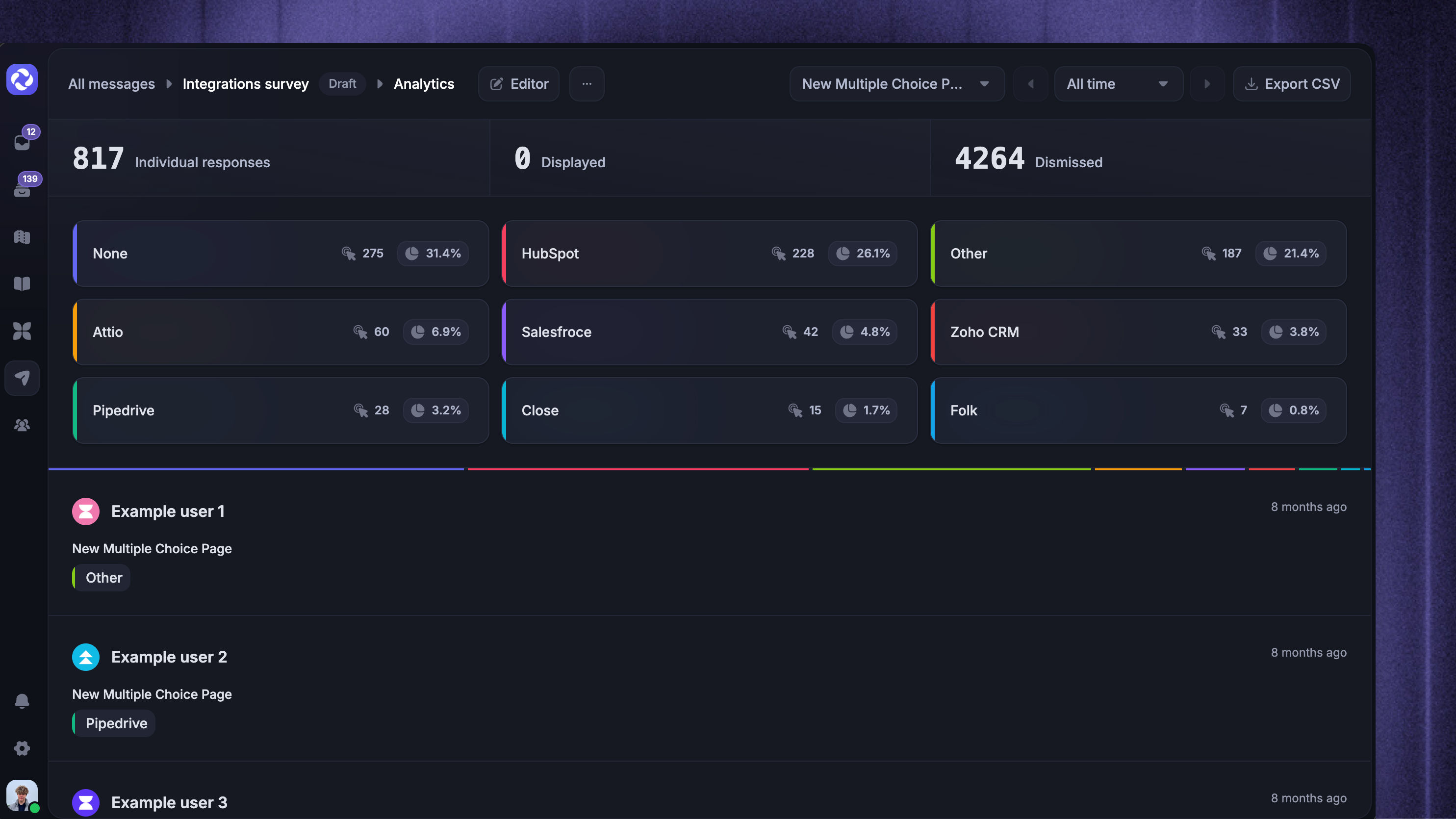
At the top of the Results page are key metrics shown depending on the Survey questions and the current filter. The Responses view can show the number of:
Individual responses - submitted Survey responses in the selected view
Displayed - how many times the Survey was displayed
Dismissed - how many times the Survey was dismissed
NPS score - shown when the Survey includes an NPS rating question
Average rating - shown when the Survey includes a rating question
Multiple choice pick rates - When you filter by a multiple-choice question page
Individual responses appear below the metric cards. Each response row can show the respondent, their submitted answers, and when the response was received.
For multi-question Surveys, a response can include answers from completed pages even if the respondent does not finish every later page.
Filter responses
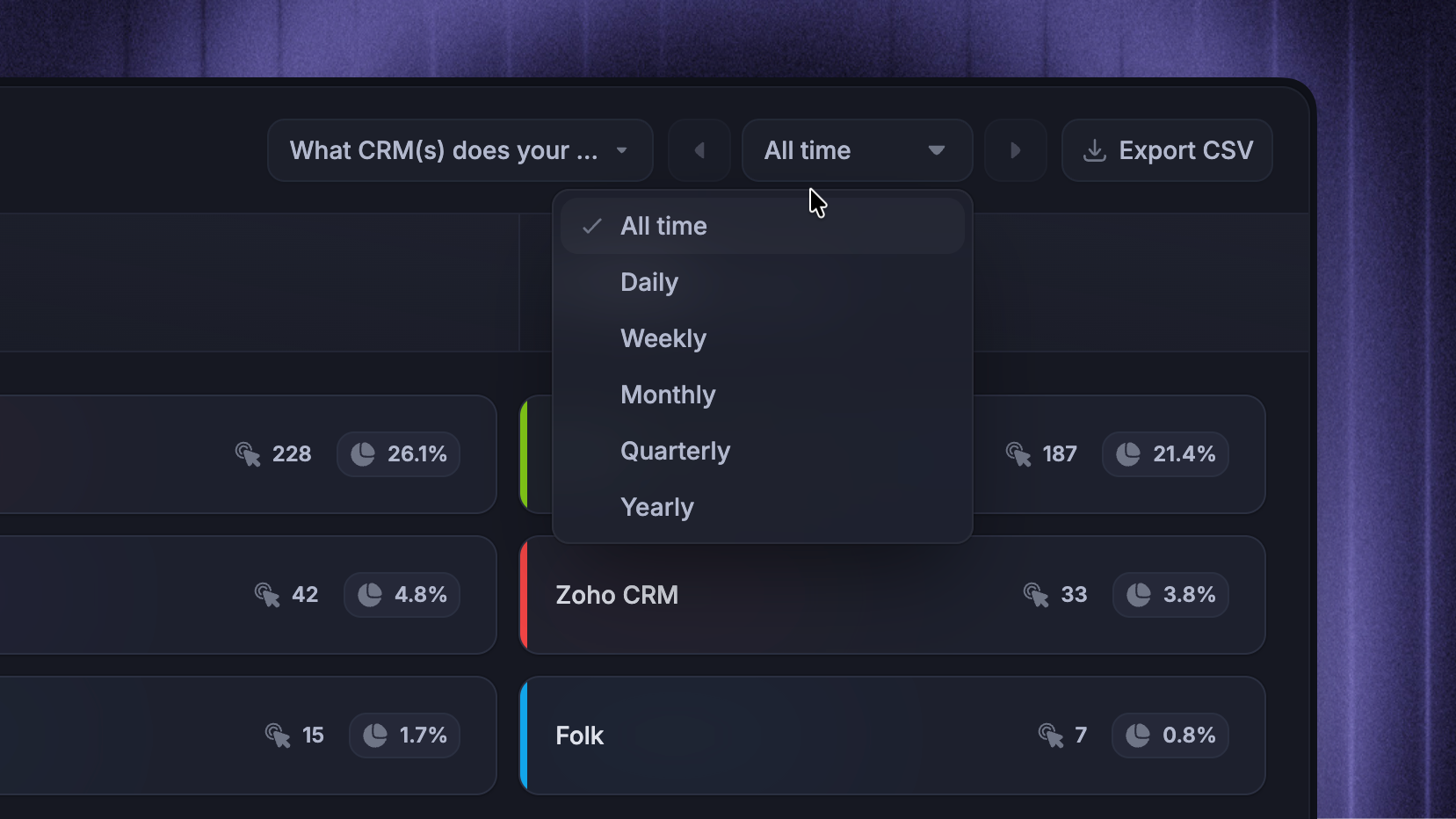
Use the controls in the Responses view to focus the report before reviewing or exporting results.
For multi-page Surveys, the question filter shows:
All answers - view responses across every Survey page
Each page title - view answers and metrics for one specific question
Use the timeframe dropdown to choose:
All time
Daily
Weekly
Monthly
Quarterly
Yearly
After you choose a timeframe, use the arrow buttons to move between periods.
Export responses to CSV
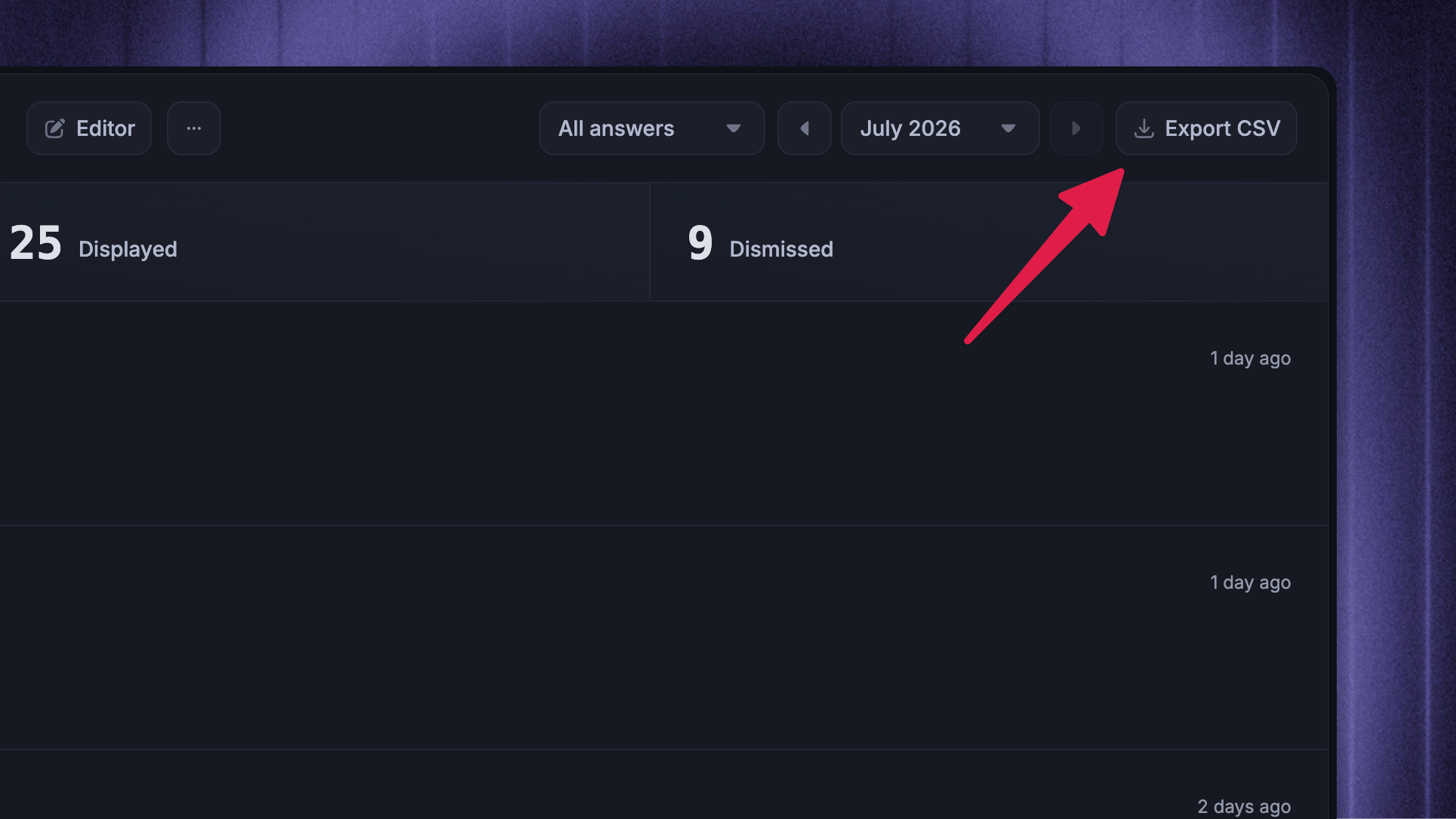
To export Survey responses:
Open the Survey message
Click Responses
Choose All answers or a specific question
Choose the timeframe you want to export
Click Export CSV
Featurebase downloads a file named survey-responses-{timeframe}.csv, where {timeframe} matches the selected period, such as all-time, today, or june-2026.
We support exporting the following survey data:
If you’d like the survey export to contain some other information, feel free to contact us in the live chat or email support@featurebase.app
FAQs
Why do I see "No responses received"?
Why do I see "No responses received"?
There are no responses for the current filters. If the timeframe is not All time, try widening the timeframe.
If the Survey is new, check the audience, trigger, and scheduling setup.
What should I do if responses fail to load?
What should I do if responses fail to load?
If you see ‘Could not load responses’, refresh the page and try again. If the error continues, narrow the timeframe and retry before contacting support.
Why does a response only include some questions?
Why does a response only include some questions?
For multi-question Surveys, completed answers can still appear when a respondent does not finish every later page.
Can I export every response at once?
Can I export every response at once?
You can export up to 10,000 responses in one CSV. For larger result sets, narrow the timeframe or question filter and export multiple CSV files.
Was this helpful?
Still need help? Ask the team