Sort Requests with AI labels and workflows
Let AI label new Requests and start a workflow that assigns, moves, or answers them.
Written By Bruno
Last updated 34 minutes ago
Overview
AI labeling adds a label to new Requests that match the label's AI criteria. A request workflow with the trigger When a post gets a tag then acts on those Requests: it can assign them to a teammate, move them to another category, or comment on them. Together, they sort and route new Requests without anyone reading them first.
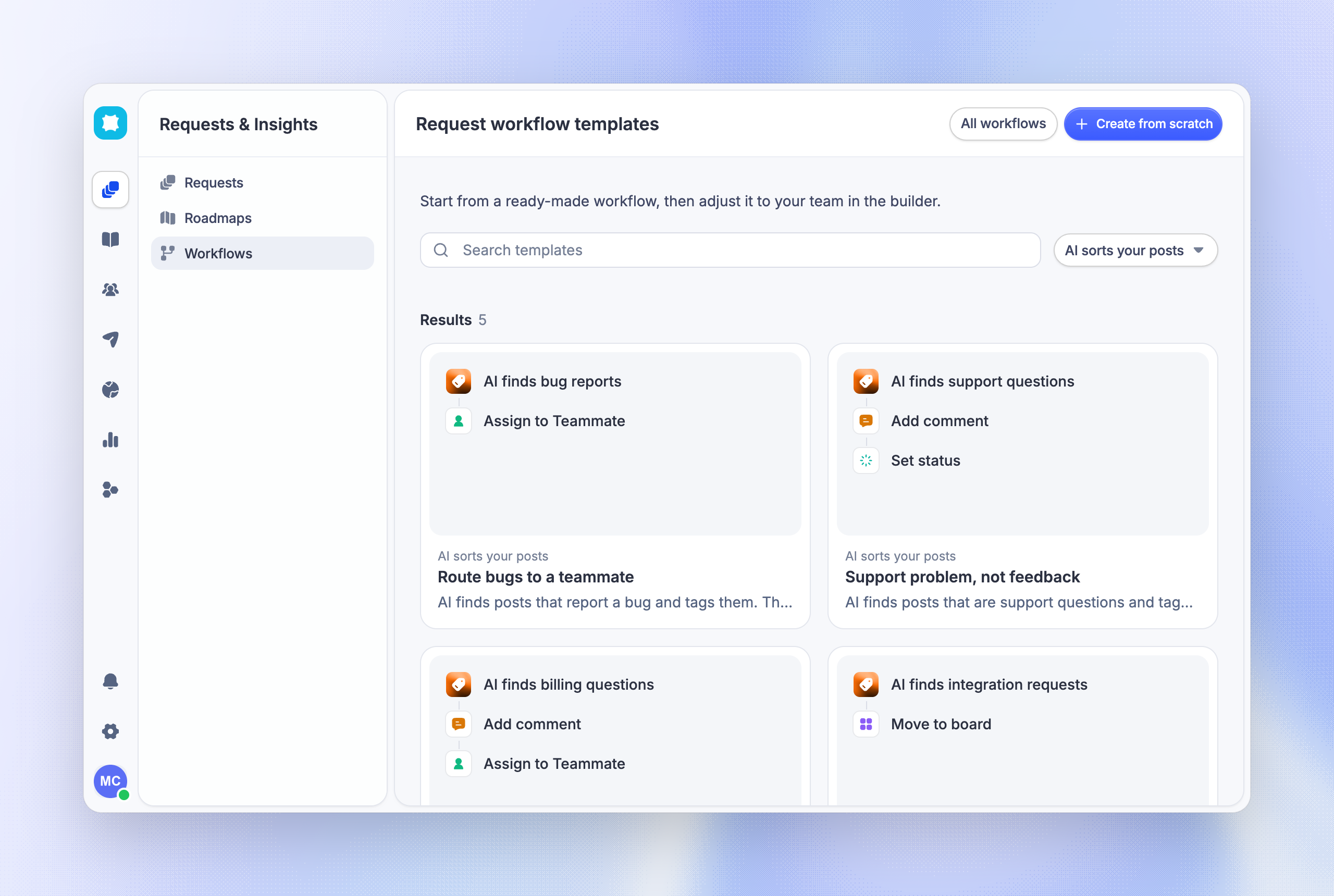
The builder calls labels "tags" and categories "boards". The fastest start is a template from AI sorts your posts. To route on your own labels, build the workflow yourself.
How AI labels start a workflow
Two parts work together:
The label's AI criteria - A description of the Requests that should get the label. AI checks each new Request against it, in your whole workspace
The workflow's trigger - When a post gets a tag starts when a Request gets one of the labels you chose, whether AI or a teammate added it
You can set the AI criteria in the trigger panel of the workflow or with AI labeling in the label's settings. Both change the same label.
Choose how to set it up
1. Start from an AI template
Each template in AI sorts your posts brings a label with AI criteria and the steps for one job:
Route bugs to a teammate - Label "Bug", then Assign post
Support problem, not feedback - Label "Support question", then Add comment and Set status to close the Request
Billing question - Label "Billing", then Add comment and Assign post
Integration requests to one board - Label "Integration", then Move to board
Urgent problem - Label "Urgent", then Assign post and an internal note
Installing a template uses your label with the same name, or creates it with the template's AI criteria. A new label gets AI labeling right away. AI starts to label new Requests at install, before the workflow is live. If your existing label with that name has no AI criteria, add them in the trigger panel.
2. Build it yourself
Start from scratch with When a post gets a tag to route on labels you already have, such as one label per product area. One workflow can also react to several labels.
Set up the workflow
Install an AI template
Click 'New Workflow' and choose 'Choose from template'
Under AI sorts your posts, click a template, then click 'Use this template'
Fill in the empty choices, such as the teammate for Assign post or the category for Move to board
Click 'Set Live', then 'Publish workflow'
Choose the tag and its AI criteria
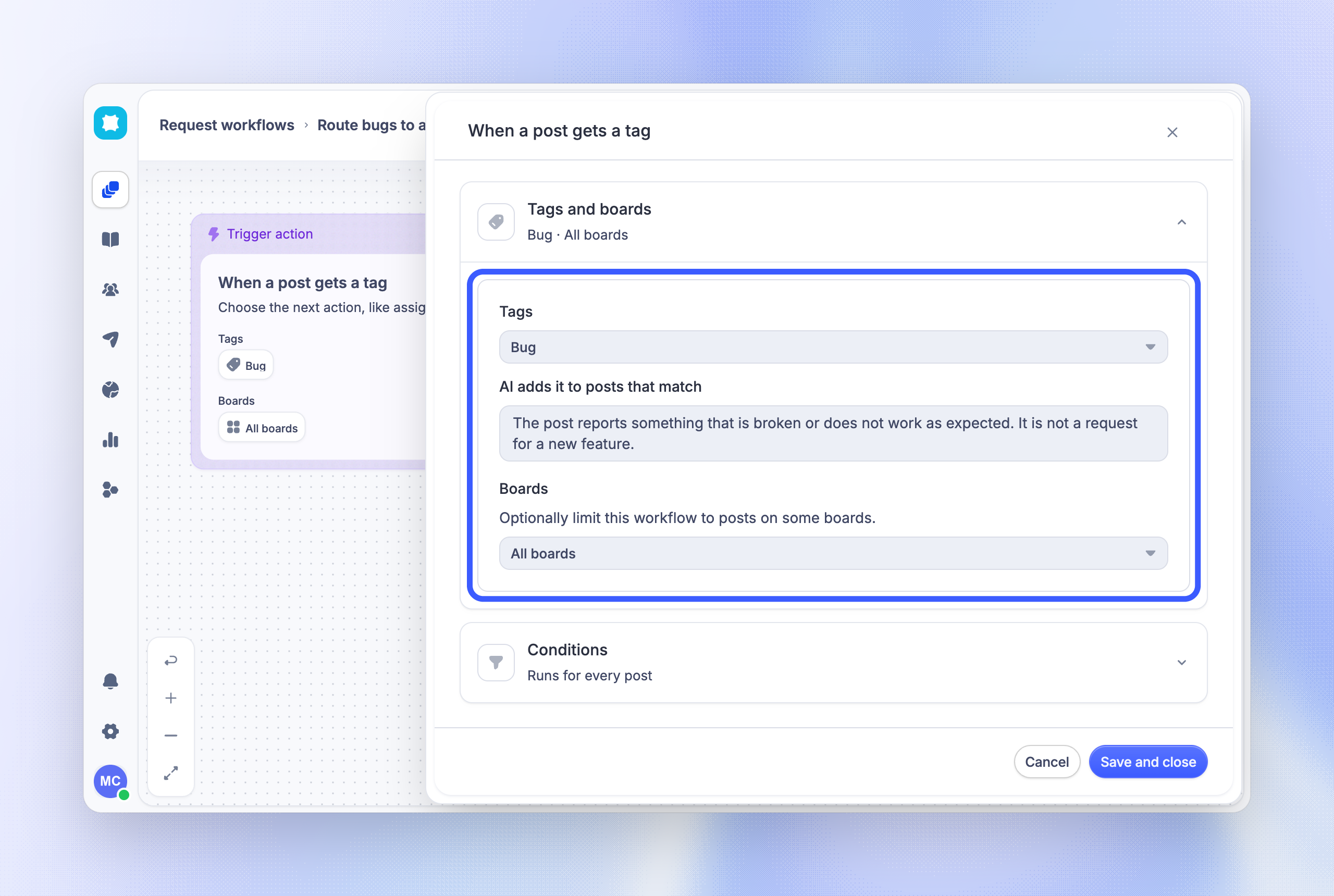
To build the workflow yourself, create a request workflow from scratch with When a post gets a tag, then:
Click the trigger block on the canvas
Under Tags, choose one or more labels, or click 'New tag' to create one
Below each chosen label, describe the Requests AI should label in the AI criteria field. Click an example, such as Bug reports or Billing, to start from it
Click 'Save and close'
The AI criteria change the label for your whole workspace and apply to new Requests. Clearing the field turns AI labeling off for that label everywhere, and then only teammates add it. To edit the AI criteria, you need permission to manage request labels.
Add the routing steps
Click 'Add action' in the step block
Choose Assign post, Move to board, or Add comment, and fill it in
Click 'Set Live', then 'Publish workflow'
These steps fit most routing jobs:
Assign post - Give the Request to the teammate who owns the topic
Move to board - Move it to the category where it belongs
Add comment - Answer the author, or leave an internal note for your team
Use Branches when one workflow should do different things for different labels.
What starts the workflow
What starts it
AI labeling adds a chosen label to a new Request
A teammate adds a chosen label to one Request, in the dashboard, through the API, or with Zapier
A Request is published with a chosen label already on it
What does not start it
'Apply to existing requests' in the label settings, which runs AI labeling on Requests you already have
Bulk edits that change the labels of several Requests at once
The Add tags step of a request workflow
AI labels on Requests dated more than 7 days ago, and on imported Requests that keep an earlier date
Labels added before the workflow was live
Once per workflow, Request, and label
A workflow runs once for each Request and label. If someone removes the label and adds it again, the workflow does not start again. When a change adds several of the chosen labels at once, the workflow runs once.
If the label is removed before the next step runs, the run stops. Workflow analytics then show "The tag was removed before the workflow acted".
FAQs
Why did AI not label a Request?
Why did AI not label a Request?
AI labels a Request only when it matches the label's AI criteria. Make the description specific, and say what does not belong, such as "It is not a request for a new feature." Changes apply to new Requests only.
Can I run AI criteria on my older Requests?
Can I run AI criteria on my older Requests?
Yes. Use 'Apply to existing requests' in the label settings. AI then labels matching older Requests, but those labels do not start request workflows.
Does AI remove labels a teammate added?
Does AI remove labels a teammate added?
No. AI adds its labels next to the labels a Request already has.
Was this helpful?
Still need help? Ask the team