Creating a request workflow
Build a request workflow from a template or from scratch, set it live, and check its runs.
Written By Bruno
Last updated 34 minutes ago
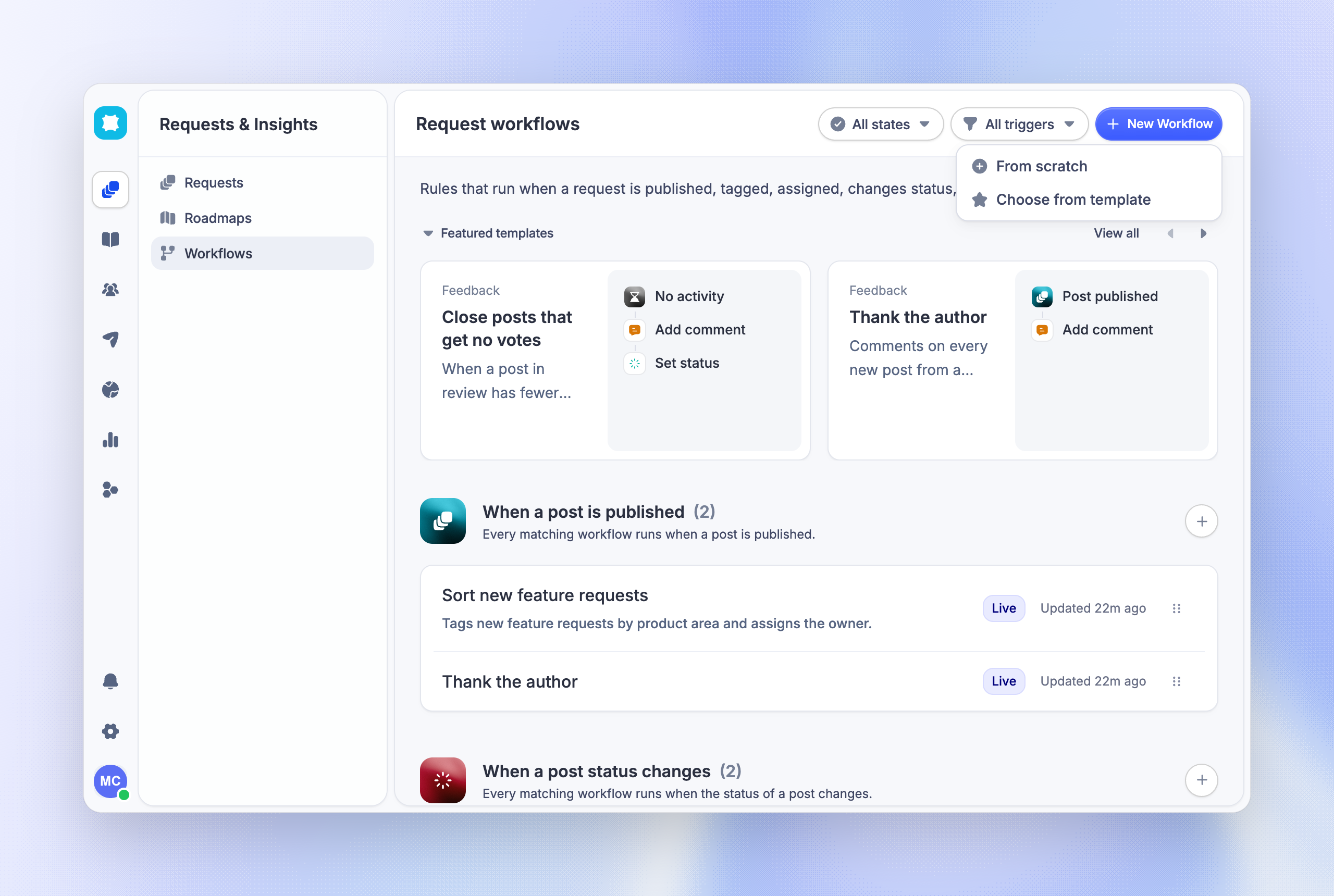
Overview
Create a request workflow in three parts: choose the trigger that starts it, add the steps it runs, then set it live. A new workflow is a draft, so it does nothing until you click 'Set Live'.
The builder calls Requests "posts", labels "tags", and categories "boards". The steps below quote the builder's words.
Request workflows are available on the Enterprise plan. On other plans, the editor shows 'Upgrade plan to start using workflows' instead of 'Set Live'.
Create a request workflow
Start from a template
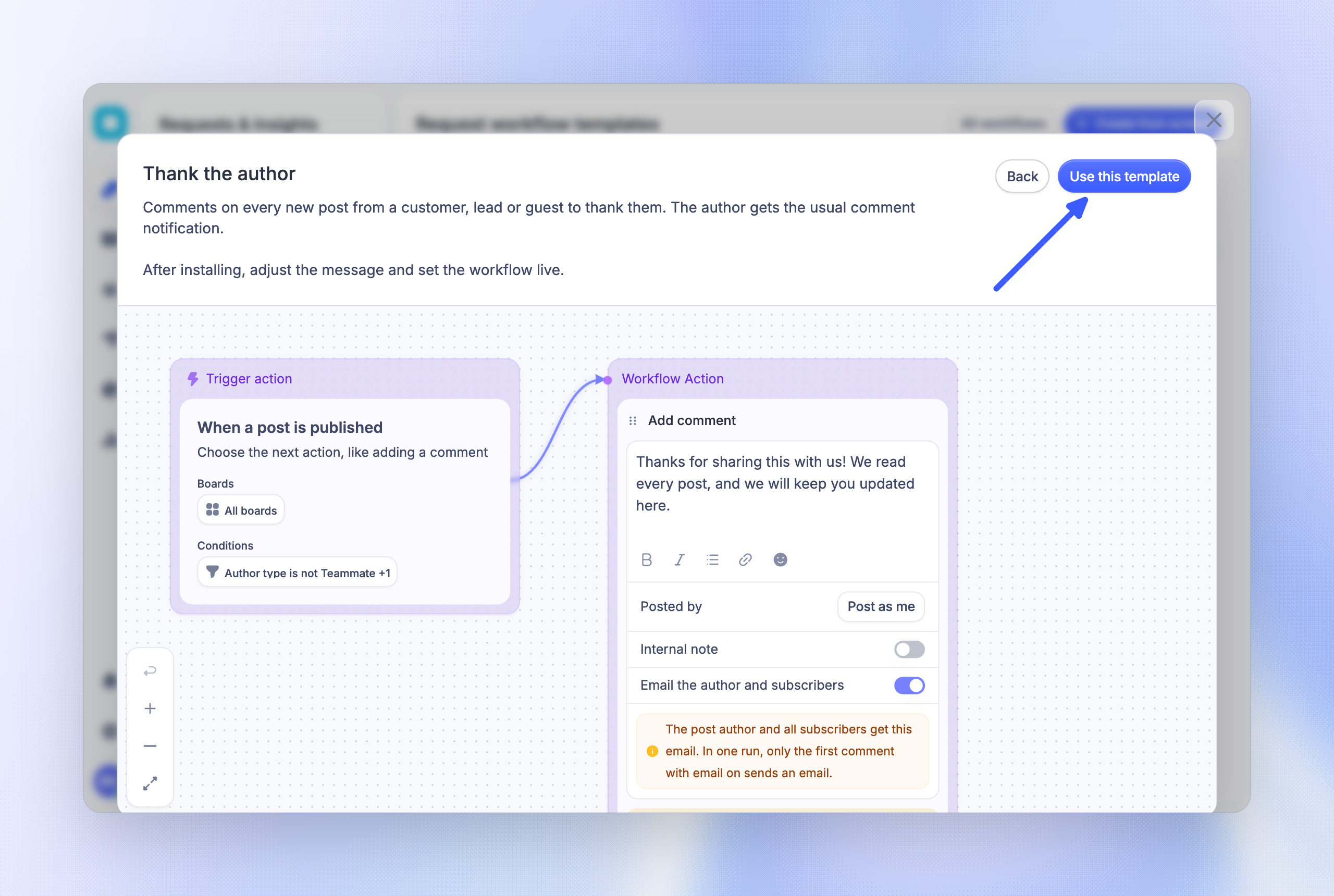
Click 'New Workflow' and choose 'Choose from template'
Pick a template. Use the search or the category menu to narrow the list
Read the preview, then click 'Use this template'
The workflow opens in the editor as a draft with the template's name, trigger, and steps. Choices that depend on your workspace, such as the teammate, the status, or the category, start empty. Fill them in before you set the workflow live.
Templates that add a comment post it as you. The templates in AI sorts your posts also bring a label with AI criteria; Sort Requests with AI labels and workflows explains what installing them changes.
Start from scratch
Click 'New Workflow' and choose 'From scratch'
In Choose a workflow type, click the trigger that should start the workflow
The workflow opens as a draft named "Untitled workflow". Click the name in the header to rename it, and add a description next to it if you like.
Set up the trigger
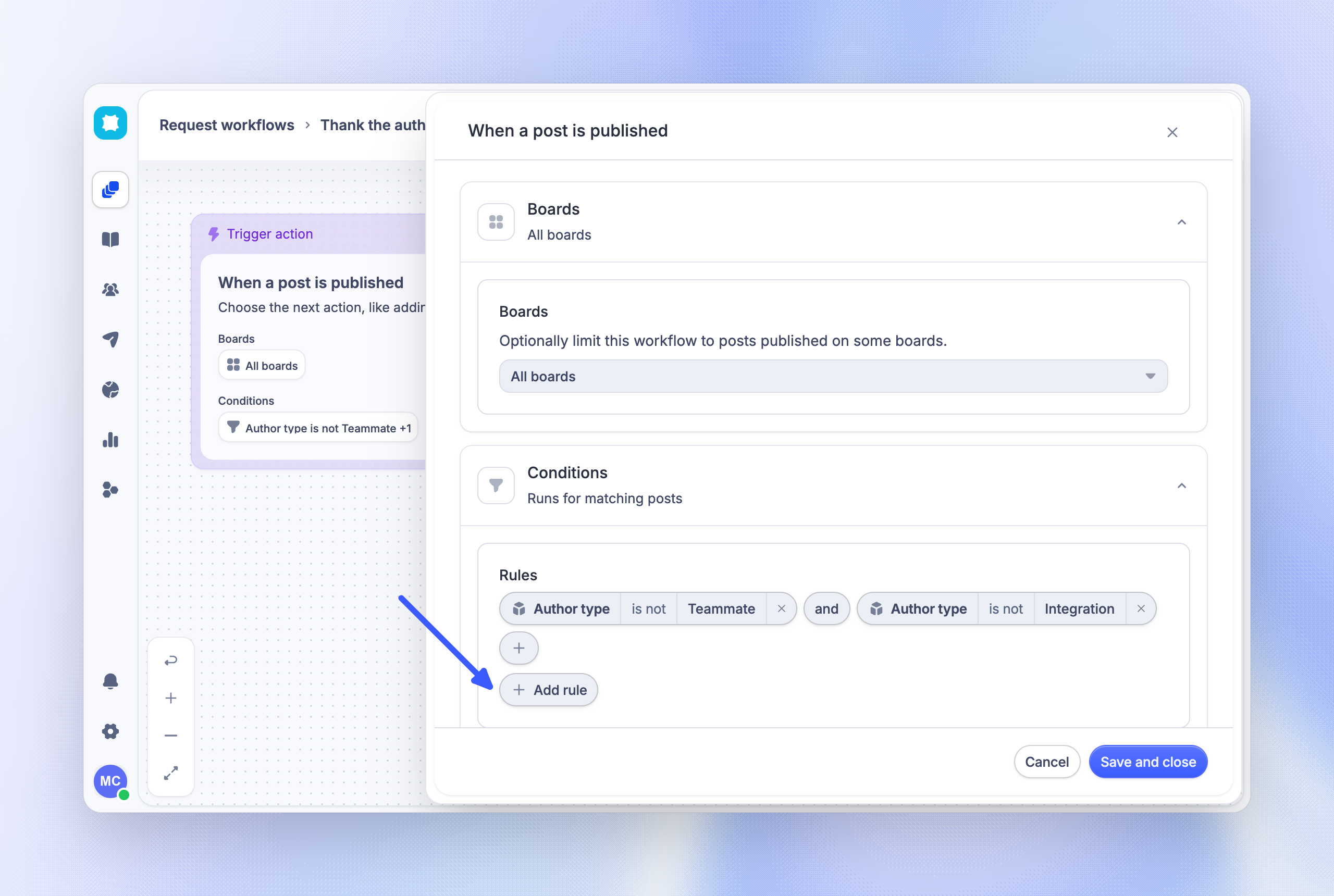
Click the trigger block on the canvas
Fill in the trigger's own settings, such as the Tags for When a post gets a tag or the days for When a post has no activity
Under Boards, keep All boards or choose the boards the workflow runs on
Open Conditions and add rules on the Request or its author, such as Author type or Upvotes
Click 'Save and close'
Without conditions, the trigger says Runs for every post. With conditions, it says Runs for matching posts, and only those Requests start the workflow.
Add steps
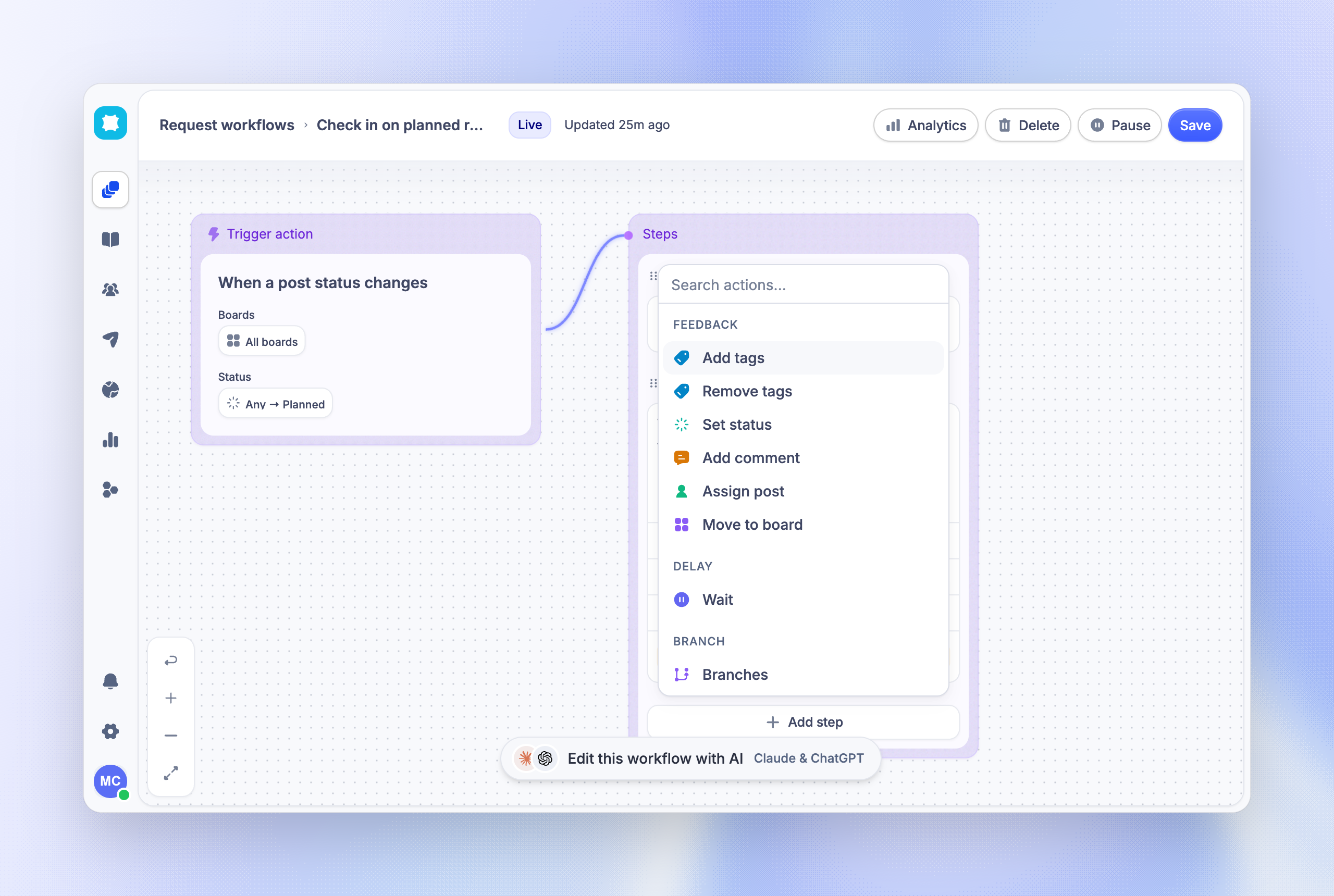
In the step block, click a suggested step under Choose your first step, or click 'Add action' to see every step
Fill in the step on the canvas, for example the teammate for Assign post or the text for Add comment
Click 'Add step' to add the next one
Steps run from top to bottom. Use Branches to split Requests into paths and Wait to pause between steps. Request workflow steps describes each step and its options.
Set the workflow live
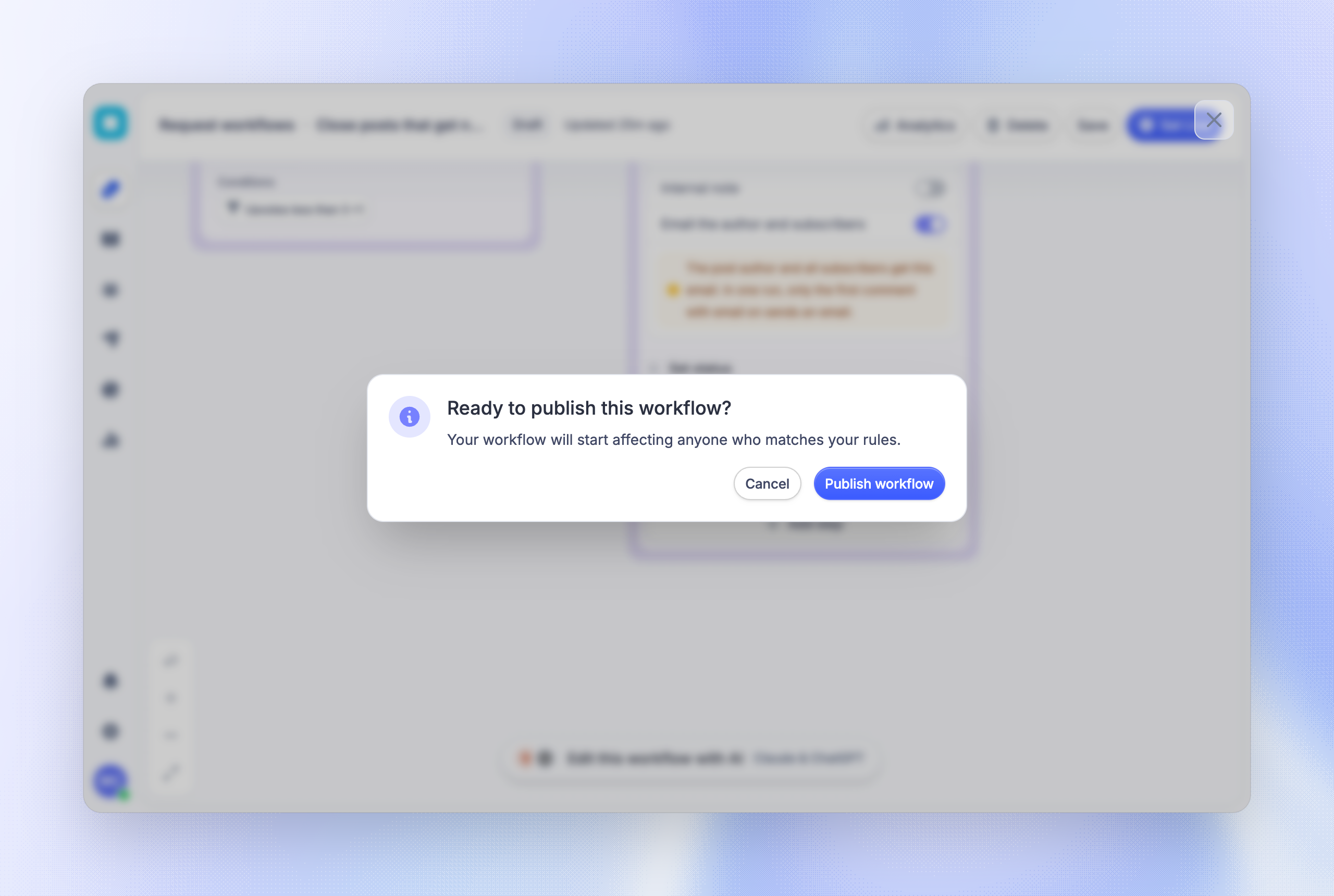
Click 'Set Live' in the header
Fix anything Featurebase reports, such as "Add at least one step before you turn this workflow on."
In Ready to publish this workflow?, click 'Publish workflow'
The state in the header changes from Draft to Live. From now on, every Request that matches the trigger starts the workflow.
To keep working on a draft without setting it live, click 'Save'. A draft saves even when some steps are not finished.
Check the runs
Click 'Analytics' in the header
Choose a date range. Last 30 days is the default
Workflow analytics shows how many Requests the workflow Started on, how many runs Completed, and how many Stopped. The Posts list shows each Request with the date and, for a stopped run, the reason. Click a row to open the Request in a new tab. Runs and troubleshooting explains each reason.
Change a live workflow
Edit a live workflow
Make your changes on the canvas, then click 'Save'. In Ready to set your changes live?, click 'Set changes live'. Your changes go live for every Request that matches your rules.
Pause a workflow
Click 'Pause' in the header. The workflow goes back to Draft, starts no new runs, and stops the runs that are in progress, for example runs that are in a Wait step. Click 'Set Live' to turn it on again.
Delete a workflow
Click 'Delete' in the header, then click 'Delete' in Delete workflow?. The workflow and its runs in progress stop at once.
Important: Deleting a workflow cannot be undone. To stop a workflow for now, pause it instead.
FAQs
Why does 'Set Live' not turn on my workflow?
Why does 'Set Live' not turn on my workflow?
Featurebase checks the workflow before it goes live and names the first problem. Common reasons:
A step has an empty choice, such as no teammate in Assign post
When a post gets a tag has no label
A step uses a status, category, or label that was deleted, or a teammate who left
The workflow can act on a private board, and you cannot view private Requests
Does a new workflow act on my existing Requests?
Does a new workflow act on my existing Requests?
No. A workflow acts only on events that happen after you set it live. The exception is When a post has no activity: with Only posts that become inactive from now on turned off, it also runs on Requests that are already inactive, up to 500 a day.
Can several workflows act on the same Request?
Can several workflows act on the same Request?
Yes. Every live workflow whose trigger and conditions match runs on the Request. The order of the list does not decide which one runs.
Was this helpful?
Still need help? Ask the team