Request workflows overview
Sort, route, and answer Requests automatically when they are published, labeled, assigned, change status, or go quiet.
Written By Bruno
Last updated 35 minutes ago
Overview
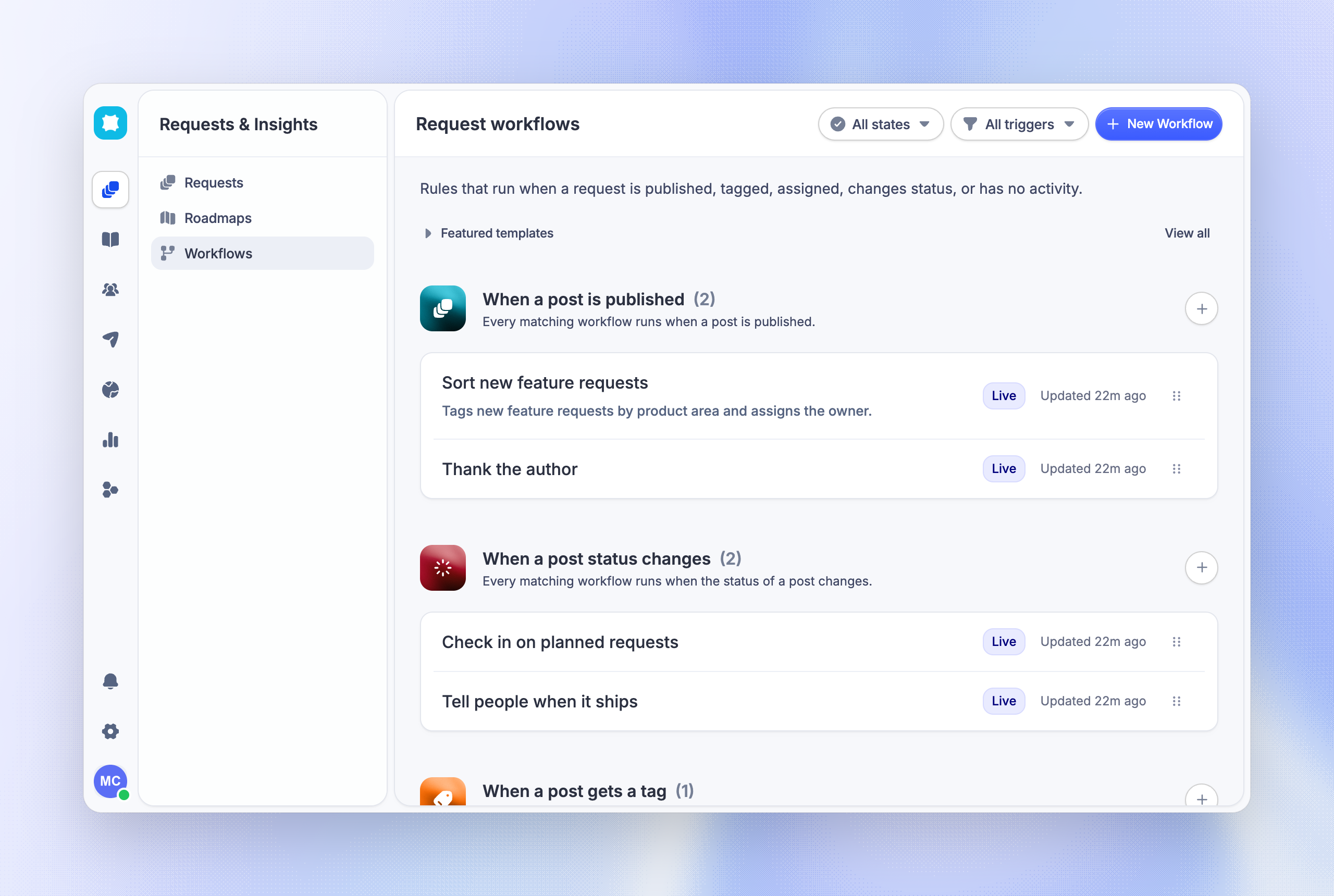
Request workflows run steps on your Requests when something happens to them. A workflow can label a new Request, assign it to a teammate, move it to another category, change its status, or comment on it, without anyone on your team doing it by hand.
Each workflow has one trigger and the steps that follow it. Build and manage them in Requests & Insights → Workflows. The workflow builder calls Requests "posts", labels "tags", and categories "boards", so this article quotes those words where you see them in the builder.
How request workflows work
A workflow starts when a Request matches its trigger. Then it runs its steps in order, one Request at a time. Every live workflow that matches runs, so two workflows with the same trigger both act on the same Request.
Triggers
Each workflow has one of five triggers:
When a post is published - A new Request goes live on a board
When a post status changes - A Request moves from one status to another
When a post gets a tag - A Request gets one of the labels you choose, from a teammate or from AI labeling
When a post is assigned - A Request is assigned to a teammate
When a post has no activity - A Request has no votes, comments, status changes, or new insights for a number of days
You can limit every trigger to some Boards and add Conditions on the Request and its author, such as its title, its upvotes, or whether a customer or a teammate wrote it.
Steps
After the trigger, add one or more steps:
Add tags and Remove tags - Change the Request's labels
Assign post - Give the Request to a teammate
Set status - Change the status, and optionally email the voters
Add comment - Post a public comment or an internal note as a teammate, and optionally email the author and subscribers
Move to board - Move the Request to another category
Branches - Send the Request down the first path whose rules it matches
Wait - Pause for up to 90 days before the next step
Workflow analytics show which Requests each workflow started on, which runs completed, and why a run stopped.
Request workflows and support workflows
Featurebase has two kinds of workflows. They have different triggers and steps, and you build them in different places:
Request workflows - Act on Requests on your boards. Find them in Requests & Insights → Workflows
Support workflows - Act on Messenger conversations and tickets, for example to route, reply, or assign. Find them in AI & Automations → Workflows
Both kinds use the same builder. If you already know support workflows, the canvas, Branches, and Wait work the same way.
Availability
Request workflows are available on the Enterprise plan. On other plans, you can build and save a request workflow, but the editor shows 'Upgrade plan to start using workflows' instead of 'Set Live'.
Every teammate can create and edit request workflows. A workflow that can act on a private board needs a teammate who can view private Requests to set it live. A workspace can have up to 100 workflows, request and support workflows together.
Examples
Most of these examples start from a template. To use one, create a request workflow and choose the template in the gallery.
Route new bugs to an owner
Use the Route bugs to a teammate template. AI adds the label "Bug" to new Requests that report something broken. The workflow starts on When a post gets a tag with that label and runs Assign post for the teammate you pick. The other templates in AI sorts your posts work the same way for support questions, billing questions, integration requests, and urgent problems.
Thank the author
Use the Thank the author template. It starts on When a post is published for Requests from customers, leads, and guests, and runs Add comment with a thank-you message. The author gets the usual comment notification.
Sort new Requests by product area
Start from scratch with When a post is published. Add Branches with one path per product area, each with a rule on the Request's Title or Content. In each path, add Add tags with the matching label, and Assign post for the teammate who owns that area.
Tell people when it ships
Use the Tell people when it ships template. It starts on When a post status changes with your completed statuses in To status. It runs Add comment and emails the author and subscribers that the Request is live.
Close Requests that get no votes
Use the Close posts that get no votes template. It starts on When a post has no activity after 60 days, for Requests in review with fewer than 3 upvotes. It comments, emails the author, and runs Set status with the closing status you pick. Requests that are already inactive when you set it live are skipped.
Next steps
Creating a request workflow - Build a workflow from a template or from scratch and set it live
Request workflow triggers - Choose what starts a workflow and which Requests it runs on
Request workflow steps - See what each step does and which options it has
Sort Requests with AI labels and workflows - Let AI label new Requests and route them
Request workflow runs and troubleshooting - Check runs and find out why a workflow did not act
Was this helpful?
Still need help? Ask the team