Ask customers for a conversation rating (CSAT)
Send a CSAT survey after a Conversation closes and follow up based on the customer's rating.
Written By Markus Palm
Last updated 5 days ago
Overview
A CSAT survey is the simplest way to measure how customers feel about their support experience.
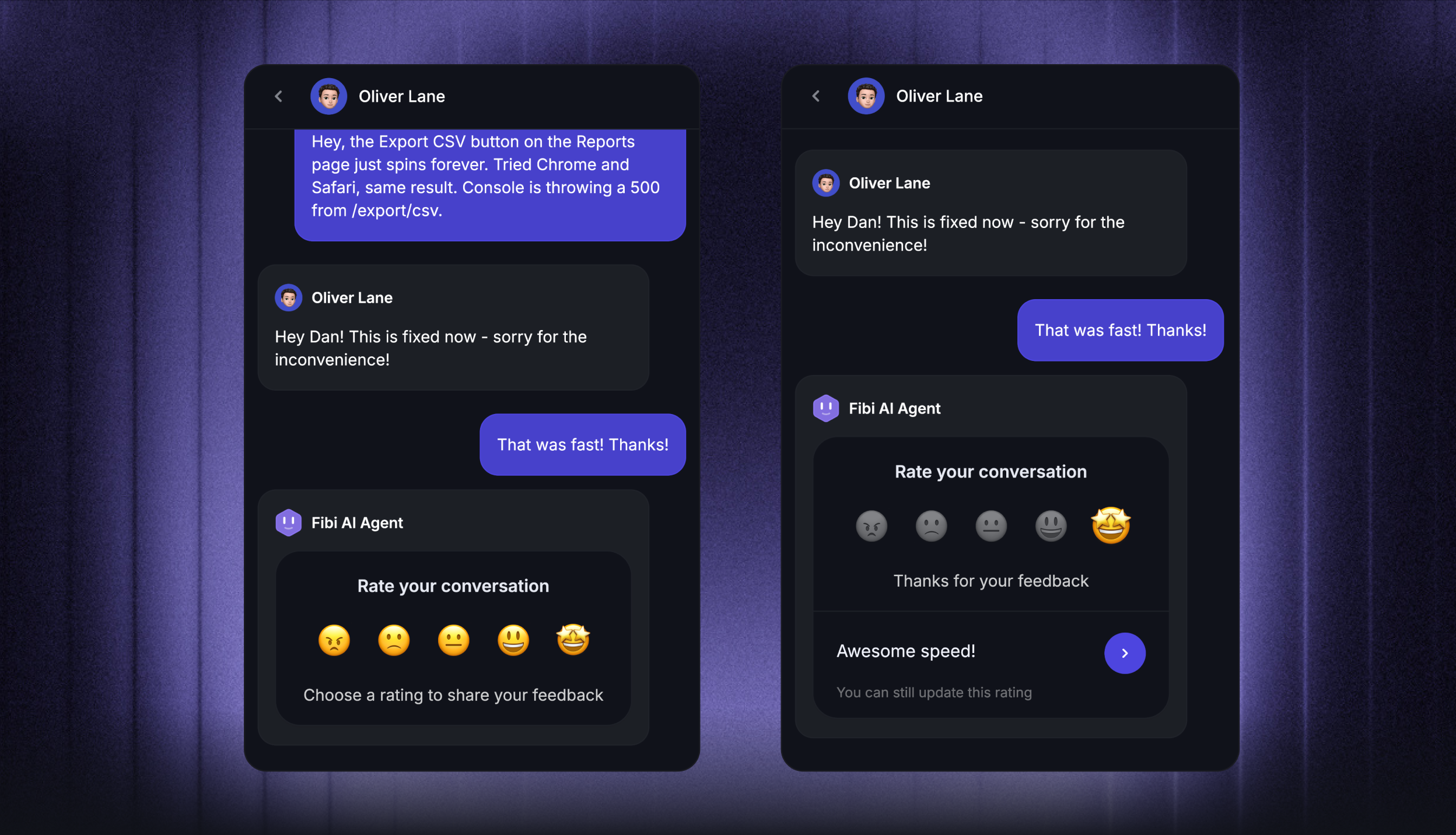
After a teammate closes a conversation, you can automatically send customers an emoji rating survey with an optional comment box – so you can spot patterns, follow up with unhappy customers, and track how your team is performing over time.
How it works
When a teammate closes a conversation, the workflow waits 2 minutes in case the conversation reopens or the teammate replies again. After that window, the customer receives the CSAT survey – inside the Messenger if the conversation was on Web, or as an email reply with five emoji buttons if the conversation was on email. The prompt is delivered in the customer's language.
On Email, selecting an emoji opens a rating page with that score selected. The customer submits the rating by choosing an emoji on the page or clicking Send feedback. Opening the email link alone does not submit a rating.
The customer picks an emoji:
If any teammate replied during the conversation, the rating is attributed to the most recent teammate.
If only Fibi participated, it goes to Fibi.
If only Workflows handled the conversation, it goes to the workflow.
This Workflow can request a rating for a teammate, Fibi, or Workflows after the conversation closes. To ask specifically for feedback on Fibi when it resolves or hands off a conversation, configure Fibi CSAT in the Let Fibi answer step.
The customer can then optionally leave a written comment to add context.
Note: CSAT is supported on Web (Messenger), Email, and Slack. Conversations on other channels are silently skipped.
Get started
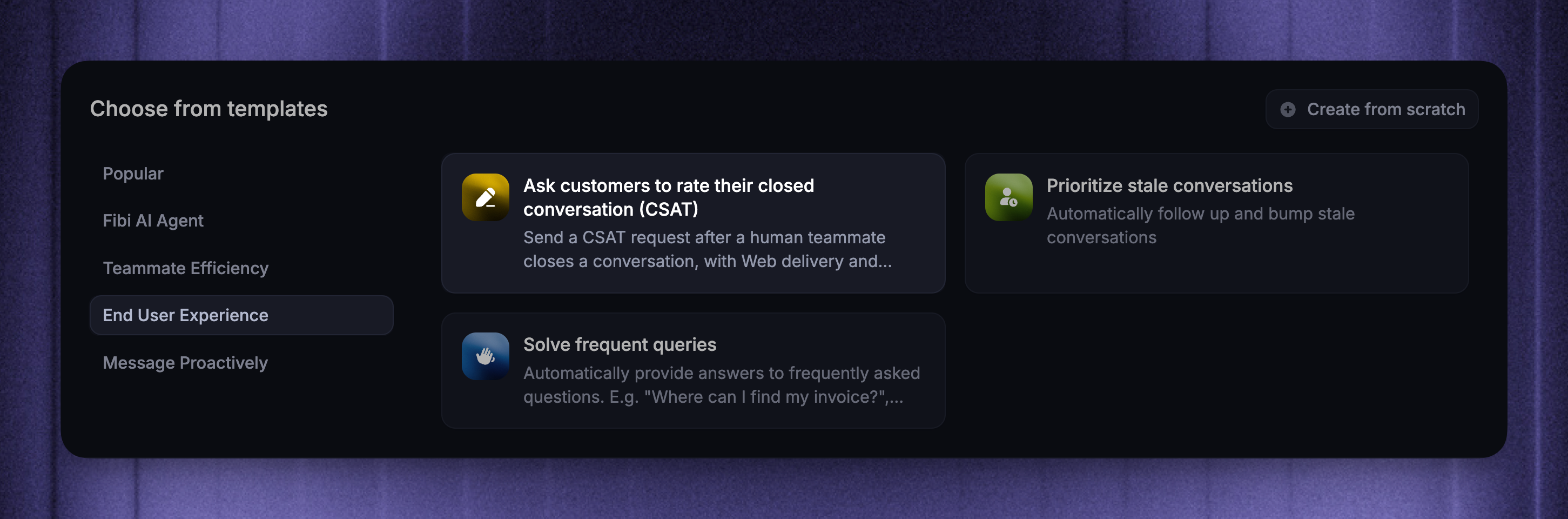
Go to Automations → Workflows
Click + New Workflow and select the template "Ask customers to rate their closed conversation (CSAT)"
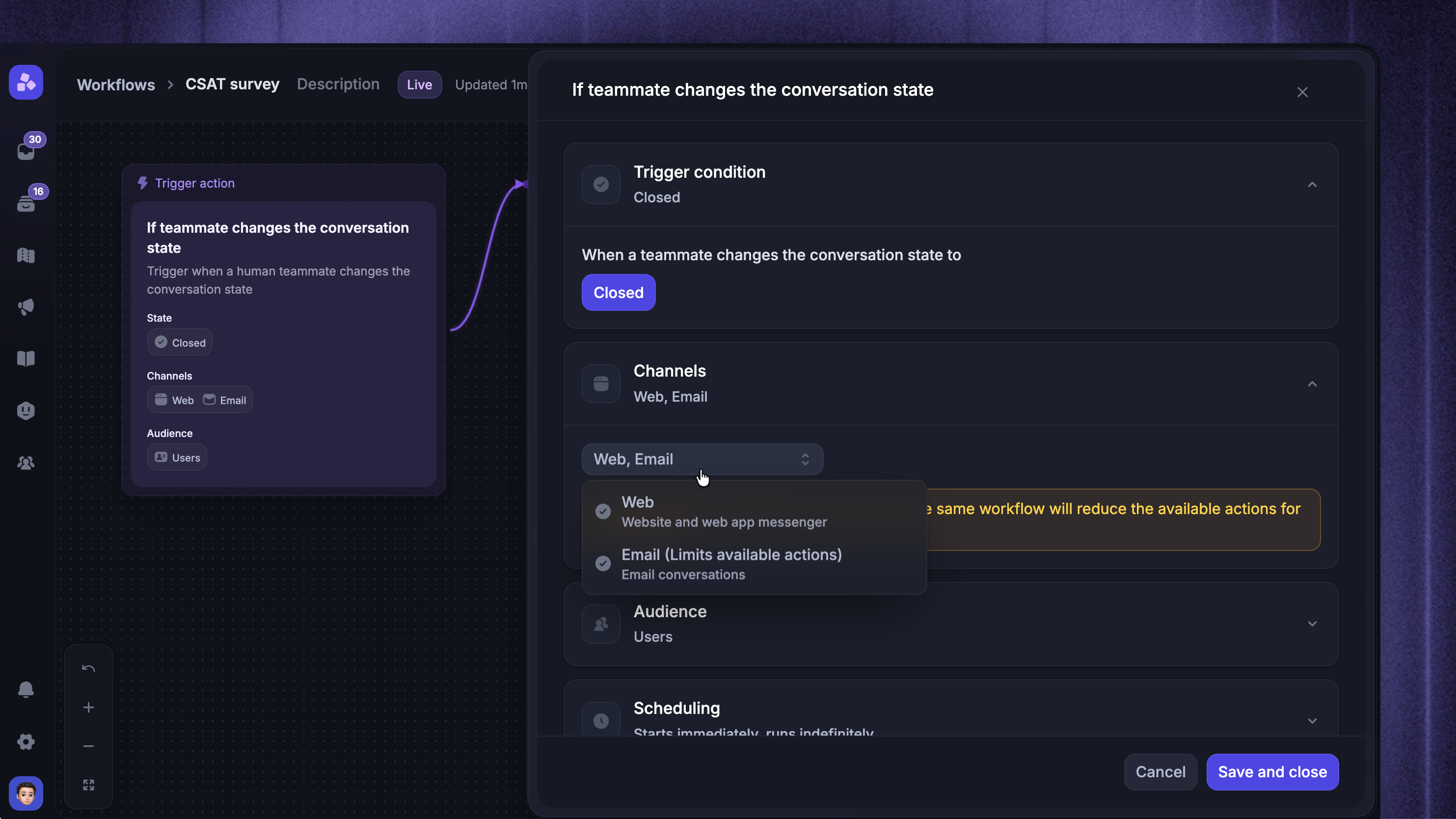
Configure trigger settings
First, configure the Trigger settings to choose the channels, audience rules, and schedule for this Workflow.
The CSAT template uses Teammate changes the state of a conversation with Closed selected.
To collect ratings for human support, add Teammate has replied is true to the audience rules. This skips Conversations that your team closes without a human reply, such as untouched spam or duplicates.
When finished, click ‘Save and close’ to start building your workflow.
Build your workflow
Once created, the template includes prebuilt steps you can edit to fit your tone and process:
Adjust the wait time – By default, the workflow waits 2 minutes after a conversation is closed before sending the CSAT survey. This buffer prevents the survey from going out if the teammate replies again or the customer reopens the conversation. You can shorten or extend this depending on how reactive your team usually is.
Configure the CSAT action – Click the Ask for conversation rating (CSAT) step to open its settings. Three optional toggles are available:
Prevent customers from rating after a given period of time – sets an expiration on the rating request. After this window, the customer can no longer rate
Prevent customers from changing their initial rating after a period of time - sets a deadline for changing a submitted rating, measured from when the rating was requested. It does not stop a customer from submitting their first rating unless the request has also expired
Wait for customers to give a rating before continuing the Workflow – pauses the workflow until the customer rates, so you can branch on the response
When this is on, you can also enable Allow customers to type while the workflow is waiting for a rating. The composer stays enabled, and any message the customer sends will interrupt the workflow
Follow up on low ratings - Enable Wait for customers to give a rating before continuing the Workflow, then add a Branch after the CSAT action:
Conversation Rating is less than Okay - send a follow-up message and assign the Conversation to your support lead
Else - end the Workflow
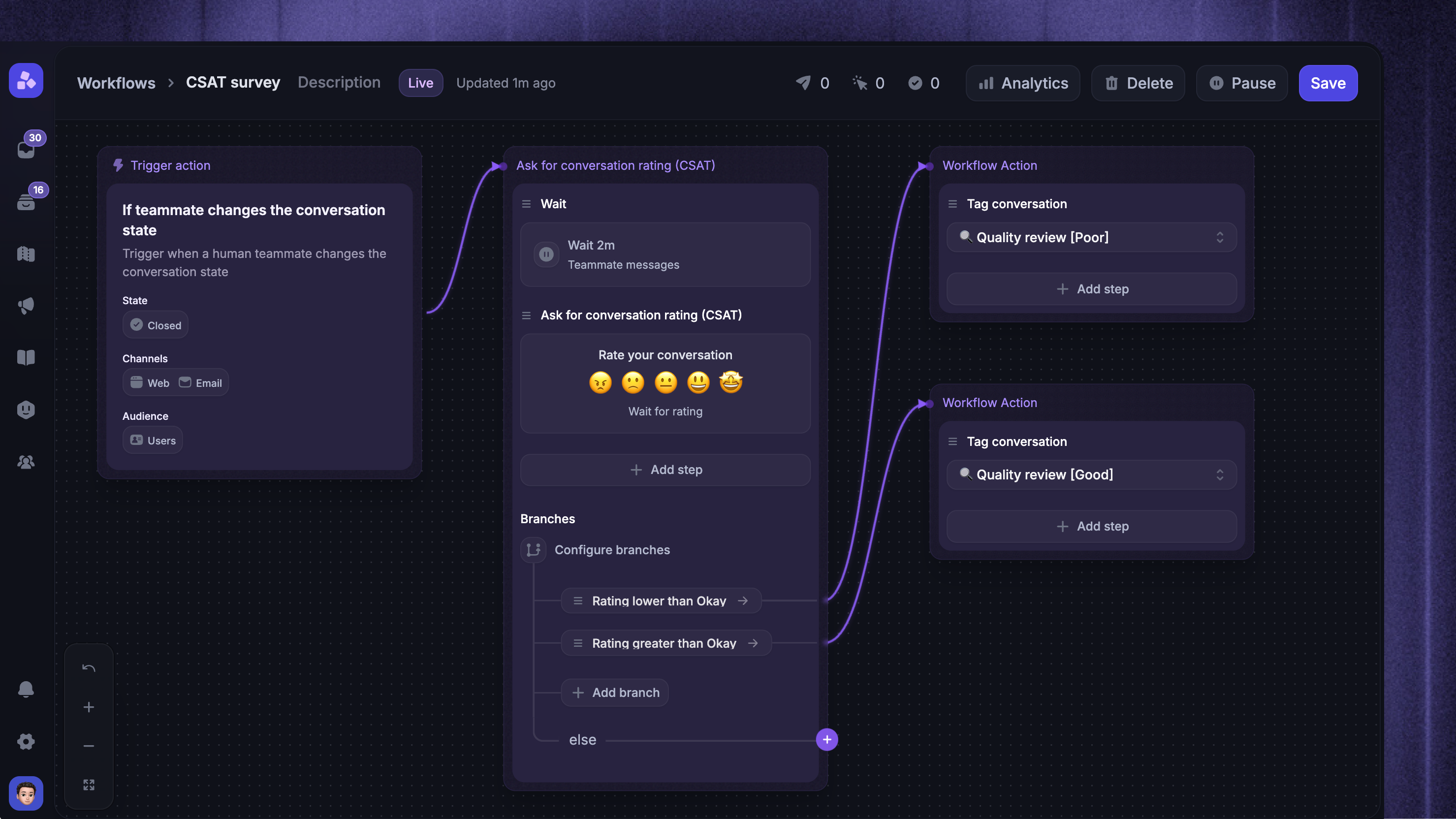
Conversation Rating uses the rating in the current Conversation. Ratings from the customer's other Conversations do not affect this branch.
Set it live – When you're happy with your setup, click Save and Set live.
With this workflow, every closed conversation turns into a chance to learn something – and dissatisfied customers don't slip through the cracks.
FAQs
Will closing spam or duplicate Conversations send a CSAT survey?
Will closing spam or duplicate Conversations send a CSAT survey?
Not when your Workflow requires Teammate has replied is true and no teammate has replied. Add this condition to the audience rules for human-only CSAT. Then your team can close untouched spam or duplicates without sending a survey.
This condition checks for a human reply; it does not detect spam or duplicates. If a teammate has already replied, use the Skip CSAT exclusion described below.
Without the human-reply condition, a general CSAT Workflow can also request a rating for Fibi or a Workflow.
Can group conversations receive a CSAT survey?
Can group conversations receive a CSAT survey?
No. Featurebase skips CSAT when a conversation has more than one customer or lead, including group Email conversations. This is a built-in eligibility rule. Teammates do not count toward this limit.
Can reopening and closing a Conversation send another CSAT survey?
Can reopening and closing a Conversation send another CSAT survey?
Yes. Closing the Conversation again can start the Workflow again if it still matches the trigger and audience rules. Featurebase skips a new rating request while another request for the same agent is still waiting for a rating. This does not prevent every later survey or stop other messages in the Workflow.
For Messenger, we recommend a reply window if you want customers to start new Conversations for new issues. In Settings → Support channels → Messenger → General → Inbound Volume, enable Prevent visitors from replying to closed conversations or Prevent users from replying to closed conversations, then set Lock replies after. Configure Visitors and Users separately.
Customers can reply until that window ends. Email and Slack replies are not blocked by this setting, so use the repeat-prevention rules below as well.
How do I prevent repeated surveys and follow-up messages?
How do I prevent repeated surveys and follow-up messages?
Use the native Conversation rating requested condition when you want to skip a Conversation that already has a CSAT request:
Add a Branch before the survey and any follow-up messages
If Conversation rating requested is true, end that path
Continue through Else when the value is False or has not been set
This checks the current CSAT state for any agent. A Fibi request also matches, so do not use this rule to block a separate human rating after Fibi.
For a separate human sequence, create a conversation checkbox attribute such as Human CSAT attempted. After the initial wait, end the path if that attribute is true. In Else, use Set conversation attribute to set it to True immediately before the survey and follow-up steps.
The Workflow sets this flag automatically. It tracks an attempt, not successful delivery. Leave it set to prevent another attempt in that Conversation, or clear it when you deliberately want to allow one.
How do I skip CSAT for a specific Conversation?
How do I skip CSAT for a specific Conversation?
Create a conversation checkbox attribute such as Skip CSAT. Before the survey and follow-up steps, add a Branch that ends the Workflow when Skip CSAT is true. Continue through Else when it is False or has no value.
Teammates can then exclude that Conversation without excluding the customer from future surveys. This is an optional override for exceptions, such as a duplicate that already received a human reply.
Was this helpful?
Still need help? Ask the team