Let Fibi AI Agent answer first
Put Fibi AI Agent on the front line and reduce your team's inbox volume.
Written By Markus Palm
Last updated 3 months ago
Overview
Letting Fibi AI automatically respond to customer queries helps your team scale support while keeping resolution times low.
Fibi can instantly answer common questions using your connected help content. If the customer still needs a teammate, the workflow will hand the conversation over with full context - so your team can focus on complex or high-value cases.
How it works
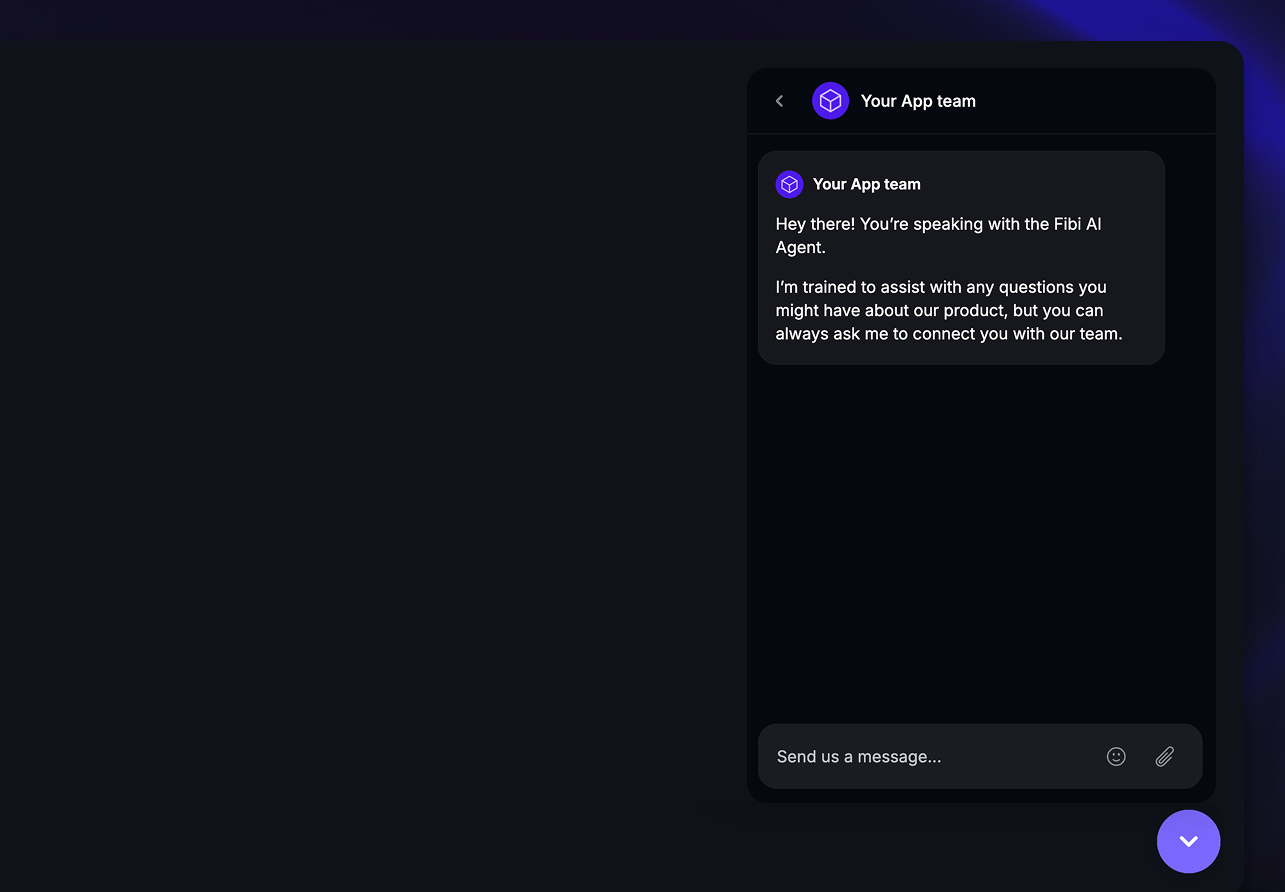
When customers open the Messenger, they’ll immediately see a greeting message.
After they send their first message, Fibi automatically responds and attempts to resolve their query using your connected help content.
If Fibi successfully helps the customer and they leave positive feedback, the conversation won’t appear in your team’s inbox - reducing noise and improving efficiency.
If the customer still needs help, the Workflow routes the conversation to the right team using Conversation topics.
Get started
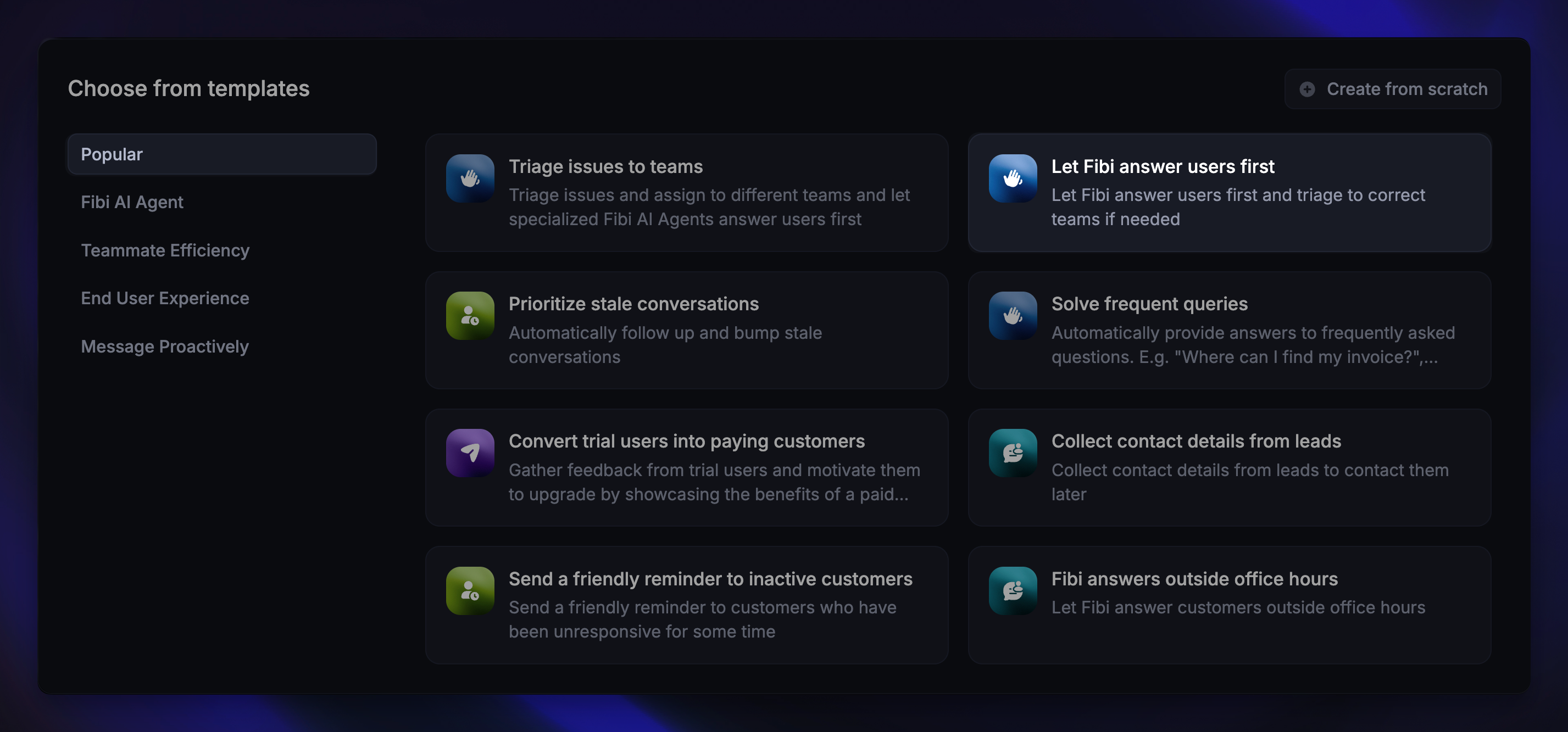
Go to Automations → Workflows
Click + New Workflow and select the template “Let Fibi AI Agent answer first”
Choose the channel(s) where this workflow runs (e.g. Email, Web)
Add audience filters if you only want the Workflow to run for certain people (e.g. paying customers, free users, etc).
Tip: Start with Web, then expand once your Workflow works effectively. Some actions may behave differently depending on the channel.
Customize your Workflow
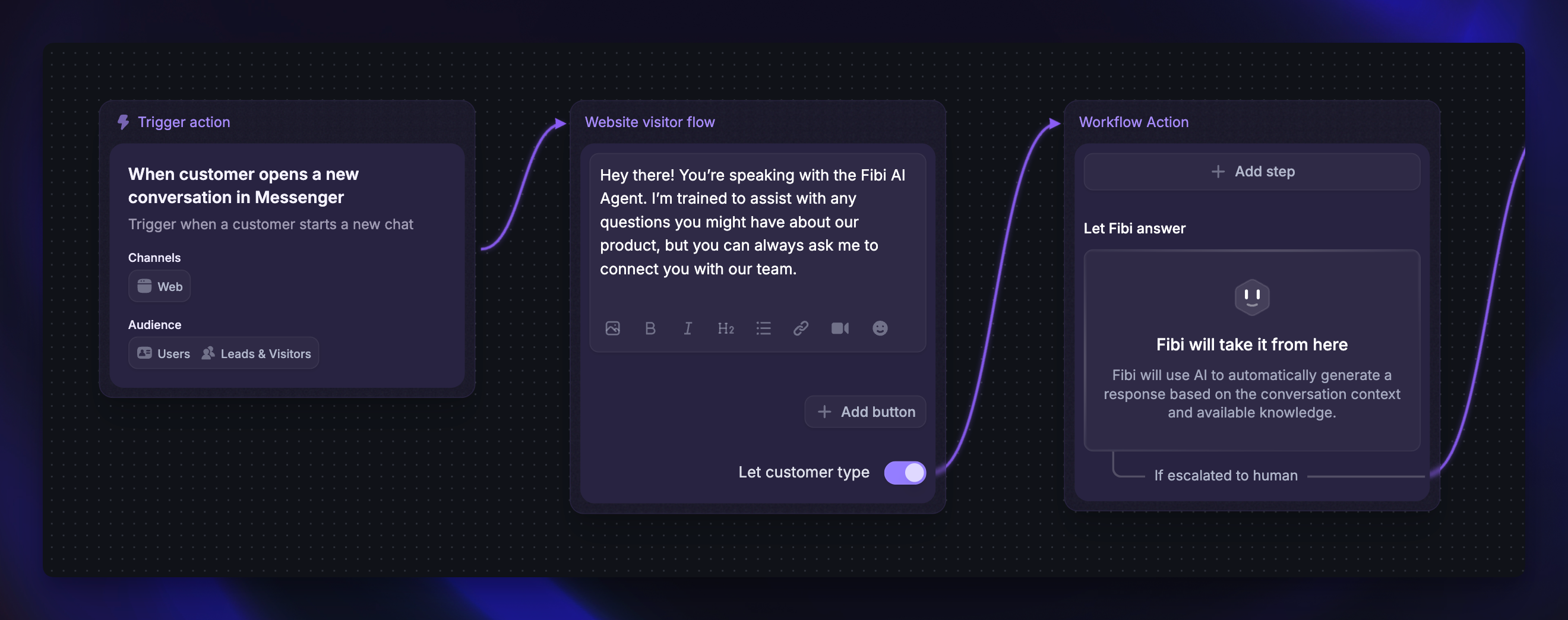
Once created, the template includes prebuilt steps you can edit to fit your tone and process:
Edit the greeting message – Start with a friendly intro to let customers know Fibi can help.
For example: “Hi there! I’m Fibi, your AI assistant. How can I help today?”
You can personalize Fibi’s name and avatar under Automations → Personality & Branding
Configure the Fibi handover – Fibi will try to answer automatically after a customer’s first message. If Fibi can’t find a solution, it’ll trigger the next Workflow step - typically routing to the correct team.
Configure Fibi CSAT – In the Let Fibi answer step, choose when to ask for a conversation rating: after Fibi resolves the conversation, before handoff, or both.
Add topic Branches or Reply buttons – Use Conversation topics, reply buttons, message content, and other filters to route messages based on detected subject matter.
If the Message content contains “Pricing” → Route to Sales team
If Topic is “Account unlock” → Route to Security team
Else → Route to General Support inbox
Expand routing logic – Over time, add more branches for other frequent topics like Billing, Integrations, or Product setup.
It’s best to start simple and grow your Workflow as your topic data improves.
Set fallback path – Always include an Else branch so that any conversation without a topic still has a route - for example, to your general inbox or another Workflow.
Set it live – When you’re happy with your setup, click Save and Set live.
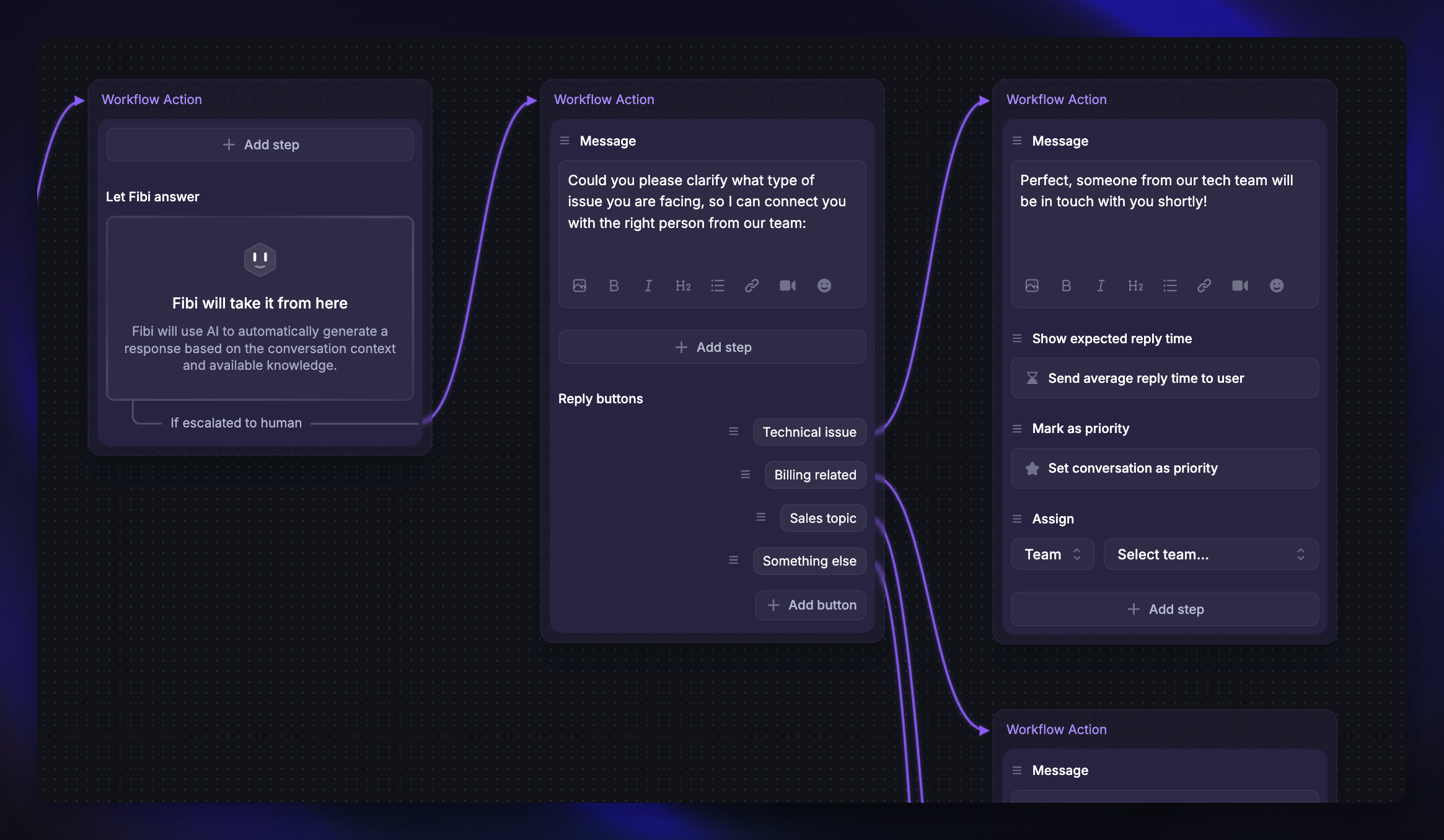
With this Workflow, Fibi handles the first response, delivers instant answers, and ensures seamless handovers - helping your team stay focused on the conversations that matter most.
Was this helpful?
Still need help? Ask the team