Solve frequent queries with self-serve content
Help customers to help themselves with this simple Workflows template.
Written By Markus Palm
Last updated About 10 hours ago
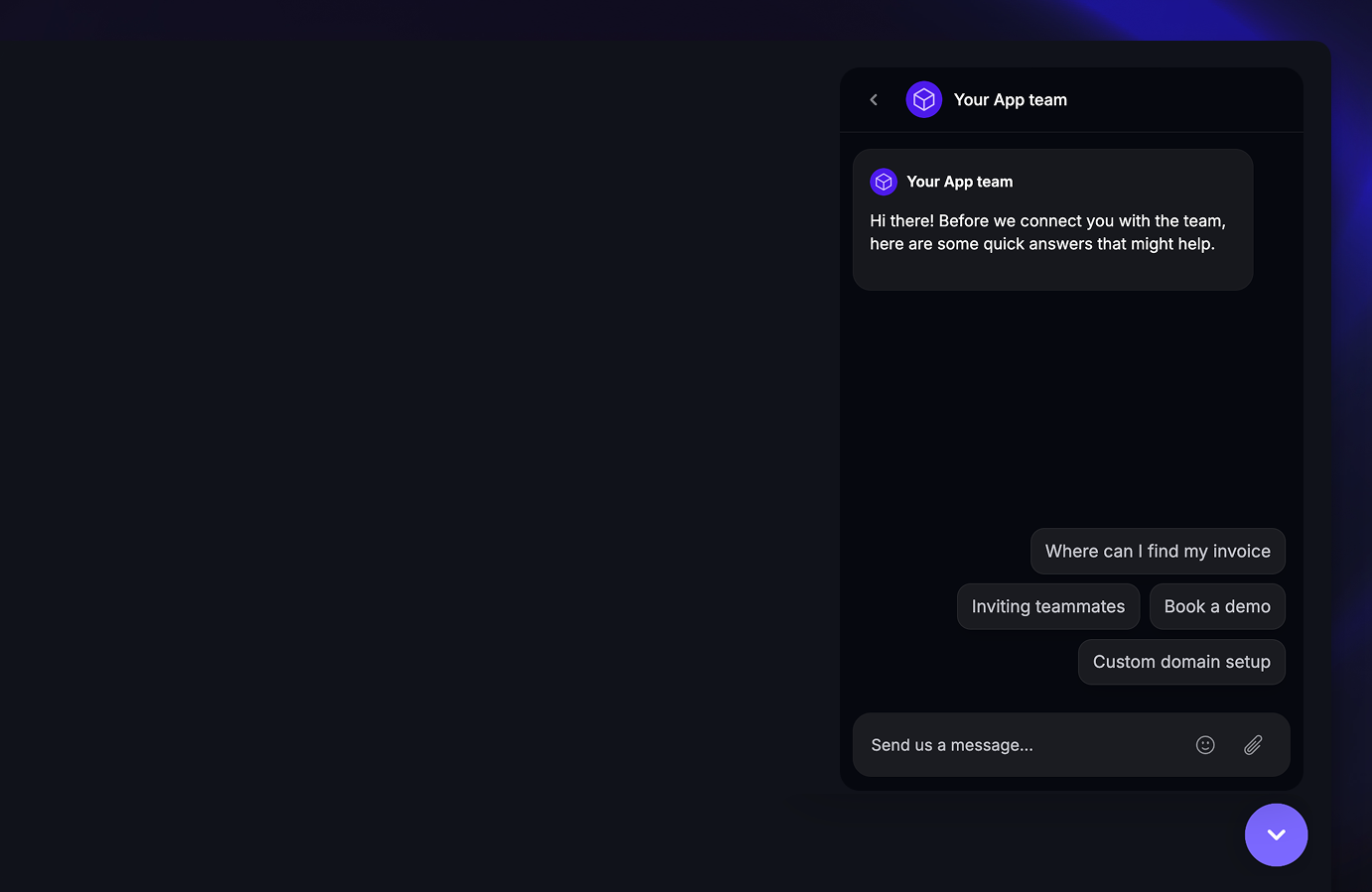
Overview
Workflows can help your team save time by guiding customers to the right answers before they even message you.
By letting users pick from a list of common issues before typing, you can deliver relevant help content right in the Messenger - reducing the number of simple queries that reach your support inbox.
This approach helps customers solve problems instantly while keeping your team focused on more complex cases.
Why it helps
Deflect repetitive queries: Reduce message volume by helping customers self-serve.
Faster resolutions: Customers get instant answers instead of waiting for a teammate.
Better team focus: Your team can spend more time on complex issues that need human input.
Get started
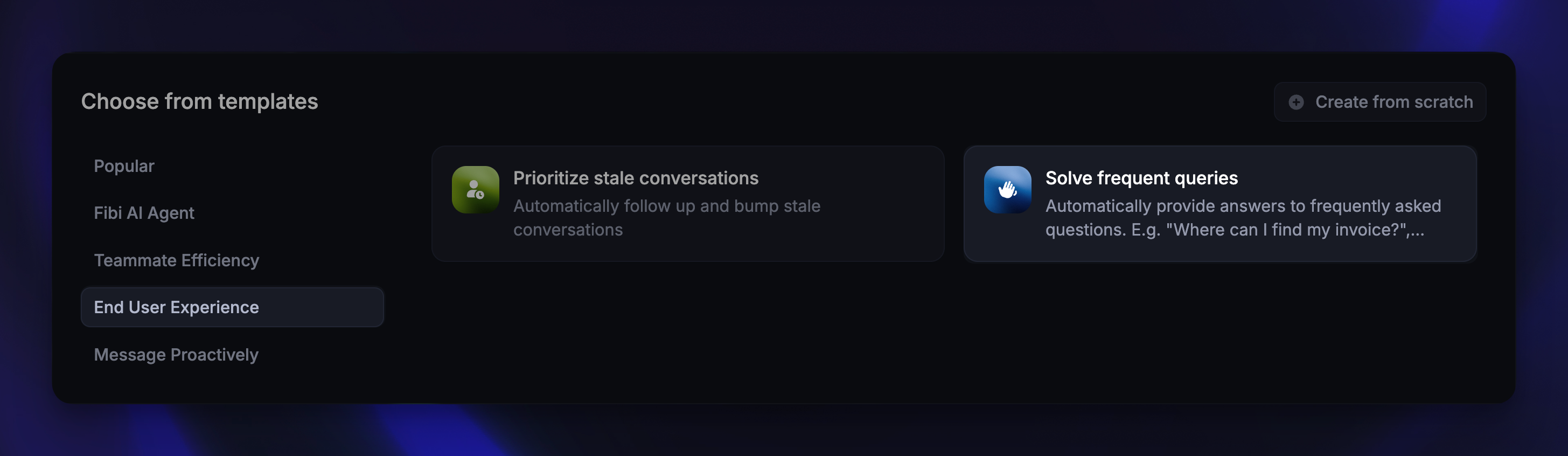
Go to Automations → Workflows
Click + New Workflow and Choose from template
Select the template ‘Solve frequent queries’
Customize your Workflow
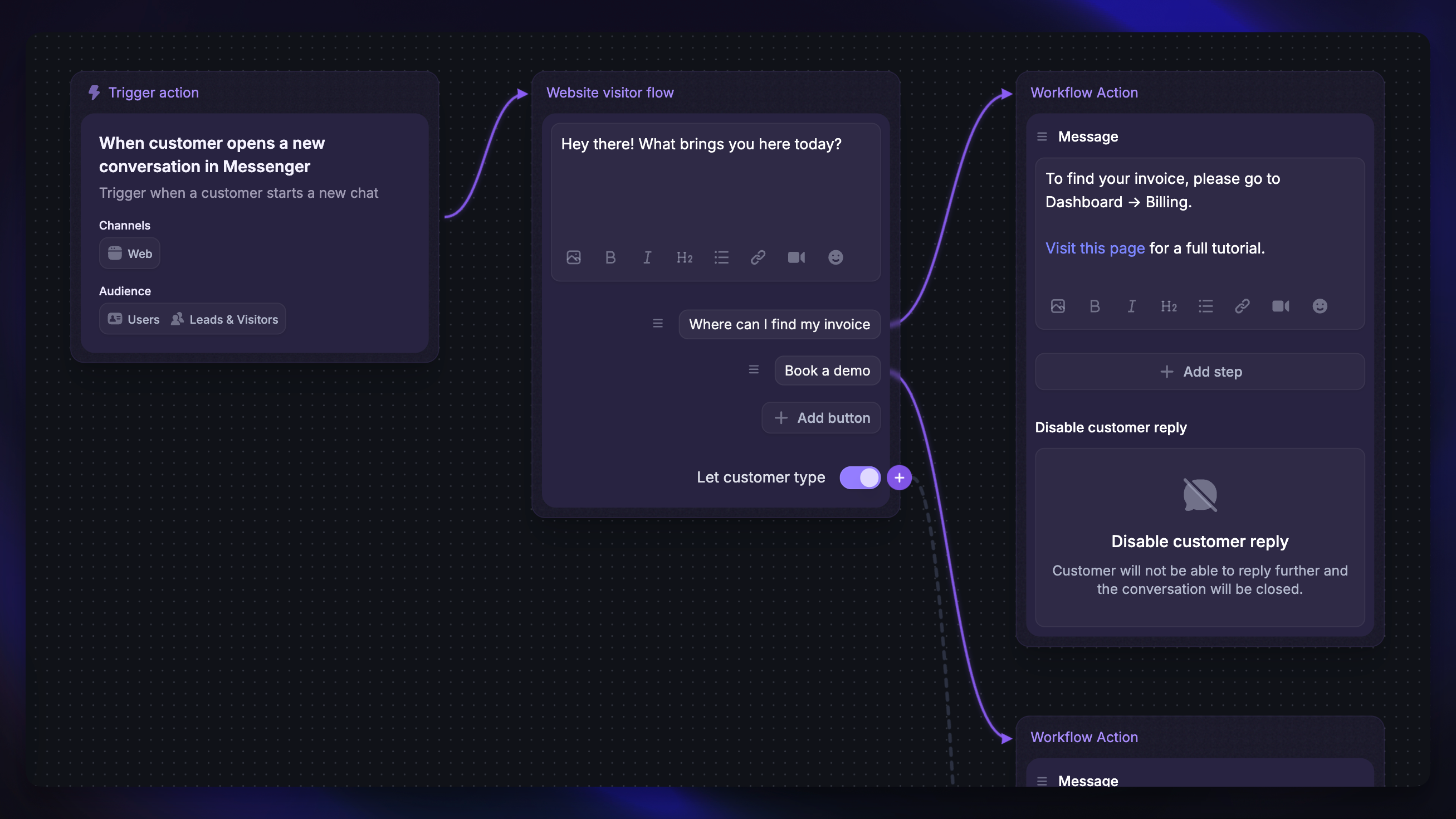
Now it’s time to tailor the Workflow for your product and customers:
Edit the welcome message – Start with a short, friendly greeting that lets users know they can quickly find answers to common questions.
For example “Hi there! Before we connect you with the team, here are some quick answers that might help.”
Add reply buttons for common topics – Replace the default buttons with your most frequent questions.
Keep each button short and action-oriented. For example,
Reset password,Update billing info, orLearn about pricing.
Add self-serve content – For each reply button, include helpful messages, links, or short explanations that guide users toward a solution.
You can share Help Center articles, videos, or brief step-by-step instructions. Use Send a product tour when a web Messenger customer would benefit from a walkthrough in your product. By default, customer replies are disabled in these paths to encourage self-service, but you can change that.
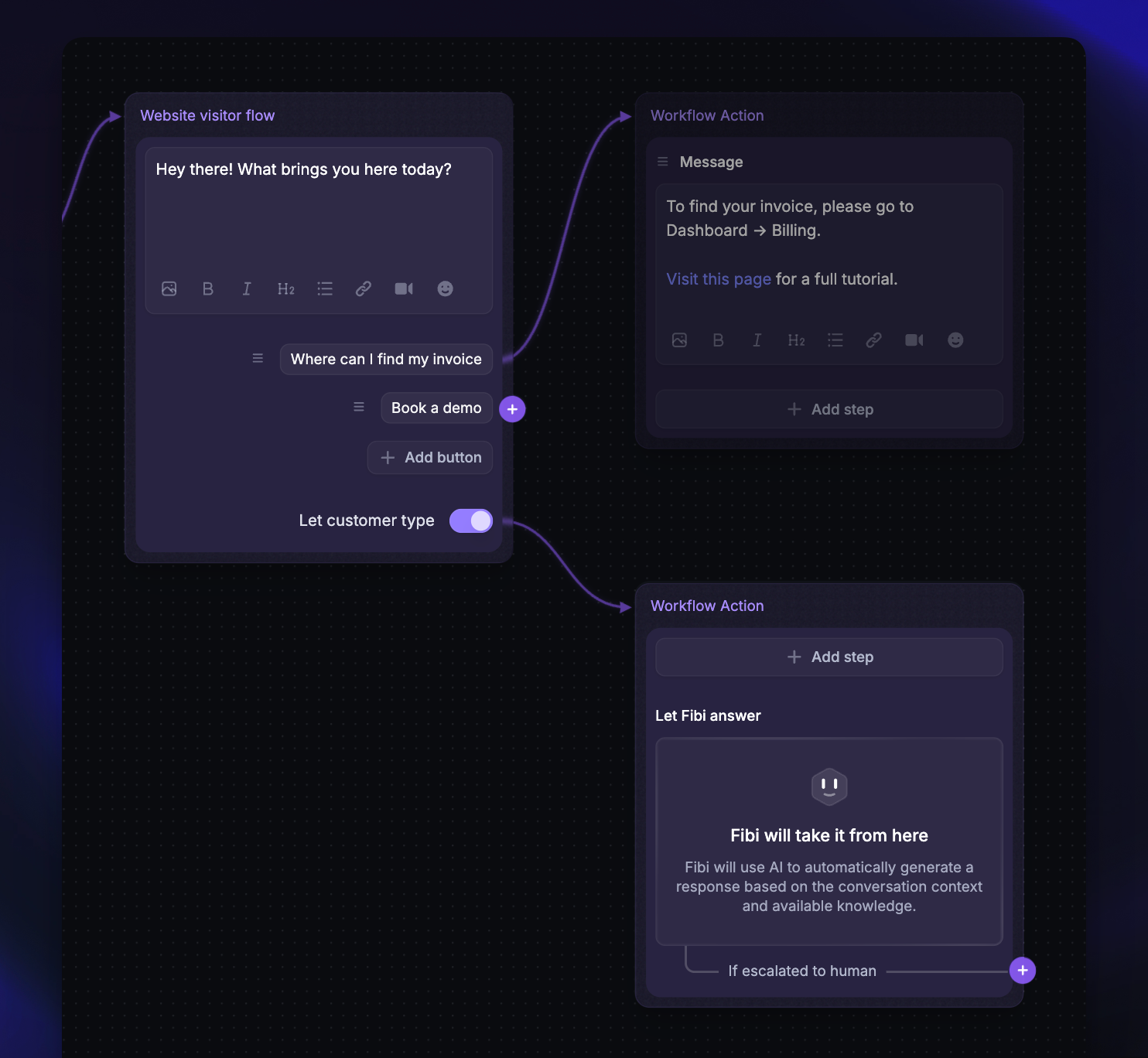
Handle other questions – Add a “Let Fibi answer” step for cases where customers type their own message instead of selecting a button. Fibi AI will attempt to answer automatically, and if it can’t, you can route the conversation to your main support inbox.
Set it live – When you’re happy with your setup, click Save and Set live.
Was this helpful?
Still need help? Ask the team