Journeys overview
Guide people through multi-step emails and in-app messages that react to what they do.
Written By Bruno
Last updated Less than 20 seconds ago
Overview
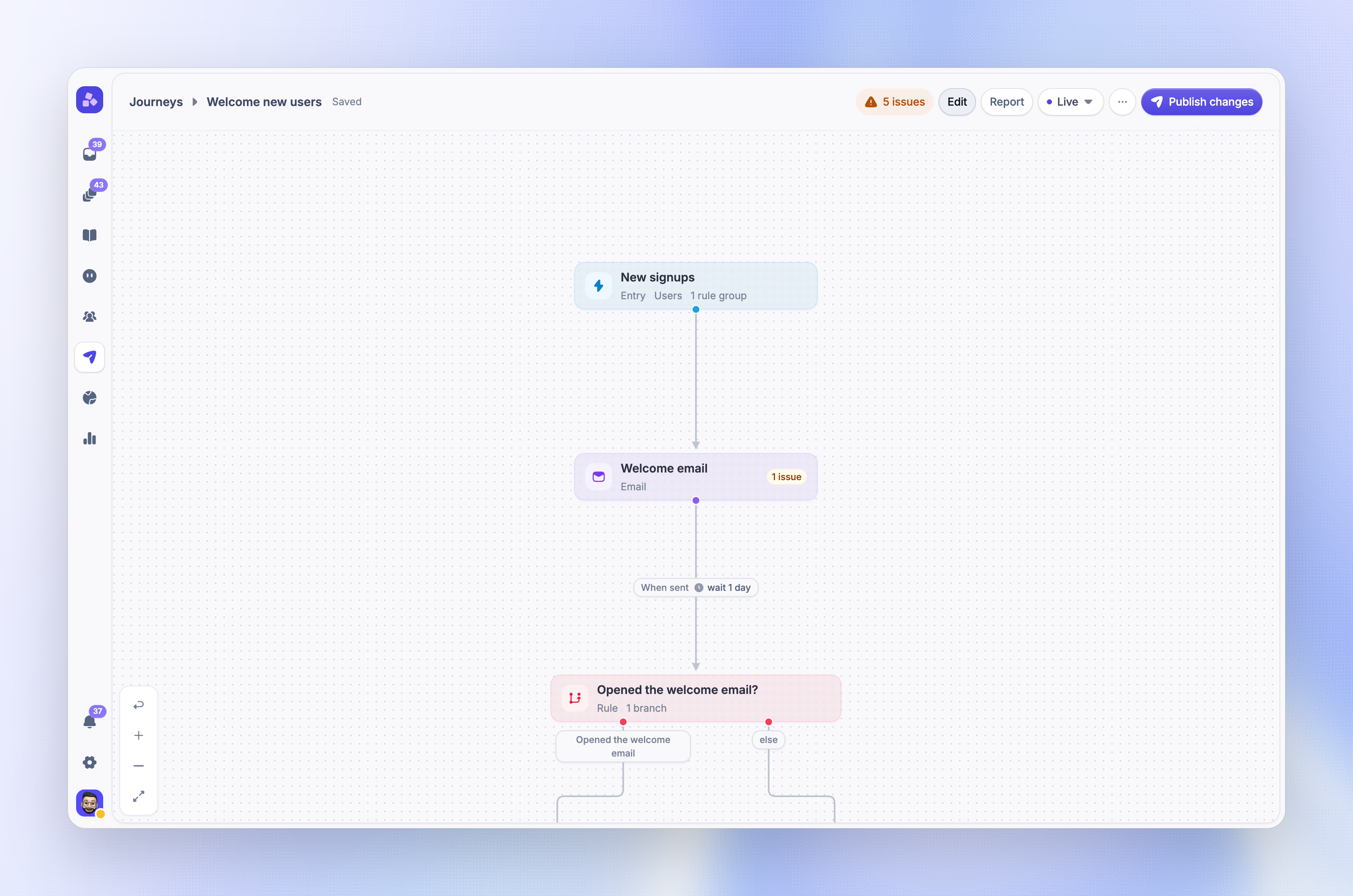
Journeys send a sequence of emails and in-app messages to the right people, with waits and rules between the steps. Use them for onboarding, trial conversion, feature adoption, re-engagement, and feedback follow-ups.
You build each journey on a canvas. People enter when they match your audience or do something in your product. They move from block to block based on what they do, and leave when they reach your goal or the end of their path.
How it works
Every journey has three parts:
Entry - Decides who can enter and when: as soon as they match your audience rules, when they do a custom event, on a date, or when they visit a page
Blocks - Send content and control the path. Content blocks send an email, chat, banner, survey, product tour, or post. Flow and action blocks wait, branch on rules, split people into test paths, add tags, or call a webhook
Goal and exit rules - Measure the result you want and remove people from the journey when it no longer applies to them
A rule can check what a person did with an earlier message. For example, people who click an in-app banner get a tag, and everyone else gets the same news by email.
You can also run a journey once for each company a person belongs to. Company journeys use the company's data in rules and goals.
Choose between Journeys, Outbound messages and Workflows
Each tool fits a different job:
Journeys - Several messages over days or weeks, where each step depends on what the person did before
Outbound messages - One message, such as an announcement, a survey, or a product tour, for a defined audience
Workflows - Automations for support conversations in your Inbox, such as routing, replies, and assignment
Use a journey when the next message depends on time or behavior. A single announcement is simpler as one Outbound message.
Getting started
Create and manage journeys from Dashboard → Outbound → Journeys. Start from a template or from scratch, add blocks on the canvas, then publish.
Before you build, check what each channel needs:
Permissions - A full seat with Manage Outbound to create and edit journeys, and Manage Outbound State to publish, pause, or stop them. Change these in admin roles
Email blocks - Approved email-sending access for your workspace
In-app blocks - The Featurebase Messenger installed on your website or web app. Chats, banners, surveys, product tours, and posts show only on pages where it runs
Event triggers - Custom events sent from your product
Notes:
Journeys are in beta. Contact us to get access
Product tour blocks show only in desktop browsers
Build a journey
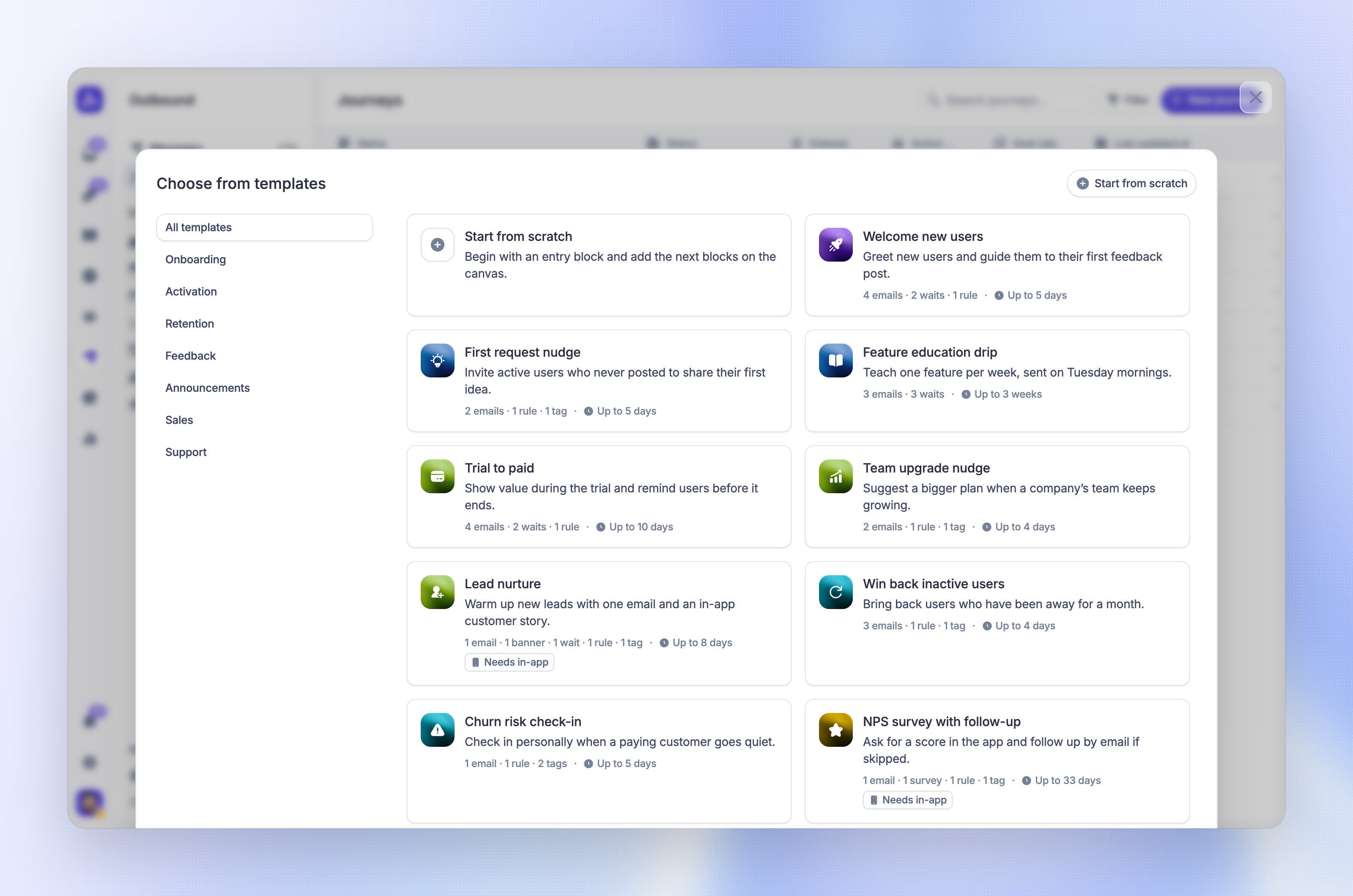
Create a journey from one of the journey templates, or start with an empty entry block. Templates add the blocks, waits, rules, goal, and sample content for a common use case.
Then shape the journey:
Set entry triggers and the audience on the entry block
Add content, flow, and action blocks from the block library
Set the goal, exit rules, and send window in the journey settings
Compare paths with a split test
Use 'Preview as…' to walk one person through the journey before you publish. Nothing is sent or saved.
Run and measure journeys
When you publish, Featurebase saves a numbered version and people start to enter. Your edits stay in a draft until you publish them as a new version, so you can change a live journey without affecting it. You can also pause, resume, stop, or archive a journey.
Journey reports show how many people entered, reached the goal, and took each path. Open the report from the journey to see results for every block.
Improve results
Start with the journey best practices for onboarding, trial, and re-engagement journeys. Use troubleshooting when someone does not enter or does not get a message, and the Journeys FAQs for limits and quick answers.
Was this helpful?
Still need help? Ask the team