Reporting metrics & attributes
Look up every Featurebase Reports metric and attribute, including definitions, timestamps, aggregations, available uses, and datasets.
Written By Markus Palm
Last updated 15 days ago
Overview
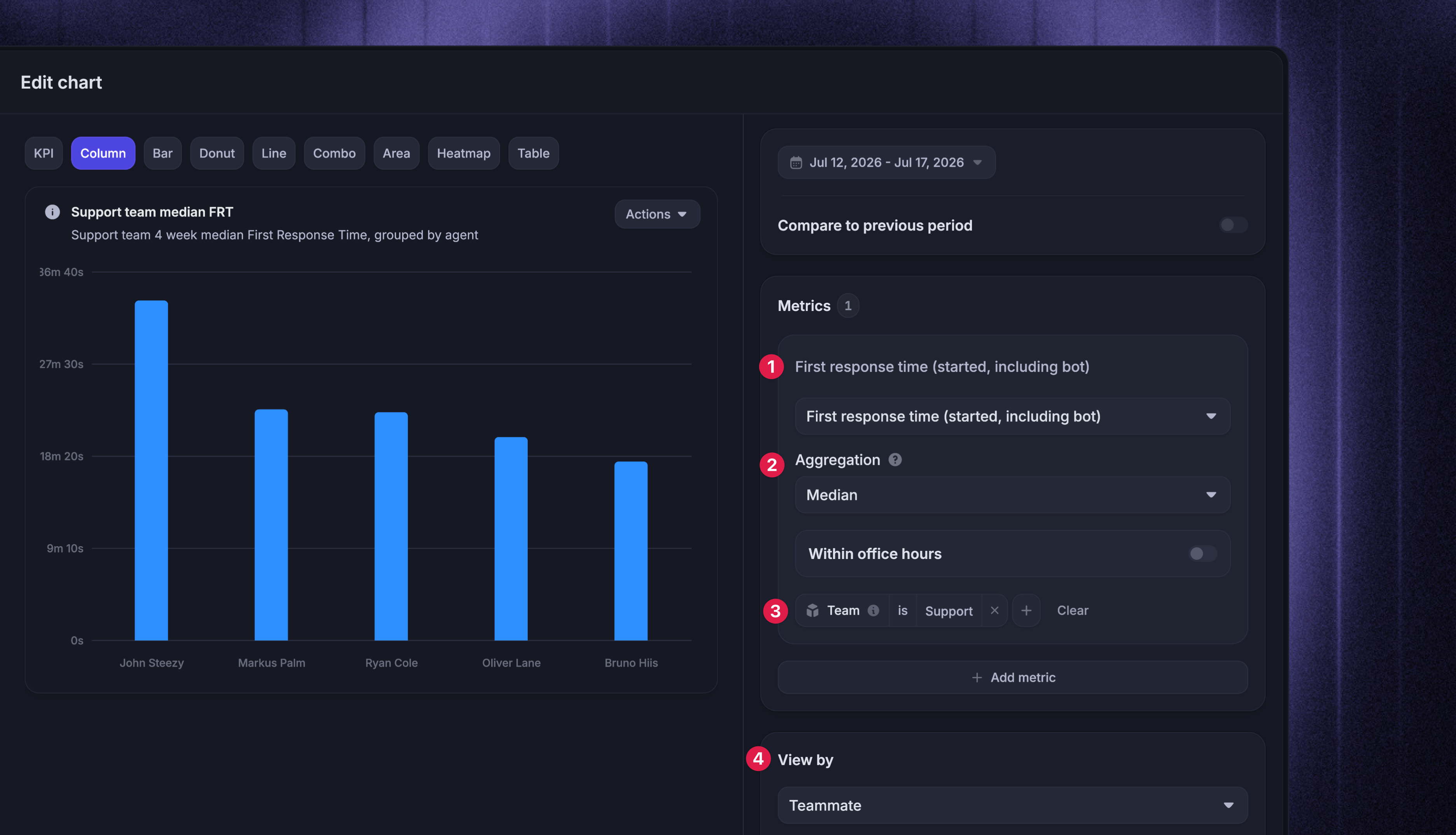
Every chart in Reports combines:
A metric - what is measured (e.g. New conversations or First response time)
An aggregation - how the metric is calculated (e.g. Count, Average, or Median)
Filters - which records are included (e.g. only conversations from Emails)
Breakdown (optional) - how the result is grouped (e.g. by channel, team, or teammate)
Example: You could select First response time as the metric, Median as the aggregation, filter to the Support team, and set View by to Teammate. This is the example above.
Attributes are the properties used for those filters and breakdowns, such as Channel, Teammate, Conversation tag, or Company plan. They can also appear as columns when you drill into or export the records behind a chart.
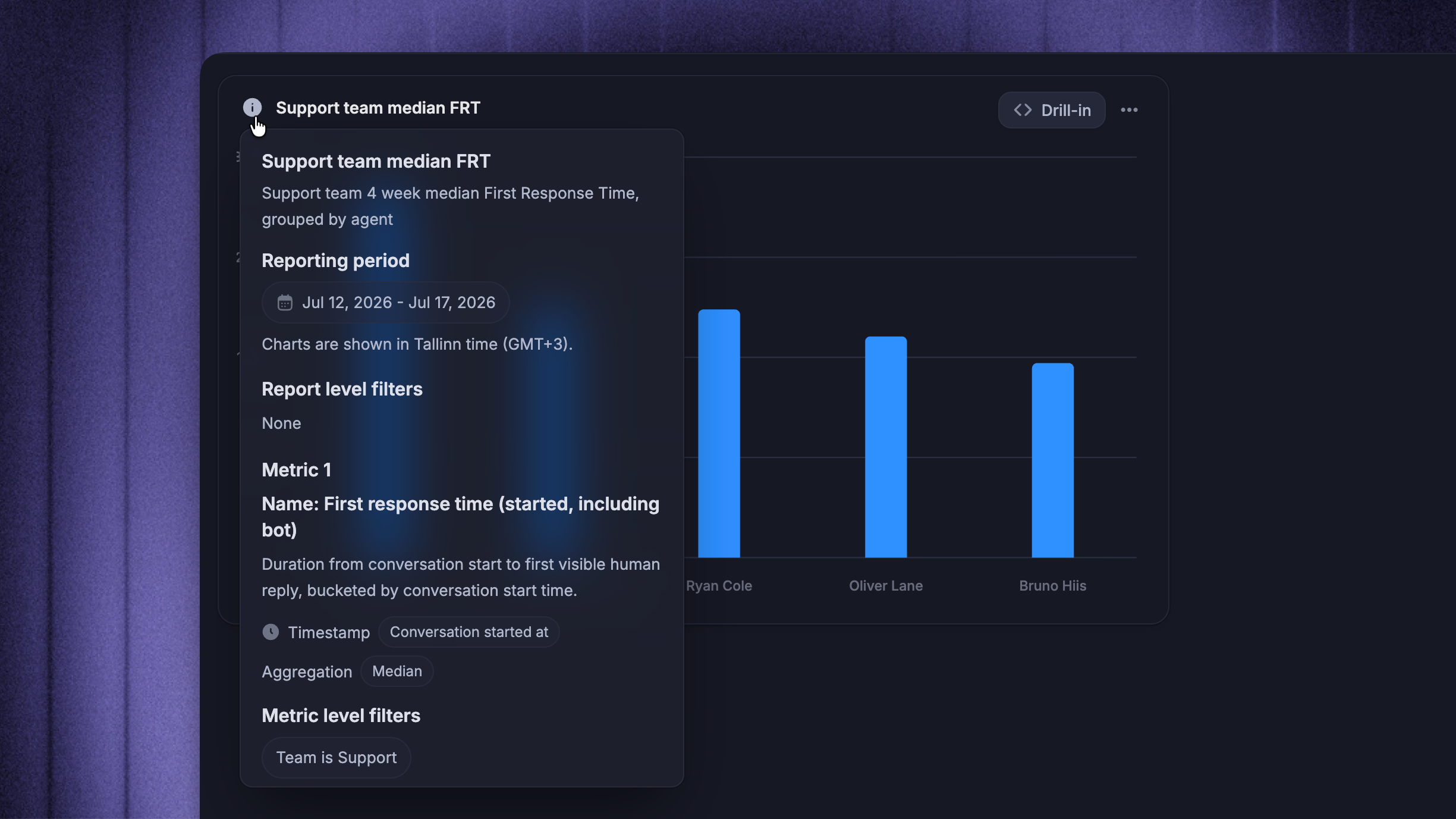
This article defines every metric and attribute. To check what a specific chart measures, select the information icon next to its title. The information card shows:
Description - what the metric measures
Timestamp - which event determines the reporting period
Aggregation - how the values are summarized
Office hours - whether the metric uses all hours or only office hours
Filters - which rows are included
The same descriptions appear in the Metrics picker, where metrics are grouped by reporting dataset.
How conversations are counted
The New conversations metric is available in two variants, which you choose from the Metrics picker:
Conversation created at - counts every conversation when it is created, including conversations with no customer reply.
Conversation started at - counts a conversation when its first customer message is received (conversations with no customer reply are not included).
For example, if an Outbound message creates a conversation on Monday and the customer replies on Tuesday, Conversation created at counts it on Monday, while Conversation started at counts it on Tuesday. If the customer never replies, only the created-at variant counts it.
Other metrics only include conversations where the event they measure actually happened. A conversation with no visible teammate reply has no first response time, and a conversation never closed by a teammate has no time to close. Each rate definition below states which conversations it uses.
Tip: Use ‘Has customer reply’ and ‘Conversation origin’ in the Conversations dataset to filter or break down these populations.
Metrics
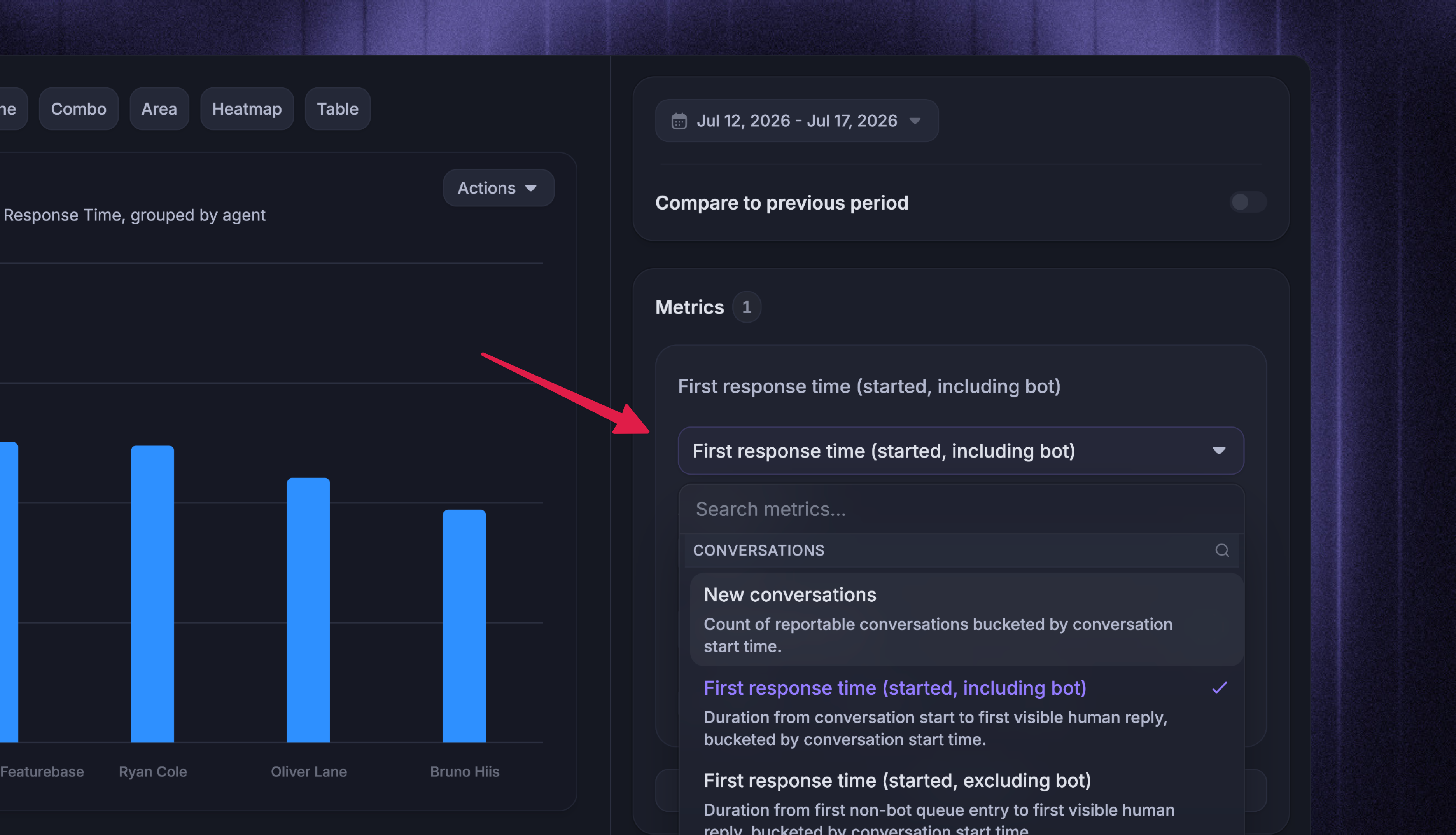
Metrics are grouped by reporting datasets - underlying tables where each row represents a specific type of record (e.g. conversation, action or rating). A metric’s dataset determines what each underlying row represents and which attributes and drill-in columns are available.
Each table below shows:
Timestamp - the event that determines when the metric is counted, such as when a conversation was created, a reply was sent, or a ticket was resolved
Aggregations - the ways the metric can be summarized. The chart builder only shows aggregations supported by the selected metric.
Duration metrics use All hours by default. Metrics that support ‘Within office hours’ can count only time within the applicable office hours.
Conversations
One row per conversation. Most metrics use Conversation started at, so later replies, closes, and outcomes can update the period in which the conversation began. Variants using another timestamp are identified below.
Note: In the Overview template, the conversation flow uses a separate New conversations variant that breaks the same volume into Fibi handled without a teammate reply, Workflows, teammate, and no-reply paths.
Response and resolution speed
All of these metrics support Within office hours.
Note: These variants differ in whether time in the Bot inbox counts. Including bot measures the full duration from conversation start. Excluding bot starts when the conversation permanently leaves the Bot inbox for teammate handling, or at conversation start if it never entered the Bot inbox.
Handling time
Resolution quality
Fibi AI Agent outcomes
Break these metrics down by Fibi answer type to compare answer types or Fibi handoff reason to see what triggered a handoff.
Conversation State
One row per conversation state period, so Reports can count how many conversations sat in a state historically.
Conversation Rating
One row per CSAT lifecycle event, such as a request, response, cancellation, or expiry. Rating counts and CSAT request rate use Conversation rated at, while CSAT response rate uses Conversation started at.
Copilot
One row per Copilot prompt, bucketed by Copilot prompt submitted at.
Conversation Actions
One row per reply, note, assignment, close, or reopen. Metrics use Action time, so events count when they happen, even if the conversation started earlier.
Teammate Handling
One row per teammate handling period. This dataset contains teammate-level handling metrics and per-active-hour productivity metrics.
Note: Adjusted handling time is calculated separately for each teammate after reassignment. The base metric remains presence-based whether or not office hours are configured - only the explicit ‘Within office hours’ variant removes active intervals outside the resolved schedule.
When no idle time is detected, adjusted handling time equals regular teammate handling time.
Per-active-hour productivity
Note: The office-hours toggle does not apply to per-active-hour metrics.
Teammate Status Period
One row per teammate availability period, bucketed by Period started at. Use the three status metrics to compare time active, away, and away and reassigning. Each row also records Teammate status, Period ended at, the teammate, and an Away reason when one applies.
SLA
One row per applied SLA target and one row per target evaluation. SLA metrics do not have an office-hours toggle - they use the timing defined by the SLA policy.
Tickets
One row per ticket.
Tickets time in state
One row per ticket state interval, bucketed by Ticket state entered at. The Tickets report uses this data to compare resolution time and time spent in each state.
Attributes
Use attributes to:
Filter charts and reports
Break down results with View by and Segment by
Choose columns in drill-in tables and exports
The tables follow the picker categories. ‘Uses’ shows whether an attribute can be used as a filter, a breakdown, or only as a drill-in and export column. Exact options can still depend on the metric and dataset, so the pickers only show combinations that apply.
Attribute values can be historical snapshots, current-state values, or action-anchored values. Customer, company, and custom attributes preserve the value captured for the historical reporting row. Conversation properties such as Conversation tag, Priority, and Conversation state reflect their latest values. Action-anchored attributes preserve what was true when an event happened, such as who sent the first reply or which team owned a conversation at close.
The Datasets column lists every dataset where each attribute is available. When an attribute and metric share a name, the attribute filters row-level values while the metric charts the aggregate.
Conversation attributes
Counts
Use these attributes to filter populations, such as conversations with more than five teammate replies.
Durations
Filter rows by recorded durations. Office-hours variants contain values adjusted to count only the workspace, team, or teammate schedule resolved for that metric.
Note: Despite their customer-facing names, Time to first assignment, Time from first assignment to close, and Assignment before first reply use the last assignment before the first visible teammate reply. This prevents assignments that happened before a later pre-reply reassignment from inflating the teammate's response and close durations.
Duration buckets
Preset ranges used by breakdown charts in the Responsiveness template.
Ticket attributes
These attributes are available in Tickets and Tickets time in state. Ticket type, Ticket category, and current ticket state attributes also appear on conversation rows linked to a ticket.
Timestamp attributes
Timestamps record when things happened. Metrics bucket by them, drill-in shows them as columns, and some can be filtered with before, after, and between comparisons.
People attributes
People attributes describe the end-user values captured for the historical reporting row.
Company attributes
Company attributes describe the company values captured for the historical reporting row.
Teammate attributes
Teammate attributes tie rows to the current assignee or to the teammate associated with a reply, close, rating, action, handling period, or SLA evaluation.
Team attributes
Fibi attributes
Copilot attributes
Copilot attributes cover per-prompt details and conversation-level usage rollups.
Conversation rating attributes
Rating-anchored attributes describe one CSAT request or response. Current attributes show the latest rating snapshot on conversation and ticket rows.
SLA attributes
Evaluation-anchored attributes describe one SLA evaluation. Current attributes and rollups describe SLA state on conversation rows.
Custom attributes
Custom conversation attributes you create, and custom user and company attributes you send to Featurebase appear under Custom attributes in report pickers. They are available on Conversations, Conversation State, Conversation Rating, Copilot, Conversation Actions, Teammate Handling, and SLA.f
Note: Custom attributes preserve historical values. Changing a user or company value does not rewrite earlier reporting rows.
Was this helpful?
Still need help? Ask the team