Featurebase Mobile App
Access Featurebase support conversatioins on-the-go from iOS or Android devices.
Written By Markus Palm
Last updated 5 days ago
Overview
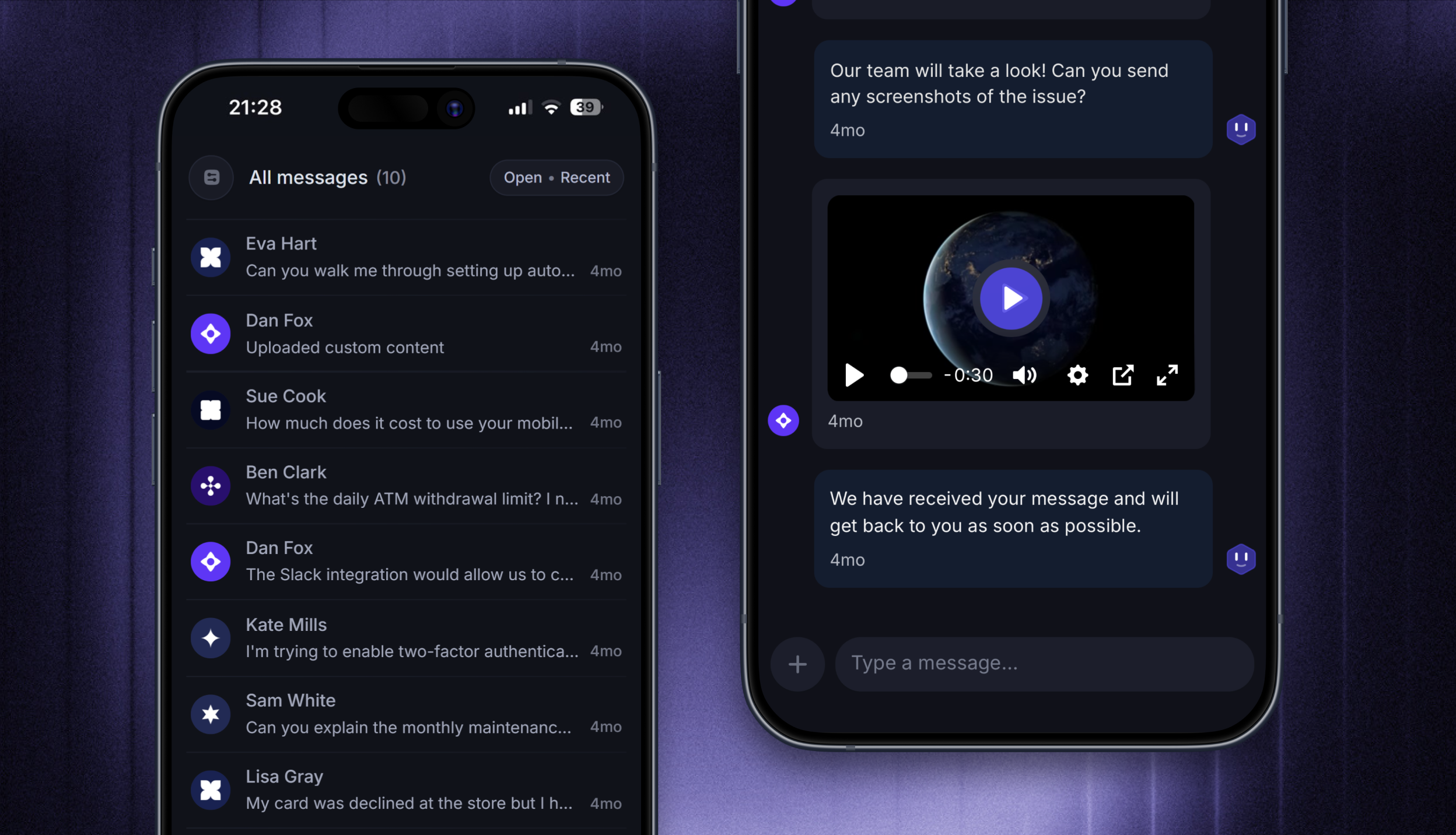
While Featurebase is a web-based platform accessed primarily from your browser, you can use our iOS and Android apps to manage your customer support and collaborate in real-time when you're away from your desktop.
Download the Featurebase mobile app
To download the Featurebase mobile app, follow the link for your device:
Mobile app features
You can take the following actions on Featurebase mobile apps:
Create, view, and respond to all support conversations
Use Copilot to draft replies, summarize Conversations, and research customer questions
Insert saved replies with Macros
View Fibi performance stats and recently resolved Conversations in the Fibi tab
Search People and Companies in Contacts, view their profiles, and open past Conversations
Manage conversations, including closing, snoozing, and assigning
Search & filter all existing conversations
Receive notifications about new conversations, mentions, assignments, and more.
Create and edit Macros in the Featurebase web app. Mobile Macros insert reply text without running assignment actions. Choosing another Macro replaces the previous Macro text if you have not edited it.
Manage mobile app notifications
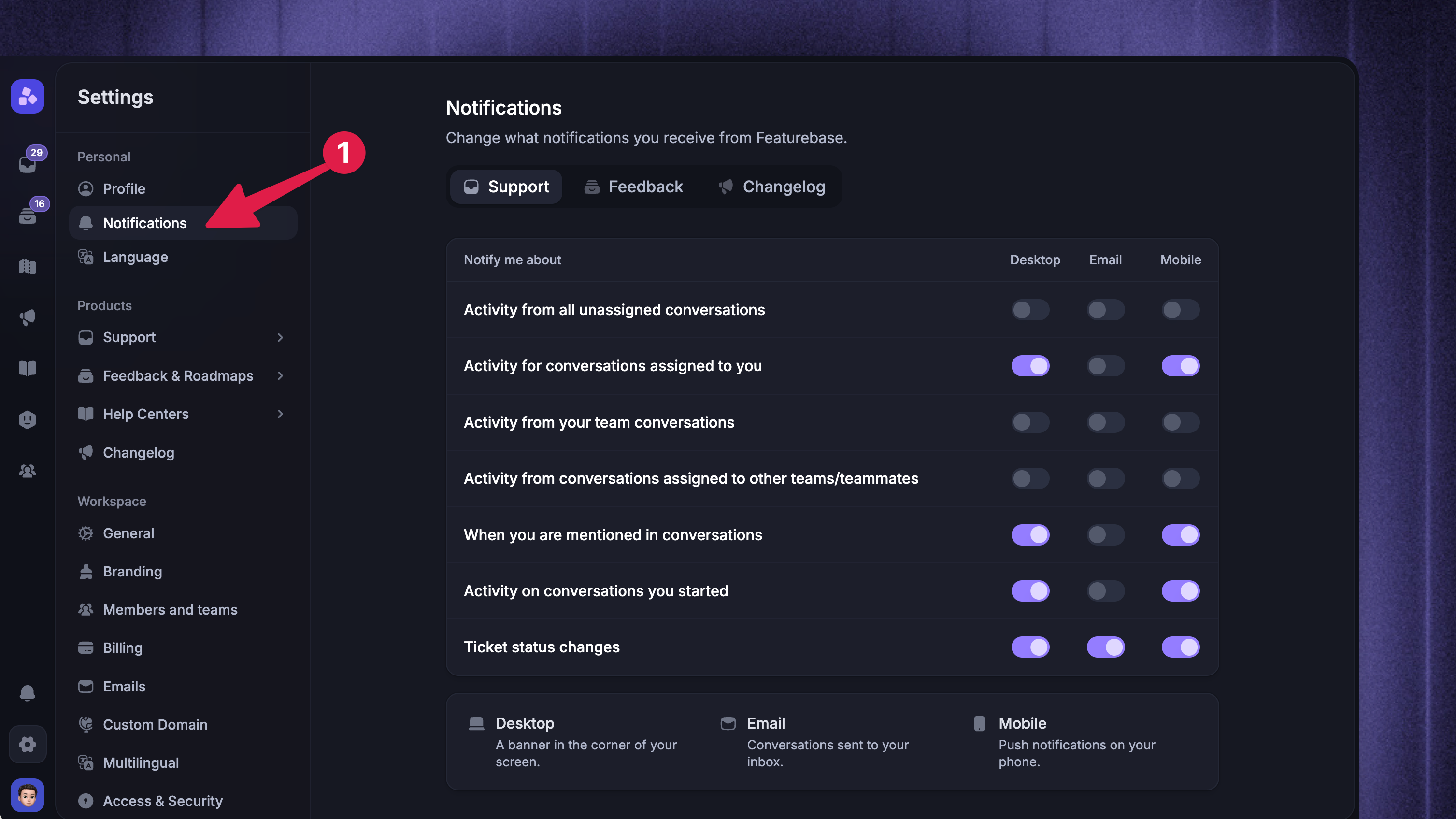
To customize which Featurebase events will send you notifications on mobile, follow these steps:
Navigate to Settings → Notifications in your account settings on desktop
Check the boxes for the notifications you want to receive on mobile in the App column
You can also configure notifications right from the mobile app, going to the Notifications tab.
NB! Ensure you have also enabled notifications for the Featurebase app in your device settings.
Troubleshooting the Featurebase mobile app
If you're experiencing an issue such as a bug or crashing in the Featurebase app, try the following troubleshooting steps:
Ensure you are using the latest version of the Featurebase app by checking the App Store or Google Play Store.
If the issue persists, try deleting and reinstalling the app.
If you’re using an Android device, you can also try clearing the app’s cache and data in your device settings.
If the issue continues, please contact us via live chat or email support@featurebase.app with the following details:
Your device model and operating system version
The Featurebase app version
iPhone: Settings → General → iPhone Storage, then tap the desired app to find its version number listed
Androids: Settings → Apps, then tap the desired app to find its version number listed on the app's information screen
A description of the issue, including the steps leading up to it
Note: The more details you provide, the faster we can resolve the issue. Attaching screenshots or a screen recording can be especially helpful!
Was this helpful?
Still need help? Ask the team