Journey templates
Compare the journey templates and choose a starting point for your use case.
Written By Bruno
Last updated 30 minutes ago
Overview
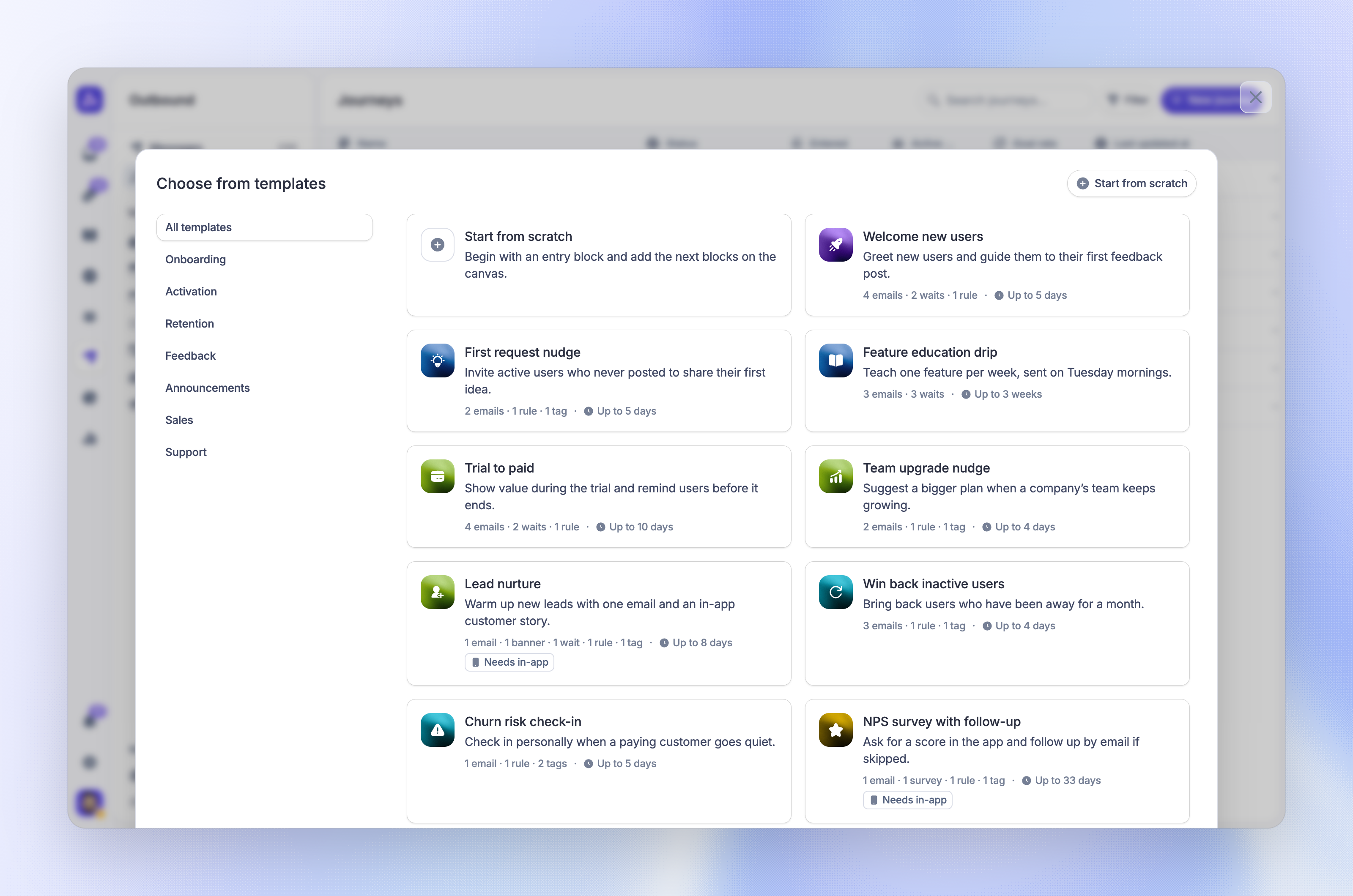
Journey templates give you a ready-made journey for a common use case. Each template adds the entry audience, blocks, waits, rules, goal, and sample message content. You then replace the sample content and adjust the rules to fit your product.
To use a template, go to Dashboard → Outbound → Journeys, click 'New journey', and choose 'Choose from templates'. Click a card to preview its blocks on the canvas, then click 'Use this template'. The new journey opens as a draft, ready for the rest of the journey setup.
Each card shows the blocks the template adds, the longest time the journey can take, and a Needs in-app badge when it has chat, banner, or survey blocks. These blocks show only to people who use your website or web app with the Featurebase Messenger installed.
Onboarding
Welcome new users
Sends a welcome email on the day a user is first seen, then follows up based on whether they opened it. Users who open it get a next-step email, the others get a shorter nudge, and a final tips email ends the journey.
Who enters - Users first seen in the last day
Re-entry - Once
Goal - The user creates at least one request within 14 days
Blocks - 4 emails, 2 waits, 1 rule
Activation
First request nudge
Invites active users who have not created a request yet to your feedback portal. It waits up to five days for a click and sends one reminder to people who do not click. People who click are tagged.
Who enters - Users active in the last 14 days with no requests
Re-entry - Once
Goal - The user creates a request within 21 days
Blocks - 2 emails, 1 rule, 1 tag
Feature education drip
Sends one email per week for three weeks, each about one feature: voting, the roadmap, and the changelog. Emails go out on Tuesday at 10:00 in each user's time zone.
Who enters - Users first seen more than 7 days ago who never commented
Re-entry - Once
Goal - The user comments on a request within 30 days
Blocks - 3 emails, 3 waits
Retention
Win back inactive users
Shows users who have been away for 30 days what changed. Users who open the email get a highlight of the newest features. The others get a last short note and a dormant tag.
Who enters - Users with no activity for more than 30 days
Re-entry - Every match, at most once every 120 days
Goal - The user is active again within 14 days
Blocks - 3 emails, 1 rule, 1 tag
Churn risk check-in
Sends a plain, personal email to a user at a paying company who has been inactive for two weeks, and invites a reply. People who reply and people who stay silent get different tags, so your team knows whom to contact first. An exit rule ends the journey when the company stops paying.
Who enters - Users at companies with monthly spend above 0 and no activity for 14 days
Re-entry - Every match, at most once every 60 days
Goal - The user is active again within 21 days
Blocks - 1 email, 1 rule, 2 tags
Feedback
NPS survey with follow-up
Shows an in-app NPS survey to users who have been around for a month. People who respond are tagged. People who skip it or never see it get one short email.
Who enters - Users first seen more than 30 days ago, not surveyed in 90 days
Re-entry - On a schedule, every 3 months
Goal - None. Use the survey results in the report
Blocks - 1 survey, 1 email, 1 rule, 1 tag
Announcements
Feature launch email
Announces a new feature to recently active users. Users who click get a short how-to and an interest tag. The others get one reminder three days later.
Who enters - Users active in the last 30 days
Re-entry - Once
Goal - The user is active within 7 days. Users who were already active on the day they entered do not count
Blocks - 3 emails, 1 rule, 1 tag
In-app launch with email fallback
Shows a banner about a new feature when active users next open your app. People who click it are tagged. People who dismiss it or do not see it get the announcement by email.
Who enters - Users active in the last 14 days
Re-entry - Once
Goal - The user is active within 7 days. Users who were already active on the day they entered do not count
Blocks - 1 banner, 1 email, 1 rule, 1 tag
Sales
Trial to paid
Shows the core value on the first day of a trial, checks whether the user clicked through, and sends a reminder before the trial ends. People leave the journey when their company moves off the trial plan.
Who enters - Users whose company plan is "trial"
Re-entry - Once
Goal - The company is no longer on the trial plan within 21 days
Blocks - 4 emails, 2 waits, 1 rule
Team upgrade nudge
Finds companies on your entry plan with more than five linked users and explains what the next plan adds. People who click are tagged for your sales team. The others get one short comparison email.
Who enters - Users at companies on the "starter" plan with more than 5 linked users
Re-entry - Every match, at most once every 90 days
Goal - The company leaves the entry plan within 30 days
Blocks - 2 emails, 1 rule, 1 tag
Lead nurture
Sends new leads one introduction email, then shows a customer story in a banner two days later. Leads who click the story are tagged as sales-qualified.
Who enters - Visitors & Leads first seen in the last day who have an email
Re-entry - Once
Goal - The lead has more than 3 web sessions within 30 days
Blocks - 1 email, 1 banner, 1 wait, 1 rule, 1 tag
Support
Help Center self-serve
Introduces your Help Center to new users on their second day. If they do not click, a second email lists your most-read articles four days later. A chat in the Messenger is the last step, for questions the articles do not answer.
Who enters - Users first seen in the last 2 days
Re-entry - Once
Goal - None. Track Help Center visits and new conversations in reports
Blocks - 2 emails, 1 chat, 2 waits, 1 rule
Customize a template
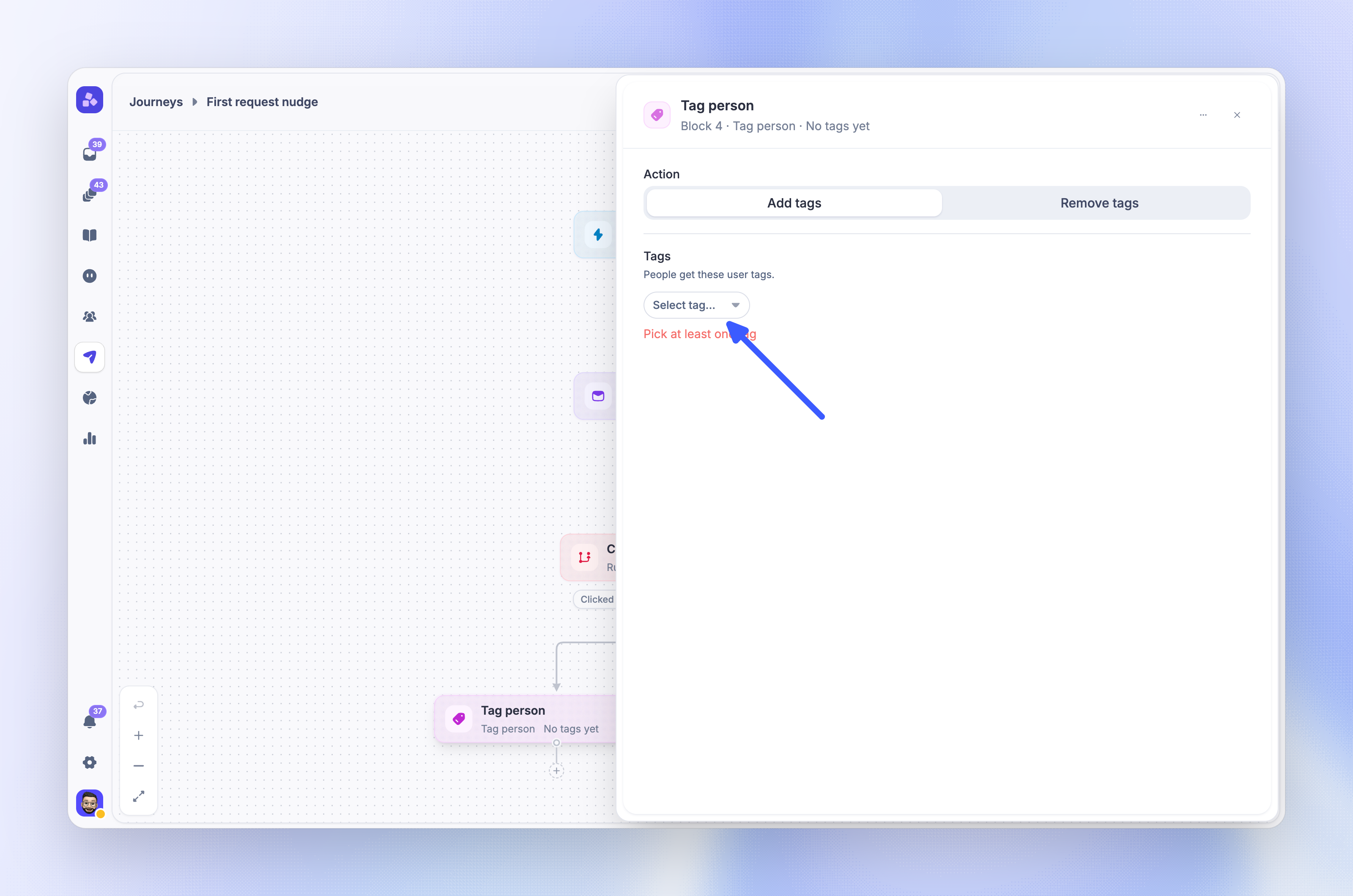
A new journey from a template is a draft. Before you publish, review each part:
Message content - Replace the sample subject lines, text, and links, such as the link to your feedback portal, changelog, or pricing page
Tags - Tag person blocks start empty. Choose or create the tags you want to add
Audience rules - Change the sample values, such as the "trial" or "starter" plan, to the values your product sends
Waits - Match the waits to your own timeline, such as your trial length
In-app blocks - Remove chat, banner, or survey blocks if you do not use the Messenger, and connect the paths around them
Goal and exit rules - Check the goal rules, the goal window, and Exit on goal in the journey settings
Most templates branch on whether people opened or clicked an email. Opens and clicks are not tracked for emails sent from the default Featurebase address, so add your own sending domain before you publish.
Note: Free and new workspaces also send without open and click tracking. Tracking starts on a paid plan once the workspace is 30 days old. Until then, a rule that checks email opens or clicks never matches.
FAQs
Can I change a template after I create a journey from it?
Can I change a template after I create a journey from it?
Yes. The journey is a regular draft. You can add, remove, and change any block or setting. Changes to your journey do not change the template.
Can I create my own templates?
Can I create my own templates?
No. To reuse a journey you built, open the menu on its row in Dashboard → Outbound → Journeys and choose 'Duplicate'.
Was this helpful?
Still need help? Ask the team