Journey block library
Look up what each journey block does, how to set it up, and which paths people take after it.
Written By Bruno
Last updated 30 minutes ago
Overview
A journey is a chain of blocks. People start at an Entry block, then move down the canvas one block at a time: they get a message, wait, follow a rule, get tagged, or trigger a webhook. Each block has one or more paths, and the result of the block decides which path a person takes next.
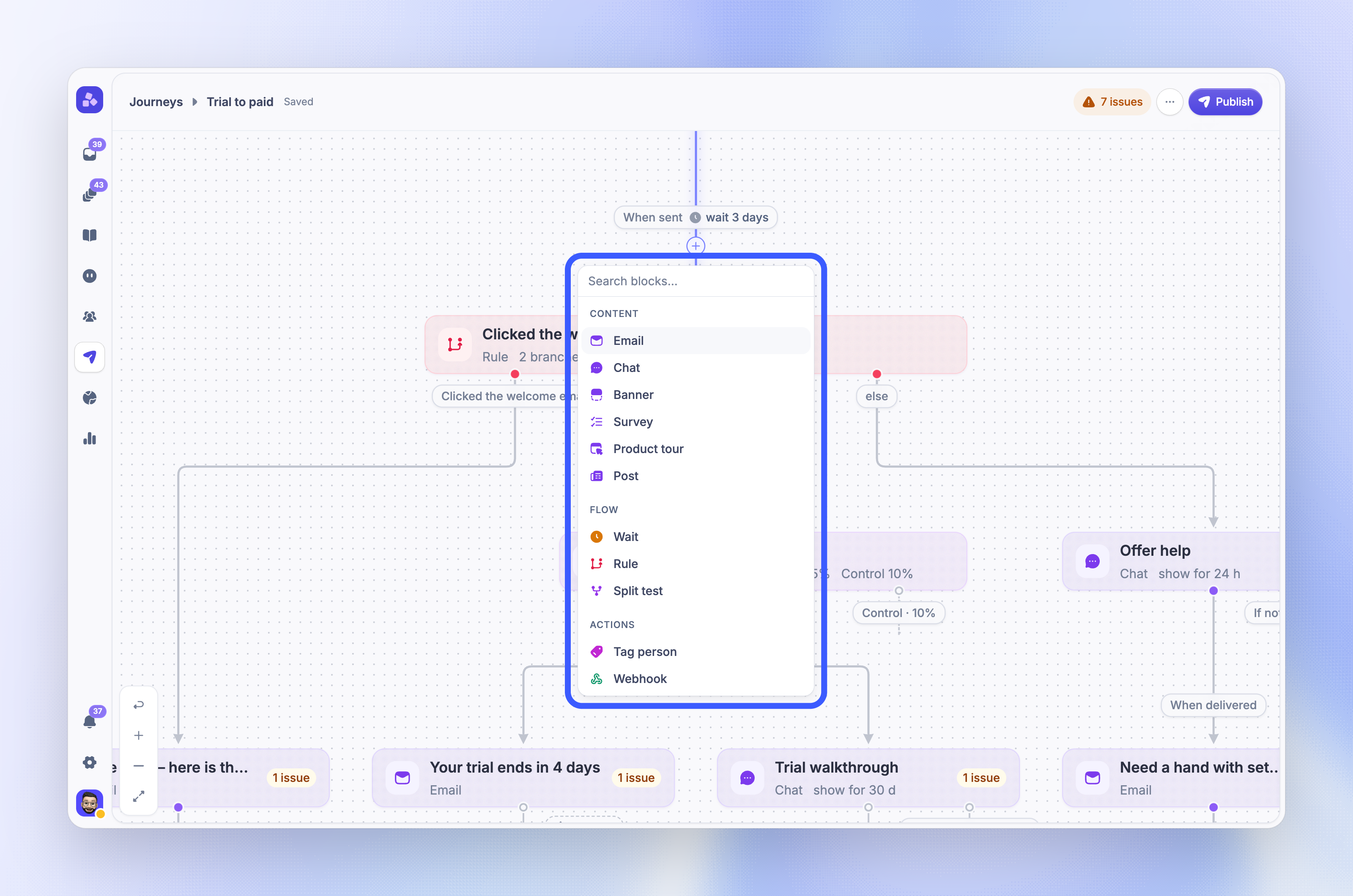
To add a block, click the + under a block or on a path, then pick a block from the menu. The menu groups blocks by job:
Content - Email, Chat, Banner, Survey, Product tour, Post
Flow - Wait, Rule, Split test
Actions - Tag person, Webhook
Click a block to open its settings panel, or right-click it to 'Open' or 'Remove block'. The Entry block has its own settings for audience and triggers.
Note: A journey can have at most 100 blocks.
Content blocks
Content blocks send one message. Each block creates its own message when you add it, and the message editor opens in the panel. You use the same editors as standalone Outbound messages, so the content fields are the same.
Every content block has a Delivery section and a Paths section.
Delivery and paths
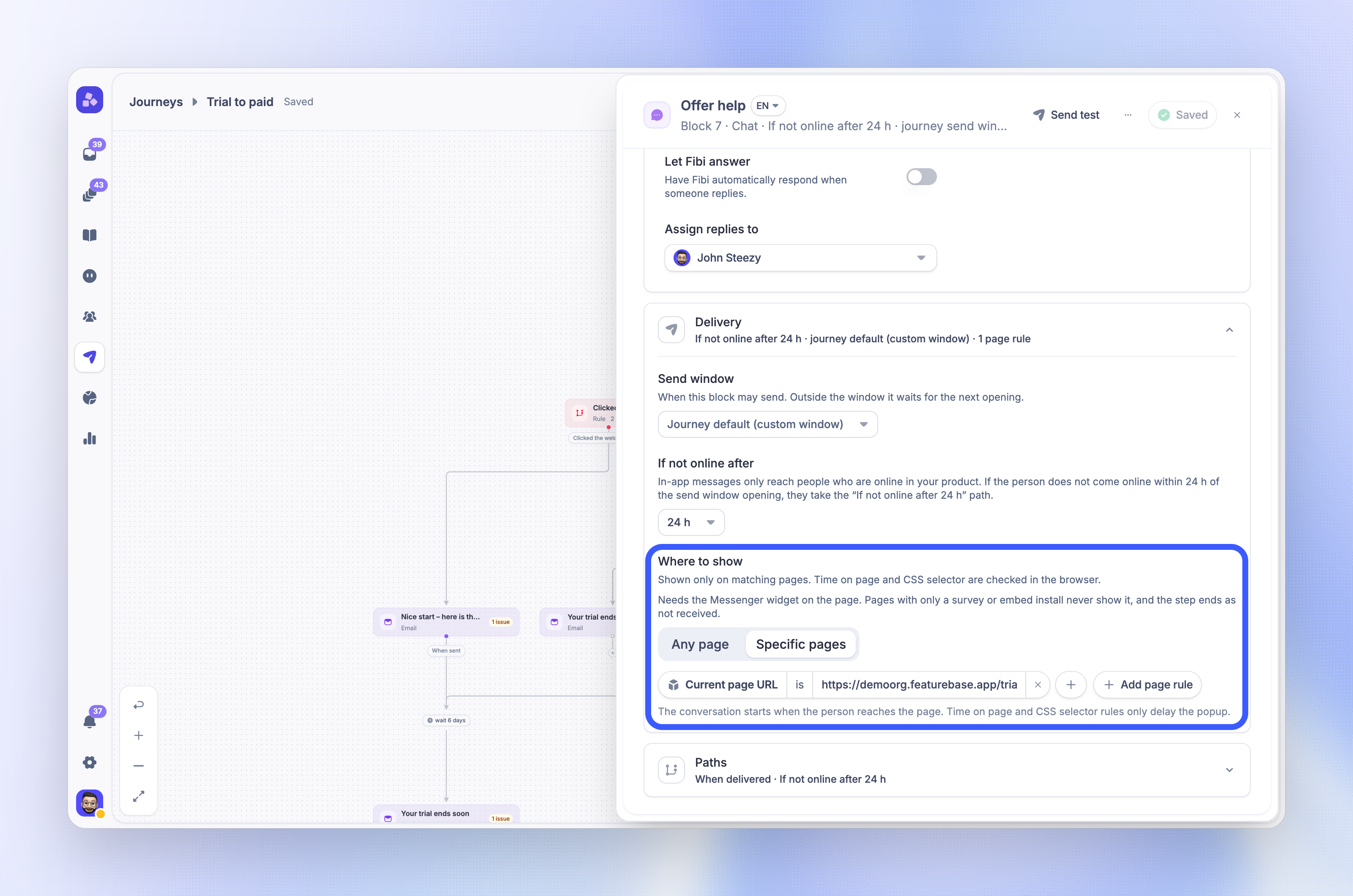
Send window - When this block may send. Pick Journey default, Any time, Office hours or Custom window. Outside the window, the message waits for the next opening. Set the journey default in the journey send window
If not online after / If not delivered after - In-app blocks only. How long to keep trying after the send window opens: 1 h to 90 days. New blocks start at 30 days
Where to show - Chat, Banner, Survey and Post blocks. Any page or Specific pages, with the same page rules as Outbound message rules: Current page URL, Time on page (seconds) and CSS selector
In-app blocks have two paths: When delivered and If not online after (If not delivered after for product tours and posts). A message counts as delivered only when it really shows on the person's screen. People who are not online in your product within the time limit take the second path, so you can follow up with an email instead.
Email blocks have one path, When sent. When an email cannot go out, the person leaves the journey at that block. Common reasons are a missing email address, an unsubscribe from the subscription topic, or a send window that does not open within 30 days. The journey report shows how many people left this way.
Note: In-app blocks need the Featurebase Messenger on your site. Pages that only have a survey or embed install never show journey messages.
Sends an email. Edit the Subject and Email body, then set Template, Brand, From, Subscription, Assignee, Let Fibi answer and Run inbox workflows on replies. Replies arrive in your Inbox and follow the same AI agent, workflow and assignee settings as a standalone email.
Common use case: Send a welcome email the moment a new user signs up.
Sending to customers needs approved email-sending access. Visitors have no email address, so the email is never sent to them and they leave the journey at this block. A person who enters the journey again gets the email again.
Chat
Starts a conversation in the Messenger. Set the Message text, Show as, Sender, Assignee, Action and Replies. The conversation is created when the person sees it, and replies arrive in your Inbox.
Common use case: Offer help from a teammate on day 3 of a trial.
Banner
Shows a banner in your product. Set the Banner text, Position, Background color, Button text and Button URL. A banner shows again on each visit for up to 7 days until the person dismisses it.
Common use case: Announce a new feature to active users with a link to try it.
Survey
Shows a survey in your product. Set the Survey title, Description and Pages. Answers appear in the journey report, and a Rule block can branch on a specific answer.
Common use case: Ask for an NPS score, then send detractors a different follow-up than promoters.
Product tour
Shows a Product Tour when the person opens the tour's start page. Build the tour steps in the tour builder, or use Copy from an existing tour… in the editor menu. Copying does not change the original tour.
Common use case: Walk new users through setup the first time they open the dashboard.
Note: Product tours show on the web on desktop only. People who use only your mobile apps never receive this block and take the If not delivered after path.
Post
Shows a post in the Messenger. Set the Post body, Buttons, Format, Show as, Replies and Reactions, or use Copy from an existing post… in the editor menu. A post counts as delivered when the Messenger shows it.
Common use case: Share a short product update with buttons that link to the new feature.
Post blocks accept page URL rules only in Where to show. Time on page and CSS selector rules are not available for posts.
Flow blocks
Flow blocks decide when and where people move next. They send nothing.
Wait
Holds people for a set time before the next block. Choose For a set time (minutes, hours or days) or Until a day and time (a weekday, or Any day, and a time). The default is 1 day, and the longest wait is 365 days.
Under Timezone, choose Workspace time zone (the same moment for everyone) or Person's time zone. People with no known time zone use the workspace time zone.
Common use case: Wait 2 days after the welcome email, then check whether the person has set up their account.
Rule
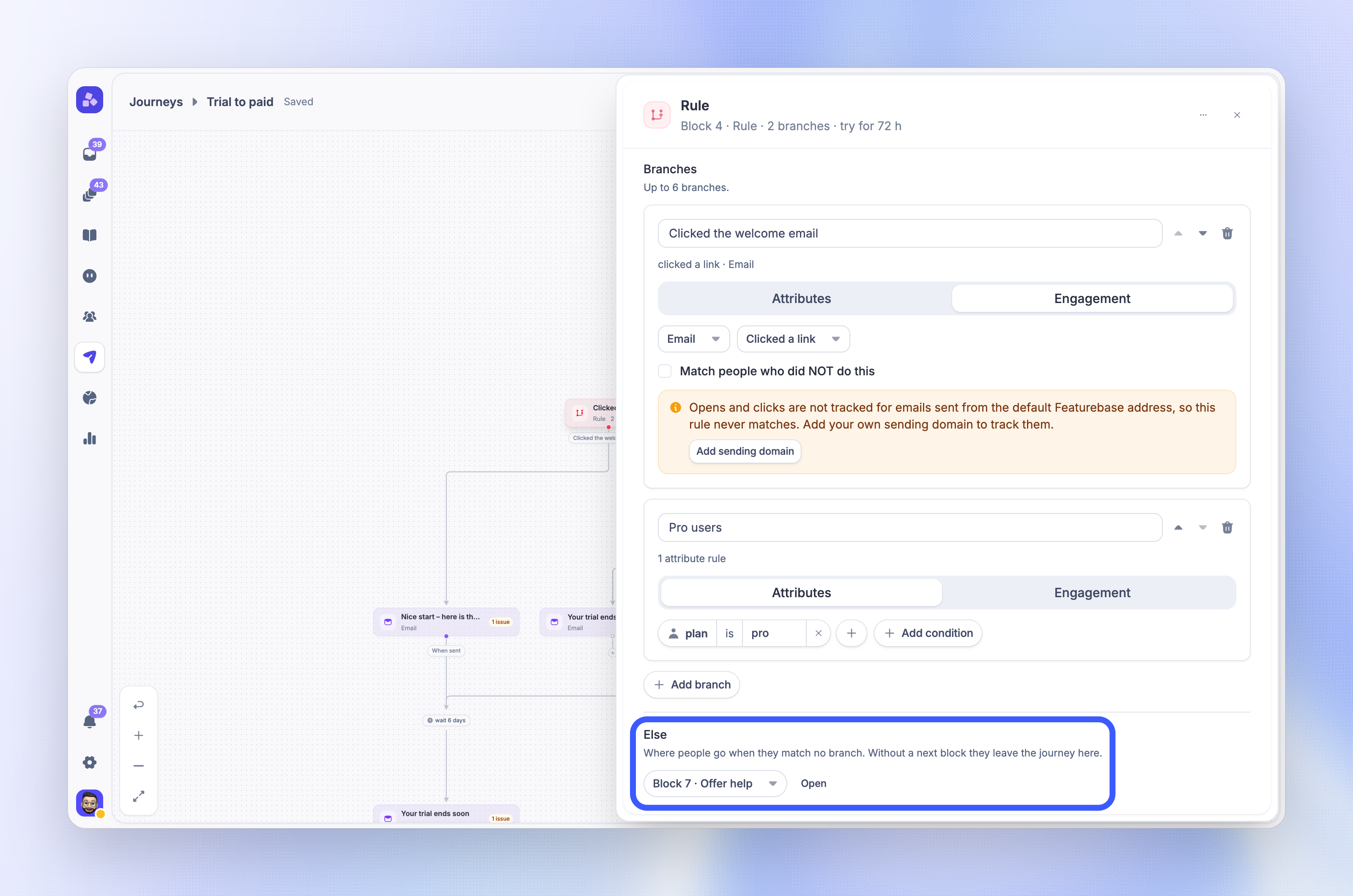
Sends people down the first branch whose conditions they match. Branches are checked in order, and you can add up to 6. People who match no branch take the Else path, or leave the journey when Else has no next block.
Each branch uses one of three condition types:
Attributes - Person or company data, with the same rule builder as Outbound audiences
Engagement - What the person did with an earlier message in this journey, such as Opened, Clicked a link, Replied, Responded, Gave a specific answer, Dismissed or Completed. Turn on Match people who did NOT do this to branch on the opposite
Event - A custom event the person tracked after they reached this block
Under When to check, choose Check once, when people arrive or Keep checking for a while. Keep checking moves people to the first matching branch as soon as they match, and sends everyone else to Else after the hours you set (up to 2,160). Event conditions need Keep checking for a while.
Common use case: Check whether the person clicked the email link within 3 days. Send a reminder to those who did not.
Note: Opens and clicks are not tracked for emails sent from the default Featurebase address, so rules on them never match. Free and new workspaces also send without tracking until the workspace is on a paid plan and 30 days old. To branch on opens and clicks, add a custom email sending address.
Split test
Sends each person down one path at random, by the shares you set. Use 2 to 5 paths, and optionally hold out a control group that gets no more messages from this journey. Featurebase measures each path against the journey goal, and you pick the winning path when the results are clear.
Common use case: Compare a short and a long onboarding email to see which one leads more people to upgrade.
Action blocks
Action blocks change data or call another system. People move on right after the action.
Tag person
Adds or removes user tags. Under Action, choose Add tags or Remove tags, then pick at least one tag under Tags.
Common use case: Tag people who finish onboarding so you can filter them in reports and other messages.
Webhook
Sends one signed HTTPS request per person to your endpoint, so your backend can act on the journey: update your CRM, start a sequence in another tool, or give a trial extension.
Common use case: Notify your sales system when a trial user reaches the upgrade step.
You set up the endpoint, payload and signing secret in the block panel. See Webhook block for the request format and signature check.
End of a path
A path with no next block ends the journey. People who reach it leave, and the journey report shows Reached the end of the path. To make people leave early when they match a condition, use exit rules or Exit on goal.
Webhook block
Set up the endpoint
Add the URL - Under Endpoint, enter an
https://URL. URLs that point to a private, local or internal address are refusedPick the payload - Under Payload, check the Person fields to send: Email, Name, User ID, Created at, Last activity, Companies, Locale and Time zone. Email and Name are checked by default. Click 'Add attribute' to add up to 20 custom attributes
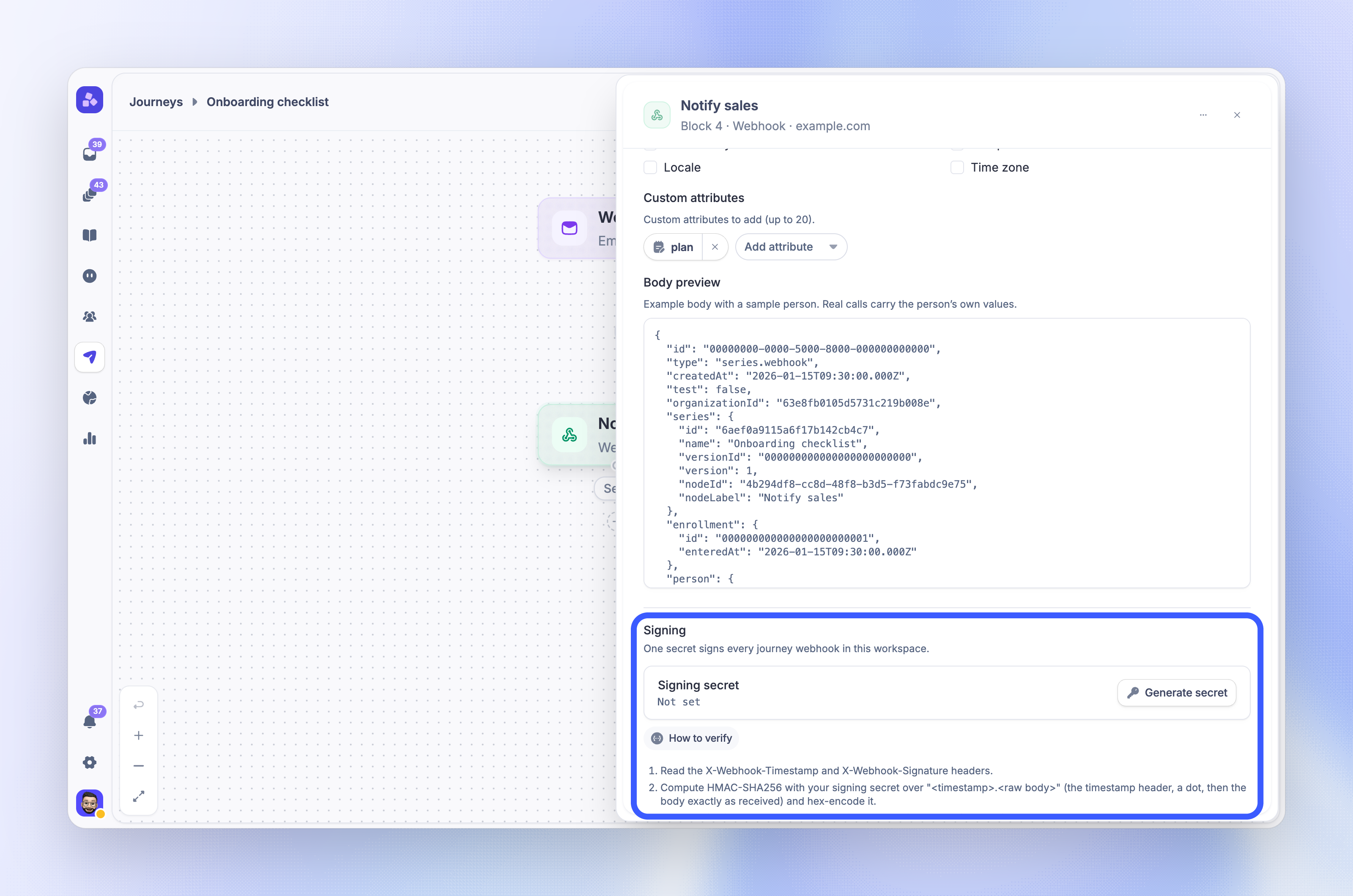
Generate the signing secret - Under Signing, click 'Generate secret'. Copy the secret right away: you will not see it again
Send a test - Click 'Send test' to save the draft and send one signed call with a sample person to your endpoint. The test call has
"test": trueand is not retriedConnect the paths - Add the next block after Sent, Failed, or both
The person ID and type are always sent. Nothing else is sent unless you pick it. Body preview shows an example body with a sample person.
Note: You cannot publish a journey with a Webhook block until the workspace has a signing secret. Publishing a webhook that sends person fields or custom attributes also needs the View Users permission.
Request format
Featurebase sends a POST request with a JSON body and these headers:
Example body, with Email, Name and one custom attribute selected:
{
  "id": "3f1c2a9e-0b7d-4c1e-9a52-8e6d1f0c4b21",
  "type": "series.webhook",
  "createdAt": "2026-11-06T09:00:00.000Z",
  "test": false,
  "organizationId": "64a1f0c2e4b0a1b2c3d4e5f6",
  "series": {
    "id": "6720f1a2b3c4d5e6f7a8b9c0",
    "name": "Trial to paid",
    "versionId": "6720f1a2b3c4d5e6f7a8b9c1",
    "version": 3,
    "nodeId": "0f8e2b6c-5d4a-4c3b-9a1e-7f6d5c4b3a29",
    "nodeLabel": "Notify sales"
  },
  "enrollment": {
    "id": "6720f1a2b3c4d5e6f7a8b9c2",
    "enteredAt": "2026-11-01T14:12:03.000Z"
  },
  "person": {
    "id": "6720f1a2b3c4d5e6f7a8b9c3",
    "type": "customer",
    "email": "jane@example.com",
    "name": "Jane Doe",
    "customFields": {
      "plan": "trial"
    }
  }
}seriesdescribes the journey, the published version and the Webhook block that made the callenrollmentis this person's run through the journey. In company journeys it also hascompanywith your company ID and namepersonalways hasidandtype(customerorlead). Each selected field is present, withnullwhen the value is unknown
Verify the signature
The signature is computed over the timestamp header, a dot, and the raw request body. To verify a request:
Read the
X-Webhook-TimestampandX-Webhook-SignatureheadersCompute HMAC-SHA256 over
<timestamp>.<raw body>, using the body exactly as received, and hex-encode the result. The key is the full signing secret, including thewhsec_prefixCompare your result with
X-Webhook-Signaturein constant time. Reject the request if they differReject requests with an old timestamp, for example older than 5 minutes
Use
X-Webhook-Idto drop duplicates
Example in Node.js:
const crypto = require('crypto')

function verifyJourneyWebhook(rawBody, headers, secret) {
  const timestamp = headers['x-webhook-timestamp']
  const signature = headers['x-webhook-signature']
  if (typeof timestamp !== 'string' || typeof signature !== 'string') return false
  const expected = crypto.createHmac('sha256', secret).update(`${timestamp}.${rawBody}`).digest('hex')
  const fresh = Math.abs(Date.now() / 1000 - Number(timestamp)) < 300
  const received = Buffer.from(signature)
  const computed = Buffer.from(expected)
  return fresh && received.length === computed.length && crypto.timingSafeEqual(received, computed)
}
Pass the raw body as a string or buffer, before any JSON parsing. A body that you parse and serialize again can differ from the signed bytes. In Express, for example, read it with express.raw({ type: 'application/json' }).
This is the same scheme as Featurebase platform webhooks, but journey webhooks use their own signing secret.
Important: One secret signs every journey webhook in your workspace. When you click 'Regenerate', every journey webhook switches to the new secret at once, and signatures made with the old secret stop working. Update your endpoint right after. Generating and regenerating the secret need the Manage Outbound State permission.
Responses and retries
Your endpoint must answer with a 2xx status within 5 seconds. Featurebase does not read the response body.
Sent - Your endpoint answered with a
2xx. People continue on the Sent pathRetried - Featurebase tries again after a timeout, a connection, DNS or TLS error, a
5xx, a408or a429. It makes up to 4 tries in total, about 30 seconds, 2 minutes and 10 minutes apartFailed - No
2xxafter 4 tries (about 15 minutes), or a result that is not retried: any other4xx, a redirect, or a blocked address. People continue on the Failed path
Redirects are not followed, so use the final URL. A request body larger than 64 KB fails at once. Because a request can repeat, make your endpoint safe to call twice with the same X-Webhook-Id.
While a journey is paused, webhook calls wait and do not use up tries. They continue when you resume the journey. The person's timeline in the journey report shows each call as Webhook sent or Webhook failed, with the HTTP status and the number of tries.
FAQs
Can two blocks share one message?
Can two blocks share one message?
Can I change a block's type in a live journey?
Can I change a block's type in a live journey?
No. Remove the block, add a new one, and publish the change. When you publish, you choose what happens to people who are waiting at the removed block.
Does "Preview as…" call my webhook endpoint?
Does "Preview as…" call my webhook endpoint?
No. Preview as… never sends anything. Use 'Send test' in the Webhook block to call your endpoint with a sample person.
Was this helpful?
Still need help? Ask the team