Split testing in journeys
Compare journey paths against each other or a control group and pick the winner.
Written By Bruno
Last updated 30 minutes ago
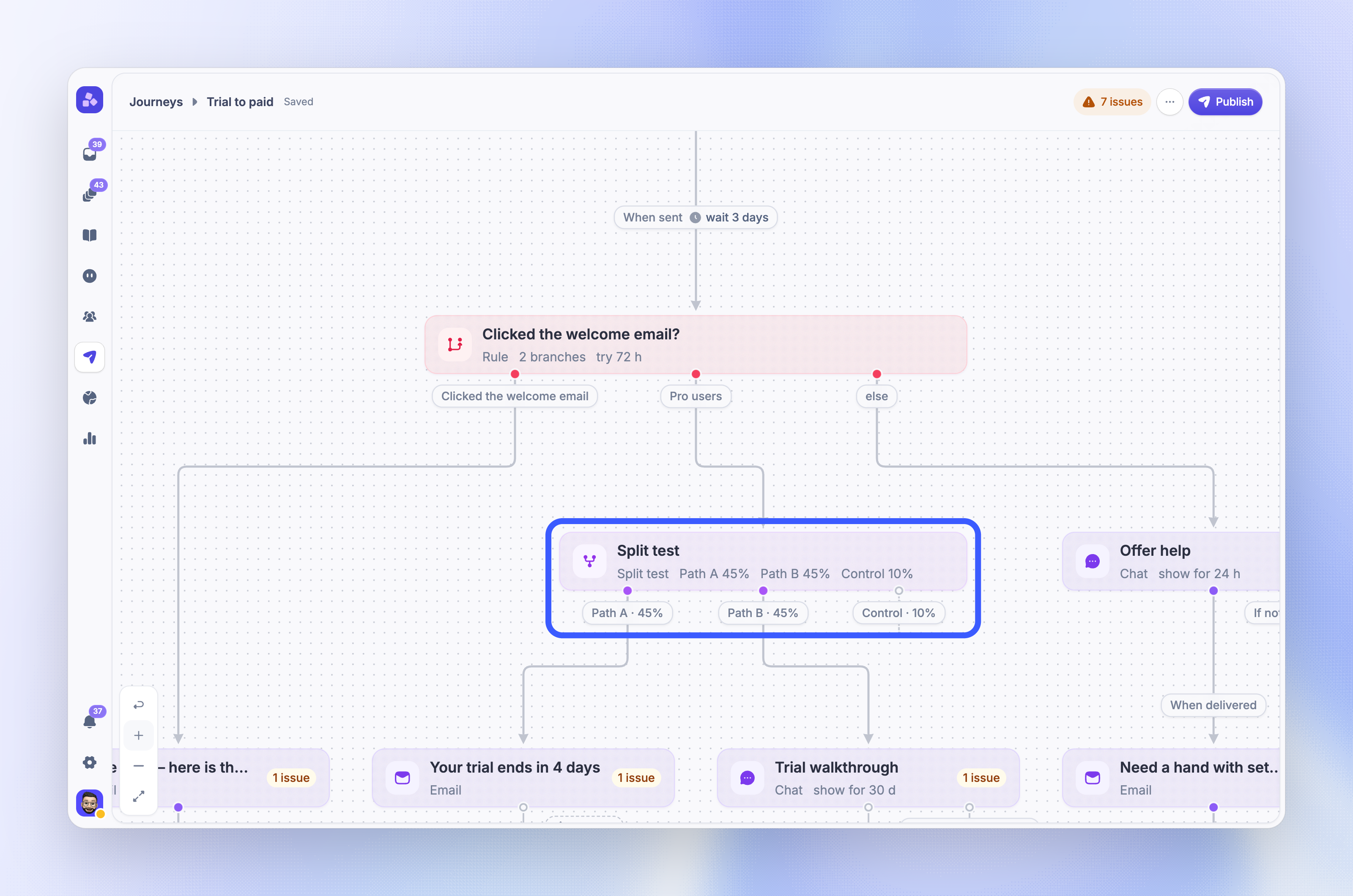
Overview
A Split test block sends each person who reaches it down one of several paths at random. Use it to learn which message, channel, or timing gets more people to the journey goal. You can also hold out a control group that gets no more messages, to see if the journey works at all.
Featurebase compares each path's goal rate and tells you when a path is ahead with enough confidence. You decide when to pick the winner.
Note: A split test measures the journey goal. Without a goal, the results show Add a journey goal to measure this test. and never suggest a winner.
Add a split test
Open the journey and click + where the test should start
Choose Split test under Flow
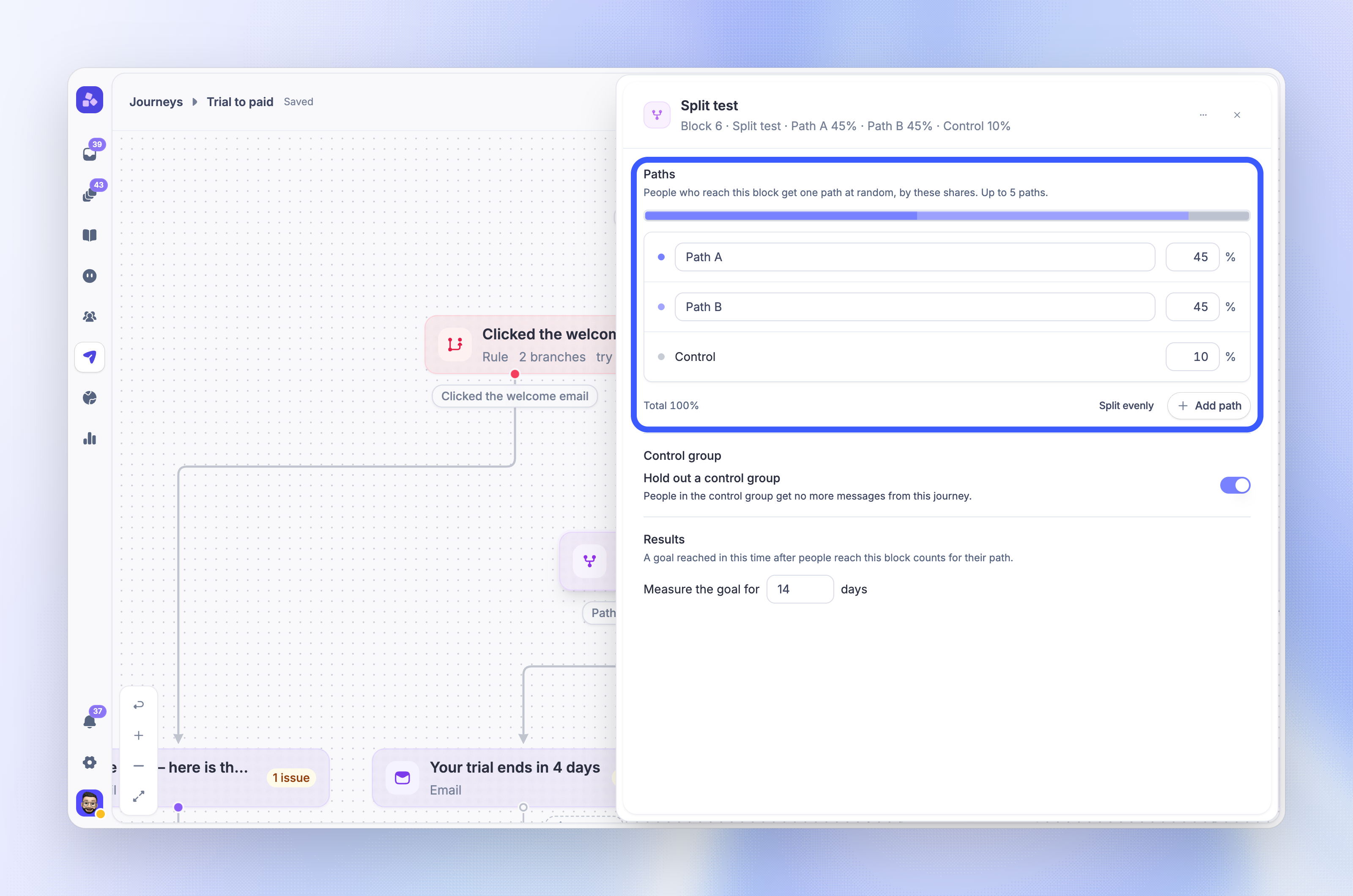
Name the paths and set their shares. Click 'Add path' for more paths, or 'Split evenly' to share them out equally
Optionally, turn on Hold out a control group
Set Measure the goal for to the number of days you want to measure each person
Add the blocks for each path below the Split test block
Publish the journey
A new Split test block starts with Path A and Path B at 50% each, measured for 14 days.
Paths
People who reach the block get one path at random, by the shares you set.
Use 2 to 5 paths per block
Give every path at least 1%; the shares must total 100%
Give each path its own name, up to 60 characters
A person who enters the journey again gets the same path, as long as you do not change the paths or shares.
Control group
Turn on Hold out a control group to keep a share of people out of the rest of the journey. People in the control group get no more messages from this journey, but Featurebase still checks whether they reach the goal. A new control group starts at 10%.
The Control path cannot have blocks after it. A path with no next block also works like a control group.
Results period
Measure the goal for sets how long after reaching the block a goal hit counts for the person's path, from 1 to 365 days.
Notes:
A journey can have up to 5 split tests
Keep the goal window at least as long as the results period. If the goal window ends first, later goal hits are not counted
Read the results
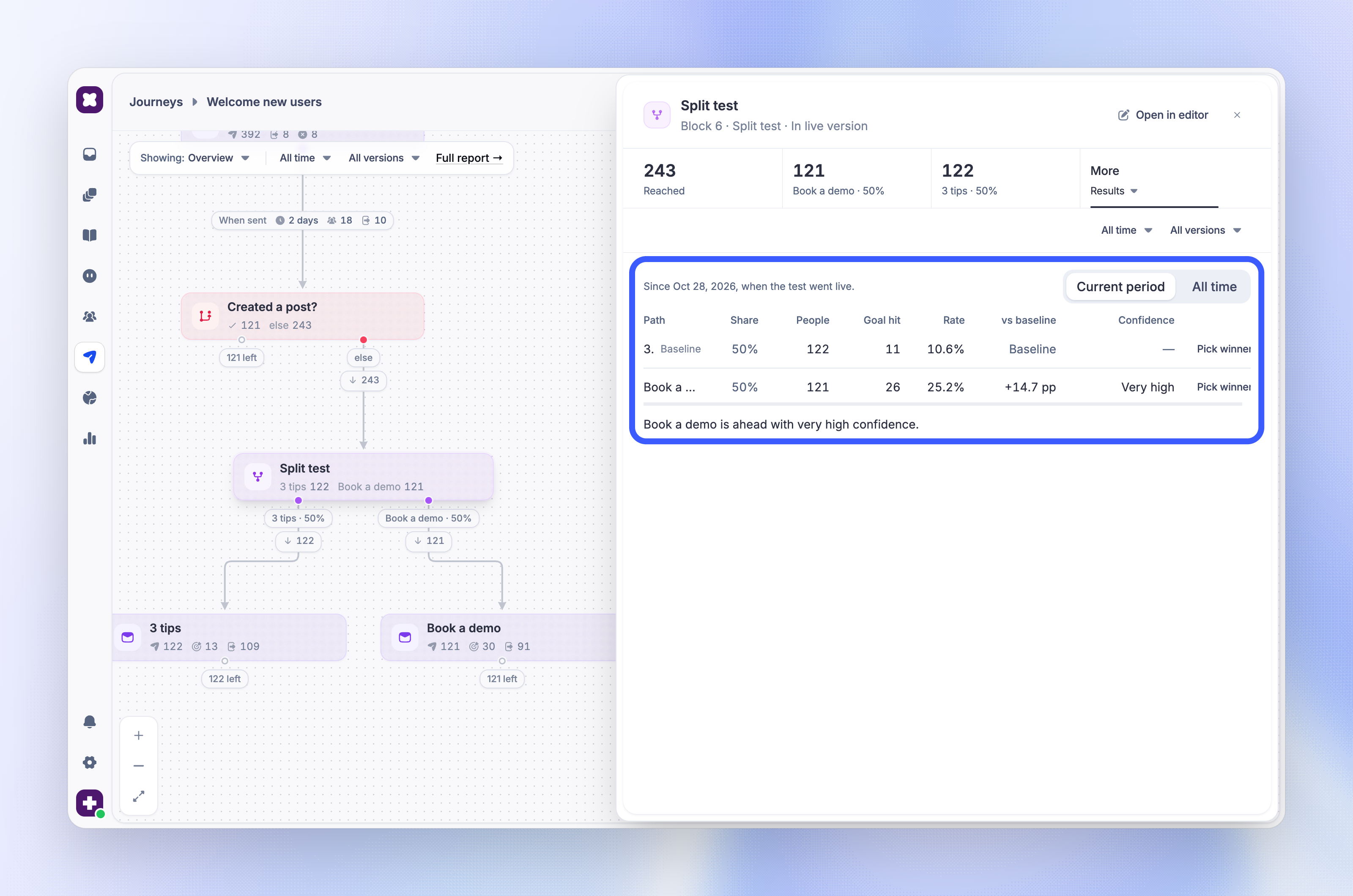
To see the results, switch the editor to Report, click the Split test card, and choose Results in the More tile. The results also show on the Split tests tab of the full report, and under Live results in the Split test block panel.
The baseline is the control group. Without a control group, it is the first path.
Confidence is Not enough data, Low, Medium, High, or Very high. Worse means a path does clearly worse than the baseline. Hover over a value to see the exact confidence and range.
When results are ready
Featurebase suggests a winner only when:
The journey has a goal
Each compared path has at least 100 people whose results period has ended, with at least 5 goal hits and 5 people without one
The results period has passed since the test started
Until then, the line under the table says why, for example Not enough data yet. or Too early: results are ready on a set day. After that, it names the path that is ahead, or says No clear winner yet.
The rate only counts people whose full results period is over, so new arrivals do not lower it. People who already reached the goal before they got to the Split test block are left out.
Current period and all time
Current period shows results since the test last started. A new period starts when you publish a change to the paths, the shares, or the journey goal, or when you reopen the test. All time includes every period. When it spans more than one period, it does not suggest a winner.
Split test results ignore the report's date range and version picker.
Important: If you pause the journey during a test, the control group can lose goal hits, so a path can look better than it is. The results show a warning when this happens. Check the results before you pick a winner.
Pick a winner
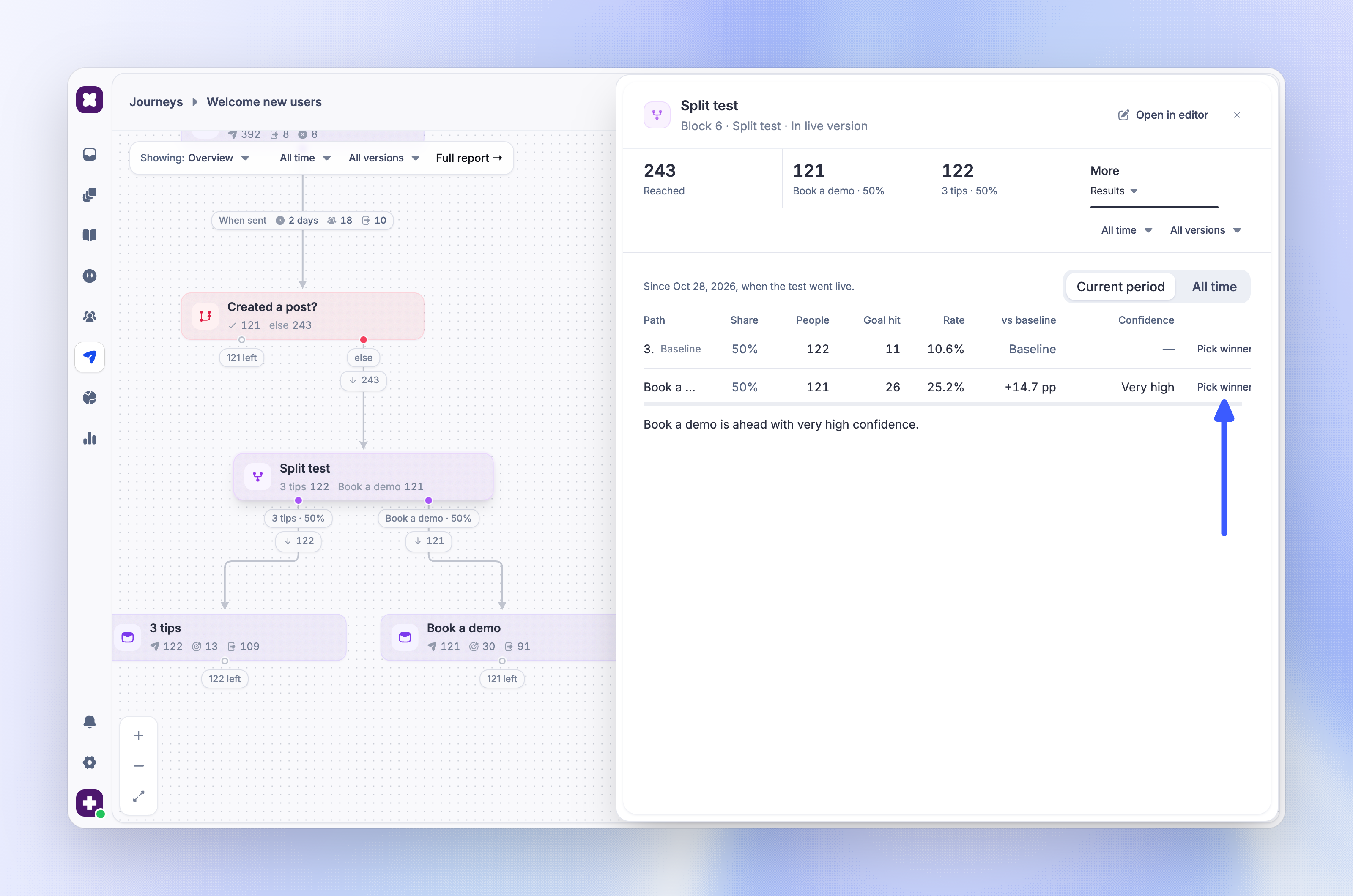
When you are happy with the results, pick the winning path:
Open the split test results: click the Split test card in Report mode and choose Results, or open the Split tests tab of the full report
Click 'Pick winner' on the winning row
Confirm with 'Pick winner'
Everyone who reaches the block from then on takes the winning path, in every version of the journey. People already on another path finish it. If you pick the control group, everyone who reaches the block ends the journey there.
To undo the decision, click 'Reopen test'. New arrivals get a path by the shares again, and people already on a path keep it.
Picking a winner and reopening a test need the Manage Outbound State permission.
Change a live test
You can edit a Split test block on a live journey and publish the change like any other edit. People who already got a path keep it. Changing the paths or shares starts a new results period.
When one split test follows another, the second test splits the people of each earlier path again.
FAQs
Can I test two versions of the same email?
Can I test two versions of the same email?
Yes. Add a Split test block and put one Email block on each path. Each block has its own content, so you can change the subject, body, or sender.
Can I export split test results?
Can I export split test results?
Yes. Use Export split results (CSV) in the journey report.
Was this helpful?
Still need help? Ask the team