Creating Product Tours
Build, customize, test, and launch a tour on your website.
Written By Markus Palm
Last updated About 5 hours ago
Overview
Build a Product Tour directly on your website by adding messages and selecting the elements you want to explain. Then choose how customers move through the steps, test the flow, and set the tour live.
Before you start, install the Featurebase Messenger for your workspace on every page the tour uses. Open your product in a desktop browser and sign in. You need permission to create Outbound messages and set them live; ask your workspace admin if these controls are unavailable.
Create a Product Tour
Start a tour
Go to Dashboard → Outbound
Click 'New message' and choose 'Product tour', or select a tour template
Give the tour a clear name
In Create your tour, click 'Add steps'
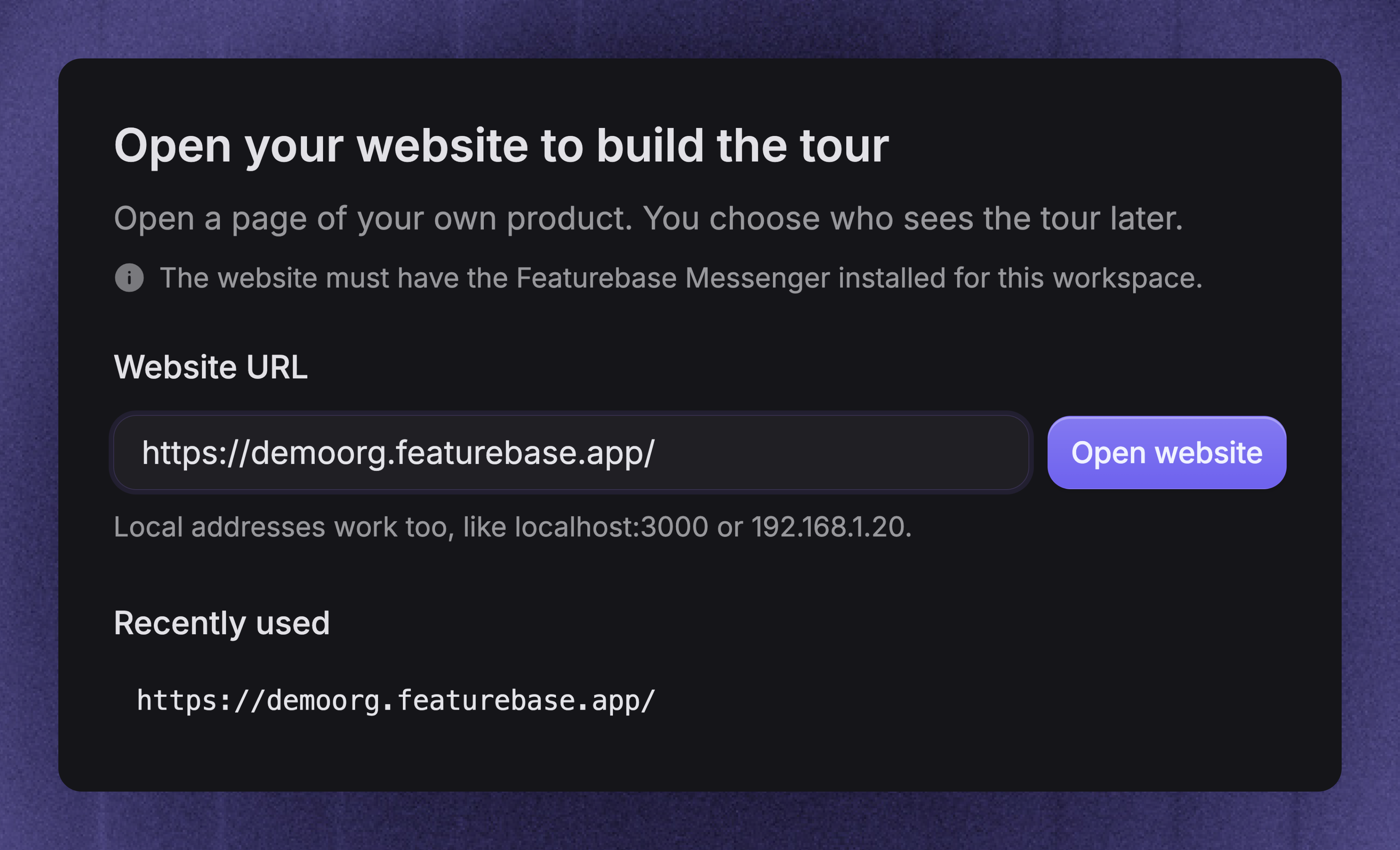
Enter your Website URL in the new window and click 'Open website'
Go to the page where the tour should start, then click 'Set start page' in the builder
Use a customer-facing name, such as Create your first project. Customers can see the name when a Workflow shares the tour as a card.
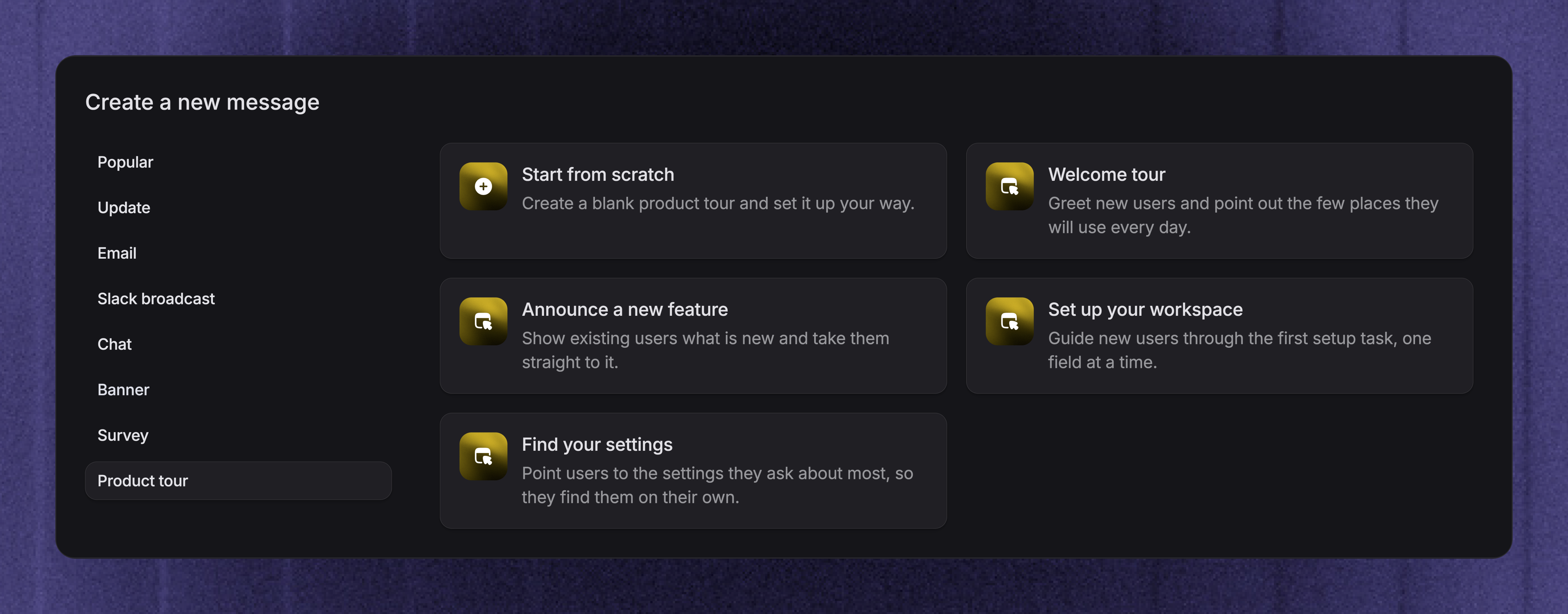
Keep the dashboard tab open while you build. The website you enter here is where you design the tour. You will choose automatic targeting and the shared start page later.
Add messages and tooltips
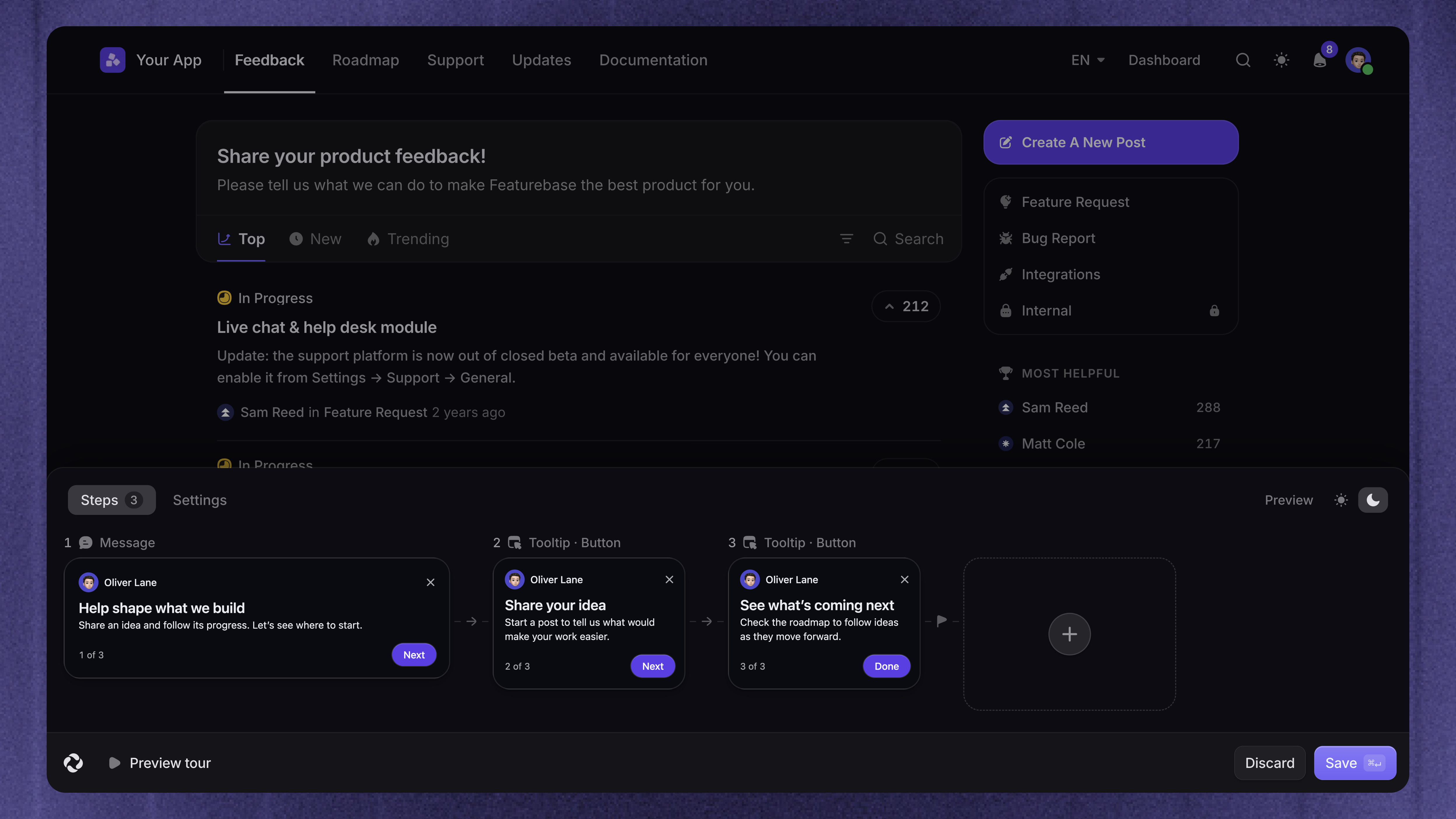
Use the + control in the step list and choose a step type:
'Message' - Write a centered message without selecting a page element. Use it to introduce the task or explain what to do after the tour
'Tooltip' - Select an element on your website, then write the guidance that appears beside it
Use the text toolbar to format content, add a link or image, or insert personal data such as the customer's first name. Add a default value for an attribute when some customers may not have that data.
For a tooltip, choose how it continues under How does the tour go to the next step?:
Button - The customer clicks Next to continue
Click - The customer clicks the selected element, such as a menu or button
Input - The customer fills in the selected field, then clicks Next. The Next button stays disabled while the field is empty
Adjust Position and Size to make the tooltip easy to read. Auto chooses a side with enough space. A fixed position can move when the tooltip does not fit. The tour scrolls an off-screen target into view as the customer reaches its step.
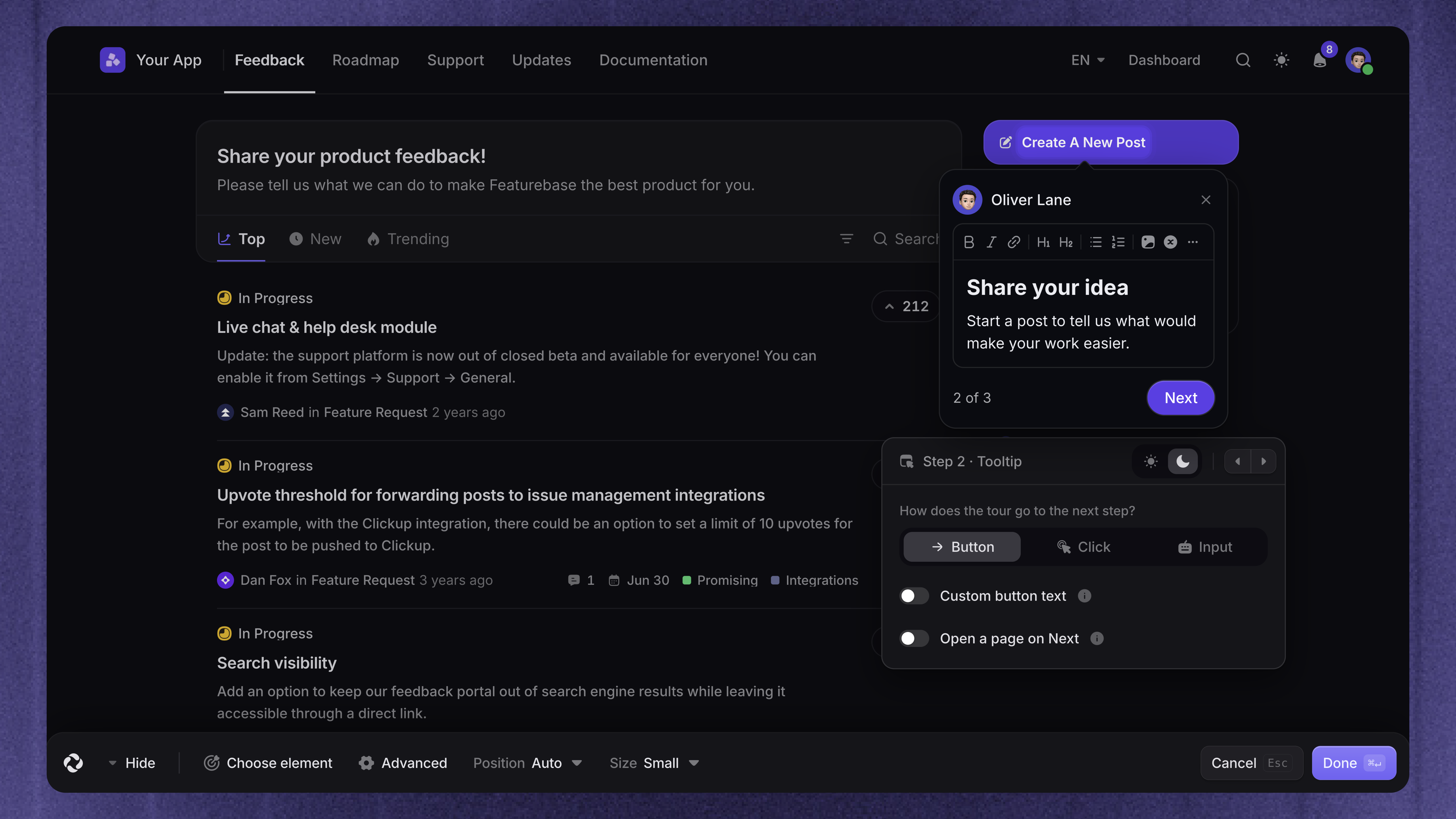
Click 'Done' to finish the step. Add the next step, or drag a step in the step list to change its order.
Tip: Use 'Hide' when the builder covers something you need to select. Use 'Go to page' to open a menu or move to another page, then 'Start here' to resume selecting an element.
Continue across pages and menus
Make each page change part of the customer's tour path. Moving to a page while building does not make customers move there automatically.
There are two ways to continue:
Click an element - Point a tooltip at the link or button that opens the next page or menu, and choose Click. Open that destination while building, then add the next step there
Open a page with Next - Choose Button, turn on Open a page on Next, and enter a full URL or a path starting with
/. Add the next step on that page
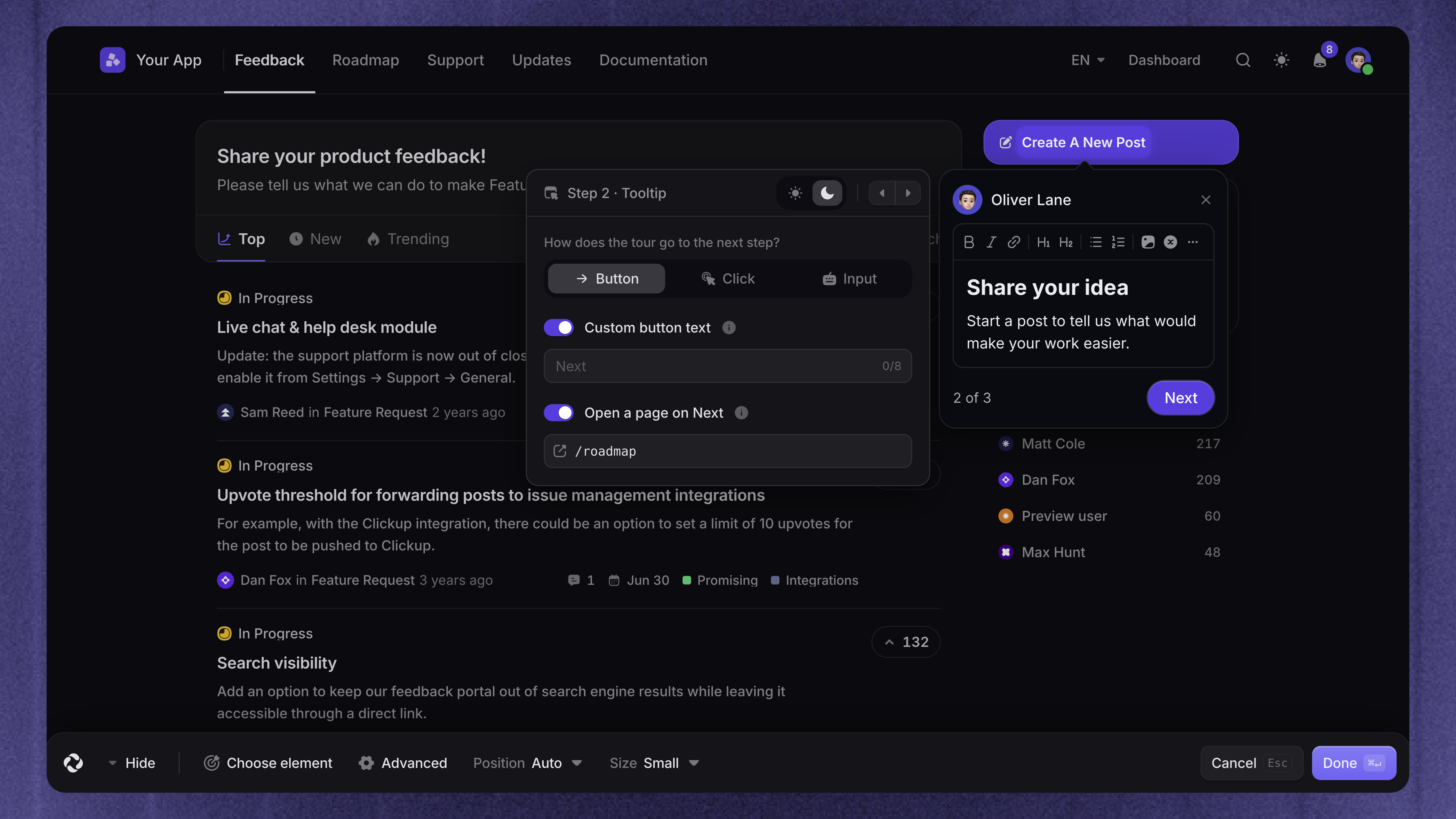
For example, point to Projects in your app's navigation and use Click. On the Projects page, add a tooltip pointing to Create project. This lets the customer follow the same route you used to build the tour.
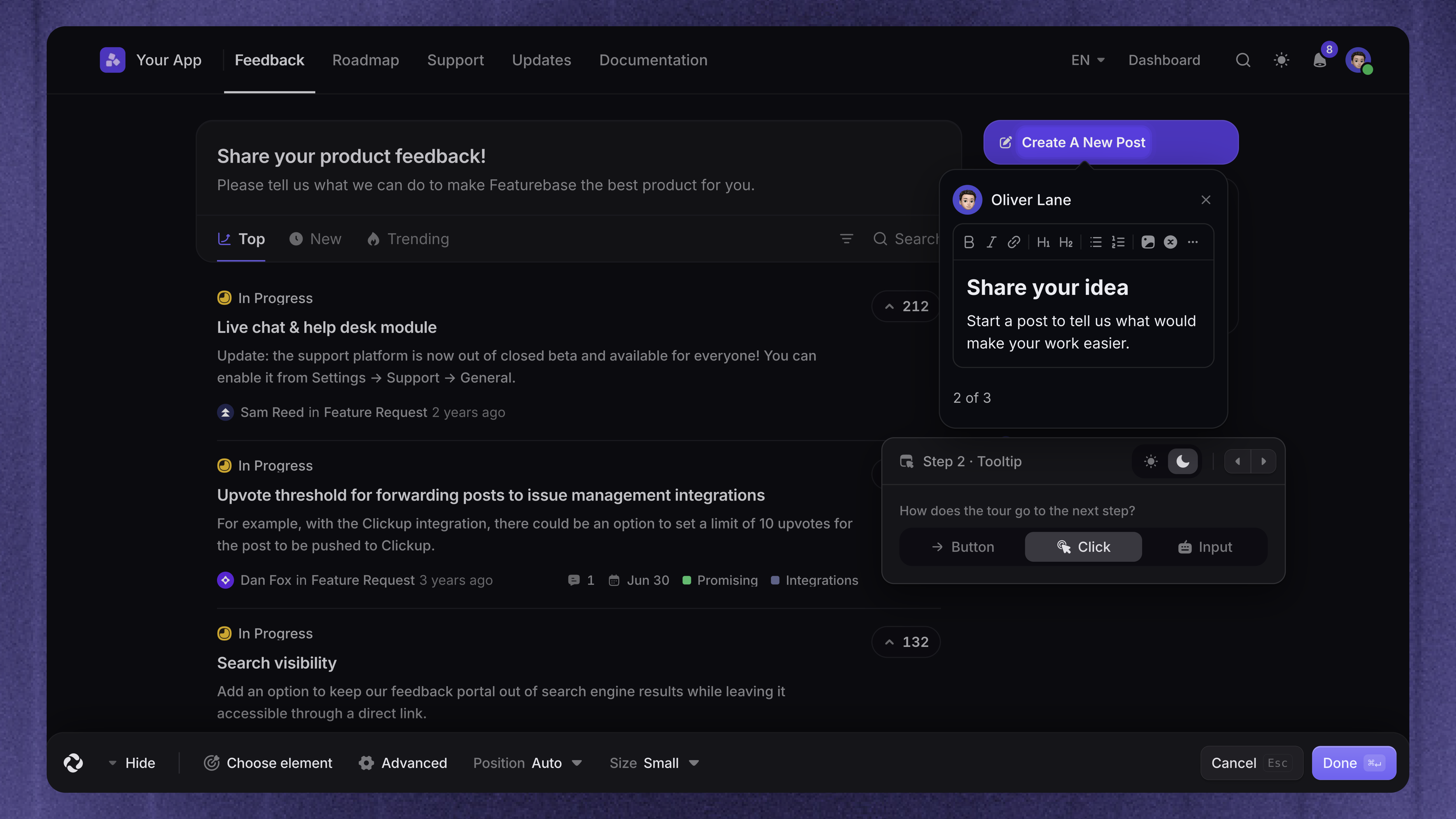
If a step is inside a closed menu, add a step that opens the menu first. Each destination must have the Messenger installed and be accessible to the intended audience.
Customize the tour
In the builder's Settings tab, choose the controls customers can use:
Snooze button - Add a button to the first step of a multi-step tour so customers can hide it for 24 hours
Restart button - Add a button after the first step so customers can return to the beginning
Confetti at the end - Show confetti when the customer reaches the final step
You can customize the snooze and restart button text. For steps that use Button, turn on Custom button text to replace Next or Done.
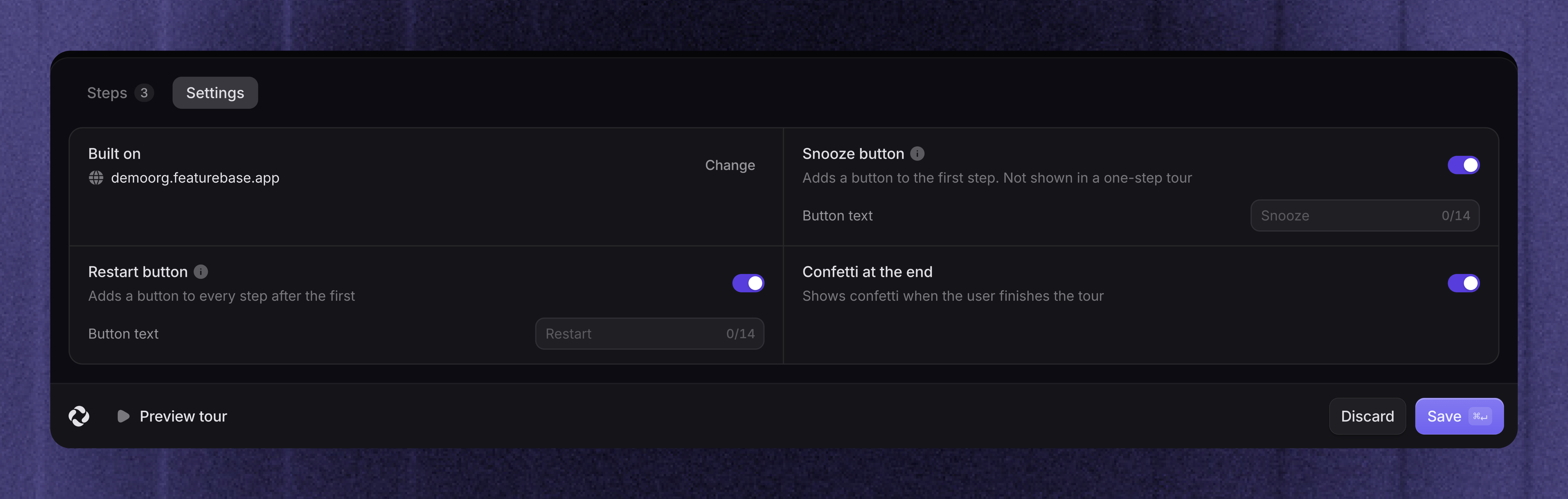
Click 'Save' in the builder and return to the dashboard. If the dashboard shows a review of the builder changes, click 'Apply changes', then save the tour there.
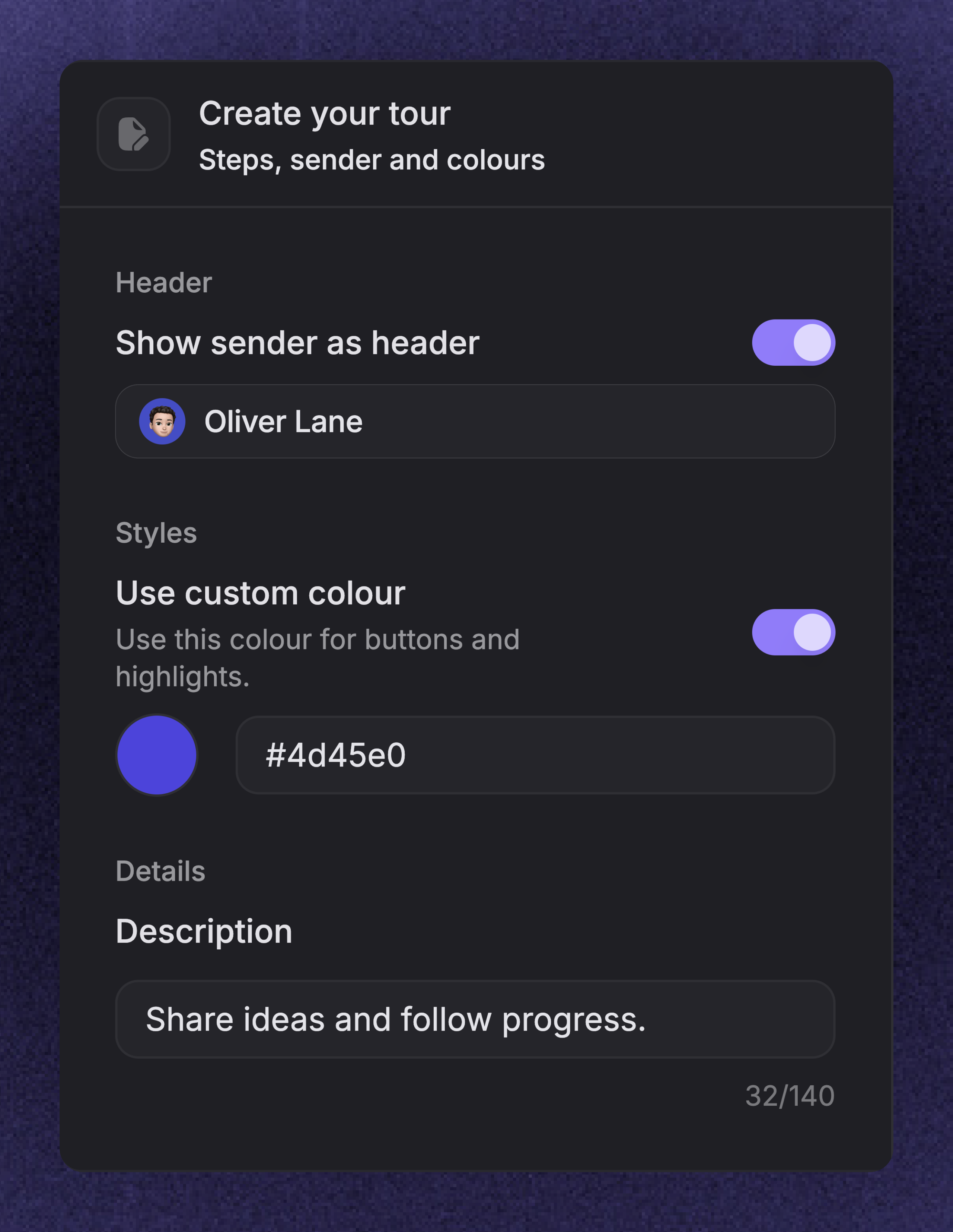
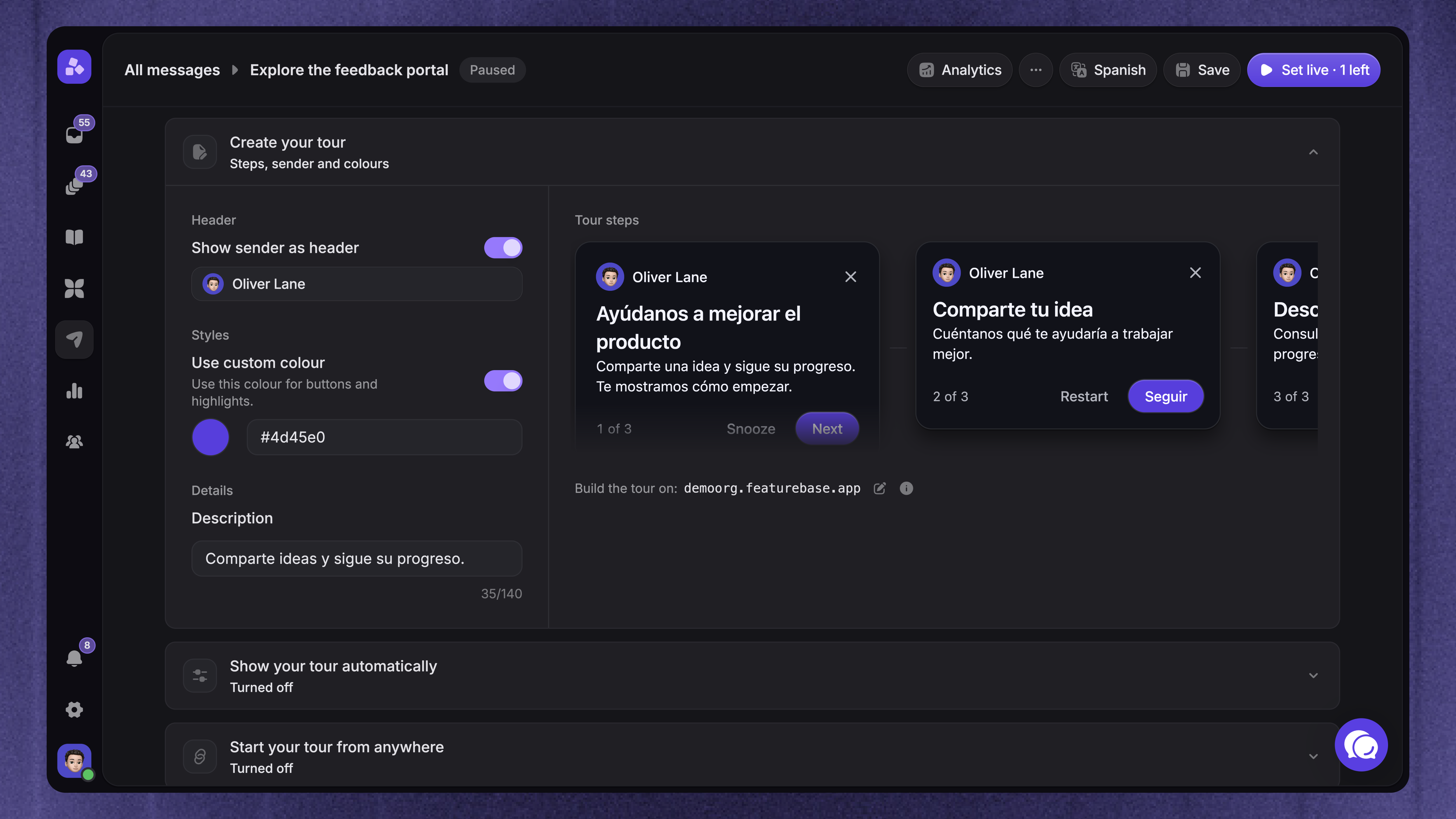
Under Sender and style in the Create your tour section, configure:
Show sender as header - Choose a teammate, team, or Fibi AI Agent. Turn it off to use optional Header text instead
Use custom colour - Set a color for buttons and highlights, or leave it off to use your brand color
Description - Add a short explanation of what the tour helps customers do
Add translations
Choose the language you want to edit in the dashboard, then open the builder. The builder edits the language selected in the dashboard.
Translate each step and any custom button or header text. Build the English content first, then add the other languages.
Follow the shared Outbound language settings for language selection and fallback behavior. Preview each language so missing translations do not produce mixed-language steps.
Preview and test the complete flow
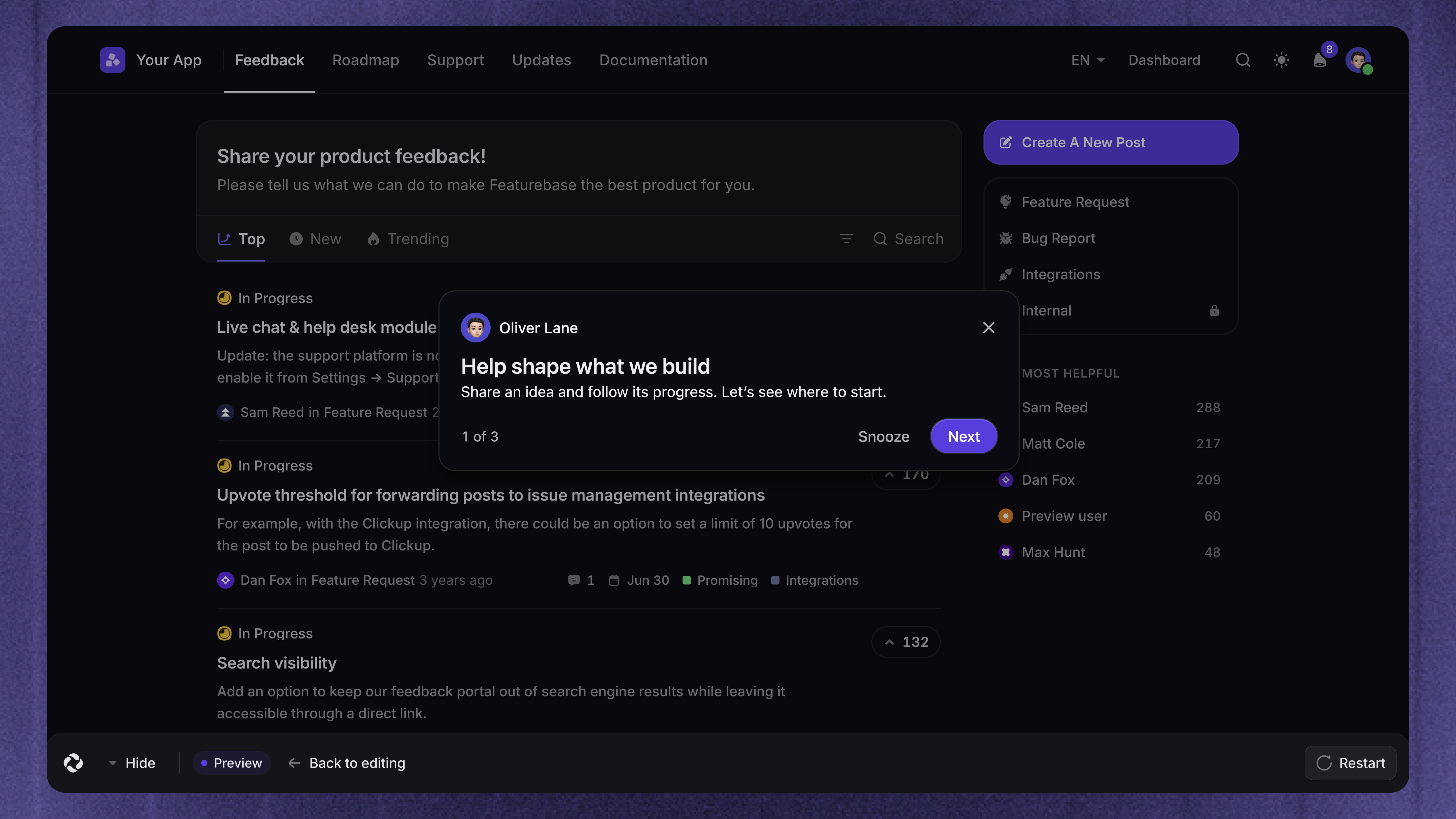
Click 'Preview tour' in the builder to play the tour on your website. Use 'Back to editing' when you need to make a change. You can also use 'Preview on site' from a step's menu in the dashboard.
Check the tour with the accounts and page states your customers will use:
A new account with no existing content
Each relevant role or permission level
Pages with and without customer-created content
Different desktop window sizes and each translated language
Every page change, menu, input field, and final step
Preview does not add views or completions to tour analytics. It still uses your real website, so use a test account for actions that create or change data.
To test automatic delivery, add your own email address as an audience rule before setting the tour live. Test outside the builder window. For sharing, test the copied tour link internally, including any sign-in redirect. A shared link does not test automatic targeting.
Important: Shared links do not use the automatic audience rules. Keep sharing off during an audience-only test unless you also need to test the shared route.
Choose how customers receive the tour
Back in the dashboard, enable one or both delivery methods:
Show your tour automatically - Choose page triggers and audience rules, then set Frequency and scheduling. The targeting guide explains each part
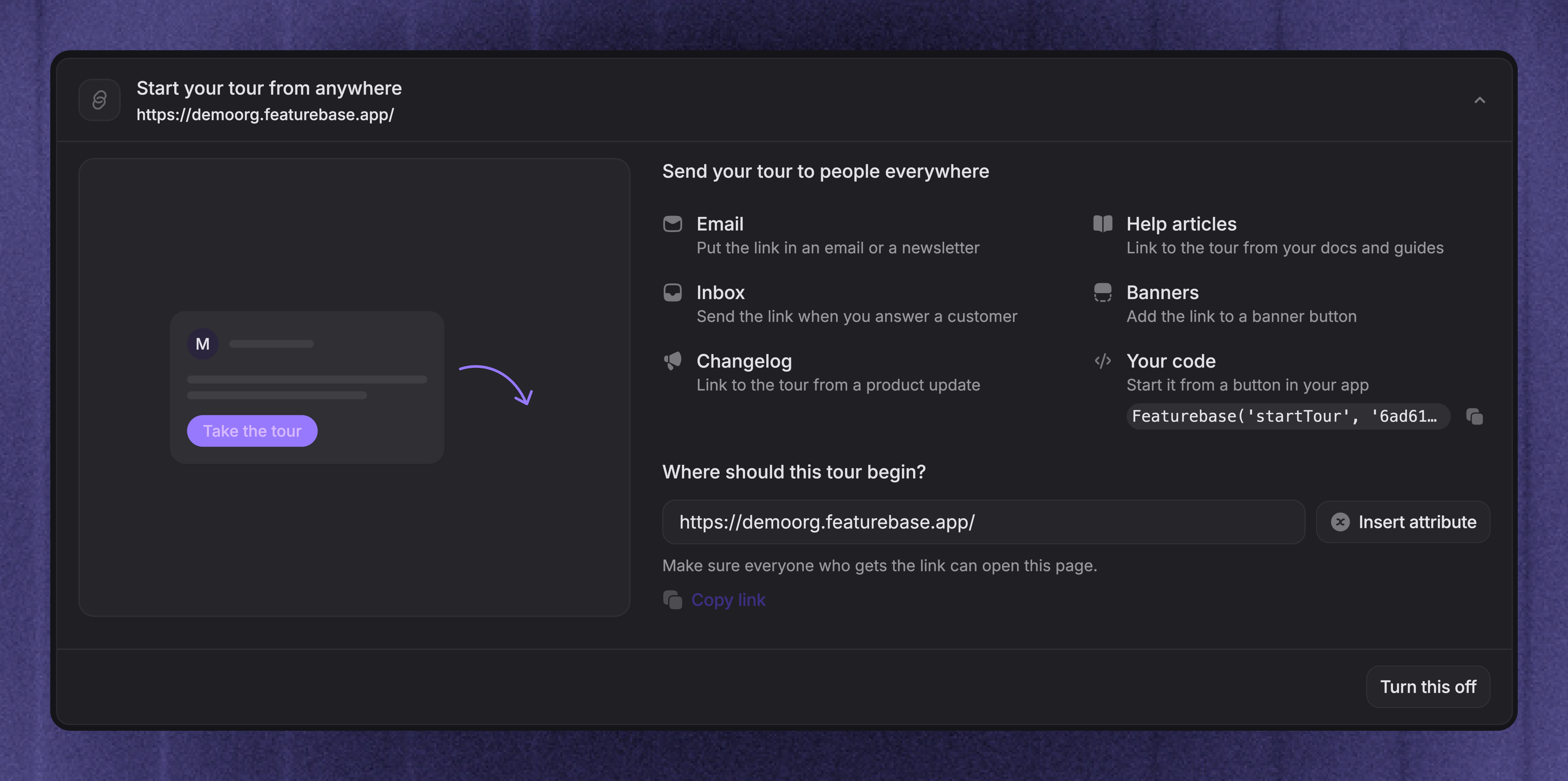
Start your tour from anywhere - Enter the page where a shared tour should begin. The sharing guide covers links, app buttons, and support use
For a tour that customers request themselves, leave automatic display off and turn sharing on.
Save and launch
Save the builder changes and check the step order in the dashboard
Review the audience, start page, repeat settings, and schedule
Click 'Set live', or 'Schedule' if the start date is in the future
Resolve any blocking items in the launch checklist and review its warnings
Confirm the launch
After launch, open Analytics to review performance. Check for issues during the first few days and after changes to your website.
Edit an existing tour
Open the tour from Dashboard → Outbound, edit its steps, preview the changes, and save them. Apply any builder changes waiting for review in the dashboard before saving.
Customers already taking the tour keep the content version they started. New starts use the updated version. Previous versions remain available in the step funnel.
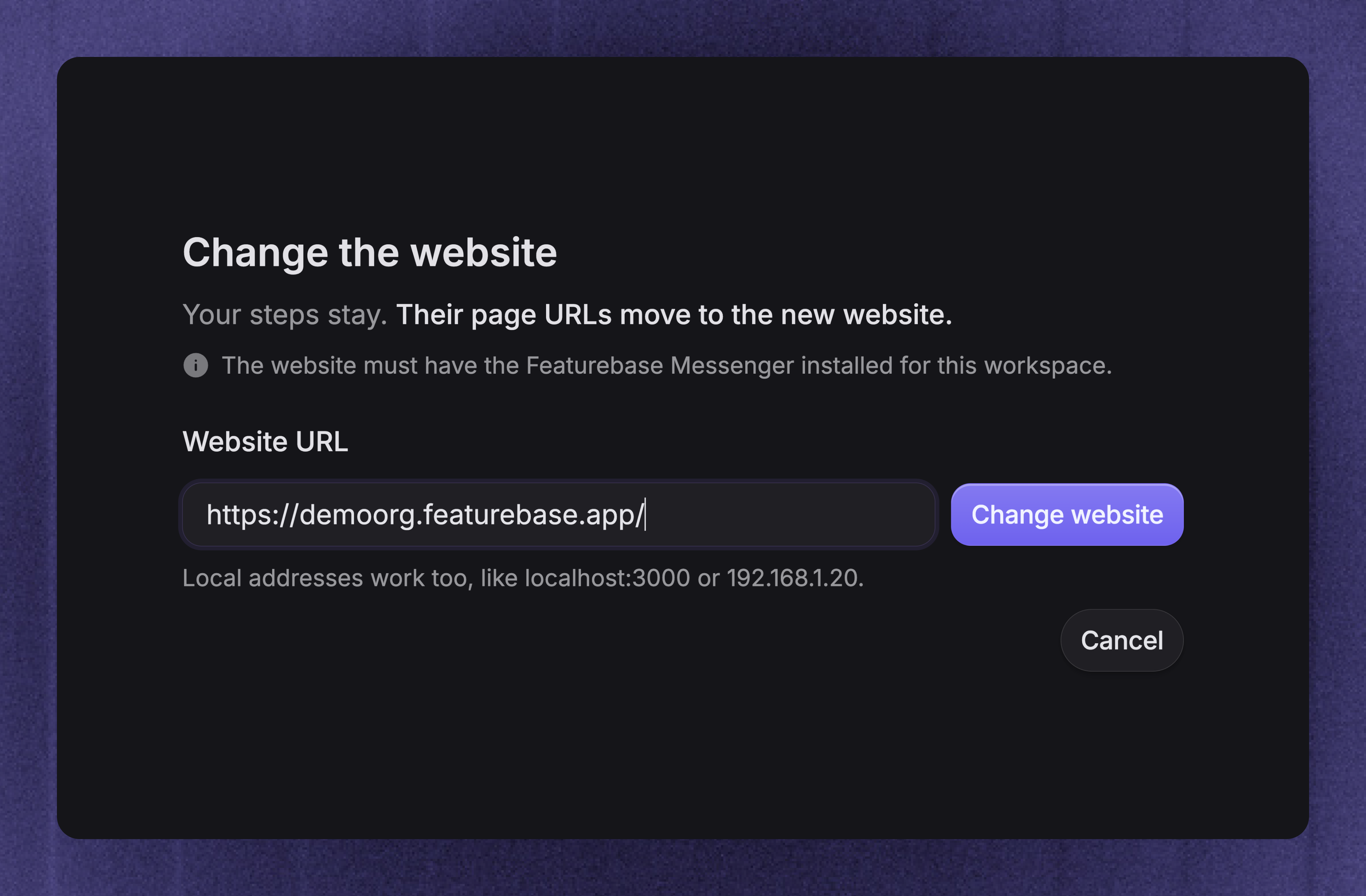
Change the website you build on
Open the tour in the builder and select Settings
Beside Built on, click 'Change'
Enter the new website URL and click 'Use this URL'
Preview the steps on the new website, then save your changes
Also review the automatic page rules, shared start URL, and any Open a page on Next destinations before customers use the tour.
FAQ
Can I duplicate a tour?
Can I duplicate a tour?
Yes. Open the tour from Dashboard → Outbound, open the three-dot menu, and select 'Duplicate'. The copy starts as a draft. Review its name, audience, and schedule before setting it live.
Was this helpful?
Still need help? Ask the team