Configuring the Help Center
Everything on how to set up & customize your help center to suit your specific needs.
Written By Kateryna Babenko
Last updated 13 days ago
Changing the help center’s text
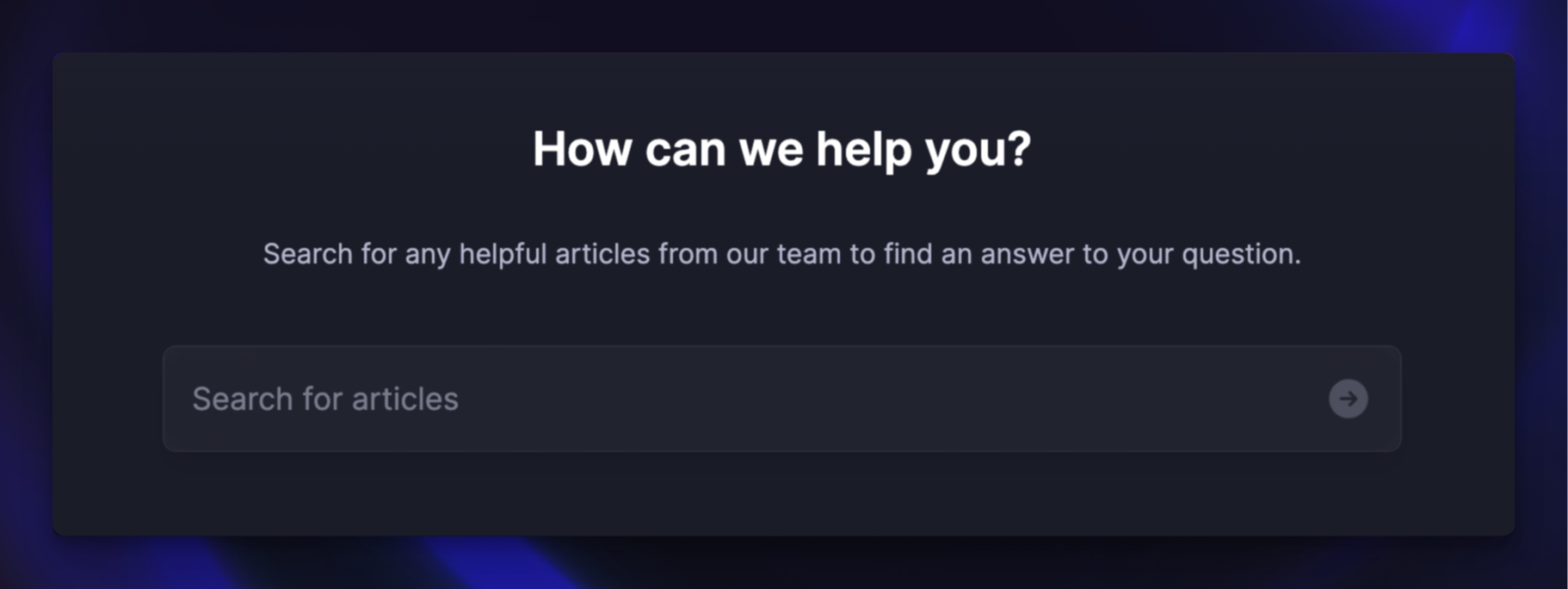
You can fully customize the heading section texts of your Knowledge Base:
Go to Settings → Help Centers → [your help center] → Styling → Content
Under the General Settings, change the title, description, and search placeholder
Click ‘Save all changes’ on the bottom right!
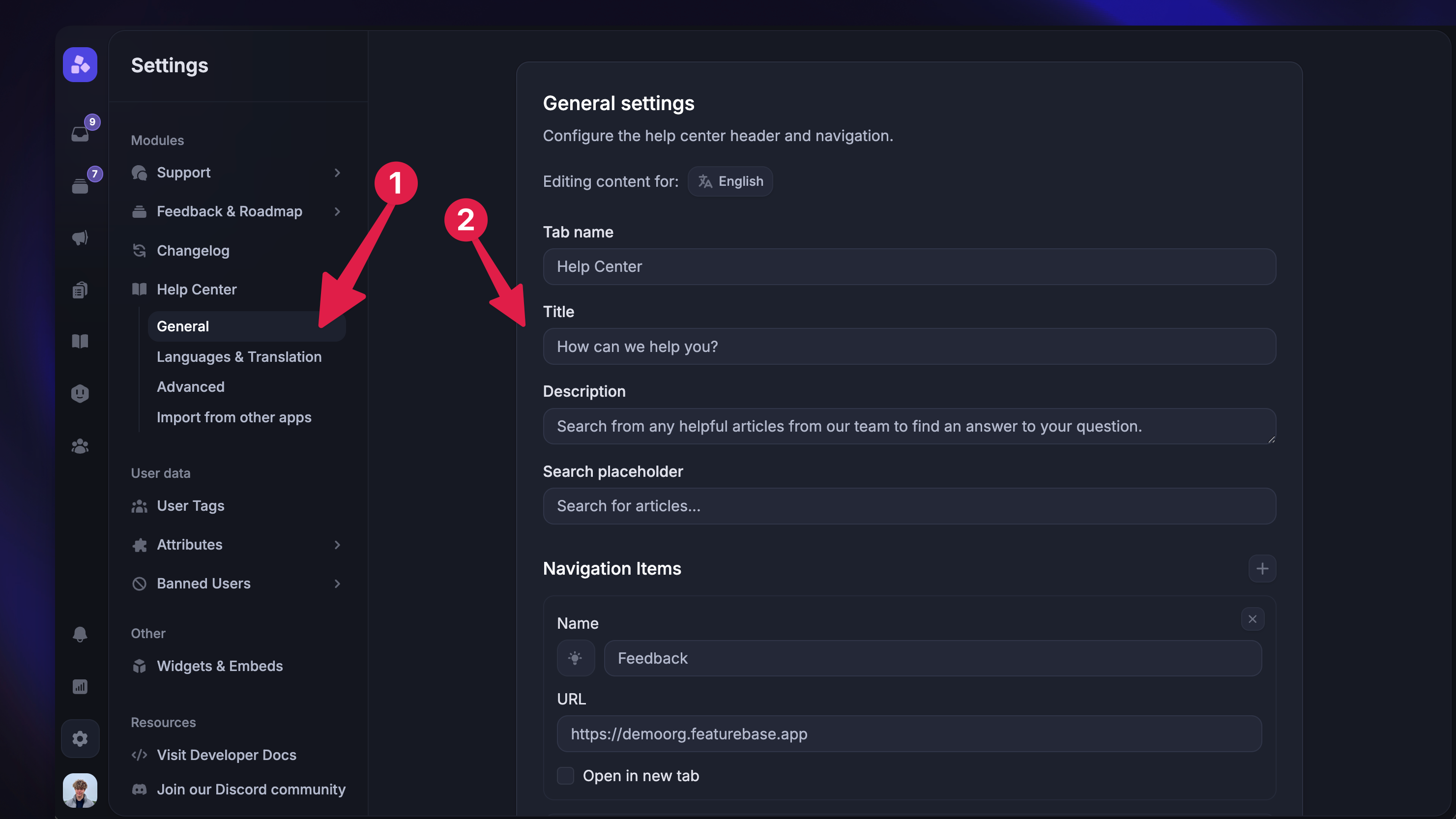
Linking to other sites from your Help Center
You may also want to link to some other sites, such as your API documentation, landing page, or feedback portal:
Go to Settings → Help Centers → [your help center] → Styling → Navigation
Under the Navigation Items, click on the
+button on the top right to add a new linkAdd the Name, URL, and icon
Click ‘Save all changes’ on the bottom right!
Styling your Help Center
The help center uses the same styling as your organization, including the logo, primary color, and theme. Learn to customize it here: Add your branding
Supporting multiple languages
You can publish the Help Center in your customers' native languages with multilingual articles and collections. Learn to set it up from here: Help Center in multiple languages
Hiding author and date information from articles
To hide author or date info from your help articles:
Go to Settings → Help Centers → [your help center] → Advanced
Under the Privacy settings, check ‘Hide author information’ or ‘Hide date information’
Configuring default link behaviour
To configure the default workspace-level link behavior for the Help Center:
Go to Settings → Help Centers → [your help center] → Advanced
Under the Link behavior, choose whether you want only external links to open in a new tab or also internal links.
Was this helpful?
Still need help? Ask the team