Use Slack in Workflows
Automate Slack support with Workflows to route conversations, collect data, deploy Fibi, apply SLAs, and request CSAT.
Written By Markus Palm
Last updated 15 days ago
Overview
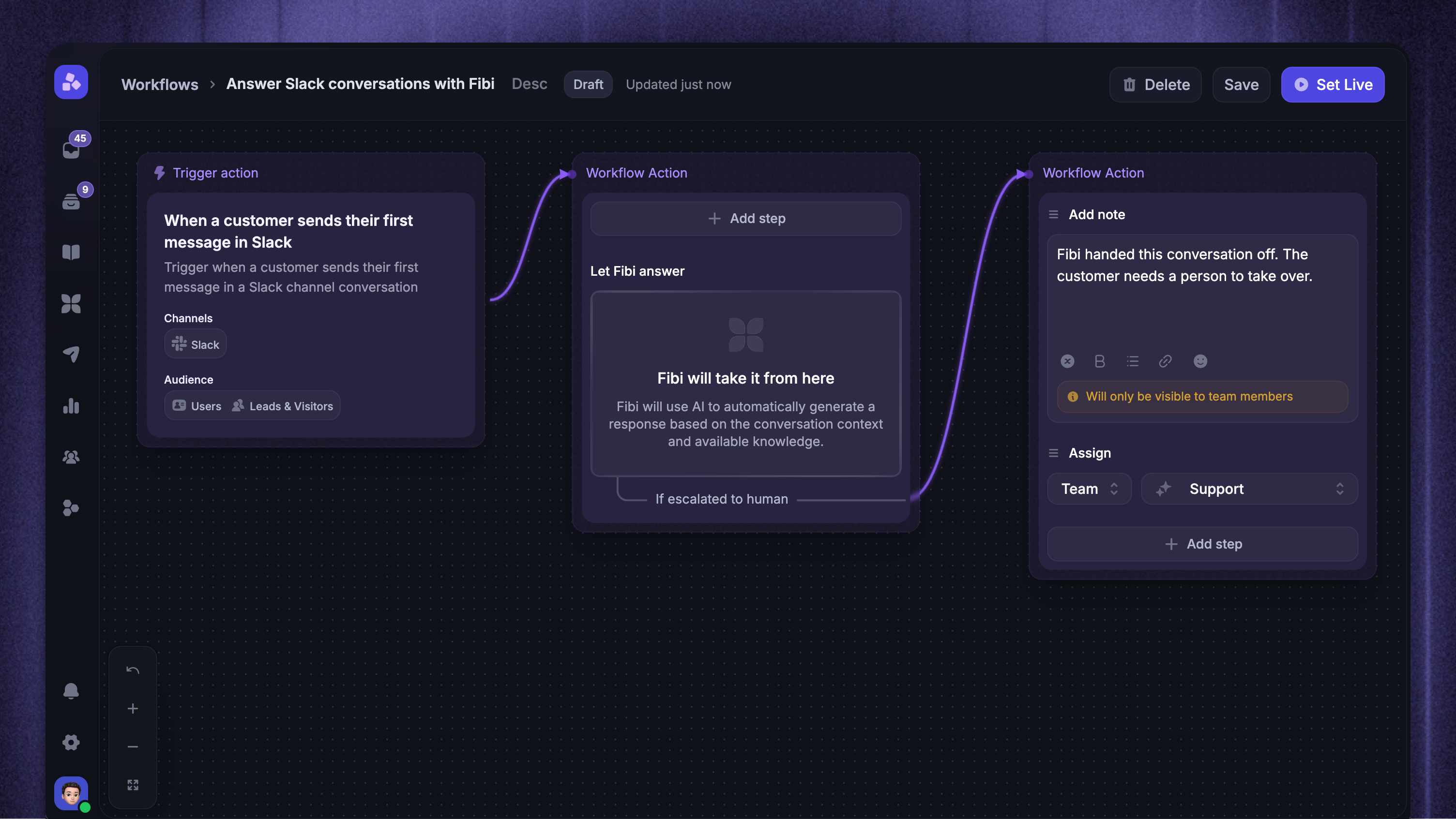
Use Workflows to automate support conversations that start in Slack. You can triage and route conversations, collect customer information, apply service level agreements (SLAs), let Fibi answer, and follow up with customers while they continue using Slack.
Slack uses the same no-code Workflow builder as your other support Channels. Select Slack in the trigger settings, then add customer-facing actions that interact with customers in the original Slack thread or operational actions that update the conversation in Featurebase.
Important: Every member of the Slack channel can see customer-facing messages posted by a Workflow. Do not request or send information that should not be shared with the channel.
Common use cases
Triage, tag, prioritize, and route new Slack conversations
Let Fibi answer eligible Slack conversations before a teammate gets involved
Collect structured issue details through a native Slack form
Apply different SLAs based on customer or Company data
Follow up when customers or teammates become unresponsive
Ask customers for a conversation rating after resolving their issue
Convert complex Slack conversations into Tickets for further investigation
Get started
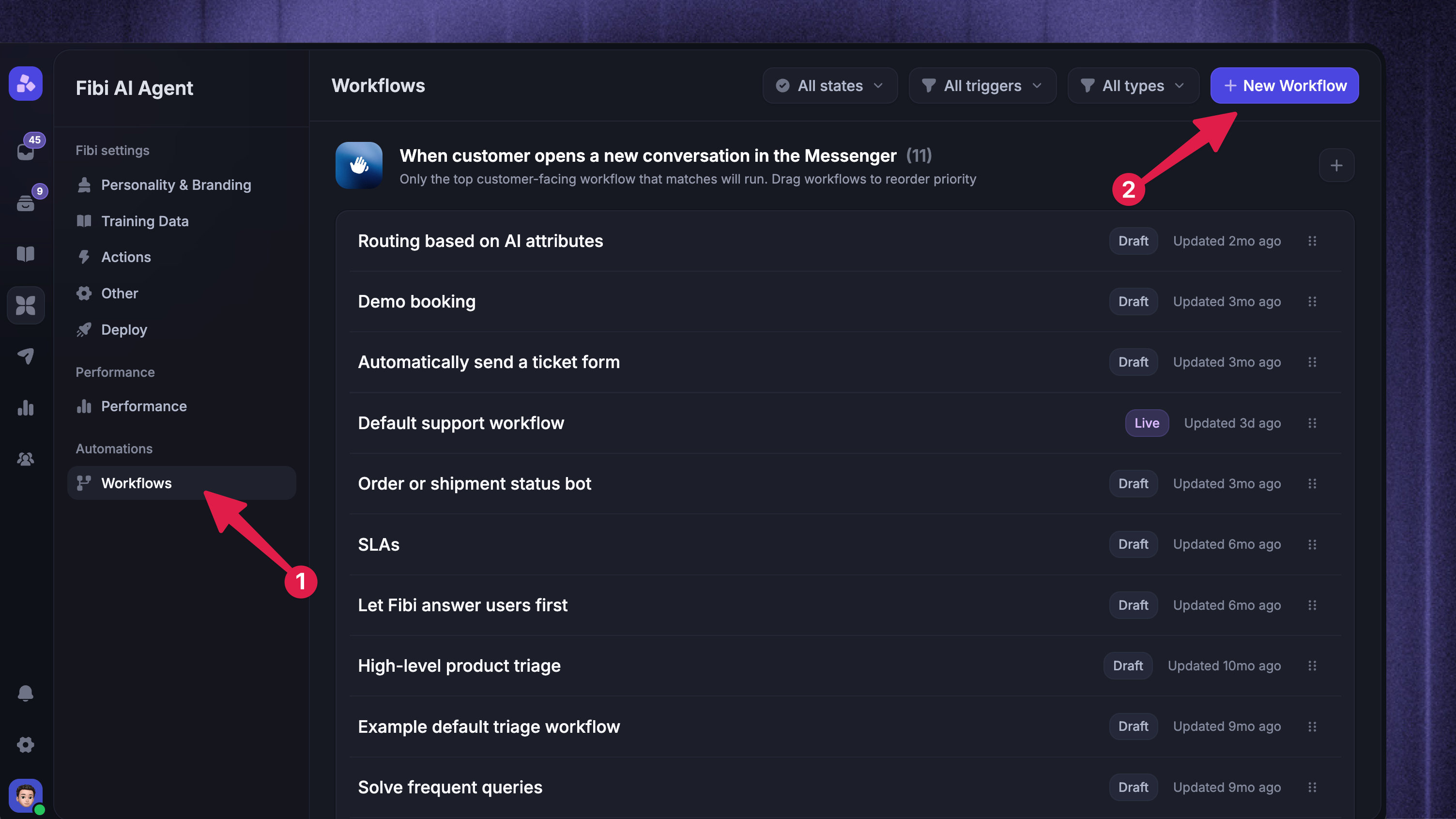
Before targeting Slack in a Workflow, connect your Slack workspace and activate the Customer or Community channels where you provide support.
To create a Workflow for Slack:
Go to Automations → Workflows
Click + New Workflow
Choose 'Create from scratch'
Select a supported trigger, such as ‘When customer sends their first message’
You can also start with the ‘Answer Slack conversations with Fibi’ template when you want Fibi to answer new Slack conversations before handing them to your team.
Configure trigger settings
Use the trigger settings to decide where, when, and for whom the Workflow runs.
To target Slack conversations:
Open the Workflow trigger
Select Slack under channels
Add Trigger rules when the Workflow should run only for specific messages or conversation details
Configure the Audience to target specific customers, leads, or customer segments
Configure Scheduling to control when the Workflow can run
Click 'Save and close'
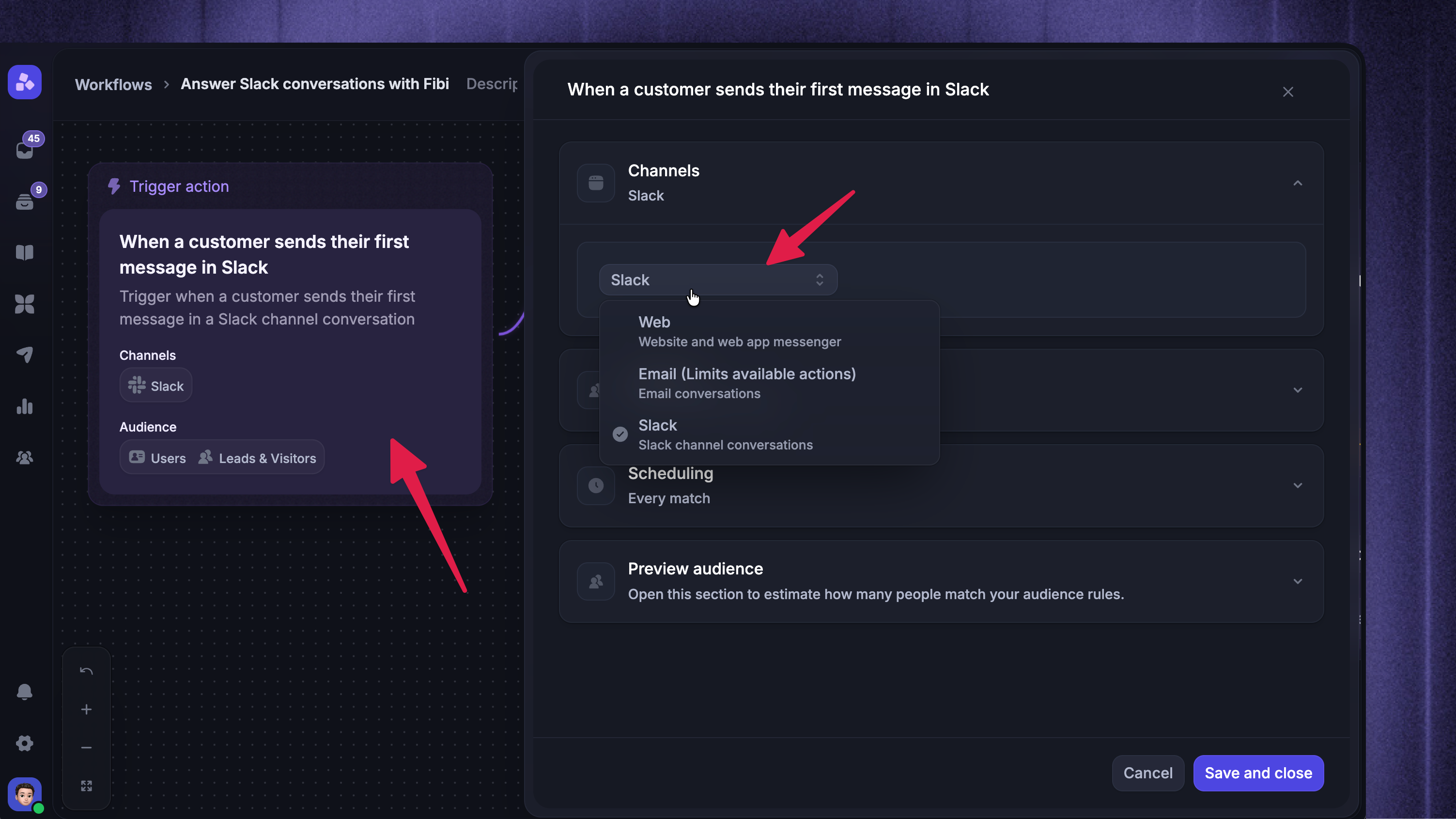
Good to know: The Workflow runs when activity matches the selected trigger, Slack Channel, audience, and scheduling rules. If ‘Slack’ is not available under Channels, the selected trigger does not support Slack.
Build your Workflow
Now you can start building your Workflow:
Add customer-facing actions to reply, collect information, show the expected reply time, request a rating, or let Fibi answer in Slack
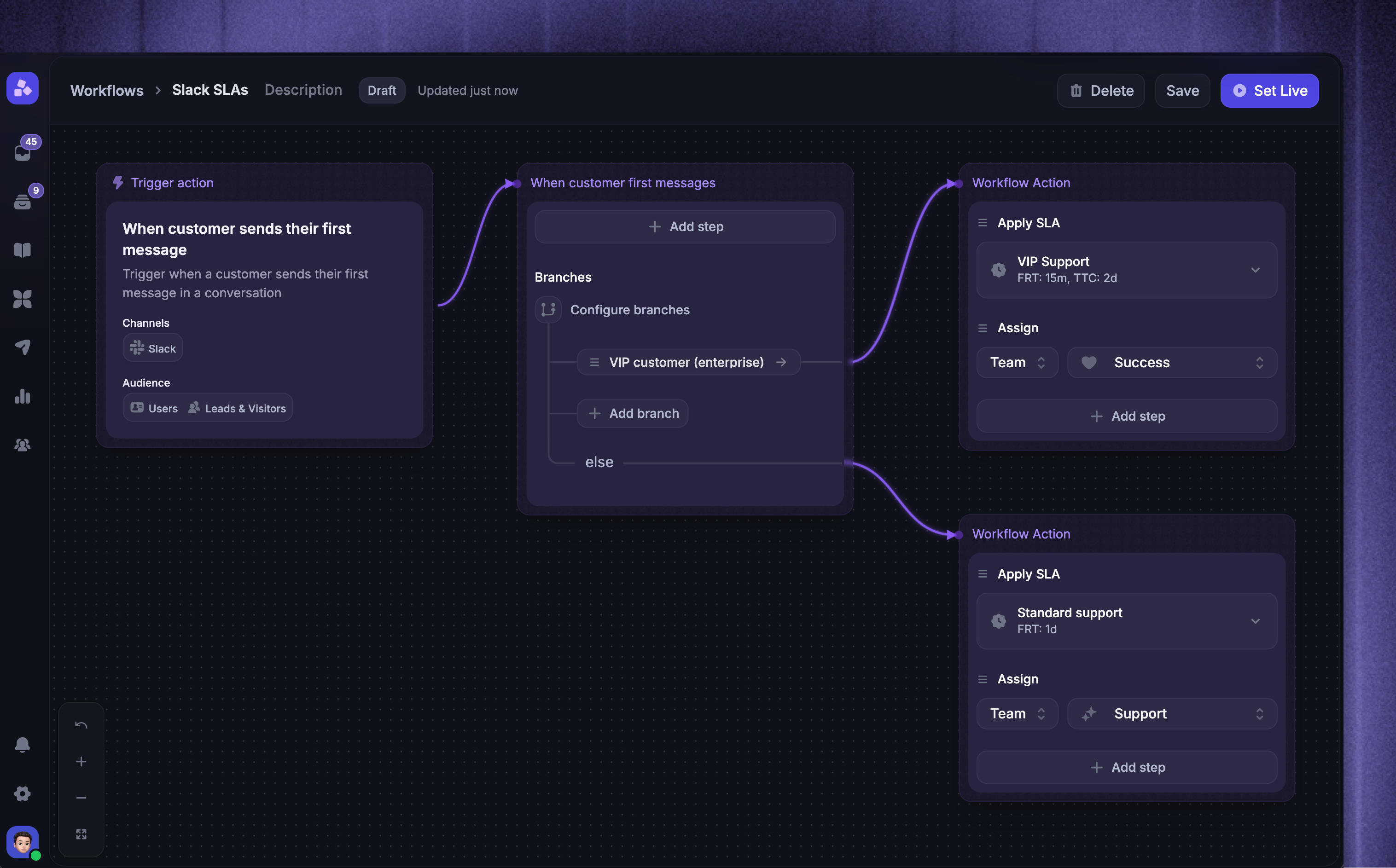
Add Branches or Apply rules to create different paths based on message content, customer or Company data, conversation attributes, or Slack channel details
Add operational actions to assign the conversation, add tags, set priority, apply an SLA, add an internal note, or convert the conversation into a Ticket
Review any Channel compatibility warnings in the Workflow editor
Click 'Save', then 'Set live' when the Workflow is ready
Customer-facing actions interact with the customer in the original Slack thread. Operational actions update the conversation in Featurebase without posting a new customer-facing message unless the selected action says otherwise.
Note: If a Workflow targets multiple Channels, every action must support every selected Channel. The editor warns you when an action is incompatible.
Test your Workflow
Before using the Workflow in a customer-facing Slack channel:
Create or use a private Slack channel with only the intended testers
Confirm that the channel is configured as a Customer or Community channel and that its ingestion mode will create a conversation from the test message
Start a new conversation from a Slack user who is not a Featurebase teammate
Confirm that the Workflow runs and the conversation appears in the Featurebase Inbox
Test customer-facing actions such as reply buttons, forms, Fibi, and CSAT
Check the Slack thread and Featurebase Inbox after every step
If the Workflow does not run or its messages do not appear in Slack, see Troubleshoot Slack support.
Examples
Automatically route Slack conversations to the right team
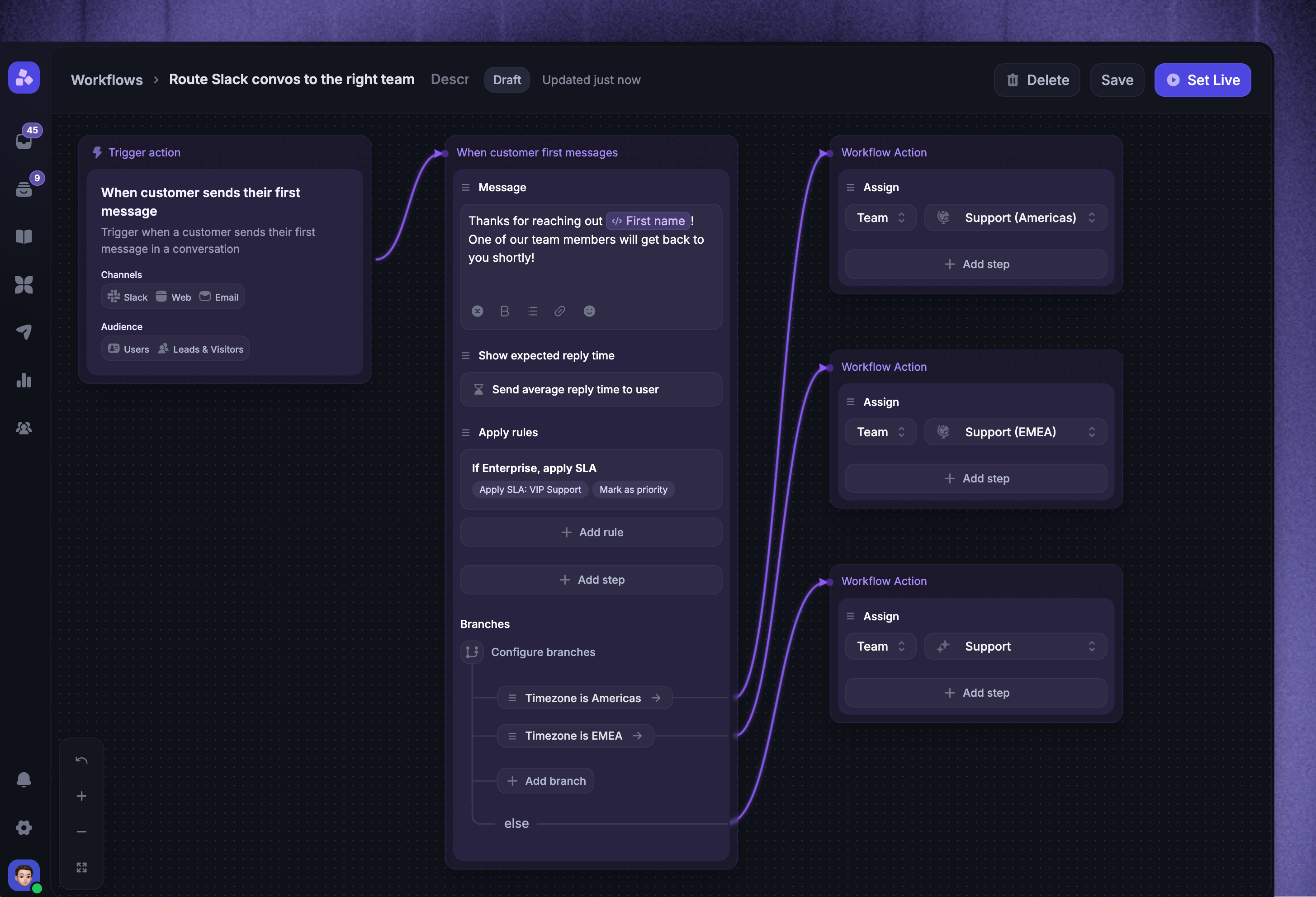
Route each Slack conversation using its message content, Slack channel, customer data, or Company data:
Create a Workflow with When customer sends their first message as the trigger
Select Slack under Channels
Add a Branches action and define the routing conditions
Add an Assign conversation action to each branch
Add supporting actions such as Tag conversation, Mark as priority, or Apply SLA
Add an Else branch that routes unmatched conversations to your general support team
For example:
If the message contains
billing→ assign it to Billing SupportIf the linked Company's plan is
Enterprise→ assign it to VIP SupportElse → assign it to General Support
Let Fibi answer new Slack conversations first
Use the ‘Answer Slack conversations with Fibi’ template to give customers an immediate answer and hand unresolved conversations to your team:
Go to Automations → Workflows
Click '+ New Workflow' and select ‘Answer Slack conversations with Fibi’
Open the trigger and confirm that Slack is selected under Channels
Configure the audience and scheduling rules
Open ‘Let Fibi answer’ to configure Fibi's instructions, handoff, and conversation rating settings
Configure the handoff path that assigns unresolved conversations to the appropriate team
Click 'Save', then 'Set live'
Place Let Fibi answer before other messages in the same step when Fibi should answer the message that triggered the Workflow. If Message, Reply buttons, Collect customer reply, Ask for conversation rating (CSAT), or Show expected reply time comes first in the same step, Fibi waits for the customer's next message. If the customer does not reply, Fibi stays silent. Fibi also stays silent when a Slack message does not need a reply, which is a separate check from this timing rule.
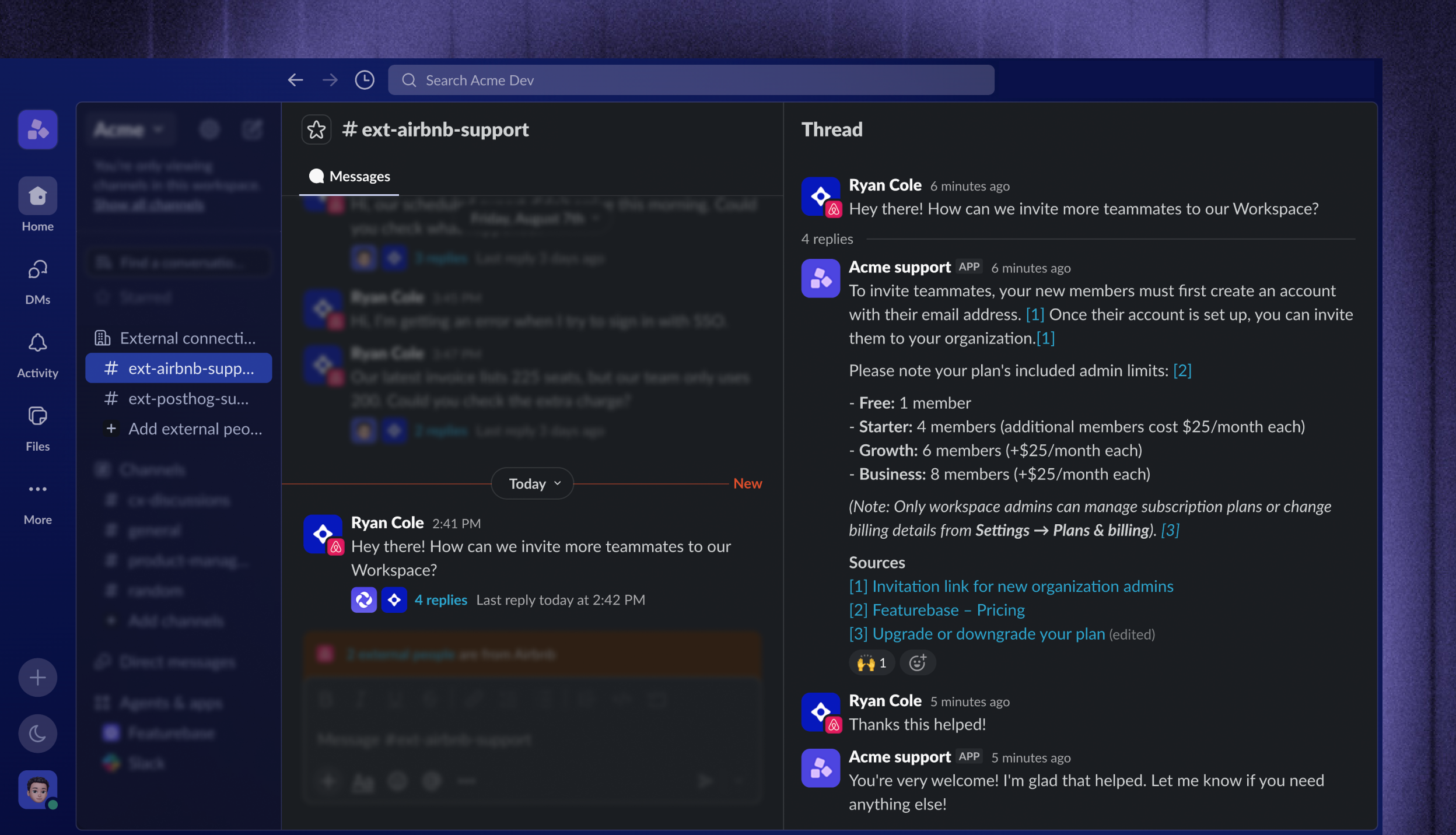
Tip: Fibi follows the channel's Slack content-access rules.
Collect issue details before routing or creating a Ticket
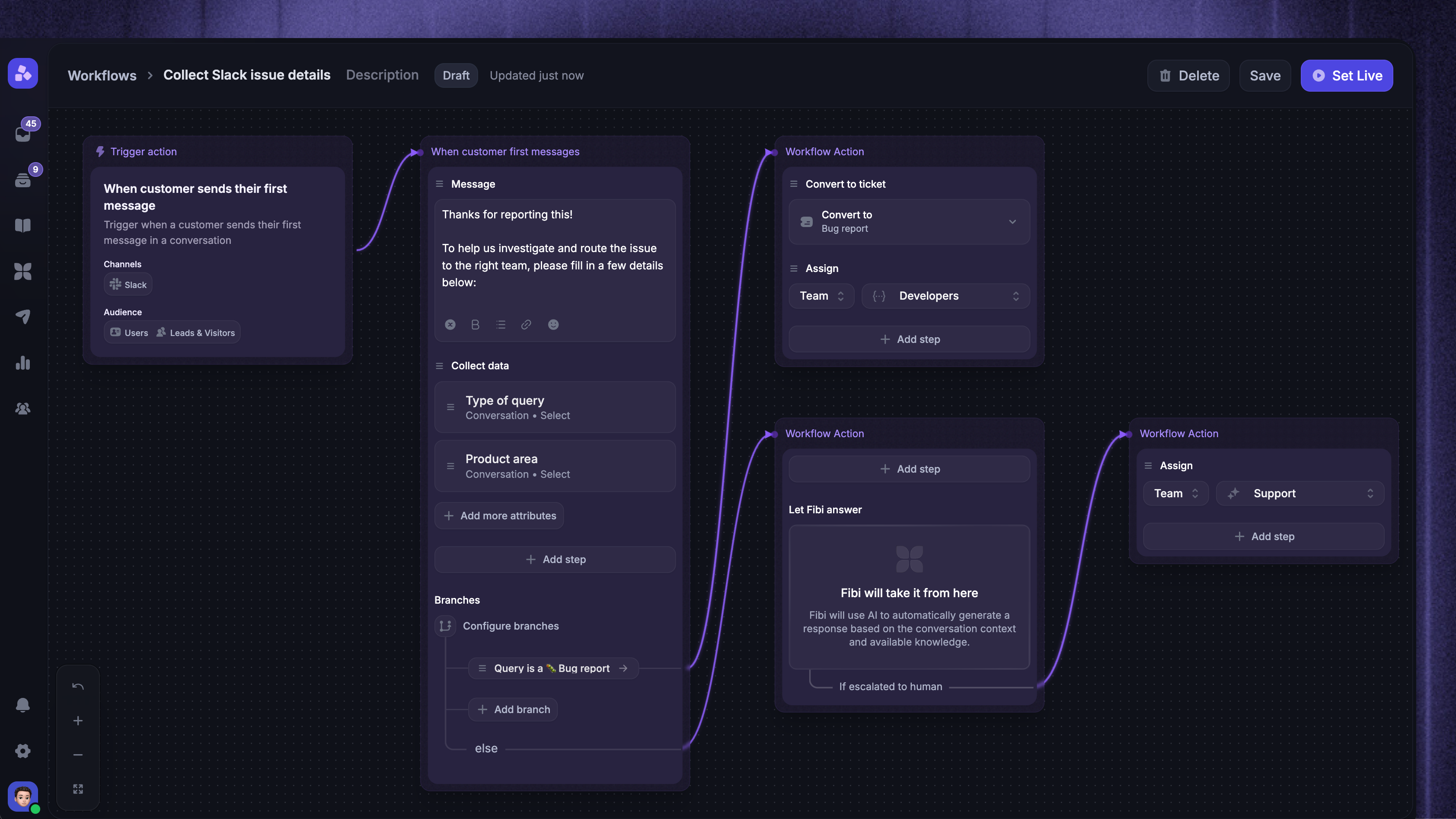
Use ‘Collect data’ to gather structured information before your team starts investigating:
Create a Workflow with ‘When customer sends their first message’ as the trigger
Select ‘Slack’ under Channels
Add a ‘Message’ action that explains which information you need
Add ‘Collect data’ and choose the Conversation, customer, or Company attributes to collect
Add branches that use the submitted information to assign, prioritize, or tag the conversation
Add ‘Convert to Ticket’ when the request requires further investigation
The Workflow posts a ‘Fill in details’ button in the Slack thread. The customer opens the form in Slack, submits the requested fields, and Featurebase updates the configured attributes before continuing the Workflow.
Apply priority SLAs to important Slack customers
Use customer and Company data to give important accounts the right response targets:
Create a Workflow with ‘When customer sends their first message’ as the trigger
Select ‘Slack’ under Channels
Add a Branches action based on plan, account tier, Company, or another synced attribute
Add Mark as priority, Apply SLA, and Assign conversation to the priority path
Add an Else path for your standard support process
For example:
If Company plan is
Enterprise→ mark as priority, apply the enterprise SLA, and assign to VIP SupportElse → apply the standard SLA and assign to General Support
Ask for CSAT after resolving a Slack conversation
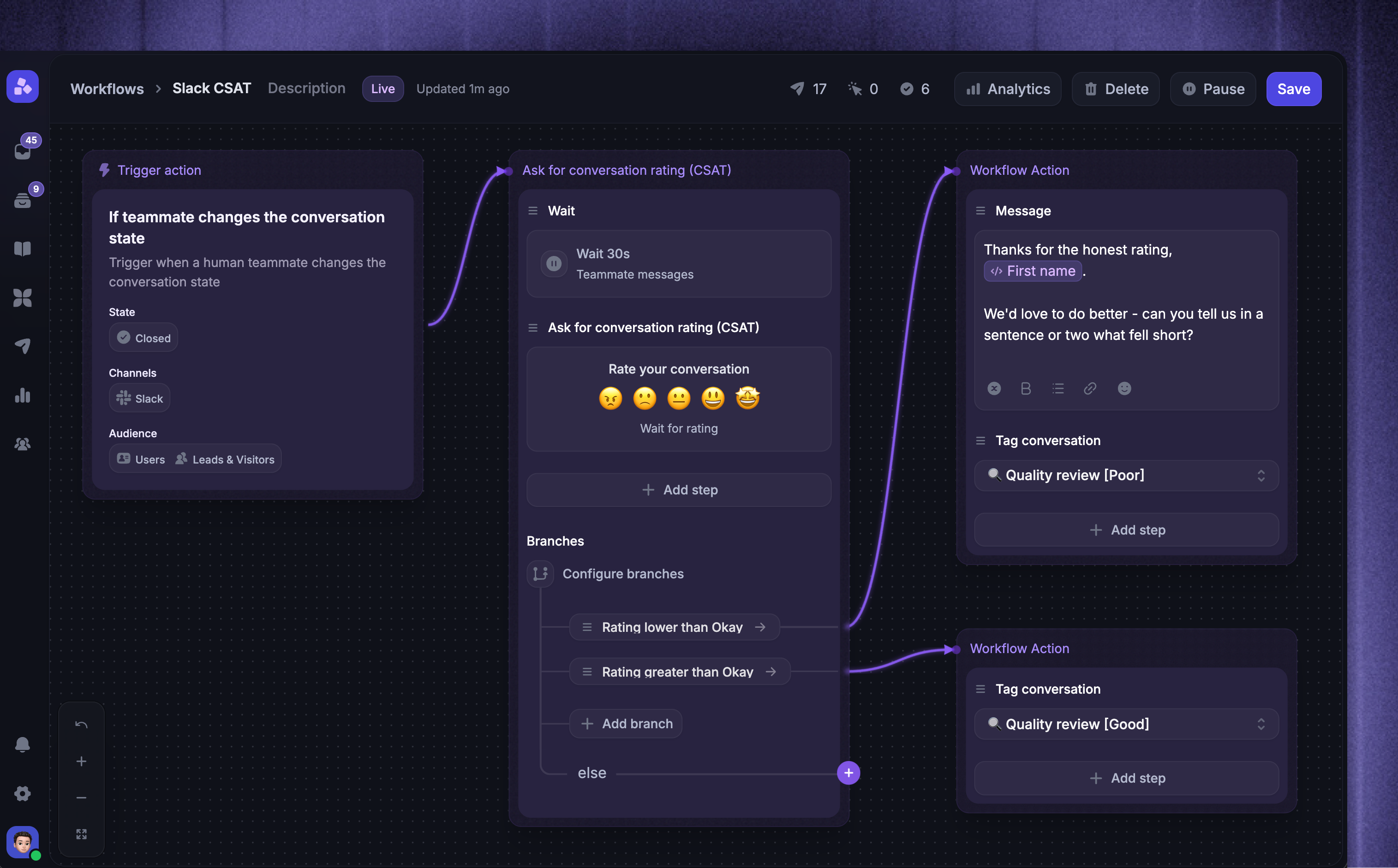
Start with the CSAT Workflow template, then select Slack under Channels in the Trigger block.
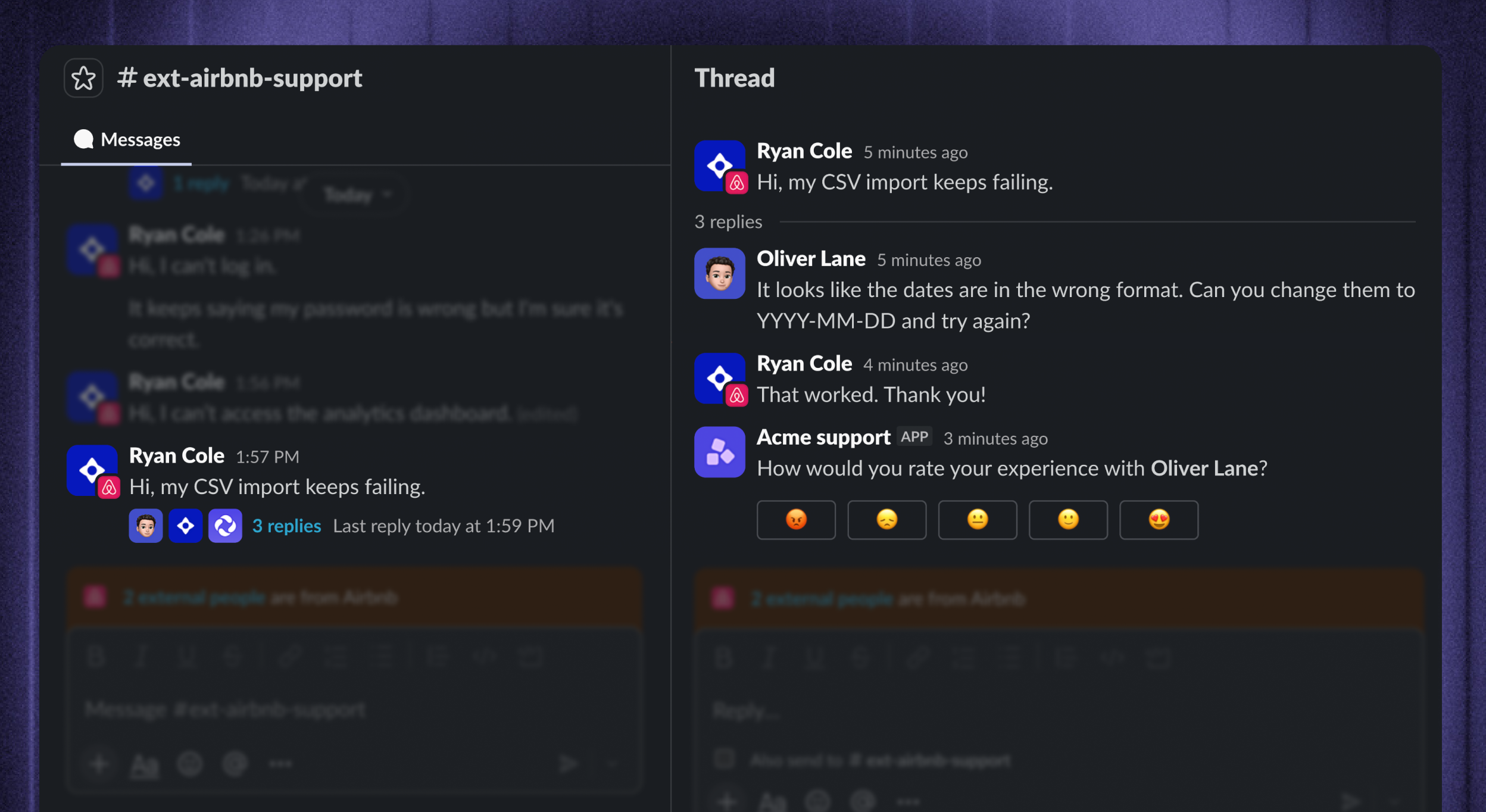
The rating prompt appears in the original Slack thread, and the response is attached to the Conversation. Configure the rating window, follow-up, and repeat-prevention rules in the same Workflow.
FAQs
Which triggers support Slack?
Which triggers support Slack?
You can select Slack for these conversation-based triggers:
When customer sends their first message
When customer sends any message
When teammate sends any message
When teammate changes conversation state
When conversation assigned to team
When conversation assigned to team member
When customer becomes unresponsive
When teammate becomes unresponsive
When teammate adds a note
Slack is not available for When customer visits a page, When customer opens a new conversation in the Messenger, or Ticket triggers.
Note: A new top-level Slack message from a Featurebase teammate does not create a customer conversation. ‘When teammate sends any message’ can run only when the teammate's message belongs to an existing conversation.
Which actions does Slack support in Workflows?
Which actions does Slack support in Workflows?
Slack supports these customer-facing Workflow actions:
You can also use operational actions such as assigning, closing, snoozing, waiting, adding and removing tags, setting priority, adding internal notes, applying SLAs, setting attributes, using data connectors, branching, applying rules, converting to a Ticket, and ending the Workflow.
The following actions are not available for Slack:
Disable customer reply
Send ticket
Can I use Fibi in a Slack Workflow if Fibi is disabled for the channel?
Can I use Fibi in a Slack Workflow if Fibi is disabled for the channel?
Yes. An explicit Let Fibi answer action can deploy Fibi in an eligible Customer or Community channel even when the channel-level Fibi switch is off. Fibi still follows the channel's Slack content-access rules.
Can a Slack Workflow create a Ticket?
Can a Slack Workflow create a Ticket?
Yes. Use ‘Convert to Ticket’ to turn the Slack conversation into a Ticket and continue working with the linked Ticket in Featurebase.
The ‘Send ticket’ action is not available for Slack.
Was this helpful?
Still need help? Ask the team