Connect Telegram to Featurebase
Connect a Telegram support bot, add it to customer groups, and link your teammates' Telegram profiles.
Written By Bruno
Last updated About 1 hour ago
Overview
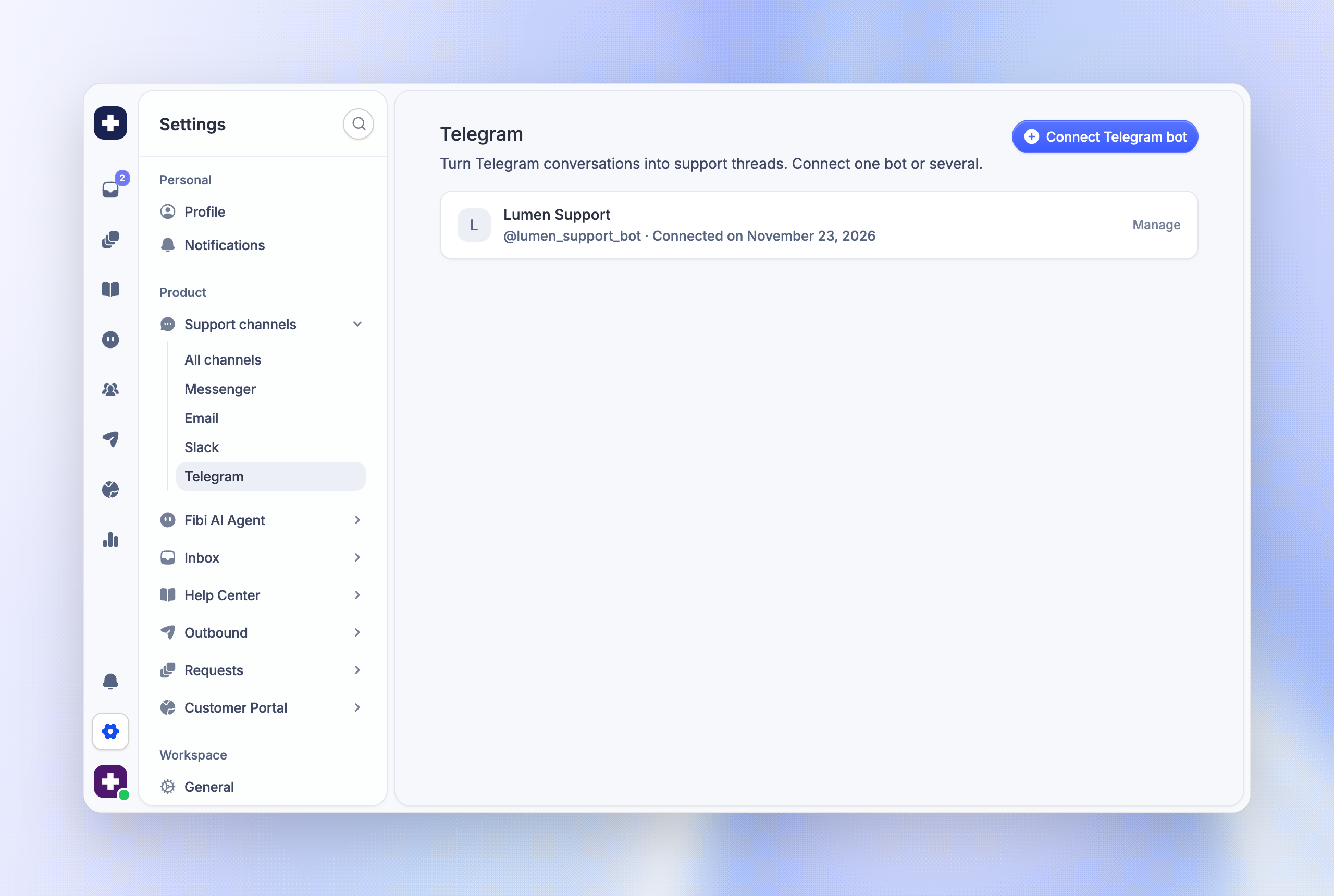
Connect your own Telegram bot to bring Telegram private chats and customer groups into the Inbox. You create the bot in Telegram's BotFather, paste its token into Featurebase, and then add the bot to the groups you want to support.
Each bot has its own groups and message settings. Connect one bot per brand or support team if they need different settings.
Note: You need the Manage Integrations permission, and Telegram must be turned on for your workspace. If you don't see Telegram under Support channels, contact us.
Connect your bot
Create a bot in BotFather
In Telegram, open @BotFather and send /newbot
Enter a name for the bot, such as your company name and "Support"
Enter a username that ends in "bot", such as lumen_support_bot
Copy the token that BotFather sends you
You can also use a bot you already have. Send /mybots to BotFather, choose the bot, and open its token. The bot's name and picture are what customers see in Telegram, so set the picture in BotFather too.
Connect the bot to Featurebase
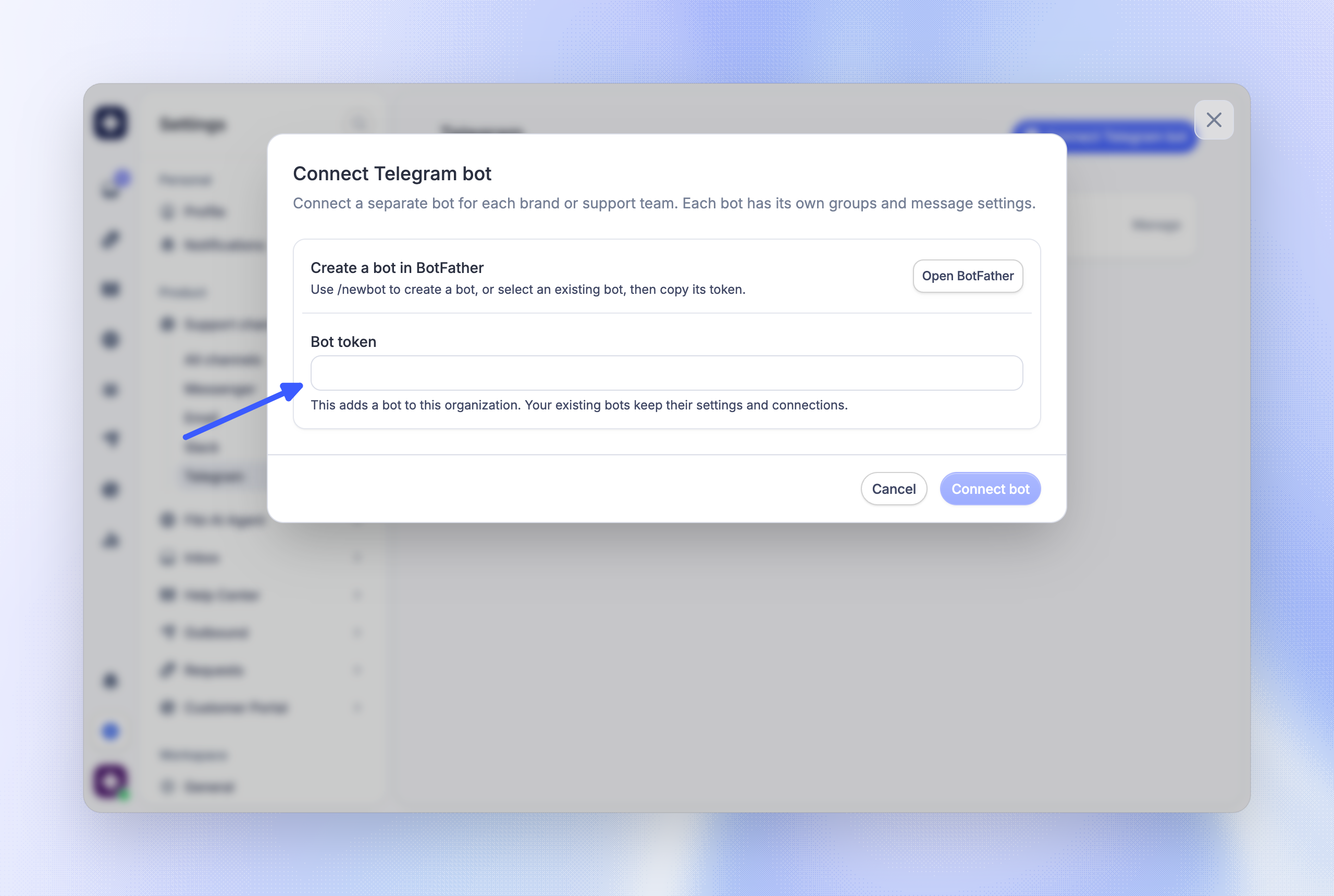
Click 'Connect Telegram bot'
Paste the token into Bot token
Click 'Connect bot'
The bot appears in the list as Connected. Click 'Manage' next to it to open its settings in four tabs: General, Ingestion, Groups, and Team.
Note: A bot can be connected to one Featurebase workspace only. If the bot already sends its messages to another service, disconnect it there first.
Share the support link
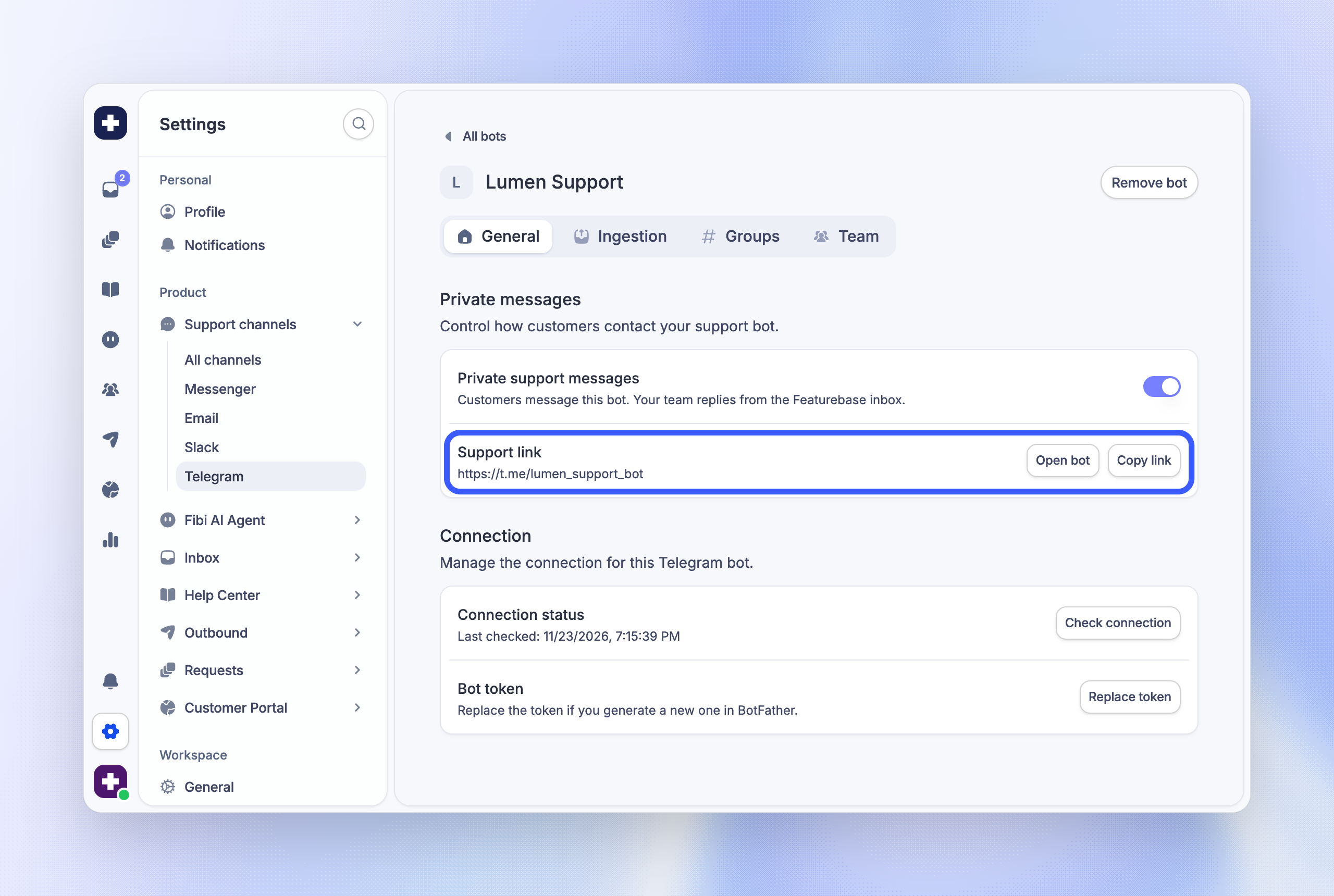
Customers start a private chat with your bot from its support link, https://t.me/<your bot's username>.
Open the bot and go to General
Check that Private support messages is on
Under Support link, click 'Copy link' and add the link to your website, emails, or Help Center
Every private message to the bot now opens a conversation in the Inbox. Turn off Private support messages if the bot should handle groups only.
Connect a customer group
Add the bot to the group
In Telegram, open the customer group and add your bot as a member
Make the bot an administrator of the group
The bot needs to be an administrator to receive every message in the group and to reply. Within a few seconds, the group shows under Groups with the status Ready to configure.
You can also click 'Connect group' under Groups and then 'Open Telegram' to pick the group in Telegram.
Connect the group in Featurebase
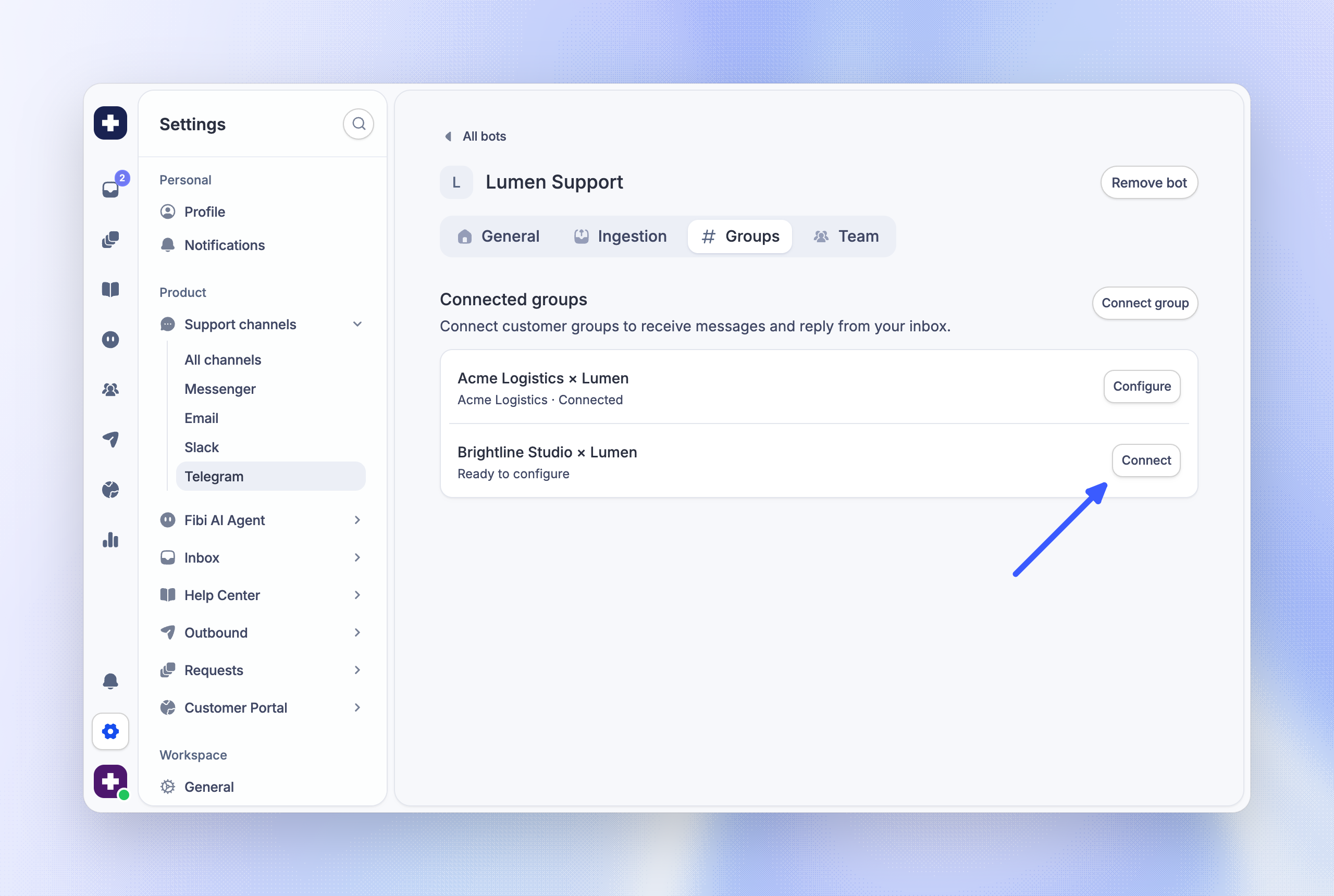
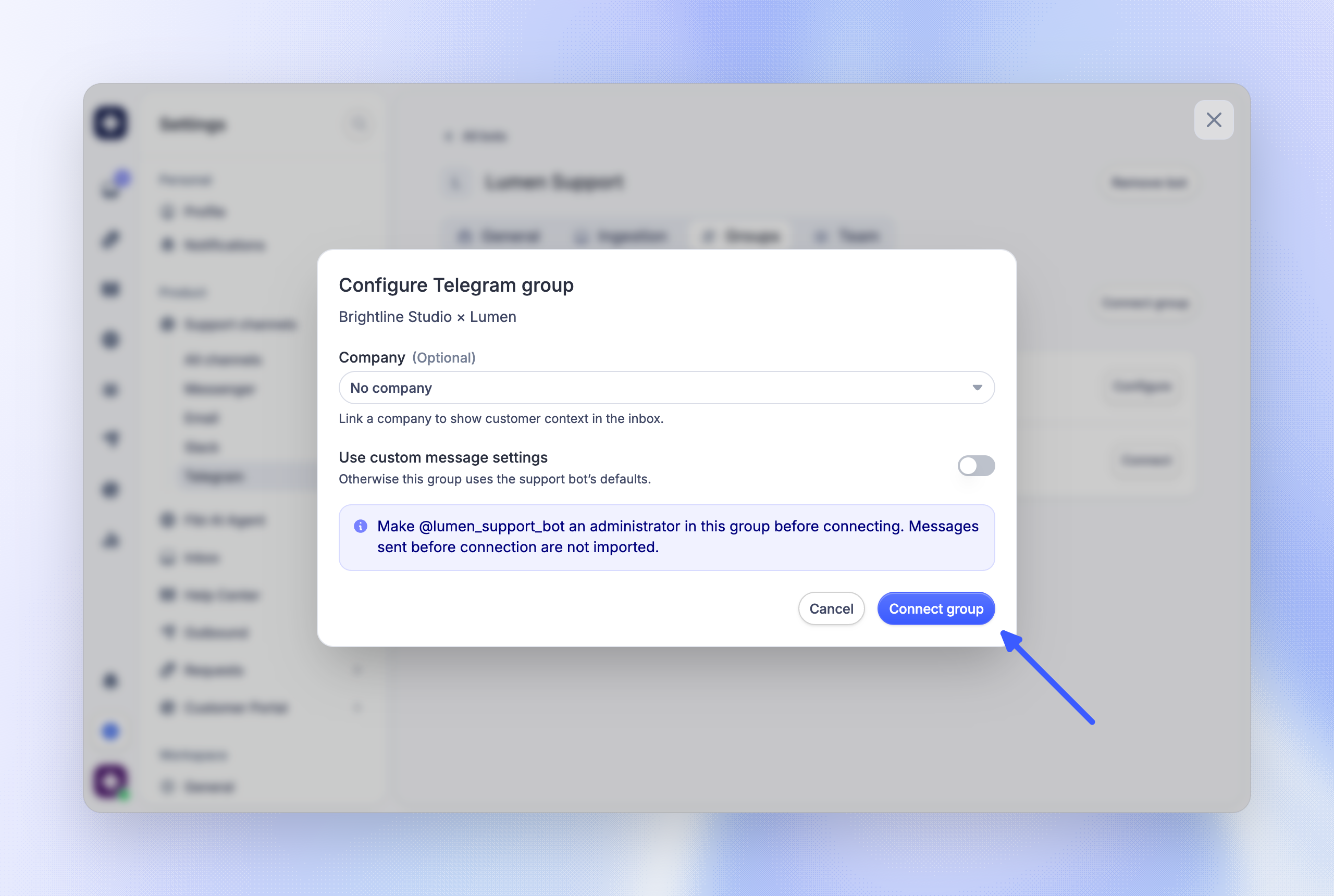
Open the bot and go to Groups
Click 'Connect' next to the group
Optionally, choose a Company to show customer context in the Inbox
Optionally, turn on Use custom message settings to give this group its own conversation settings
Click 'Connect group'
The group's status changes to Connected. New messages in the group now arrive in the Inbox. Messages sent before you connected the group are not imported.
Note: The company link only adds context in the Inbox. It doesn't give group members access to company content or to your customer portal.
Link your teammates' Telegram profiles
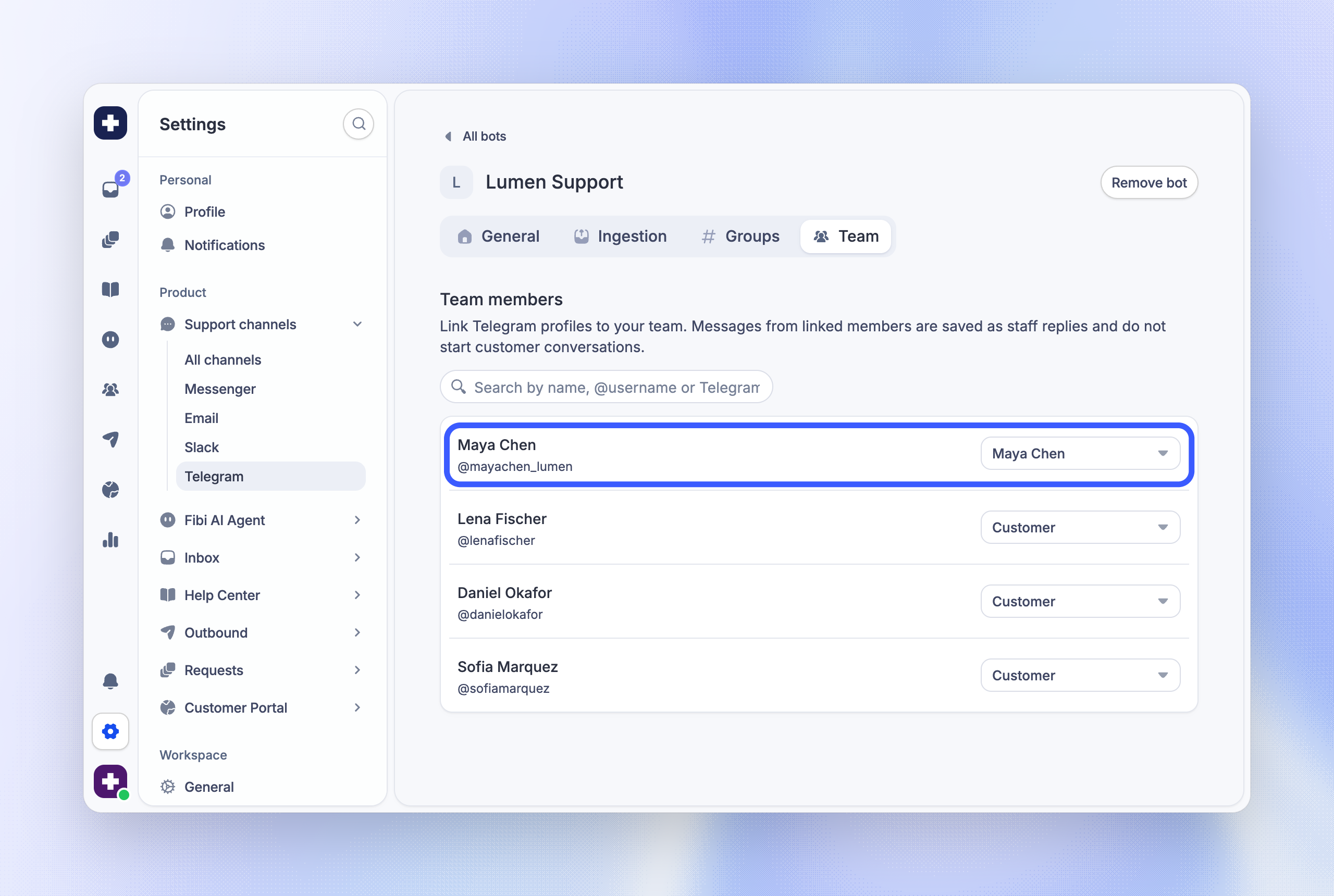
If your teammates also write in customer groups from their own Telegram accounts, link their profiles. Their messages then appear in the conversation as staff replies, stop the reply-time SLA like an Inbox reply, and never start a customer conversation.
Open the bot and go to Team
Find the teammate's Telegram profile. People show here after they send a message to the bot or to a connected group
In the dropdown next to the profile, choose the teammate
Click 'Link member' to confirm
To undo the link, choose Customer in the same dropdown.
Check and manage the connection
Check the connection
Featurebase checks each bot every hour. If something is wrong, the General tab shows what to fix, and teammates with the Manage Integrations permission get an alert in Featurebase.
To check now, open the bot, go to General, and click 'Check connection'.
Replace the bot token
If you create a new token in BotFather, the old one stops working. Update it in Featurebase:
Open the bot and go to General
Next to Bot token, click 'Replace token'
Paste the new token into New bot token and click 'Replace token'
Your groups, settings, and conversations stay connected.
Remove a bot
Open the bot and click 'Remove bot', then confirm. Private messages, group messages, and replies stop for this bot. Existing conversations stay in the Inbox.
To stop one group only, open Groups, click 'Configure' next to the group, and click 'Disconnect group'.
FAQs
The group doesn't show under Groups
The group doesn't show under Groups
Check that the bot is still a member of the group. Remove the bot from the group and add it again to make the group show. A group that is not connected within 7 days disappears from the list until you add the bot again.
Featurebase asks me to make the bot an administrator
Featurebase asks me to make the bot an administrator
Featurebase shows "Make the support bot an administrator in this group, then connect it." when the bot is a member but not an administrator. Make it an administrator in Telegram, then click 'Connect group' again.
The group shows "Reply permission missing" or "Bot removed or access changed"
The group shows "Reply permission missing" or "Bot removed or access changed"
Someone changed the bot's role or removed it from the group. Make the bot an administrator again, then open Groups and connect the group again.
The General tab says "Telegram rejected the bot token."
The General tab says "Telegram rejected the bot token."
The token was revoked or replaced in BotFather. Replace the bot token with the current one.
The General tab says "Telegram could not deliver updates."
The General tab says "Telegram could not deliver updates."
Another service may be using the same bot. Disconnect the bot from the other service, then click 'Check connection' to repair it.
Can two bots connect the same group?
Can two bots connect the same group?
Not in the same workspace. Each group belongs to one support bot.
Messages stopped arriving
Messages stopped arriving
Check that Sync Telegram messages is on under Ingestion, and that the group's status is Connected. Messages sent while syncing was paused are not imported later.
Was this helpful?
Still need help? Ask the team