Cursor integration
Investigate customer issues, draft replies from codebase findings, and request fixes with Cursor from the Inbox.
Written By Kateryna Babenko
Last updated 30 days ago
Overview
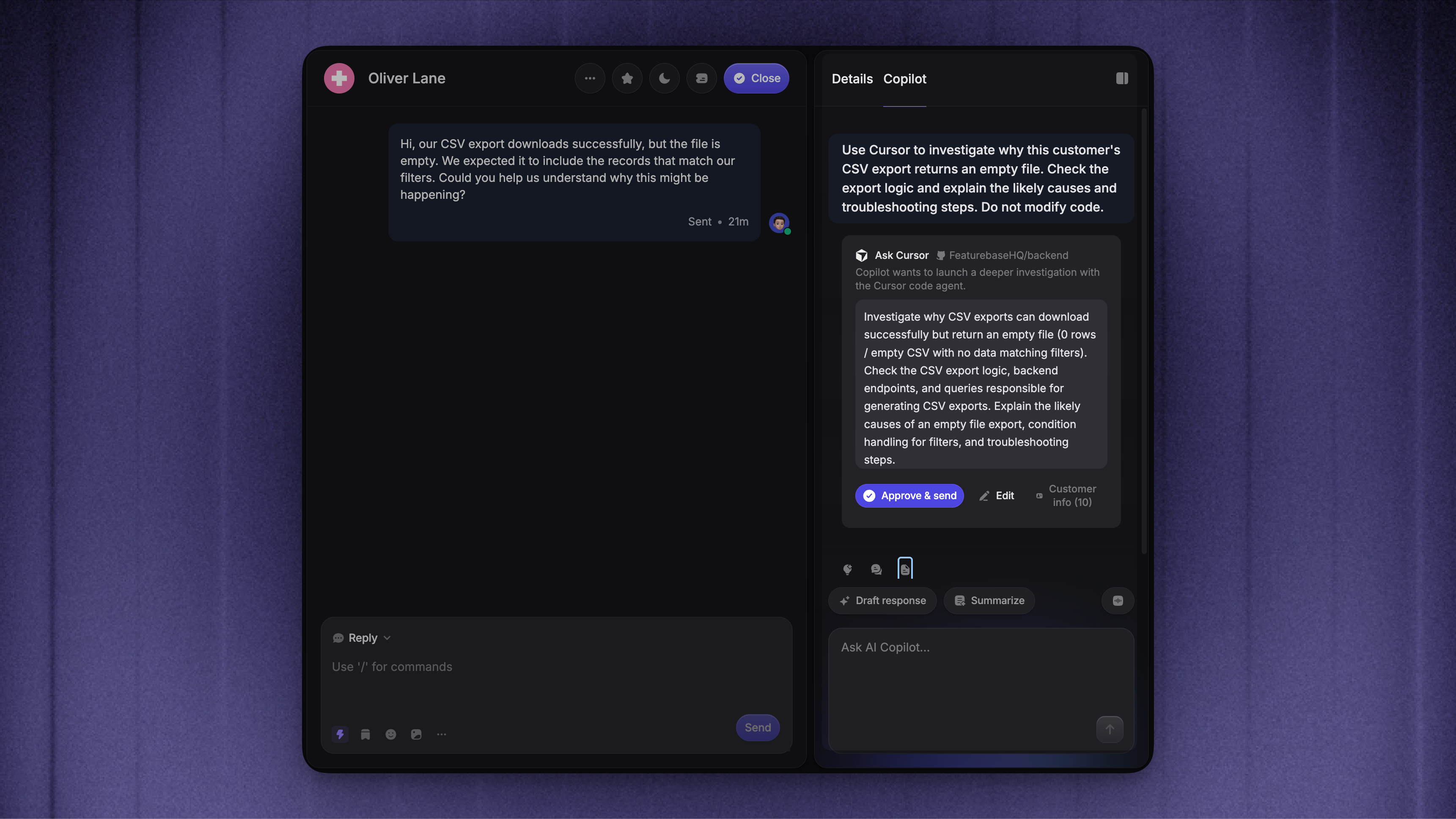
The Cursor integration lets you investigate customer issues using your codebase from Copilot in the Inbox. Cursor checks the connected repository and returns findings you can use to draft a reply.
You can use it to:
Check how a feature works when your documentation does not cover the question
Investigate errors and unexpected behavior reported by customers
Ask Cursor to implement a fix and open a pull request for review
Setting up the Cursor integration
Connect Cursor
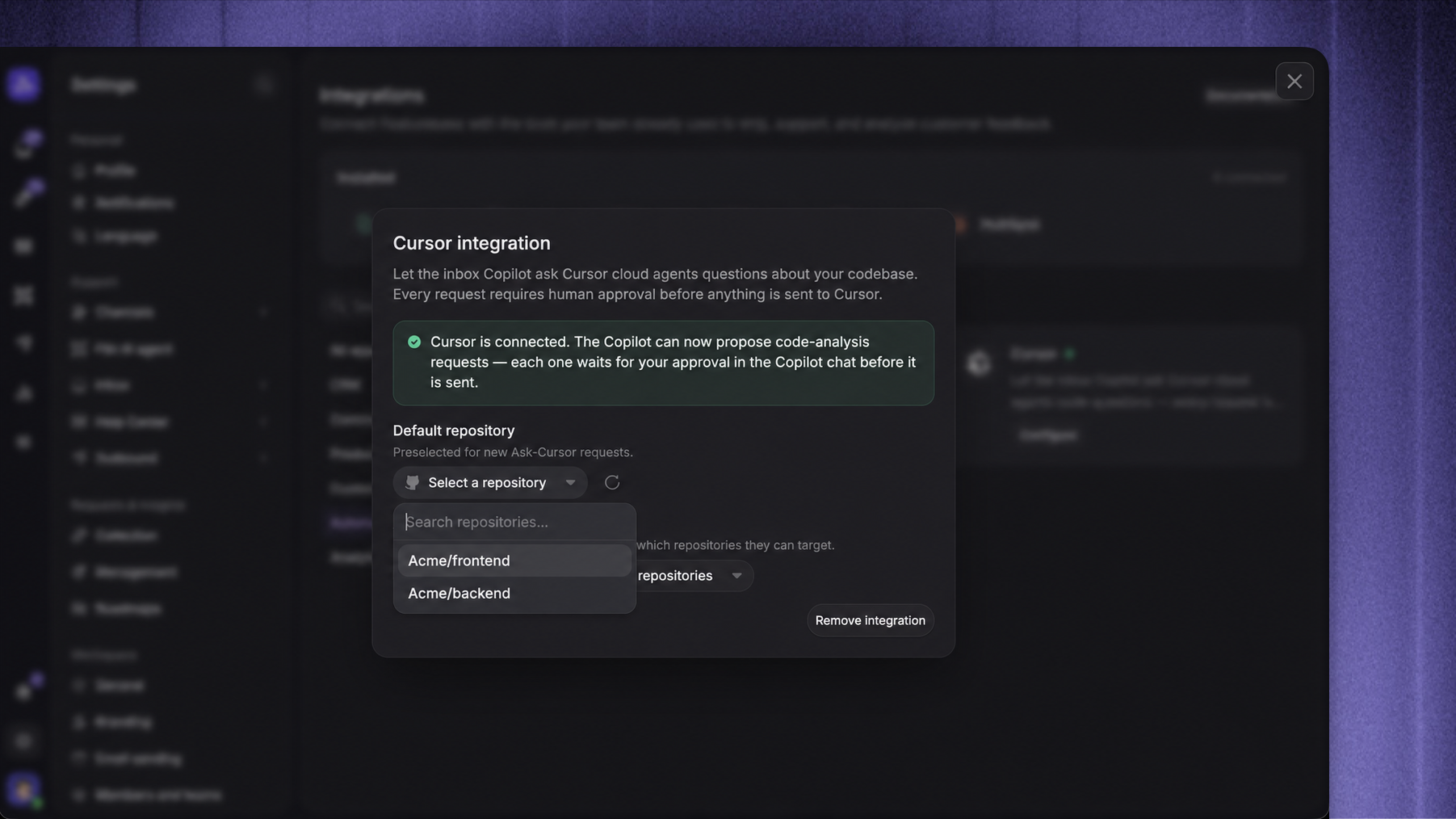
First, connect GitHub to Cursor and give it access to the repositories your team needs.
Open the Cursor API dashboard and create a user API key
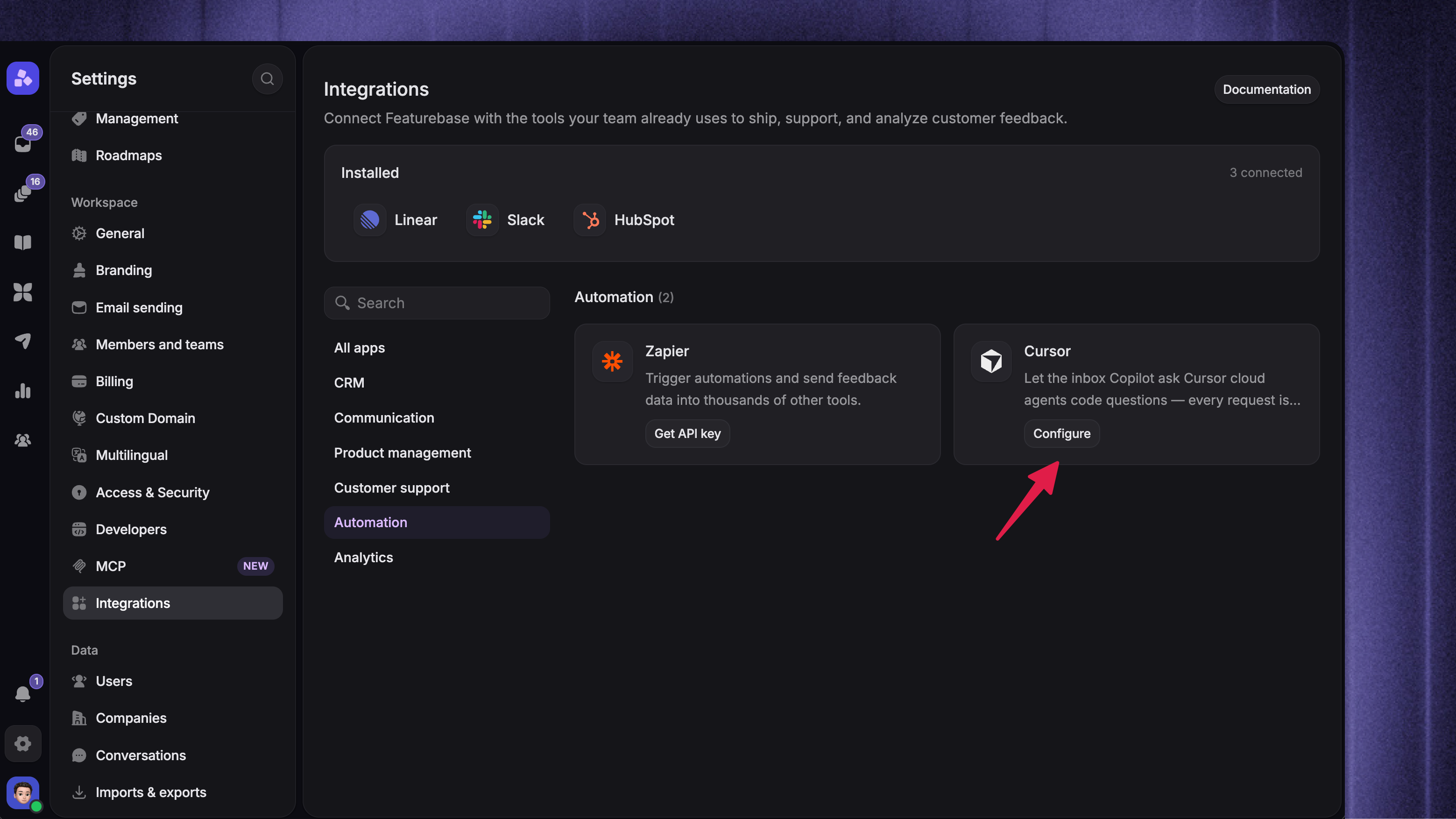
Go to Settings → Integrations in Featurebase
Find Cursor and click 'Configure'
Paste your key into Cursor user API key
Click 'Connect Cursor'
Featurebase loads the repositories available through your Cursor connection.
Note: You need permission to manage integrations in Featurebase and a Cursor account with Cloud Agents access for this step.
Choose repositories and teammate access
In the Cursor configuration:
Set ‘Default repository’ to the repository your team will use most often
Under Access, choose which teammates can launch Cursor requests
Choose which repositories those requests can target
The defaults are Everyone with a full seat and All repositories. Select specific teammates or repositories to restrict access. Teammates also need permission to use integrations.
The teammate who connected Cursor manages its settings and access. The connection uses their Cursor API key across the Workspace.
How it works
Investigate an issue from the Inbox
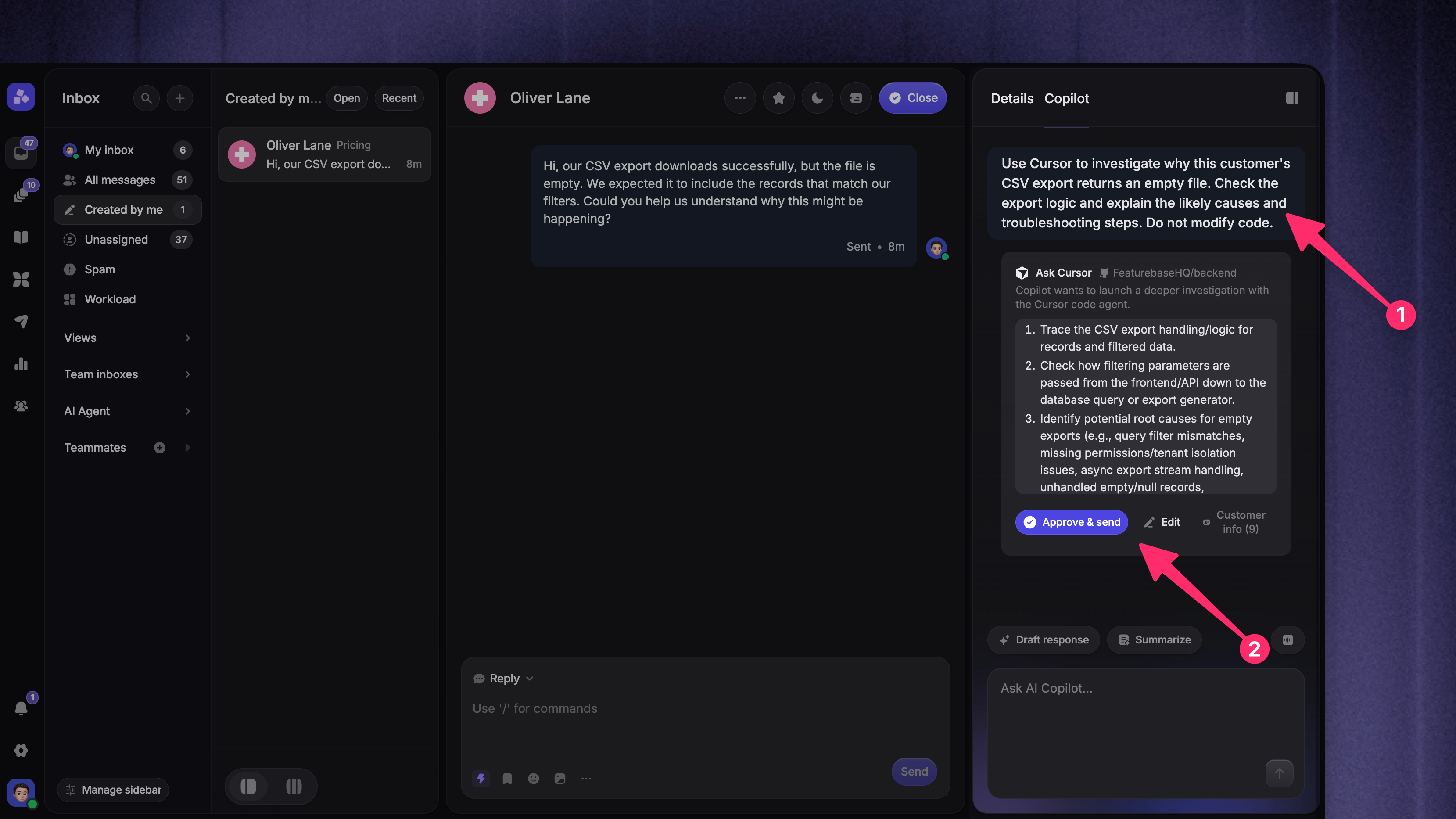
Open Copilot in the customer's conversation and ask it to investigate a specific question using Cursor. Include the repository name if your team uses several repositories.
Example: Use Cursor to investigate why this customer's CSV export returns an empty file. Check the export logic and explain the likely causes and troubleshooting steps.
Copilot prepares an Ask Cursor card for you to review:
Check the repository and the proposed prompt
Click 'Edit' if you want to change the question or add relevant details, such as the exact error message
Open Customer info to review the attributes that will be shared with Cursor. If no attributes are selected, the control reads No customer data shared
Remove attributes you do not need, or click 'Add attribute' to include relevant user, company, or conversation details
Click 'Approve & send'
The shared attributes start from the details you have pinned in the Inbox, with any changes you have saved for Cursor.
Cursor runs in the background. You can continue working while it investigates.
Important: Every request requires your approval before it is sent to Cursor. Your sharing choices are remembered for future requests. Review both the selected attributes and the prompt, since either can contain customer information.
Review the findings and reply
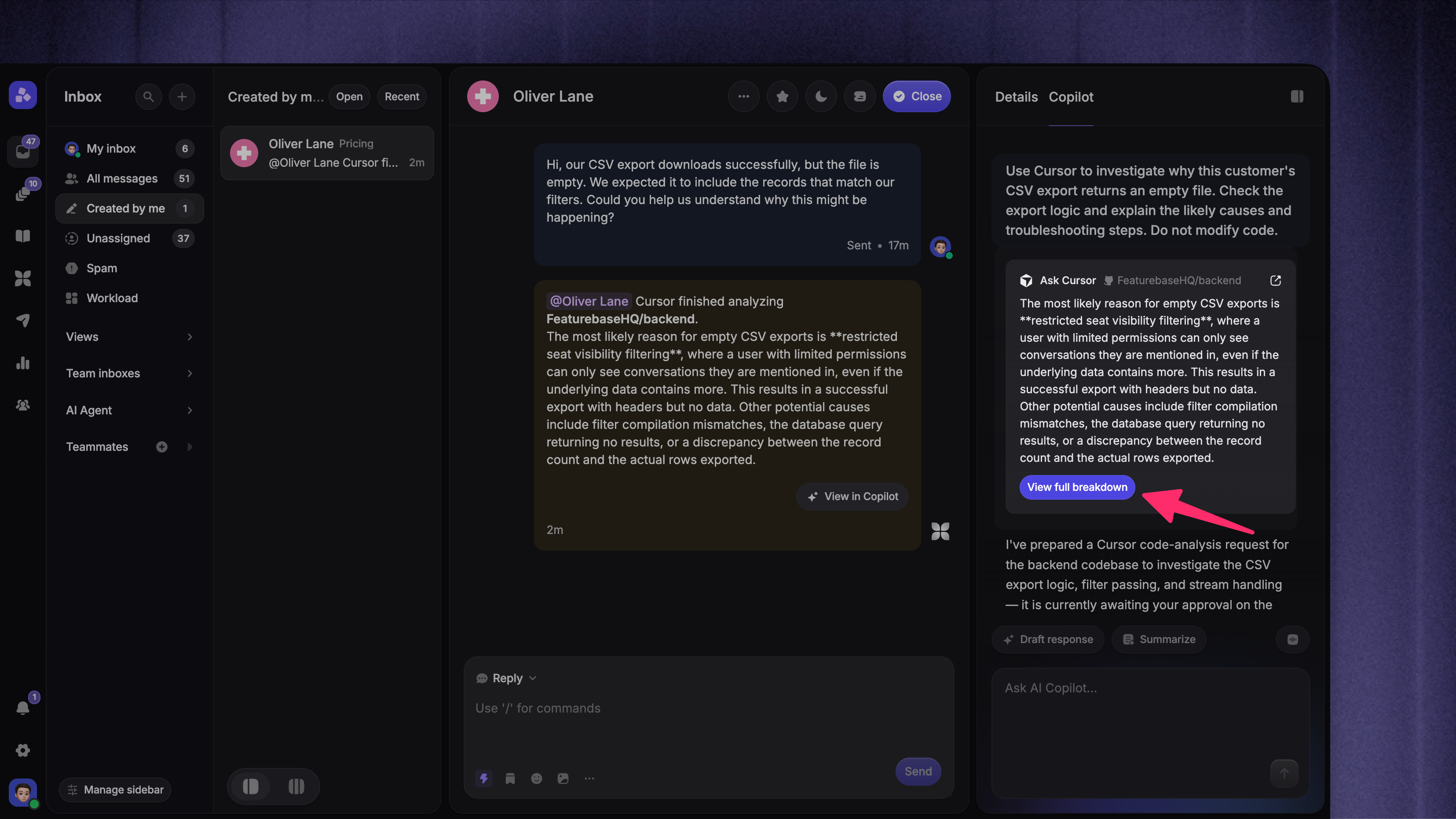
When Cursor finishes, its findings appear in Copilot. Click 'View full breakdown' to read the detailed result, or use 'Open in Cursor' to inspect the run in Cursor.
For investigations related to the customer's issue, Featurebase also adds an internal note to the conversation and mentions the requesting teammate. General codebase questions stay in Copilot.
Copilot can use the findings to draft a customer reply. If you need a draft, ask Copilot to write one. Review and edit it before sending it to the customer.
Ask Cursor to make a fix
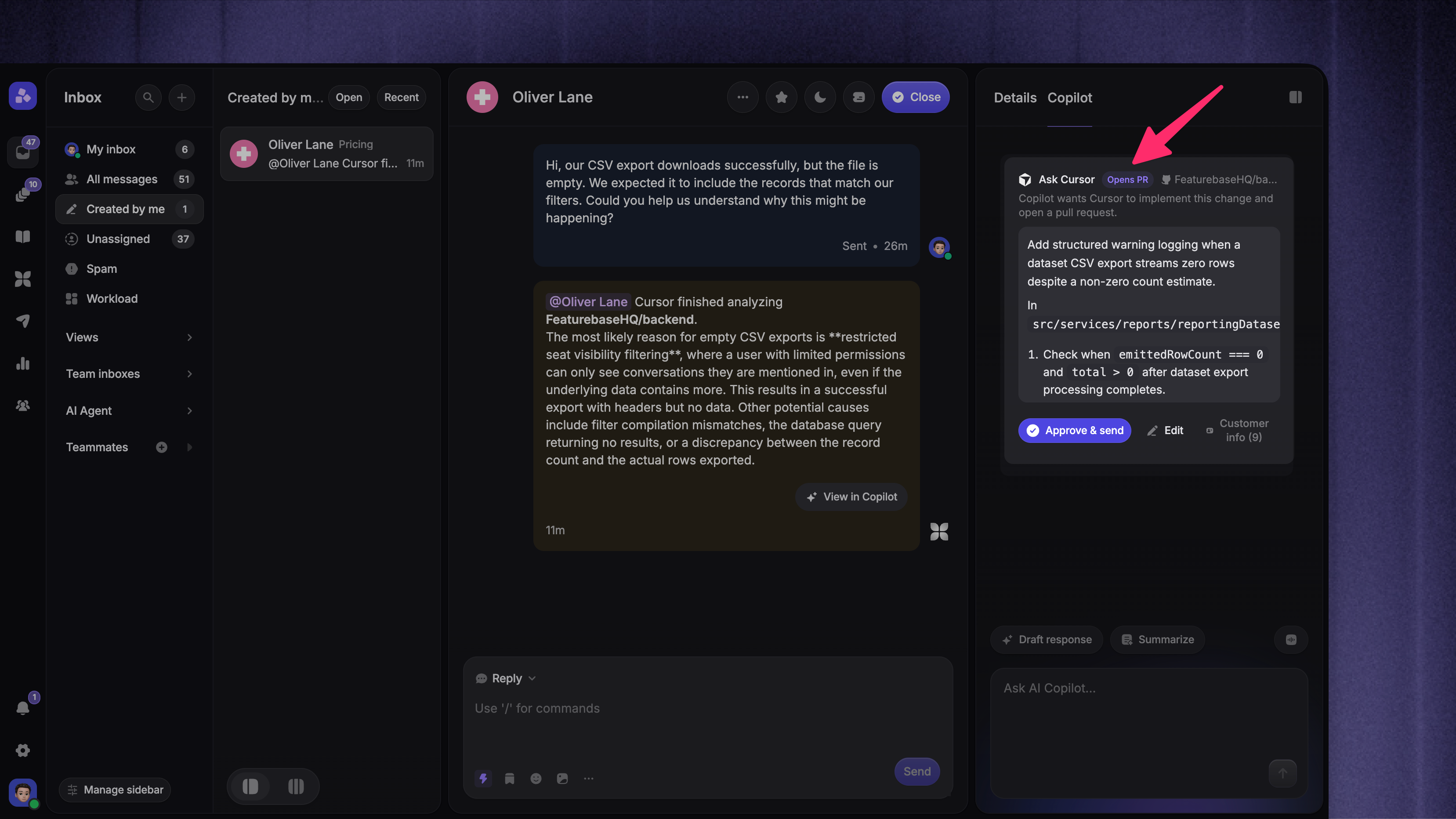
To change the code, explicitly ask Cursor to implement the change and open a pull request (PR).
Example: Use Cursor to add a clear error message when the export has no matching records, and open a pull request for review.
Review the proposed change on the Ask Cursor card and check that it shows Opens PR
Review the prompt and shared customer information, then click 'Approve & send'
When the run finishes, click 'View pull request' to review the proposed code changes
Note: Investigations do not ship fixes. Your team must review, merge, and release a pull request through its usual development process before the change is live for customers.
FAQs
Why is my repository missing?
Why is my repository missing?
Check that the GitHub repository is available to the Cursor account used for the connection. Then ask the teammate who connected Cursor to refresh the repository list using the refresh icon beside Default repository.
Also check the repository restrictions under Access. A connected repository must be allowed there before your team can use it.
Why can't I use or manage Cursor?
Why can't I use or manage Cursor?
To use Cursor from Copilot, you need a full seat, permission to use integrations, and access under the Cursor integration's Access settings.
If Copilot shows 'Request access to Cursor', click it to prepare an internal note to the teammate who manages the connection. Review and send the note to request access.
To change the settings, you need permission to manage integrations and must be the teammate who connected Cursor. If that teammate has left the Workspace, another teammate with permission to manage integrations can make changes.
Does this let Fibi answer customers directly from our codebase?
Does this let Fibi answer customers directly from our codebase?
This integration works through Inbox Copilot, where a teammate approves each Cursor request and reviews the findings. Connecting Cursor does not add your repository to Fibi's Training Data or enable automatic customer replies from your codebase.
How is this different from Featurebase MCP?
How is this different from Featurebase MCP?
The Cursor integration lets you ask Cursor to investigate or change your code from inside Featurebase. Featurebase MCP lets external AI tools, including Cursor, access Featurebase data and perform supported actions from those tools.
Was this helpful?
Still need help? Ask the team