Email customizations
Customize the logo and reply-to address used in Updates and Request notification emails.
Written By Kateryna Babenko
Last updated 5 days ago
Overview
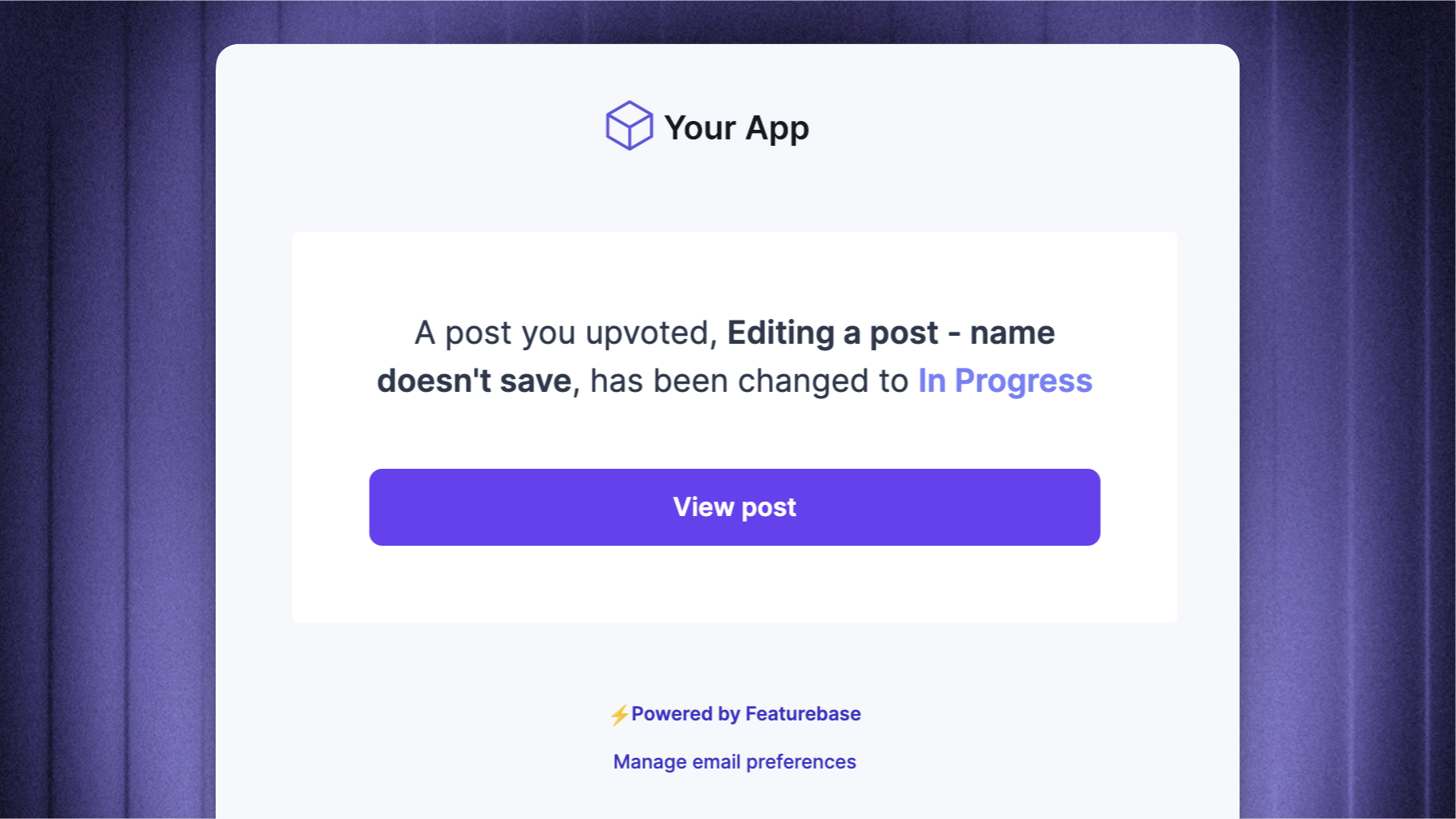
Customize the logo and reply-to address used in your Updates and Request notification emails. These settings are in Settings → Workspace → Email sending → Branding & reply-to.
For the address that sends these emails, use Custom email sending address.
Customizing your emails
Open Settings → Workspace → Email sending → Branding & reply-to
Enter the address that should receive replies under Reply-To email, then click 'Save'
Click Email logo and select a PNG, JPEG, GIF, or WebP image. The logo saves when the upload completes
To remove a saved logo, click 'Remove' beside it.
Note: The reply-to setting applies to Updates and Request notification emails. Support replies and email campaigns use their own reply handling.
Remove Featurebase branding
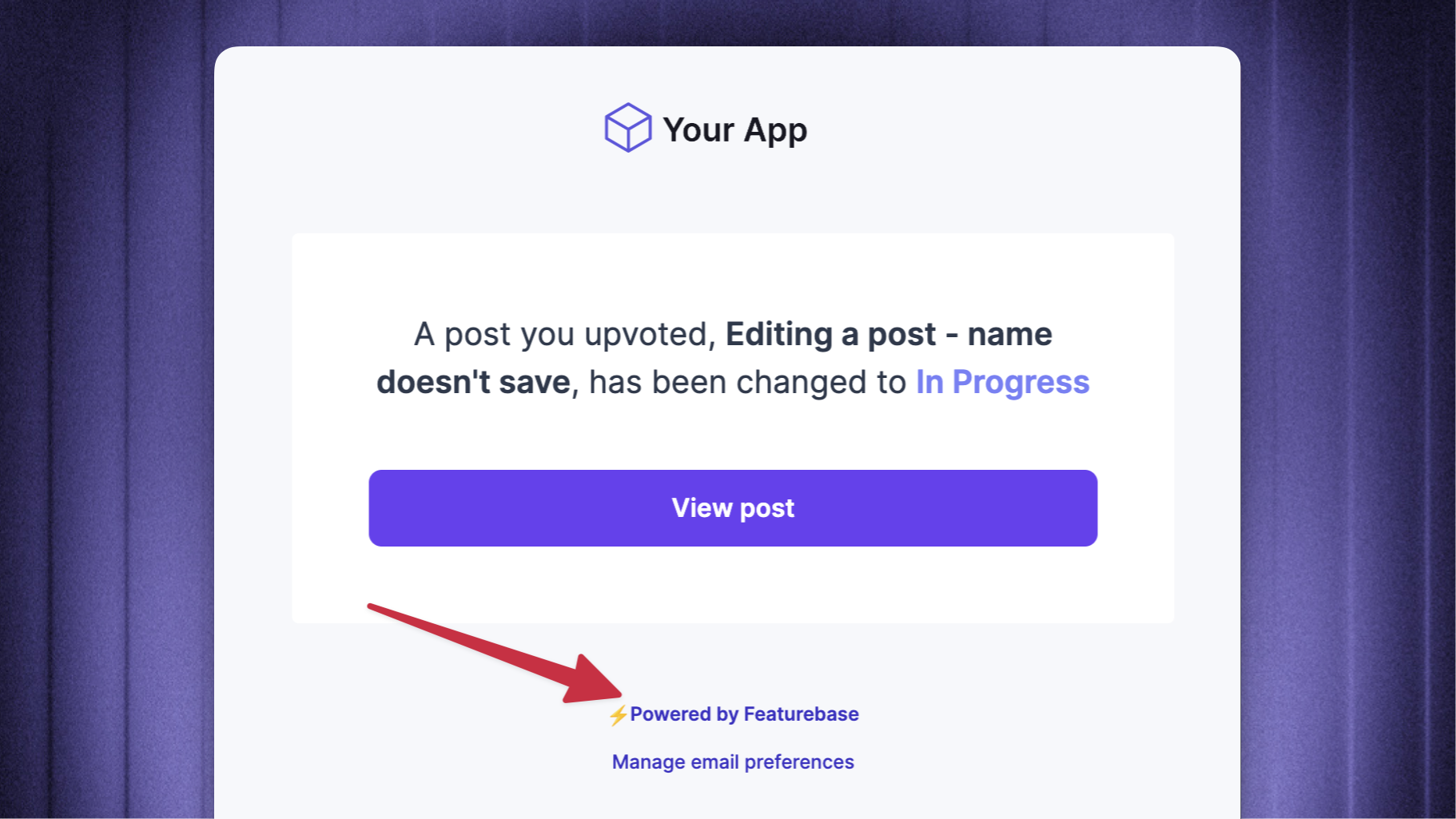
You can remove the Powered by Featurebase link from emails.
Was this helpful?
Still need help? Ask the team