Getting started with Updates
Everything on how to set up & customize your Updates to suit your needs.
Written By Markus Palm
Last updated 15 days ago
Overview
Before publishing your first Update, configure how customers can browse, interact with, and subscribe to your announcements.
Most of this setup is reusable. Once your categories, email settings, and languages are ready, you can focus on writing each Update and choosing the right audience and channels.
Configure Updates
Create categories
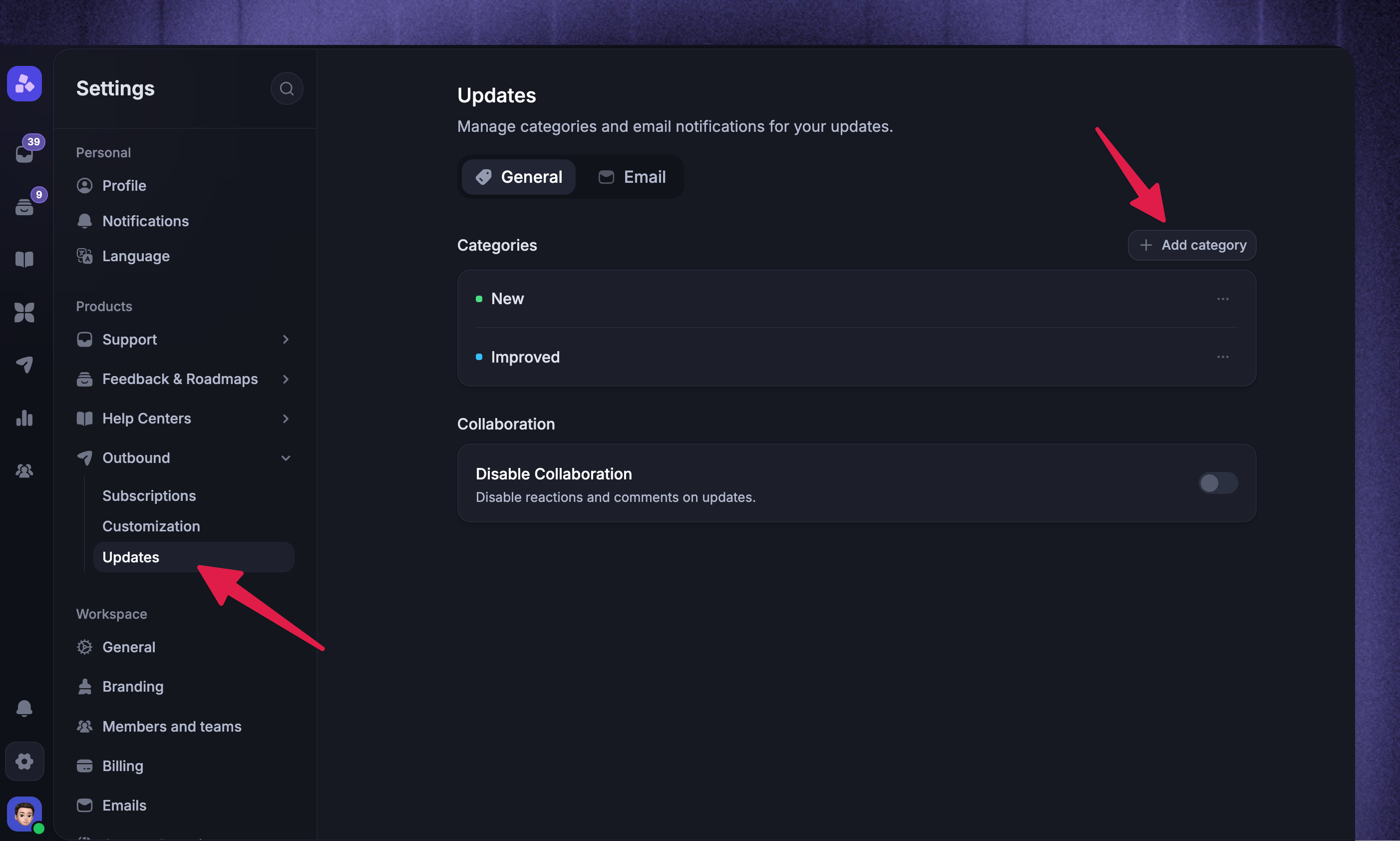
Categories help customers understand the type of announcement and filter your public Updates page. Common examples include New, Improved, Fixed, and Beta.
To create a category:
Click Add category
Enter a name and choose a color
Optional: use Only show category to to restrict it to selected user segments
Click Add Category
Category restrictions are useful for recurring announcements that should only be visible to a specific group, such as beta customers or customers on a certain plan.
Choose collaboration settings
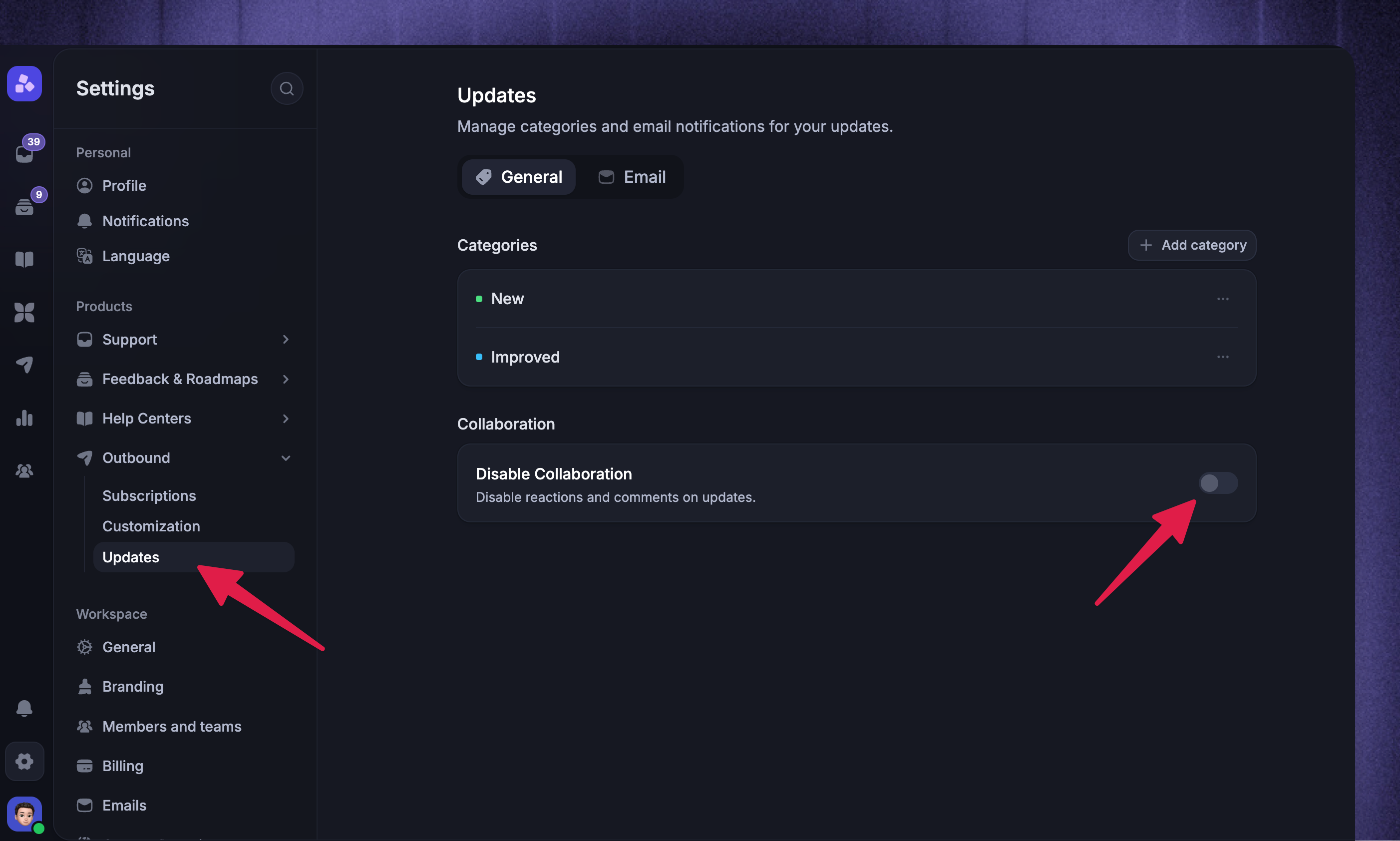
Customers can react to and comment on published Updates by default. To disable commenting and make your Updates read-only:
Check ‘Disable Collaboration’
Configure email notifications
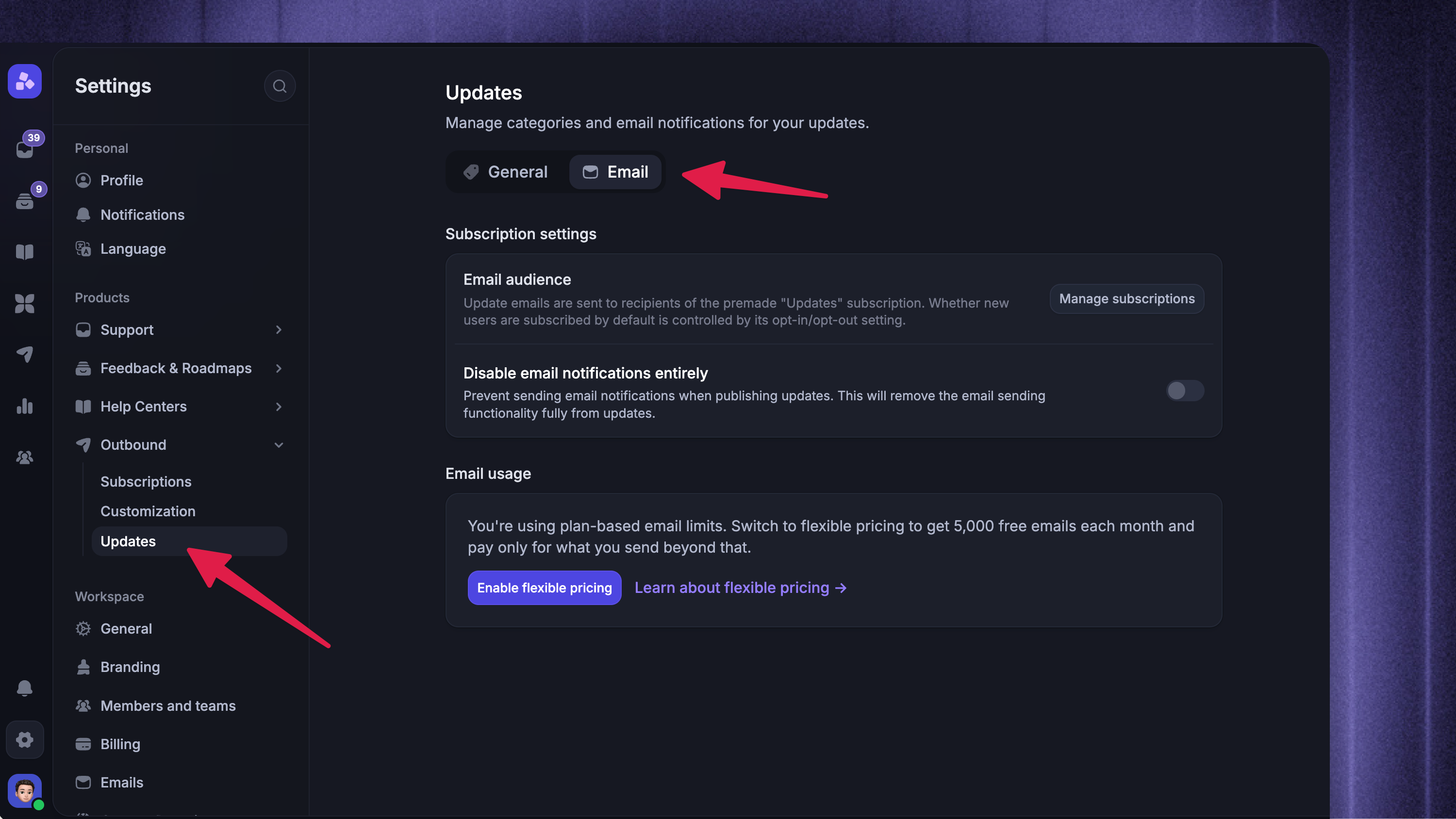
To configure your Updates email settings:
Open the Email tab
From here, you can:
Manage how customers become Update subscribers
Disable Update emails entirely
Review your Update email usage
If email notifications are disabled here, individual Updates cannot send subscriber emails.
Note: On new Workspaces, sending emails may require approval from our team. Until approval is complete, emails may be limited.
Add multiple languages
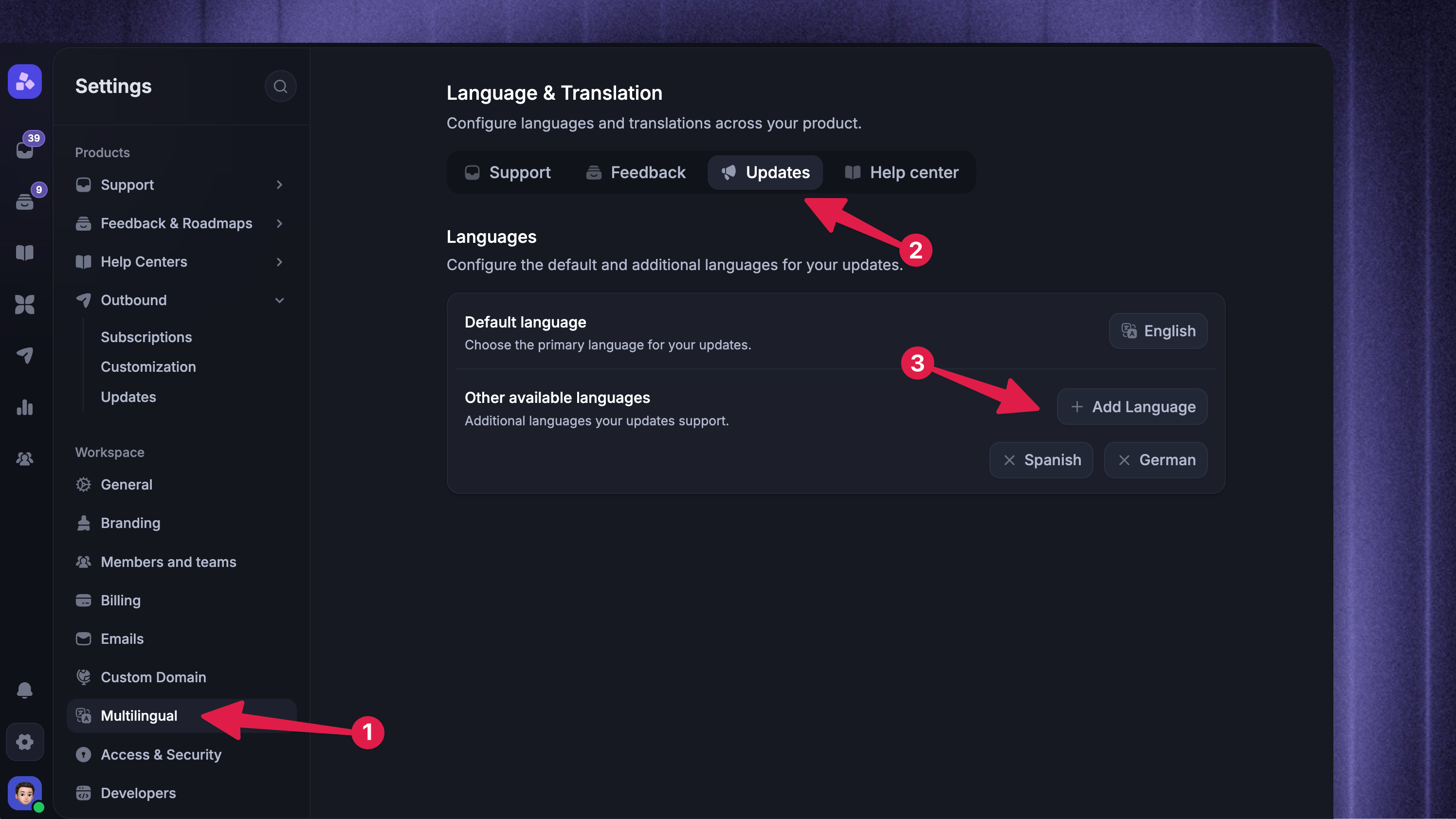
You can set up your Updates to support multiple languages and publish announcements in your customers' native languages.
Choose the default language
Add any other languages you want to support
The public Updates page and widgets automatically default to the users’ language based on their browser’s language settings. They can also switch between languages manually. The notification emails will also be correctly sent to users in the set language.
Publish your first Update
Once your Updates settings are ready, you can start creating your announcement, choose its audience and channels, and publish immediately or schedule it for later.
Was this helpful?
Still need help? Ask the team