Tickets tab in the Messenger
Let your customers submit, track, and manage support tickets directly from the Messenger support widget.
Written By Markus Palm
Last updated 6 days ago
Overview
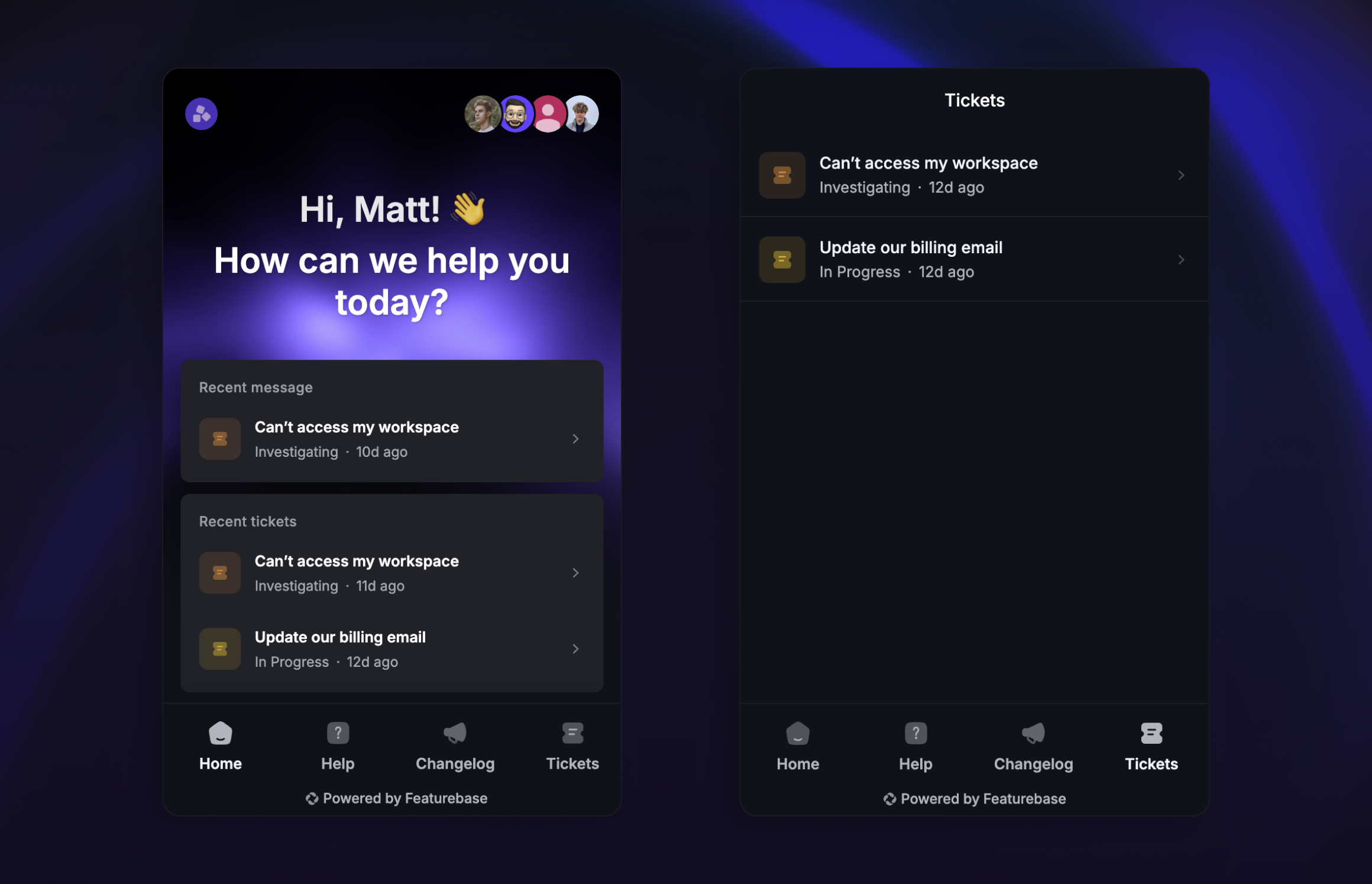
The Messenger includes a dedicated Tickets tab where customers can submit new tickets, view existing ones, and track status updates - all from one centralized place. This keeps tickets visually separated from regular conversations, making it easy for customers to find and follow up on their requests.
Note: Customers only see the Tickets tab when they have a ticket they can access.
Set up the Tickets tab
The Tickets tab is added automatically when your Workspace has customer ticket types. Customers see it once they have a ticket they can access. You cannot hide or reorder it in Messenger settings.
Customer experience
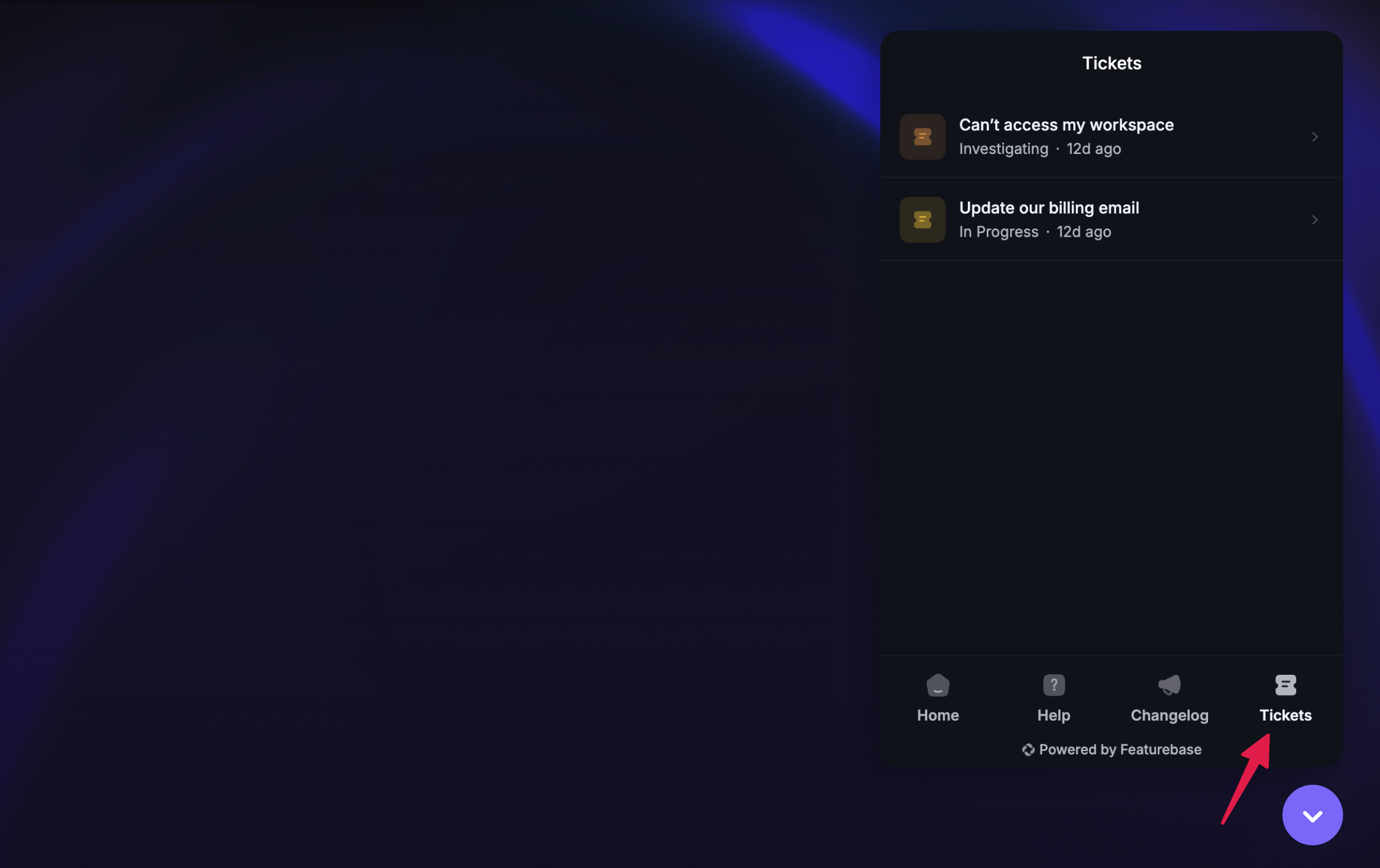
The Tickets tab is only visible to customers who have active or resolved tickets. Customers without any tickets won't see the tab, so they'll never encounter an empty Tickets view.
Customers see a list of their tickets in chronological order, with those having recent activity on top.
Clicking on a ticket displays the ticket details and a call-to-action (CTA) to either:
Send a message - takes the customer to the linked conversation in the Messages tab where they can start a conversation
Continue the conversation - takes the customer to the linked conversation in the Messages tab where they can continue the conversation
View the conversation - takes the customer to the linked conversation in the Messages tab where they can view the closed conversation
Recent Tickets card
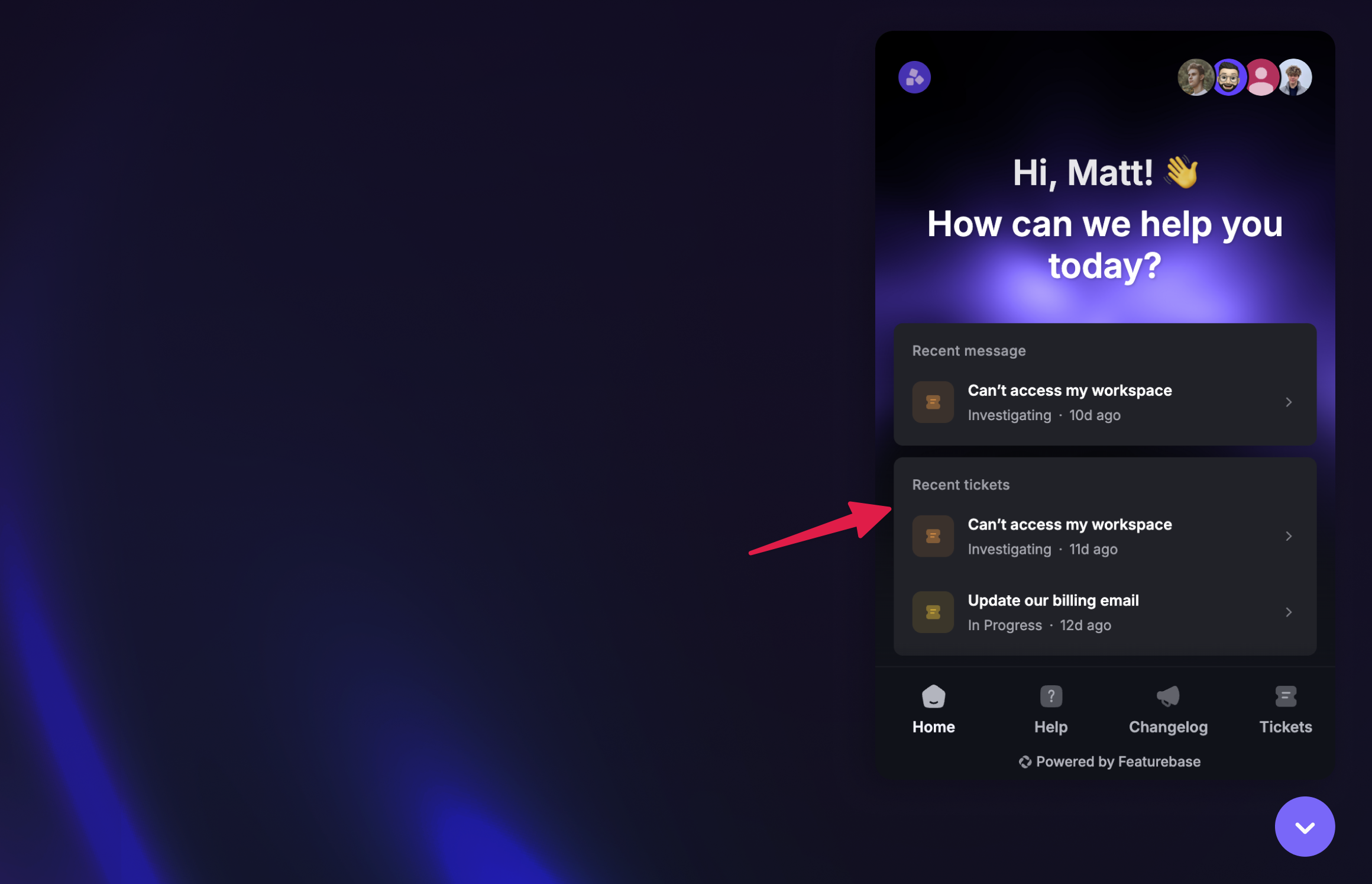
The Recent tickets section on Messenger Home shows recent tickets with their current status.
Ticket notifications
A Messenger badge on the Tickets tab is triggered when:
A new ticket has been created, or
A ticket status has been updated
If the linked conversation has a new message but there hasn't been any change to the ticket, the Tickets tab won't show a badge notification.
When there's a ticket update and a new message in the linked conversation, a badge notification will show on both the Messages tab and Tickets tab.
Notes:
Conversations can only have one linked ticket that is shared with the customer
A ticket is marked as read when the linked conversation is read
Ticket Portal
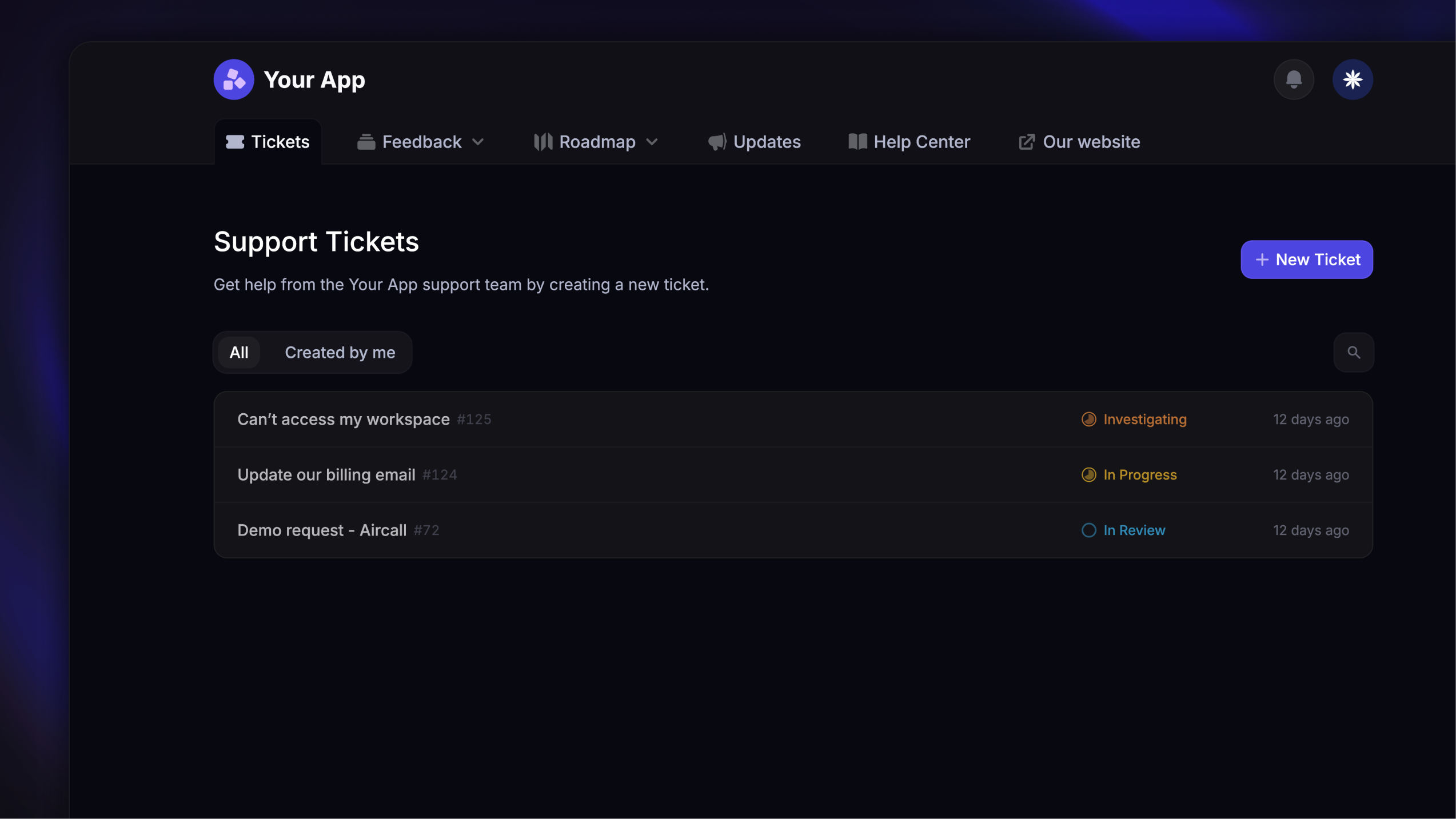
In addition to the Tickets tab in the Messenger, Featurebase also offers a standalone Ticket Portal - a dedicated page where customers can submit and track tickets outside of the Messenger.
The Ticket Portal lives alongside your feedback board, product updates, and Help Center, so everything is in one place for your customers.
Learn more: Tickets portal overview
Was this helpful?
Still need help? Ask the team