Manage Featurebase notifications
Control which notifications you receive on desktop, mobile, email, and Slack.
Written By Bruno H
Last updated 3 days ago
Overview
Notifications keep you informed about customer conversations, Requests, and updates.
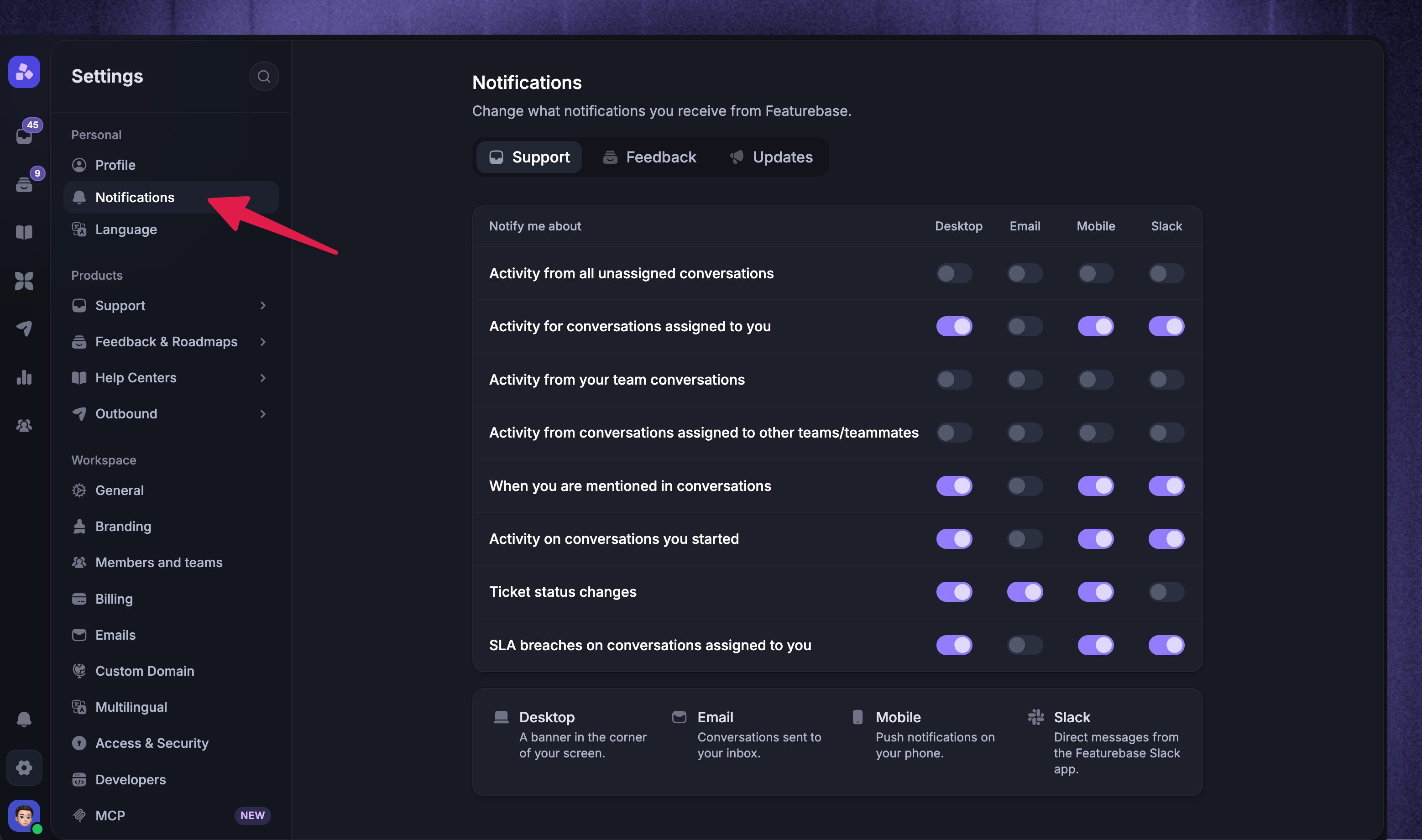
Each teammate in your Workspace can individually manage their notification preferences from Settings → Notifications. Available delivery channels can include desktop, email, mobile, and Slack.
Manage from Settings
To manage your notification preferences from inside Featurebase:
Go to Settings → Notifications
Switch between the Support, Requests, and Updates tabs to find the category you want
Choose the available delivery channels for each notification type
You can also configure Featurebase notification emails’ preferences from the bottom of the emails.
Feedback notification preferences
Open the Requests tab to manage your feedback notifications:
New Requests: A new Request is submitted to the Feedback Portal
Request updates: The status of a Request changes
Comment on request: Your Request receives a new comment
Comment replies: Someone replies to your comment
When Slack is connected, you can also receive direct messages for Requests assigned to you, status changes and comments on Requests you follow, and mentions in Requests or comments. Connect your personal Slack account when prompted, then turn on the events you want.
Notify about comments not directed at me controls broader inbox notifications for customer comments. Unlike your personal email and Slack preferences, it is a Workspace setting.
These teammate preferences are separate from customer notification preferences. To write an update to Requesters, use Request status updates or comments.
Email notifications
To ensure you never miss a conversation, you can receive email notifications every time a customer gets in touch. Or you can choose to get notified by email in specific situations - for example, when conversations are assigned to you or a team you’re on.
Good to know:
We wait 3 minutes before sending an email notification, once there has been no new reply
The email will contain all user messages
These notifications aren’t sent if the admin has already seen the reply in Featurebase
Tip: You can also reply to these notifications to respond to customers directly from your email inbox!
Desktop notifications
Sometimes you and your team will need to handle other tasks that take them away from the Inbox (e.g., investigating a bug). In these cases, we send you desktop notifications that appear in the top right corner of their screen.
You’ll only receive desktop notifications if you have a browser tab with Featurebase open
We wait 10 seconds before sending a desktop notification for every user message
Mentions are sent immediately via email and desktop notifications
Slack notifications
When a Slack workspace is connected, you can receive supported Featurebase notifications as direct messages from Featurebase's Slack app. Go to Settings → Notifications, connect your personal Slack account when prompted, and turn on Slack for the notification types you want.
To send selected Workspace activity to shared Slack channels instead, configure Slack notification routes.
Browser notifications
Messages in your active inbox also queue a notification blip sound in your browser to grab your attention.
Browser notifications are always sent immediately
Audio notifications trigger for all teammate messages, even if you're viewing the conversation
Browser tab alerts appear in all tabs. You must close each tab individually to make them disappear
We consciously do not send push notifications for certain nonhuman interactions, e.g. for bot messages in workflows
Troubleshooting notifications
If you're experiencing any sort of desktop notification issues:
Check that notifications are enabled for conversations from Settings → Notifications
Check that your computer allows banner notifications from your browser. For Mac you'll find this under System Preferences. For Windows, this is located under System → Notifications & Actions.
Can’t hear notifications?
If you’re not receiving notifications with sound, follow these steps for your browser:
Chrome
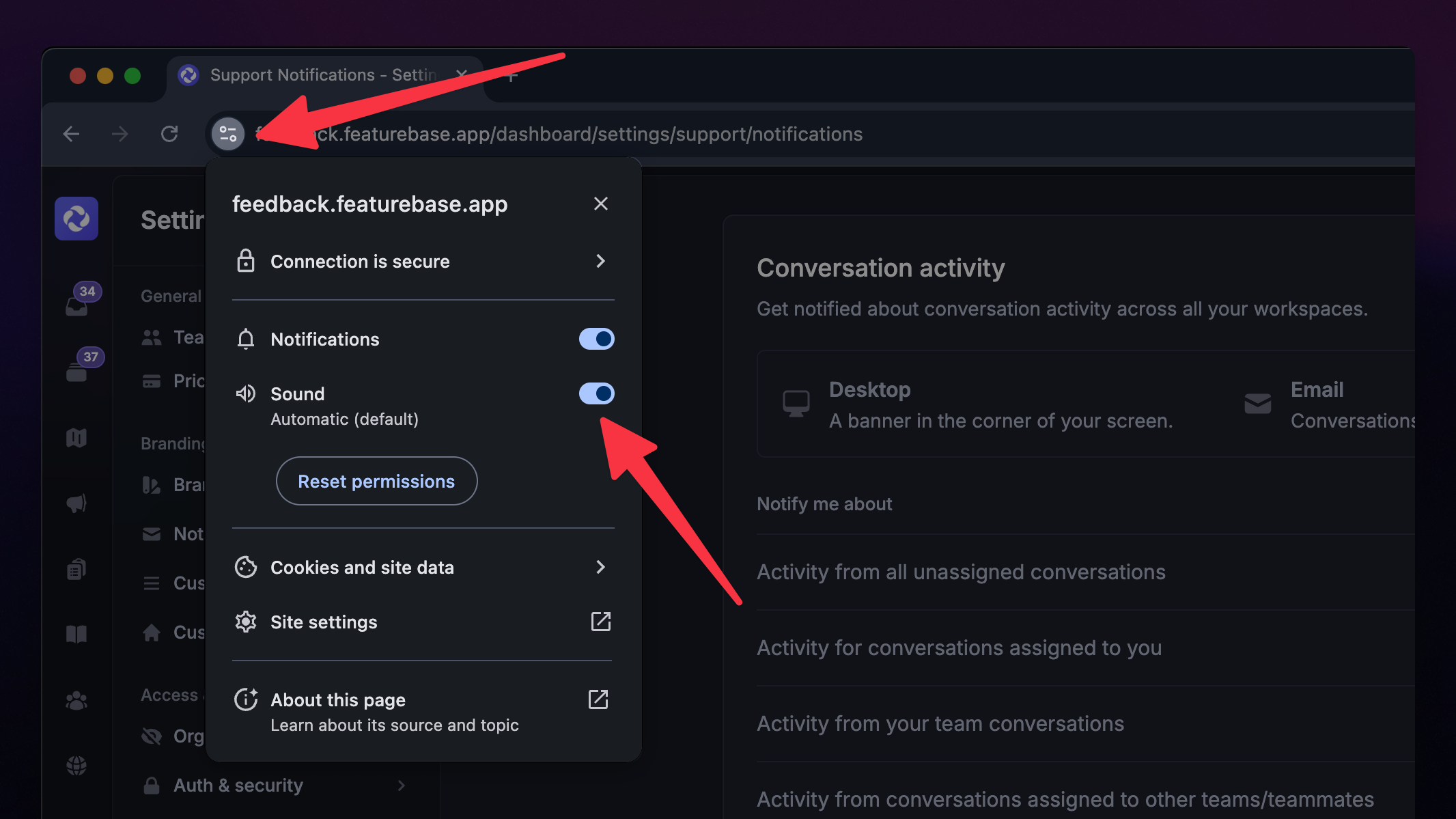
Click the lock icon next to the URL
Select Site settings
Make sure Sound is set to Allow
Safari
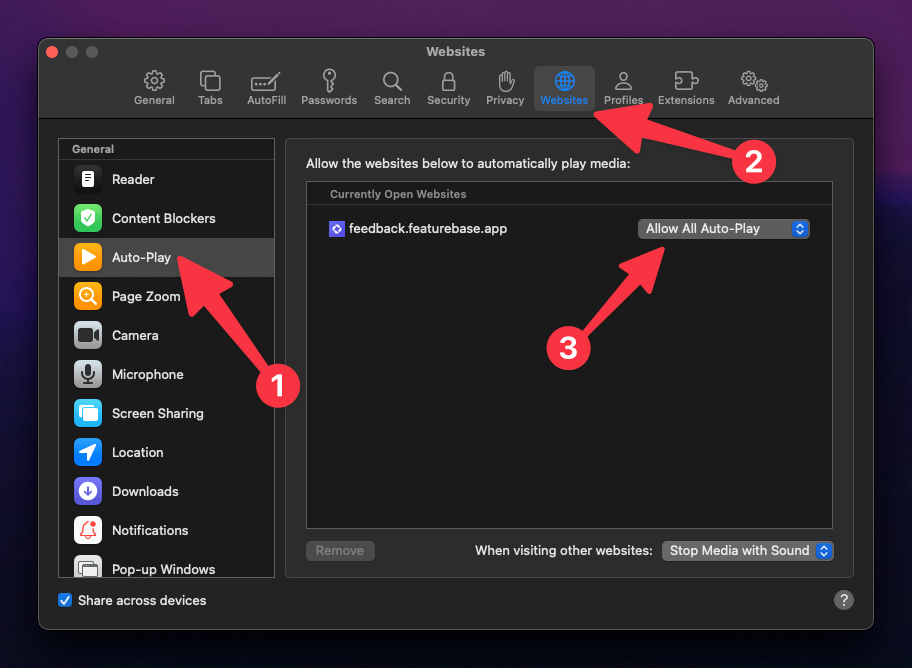
Go to Safari → Settings → Websites → Auto-Play
Set
yourdomain.featurebase.appto Allow All Auto-Play
Firefox
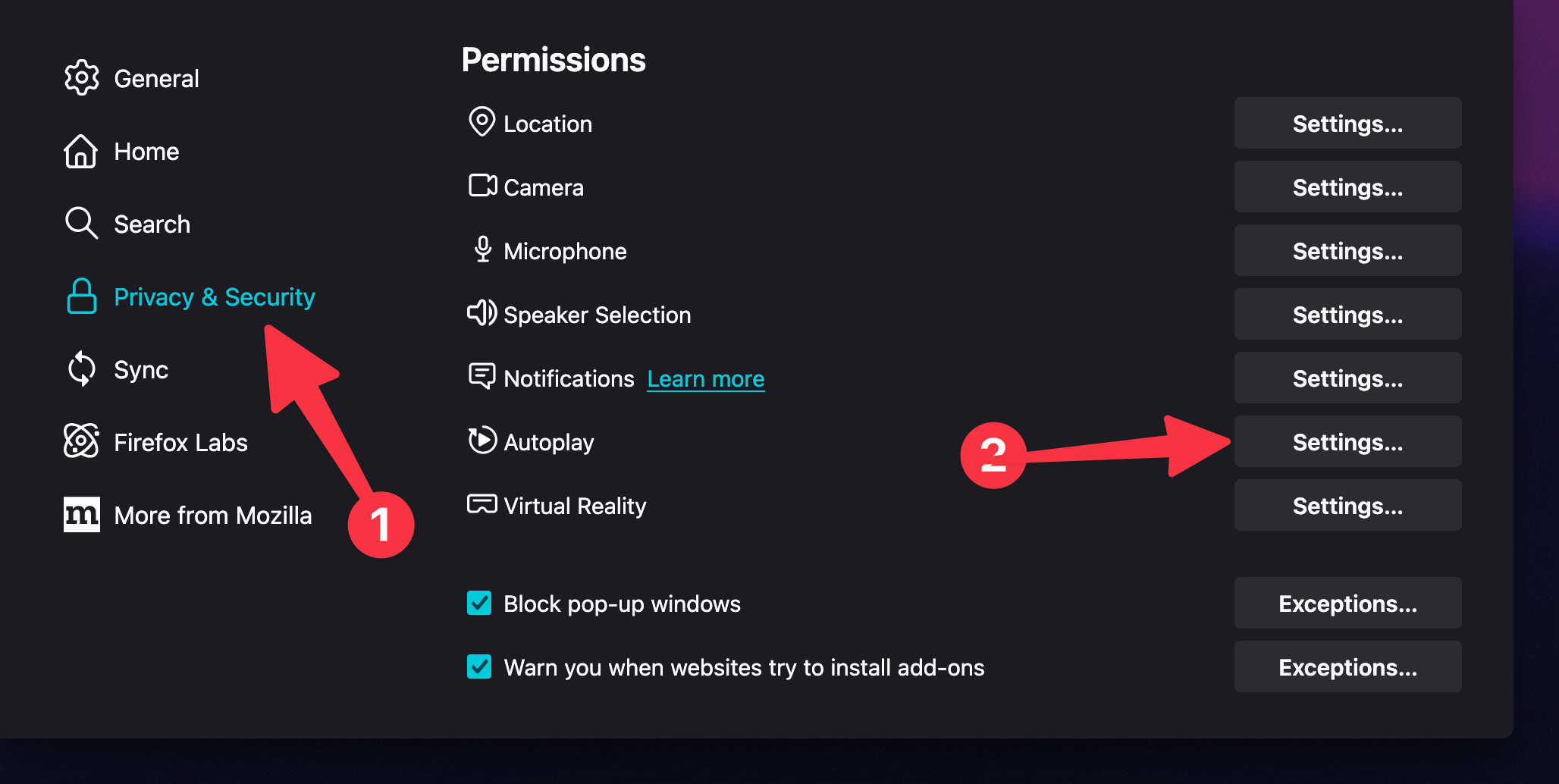
Go to Firefox → Settings → Privacy & Security
Scroll down to the Permissions section
Click Settings next to Autoplay
Set the default to Allow Audio and Video, or set a custom rule for
yourdomain.featurebase.app
Microsoft edge
Was this helpful?
Still need help? Ask the team