Request workflow steps
Look up what each request workflow step does, which options it has, and what happens when a step cannot act.
Written By Bruno
Last updated 27 minutes ago
Overview
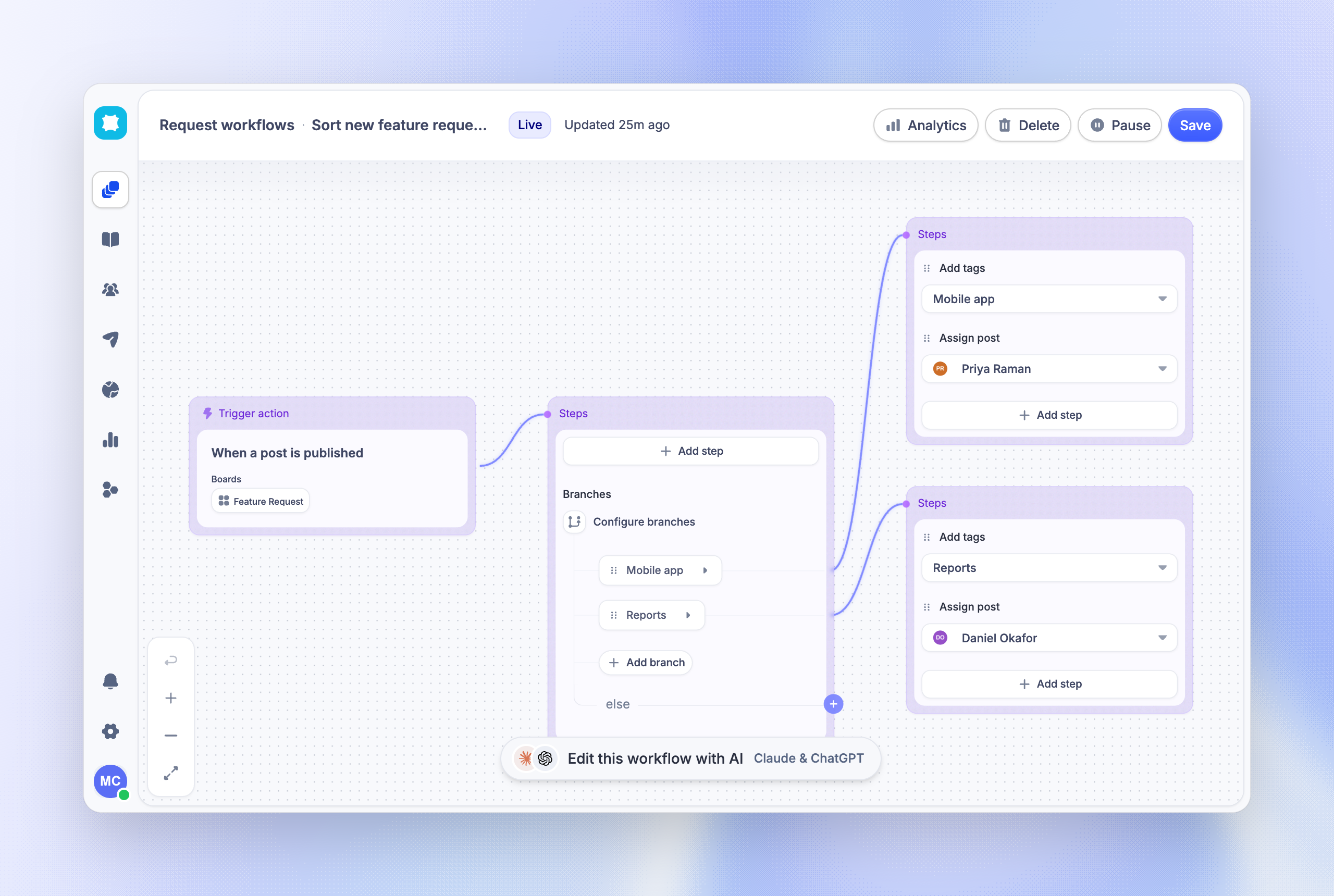
Steps are the actions a request workflow takes on a Request after its trigger. A run goes through the steps from top to bottom. On a request workflow, the step menu shows the six steps of the Feedback group, plus Branches and Wait.
The workflow builder calls Requests "posts", labels "tags", and categories "boards". This article quotes the builder's labels exactly as you see them. You add steps while creating a request workflow.
Note: A request workflow can have up to 200 steps.
Steps that change the Request
These steps change the Request that started the run. A change that a step makes never starts another request workflow.
Add tags
Adds the labels you pick to the Request. The Request keeps the labels it already has. When a label belongs to a group that allows one label per Request, it replaces the other label of that group.
Common use case: Add the Mobile app label to new Requests on the Bug reports board.
Remove tags
Removes the labels you pick from the Request.
On a When a post gets a tag workflow, a run that removes its own trigger label with this step keeps going. When someone else removes that label, the run stops.
Common use case: Remove a Needs triage label once a teammate has the Request.
Assign post
Assigns the Request to the teammate you pick.
If the teammate leaves the workspace, the step shows This teammate left the workspace. Pick another teammate and save the workflow. Until then, runs that reach the step skip it.
Common use case: Send every new bug to the teammate who runs bug triage.
Set status
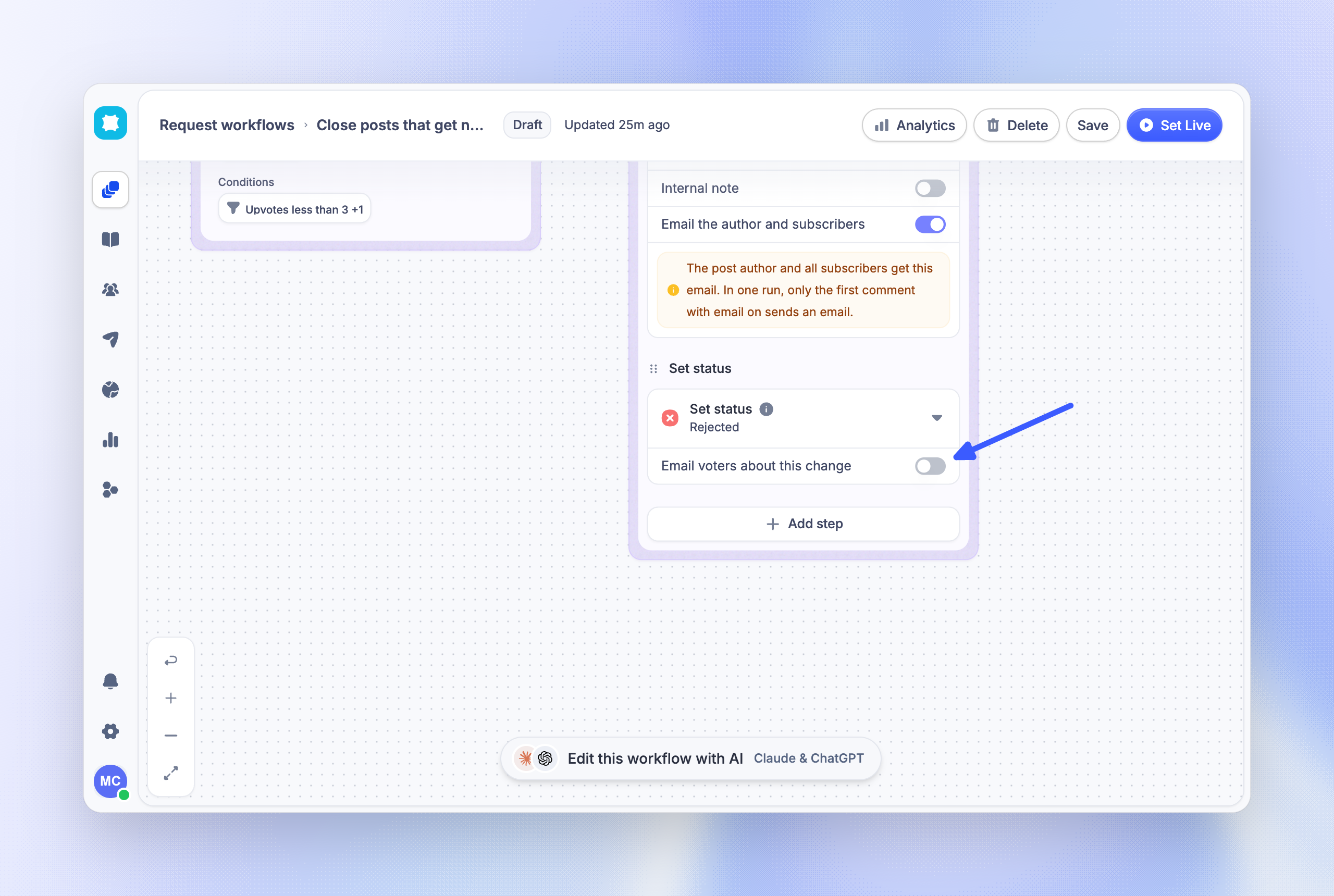
Changes the Request to the status you pick. The change works like a manual status change: connected trackers are updated, linked support conversations get an internal note, and a completed or canceled status can reopen them.
Email voters about this change - Sends voters the status update email. Off by default
Add a message for voters (optional) - Shows when the email is on. The message is posted on the Request as a status update and goes in the email
Posted by - The teammate the message is posted as: the teammate who last edited the step. Editing the step makes you the author of the message
If the Request already has the status, the step changes nothing. If the board of the Request does not allow the status, the step is skipped.
Common use case: Set quiet Requests to a closing status, such as Rejected, after 60 days without activity, with a short note to voters.
Add comment
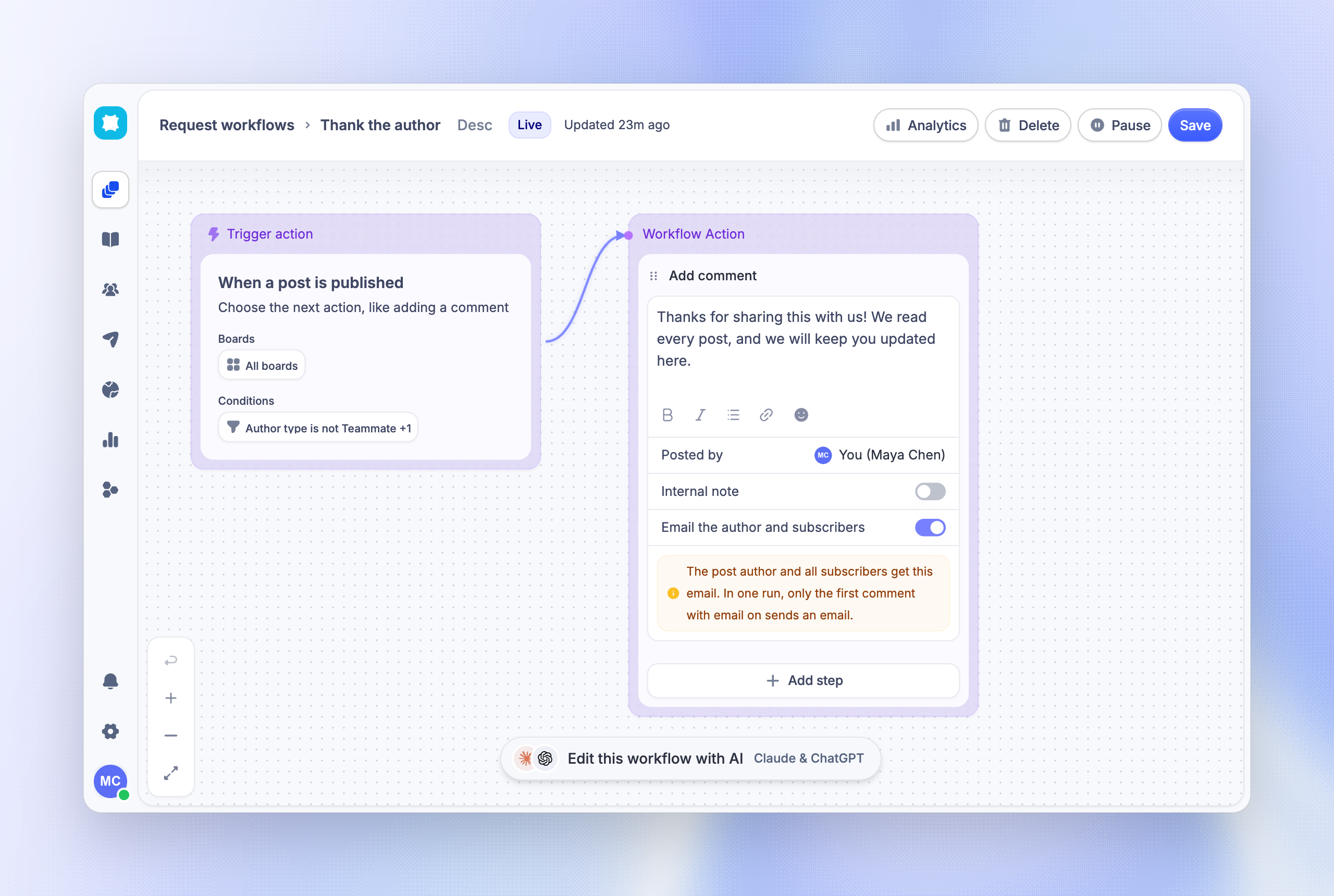
Posts a comment on the Request as a teammate. Write the comment in the editor. Type @ to mention a teammate. Only teammates can be mentioned.
Posted by - The teammate the comment is posted as: the teammate who added or last edited the step. A step without an author shows 'Post as me'
Internal note - Only teammates can see the comment
Email the author and subscribers - Sends the comment by email
Who gets the email:
A public comment goes to the author of the Request and all its subscribers. An internal note goes only to teammates who follow the Request
Only people who can open the Request and see the comment get the email. For example, a person without access to a private board is not emailed
In one run, only the first comment with email on sends an email
On When a post status changes, the email is not sent when voters were already emailed about the status change that started the run. After a Wait, or after the run's own Set status step, it is sent
The email is not sent when the Request is hidden from the portal, or when less than 20% of your workspace's monthly email allowance is left. The comment is still posted
Mentioned teammates get an email only when the email is on
The comment is posted only when its author can open the Request and comment there. On a Request with comments turned off, the author needs permission to manage comments. An internal note needs an author who can write internal comments.
Common use case: Thank the author of each new Request and tell them how your team reviews it.
Move to board
Moves the Request to the board you pick. Support boards are not offered.
The step never shows a Request to more or other people than before. It skips the move when:
The board is a support board, or not a feedback board
The Request is visible only to teammates, and the board would show it to customers
The board would show the Request to other customers
To set a workflow live that moves Requests to a private board, you need permission to view private Requests.
Common use case: Move Requests about integrations to the Integrations board.
Flow steps
Flow steps decide which steps run next and when. They do not change the Request.
Branches
Sends the Request down the first branch whose conditions it matches. Branches are checked in order. A Request that matches no branch takes the else path.
Branches read the Request when the step runs and can use every Request field, including Board. Trigger conditions allow fewer fields. Each branch needs at least one condition before you can set the workflow live.
If a branch rule uses a request form field that was deleted or changed, the run stops at this step. Fix the rule and save the workflow again.
Common use case: Send bugs to one teammate and feature ideas to another.
Wait
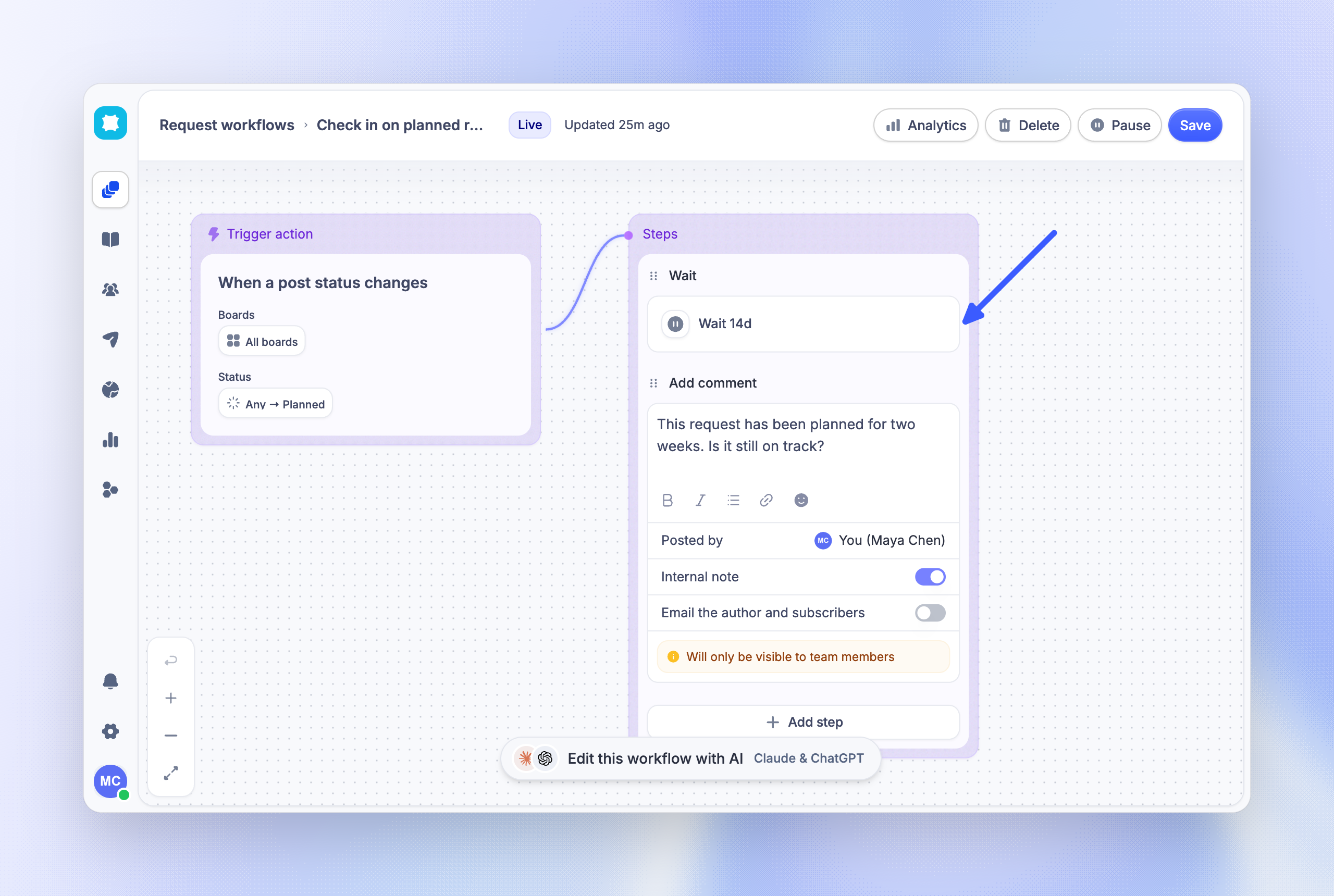
Pauses the run for a fixed time, then goes on to the next step. Set the time in days, hours, minutes, and seconds, as whole numbers.
A request workflow can wait up to 90 days, and a wait of 0 is refused. A Wait cannot wait until a day or time, follow office hours, or end early on an event.
When the Wait ends, the run checks the Request again before the next step. If you turn the workflow off during the Wait, the run stops.
Common use case: Wait 14 days after a Request moves to Planned, then add an internal note to check on progress.
Checks before each step
Before every step, and again after every Wait, the run checks the Request. The run stops when:
The Request was deleted or merged, or is held for review or as spam
The workflow was turned off, saved as a draft, or deleted
Your plan no longer includes request workflows
The Request is on a private board, and the teammate who last saved the workflow cannot see private boards
The event that started the run no longer holds:
When a post status changes - The status changed again
When a post gets a tag - The trigger label was removed
When a post is assigned - The assignee changed
When a post has no activity - The Request got a vote, a status change, a comment by a person, or a new insight
The run's own steps never stop it. For example, the run's own Set status step does not count as a new status change.
A run keeps the steps it started with. When you edit a live workflow, runs in progress keep the old steps, and new runs use the new ones.
When a step cannot act
When a step cannot do its work, it is skipped and the run goes on. Common reasons are a status, board, or label that no longer exists, a teammate who left, or a comment author who cannot open the Request. The run then completes with a note in the workflow's Analytics, such as Comment not posted: comments are turned off on this post.
A Set status or Assign post step that fails for another reason ends the run. The step is not tried again, so voters and connected trackers never get the same update twice.
FAQs
Why did a comment step not send an email?
Why did a comment step not send an email?
Check the rules under Add comment. Only the first comment with email on sends an email in one run, and on a status trigger no email goes out when voters already got the status email. The run's note in Analytics gives the exact reason.
Can a Wait end on a set day or time?
Can a Wait end on a set day or time?
No. A Wait in a request workflow waits a fixed time only, up to 90 days.
Was this helpful?
Still need help? Ask the team