Salesforce Integration
Sync customer data, link Cases and Opportunities to feedback, and close the loop – all without leaving Salesforce.
Written By Kateryna Babenko
Last updated About 1 month ago

Overview
The Featurebase ↔ Salesforce integration connects your support, product, and sales teams, making customer feedback easier to track and act on.
Support teams can link Salesforce Cases to Featurebase posts, add customer votes, and keep upvoters updated on the status
Product teams can see the Opportunity Value of posts linked to Salesforce Opportunities, helping them prioritize the most valuable features
Sales teams can see customers' requests and feedback right in Salesforce, helping them close deals faster
You can 2-way sync customer data straight from Salesforce, with an initial bulk sync to get started quickly. Ongoing sync keeps everything up to date!
All Salesforce integration features are included in the Professional Plan, except linking Opportunities to feedback posts, which is available only on the Enterprise Plan.
Setting up the Salesforce integration
Install the Salesforce integration
First, you need to connect Salesforce with Featurebase:
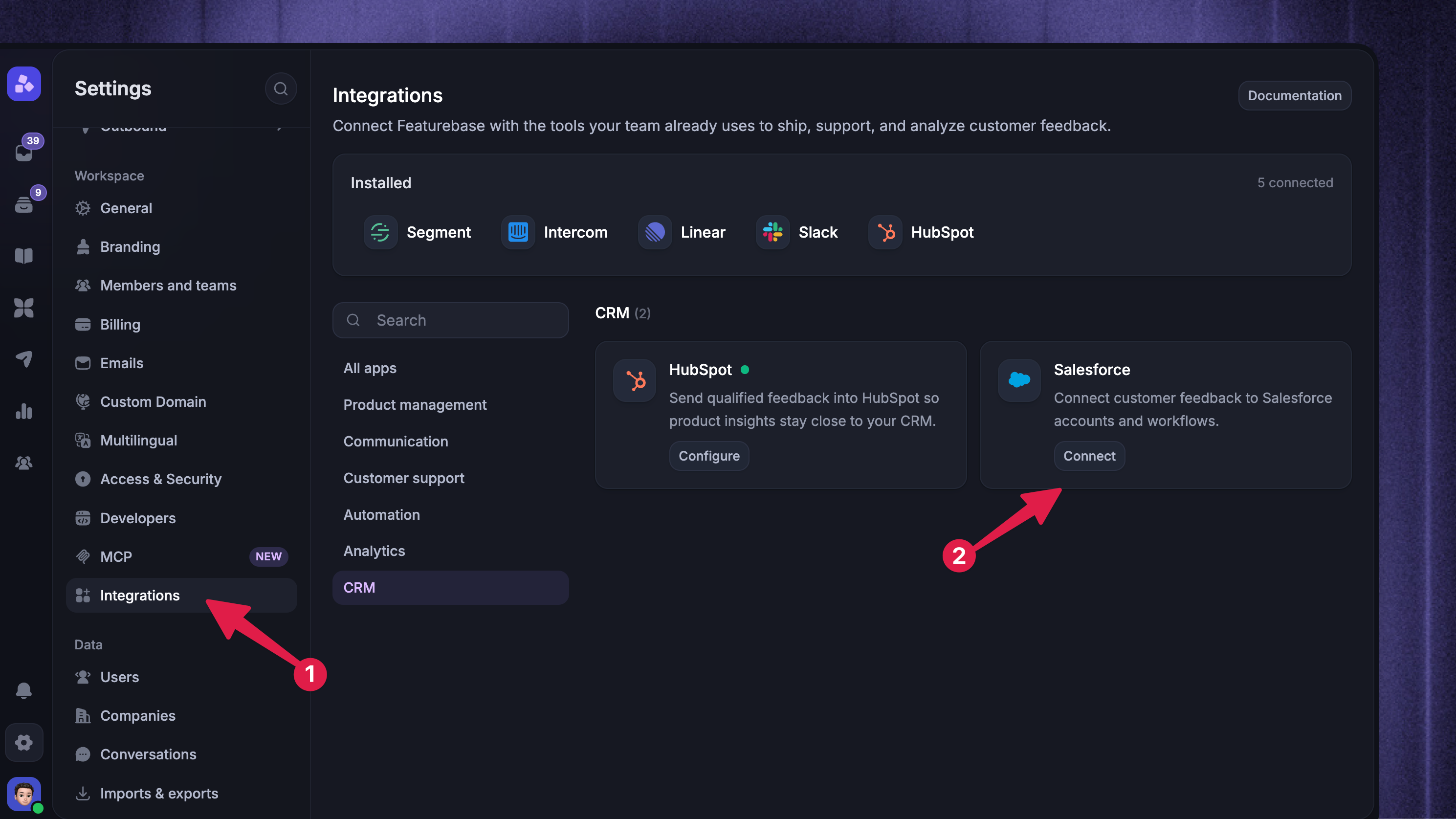
Go to Settings → Integrations
Click Connect Salesforce
Under Install the Featurebase app, click ‘Install Featurebase for Salesforce’
Complete the managed package installation in Salesforce
Return to Featurebase and click ‘Connect Salesforce Account’
Select the Salesforce organization you want to connect and approve the requested permissions
During installation, choose whether the Featurebase package is available to admins, all users, or selected profiles based on who should use Featurebase inside Salesforce.
That's it – the Featurebase app is now available inside Salesforce, and Salesforce data can appear in Featurebase.
Note: You need permission to manage integrations in Featurebase and Salesforce's ‘Download AppExchange Packages’ permission.
Sync customer data (optional)
Customer data sync lets you keep Featurebase people and companies up to date with Salesforce Leads, Contacts, and Accounts.
Go to Settings → Integrations → Salesforce and click Configure
Under Map leads and contacts, choose how Featurebase should match Salesforce Leads and Contacts with Featurebase people
Matching by a unique identifier is recommended
Enable email fallback when a unique identifier is unavailable
Under Map companies and accounts, choose how Featurebase should match Salesforce Accounts with Featurebase companies
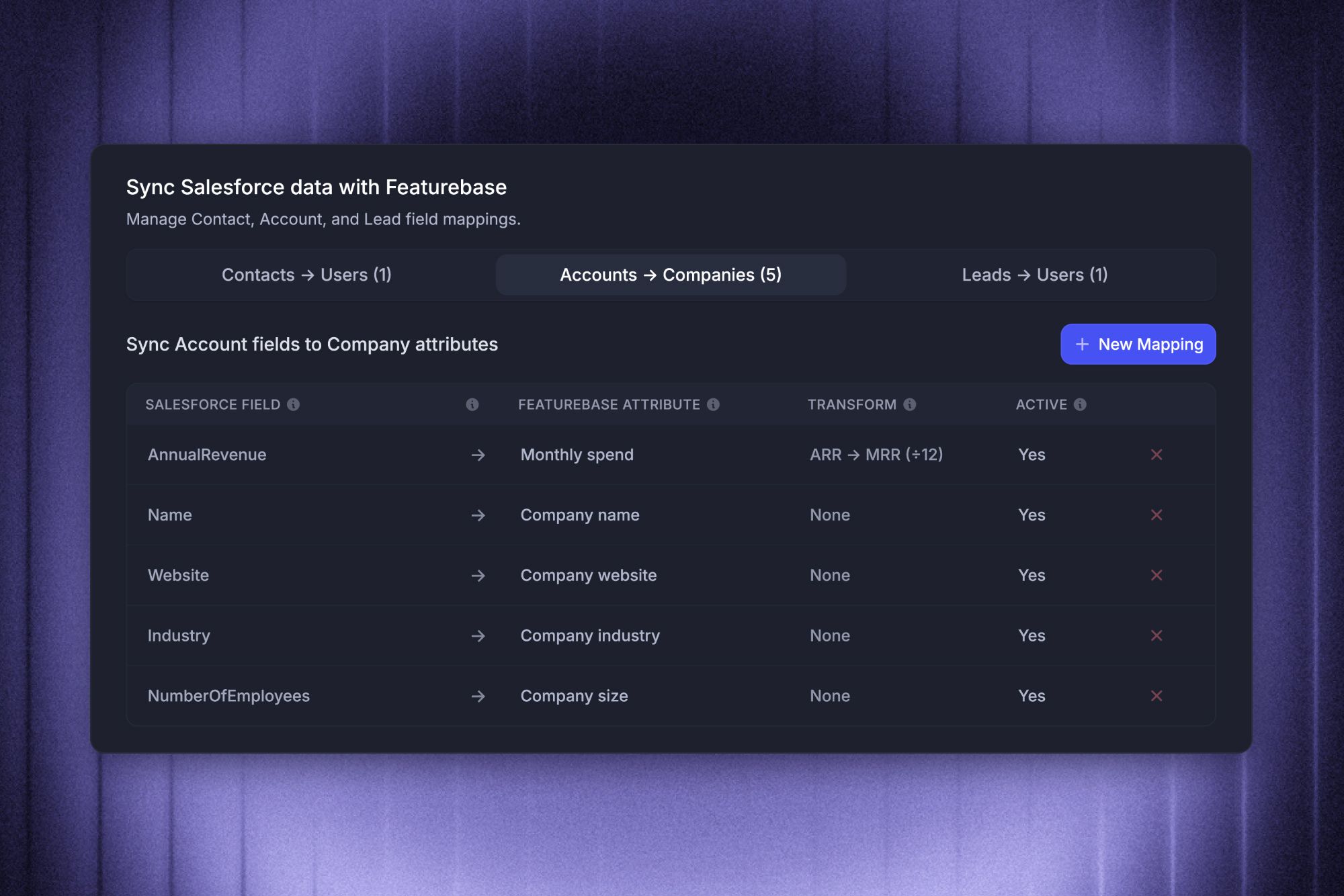
Set up data sync rules by mapping Salesforce fields to Featurebase attributes
Under Sync Rules, click Configure rules
Select Contacts → Users, Leads → Users, or Accounts → Companies
Click New Mapping, choose the source and destination fields, set the sync direction, and add a transformation if needed
Each mapping syncs in one direction
Once your mappings are configured, import existing Salesforce data by clicking Start Bulk Sync
Bulk Sync updates existing Featurebase people that already match Salesforce Contacts or Leads. It does not create new people in Featurebase, and Salesforce Accounts are handled by the ongoing background sync.
After the initial sync, Featurebase automatically keeps mapped data up to date in both tools.
Note: Changing your matching settings affects future matches. Deleting a field mapping stops future updates but does not remove data that was already synced.
Manage Salesforce API usage (optional)
Featurebase uses Salesforce API requests for customer data sync and other background updates. To control how many API calls Featurebase can use:
Click Configure
Open Manage Salesforce API usage
Set the Workspace API call limit (24h)
Featurebase pauses background sync before reaching the limit and resumes automatically when more API capacity becomes available.
How to use
Besides customer data sync, the Salesforce integration gives your support, product, and sales teams several ways to connect customer context and feedback.
1. View Salesforce customer data in the Featurebase Inbox
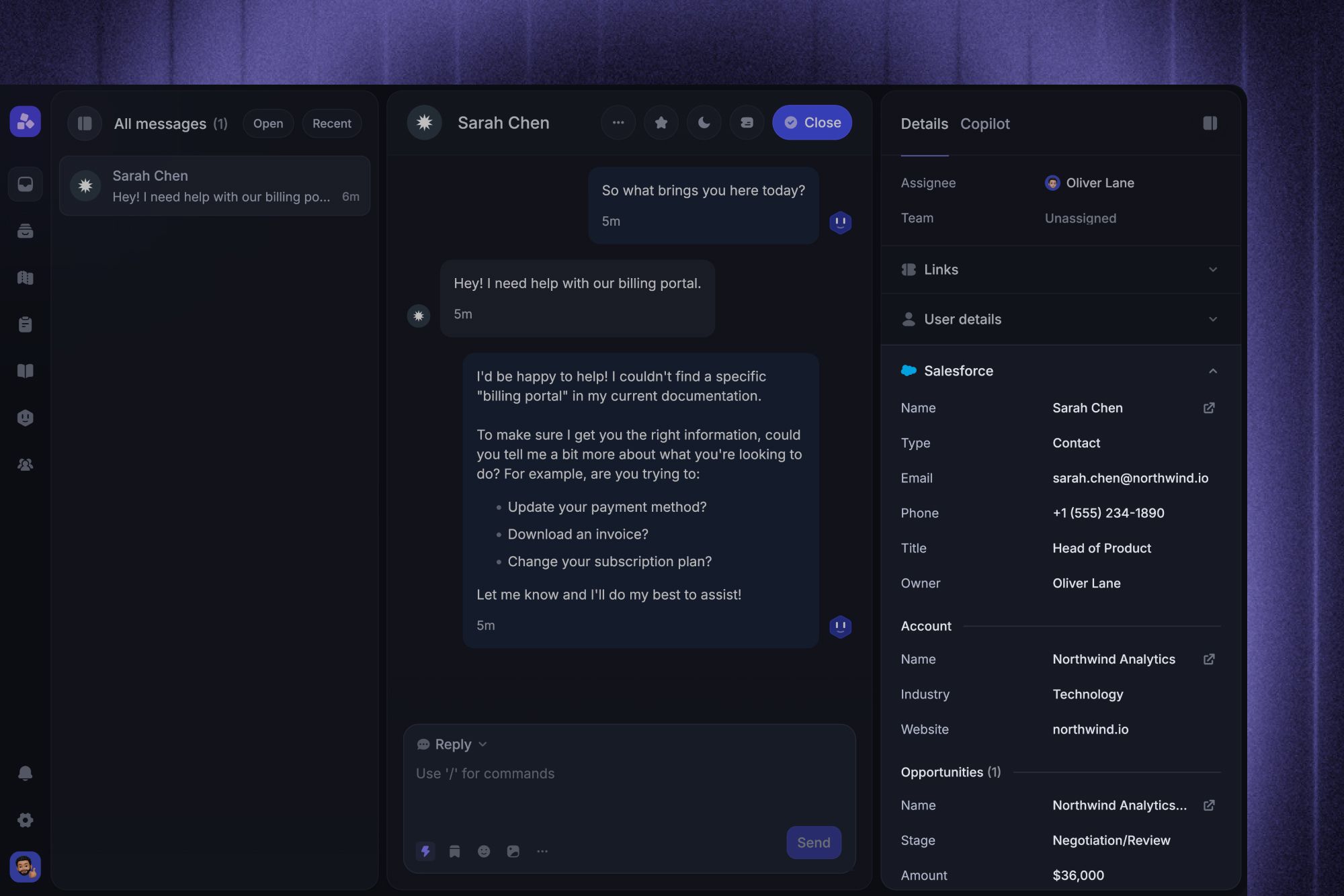
When a conversation participant matches a Salesforce record, Featurebase shows their CRM context in the Inbox. This can include:
The matching Contact or Lead
Their Salesforce Account
Related Opportunities and their current stage
If no matching record exists, click Create Lead to add the customer to Salesforce directly from the Inbox. Featurebase uses the conversation participant's available details to prefill the new Lead.
2. Link Salesforce Cases to Featurebase posts
Link support Cases to Featurebase posts so your teams can see which customer issues relate to each request.
Linking from Salesforce
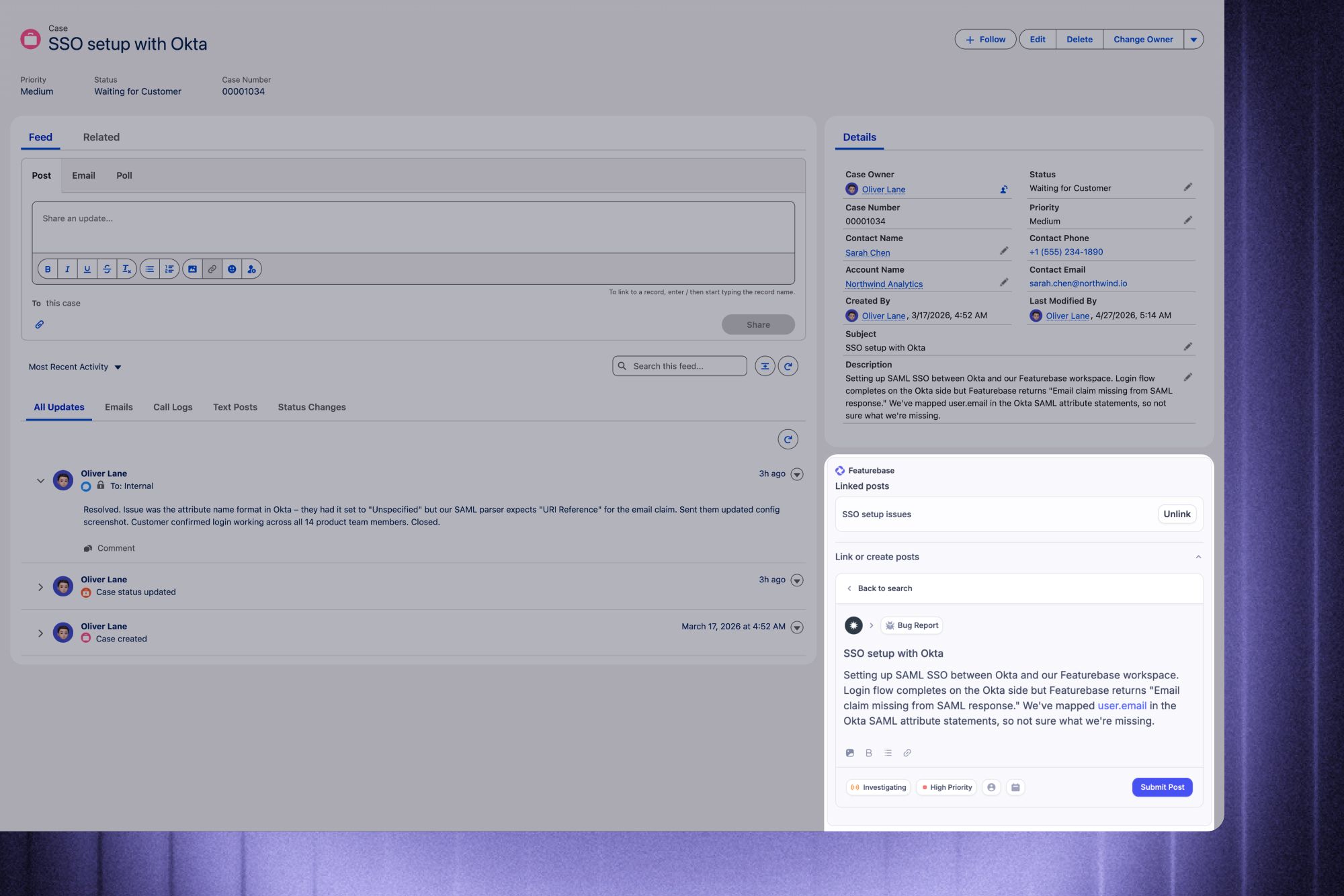
Open a Case in Salesforce
Find the Featurebase section
Under Linked posts, click Link or create posts
Search for an existing Featurebase post and click Link
If no matching post exists, click Create New Post
You can unlink a post from the same section at any time.
Linking from Featurebase
Open a post in Featurebase
Click the Salesforce icon in the post sidebar
Select Create new case or Link to existing case
Choose the Salesforce Contact when prompted
Complete the Case details and confirm
The linked Case appears on the Featurebase post, and the linked post appears inside Salesforce.
3. Link Salesforce Opportunities to Featurebase posts to prioritize by Opportunity Value
Connect Opportunities to Featurebase posts to understand how much pipeline is associated with each request.
Linking from Salesforce
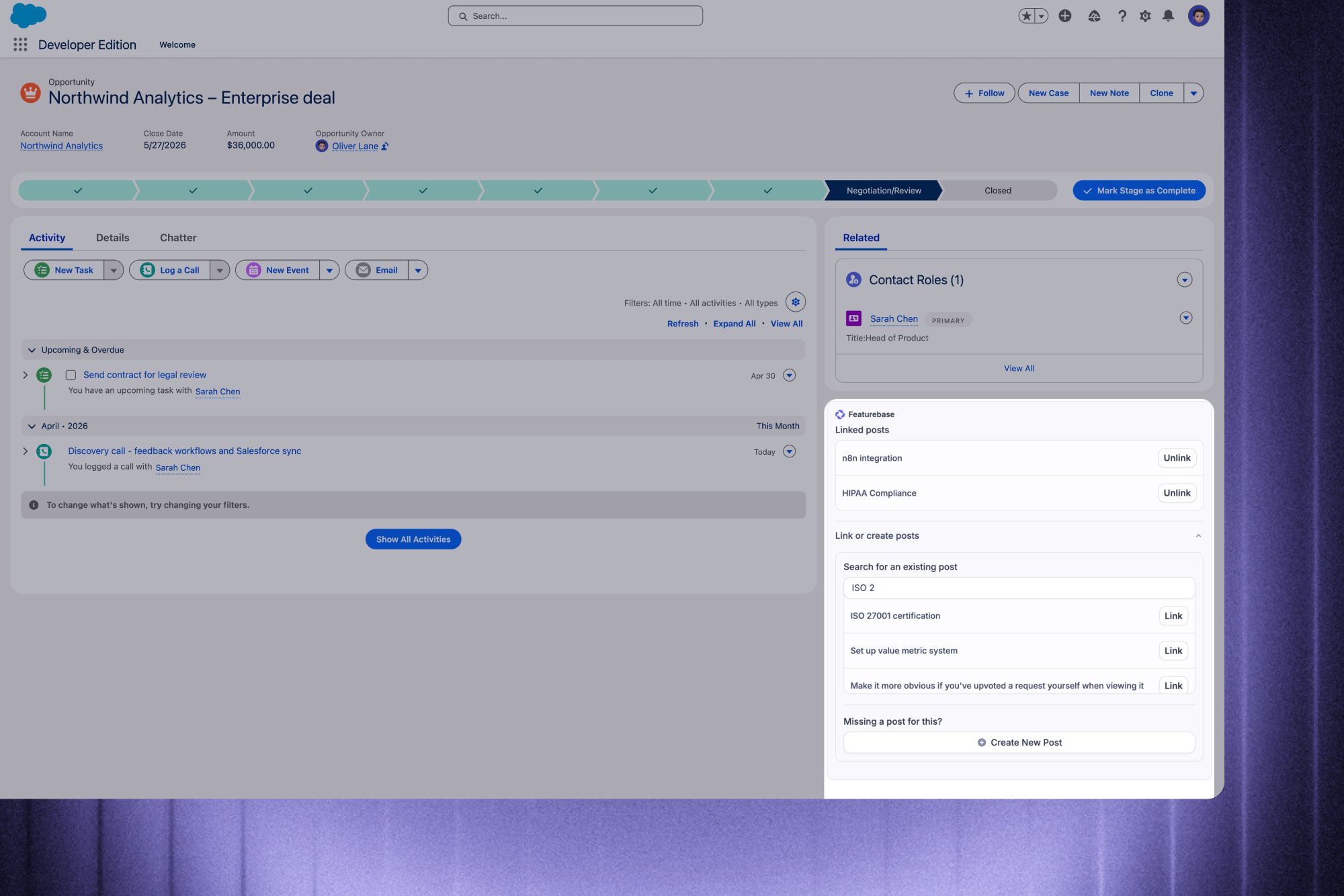
Open an Opportunity in Salesforce
Find the Featurebase section
Under Linked posts, click Link or create posts
Search for an existing Featurebase post and click Link, or click Create New Post
Linking from Featurebase
Open a post in Featurebase
Click Manage upvoters
Open the Opportunities tab
Click Link new opportunity
Search for the Salesforce Opportunity and click Link
You can also click the Salesforce icon in the post sidebar and select Link to existing opportunity.
Prioritizing by Opportunity Value
Featurebase adds the value of linked Salesforce Opportunities to each post's ‘Opportunity Value’.
This helps product teams compare requests by their potential revenue impact and identify features that could help close important deals.
4. Subscribe Contacts or Leads to posts to receive updates
When a customer shares feedback with your sales or support team, you can add their vote directly from Salesforce. This subscribes them to Featurebase post updates, so they can automatically receive relevant status changes.
Open a Contact or Lead in Salesforce
Find the Featurebase section
Search for the relevant Featurebase post
Add their vote
Optionally add a note with useful context
If the request does not exist yet, click Create New Post to submit it without leaving Salesforce.
5. See customer requests in Salesforce
The Featurebase app brings customer feedback into the Salesforce records your teams already use:
Contacts and Leads show the Featurebase posts the customer has voted on
Cases and Opportunities show the Featurebase posts linked to the record
Salesforce users can search feedback, add votes and notes, create posts, and open linked posts in Featurebase
This gives customer-facing teams visibility into each customer's requests without switching tools.
Disconnect Salesforce
Click Configure
Click ‘Uninstall Salesforce’ at the bottom of the page
This disconnects the organization and removes your Salesforce field mappings. Data that was already synced to Featurebase is not deleted. To remove the Featurebase app from Salesforce completely, also uninstall the Featurebase managed package in Salesforce.
FAQs
Can I sync custom Salesforce fields?
Can I sync custom Salesforce fields?
Yes. You can map supported standard and custom Salesforce fields to Featurebase user and company fields. Each mapping has its own sync direction and can optionally include a transformation.
Do Salesforce users need paid Featurebase seats?
Do Salesforce users need paid Featurebase seats?
No. Salesforce users can use the embedded Featurebase app without taking up paid Featurebase seats. They only need a paid seat if they also need direct access to the Featurebase dashboard.
Why is Salesforce data not appearing or updating in Featurebase?
Why is Salesforce data not appearing or updating in Featurebase?
Check that the integration is connected, the record matches an existing Featurebase user or company, the relevant field mapping has the correct direction, and Featurebase has not reached the workspace API call limit you configured.
Does customer data sync include existing Salesforce records?
Does customer data sync include existing Salesforce records?
Yes. Use Bulk Sync to update existing Salesforce Contacts and Leads that already match people in Featurebase. It does not create new people in Featurebase, and Salesforce Accounts are handled by the ongoing background sync rather than Bulk Sync.
Will the integration overwhelm our Salesforce API limit?
Will the integration overwhelm our Salesforce API limit?
You can set how many API calls Featurebase may use in a rolling 24-hour period. Featurebase pauses background sync before reaching that limit and resumes when API capacity becomes available.
Why is the Featurebase app not loading inside Salesforce?
Why is the Featurebase app not loading inside Salesforce?
Refresh the Salesforce record first. If the app still does not load, confirm that the Featurebase managed package is installed and that the Salesforce organization is still connected under Settings → Integrations → Salesforce. Reinstall the package and reconnect the account if needed.
Was this helpful?
Still need help? Ask the team