Using Command-K in the Inbox
Compose replies, perform actions, and navigate the Inbox at lightning speed without lifting your fingers off the keyboard.
Written By Kateryna Babenko
Last updated 14 days ago
Overview
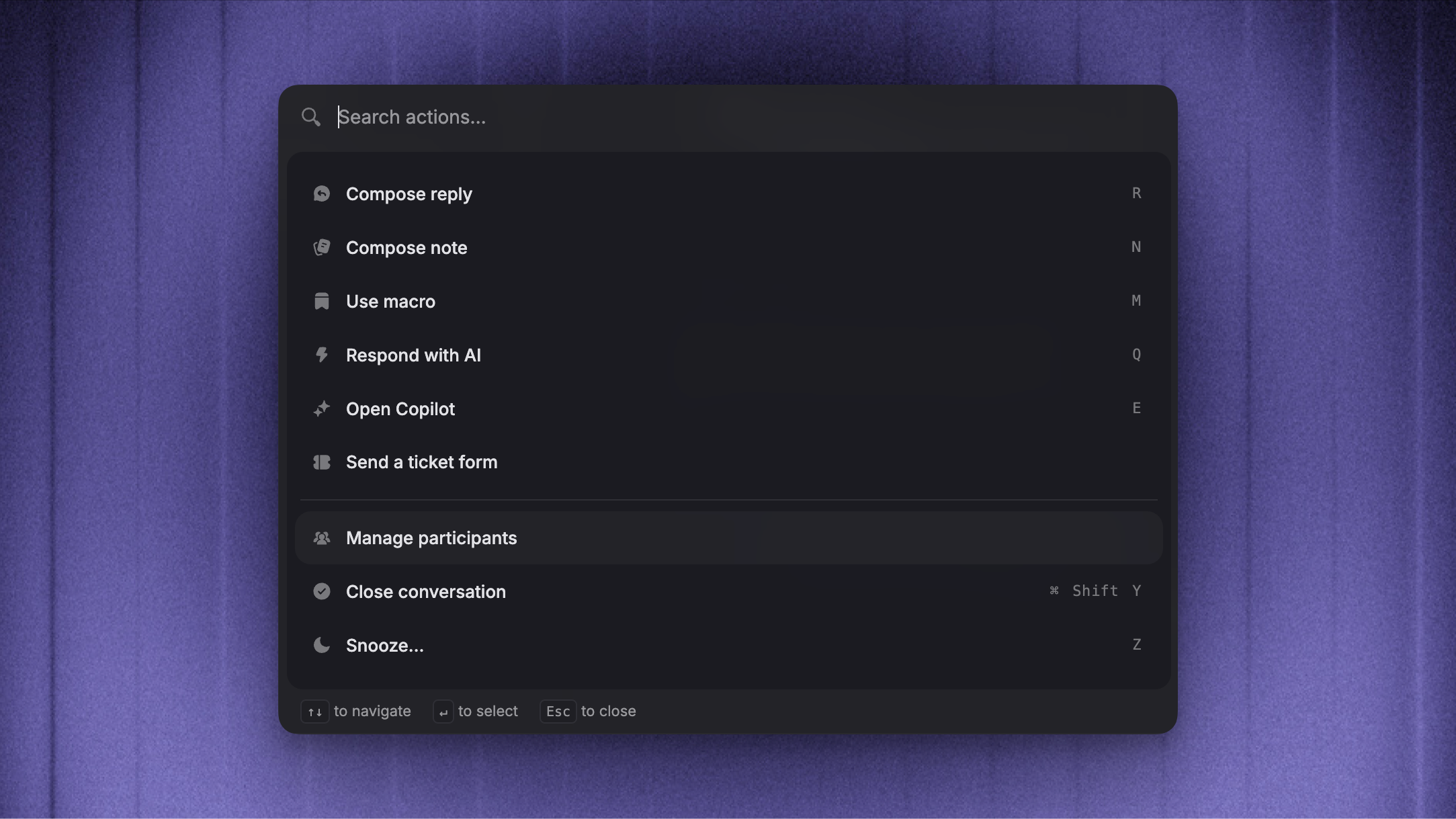
Command-K is a fast action menu in the Inbox that lets you compose replies, perform actions, and navigate around without needing to remember individual shortcuts. Everything is just one keystroke away.
To open the Command-K action menu, press ⌘ K. On Windows, replace ⌘ with Ctrl.
Command-K actions
The Command-K menu is grouped by what you can do in the Inbox. Available actions depend on the selected conversation or ticket, your workspace setup, and your permissions.
Compose
Compose reply (
R)Compose note (
N)Use macro (
M)Respond with AI (
Q)Open Copilot (
E)Send a ticket form - prompts the customer to fill in a ticket form
Conversation
Close or Re-open conversation (
⌘ShiftY/⌘ShiftO)Snooze or Unsnooze (
Z)Set or Remove priority (
P)Update ticket state (
⌘S)Tag message (first) - add tags to the first message
Tag message (most recent) (
ShiftT) - add tags to the most recent messageManage participants - add or remove people from the conversation
Assign
Assign or unassign (
A)Inline assign - type a teammate or team name to assign the conversation
Tickets
Convert to customer ticket (
⌘B)Create back-office ticket
Link Tracker ticket or public post
Copy
Copy transcript
Copy link to conversation
Navigation
New conversation (
C)Search conversations and tickets (
⌘P)Switch between list and table view (
L)Switch to light / dark mode
Keyboard shortcuts (
?) - opens the Keyboard shortcuts panel
Use Command-K for bulk actions
Command-K also works on several conversations at once. Select conversations using their checkboxes, then press ⌘ K to open the bulk action menu.
From there you can assign, reply or add an internal note, add tags, snooze, close or reopen, set or remove priority, and mark selected email Conversations as spam. Choose Edit when you want to send a reply or internal note and combine it with several of these actions at once.
Use Select all to select every currently loaded conversation, and press Esc to clear the selection.
Navigating the Command-K menu
Once Command-K is open, you can move around with just your keyboard. Your current selection is highlighted in grey.
↑- Move selection up↓- Move selection downEnter- Choose the current selectionEsc- Close the menuBackspace- Go back when you're inside a sub-page (such as the assign or tracker picker)
You can also start typing the action you're looking for, and the list filters as you type.
Direct shortcuts are displayed on the right of each action, so you can learn them over time and skip the menu entirely.
Keyboard shortcuts
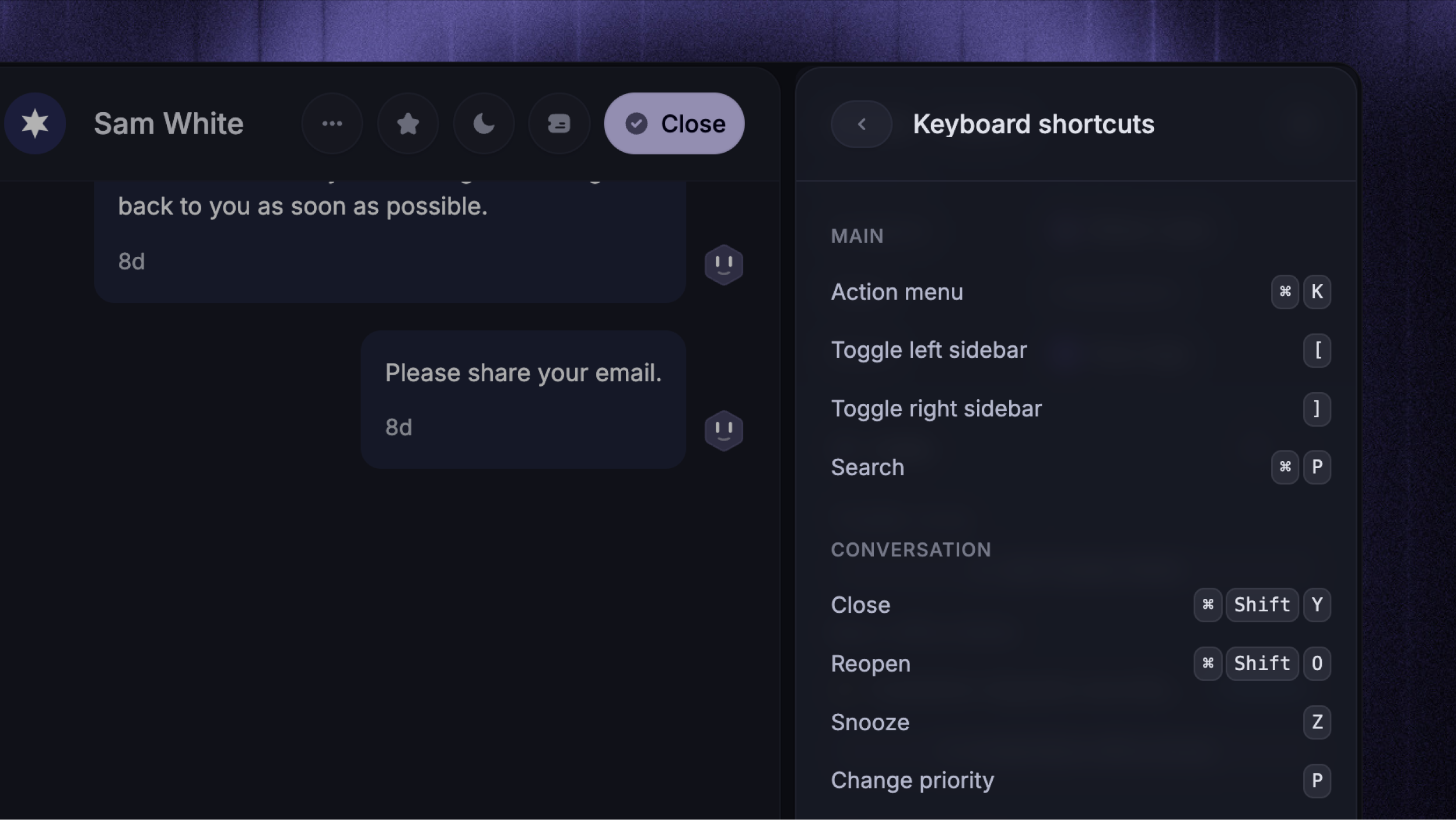
In addition to Command-K, you can use direct shortcuts for common Inbox actions.
Press ?, or open Command-K and select Keyboard shortcuts, to open the Keyboard shortcuts panel.
Main
⌘K- Open the Command-K action menu[- Toggle the left sidebar]- Toggle the right sidebar⌘P- Search conversations and tickets
Conversation
⌘ShiftY- Close conversation⌘ShiftO- Re-open conversationZ- Snooze or Unsnooze conversationP- Set or remove priorityA- Assign conversationShiftT- Tag the most recent messageC- Start a new conversation⌘B- Convert to customer ticket⌘S- Update ticket state
Composer
R- Compose a replyN- Compose a noteM- Use a macroQ- Respond with AIE- Open Copilot
Navigation
J- Open next conversationK- Open previous conversationL- Switch between list and table view
Help
Press ? to open the Keyboard shortcuts panel.
FAQs
Why aren't my keyboard shortcuts working?
Why aren't my keyboard shortcuts working?
Single-key shortcuts such as R, N, M, and Q do not work while you're typing in a reply or note. Click outside the composer, then try again.
Can I customize keyboard shortcuts?
Can I customize keyboard shortcuts?
Keyboard shortcuts in the Inbox are not currently customizable.
Was this helpful?
Still need help? Ask the team