Product Tour analytics
Review tour views, completions, step drop-off, and issues to improve the customer experience.
Written By Markus Palm
Last updated 19 minutes ago
Overview
Product Tour analytics shows how many customers see a tour, how far they get, and whether a missing target interrupts the flow. Use it to find steps that need clearer guidance or a more reliable target.
Review tour performance
Go to Dashboard → Outbound
Open a tour that has been set live
Click 'Analytics'
The metrics at the top show lifetime totals. Use the date range and timezone to review activity for a specific period. Select a metric to filter its activity in the chart and recipient list.
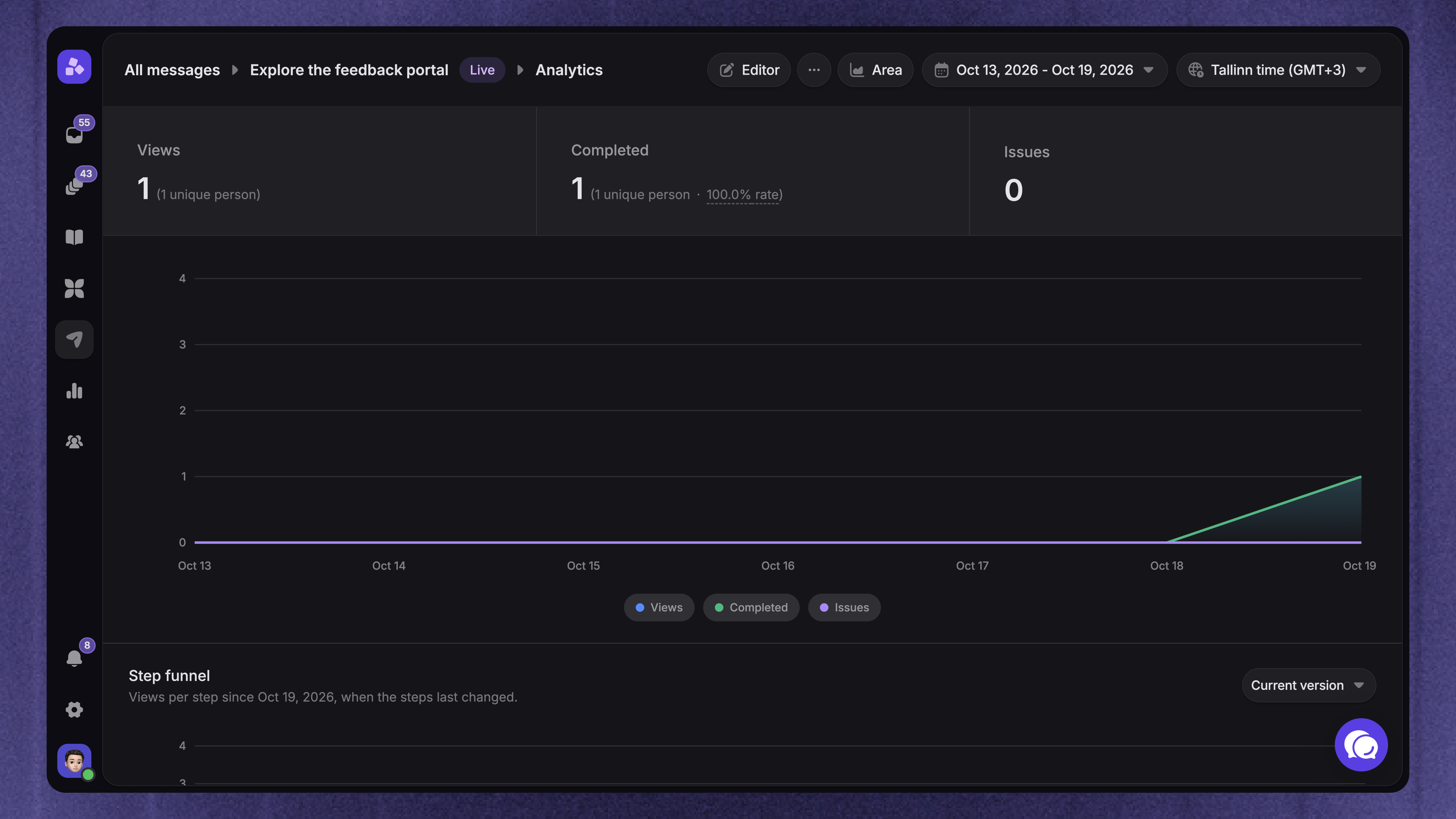
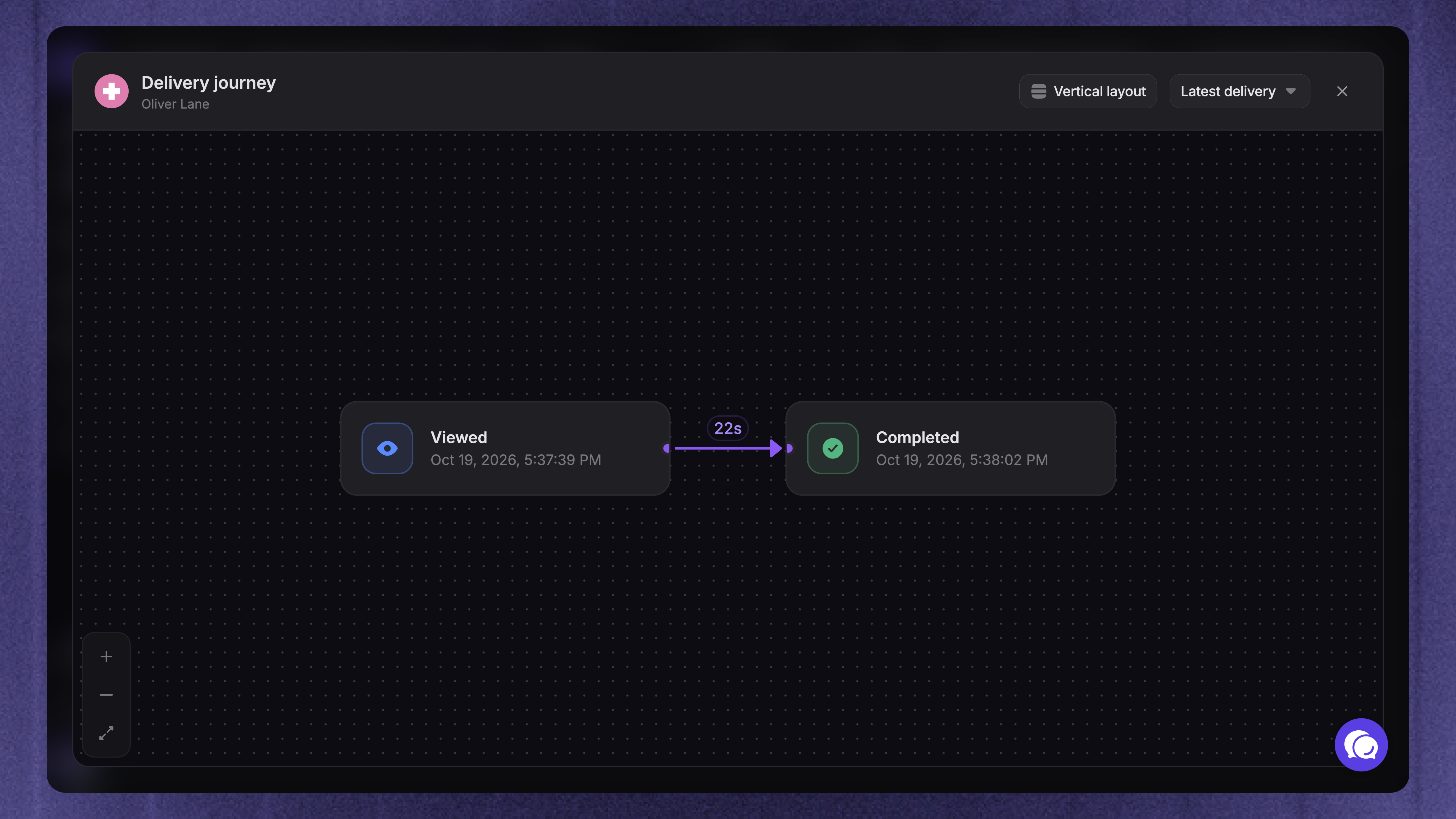
The shared Outbound analytics guide explains totals, unique recipients, rates, and individual delivery history.
Understand the tour metrics
A completion means the customer reached the last step. It does not confirm that they clicked Done or finished the task in your product.
Find where customers stop
The Step funnel shows views for each step within the selected date range and content version.
Hover a step to see:
Views - How many tour attempts reached the step
People - How many different people reached it
Of step 1 - The step's views as a percentage of first-step views
Drop-off - The percentage decrease from the previous step
For example, if 100 attempts reach step 1 and 60 reach step 2, step 2 shows 60% of step 1 and a 40% drop-off.
Start with the largest drop. Check whether the previous step is too long, asks for an unclear action, or sends the customer to a page they cannot use. Also check Issues before assuming that customers chose to leave. Use the best-practice guide to improve the step's content and flow.
Compare content versions
Content changes create versions so you can review different tour experiences separately. The funnel opens on Current version. When older versions exist, use the version selector to inspect them.
Compare versions over similar periods and audiences. Lifetime totals can include several versions, while the funnel shows one selected version.
Review tour issues
The Issues table groups problems by step, reason, target, and page. It shows how often each issue occurred and when it was last seen. Hover Count to see the number of affected people.
Use the reason and page to find and fix the affected step. After saving a fix, review a recent date range to check for new issues. Earlier issue records remain part of the tour's history.
FAQ
Does editing or pausing erase the analytics?
Does editing or pausing erase the analytics?
No. Existing results stay available. Use the Step funnel version selector to review earlier content versions. Pausing does not reset the tour's previous view history.
Do previews, snoozes, or restarts add views?
Do previews, snoozes, or restarts add views?
Previews do not count in analytics. Snoozing, resuming, or restarting the same attempt does not add another tour view. A new attempt can count again, so views and unique people can differ.
Was this helpful?
Still need help? Ask the team