Discuss conversations with your team in Slack
Start internal Slack discussions from customer conversations with your team to loop in Engineers, Product, or Sales.
Written By Markus Palm
Last updated 3 months ago
Overview
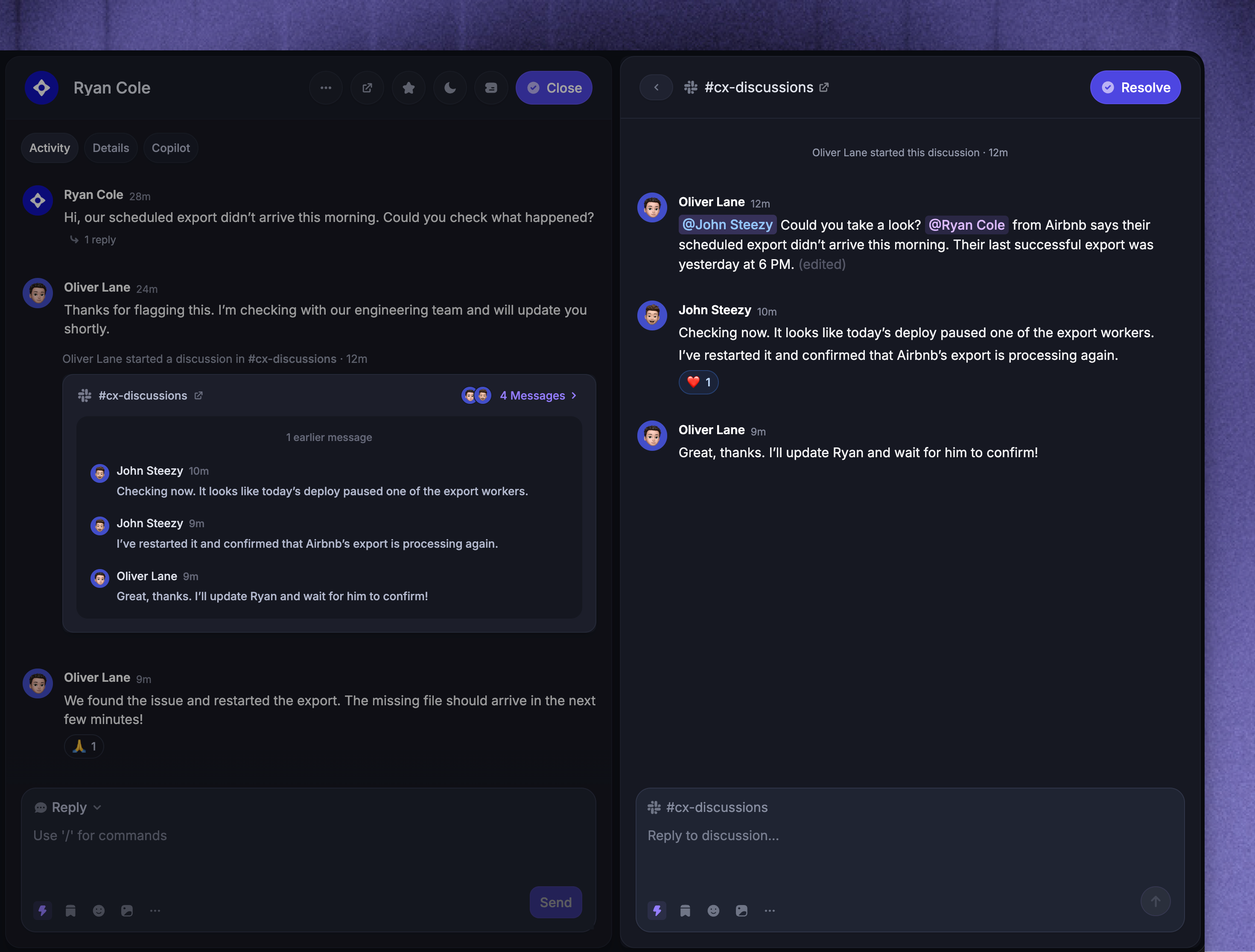
Use Slack discussions to bring teammates into customer issues through private internal Slack channels. For example, Support can ask Engineering to investigate a bug or get account context from Sales without involving the customer.
Each discussion is linked to a Featurebase conversation and has its own Slack thread. Replies sync between Slack and the Discussion panel in the Featurebase Inbox, keeping the internal discussion and customer context together.
Create separate discussions when different teams or topics need their own threads.
Important: Discussion messages are internal in Featurebase, but everyone with access to the Slack channel can read its discussion threads. Use an internal Slack channel that does not include customers or other external members.
Configure a Discussion channel
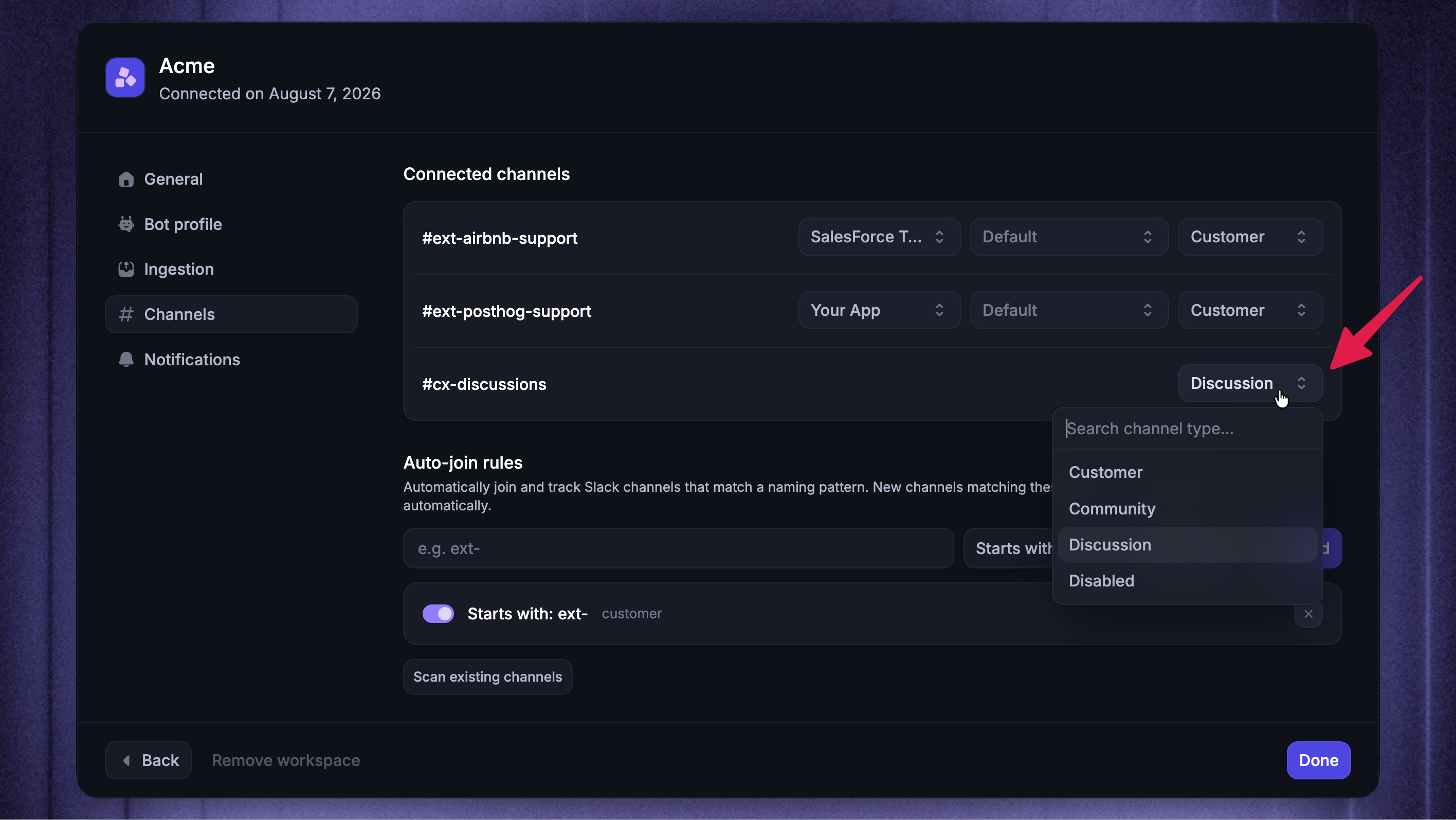
Before you start a discussion, connect the Slack workspace to Featurebase, then configure an internal Discussion channel:
Invite the Featurebase app to the internal Slack channel with
/invite @FeaturebaseChoose the relevant Slack workspace to manage
Open Channels and set the desired channel type to ‘Discussion’
Open General and click ‘Connect Slack account’ under ‘Reply as yourself’ to link your personal Slack identity to Featurebase
A Discussion channel does not create customer conversations from normal messages. Featurebase only synchronizes linked discussion threads that you start from the Inbox or by sharing a conversation link.
Note: Each teammate who starts or replies to a discussion from Featurebase needs to connect their own Slack account.
Start a discussion from the Inbox
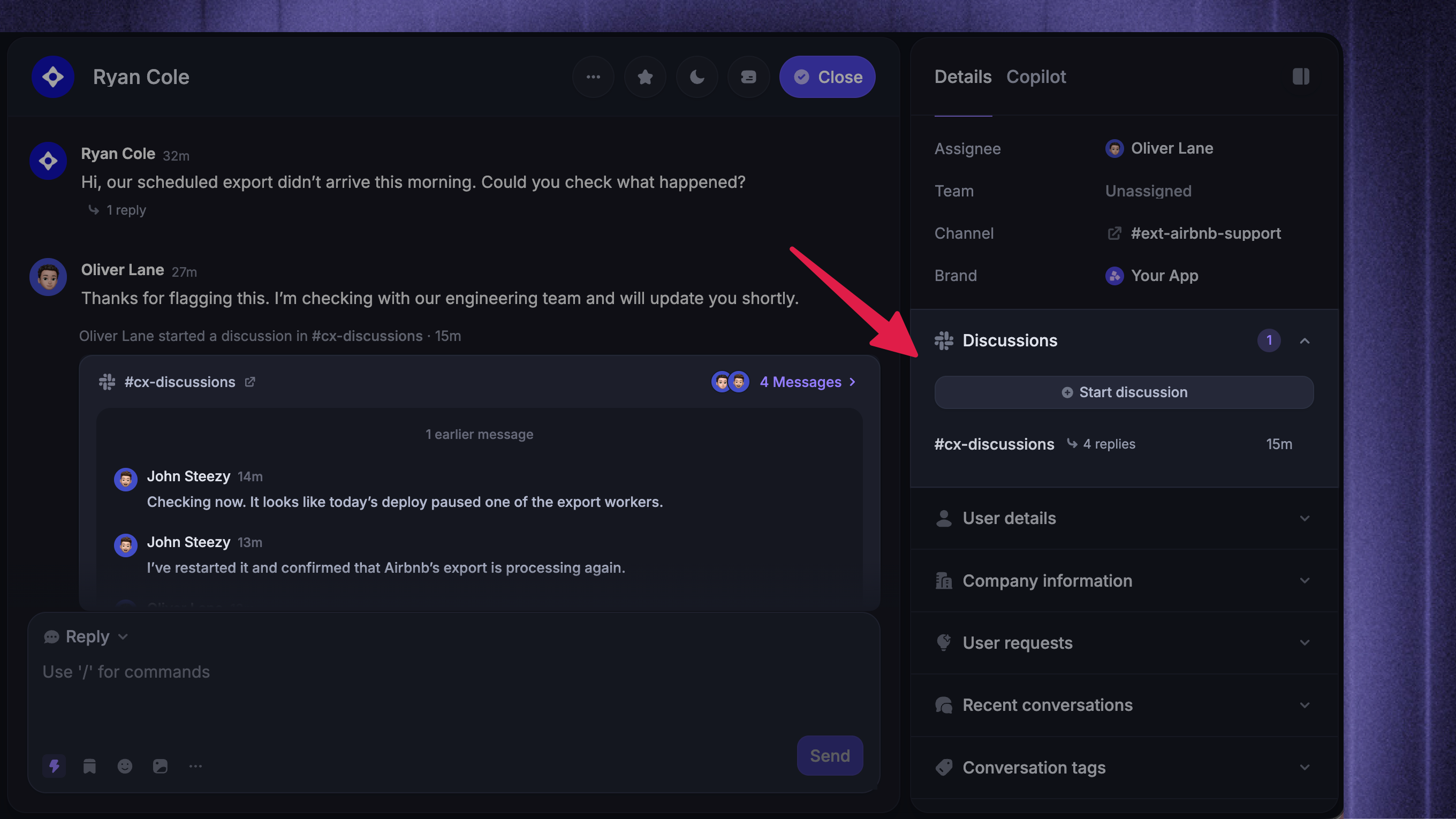
To start a discussion while handling a conversation:
Open the conversation in the Inbox
In the conversation sidebar, click Start discussion
Click Select channel and choose a configured Discussion channel. Featurebase selects it automatically if only one is available
Enter your initial internal message under Describe what you want to discuss...
Click Send
Featurebase confirms that the discussion started in Slack and adds it to the conversation sidebar.
The Slack thread starts with context about the conversation, customer, Company, assignee, and recent message. Check that the selected Slack channel has the right audience before sending this context.
Note: If you have multiple connected Slack workspaces, the Inbox picker currently shows Discussion channels from one workspace. To use a Discussion channel from another connected workspace, start the discussion from Slack by posting the Featurebase conversation link in that channel.
Start a discussion from Slack
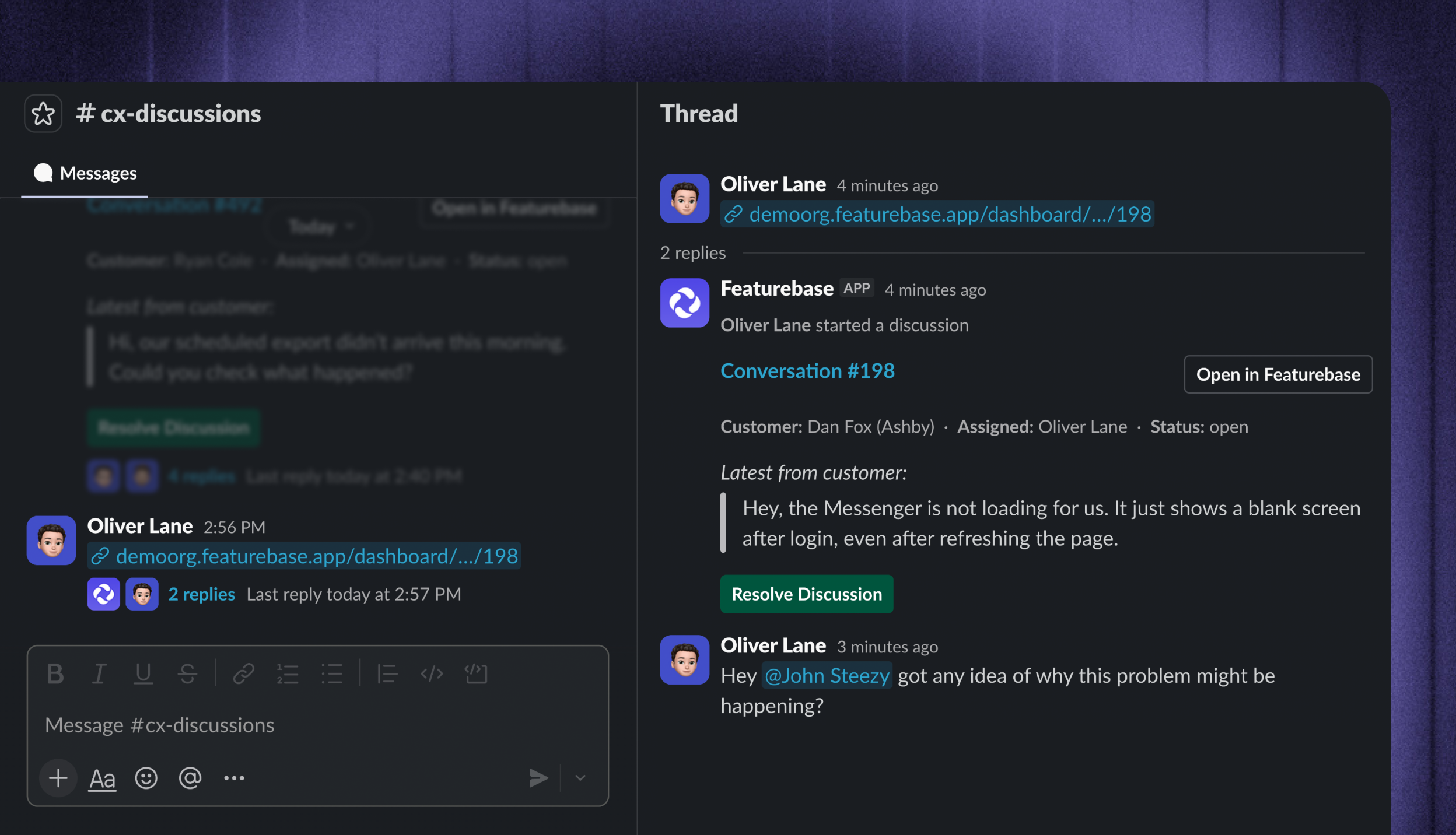
To start a discussion from Slack:
Open a configured Discussion channel
Copy the Featurebase conversation URL from the Inbox
Paste the URL into a new top-level Slack message
Reply in the thread that Featurebase creates for the discussion
Posting other messages in a Discussion channel does not add them to Featurebase. The message must contain a valid Featurebase conversation link and start a linked discussion.
Note: Featurebase must recognize the person posting the link as a teammate through their connected Slack account or matching email address.
Reply from Slack or Featurebase
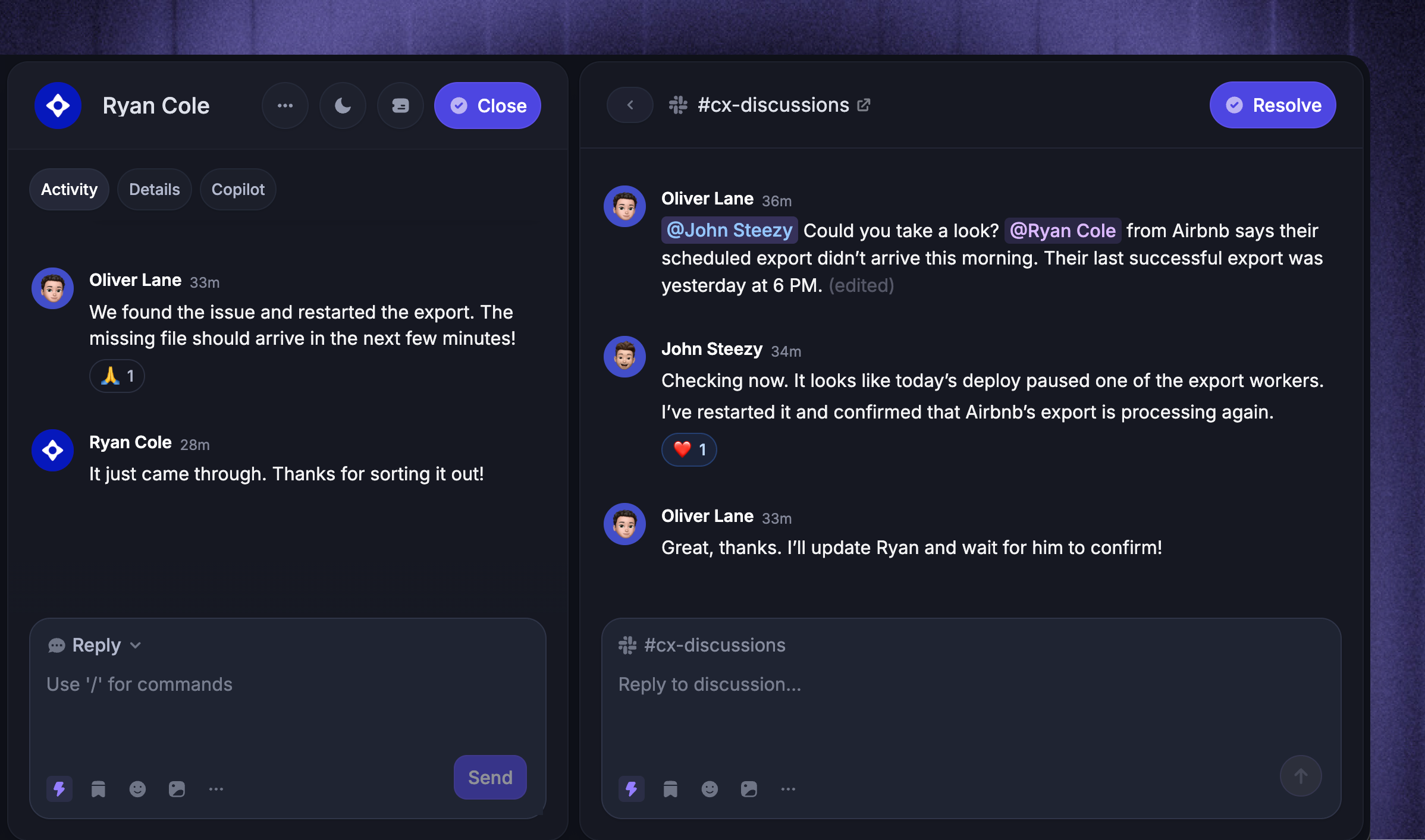
Open a discussion from the conversation sidebar to see its internal message history.
Replies in the linked Slack thread appear in the Discussion panel.
Replies in the Discussion panel appear in the linked Slack thread.
Customer-facing Slack replies remain in the main conversation, not the Discussion panel.
Internal notes remain separate from Slack discussions and are not posted to Slack.
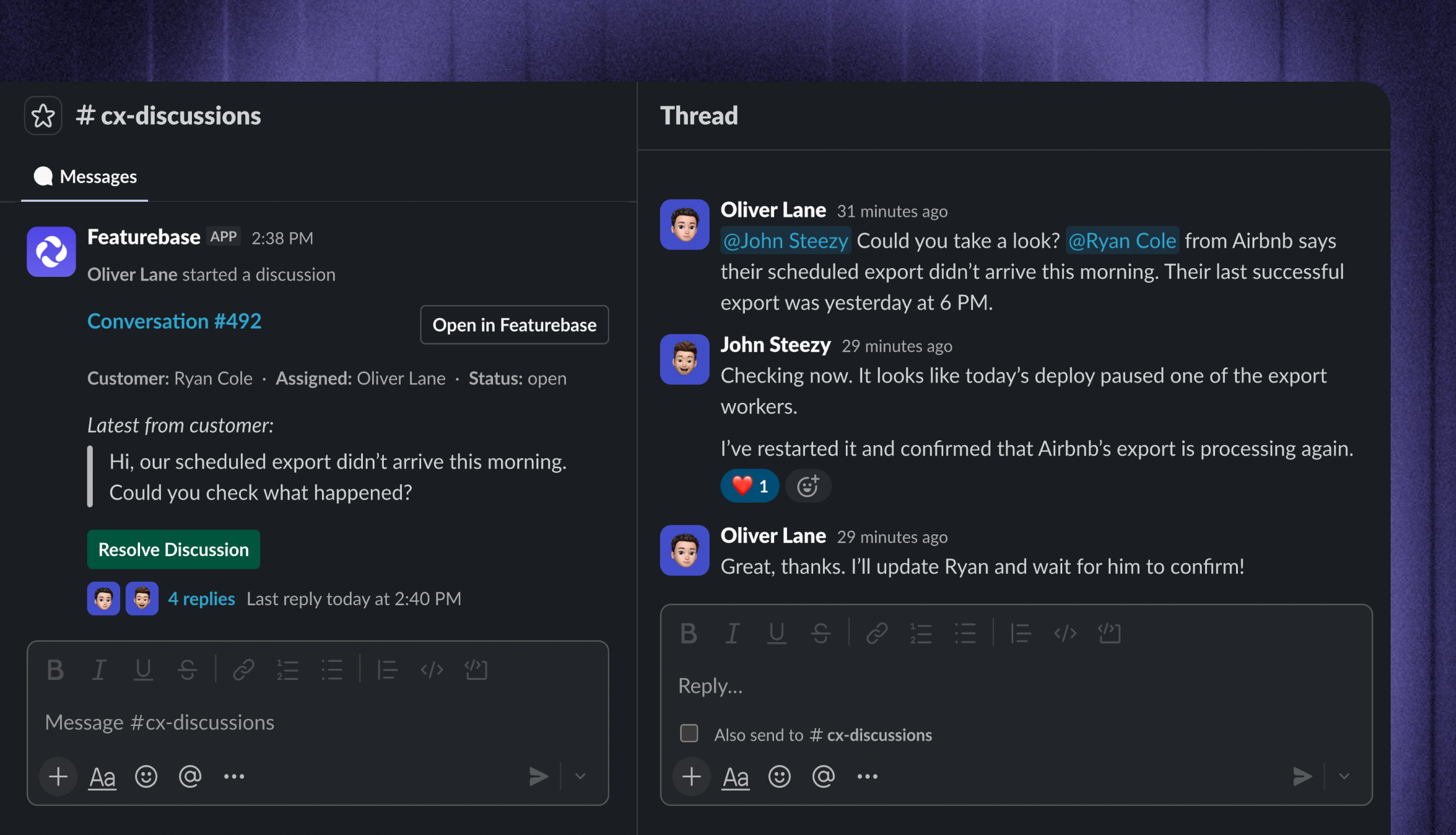
If a conversation has several discussions, select the one you want from the sidebar before replying. Each discussion stays connected to its own Slack thread.
Resolve or reopen a discussion
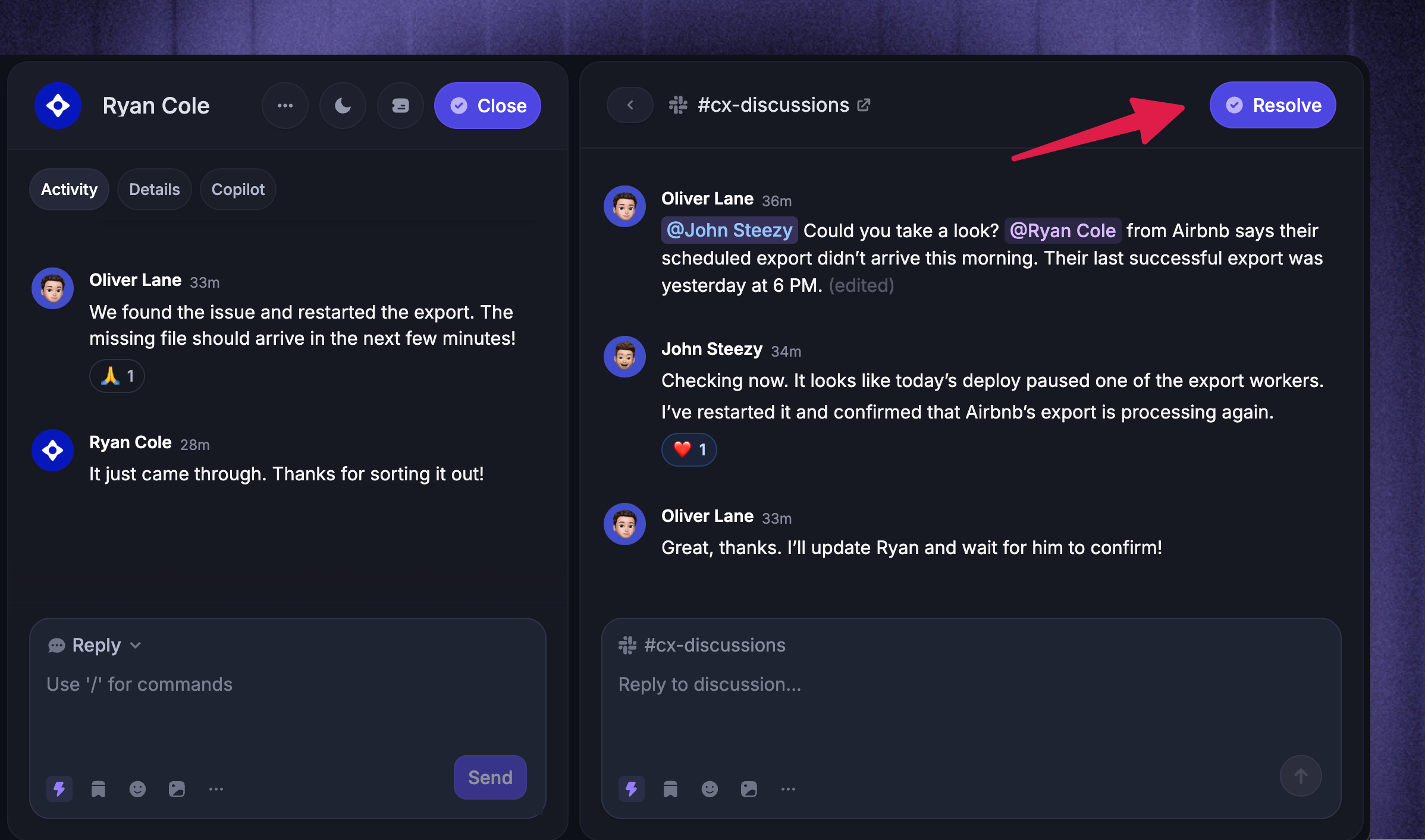
Resolve a discussion when the internal question or handoff is complete.
In Featurebase, open the discussion and click Resolve.
In Slack, click Resolve Discussion on the discussion card.
To continue a resolved discussion:
In Featurebase, open it and click Reopen.
In Slack, click Reopen Discussion.
Note: Resolving a discussion does not close the customer conversation. Closing the customer conversation does not replace the discussion's own resolved state.
Understand identity warnings
Featurebase verifies Slack discussion authors before showing them as teammates.
If a Slack user is not linked to a Featurebase teammate, the Discussion panel marks their identity as unverified. Ask the teammate to go to Settings → Integrations → Slack, choose the relevant Slack workspace, and click Connect Slack account under General → Reply as yourself.
Verify unrecognized people in Slack before acting on their messages, and do not rely on the display name alone. The warning does not change the thread's synchronization or Slack visibility.
If a discussion does not synchronize, see Troubleshoot Slack support.
Was this helpful?
Still need help? Ask the team