Handle Telegram conversations in the Inbox
Reply to Telegram private chats and groups, quote messages, react, edit, and fix replies that could not be delivered.
Written By Bruno
Last updated About 1 hour ago
Overview
Telegram conversations work like other conversations in the Inbox: assign them, tag them, add notes, and close them. Your replies go to the customer's Telegram chat from your support bot. This article covers what is different for Telegram.
To reply, quote, react, or edit, you need a full seat.
How Telegram conversations look
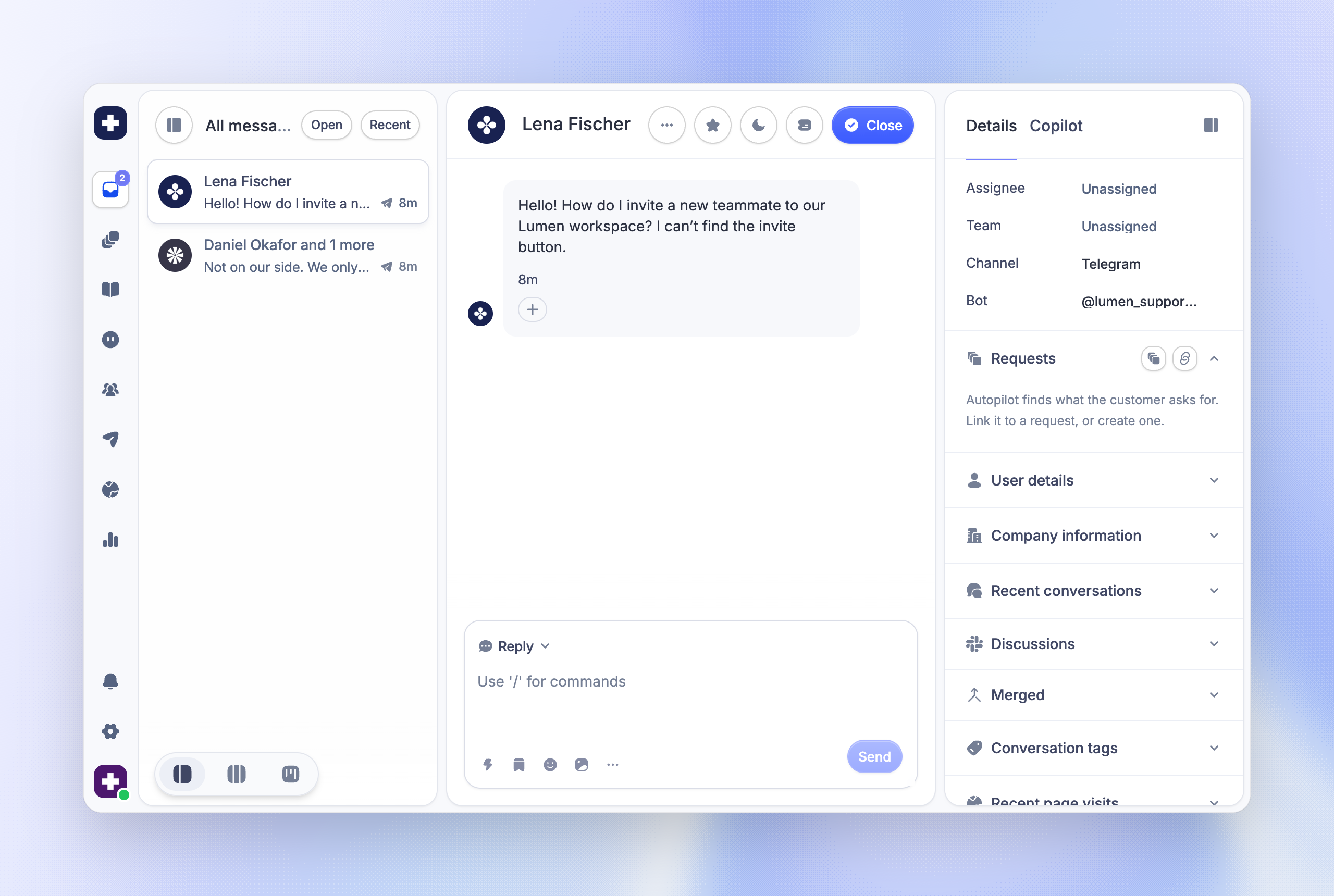
Telegram conversations have a Telegram icon in the conversation list.
Private chats - Look like Messenger chats, with the customer's messages on one side and your replies on the other
Groups - Show every message stacked, with each sender's name and picture, like a Slack channel. Messages from linked teammates show as staff replies
The details panel shows:
Channel - The group name, or Telegram for a private chat
Bot - The support bot that received the conversation
Topic - The forum topic, when the group uses topics
The conversation attributes Telegram bot username, Telegram group name, and Telegram chat type are filled in automatically. You can use them in workflow rules.
Reply and quote
Write in the composer and click 'Send'. The reply arrives in the Telegram chat from your bot.
Quote a message
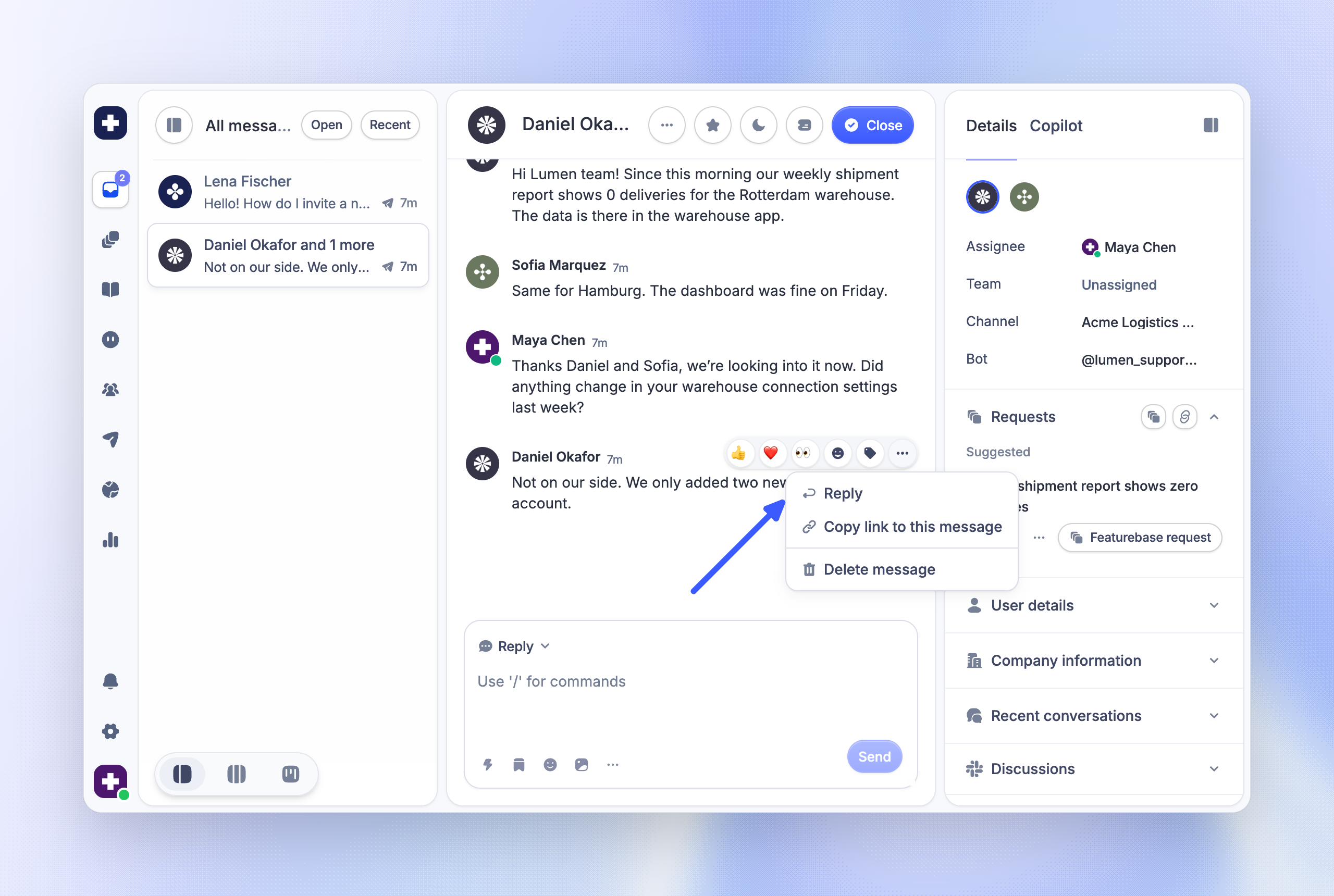
To reply to one specific message, like a Telegram reply:
Hover over the message and open the ··· menu
Choose 'Reply'
Write your reply below Replying to and send it
In Telegram, your reply quotes the original message.
Check the quote before you send
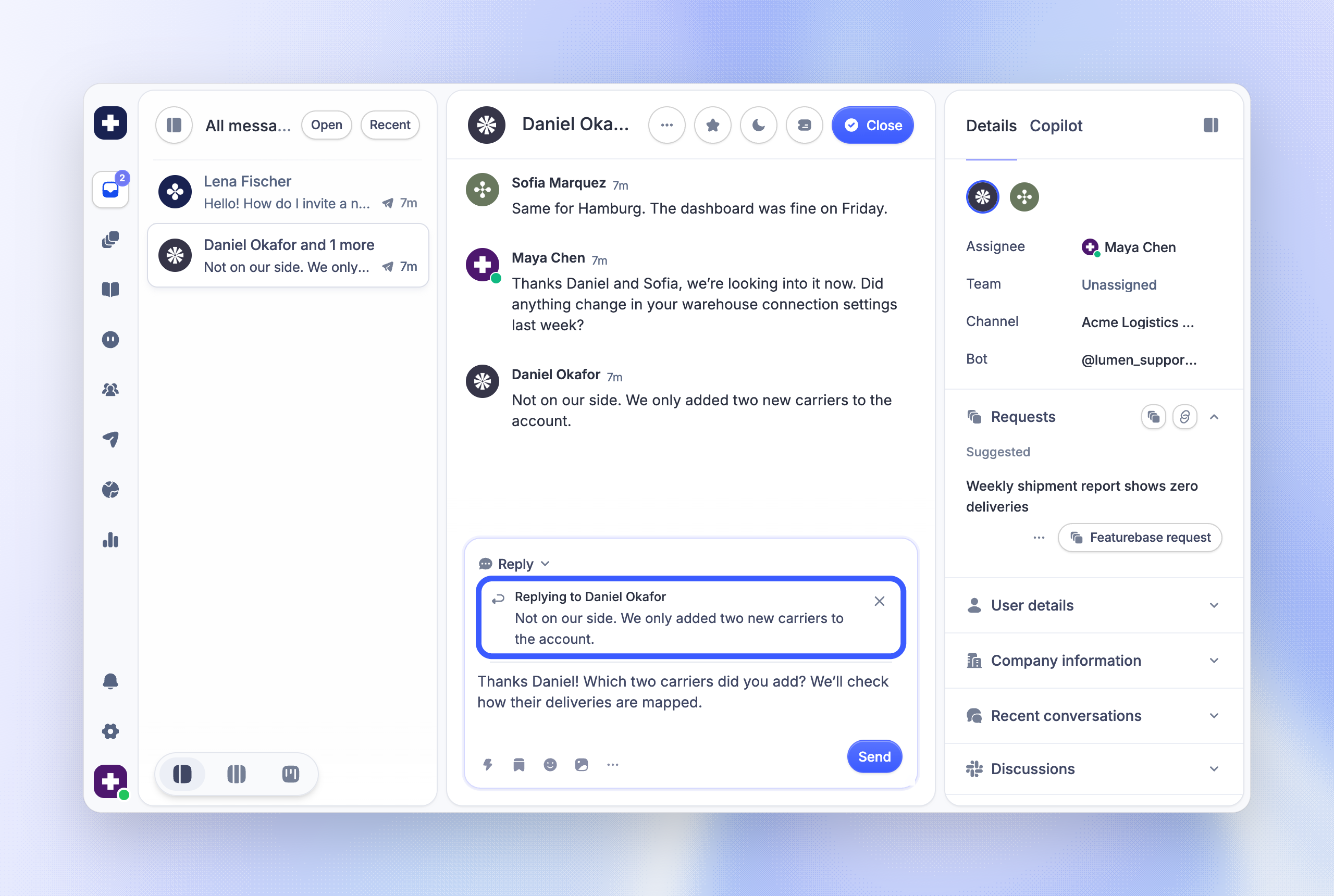
The composer shows Replying to with the sender and the quoted text. To remove the quote, click the × next to it. In the conversation, quoted messages show a Replying to preview that you can click to jump to the original.
What you can send and receive
Text with formatting, links, and emoji
Images, videos, audio, voice messages, and files up to 20 MB
Stickers, contacts, and locations from customers
Long replies are split into several Telegram messages. Messages that Featurebase can't show, such as polls, appear as "[Unsupported Telegram message]".
Reactions, edits, and deletes
React to a message
Hover over a message and pick a reaction from the quick bar, or open the full list. Reactions from customers show under their messages. Your team's reactions are sent as the bot, and each sender can have one reaction per message.
Edit your reply
Open the ··· menu of your own sent reply and choose 'Edit message'. The message changes in Telegram too. You can edit text replies only. To change a reply with attachments, delete it and send a new one.
Delete a message
Open the ··· menu and choose 'Delete message':
Your team's reply - Removed from the Inbox and from Telegram. Telegram allows the bot to delete messages only within 48 hours
A customer's message - Removed from the Inbox only. The original stays in Telegram
When a customer deletes a message in Telegram, it may still show in the Inbox. Telegram doesn't tell bots about deleted messages.
When a reply can't be delivered
If Telegram rejects a reply, it shows Telegram delivery failed with the reason, for example that the customer blocked the bot or the bot was removed from the group. Fix the cause, then click 'Retry delivery' under the reply. Some failures can't be retried, such as a reply that is too long: send a new message instead.
If the connection broke while the reply was sending, it shows Telegram delivery unknown. Telegram may already have the reply, so check the chat first. Retrying can send it twice, so Featurebase asks you to confirm.
Note: Replies can't be sent while Sync Telegram messages is off for the chat, or after the group is disconnected.
Closed and newer conversations
When a customer's reopen period has ended, the composer shows "The reopen period has ended. Continue in a new conversation to reply." Click 'Start new conversation' to write to the same chat in a new conversation.
When the chat already continues in a newer conversation, click 'Open current conversation' to reply there. The reopen settings decide when this happens.
Link messages to requests
When Insights are turned on, select text in a customer's message and choose Link to request to save it as feedback on a request. This works in private chats and in group conversations.
Telegram in the mobile app
Telegram conversations show in the Featurebase mobile app with the other conversations. Replies you send from the app reach the Telegram chat. Quoting, reactions, and editing are available on the web only.
FAQs
Why can't I merge a Telegram conversation?
Why can't I merge a Telegram conversation?
Telegram conversations can't be merged with other conversations or tickets, so Merge is not offered on them.
A reply says Telegram refused it
A reply says Telegram refused it
The customer may have blocked your bot, or the bot was removed from the group. Ask the customer to open the bot again, or add the bot back to the group as an administrator, then retry.
Why is the composer disabled in a Telegram conversation?
Why is the composer disabled in a Telegram conversation?
The chat may be paused, the group may be disconnected, or the conversation may be older than the current one for that chat. The message above the composer says which, and what to do.
Was this helpful?
Still need help? Ask the team