How to manage your Featurebase subscription
Learn how to change plans and manage your seats and add-ons.
Written By Markus Palm
Last updated 2 days ago
This article refers to our new pricing plans. Log in to view our legacy plans (before Dec 2025) or contact us via live chat.
Overview
You can access all of your pricing and billing settings from Settings → Billing. From there, you can:
View and change your plan or add-ons
Update your payment information
Update billing email
View billing history, such as past invoices and charges
Purchase a subscription
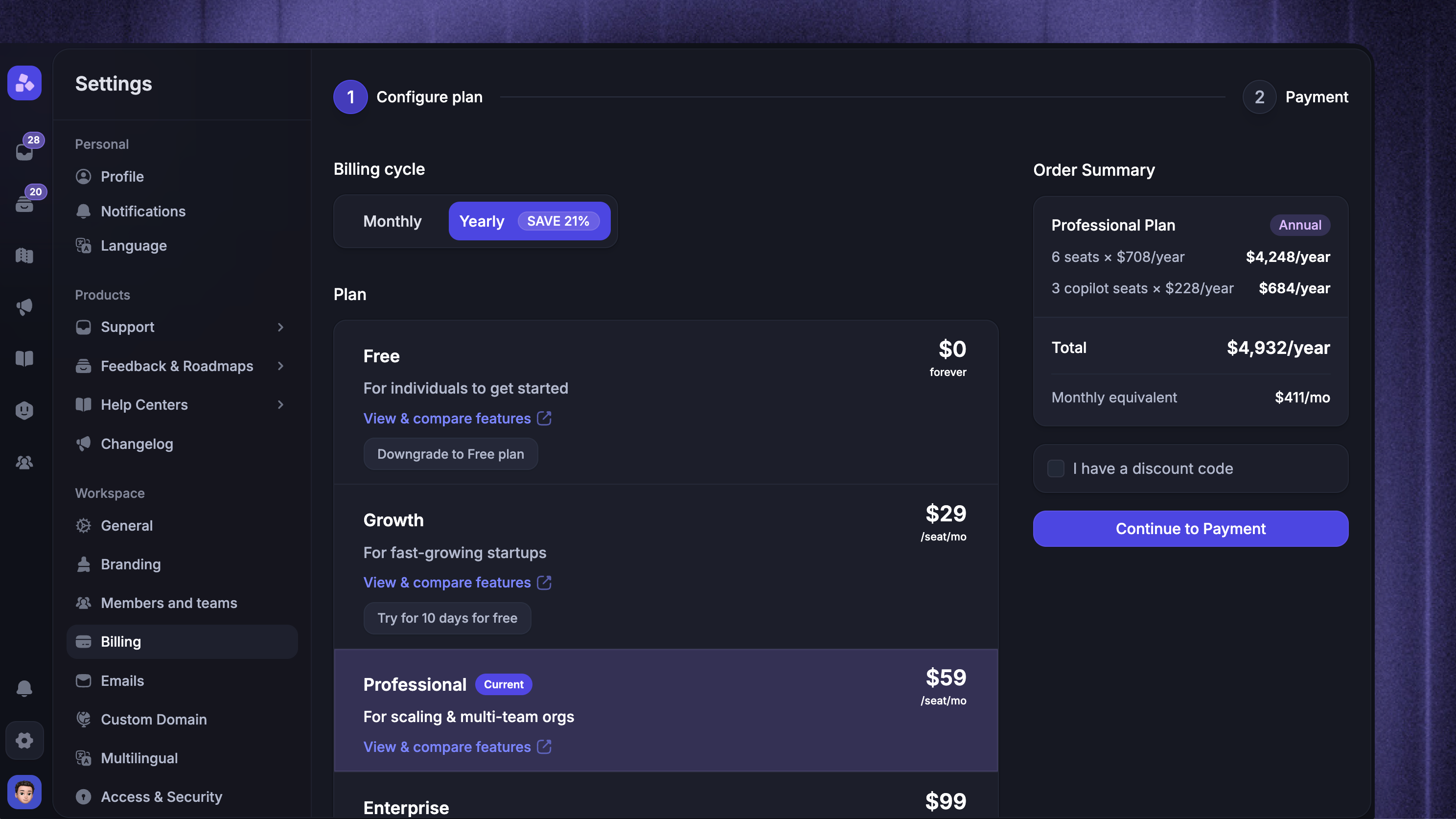
Start by choosing a plan that fits your needs in Featurebase by visiting our pricing page. Once you’ve chosen a plan, click the Buy Now button
Go to Settings → Billing
Choose the suitable plan
Choose the number of full seats
Pick the add-ons (optional)
Click ‘Continue to Payment’ and finish the checkout
✨ Early startup? Check out our Startup program to get 80% off Featurebase + 1 year of Fibi AI free.
View all of your usage
You can view all of your seats + Fibi AI usage during the current billing cycle and set alerts and hard limits from Settings → Billing.
Learn more: How to see and manage your AI usage
Upgrade or downgrade your plan
It’s super simple to upgrade or downgrade your subscription:
Go to Settings → Billing
Click ‘Change plan’
Choose the new plan (or any add-ons)
Review the charges and effective date, then confirm the change
Upgrading your subscription plan
Upgrading your subscription plan
When upgrading to a higher-tier plan, keep the following in mind:
Make sure your billing details are up-to-date before making the change.
Discounts associated with your previous plan might not be applied to higher-tier plans.
Downgrading your subscription plan
Downgrading your subscription plan
When moving to a lower plan, be aware of the following:
On monthly billing, switching to a lower paid plan prorates unused time. Any remaining credit is applied to future invoices. Annual changes scheduled for renewal do not create a credit for the remaining term.
You may lose access to certain advanced features, such as Workflows, that are not available on lower-tier plans. Be sure to review the plan details to ensure it still meets your needs.
Discounts from a previous plan may not carry over to a lower-tier plan and may be lost upon downgrading.
Notes:
Upgrades will be enabled immediately and billed on a prorated basis.
Changes between paid monthly plans take effect immediately, with prorated charges or credits.
For annual plans, downgrades will be scheduled when your subscription is due to renew.
If you pay yearly and downgrade your plan, you'll see that the change is scheduled when your subscription is due to renew. While upgrading or adding features is possible mid-contract and will take effect immediately, reducing features or downgrading your plan is only possible at the end of your annual contract term.
Managing add-ons
You can also add or remove add-ons (like whitelabeling) from Settings → Billing.
Add-ons will be enabled immediately and billed on a prorated basis.
Managing seats
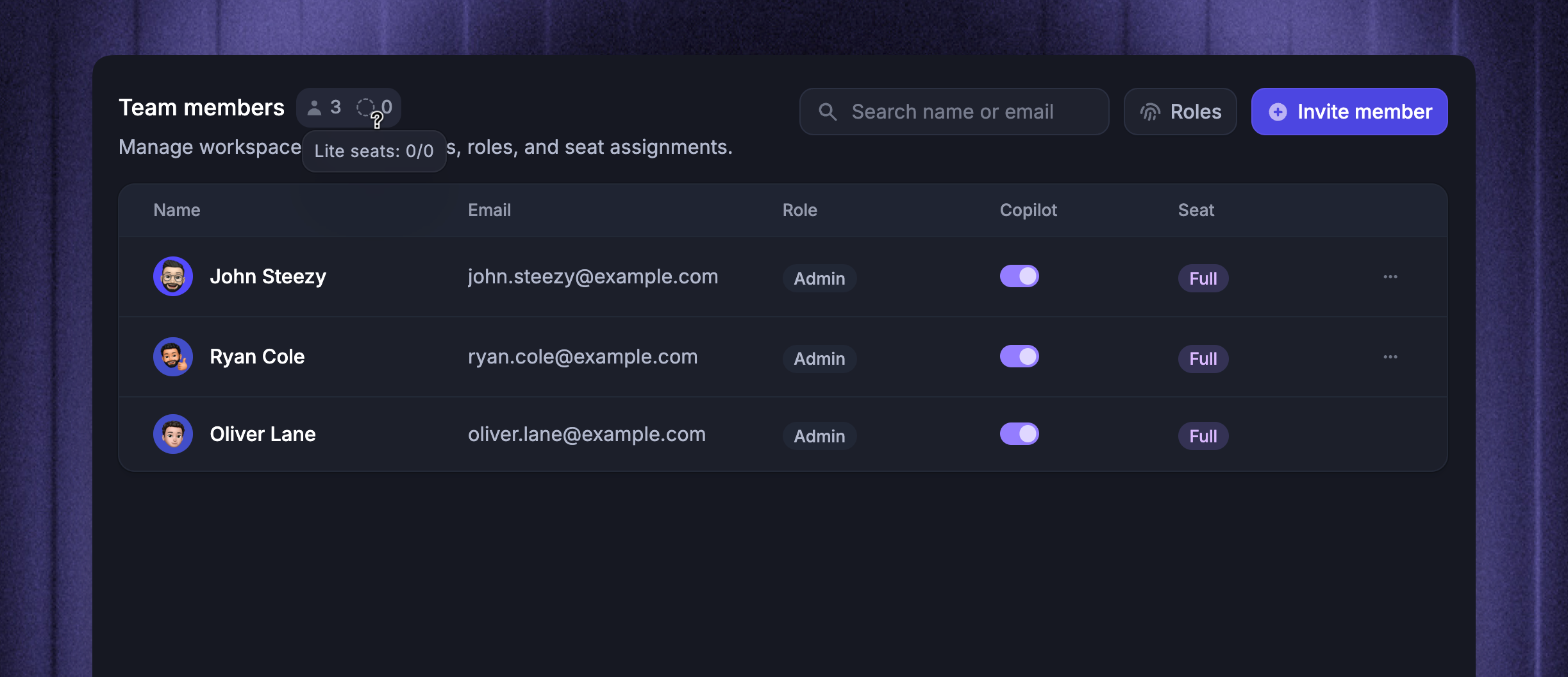
To manage teammates and their seat types:
Add a teammate OR
Remove a teammate
Reducing the number of seats on your plan will not affect the features available, as long as you remain on the same plan. You can also change seat types (e.g., from full to lite seats) to optimize your subscription.
Notes:
Monthly billing: Your Full-seat count adjusts when you add or remove teammates or change their seat types. Charges and credits are prorated for the time each seat was used.
Annual billing: Removing a teammate or changing their Full seat to Lite does not reduce your purchased seat count. The seat stays available for another teammate until renewal.
To reduce your annual seat count at renewal, first remove the teammates or change their Full seats to Lite. Then go to Settings → Billing, select 'Change Plan', reduce Full seats, and confirm the scheduled change.
Any assigned messages will move to the 'Unassigned' inbox. Reassigned conversations retain their history and remain accessible to customers.
Customers in the Early Stage Startup Program have fixed seat bundles that cannot be modified mid-term, though feature access permissions can be managed from Settings → Members and teams.
FAQ
Sales tax
Sales tax
In certain parts of the world, Featurebase is required to apply sales tax. The billing address you provide determines whether tax must be applied and, if so, the applicable rate.
If needed, you can revise your billing address:
Go to Settings → Billing
Click on “View invoices and Edit billing information”
Click “Update information” in the Billing portal view
Special program considerations
Special program considerations
If Billing shows Managed by our team or Custom Subscription, contact us through live chat to change your subscription.
The Early-stage startup program has its own billing and cancellation rules.
Why is my subscription change waiting for payment?
Why is my subscription change waiting for payment?
An earlier change needs payment before you can make another subscription change. Go to Settings → Billing and select 'Review pending payment' to finish it.
To discard the change, select 'Cancel change'. Your current subscription stays active. If the change cannot be canceled, contact us through live chat.
Was this helpful?
Still need help? Ask the team